 CSMX.eu
Render once, deliver every format.
When deadlines are tight, there's no time to render the horizontal and vertical versions of a shot separately. You need one render that covers every aspect ratio, but setting that up with Blender's built-in camera guides and render regions is fiddly.
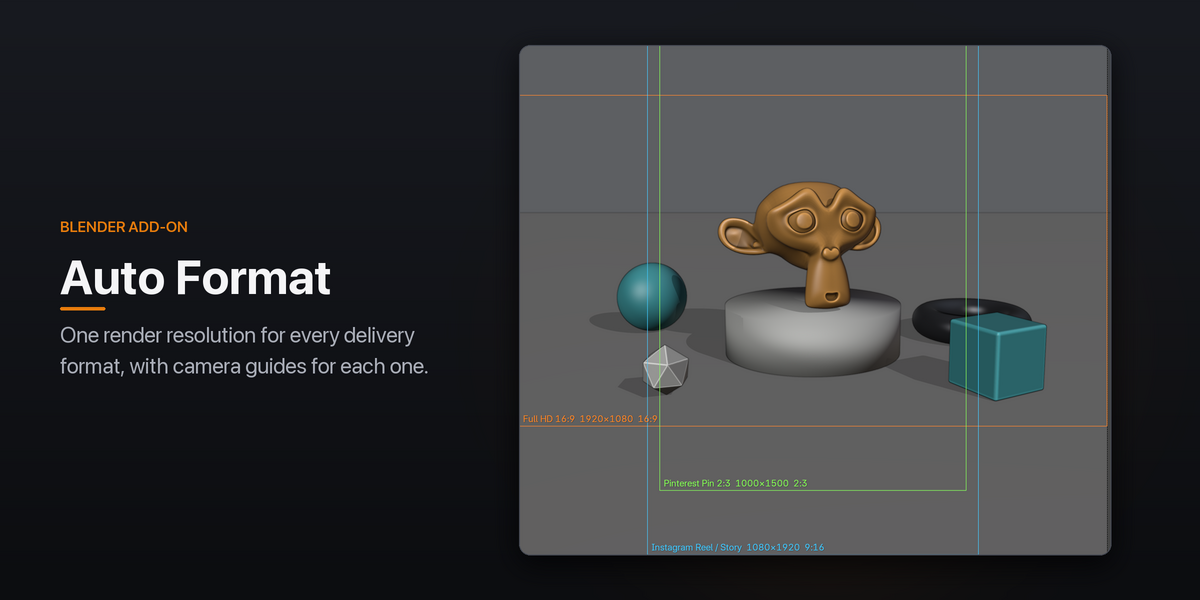
Auto Format works out one render resolution that holds every delivery format you need, from 4K 16:9 and DCI Scope to Instagram Reels, TikTok and X posts, and draws each format as a guide frame in camera view. Frame the shot once, render once, and crop every version out of the same frames. No more guessing what a 9:16 crop of your 16:9 shot will lose.
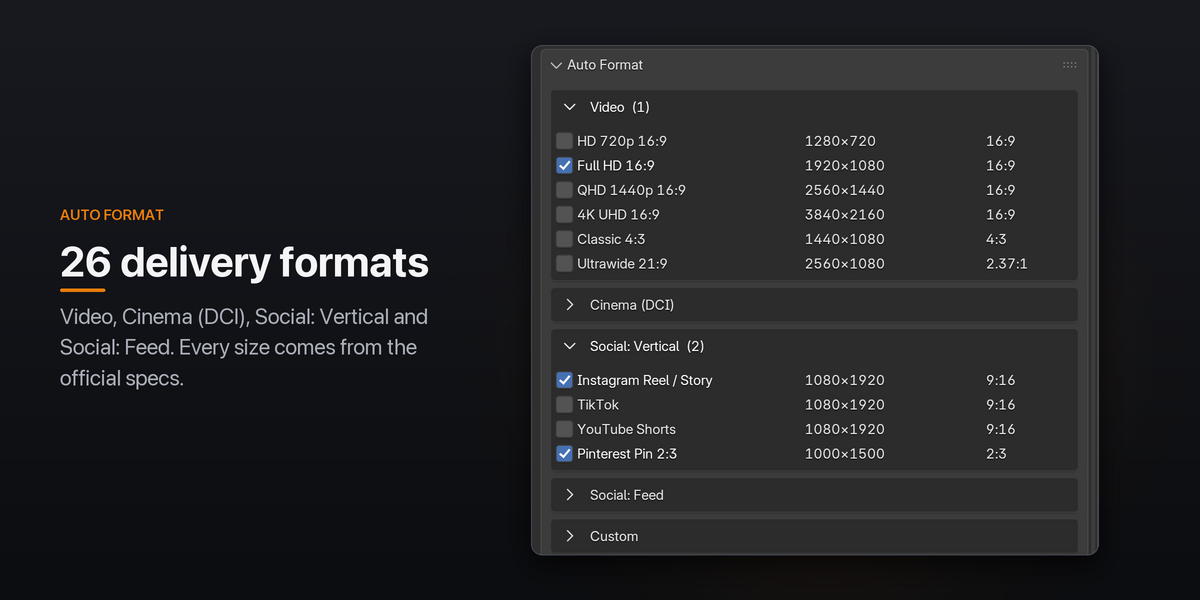
26 delivery formats, from the official specs
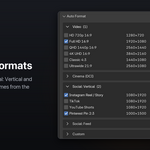
Tick the formats you deliver from Video, Cinema (DCI), Social: Vertical and Social: Feed. Every built-in size is taken from the platform's or standard's own documentation (YouTube, ITU-R, ISDCF, Meta, TikTok, Pinterest, X, LinkedIn). Hover a checkbox to see its source; the full list with links is in the documentation.
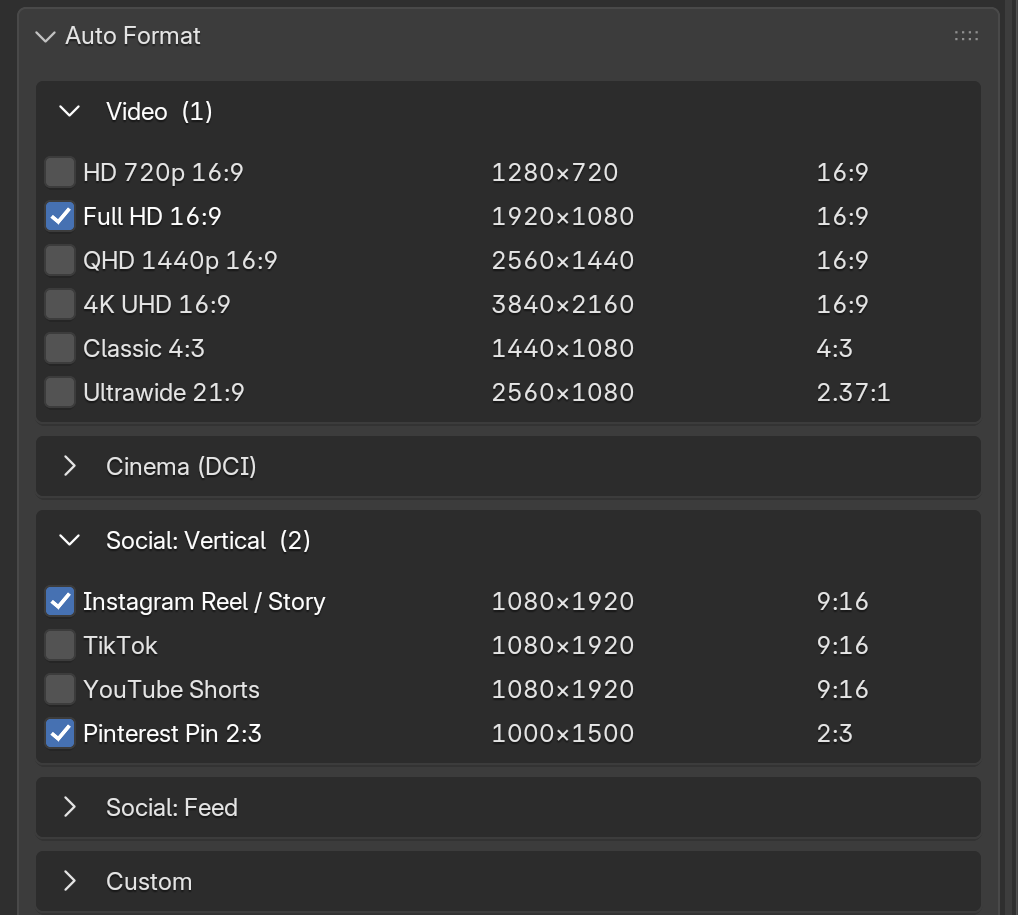
One resolution that fits them all
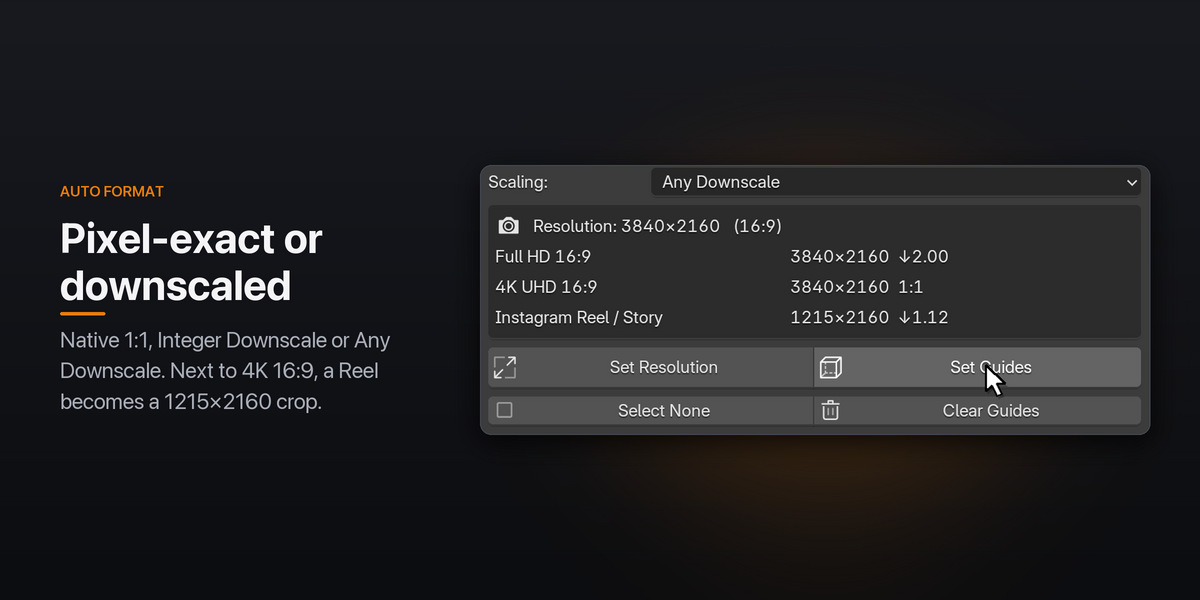
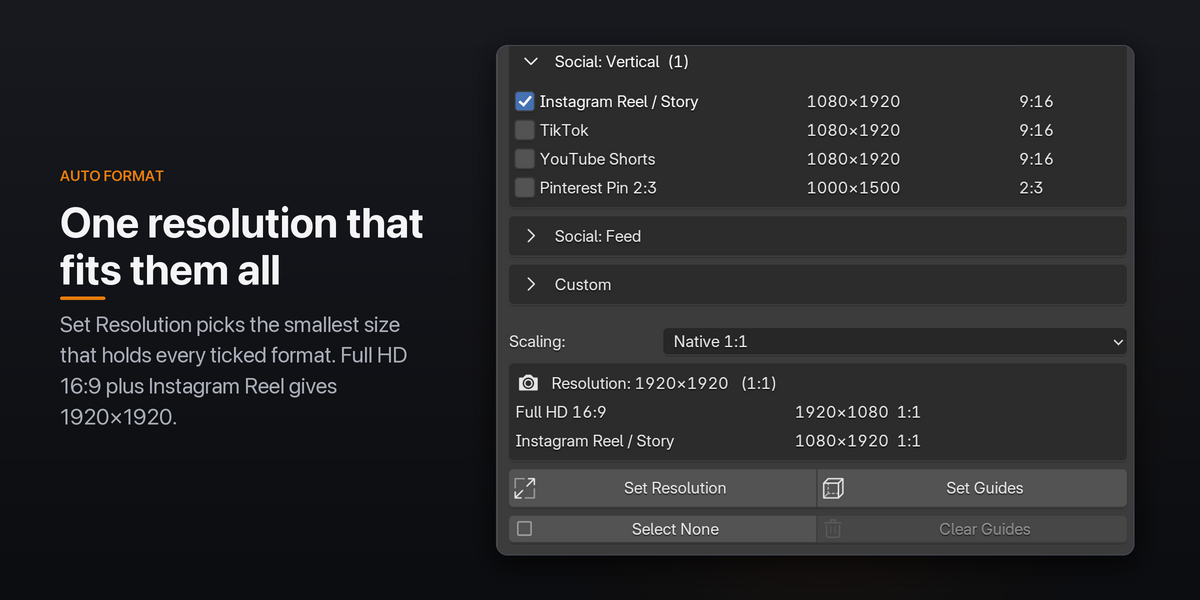
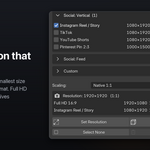
Press Set Resolution and the render resolution becomes the smallest size that holds every ticked format at full size, centred. Full HD 16:9 plus Instagram Reel gives 1920×1920. A preview box shows the result before you press anything: the resolution, its aspect ratio, and the crop and scale of each format.
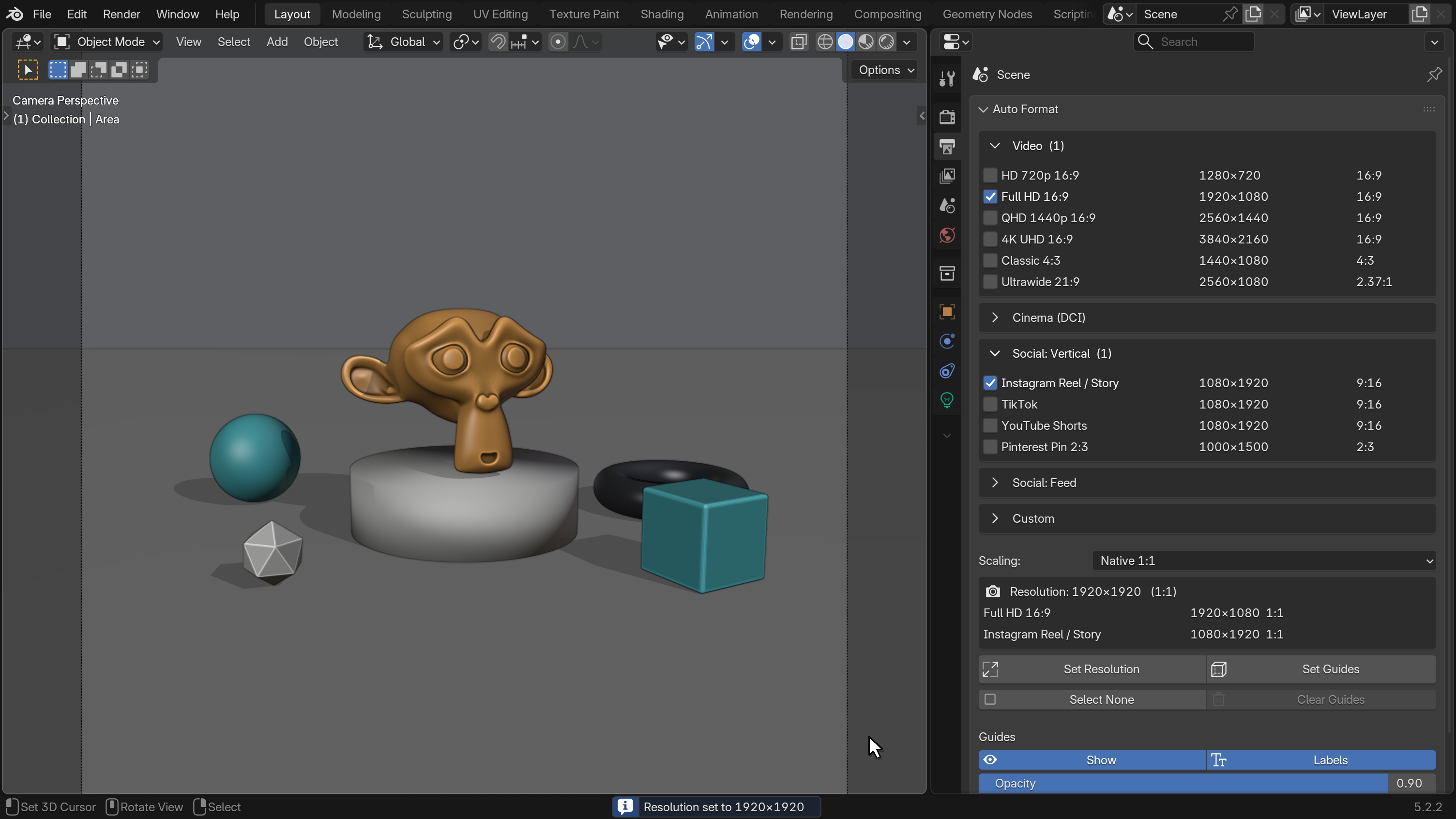
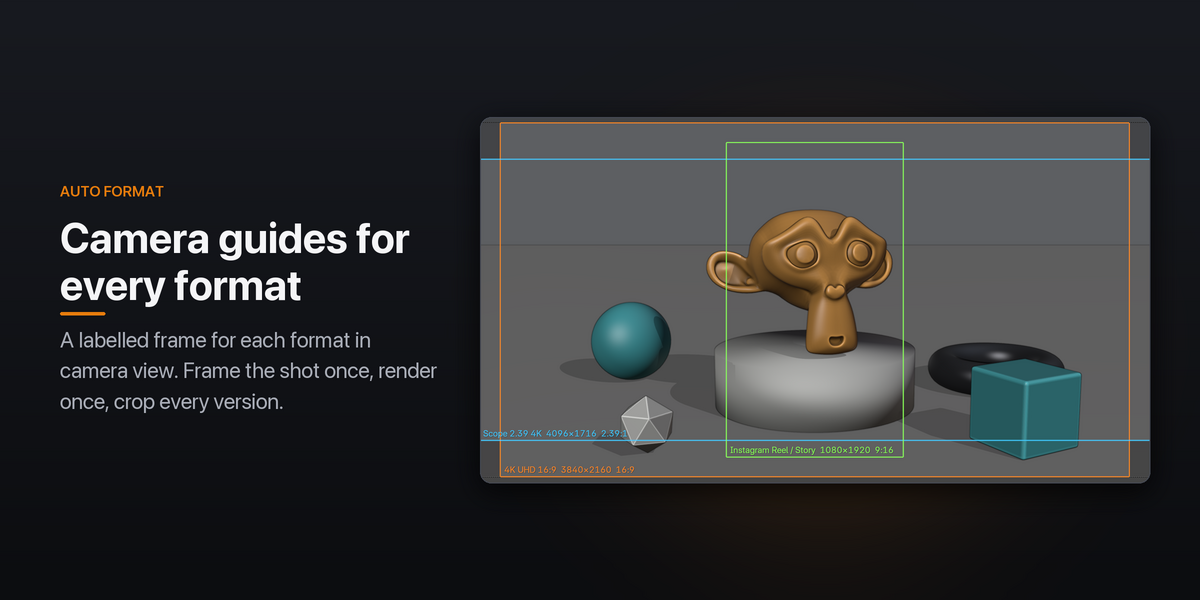
Camera guides for every format
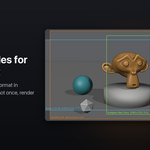
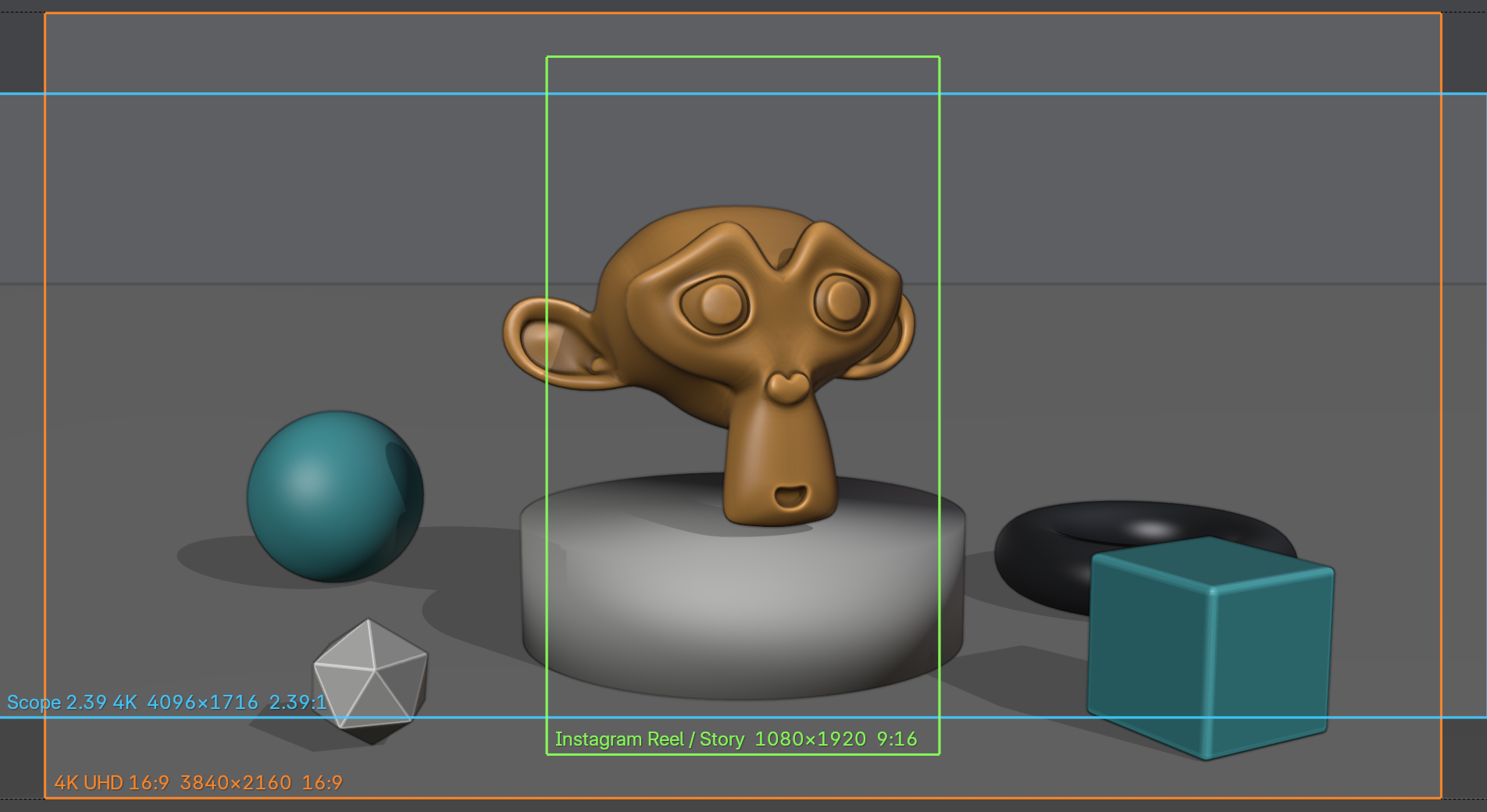
Set Guides draws a coloured frame for each format while you look through the camera, labelled with its name, resolution and aspect ratio. Reel, TikTok and Shorts share a size, so they share one guide. Shade the area no format uses, and adjust opacity and line width to taste.
Your own formats
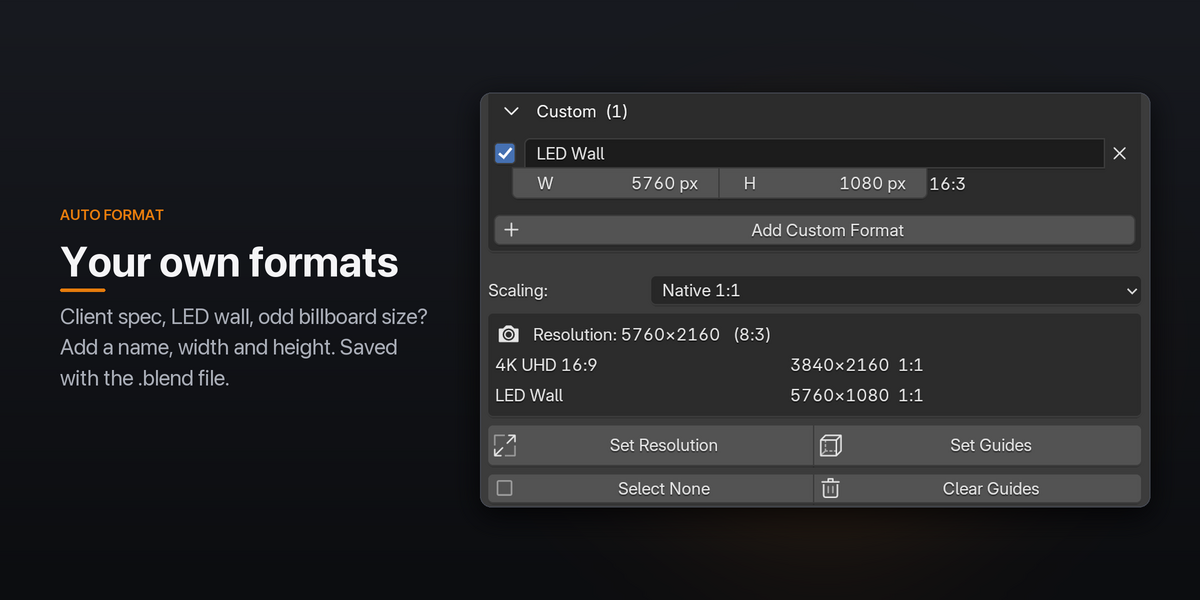
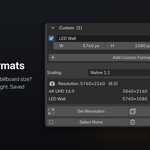
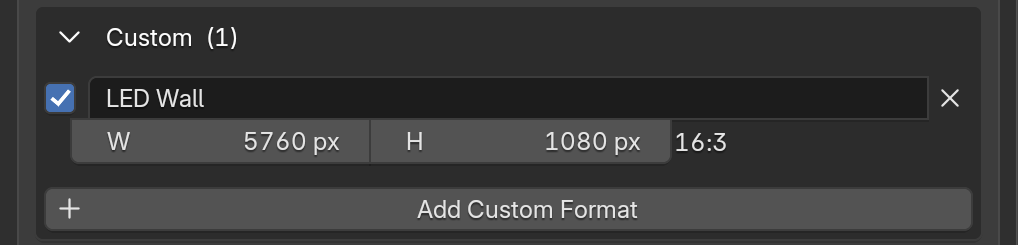
Client spec, LED wall, odd billboard size? Add a custom format with a name, width and height, and it works like any built-in one. Custom formats are saved with the .blend file.
Pixel-exact or downscaled crops
- Native 1:1: every format is a pixel-exact crop. No rescaling on export.
- Integer Downscale: a crop may grow to 2×, 3× … the delivery size where it fits. 4K 16:9 plus Full HD uses the whole 4K frame for both.
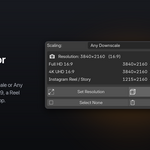
- Any Downscale: every crop is as large as the frame allows. Next to 4K 16:9, a Reel becomes a 1215×2160 crop instead of 1080×1920.
Built to stay out of your way
- Nothing ends up in your render. Guides are viewport overlays only, drawn in camera view while Overlays are on.
- Everything can be undone. Set Resolution also sets Resolution % to 100 and the pixel aspect to 1, so the guides match the rendered pixels, and Ctrl Z takes it all back.
-
Saved per scene. Ticked formats, custom formats, guides and settings travel with the
.blendfile. - Lives where render settings live. One panel in Properties › Output. Drag it to the top and Blender keeps it there.
Requirements
Blender 4.2 LTS or newer, tested on 5.2. Windows, macOS and Linux.
Installation
- Download the
.zipfile. Don't unzip it. - In Blender, open Edit › Preferences › Add-ons.
- Open the ⌄ menu in the top-right corner and choose Install from Disk….
- Select the
.zipfile. The add-on is enabled automatically.
