 CSMX.eu
Auto Format: Documentation
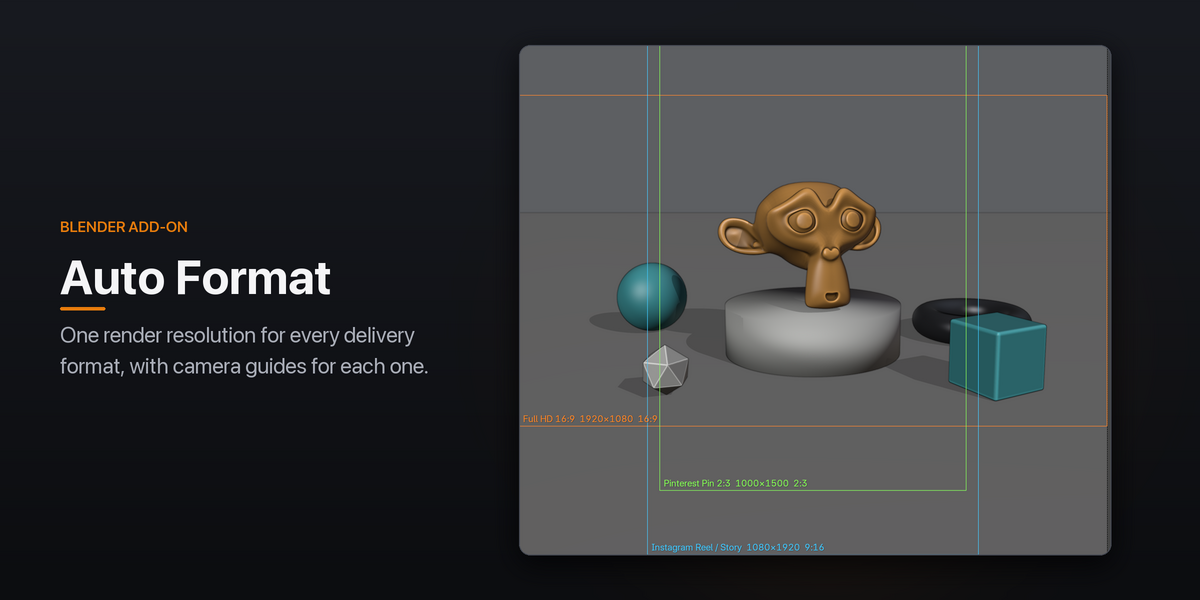
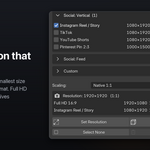
Auto Format sets one render resolution that contains every delivery format you need, from 4K 16:9 and DCI Scope to Instagram Reels, TikTok and X posts, and draws each format as a guide frame in camera view. Render once, then crop every version out of the same frames.
Requirements
- Blender 4.2 LTS or newer (tested on 5.2)
- Windows, macOS or Linux
- No internet connection or external tools needed
Installation
- Download the
.zipfile. Don't unzip it. - In Blender, open Edit › Preferences › Add-ons.
- Open the ⌄ menu in the top-right corner and choose Install from Disk….
- Select the
.zipfile. The add-on is enabled automatically.
To update, install the new .zip the same way. Blender replaces the old version.
Getting started
- Open Properties › Output. The Auto Format panel is below Blender's own panels. To keep it at the top, drag it up by the grip (::::) in its header. Blender remembers the order in each file.
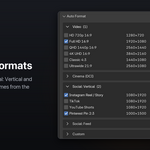
- Tick the formats you deliver, for example 4K UHD 16:9 and Instagram Reel / Story.
- Press Set Resolution. The render resolution changes to one that holds both formats.
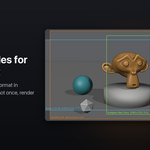
- Press Set Guides, then look through the camera (Numpad 0). Each format is drawn as a coloured frame with its name, resolution and aspect ratio.
Frame your shot so the important action stays inside every guide, render, and crop each delivery out of the result in the compositor or your editing software.
Features
Format list
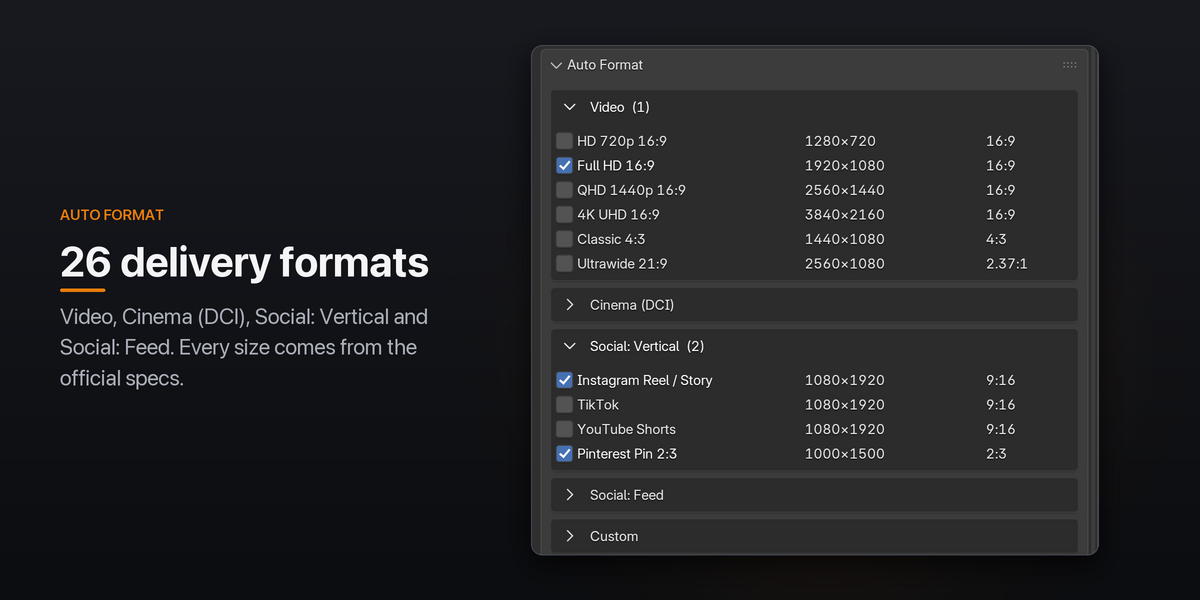
Formats are grouped into Video, Cinema (DCI), Social: Vertical, Social: Feed and Custom. Each row shows the format's resolution and aspect ratio. Hover a checkbox to see where the size comes from.
- Several formats or just one: tick as many as you need. With one format ticked, Set Resolution simply sets that resolution.
- Groups fold open and closed. The number next to a group name is how many of its formats are ticked.
- Select None unticks every format, including custom ones.
The full list with official sources is in Built-in formats below.
Custom formats
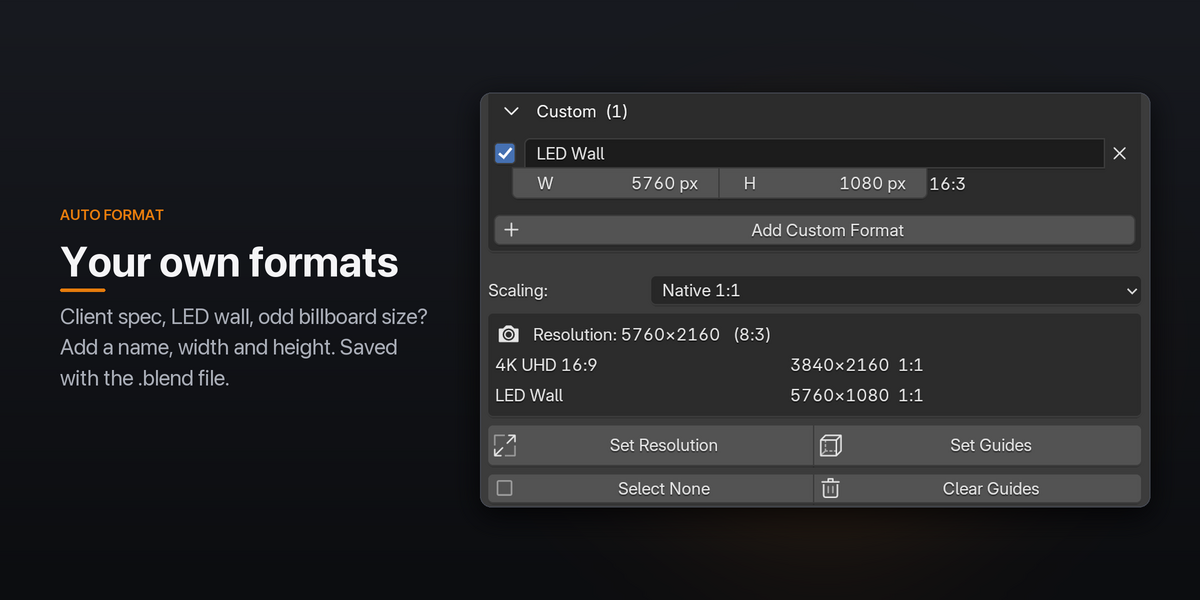
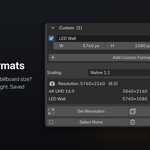
Open the Custom group and click Add Custom Format. A new format starts at the current render resolution. Give it a name, set its width and height, and tick it like any other format. Click × to remove it. Custom formats are saved with the .blend file.
Set Resolution
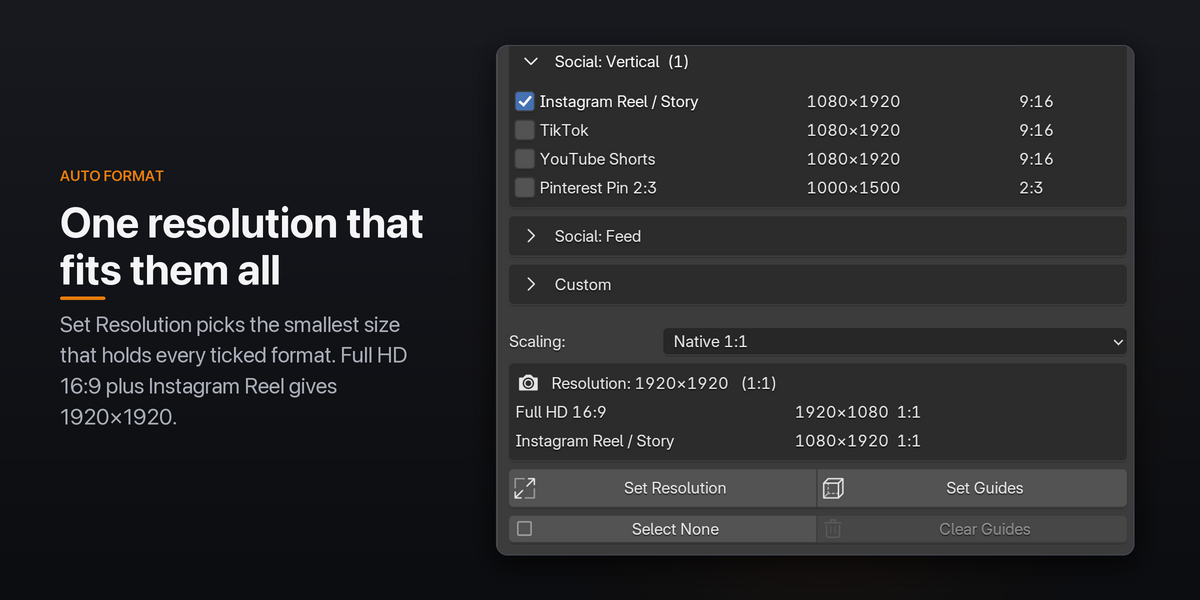
Sets the render resolution to the smallest size that holds every ticked format at its full size, centred. Formats that are narrower than the frame get pillarbox bars, and formats that are shorter get letterbox bars. For example, Full HD 16:9 (1920×1080) plus Instagram Reel (1080×1920) gives 1920×1920.
It also sets Resolution % to 100 and Aspect X / Y to 1, so the guides match the rendered pixels. The action can be undone with Ctrl Z.
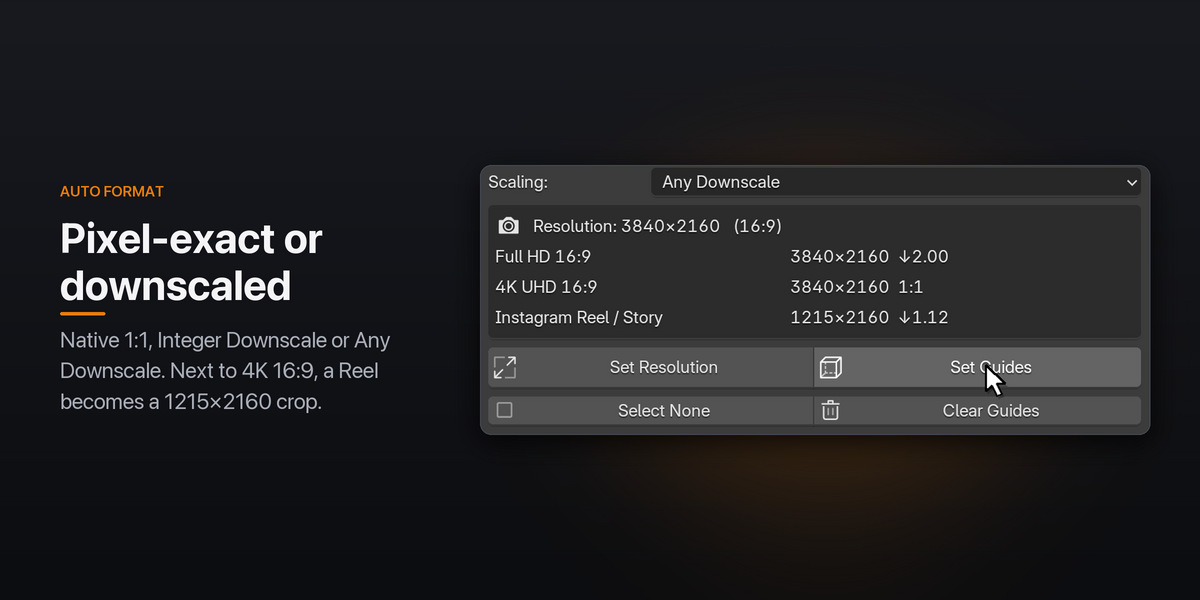
The box above the buttons previews the result before you press anything: the resolution with its aspect ratio, and for each format the area it takes in the render and its scale.
Scaling
The Scaling setting decides how large each format's crop may be inside the render. The resolution itself is always the same. Only the size of the crops changes.
| Mode | What it does | Example |
|---|---|---|
| Native 1:1 | Every format is a pixel-exact crop. No rescaling on export. | 4K 16:9 + Reel: the Reel is a 1080×1920 crop. |
| Integer Downscale | A crop may be 2×, 3× … the delivery size where it fits, for clean downscaling on export. | 4K 16:9 + Full HD: Full HD uses the whole 3840×2160 frame, downscaled by 2. |
| Any Downscale | Each crop is as large as the render allows, downscaled by any factor on export. | 4K 16:9 + Reel: the Reel is a 1215×2160 crop, downscaled by 1.12. |
In the preview box, 1:1 means a pixel-exact crop and ↓1.12 means the crop is 1.12 times the delivery size. ↑ means the render is too small for that format and it would have to be upscaled. Press Set Resolution to fix it.
Camera guides
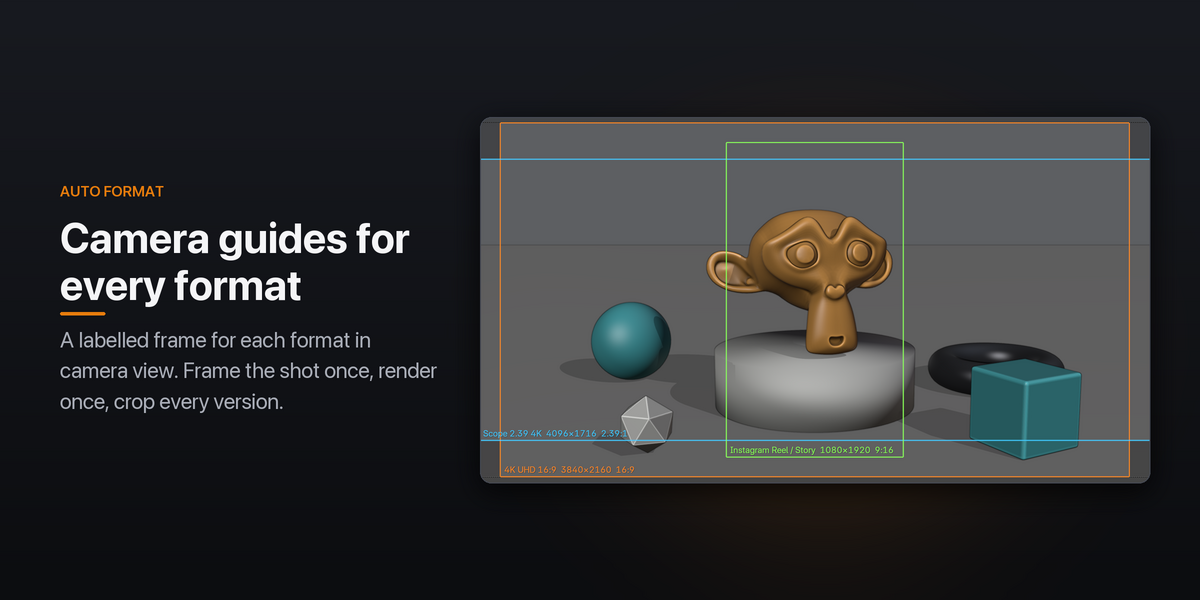
Set Guides draws a frame for every ticked format in the 3D Viewport while you look through the scene camera. The frames are laid out in the current render resolution, so press Set Resolution first. If a format doesn't fit, a warning lists it.
- Every format gets its own colour, and its label shows the name, resolution, aspect ratio and, when the crop is scaled, the scale (for example
×1.12). - Formats with the same resolution share one guide. Instagram Reel / Story, TikTok and YouTube Shorts are all 1080×1920, so they appear as one frame labelled with all three names.
- Labels sit in the bottom-left corner of each frame, away from Blender's own viewport text. Labels that would overlap are stacked.
- Guides are a snapshot. After changing the ticked formats, press Set Guides again.
-
Clear Guides removes them. Guides are saved per scene with the
.blendfile. - Guides only draw while viewport Overlays are on, and they never show up in renders.
Settings
All settings are in the Auto Format panel and are saved per scene.
| Setting | Default | What it does |
|---|---|---|
| Scaling | Native 1:1 | How large each format's crop may be. See Scaling. |
| Show | On | Draws the guides in camera view |
| Labels | On | Shows name, resolution and aspect ratio on each guide |
| Opacity | 0.90 | Opacity of guide lines and labels |
| Line Width | 1.50 | Thickness of guide lines, from 0.5 to 6 |
| Shade Outside | 0.00 | Darkens the part of the camera frame that no guide covers |
Built-in formats
Every size comes from the platform's or standard's own documentation, checked in October 2026. Platforms change their specs from time to time, so check the source if a delivery is critical.
| Category | Format | Resolution | Aspect | Source |
|---|---|---|---|---|
| Video | HD 720p 16:9 | 1280×720 | 16:9 | YouTube Help: Video resolution & aspect ratios |
| Video | Full HD 16:9 | 1920×1080 | 16:9 | ITU-R BT.709: HDTV parameter values |
| Video | QHD 1440p 16:9 | 2560×1440 | 16:9 | YouTube Help: Video resolution & aspect ratios |
| Video | 4K UHD 16:9 | 3840×2160 | 16:9 | ITU-R BT.2020: UHDTV parameter values |
| Video | Classic 4:3 | 1440×1080 | 4:3 | Common size, no single official spec |
| Video | Ultrawide 21:9 | 2560×1080 | 2.37:1 | Common size, no single official spec |
| Cinema (DCI) | Flat 1.85 2K | 1998×1080 | 1.85:1 | ISDCF: Projector Aspect Ratios and Resolutions |
| Cinema (DCI) | Scope 2.39 2K | 2048×858 | 2.39:1 | ISDCF: Projector Aspect Ratios and Resolutions |
| Cinema (DCI) | DCI 2K Full | 2048×1080 | 1.90:1 | ISDCF: Projector Aspect Ratios and Resolutions |
| Cinema (DCI) | Flat 1.85 4K | 3996×2160 | 1.85:1 | ISDCF: Projector Aspect Ratios and Resolutions |
| Cinema (DCI) | Scope 2.39 4K | 4096×1716 | 2.39:1 | ISDCF: Projector Aspect Ratios and Resolutions |
| Cinema (DCI) | DCI 4K Full | 4096×2160 | 1.90:1 | ISDCF: Projector Aspect Ratios and Resolutions |
| Social: Vertical | Instagram Reel / Story | 1080×1920 | 9:16 | Meta Business Help: Design requirements for Instagram Stories ads |
| Social: Vertical | TikTok | 1080×1920 | 9:16 | TikTok Ads Help: TikTok Auction In-Feed Ads |
| Social: Vertical | YouTube Shorts | 1080×1920 | 9:16 | Google Ads Help: About video ad specs |
| Social: Vertical | Pinterest Pin 2:3 | 1000×1500 | 2:3 | Pinterest Help: Review ad specs |
| Social: Feed | Instagram Post 1:1 | 1080×1080 | 1:1 | Instagram Help: Image resolution of photos you share on Instagram |
| Social: Feed | Instagram Post 4:5 | 1080×1350 | 4:5 | Instagram Help: Image resolution of photos you share on Instagram |
| Social: Feed | Instagram Post 3:4 | 1080×1440 | 3:4 | Instagram Help: Image resolution of photos you share on Instagram |
| Social: Feed | Instagram Post 1.91:1 | 1080×566 | 1.91:1 | Instagram Help: Image resolution of photos you share on Instagram |
| Social: Feed | X Post 16:9 | 1920×1080 | 16:9 | X Business: Expanded aspect ratio support for ad creatives |
| Social: Feed | X Post 1:1 | 1080×1080 | 1:1 | X Business: Expanded aspect ratio support for ad creatives |
| Social: Feed | X Post 4:5 | 1440×1800 | 4:5 | X Business: Expanded aspect ratio support for ad creatives |
| Social: Feed | LinkedIn Post 1.91:1 | 1200×628 | 1.91:1 | LinkedIn Help: Single image ads advertising specifications |
| Social: Feed | LinkedIn Post 1:1 | 1200×1200 | 1:1 | LinkedIn Help: Single image ads advertising specifications |
| Social: Feed | YouTube Thumbnail | 3840×2160 | 16:9 | YouTube Help: Add video thumbnails on YouTube |
Notes on the sources
- Instagram posts: Instagram keeps photos at full resolution when they are 1080 px wide with an aspect ratio between 1.91:1 and 3:4 (566 to 1440 px tall). The 1:1, 4:5, 3:4 and 1.91:1 presets are sizes in that range.
- Instagram Reels: Instagram Help gives the aspect range (1.91:1 to 9:16) and a 720 px minimum. The 1080×1920 size comes from Meta's Stories ads specification.
- TikTok: the official ads specification asks for vertical 9:16 at 540×960 or larger. 1080×1920 is 9:16 at full HD.
- YouTube Shorts: Google recommends 9:16 for Shorts (Shorts ads specs) and 1080×1920 as the HD vertical size.
- Classic 4:3 and Ultrawide 21:9 have no single official specification. They are 4:3 and 64:27 at 1080 lines.
Troubleshooting
I don't see any guides.
Guides only draw in camera view. Press Numpad 0 or use View › Cameras › Active Camera, and make sure the scene has a camera. Also check that viewport Overlays are on and Show is enabled in the panel.
Set Resolution and Set Guides are greyed out.
Tick at least one format first.
"Render resolution is too small for …"
The guides use the current render resolution, and one or more formats don't fit in it. Press Set Resolution, then Set Guides again.
The guides don't match my new selection.
Guides are a snapshot of the formats ticked when you pressed Set Guides. Press Set Guides again after changing the selection.
Where is the panel?
In Properties › Output, below Blender's own panels. Collapse the panels above it, or drag it to the top by the grip (::::) in its header. The order is saved with the file.
Support
If something doesn't work, send a message through Superhive with:
- your Blender version and operating system
- which formats were ticked, the Scaling mode, and what you expected
- any error from Window › Toggle System Console (Windows) or the terminal you started Blender from
Have questions about this product?
Login to message
| Blender Extension Compatible | Yes |
| Published | 12 days ago |
| Blender Version | 4.2 - 5.2 |
| Extension Type | Add-on |
| Render Engine Used | Cycles, Eevee |
| License | GPL |

Discover more products like this
cropping landscape Aspect Render aspect ratio resolution vertical guides