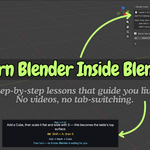
Blender Coach: Interactive Step-By-Step Blender Lessons, Live In Your Viewport
 Salman Naseem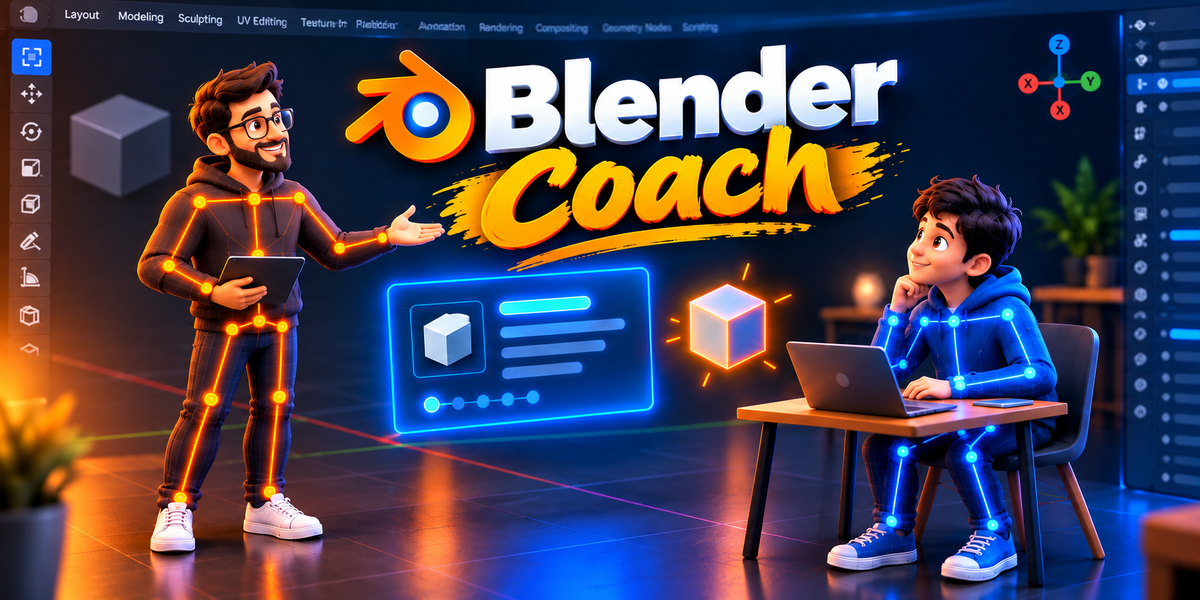
Install
- Download
blender_coach.zip. - In Blender go to Edit > Preferences > Get Extensions.
- Open the dropdown (top right) and choose Install from Disk. Pick the zip.
- Make sure Blender Coach is enabled.
Requires Blender 4.2 or newer. On older versions the panel shows an "Unsupported Blender Version" message instead of controls.
Open the panel
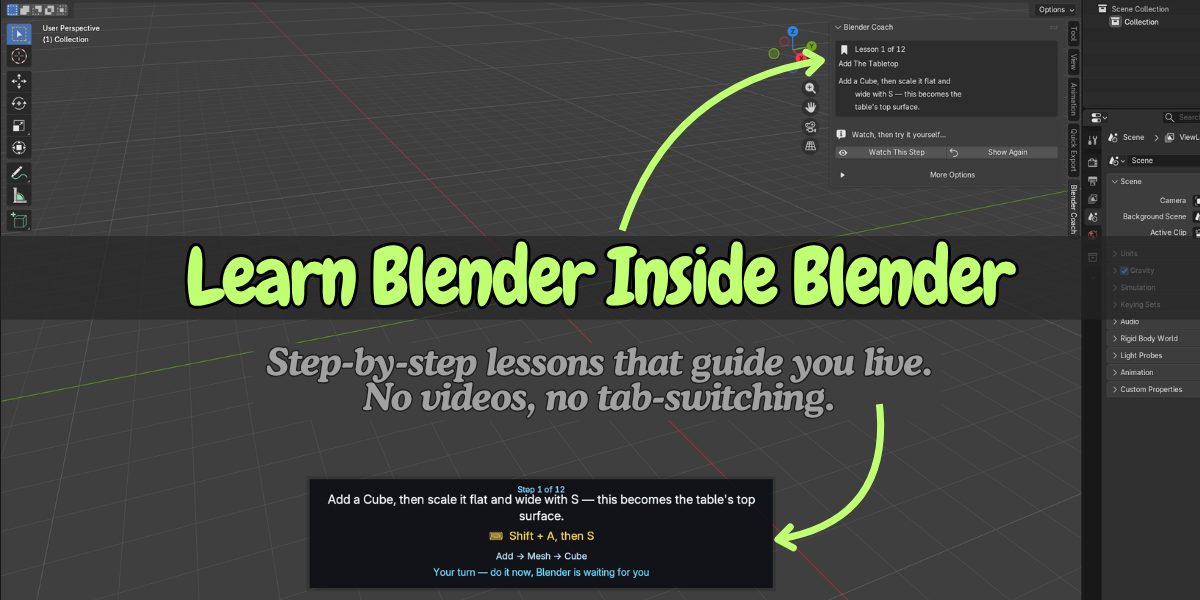
In the 3D Viewport press N, then click the Blender Coach tab.
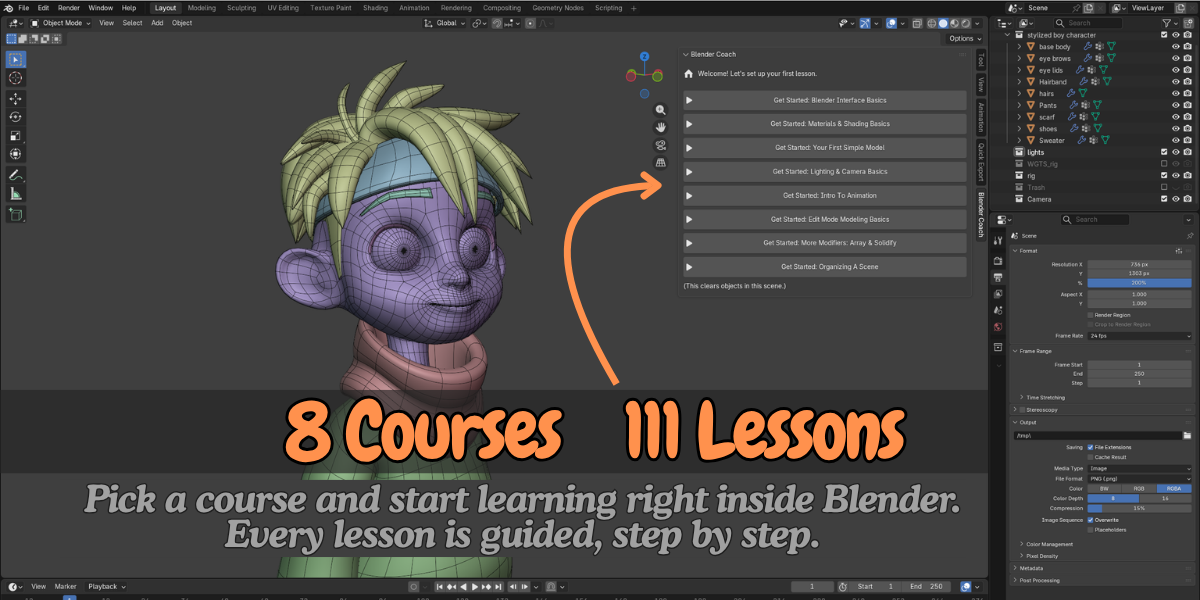
Start your first course
- Open a new or empty scene. Starting a course clears the objects in the current scene.
- Click Get Started: Blender Interface Basics. Blender builds the course.
- Click Start Learning.
Learning flow
| Stage | What you see | What to do |
|---|---|---|
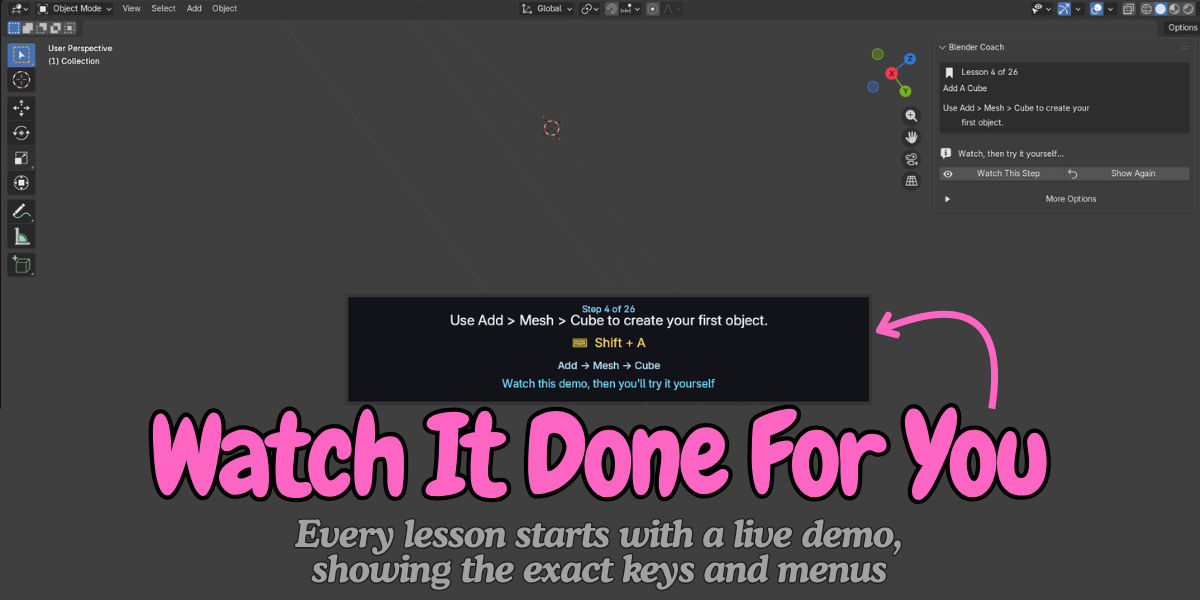
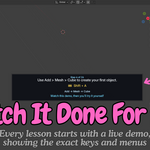
| Watch | "Watch this demo, then you'll try it yourself" | Wait a moment while the step plays |
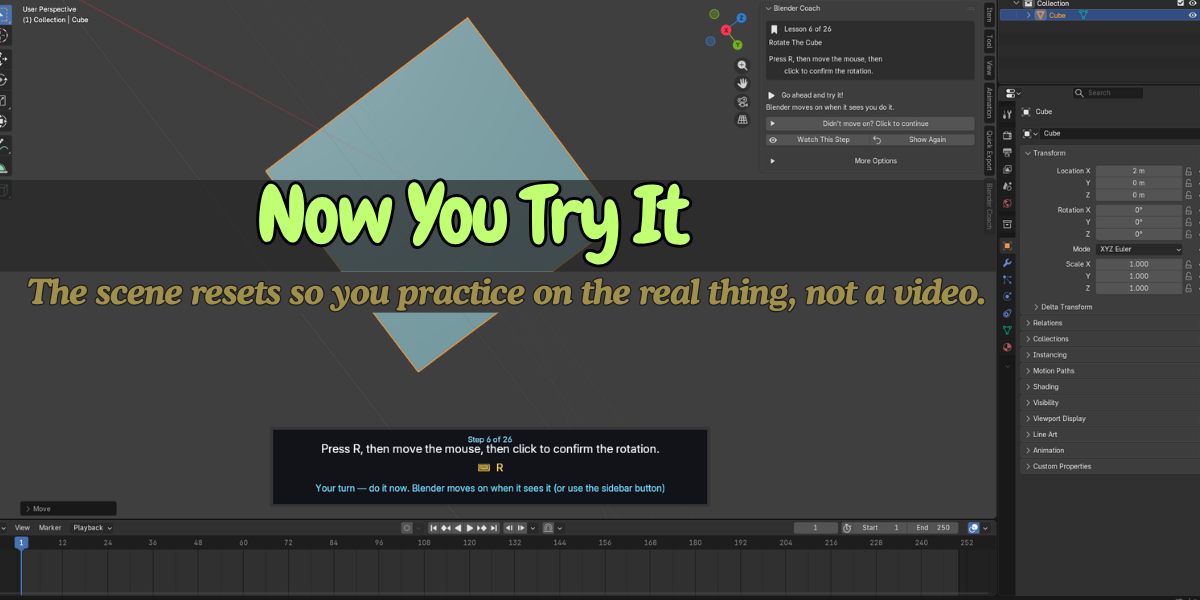
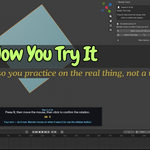
| Your turn | "Your turn, do it now" | Perform the action shown in the banner |
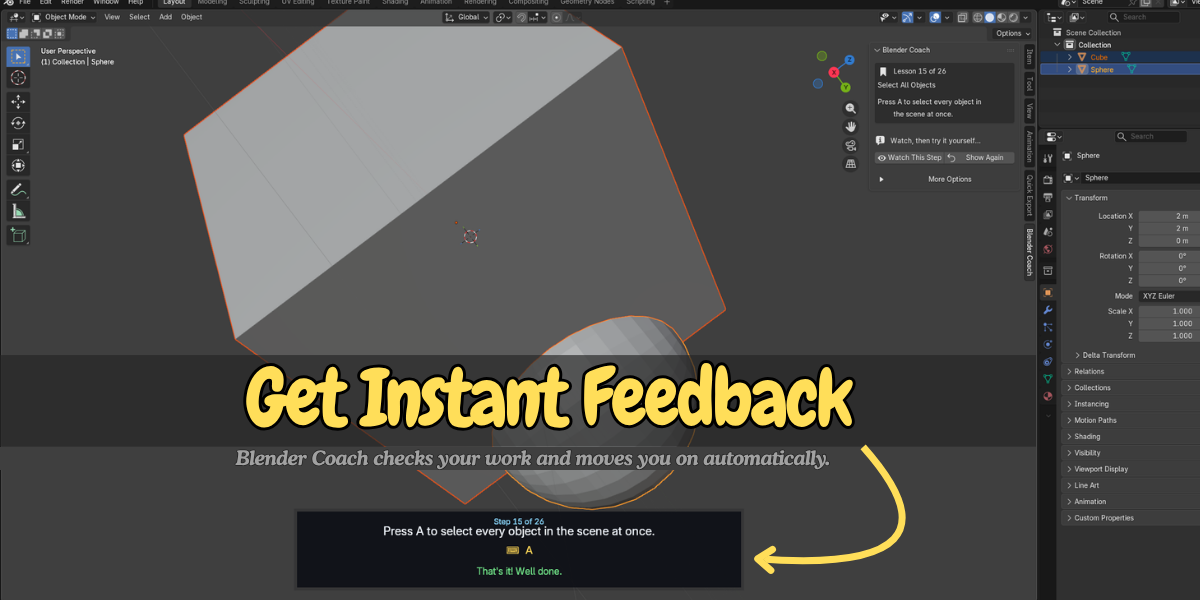
| Success | "That's it! Well done." | Blender Coach moves on |
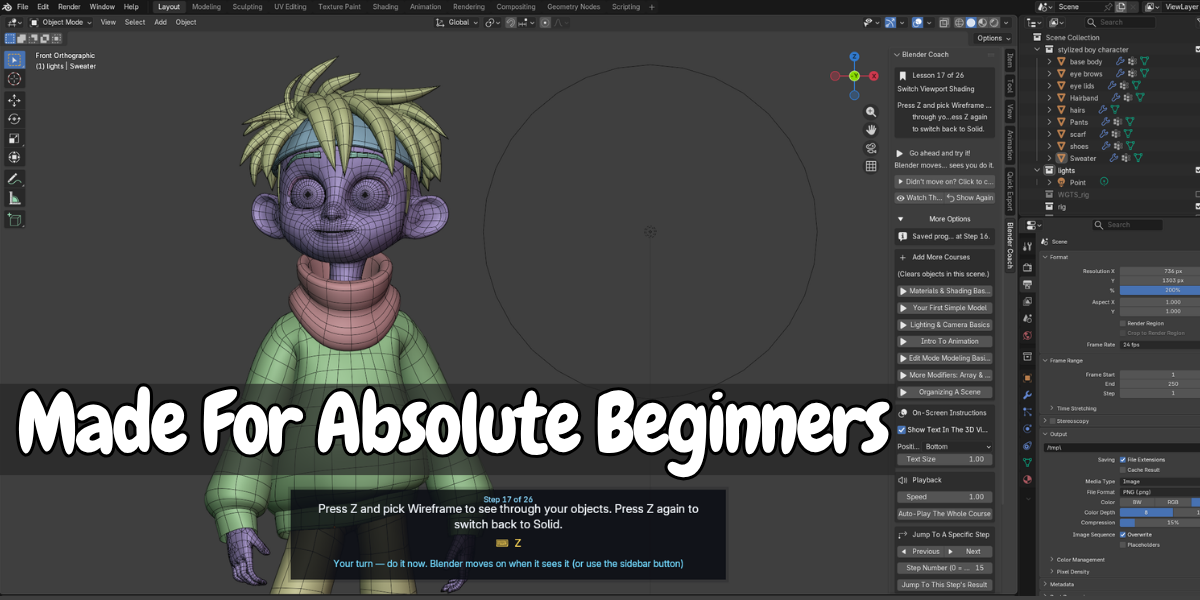
If Blender Coach does not notice your action, click Didn't move on? Click to continue. Some lessons, such as free-choice ones, show I Did It, Next instead.
Panel buttons
- Start Learning / Continue Learning: begin, or resume from your saved lesson.
- Watch This Step: play the current step demo.
- Show Again: repeat the current step.
- Start Over: shown after finishing a course. Resets the scene and clears saved progress.
More Options
- Course: pick a course (shown when more than one exists).
- Add More Courses: build any of the other bundled courses. This clears objects in the current scene.
- On-Screen Instructions: show or hide the viewport banner, choose Top or Bottom, set Text Size.
- Playback: Speed slider (0.25 to 3.0) and Auto-Play The Whole Course.
- Jump To A Specific Step: Previous, Next, a step number field, and Jump To This Step's Result.
- For Course Creators: Show Course Recorder.
Preferences
Edit > Preferences > Add-ons > Blender Coach offers the same overlay settings plus Saved Progress. Clear one course or all saved progress here. Clearing progress does not touch your scene.
Course Recorder (for creators)
- In More Options tick Show Course Recorder.
- Enter a Course ID and Title, click Start Recording.
- Do one action in Blender. Click Capture Step, add a title, instruction, shortcut label and menu path.
- Repeat. Use Undo Last Step or Discard if needed.
- Click Finish to save the course.
Where progress is stored
In a small JSON file in Blender's user config folder, under blender_coach. It is outside your .blend files.
Troubleshooting
- Step will not complete: click the continue button in the sidebar.
- Banner is hidden or overlapping menus: switch Position to Bottom, or lower Text Size.
- Objects disappeared: starting a course clears the scene. Use Undo, or reopen your saved file.
- No course listed: click Get Started or Add More Courses to build it.
Support: | Website:
Have questions about this product?
Login to message
| Blender Extension Compatible | Yes |
| Published | 1 day ago |
| Blender Version | 3.2 - 5.2 |
| Extension Type | Add-on |
| Render Engine Used | Cycles, Eevee |
| License | GPL |

Discover more products like this
blender learning blender basics interactive-tutorial Blender course blender interface learn blender beginner blender for beginners Blender Lessons blender couch training