 CSMX.eu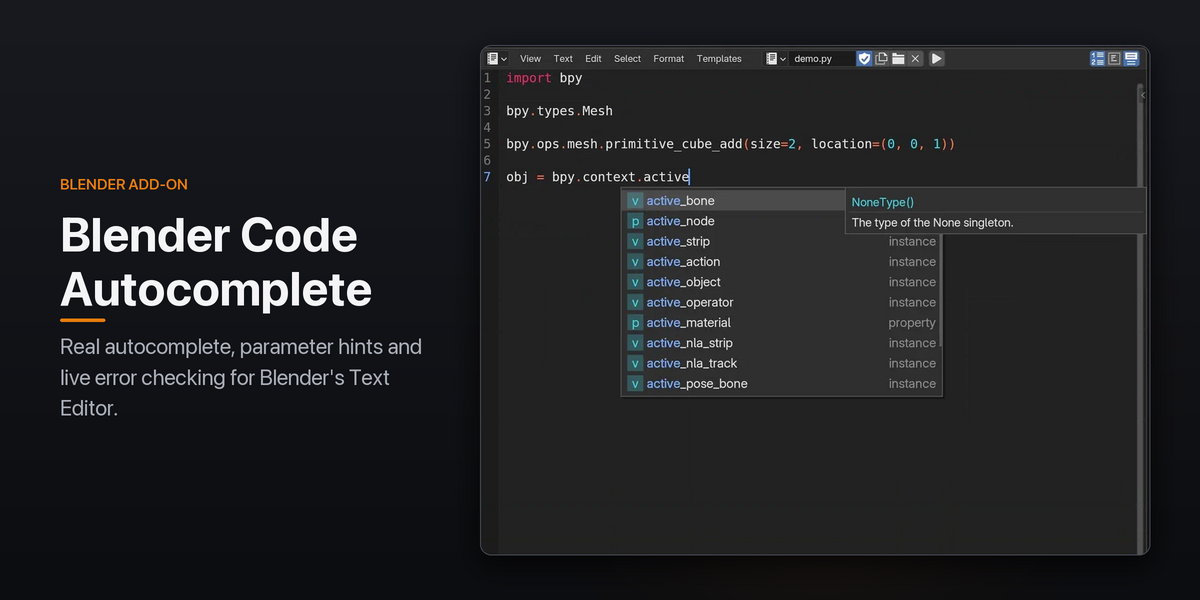
Blender Code Autocomplete: Documentation
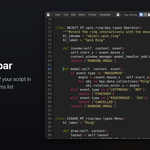
Blender Code Autocomplete adds IDE-style features to Blender's built-in Text Editor: a completion popup, parameter hints, live error checking, hover docs, Go to Definition, snippets, smart editing and an outline sidebar. It reads your running Blender session, so suggestions match the objects, types and operators that actually exist.
Requirements
- Blender 4.2 LTS or newer (tested on 4.2 and 5.2)
- Windows, macOS or Linux
- No internet connection, Python installation or external tools needed. Everything ships inside the extension.
Installation
- Download the
.zipfile. Don't unzip it. - In Blender, open Edit › Preferences › Add-ons.
- Open the ⌄ menu in the top-right corner and choose Install from Disk….
- Select the
.zipfile. The add-on is enabled automatically.
To update, install the new .zip the same way. Blender replaces the old version.
Getting started
Open a Text Editor, create a new text (or open a .py file) and start typing:
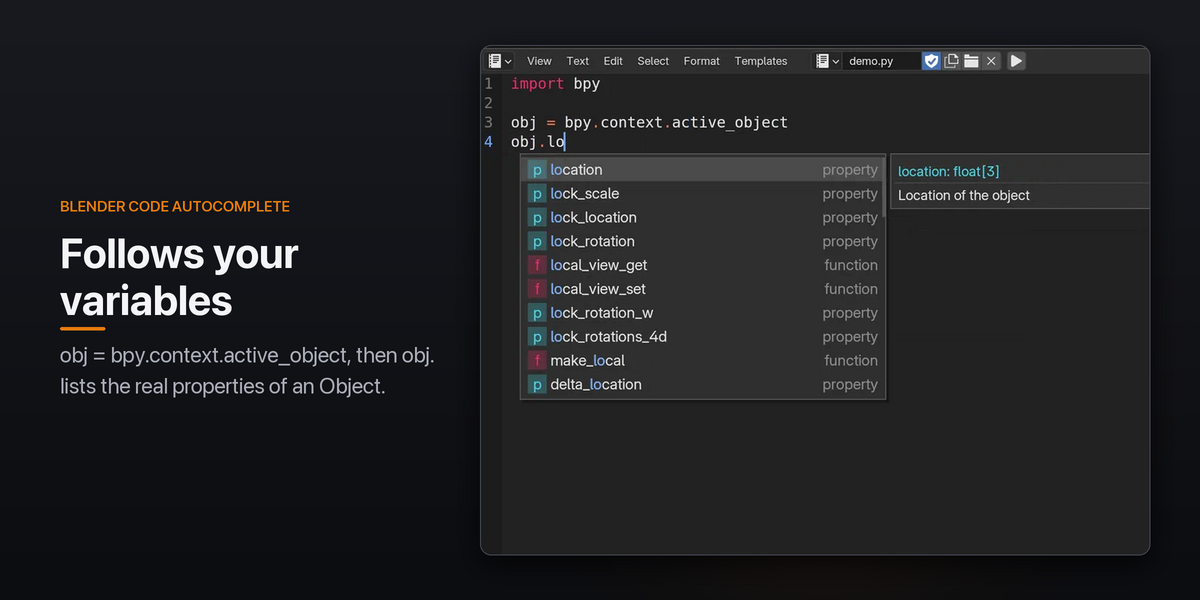
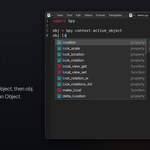
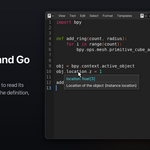
import bpyobj = bpy.context.active_objectobj.After obj. the popup lists the real properties and functions of an Object. All features work in saved files, unsaved internal texts and texts with no extension. You can also have several Text Editors open at once.
The add-on only reacts while the mouse is over a Text Editor. Moving the mouse away closes any open popup.
Features
Completion popup
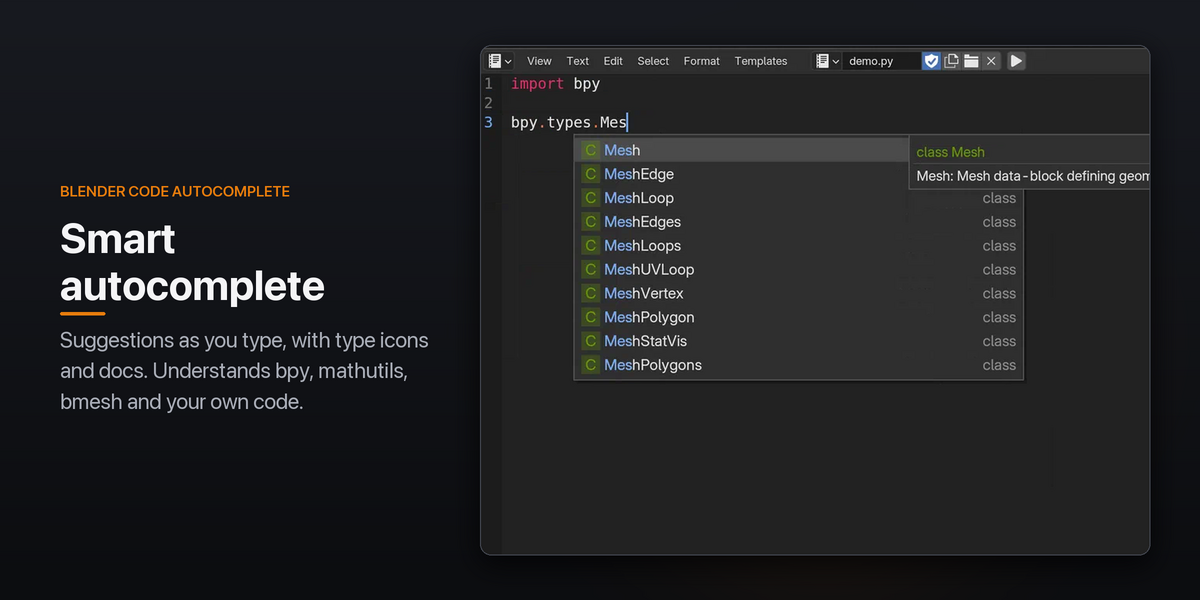
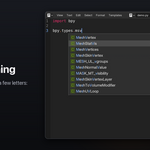
Suggestions appear as you type, after . or after two letters of a name. Each item has a type icon (class, function, property, module and so on), and a documentation panel next to the popup describes the selected item.
-
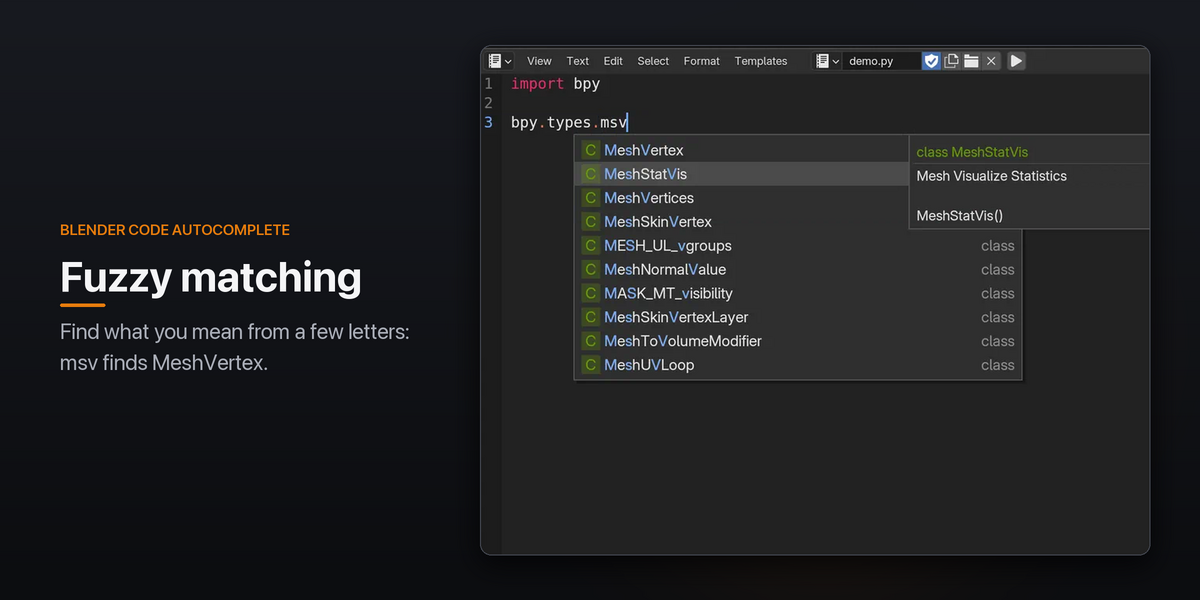
Fuzzy matching: type a few letters from anywhere in the name.
msvfindsMeshVertex. -
Blender-aware: completes
bpy,bpy.context,bpy.data,bpy.ops,bpy.types,mathutils,bmeshand your own code. It follows variables and type annotations, soobj = bpy.context.active_object,def execute(self, context):andmesh: bpy.types.Meshall complete correctly. - Opening it manually: press Ctrl Space (you can change this in Preferences).
| Key | Action |
|---|---|
| Up / Down | Move through the list (wraps around) |
| Page Up / Page Down | Move one page |
| Tab | Accept |
| Enter | Accept (can be switched off) |
| Esc | Close (it won't reopen for the same word) |
| Mouse wheel / click | Scroll / accept an item |
The arrow keys, Tab, Enter and Esc only go to the popup while it is open. The rest of the time they work as usual.
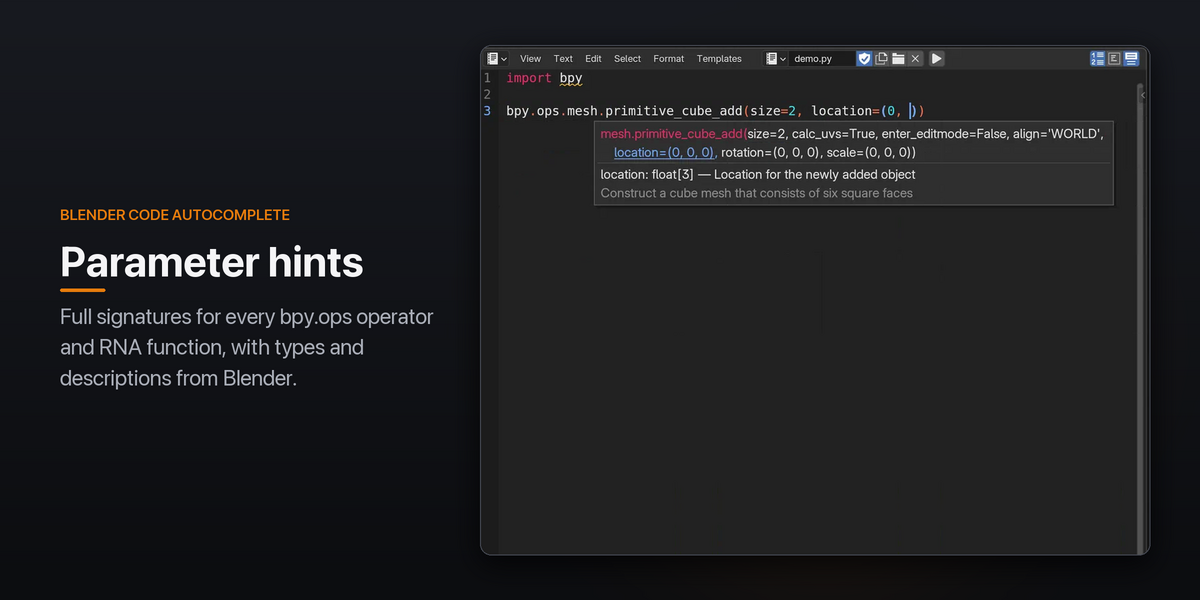
Parameter hints
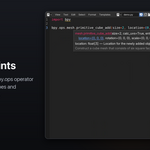
Type ( after a function or operator to see its full signature, with the current argument highlighted. Type , to move the highlight to the next argument. Hints cover every bpy.ops operator and RNA functions such as bpy.data.objects.new(), and show each parameter's type and description taken from Blender.
To show the hint again inside a call, press Ctrl Shift Space. Press Esc to hide it.
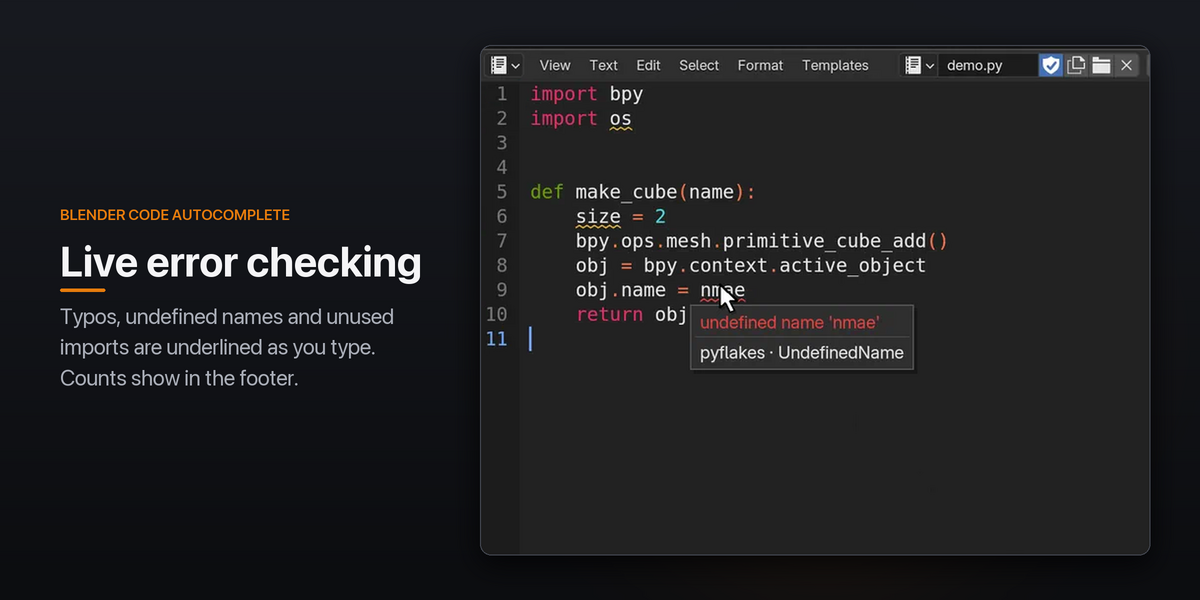
Live error checking
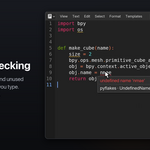
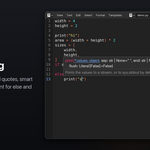
Your script is checked shortly after you stop typing. Problems are underlined and marked in the gutter:
- Red: syntax errors and undefined names (for example a typo in a variable name)
- Yellow: warnings such as unused imports and unused variables
Rest the mouse on an underline to read the message. The Text Editor footer shows the error and warning counts. To jump between problems, use Edit › Next Problem.
To silence a line on purpose, add # noqa at the end of it.
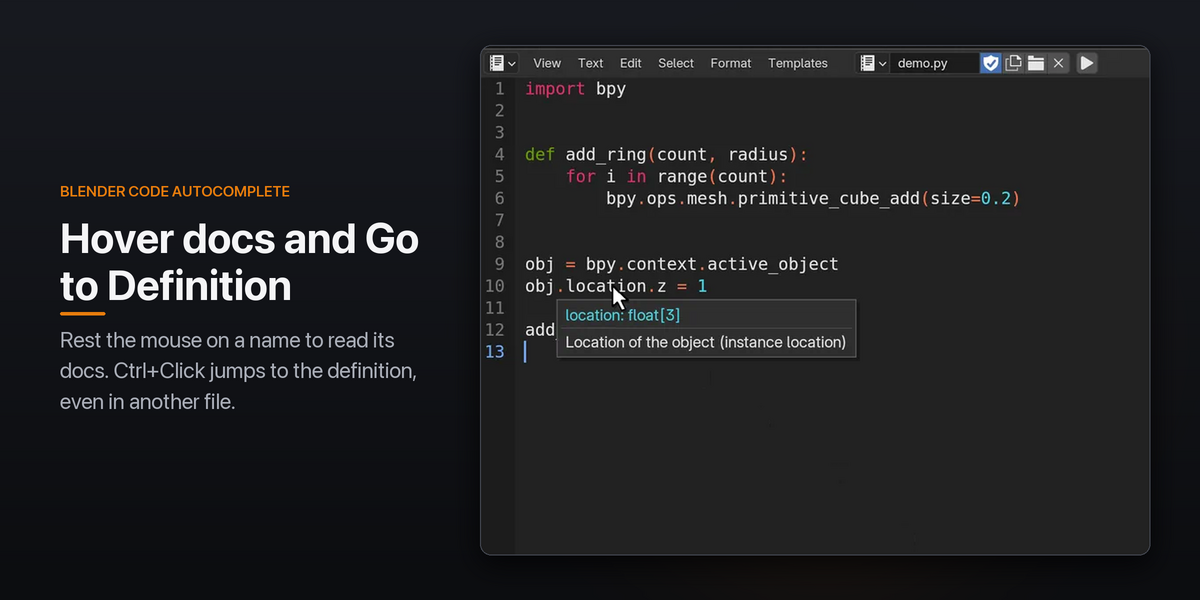
Hover docs
Rest the mouse on any name to see its documentation. For example, hovering obj.location shows float[3]: Location of the object. Any key press or click hides the tooltip.
Go to Definition
Ctrl + Click a name to jump to where it is defined. If it is defined in another file, that file opens as a new text in Blender. Edit › Go Back returns you to where you were.
Go to Definition, Go Back and Next Problem are also in the Edit menu. They have no default shortcut, but you can assign one in Preferences › Keymap.
Snippets
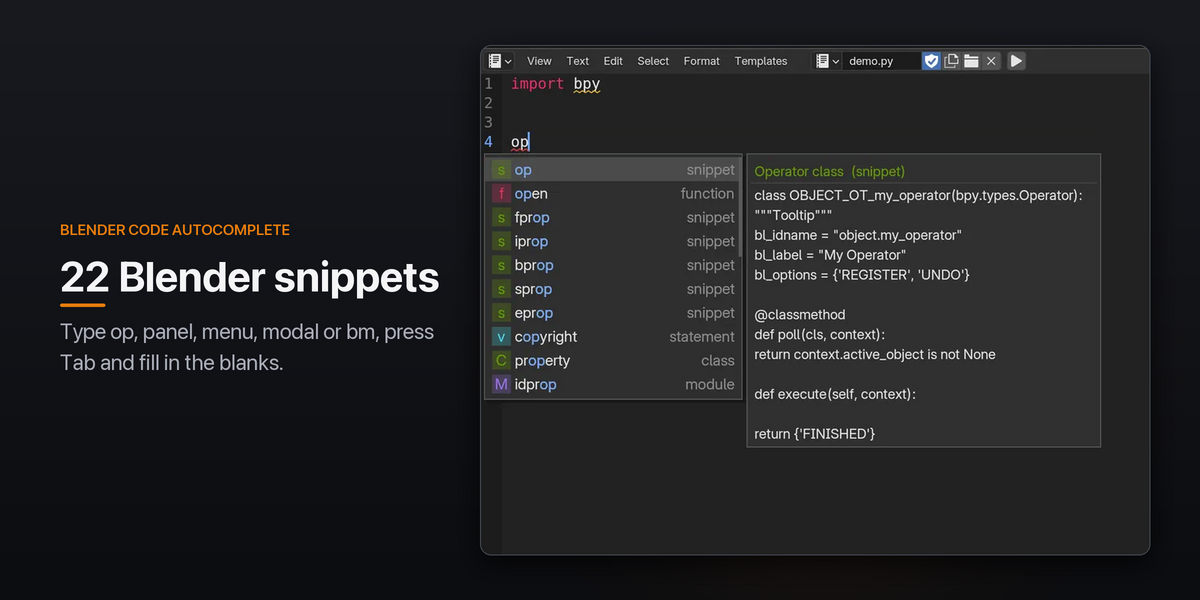
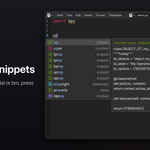
Type a snippet prefix at the start of a line and press Tab. Snippets are also listed in the completion popup. After expanding a snippet, press Tab to move to the next blank to fill in.
| Prefix | Inserts |
|---|---|
op |
Operator class |
modal |
Modal operator |
panel |
Panel class |
menu |
Menu class |
pgroup |
PropertyGroup with pointer registration |
reg |
register() / unregister()
|
fprop |
FloatProperty |
iprop |
IntProperty |
bprop |
BoolProperty |
sprop |
StringProperty |
eprop |
EnumProperty |
bm |
bmesh edit-mode boilerplate |
forsel |
Loop over selected objects |
timer |
bpy.app.timers function |
handler |
Persistent app handler |
def |
Function |
class |
Class |
for |
for loop |
fori |
for i in range |
try |
try / except |
with |
with statement |
ifmain |
if __name__ == "__main__": |
Your own snippets: in Preferences › Add-ons › Blender Code Autocomplete, click Edit Snippets. This opens a snippets.json text in VS Code's snippet format, with one example included. Edit it and save the text to apply your changes. Your snippets override built-in snippets that use the same prefix.
{ "Print selected": { "prefix": "psel", "body": ["for obj in bpy.context.selected_objects:", "\tprint(obj.name)$0"], "description": "Print the names of selected objects" }}Smart editing
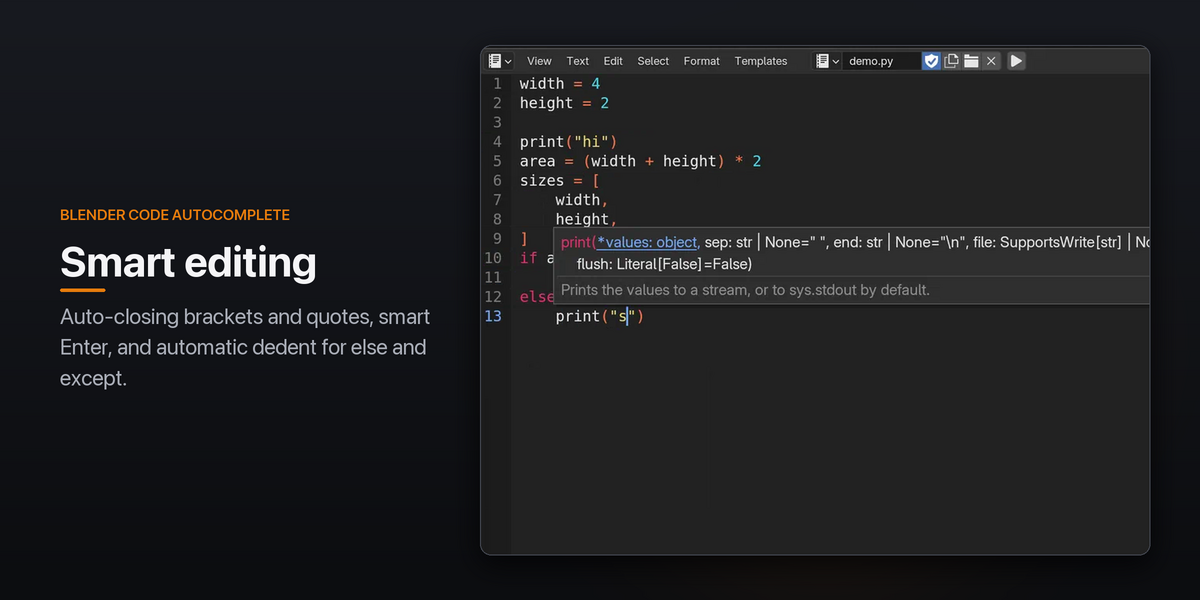
- Typing
(,[,{,"or'inserts the closing character too. With text selected, it wraps the selection instead. - Typing a closing character that is already there steps over it.
- Backspace between an empty pair deletes both characters.
- Enter between brackets puts the closing bracket on its own line, indented.
-
else,elif,exceptandfinallydedent automatically when you type the:.
If Blender's own Auto Close option is on (Preferences › Editing › Text Editor), the add-on's auto-closing pauses so the two don't conflict.
f-strings
Code inside f"{...}" is treated as code. Completion, hover and parameter hints work there, and the expressions are colored like code instead of like a string.
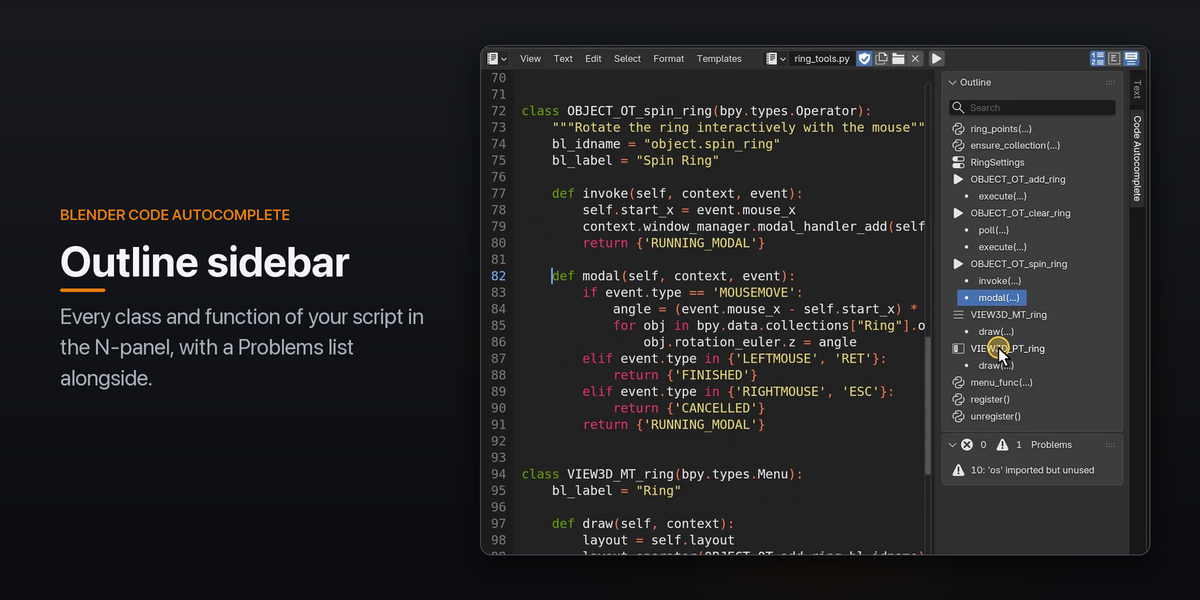
Outline sidebar
Press N in the Text Editor and open the Code Autocomplete tab.
- Outline: lists the classes, functions and methods in your script. Operators, panels, menus and property groups get their own icons. The item containing the cursor is highlighted, the search field filters by name, and clicking an item jumps to it.
- Problems: lists all errors and warnings, with counts in the header. Click one to jump to it.
Preferences
Open Edit › Preferences › Add-ons › Blender Code Autocomplete. You can switch off any feature on its own.
Features: Completion Popup, Signature Help, Hover Docs, Go to Definition, Diagnostics (Lint), Auto-close Brackets & Quotes, Smart Indent, Highlight f-string Code, Outline Sidebar, Snippets (with the Edit Snippets button).
Completion
| Setting | Default | What it does |
|---|---|---|
| Manual Trigger | Ctrl Space | Shortcut to open the popup. Also Ctrl Shift Space, Alt Space or None. |
| Signature Trigger | Ctrl Shift Space | Shortcut to show parameter hints. Also Alt Shift Space or None. |
| Trigger Delay (ms) | 150 | Pause after typing before suggestions are requested |
| Min Identifier Chars | 2 | Letters typed before the popup opens on its own |
| Visible Items | 10 | Rows shown in the popup |
| Accept with Enter | On | Enter accepts the selected item (Tab always does) |
| Documentation Panel | On | Shows docs next to the popup |
| Popup Font Scale | 1.0 | Popup text size relative to the Text Editor font |
Navigation
| Setting | Default | What it does |
|---|---|---|
| Hover Delay (ms) | 600 | How long the mouse must rest before docs appear |
| Go to Definition Click | Ctrl Click | Modifier for Go to Definition: Ctrl, Cmd / Win, or Alt |
Engine
| Setting | Default | What it does |
|---|---|---|
| Live Introspection | Main Thread (safe) | How live Blender data is read for completions. Keep the default. Worker Thread is experimental and may crash Blender. Off gives poor bpy completions. |
| Warm Up at Startup | On | Pre-loads caches so the first popup is fast |
| Debug Logging | Off | Prints timings to the system console, which helps when reporting a problem |
Diagnostics
| Setting | Default | What it does |
|---|---|---|
| Lint Delay (ms) | 600 | Pause after the last edit before the script is re-checked |
Troubleshooting
Ctrl Space does nothing on macOS.
macOS uses Ctrl Space to switch input sources. Set Manual Trigger to Alt Space, or turn off the shortcut in macOS System Settings › Keyboard › Keyboard Shortcuts › Input Sources.
Brackets and quotes don't auto-close.
Blender's own Auto Close is probably on, which pauses the add-on's version. Use either one. The add-on's preferences show a note when this happens.
No completions, hover or Go to Definition at all.
Open the add-on preferences. If the code engine failed to start, a red box at the top shows the error, and Window › Toggle System Console (Windows) or the terminal you started Blender from has the details. Please include that text when you contact me.
A warning is shown for code that is correct.
Add # noqa to the end of that line.
The first popup after starting Blender is slow.
The engine loads its caches the first time it runs. Make sure Warm Up at Startup is on.
Support
If something doesn't work, send a message through Superhive with:
- your Blender version and operating system
- what you typed and what you expected
- any error from the preferences box or the system console (turning on Debug Logging adds more detail)
Credits
Powered by the open-source jedi, parso and pyflakes libraries (MIT license).
Have questions about this product?
Login to message
| Blender Extension Compatible | Yes |
| Published | about 6 hours ago |
| Blender Version | 4.2 - 5.2 |
| Extension Type | Add-on |
| Render Engine Used | Cycles |
| License | GPL |

Discover more products like this
Python ide vscode linter code bpy Autocompletion addon developing blender scripting addon scripts developer coding