Blender Stash
 TopoPen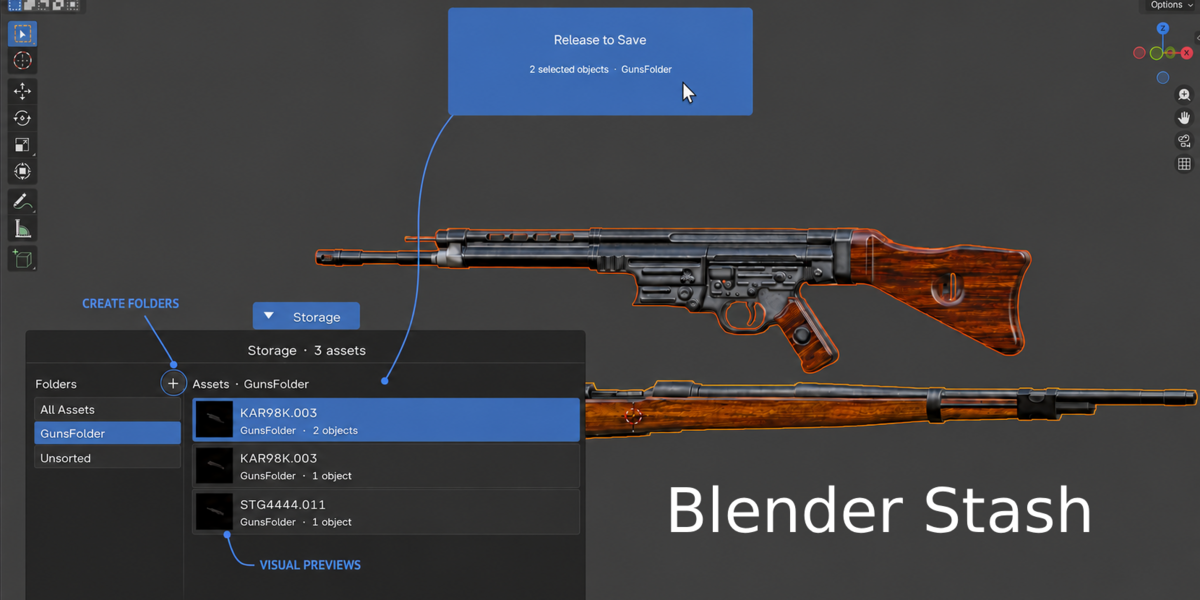
BLENDER STASH DOCUMENTATION
SAVE. ORGANIZE.
REUSE.
Everything you need to install Blender Stash, build your asset library, and reuse complete models across Blender projects.
INSTALLATION
Install Blender Stash directly from the downloaded ZIP file.
01 · DOWNLOAD
Download the Blender Stash ZIP. Do not extract it.
02 · PREFERENCES
Open Edit → Preferences → Get Extensions.
03 · INSTALL
Open the upper-right menu and choose Install from Disk.
04 · ENABLE
Select the ZIP and enable Blender Stash.
SAVING AN ASSET
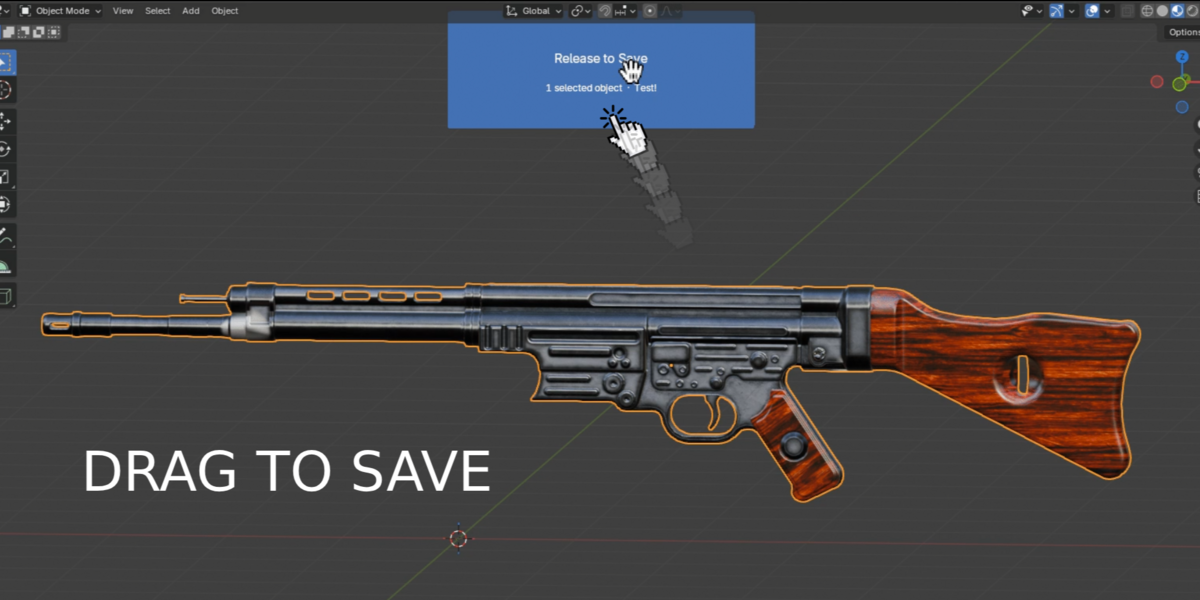
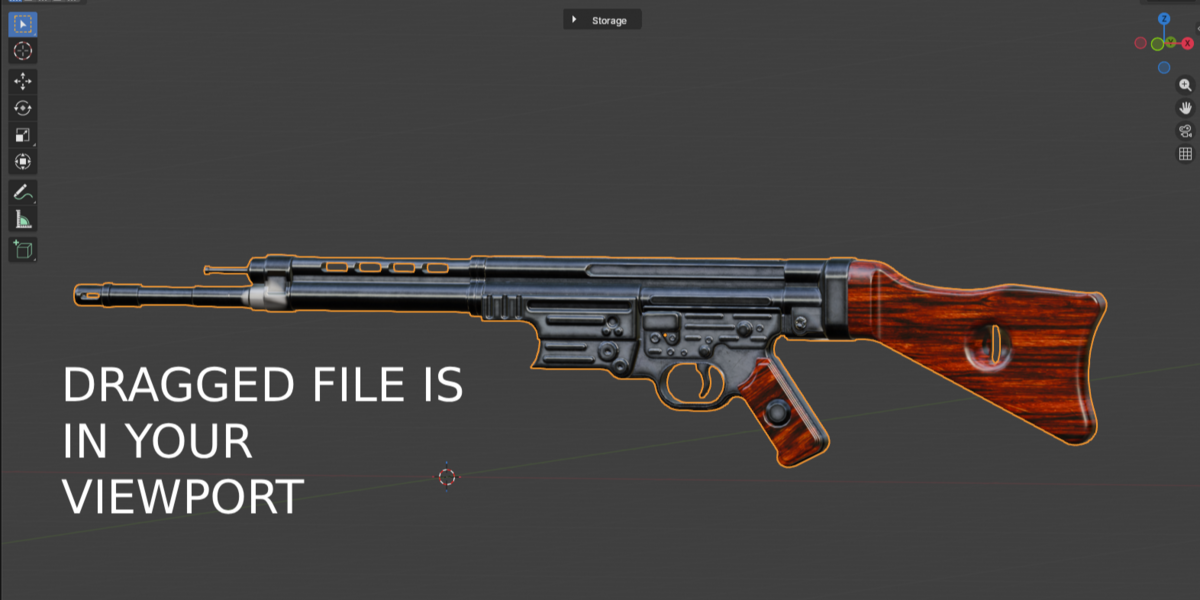
Save one object, multiple objects, or a complete hierarchy from the viewport.
Quick drag-and-save
- Enter Object Mode.
- Select the objects you want to save.
- Hold Shift + Alt + Left Mouse Button.
- Drag the selection into the Storage drop zone.
- Release the mouse button to save the asset.
Blender Stash automatically creates a preview and adds the asset to your visual library.
PLACING AN ASSET
Bring a fresh editable copy into the current scene.
01 · OPEN
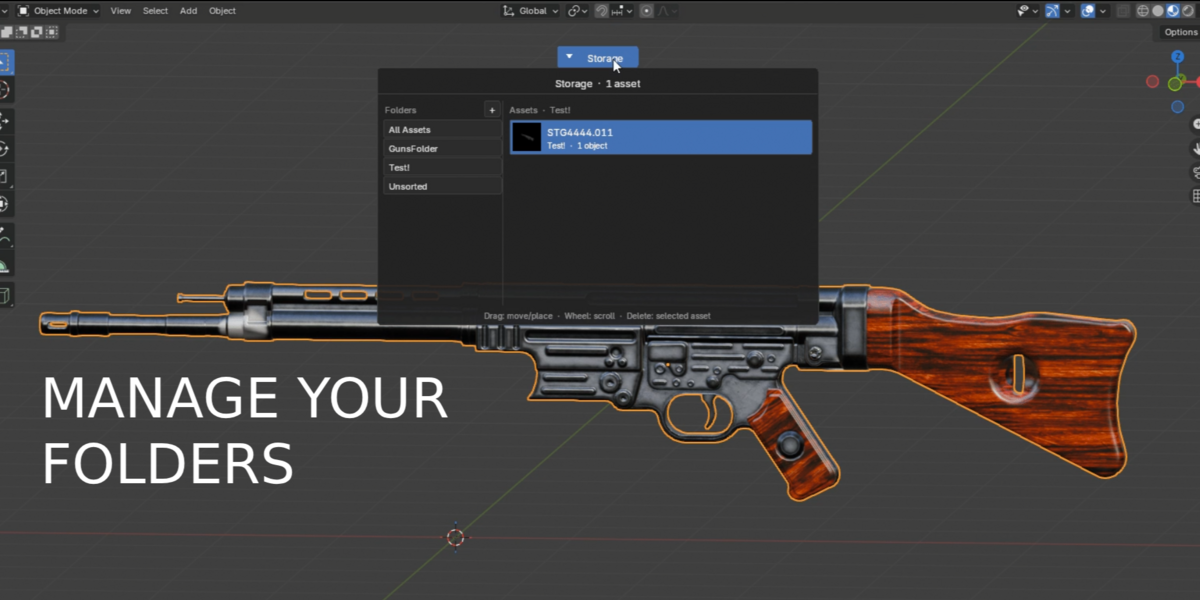
Click the compact Storage button in the viewport.
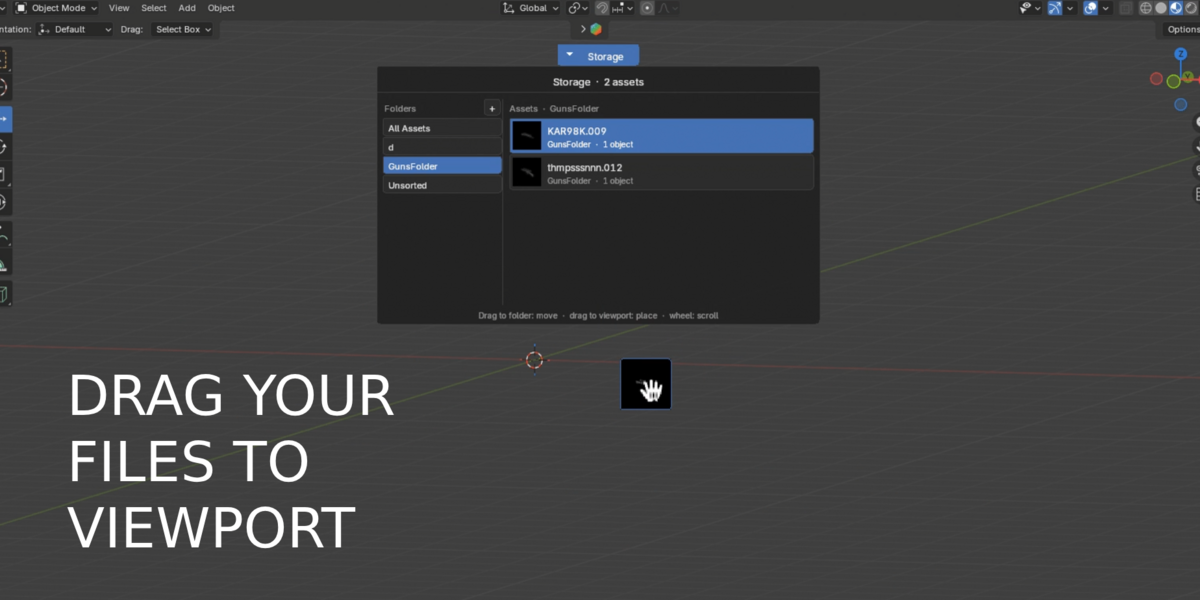
02 · FIND
Find the asset using its preview, folder, or search.
03 · PLACE
Drag the preview into the viewport and release it at the desired position.
ORGANIZING YOUR LIBRARY
Manage your asset library without leaving Blender.
Create Folders
Press the + button to create a new category for your assets.
Move Assets
Drag an asset onto a folder to move it into that category.
Search and Rename
Search assets by name and rename them directly inside Blender Stash.
All Assets displays your complete library. Unsorted contains assets that have not been moved into a custom folder.
DELETING ASSETS AND FOLDERS
Remove stored assets safely with a confirmation warning.
- Open the Storage tray.
- Select an asset or custom folder.
- Press Delete.
- Review the warning and confirm the deletion.
Removed assets are moved into a recoverable .trash directory. All Assets and Unsorted cannot be deleted.
CONTROLS
Quick controls for the Storage interface.
SHIFT + ALT + LMB
Drag selected objects into Storage.
CTRL + ALT + H
Hide or show the Storage button.
DELETE
Delete the selected asset or custom folder.
Use Move Dock to reposition the compact Storage control inside the viewport.
WHAT BLENDER STASH SAVES
Blender Stash keeps the important parts of your reusable asset together.
Objects
Selected objects, descendants, transforms, and parent-child relationships.
Appearance
Materials, supported file-based textures, modifiers, and Geometry Nodes dependencies.
Dependencies
Armatures, current poses, constraints, required objects, and instanced collections.
STORAGE AND BACKUPS
Blender Stash stores your asset library locally in a folder you control. The storage location can be changed in the add-on preferences.
Each asset is stored independently with its Blender file, preview, and copied textures. To create a backup, copy the complete Blender Stash storage folder.
CURRENT LIMITATIONS
- Assets must be saved from Object Mode.
- Linked library objects should be made local before saving.
- Movie, image sequence, and UDIM textures are not copied automatically yet.
- Renaming an asset does not rename its internal Blender collection.
TROUBLESHOOTING
The Storage button is missing
Press Ctrl + Alt + H and confirm that Blender Stash is enabled in Blender Preferences.
An asset cannot be saved
Make sure Blender is in Object Mode, an object is selected, and the storage folder is writable.
A linked object cannot be saved
Make the linked object local before adding it to Blender Stash.
A texture is missing
Confirm that the original texture exists as a file on disk. Movie, sequence, and UDIM textures are not copied automatically.
NEED SUPPORT?
INCLUDE THE DETAILS.
GET A FASTER ANSWER.
Include your Blender version, operating system, Blender Stash version, steps to reproduce the problem, and a screenshot or short video.
 Included
Includes 12 months of
- Support from TopoPen
- Product updates
Extend this product’s Support Period +12 months: 50% of product price
Have questions before purchasing?
Login to message
Discover more products like this
asset-organization asset object library kitbash 3d asset library asset-browser 3D scene assets asset organizer drag and drop Asset Manager material library prop reuseable assets