BlinkMend: Fix Blinks and Eye Keys After Face Edits (VRChat, Face Tracking)
 Meshwright
2. Install
- Download
blinkmend-1.0.0.zip. Do not unzip it. - In Blender: Edit > Preferences > Get Extensions. Open the menu at the top right (the small arrow) and choose Install from Disk.
- Pick
blinkmend-1.0.0.zipand press Install from Disk. BlinkMend is enabled at once. - In the 3D Viewport press N to open the sidebar and click the Meshwright tab.
You can also drag the zip from your file browser onto the Blender window and confirm.
To update, install the new zip the same way. To remove it: Preferences > Get Extensions, BlinkMend, Uninstall.
Japanese interface: Edit > Preferences > Interface > Translation, Language 日本語, with Interface and Tooltips ticked.
3. The panel
3D Viewport > Sidebar (N) > Meshwright > BlinkMend.
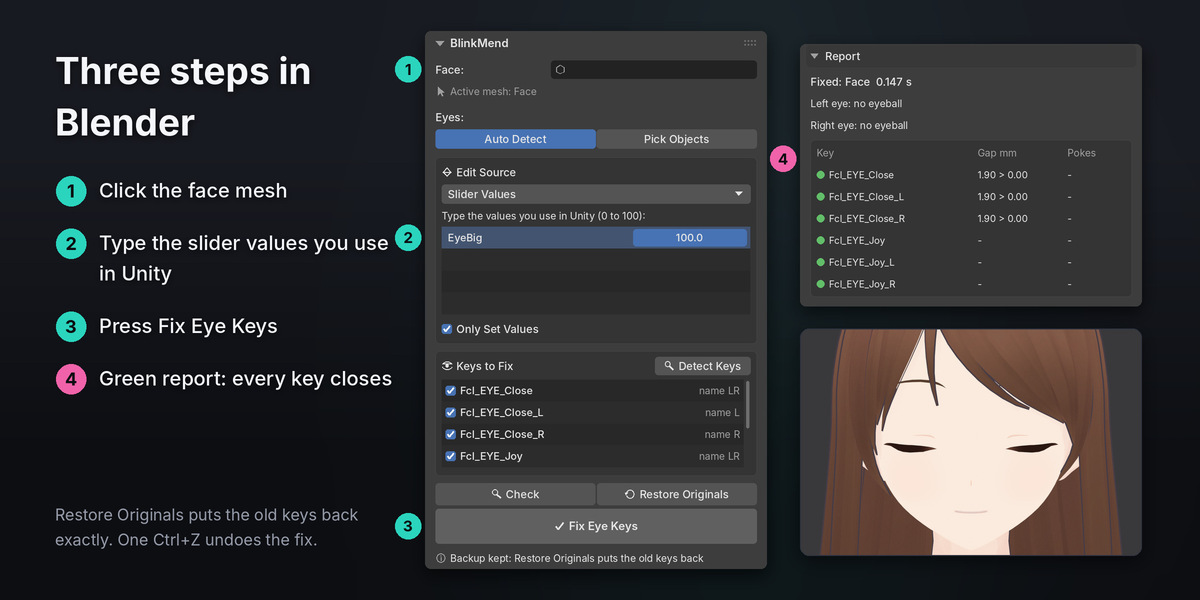
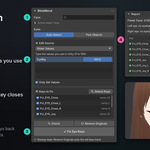
- Face: the mesh with the eye keys. Leave it empty to use the active mesh.
- Eyes: Auto Detect finds the eyeballs by itself (separate eye objects or loose eye parts of the face). Pick Objects lets you choose one eye object, or one per eye.
- Edit Source: where your edit is. Slider Values, Original Mesh or Already in Basis.
- Keys to Fix: the eye-closing keys. Ticked keys are rebuilt. Each row says how it was found (name, motion or partial) and which eyes it closes.
- Also Fix: meshes near the eyes with keys of the same names, such as eyelashes, brows and tears.
- Check: measures every eye key and changes nothing.
- Restore Originals: puts the old keys back exactly.
- Fix Eye Keys: the main button. It works with every default.
- Options: the settings in section 11. Closed by default.
- Report: the result of the last Check or Fix.
4. Fix a face edited with sliders (the usual case)
Most edits are shape keys that you set in Unity: a bigger-eyes key at 60, a jitome key at 40, face sliders from the avatar's own set. This is the default case.
- Click the face mesh (the mesh with the blink keys).
- Edit Source: Slider Values. Press Detect Keys.
- BlinkMend ticks the eye-closing keys. The other keys are listed with their values under the Unity values.
- Type the values of your edit sliders as they are in Unity, from 0 to 100. Keys you did not move stay at 0. Tick Only Set Values to see only the keys with a value.
- Press Check to see the lid gap and the poke-through of each key. Nothing changes yet.
- Press Fix Eye Keys. The report turns green when every key closes and stays off the eyeball.
- Look at the blink: set the blink key to 1 in the Shape Keys panel, or scrub it from 0 to 1.
Shortcut: if the edit keys already have their values in Blender, just press Fix Eye Keys. It finds the keys, reads the values (a key value of 0.6 is 60) and fixes.
If you change the sliders in Unity later, type the new values and press Fix Eye Keys again. BlinkMend always starts from the saved original keys, so fixes never stack.
5. Fix an edit that is in the mesh (Original Mesh)
Use this when the edit was sculpted or moved in Edit Mode, so there is no slider for it.
- Append the unedited face from the original file (File > Append, the same mesh with the same vertices).
- Edit Source: Original Mesh. Pick the unedited copy.
- Press Fix Eye Keys.
The original mesh must have the same vertices in the same order. If the count differs, BlinkMend stops and says so.
6. Fix an edit applied to the Basis (Already in Basis)
Use this when an edit key was applied to the Basis, for example with an apply-to-Basis tool.
- If the face has a key whose name ends with "Reverted" (some tools keep the reverse of the edit under such a name), BlinkMend reads the edit from it. The panel shows "Reverted key found".
- Otherwise pick the original mesh, as in section 5.
Then press Fix Eye Keys.
7. Bake the edit into the Basis safely
Blender's own Apply to Basis can change the final shape of other keys. BlinkMend's bake does not.
- Edit Source: Slider Values, with your edit values typed in.
- Options: tick Bake Edit into Basis.
- Press Fix Eye Keys.
The edit goes into the Basis. Every other key keeps its final shape. The baked sliders are set to 0, and the report lists them. Set those sliders to 0 in Unity too.
8. Face tracking avatars
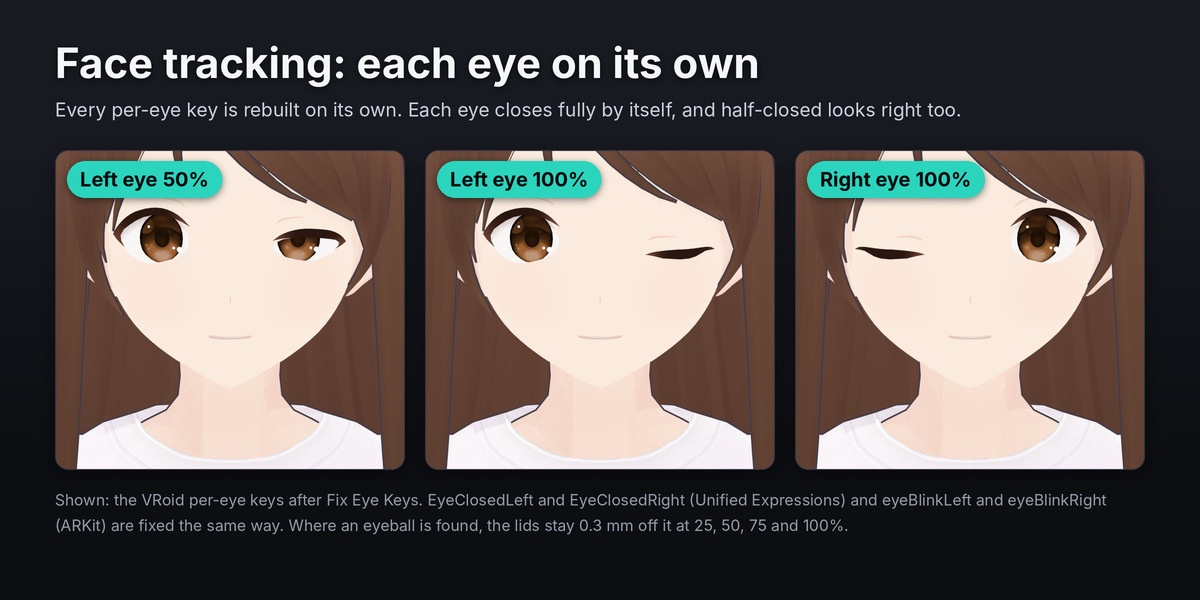
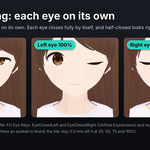
Face tracking drives each eye on its own and often stops between open and closed. BlinkMend fixes the face tracking keys with the rest: ARKit eyeBlinkLeft and eyeBlinkRight, Unified Expressions EyeClosedLeft and EyeClosedRight, SRanipal Eye_Left_Blink and Eye_Right_Blink, and the VRChat and VRoid per-eye keys.
The eyeball guard checks each key at 25, 50, 75 and 100 percent, not only when the eye is fully closed. So a half-closed eye does not cut into the eyeball either. Keys with drivers keep their drivers.
9. Eyelashes, brows and tears
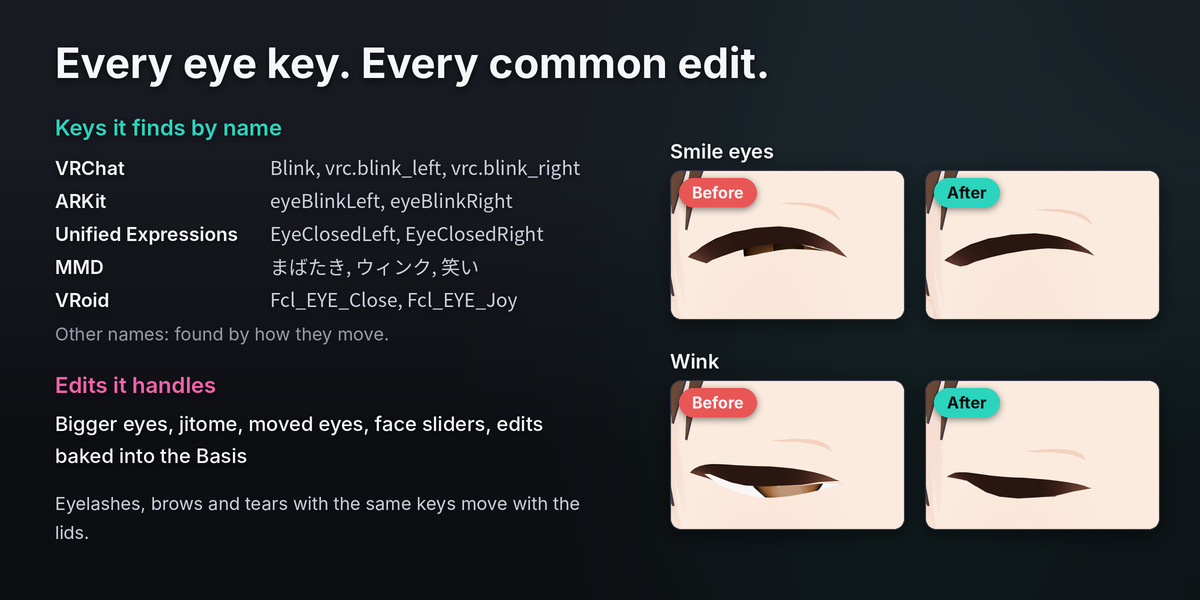
Many avatars keep the eyelashes, brows or tears as separate meshes with the same key names as the face. Detect Keys lists them under Also Fix. They get the same correction as the lid they touch, so each lash moves with its lid. Untick a mesh to leave it as it is.
10. Read the report
The report shows:
- The face and the time the fix took.
- The eyes found: eyeball (with its radius in mm), eye cavity, flat eye, or no eyeball.
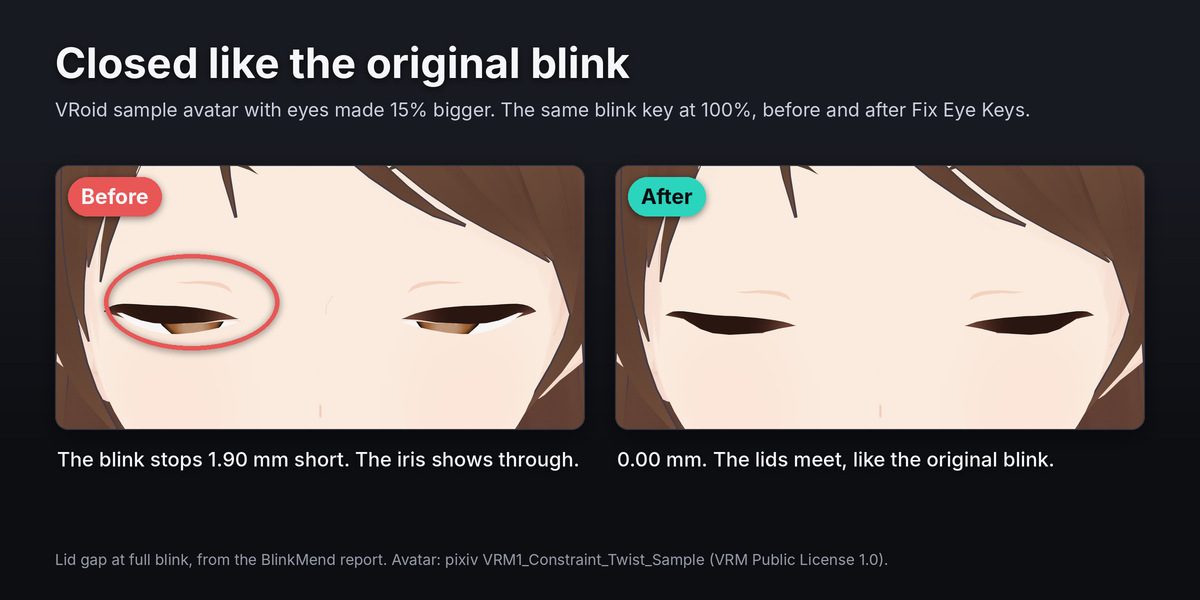
- One row per key: the lid gap in mm and the poke-through count, as before > after.
Lid gap: the largest distance between the upper and lower lid at full weight. Where the original blink kept the lids apart on purpose (an eyeline strip, an eye drawn on the face), only what opens beyond that counts.
Pokes: lid vertices closer to the eyeball than the Lid Clearance, at 25, 50, 75 or 100 percent.
Green: the key closes within the Seam Tolerance and stays off the eyeball. Red: something is left. The notes under the table say why.
A "-" means the value was not measured. For example, pokes are not counted when no eyeball was found. Pick the eye object under Eyes to turn the guard on.
11. Options
| Setting | Default | What it does |
|---|---|---|
| Lid Clearance | 0.3 mm | How far the lids stay off the eyeball while the eye closes. |
| Seam Tolerance | 0.1 mm | Lid pairs further apart than this at full weight are pulled together. |
| Falloff Rings | 2 | Rings of vertices that blend the fix into the face. Lids with very few vertices use 1. |
| Clean Spikes | on | Offsets over 3 times the neighbour median become the neighbour median. |
| Mirror Left to Right | off | Copies the left eye's fix to the right eye. Only for symmetric faces. |
| Bake Edit into Basis | off | Puts the slider edit into the Basis and keeps every other key's final shape. |
| Keep Backups | on | Keeps the original keys in the .blend file for Restore Originals. |
The defaults suit VRChat avatars. Change Lid Clearance only if your eyeballs have a thick cornea or highlight dome in front of them.
12. Backups, Undo and Restore Originals
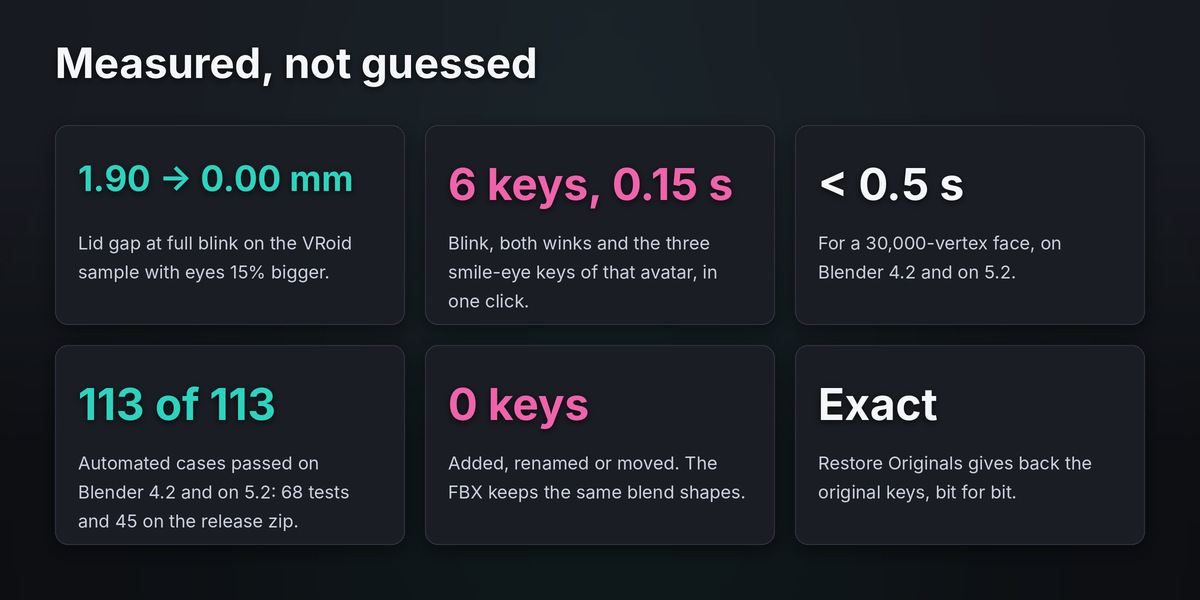
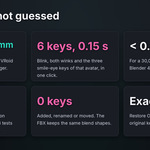
- The original keys are saved inside the .blend file, not as extra shape keys. Your FBX keeps the same blend shapes: no keys are added, renamed or moved.
- Restore Originals puts the original keys back exactly, bit for bit. A Basis edit you made after the fix is kept.
- One Ctrl+Z undoes Fix Eye Keys.
- If the vertex count or the key names changed since the fix, Fix and Restore stop and say what to do.
- With Keep Backups off, a second Fix stops instead of stacking a second correction.
13. Export to Unity
- Export the FBX as usual.
- In Unity, keep the same slider values you typed in BlinkMend.
- After Bake Edit into Basis, set the baked sliders to 0.
BlinkMend changes only the eye keys (and the Basis, when you bake). The avatar's other keys, the bones and the weights stay as they are.
14. Messages and what to do
| Message | What to do |
|---|---|
| Select the face mesh, or pick it under Face. | Click the face mesh, or pick it in the Face field. |
| ... has no shape keys. | BlinkMend rebuilds existing eye keys. Pick the mesh that has them. |
| Apply the Mirror modifier of ... first. | Apply the Mirror modifier, so both eyes have their own vertices. |
| ... is linked from another file. | Make the mesh local first (Object > Relations > Make Local). |
| No keys are ticked under Keys to Fix. | Press Detect Keys, or tick the keys that close the eyes. |
| Pick the original mesh. | Append the unedited face and pick it (sections 5 and 6). |
| The original mesh has ... vertices and the face has ... | Pick the unedited copy of this face, with the same vertices. |
| Cannot fix safely: the edit moves the ... eye socket by ... mm. | The edit moves the whole eye socket more than 3 mm (a whole-face edit). BlinkMend changes nothing. Fix the eye keys of such an edit by hand. |
| Keys of ... were renamed since the last fix. | Rename them back, or delete the custom property blinkmend_backup of the mesh data. |
| The mesh ... changed since the last fix (vertex count). | Undo that change, or delete the custom property blinkmend_backup. |
| ... were fixed before with Keep Backups off. | Undo that fix, or delete the custom property blinkmend_fixed of the mesh data. |
| Pick the eye object under Eyes, or switch Eyes to Auto Detect. | Eyes is set to Pick Objects with nothing picked. |
15. Limits
- The eyeball guard uses a sphere fitted to each eyeball. Highlights, iris planes and a cornea dome in front of the eye are not part of it.
- No eyeball found (eyes inside the face mesh and no eye object): the rebuild and the seam close still run, but there is no guard. Pick the eye object under Eyes to turn it on.
- Flat painted eyes have no eyeball, so there is no guard. The seam close still runs.
- An edit that moves an eye socket by more than 3 mm stops with "Cannot fix safely" and changes nothing.
- A shape key's vertex group mask is not read.
- Some blink keys also move a wide area a little (VRoid moves the temple). An edit that reaches that far can shift the outer part of that area by about 1 mm while the eye closes.
- BlinkMend reads 1 unit as 1 m, as VRChat avatars use. The scene's Unit Scale is respected.
- The panel is in English and Japanese. The notes under the report are in English.
Have questions about this product?
Login to message
| Blender Extension Compatible | Yes |
| Published | about 3 hours ago |
| Blender Version | 4.2 - 5.2 |
| Extension Type | Add-on |
| License | GPL |

Discover more products like this
facial face-tracking unified expressions eyelids shape keys fix booth vrchat blink ARKit avatar mmd