Blockd: Grid Blockout for Level Design
 The Souk Galaxy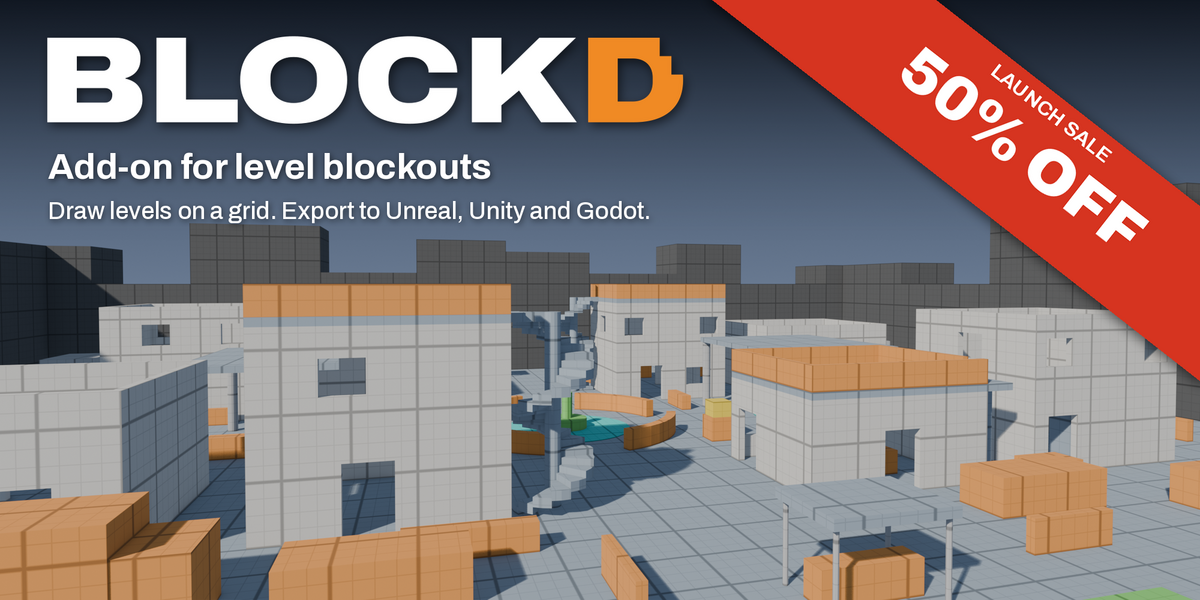
Blockd 1.2 for Blender 4.2 LTS and later. On macOS, Alt is the Option key and Ctrl/Cmd shortcuts use Cmd. The same guide is included as a PDF with your download.
Install
- In Blender, open Edit > Preferences and choose Get Extensions in the left column.
- Click the small dropdown arrow at the top right and choose Install from Disk...
- Select
blockd-1.2.0.zip.
Blockd is now in three places:
- The Blockd tab in the 3D Viewport sidebar (press N to show the sidebar).
- Shift+A > Blockd in the Add menu.
- A pie menu on Shift+Alt+B.
To update, install the new zip the same way. Files made with an earlier version open unchanged. To remove Blockd, find it under Edit > Preferences > Add-ons, open its menu and choose Uninstall.
Quick start: your first room
- Press Shift+Alt+D in the 3D Viewport to start Draw Shape.
- Press 6 to pick Floor. Drag a rectangle on the ground and release: the floor is placed.
- Press 2 to pick Wall. Drag along one edge of the floor, release, move the mouse up to set the height, and click. Repeat for the other walls; the marker snaps to the corners of the walls you already drew.
- For a wall with a door, press 3 to pick Doorway instead of Wall. You can also add a door to any wall later: select it and set its Opening to Door.
- Press 7 for Stairs. Drag in the direction the stairs should climb, set the height, click.
- Press Esc to leave the tool.
- In the Grid panel click Blockout View to see the tag colors.
- In the Create panel click Player to drop a capsule and check the scale.
Every piece you placed stays editable: select it and change its sizes in the Shape panel.
The Draw Shape tool
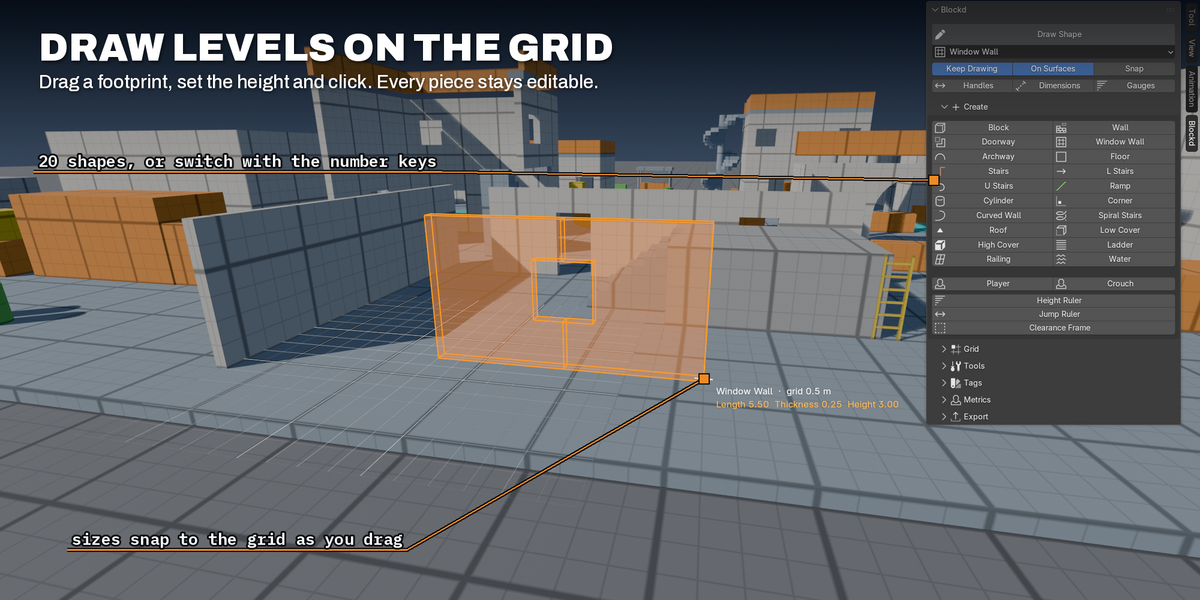
Start it with Shift+Alt+D, the Draw Shape button at the top of the Blockd tab, or the pie menu. The shape it draws is the one picked under the button.
It is also a tool in the toolbar: pick Blockd Draw at the bottom of the toolbar on the left of the viewport. While it is the active tool, a left-drag in the viewport draws, and the tool's header bar holds the shape, Keep Drawing, On Surfaces, Snap and the grid size.
Drawing a shape
- Footprint. Press and drag on the ground or on top of any object, then release. Clicking twice (start point, end point) works too.
- Height. Move the mouse up or down. The shape starts at its default height. Floors skip this step.
- Place. Click. The tool stays active, so you can keep drawing. Turn off Keep Drawing in the panel to exit after each shape.
Keys while drawing
| Key | Action |
|---|---|
| 1 to 0 | Pick a shape (see the list below) |
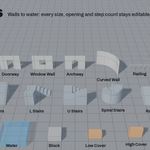
| Tab / Shift+Tab | Next / previous shape, including L Stairs, U Stairs, Curved Wall, Spiral Stairs, Roof, Low Cover, High Cover, Ladder, Railing, Water, Room and Connected Walls |
| [ and ] | Halve or double the grid size |
| Shift (hold) | Square footprint |
| Ctrl (hold) | Turn all snapping off for free placement |
| F | Flip the direction of stairs and ramps |
| Enter | Place the shape at its default size |
| Backspace | Go back one step |
| Right click | Cancel the current shape, or exit when nothing is being drawn |
| Esc | Exit the tool |
Number keys: 1 Block, 2 Wall, 3 Doorway, 4 Window Wall, 5 Archway, 6 Floor, 7 Stairs, 8 Ramp, 9 Cylinder, 0 Corner.
Snapping
The marker snaps to the grid, to the corners of existing objects, and to the vertices of the object under the mouse. It turns blue when it snaps to an object. Start a wall on the top corner of a block and the new wall sits right on top of it. Turn object snapping off with the Snap toggle in the panel, or hold Ctrl to turn all snapping off for a moment.
With On Surfaces enabled, shapes start on top of whatever surface is under the mouse; otherwise they start on the ground at the 3D cursor's height.
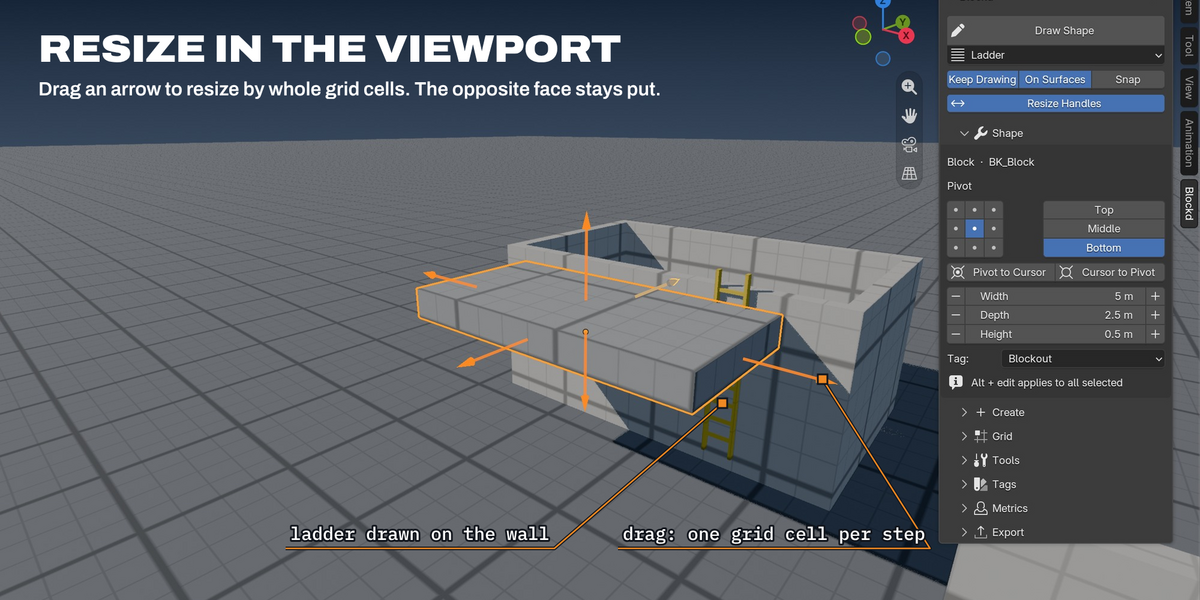
Drawing against a wall. With On Surfaces enabled, blocks, cover, cylinders, walls, doorways, window walls, archways, ladders and railings can also start on the side of a wall. Drag the front of the shape on the wall, then move the mouse to set how far it stands out, and click. Walls, ladders and railings use their default thickness and are placed as soon as you release. Use it for ledges, pillars, facade pieces and ladders up a wall. Other shapes start on the ground.
How each shape follows the drag
- Walls follow the drag line and use the Wall Thickness metric. Ladders and railings follow the drag line too.
- Stairs and ramps climb in the direction you drag. Press F to flip them. L and U stairs start their first flight along the drag direction; set which way they turn with Turn Right in the Shape panel.
- Corners and curved walls grow from the point where you started.
- Floors sit with their top surface on the level you clicked.
Room and Connected Walls
These two are at the end of the shape list (Tab past Water).
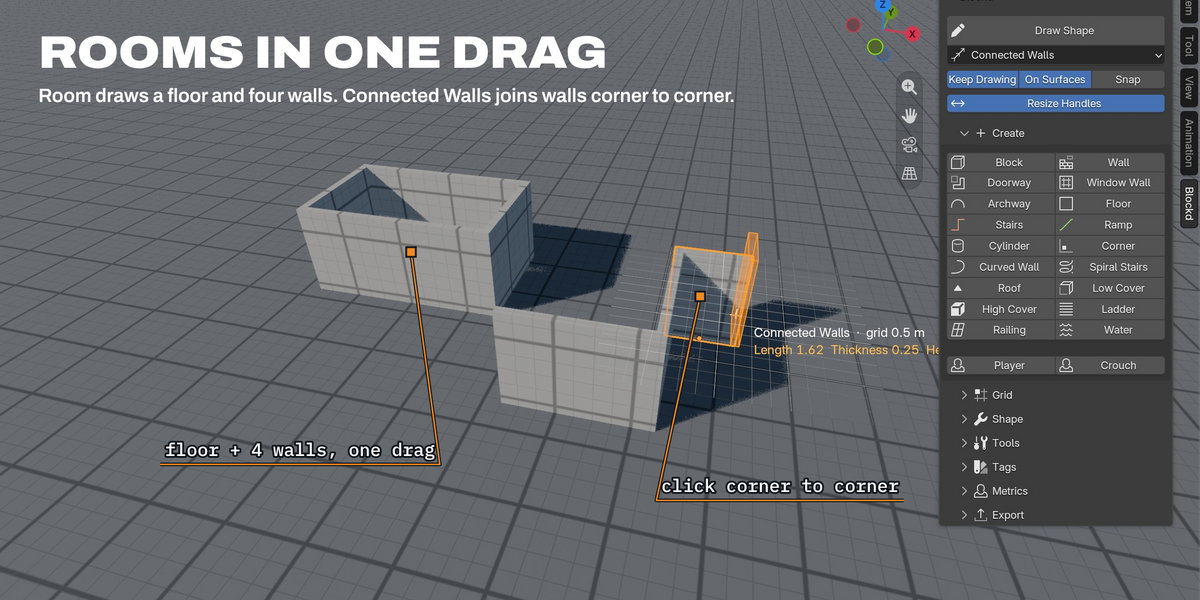
- Room: drag the footprint, move the mouse to set the wall height, click. You get a floor under the whole footprint and four walls inside its edges, with the thickness from the Wall Thickness metric.
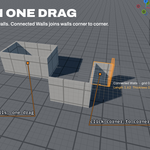
- Connected Walls: click the first corner, then click each next corner; every click places a wall from the last corner. The walls join at the corners. Click the first corner again to close the loop, or press Enter or right-click to end the run. Hold Shift to keep a wall straight along X or Y.
Undo while drawing. Cmd/Ctrl shortcuts such as save keep working while the tool is active. Undo is blocked until you exit with Esc; after that, Ctrl+Z (Cmd+Z) removes the shapes one at a time.
Shapes
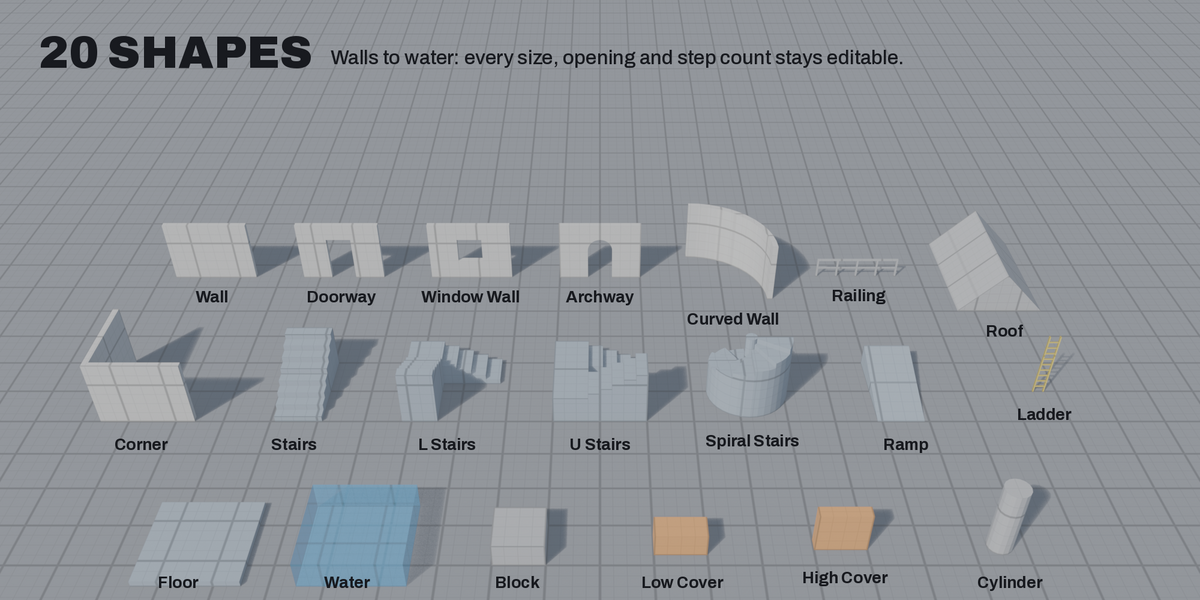
| Shape | What you can change |
|---|---|
| Block | Width, depth, height |
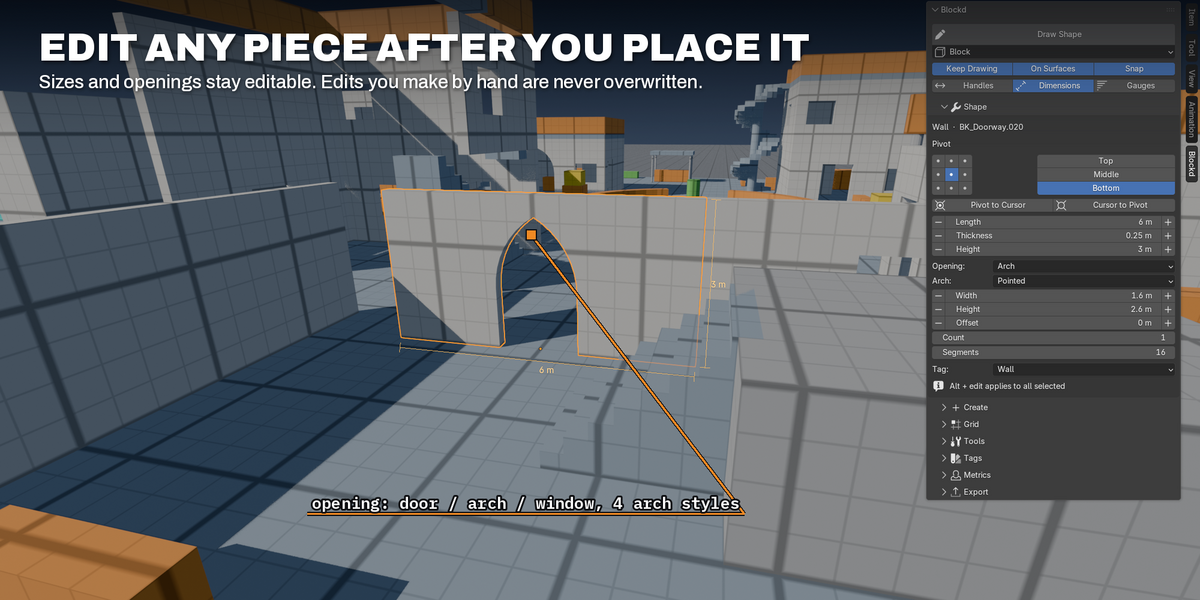
| Wall | Length, thickness, height, opening (none, door, arch, window, arched window), arch style (round, segmental, pointed, horseshoe), opening width and height, sill height, offset along the wall, number of openings |
| Doorway, Window Wall, Archway | Walls that start with an opening |
| Floor | Width, depth, thickness |
| Stairs | Width, run, height, step count (automatic from Max Step Height, or set by hand), solid or slab, type (straight, L or U) |
| L Stairs, U Stairs | Stairs with two flights and a landing. L Stairs turn 90 degrees at a square landing in the corner; U Stairs turn back at a landing that spans the full width. Flight Width sets the width of each flight and the depth of the landing, and Turn Right sets the direction. The landing sits halfway up, split so both flights have treads of about the same depth. A footprint too small for two flights builds straight stairs |
| Ramp | Width, run, height |
| Cylinder | Diameters, height, segments |
| Corner | L-shaped wall or platform with arm thickness |
| Curved Wall | Radius, thickness, angle up to a full ring, segments, direction |
| Spiral Stairs | Diameter, height, turn angle, inner radius, center column, direction, solid or slab |
| Roof | Gable or shed |
| Low Cover, High Cover | Blocks tagged Cover, with their height taken from the Low Cover and High Cover metrics |
| Ladder | Width, depth, height, rung spacing (0.3 m by default), bar thickness. Tagged Climbable |
| Railing | Length, thickness, height, post spacing, number of rails, or a solid parapet |
| Water | Width, depth and water depth. The top is the water surface: draw it at the height of the surface and the volume goes down by the Water Depth metric. Tagged Water, see-through, and exported without collision |
New shapes go into a Blockout collection. Each scene gets its own, so separate levels stay separate.
Several openings in one wall. Set Count under the opening settings to spread that many identical openings evenly along the wall, for a row of windows or an arcade. Offset moves the whole row. If the openings don't fit, the wall gets as many as fit.
Arch styles. Archways and arched windows take one of four profiles: Round (a half circle, flattened when the opening is too low for one), Segmental (a shallow arc), Pointed (a Gothic arch) and Horseshoe (a Moorish arch that widens above the jambs). The opening width is measured at the jambs; a horseshoe arch is about 15% wider at its widest point. Height is the height of the top of the arch.
Shapes are closed meshes with box-projected UVs (one tile per meter by default), ready for booleans and for game engines.
Editing shapes
Select a shape and open the Shape panel.
- Every size has minus and plus buttons that step by exactly one grid cell; you can also type exact values.
- Hold Alt while changing a value to apply it to every selected shape.
- Pivot sets where the origin sits. The 3 × 3 grid of buttons picks a point on the footprint (corners, edge middles or center, seen from above), and Top, Middle and Bottom pick the height, for 27 points in total. Changing the pivot keeps the shape where it is in the world, and Alt-click applies it to every selected shape. For modular walls, the left-middle button with Bottom puts the origin at the wall's start, centered on its thickness, so pieces snap end to end in the engine.
- Pivot to Cursor puts the pivot of the selected shapes at the 3D cursor, for points that are not on the box, such as a door hinge. The shapes don't move and stay editable. Cursor to Pivot moves the 3D cursor to the active shape's pivot.
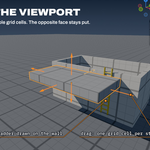
- Resize handles: orange arrows sit on the faces of the selected shape. Drag one to resize the shape along that axis, one grid cell at a time, while the opposite face stays in place. Hold Ctrl for free sizes; right-click or Esc cancels. Turn them off with Handles in the Blockd panel.
- Dimensions: the width, depth and height of each selected shape are written along three of its edges in the viewport, in meters (centimeters with the Unreal grid steps). Turn them off with Dimensions in the Blockd panel.
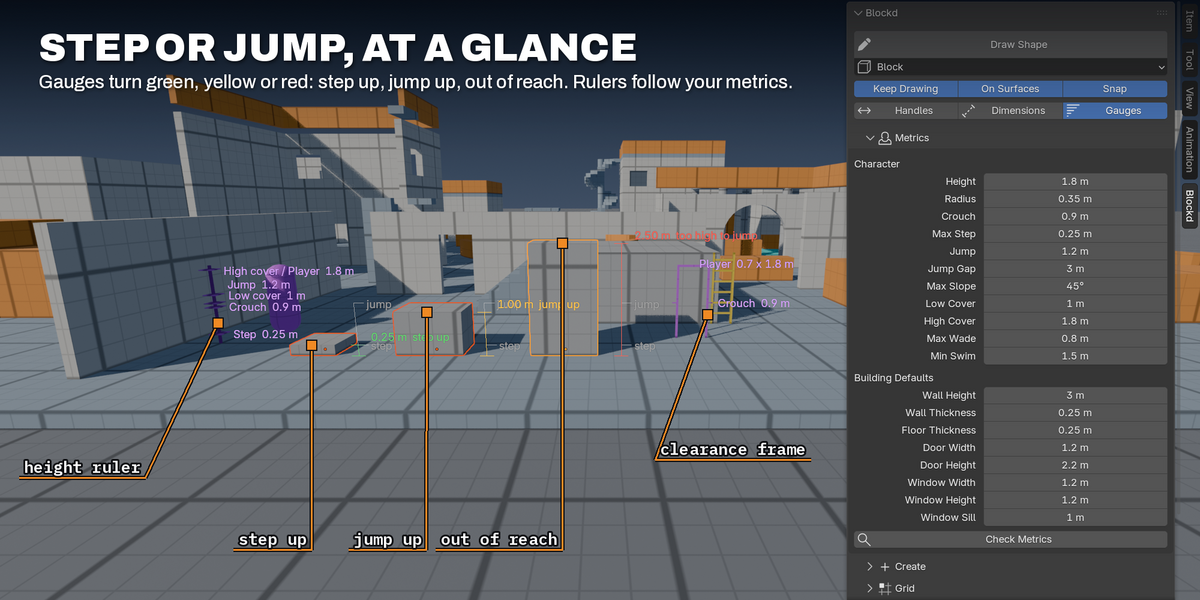
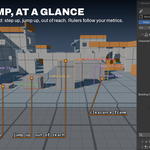
- Gauges: a vertical gauge next to each selected shape shows whether the player can step up onto it (green), jump up onto it (yellow) or neither (red), measured from the surface the shape stands on. The gauge marks the Max Step and Jump heights. Stairs show their step height and ramps their slope instead. Turn them off with Gauges in the Blockd panel. See Metrics.
- Linked duplicates (Alt+D) share their shape: editing one updates all its copies.
- If the object is scaled, an Apply Scale button appears. It moves the scale into the shape's sizes so the piece stays editable and exports with a scale of 1.
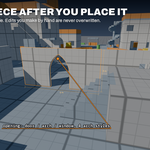
Hand edits. The Shape panel is locked while the object is in Edit Mode. When you leave Edit Mode after changing the mesh, Blockd marks the shape as edited by hand and stops rebuilding it, so a parameter change can't erase your work. The Shape panel then shows two buttons:
- Keep as Mesh bakes the shape into a regular mesh with your edits, like Bake to Static Mesh.
- Reset Shape discards the edits and rebuilds the shape from its parameters.
Until you choose, the parameters are greyed out and the resize handles are hidden. Changing the pivot and Apply Scale still work and keep the edited mesh in place. Undo brings back edits removed by Reset Shape.
Grid
The Grid panel sets the grid size; the quick buttons jump to common sizes and the minus/plus buttons step through them.
- Sync Viewport Grid keeps Blender's floor grid the same size as the Blockd grid.
- Move Snapping turns on Blender's grid snapping, so G moves pieces cell by cell.
- Major Every sets how often a stronger grid line appears.
- Snap New Shapes snaps shapes added from the Add menu to the grid.
- Blockout View switches every viewport to solid shading with tag colors, cavity and outlines.
- Default Pivot sets the pivot new shapes start with: one setting for walls (walls, corners, curved walls, railings and ladders), one for floors and one for everything else. Shape Default keeps each shape's own pivot; Bottom End is the wall start centered on its thickness.
Grid sizes step in powers of two (0.25, 0.5, 1, 2 ...). In the preferences you can switch to decimal steps (0.1, 0.25, 0.5, 1, 2.5 ...) or to Unreal Engine's steps in centimeters (1, 5, 10, 50, 100, 500 cm ..., or powers of two from 1 to 1024 cm). With the Unreal steps, the grid buttons and the draw tool show sizes in centimeters.
Metrics and Check Metrics
Open the Metrics panel to describe your character and building standards.
Character: Height, Radius, Crouch height, Max Step height, Jump height, Jump Gap (the widest gap the player can jump across), Max Slope, Low Cover and High Cover heights.
Building Defaults: Wall height and thickness, floor thickness, door and window sizes, and the depth of new Water volumes. New shapes use these.
Water: Max Wade is the deepest water the player can walk through; Min Swim is the shallowest water the player swims in.
- Stairs take their step count from Max Step automatically, so every staircase is walkable.
- Gauges on the selected shapes show whether the player can step or jump up onto them (see Editing shapes).
Reference pieces. The Create panel (below the shape buttons) and Shift+A > Blockd add pieces built from the metrics, for checking scale while you block out. They are never exported, the draw tool doesn't snap to them, and they follow the metrics: change a value in the Metrics panel and they resize.
- Player and Crouch: a capsule of the player's height or crouch height and radius, facing -Y.
- Height Ruler: a post with a mark at the Max Step, Low Cover, Crouch, Jump, High Cover and Player heights. With Gauges on, each mark is labelled in the viewport.
- Jump Ruler: a strip as long as the Jump Gap, with a mark every meter and a post at each end. Lay it across a gap: if the far edge is past the second post, the player can't jump it.
- Clearance Frame: a frame whose opening is the player's width and height, with ticks at crouch height. Slide it into a doorway or under a ceiling to check that the player fits.
Capsules made with Blockd 1.1 or earlier keep their size; add a new one to get one that follows the metrics.
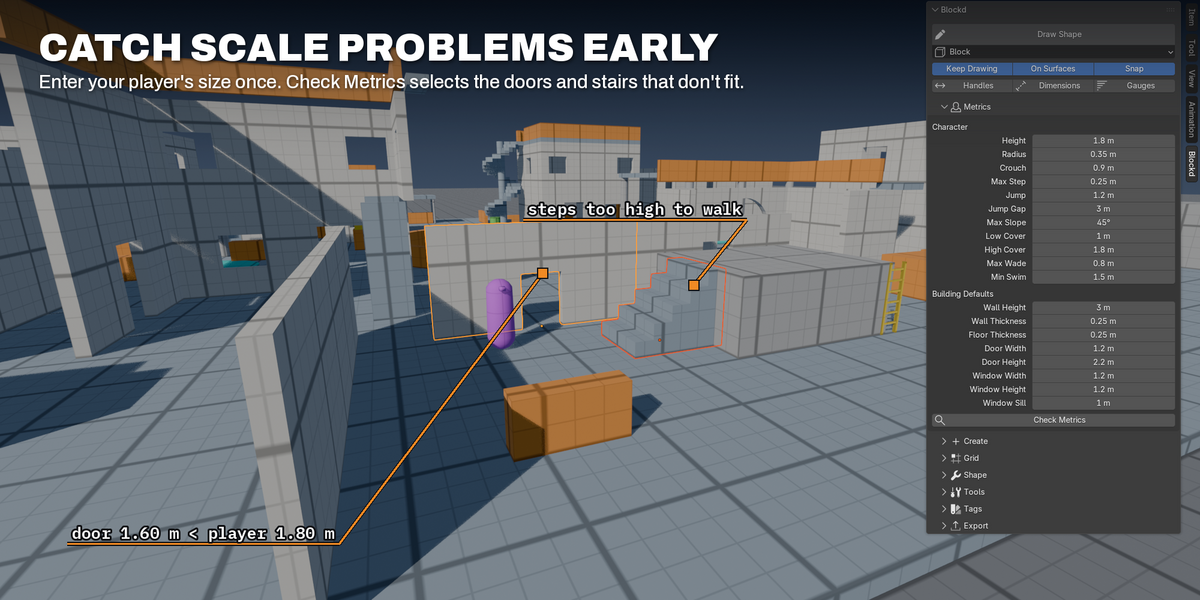
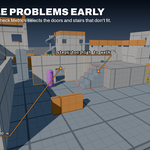
Check Metrics finds pieces the player can't use and selects them:
- stairs with steps higher than Max Step,
- ramps steeper than Max Slope,
- doorways and archways lower than the player or narrower than the player's width,
- stairs narrower than the player's width (for L and U stairs, each flight),
- pieces tagged Cover that are too low to hide a crouching player (more than 0.25 m under Low Cover), or that sit between low and high cover, where players can't tell whether they are covered,
- water deeper than Max Wade but shallower than Min Swim, where the player can neither walk nor swim.
It checks the selected shapes, or every visible shape when nothing is selected. The first problems are listed in the status bar.
Tags
Tags give pieces a gameplay meaning and a color:
Blockout, Walkable, Wall, Cover, Climbable, Interactive, Hazard, Trigger, Prop, Out of Bounds, Water.
- Pick a tag in the Tags panel to apply it to the selection. The button next to each tag selects every object with that tag.
- New shapes get a matching tag automatically: walls are Wall, floors, stairs and ramps are Walkable, ladders are Climbable, the cover presets are Cover, and Water is Water. Water is drawn see-through so you can check the bottom.
- Each tag has a material (named
BK_...) with grid lines in world space, so the lines keep their size whatever the object's scale. Solid view shows the tag color directly. - Meshes with their own materials, such as imported models, keep those materials when tagged; only the tag and the object color change.
- Edited a
BK_material by hand? Rebuild Tag Materials restores it.
Tools: cutting, tiling, baking
Found in the Tools panel.
- Snap to Grid: lines the selection's bounding box (or origin) up with the grid and rounds rotation to 90 degrees.
- Fit Size to Grid: rounds sizes to whole grid cells and snaps the pieces in place. Sizes under one cell, such as wall thickness, are left alone.
- Apply Scale to Shapes: moves object scale into the shape sizes.
- Extend: duplicates the selection right next to itself along an axis (+X, -X, +Y, -Y, +Z, -Z), for tiling walls and floors. Cutters come along with the copies. Set the count and gap in the operator panel at the bottom left.
- Cut Active with Selected: select the cutter objects, then the target last, and click. The cutters become live boolean cutters: they show as wireframe, move with the target, and can be adjusted until you bake. In Blender 4.5 and later, cutters use the Manifold boolean solver, which is much faster than Exact and also cuts shapes made of overlapping pieces such as ladders, railings and spiral stairs correctly. Cutters that aren't closed meshes, and every cutter in Blender 4.2 to 4.4, use Exact. Cutters made with Blockd 1.0 keep the solver they had; you can switch it in the Boolean modifier.
- Bake to Static Mesh: applies cutters and modifiers and turns shapes into regular meshes you can edit by hand. Cutters that are no longer used are deleted.
- Make Editable Block: replaces any mesh with a Blockd block of the same size. The original is hidden, not deleted.
-
Mark as Kit Piece: marks the selected objects as assets, with a preview, the tags
Blockd, the gameplay tag and the shape name, and a description with the piece's size. Save the .blend file inside a folder that is set up as an asset library (Edit > Preferences > File Paths > Asset Libraries) and the pieces appear in the Asset Browser of every file. Dragged into another file, Blockd shapes stay editable when Blockd is installed, and are plain meshes otherwise. Set a pivot that suits modular placement first, such as Bottom End for walls. Reference pieces and cutters are skipped. To remove the mark, open the Object menu in the 3D Viewport header and choose Asset > Clear Asset.
Export
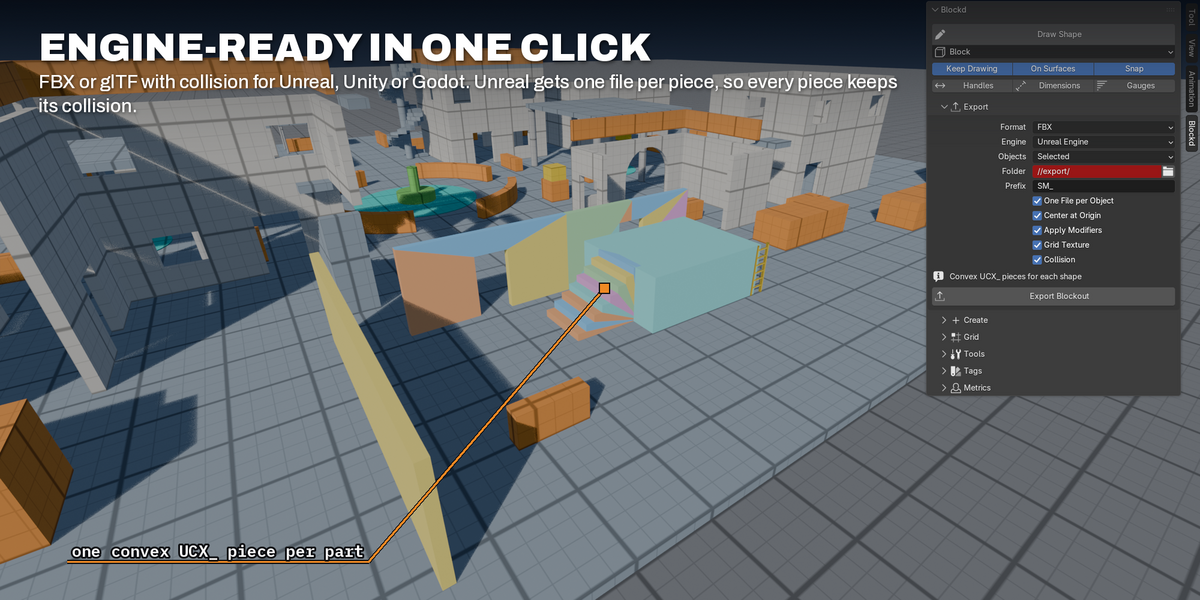
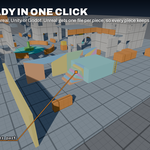
The Export panel writes FBX or glTF binary (.glb) files.
| Setting | What it does |
|---|---|
| Format | FBX or glTF |
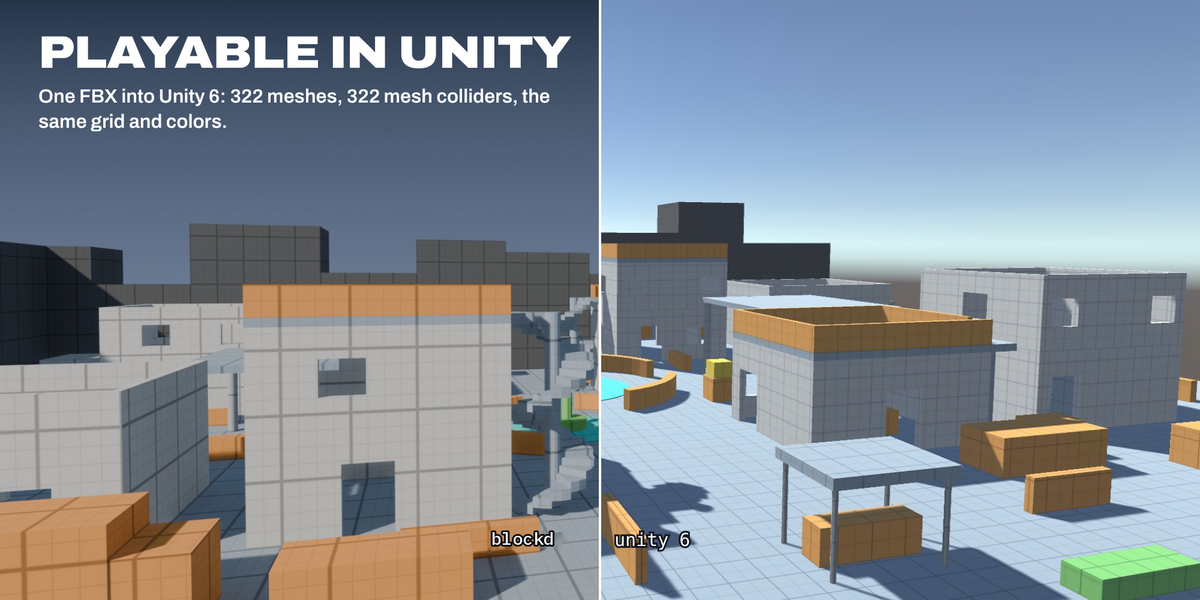
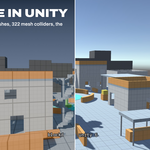
| Engine (FBX) | Unreal, Unity (Y up, transforms baked so pieces import with clean rotation and scale) or Generic (Blender's defaults). For Godot, export glTF. |
| Objects | Selected, the Blockout collection, or everything visible |
| Folder | Where files are written. The default //export/ is next to your .blend file, so save the file first. |
| Prefix | Added to every file name, for example SM_ for Unreal static meshes |
| One File per Object | Writes each piece to its own file, for modular kits. Turns on by itself when you turn on Collision for Unreal (see below) |
| Center at Origin | With one file per object, moves each piece to the world origin for the export, so it imports with a clean pivot |
| File Name | The file name when everything goes into one file |
| Apply Modifiers | Bakes cutters and other modifiers into the exported meshes |
| Grid Texture | Writes each tag's grid as a texture, so the engine shows the grid lines instead of flat color: one tile per UV tile (1 m by default) with a line every grid cell. FBX embeds the textures and glTF includes them. On by default |
| Collision | Adds collision the engine reads on import. Unreal (FBX): every shape gets convex UCX_ pieces that follow its openings and steps. Godot (glTF): object names get -col, and Godot builds trimesh collision. Unity: no extra files; turn on Generate Colliders in the model's import settings |
Pieces tagged Water get no collision (no UCX_ pieces, no -col), so the player can enter them. In Unity, Generate Colliders applies to the whole model: remove the collider from the water objects or set it to a trigger.
Reference pieces (capsules and rulers), cutters and hidden objects are never exported. Shapes with cutters and meshes that aren't Blockd shapes get no UCX_ pieces; use complex collision for them in Unreal.
Unreal collision needs one file per object. When one FBX holds several meshes with custom collision, Unreal imports the collision of the first mesh only. Turning on Collision with the Unreal (or Generic) engine therefore turns on One File per Object. If you turn it off again, the Export panel shows a warning, and exporting several shapes into one file reports that only the first will get its collision.
For Unreal, a name like BK_Wall.001 is written as BK_Wall_001, the name Unreal gives the mesh anyway, so the mesh and its UCX_ pieces always match. Your objects keep their names in Blender.
Hotkeys
| Hotkey | Action |
|---|---|
| Shift+Alt+B | Blockd pie menu |
| Shift+Alt+D | Draw Shape |
| Alt+] / Alt+[ | Grid size up / down |
All of them work in Object Mode in the 3D Viewport. Change them in the preferences.
Preferences
Edit > Preferences > Add-ons > Blockd
-
Put New Shapes in a Collection and its name (default
Blockout). - Grid Steps: powers of two, decimal, Unreal (cm) or Unreal powers of two (cm).
- UV Tile Size: world size of one UV tile on generated shapes.
- Hotkeys: change or disable the shortcuts above.
Troubleshooting
"Can't find the ground under the mouse." The view is looking at the horizon or up at the sky. Tilt the view down, or start the shape on top of an object.
"Save the .blend file first, or pick an absolute export folder." The default export folder is relative to your .blend file. Save the file, or choose a full folder path.
"Nothing to export." Only visible mesh objects are exported, and cutters and reference pieces are skipped. Check the Objects setting and that the pieces aren't hidden.
Tag colors don't show. Click Blockout View in the Grid panel, or set Viewport Shading > Color to Material. Imported models that kept their own materials show those materials.
Blender's grid doesn't match the Blockd grid. Turn on Sync Viewport Grid in the Grid panel.
A shape stopped updating when I change its sizes. It's in Edit Mode (press Tab to leave it), it was edited by hand (the Shape panel says so and offers Reset Shape), or it was baked and is now a regular mesh.
The viewport gets slow with many cutters. Booleans are recalculated live. Bake finished pieces with Bake to Static Mesh.
Support and license
Questions, bug reports and feature requests: contact us through the Blockd product page on Superhive. Please include your Blender version and, for bugs, the steps that cause the problem.
Blockd is made by The Souk Galaxy.
© 2026 Fabrique du Souk Inc. Released under the GNU General Public License v3.0 or later, the same license as Blender. The full license text is included in the extension (LICENSE).
 Included
Includes 12 months of
- Support from The Souk Galaxy
- Product updates
Extend this product’s Support Period +12 months: 50% of product price
Have questions before purchasing?
Login to message
| Blender Extension Compatible | Yes |
| Published | about 2 hours ago |
| Blender Version | 4.2 - 5.2 |
| Extension Type | Add-on |
| Render Engine Used | Cycles |
| License | GPL |
Discover more products like this
unity game environment level blockout prototyping game development Unreal Engine Level Design blockout grid snapping greybox godot modular