 Sonneblom Digitaal
What it does
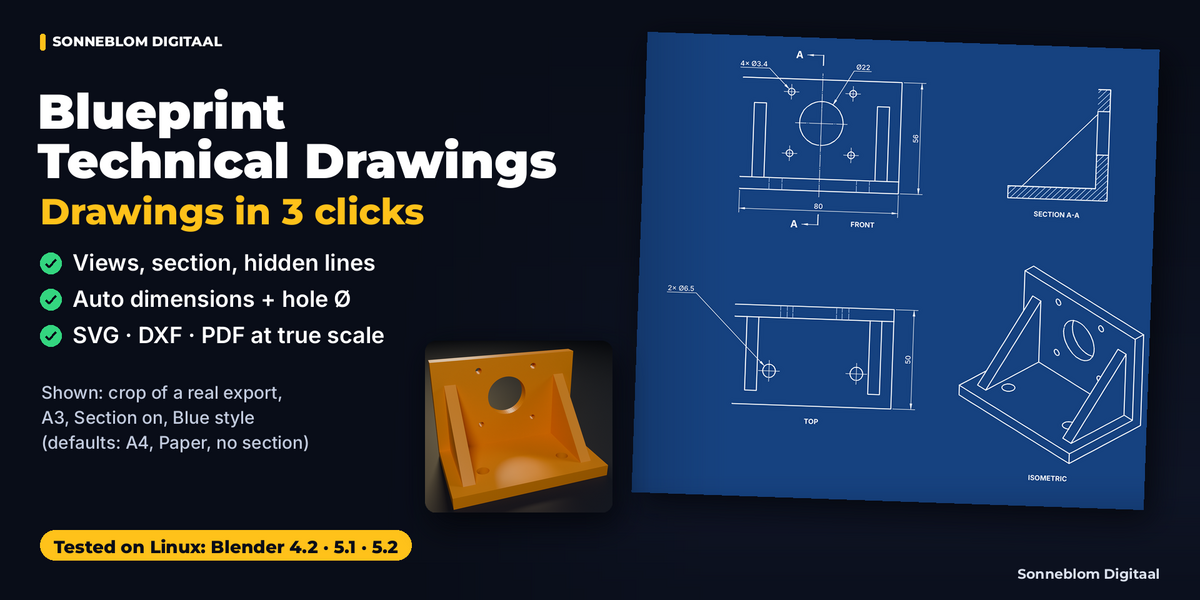
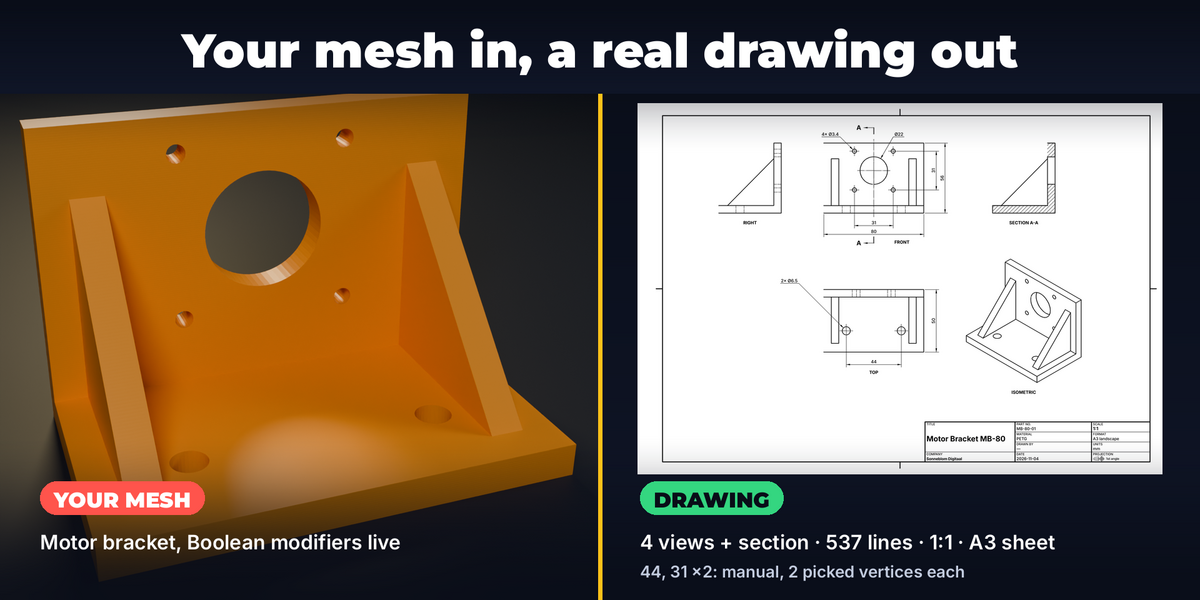
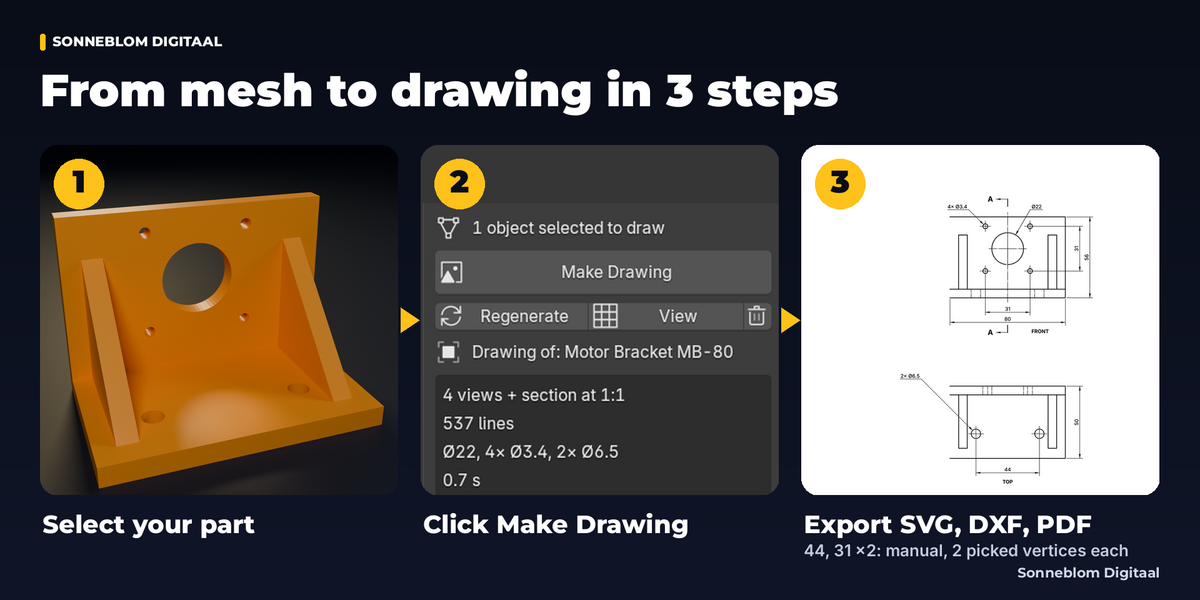
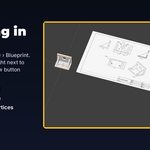
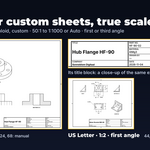
Blueprint Technical Drawings turns your mesh into a dimensioned 2D technical drawing in three clicks: select, Make Drawing, Export. Select your part, click Make Drawing and you get a sheet with front, top, right and isometric views, an optional section A-A with hatching, dashed hidden lines, overall dimensions, automatically detected hole diameters (Ø8, 4× Ø5) and a filled-in title block. Export it as SVG, DXF and PDF at true scale: at 1:1 a 100 mm edge is exactly 100 mm in each file (SVG size in mm, DXF in mm or inch, PDF page at the exact sheet size: our tests read every file back and measure it); at 1:2 it is 50 mm, as the title block says.
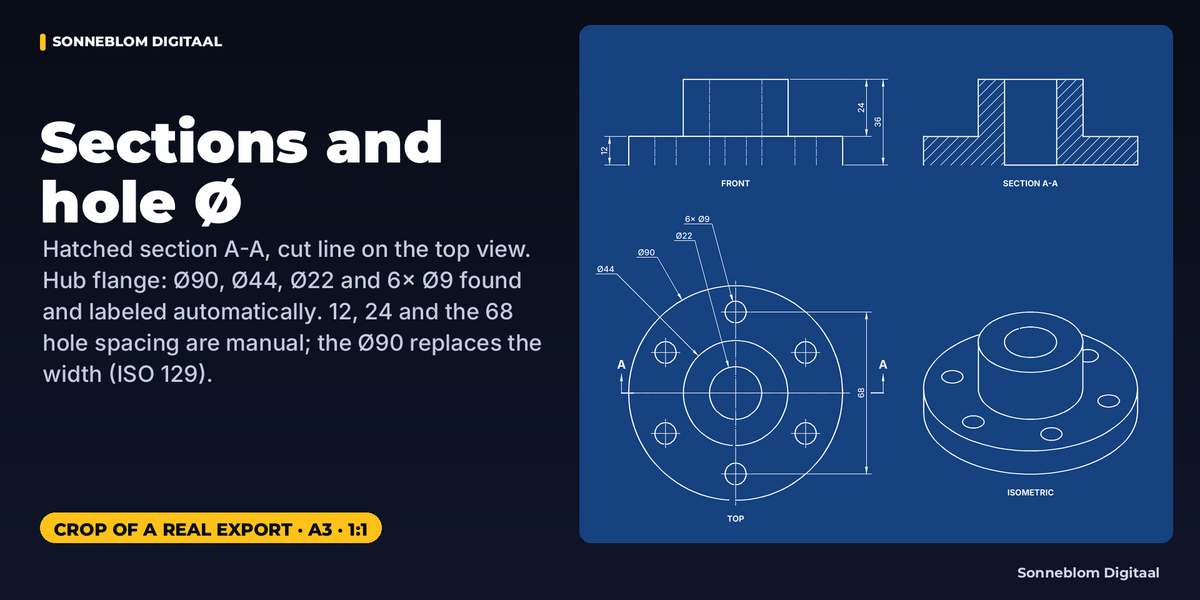
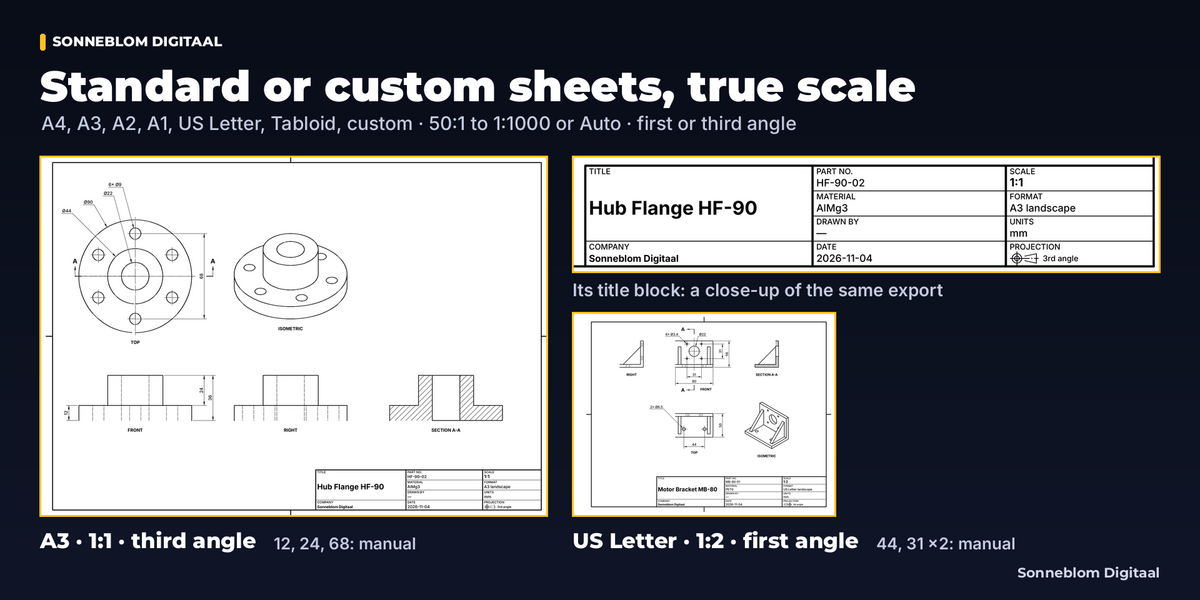
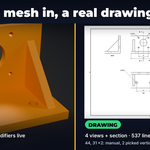
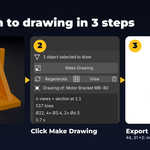
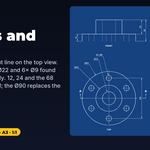
Blender has no technical-drawing mode: Freestyle and the Grease Pencil Line Art modifier give you lines, not a scaled sheet with views, dimensions and a title block. This add-on makes a clean, dimensioned drawing for a quote, a print job or a client, straight from the model you already have, with your modifiers included. It dimensions overall sizes and hole diameters, and you add point-to-point dimensions between two vertices (hole positions, thicknesses). The motor-bracket sheets in the ‘mesh to drawing’, ‘steps’ and ‘sheets’ images, and the flange drawings, include such manual dimensions; each says which ones. Hole positions are not dimensioned automatically; tolerances and revision notes go in your CAD program.
Who it's for
- Makers and 3D-print designers who document parts, quote jobs or send files to a laser / CNC shop
- Product designers sending a dimensioned drawing to a client or a manufacturer
- Hobby engineers and students who model in Blender but need proper orthographic drawings
Key features
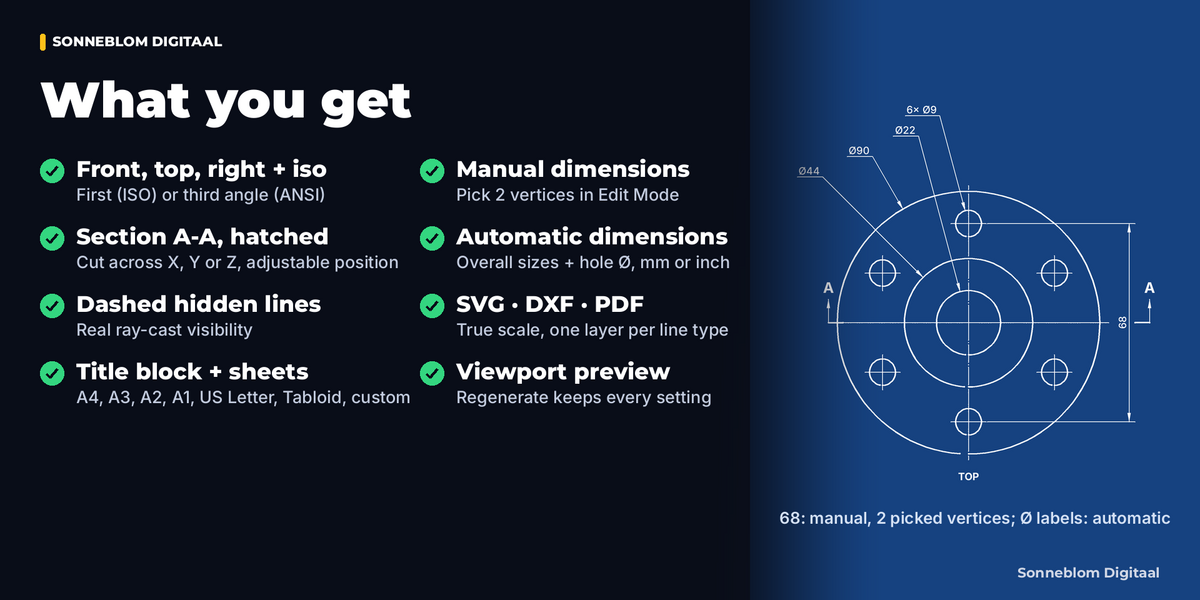
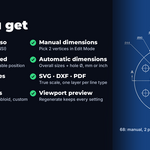
- Standard views: Front, Top, Right and Isometric, each on or off, in first angle (ISO) or third angle (ANSI) projection, aligned like a real drawing
- Section A-A: cut across X, Y or Z at an adjustable position through the part, hatching in a different direction per part (45°, 135°, 60°, …), cutting-plane line with arrows and letters on the parent view.
- Closed (watertight) parts are hatched, overlapping shells of one object are filled as one solid
- Real hidden lines: ray-cast visibility, dashed, split where an edge disappears behind the part (sampled every sheet millimeter, then refined)
- Clean lines on curved parts: only silhouettes and sharp edges (feature angle setting), so smooth cylinders and fillets show their outline, not every facet (very coarse ones, 11 segments or fewer, still show their facets).
- Collinear pieces merged and duplicates removed so files stay small
- Dimensions: overall width / height / depth (ISO arrows, mm or inch, your decimals), hole and cylinder diameters found automatically with center marks, plus your own point-to-point dimensions between 2 vertices picked in Edit Mode
- Sheets and scales: A4, A3, A2, A1, US Letter, Tabloid or custom, landscape or portrait; ISO scales 50:1 to 1:1000 or Auto (the largest that fits)
- Title block: title, part number, material, drawn by, date, company, scale, format (sheet size), units and the projection symbol
- Export: SVG (mm, layers per line type, ISO 128 line widths in SVG and PDF), DXF R12 (layers VISIBLE, HIDDEN, SECTION, HATCH, CENTER, CUTLINE, DIM, TEXT, BORDER; outlines as closed POLYLINEs), vector PDF at the exact page size with layers.
- Paper (black on white) or Blue (white on blue) style
- Viewport preview next to your model; Regenerate after edits keeps every setting
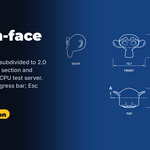
- Heavy meshes: on our 2-vCPU test server, a 1.57-million-face noisy test mesh draws in about 12–17 s with 4 views, Section A-A and hidden lines (viewport preview included).
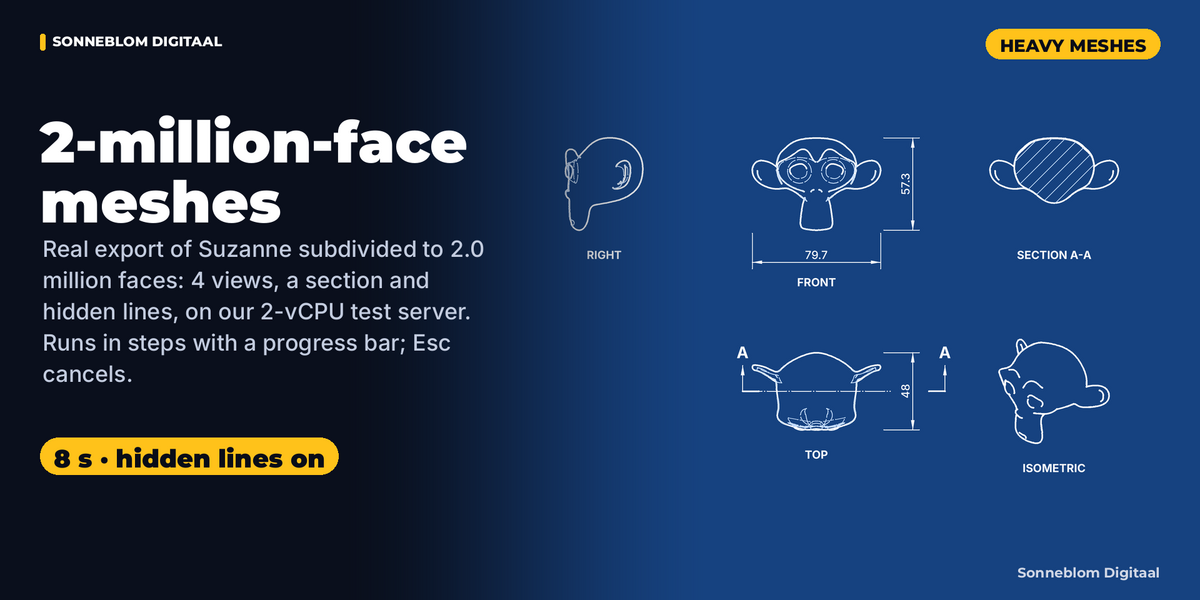
- The 2-million-face smooth mesh in the gallery (a subdivided Suzanne) takes about 8 s, also with hidden lines and a section. The longest single pause of the window is up to about 2.5 s.
- Drawing and export run in steps with a progress bar; Esc in the window that started it (from another window: the Cancel button in the Blueprint panel) cancels.
- Bigger meshes pause longer and use more memory (Blender peaked at about 1.6 GB here); above 3 million faces the add-on shows an estimate and asks before it starts
How to use
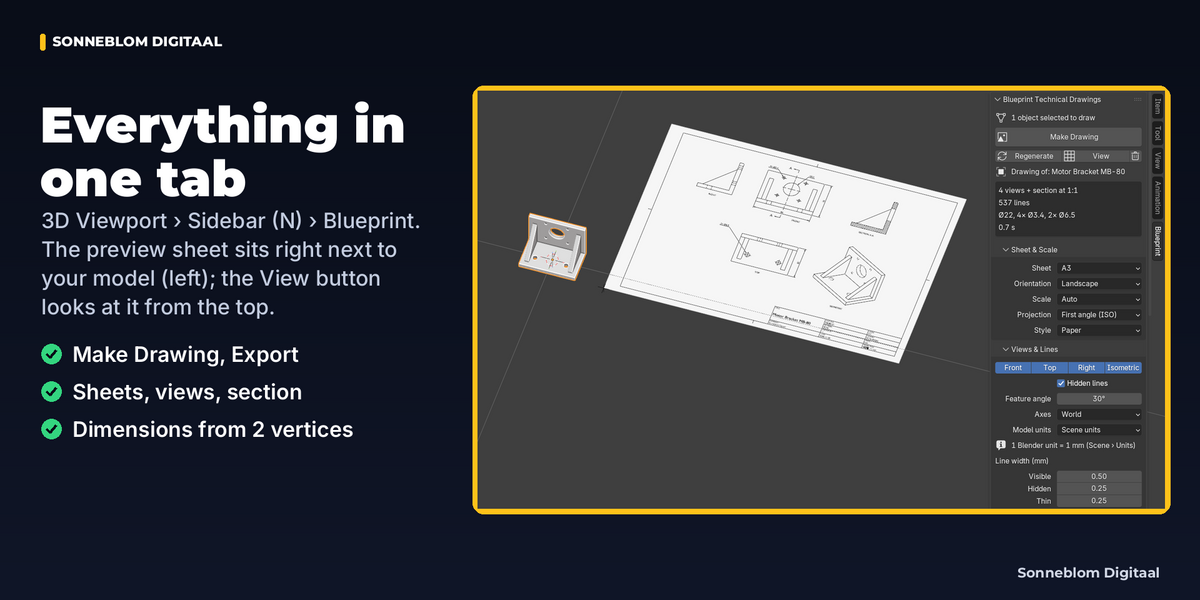
- Select your mesh object(s) and open the Blueprint tab in the 3D Viewport sidebar (N).
- Click Make Drawing. The preview sheet appears in the viewport, to the right of your model; View frames it.
- Pick sheet, scale, views, section and title block details; click Regenerate.
- Optional: Tab into Edit Mode, select 2 vertices and click + next to the Manual dimensions list (Dimensions panel).
- Click Export: SVG, DXF and PDF land in the export folder (default: a "drawings" folder next to your .blend; unsaved file: home/Blueprint drawings/drawings).
Compatibility
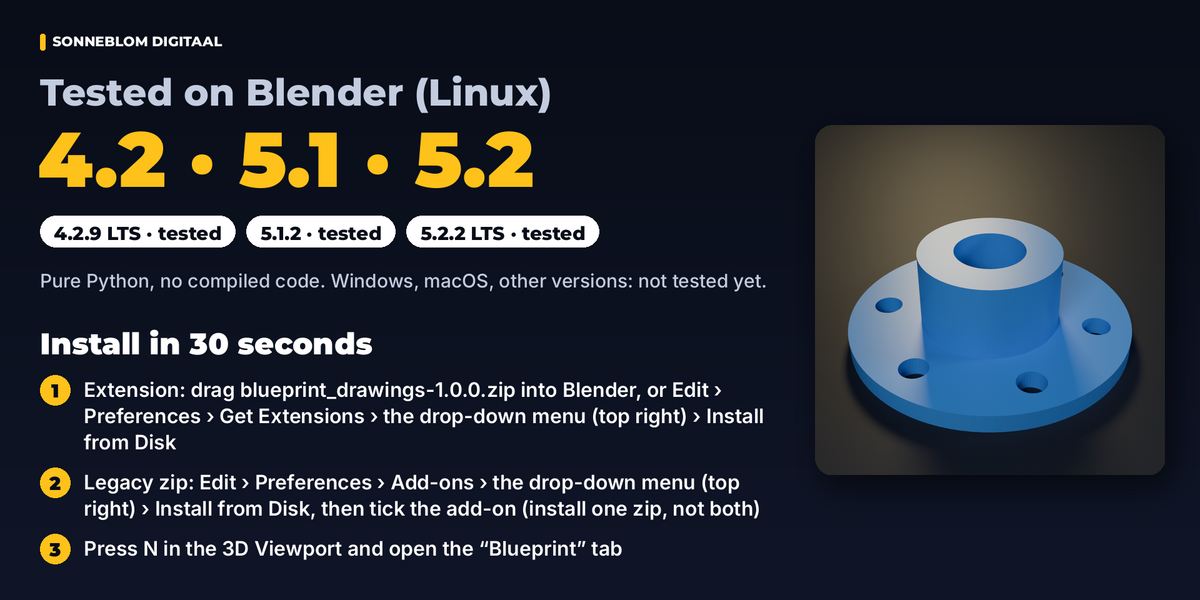
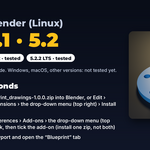
Blender 4.2 LTS or newer, tested on 4.2 LTS, 5.1 and 5.2 LTS. Automated tests run on Linux; Windows, macOS and Blender 4.3–5.0 are not tested yet; the add-on is pure Python with no platform-specific code beyond file handling. Extension zip and classic add-on zip included. No external programs or downloads.
Good to know
- Windows and macOS have not been tested yet (see Compatibility). If anything looks wrong there, send us a message and we will fix it.
- It draws meshes. Convert curves and text to a mesh first (Object › Convert › Mesh). Geometry Nodes instances need a Realize Instances node.
- It makes 2D drawings of an existing model. It is not a parametric CAD program, and dimensions do not drive the model.
- Holes are found when their rim is a sharp, circular edge loop with at least 12 segments. Holes with a rounded rim (a fillet or a multi-segment bevel) are drawn but not labeled.
- At most 8 hole diameters per view get a Ø leader (the largest); the report names the others.
- DXF is written as R12 (we have not tested it in CAM programs). Holes seen whole are true CIRCLEs; other curves stay short straight segments, as fine as the mesh.
- While a drawing is being made you can orbit, pan and zoom. Other shortcuts (Ctrl+S too) wait until it is done. Esc in the window that started it cancels; from another window, click Cancel in the Blueprint panel.
- PDF title-block text supports Western European characters only (the PDF uses the standard Helvetica font); Japanese, Cyrillic, Greek and other scripts show as "?" there. Use the SVG for other scripts: it keeps every character.
More limits (split vertices from glTF / FBX, the viewport preview, unsaved files, very noisy scans) are listed in the Documentation tab under Limits.
Support
Questions or a bug? Use the Superhive product page messages and we reply within a day.