Bmerch for 3D Printing
 Plastiq


bmerch — Documentation
========================
A complete usage guide for every generator in bmerch. See PRODUCT_INFO.txt
for the shorter marketing description, requirements, and install steps -
this file goes deeper: every setting, every generator, and how they behave.
CONTENTS
---------
1. Getting Started
2. Concepts Used By Every Generator
3. Bead
4. Keychain
5. Nameplate (flat and standing)
6. Pendant
7. Coaster (round and square)
8. Coin
9. Troubleshooting
1. GETTING STARTED
--------------------
Everything lives under one menu: in the 3D Viewport, press Shift-A, then
choose Merch. There's no sidebar tab to hunt for - every generator is
reached the same way, straight from the Add menu:
Merch
├─ Bead
├─ Keychain
├─ Nameplates
│ ├─ Nameplate Primitive
│ ├─ Standing Nameplate Primitive
│ └─ Apply Font/SVG to Nameplate
├─ Pendant Primitive
├─ Apply Font/SVG to Pendant
├─ Coasters
│ ├─ Coaster Primitive
│ ├─ Square Coaster Primitive
│ └─ Apply Font/SVG to Coaster
├─ Coin Primitive
└─ Apply Font/SVG to Coin
After running any of these, look at the bottom-left corner of the 3D
Viewport - a small panel labeled "Generate Bead" (or whichever operator
you just ran) is waiting to be clicked open. That's the redo panel, and
it's where every setting for that generator lives. Changing a value there
re-runs the operator instantly with the new value, as many times as you
like, without having to undo and start over. This is true for everything
in bmerch: run once with default values, then dial it in afterward.
Every generator builds a brand-new object - your original Text or Curve
object is left completely alone, so you can freely experiment.
2. CONCEPTS USED BY EVERY GENERATOR
--------------------------------------
WHAT COUNTS AS A SOURCE OBJECT
Every generator accepts either a Blender Text object (type your own words
directly in Blender) or an imported Curve object - which covers SVG
imports, hand-drawn Bezier curves, or any other curve-based shape. Both
work identically everywhere in bmerch; nothing distinguishes a font's own
letterforms from a curve's own paths once they're loaded in.
ONE-STEP VS. TWO-STEP GENERATORS
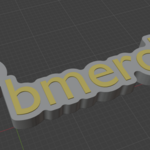
Bead and Keychain are one-step: select a source object, run the generator,
and you're done - their own shape hugs the letters directly, so there's no
separate "blank shape" to build first.
Nameplate, Pendant, Coaster, and Coin are two-step, because their shape
(a plate, a bezel, a disc) exists independently of whatever text or icon
ends up on it:
1. Run "Create X Primitive" (no selection needed - it builds at the 3D
cursor). This is the bare backing shape.
2. Run "Apply Font/SVG to X" with the primitive AND a Text/Curve object
both selected. This fills it in.
This split means you can build one primitive at a fixed size once, then
apply as many different fonts, icons, or designs to it as you want,
without re-typing every dimension each time. The primitive itself is
never modified by an Apply step - each apply works on a fresh duplicate,
so you can keep re-applying to the same primitive over and over.
As a shortcut, every "Create X Primitive" operator also has its own
"Target Text/SVG" field right in its own redo panel - set it there to
build AND decorate in one call, skipping the separate Apply step, without
losing the ability to Apply again later against the result.
SIZE MODE
Every generator that places a graphic onto (or as) a shape has a Size
Mode: X, Y, or Independent.
- X: you set Graphic Width directly; Graphic Height follows automatically
to preserve the graphic's own natural proportions (and is shown
disabled/read-only).
- Y: the reverse - you set Graphic Height, Width follows.
- Independent: set both yourself. This can distort the graphic if the
two numbers don't match its natural aspect ratio.
A value of 0 in the active field means "auto" - let bmerch pick a sensible
size (the largest that fits, for shapes with a boundary to fit inside;
a fixed anchor size for Bead/Keychain, which have no boundary).
TEXT RESOLUTION VS. SHAPE RESOLUTION
These are two separate, independent controls that show up on most
generators:
- Text Resolution controls how finely the SOURCE object's own curves
convert to a mesh - it applies equally whether that source is a Text
object's font curves, an imported SVG, or a hand-drawn Curve object.
It defaults low (8) for speed, since a detailed or script-style font
can have far more curve segments per letter than a plain sans-serif
one, and this value multiplies against however much detail is already
there.
- Shape Resolution controls how round any GENERATED geometry looks -
border corners, holes, a circular bezel's own wall. It defaults
higher (16) so borders and holes stay smooth regardless of what Text
Resolution is set to.
If a simple, geometrically sharp font or shape shows a tiny visible notch
on a rounded border or corner, raise Shape Resolution. If a complex font
is generating slowly, lower Text Resolution - the two never affect each
other.
BORDER THICKNESS: RATIO VS. ABSOLUTE
Bead and Keychain's own Border Thickness is a PERCENTAGE of the piece's
own size (shown with a % sign, plus a read-only "Actual" length readout
right beneath it in the redo panel) - it always comes out correctly
proportioned no matter what native scale your source Text/SVG happens to
be at, so no pre-scaling is ever needed there.
Pendant, Coaster, and Coin's own Border Thickness is an ABSOLUTE length
instead, because those generators build a fixed-size backing shape first
and fit the graphic to it afterward - there's no "piece's own size" for a
percentage to be relative to until the shape already exists. If an SVG
was imported at a very small native scale (common for icon-style SVGs),
Border Thickness can look disproportionately thick relative to its own
details on these generators. Fix: select the imported curve, scale it up
in the viewport, then apply the scale (Ctrl+A > Scale) before running the
generator - this gives Border Thickness much more room to work with,
without needing to change the value itself.
EDGE BEVEL
Pendant, Coaster (both shapes), and Coin each have an optional Edge Bevel
- a checkbox that, when enabled, reveals a Length and Segments control and
rounds over the piece's own sharp outer edges (which edges specifically is
described in each generator's own section below). It's applied BEFORE any
hole is drilled or recess is cut, so the bevel itself always stays smooth
and even. Length is automatically clamped to a safe maximum for the
current dimensions - if you type in a value that's too large, it's
silently reduced and a warning explains why, shown right in the redo
panel (not a popup that disappears).
WARNINGS
Whenever a value had to be automatically adjusted to keep the piece
physically valid (a border too thick, a hole too close to an edge, a
bevel that would fold back on itself), bmerch shows the reason as text
directly in the redo panel rather than a popup - it stays visible as long
as the panel is open, so it's easy to read even if you're not looking
right when it appears.
3. BEAD
---------
Shift-A > Merch > Bead. One click, one step.
Select one or more Text/Curve objects, then run Bead. It bridges nearby
letters into a single, physically holdable piece with a backing rim -
letters are never left as disconnected floating shapes, and every
counter (the inside of an "e", "o", or a nested icon detail) stays
correctly open rather than getting filled in, no matter how deeply
nested it is.
Settings (redo panel):
- Border Thickness - backing rim thickness, as a % of the piece's own
size. Automatically widened past what you typed if needed to bridge
every letter into one connected piece (see Actual readout beneath it
for the real length that works out to).
- Base Thickness - uniform thickness of the whole piece.
- Relief Height - how far the letters rise above the border's own top;
0 keeps everything flush.
- Corner Style - the join style Clipper uses when offsetting the
border outward: Round (recommended - matches Clipper's own default
and never spikes), Miter (sharp corners, clamped to avoid spikes),
or Square (squared-off corners).
- Text Resolution / Shape Resolution - see section 2.
- Size Mode, Graphic Width (X), Graphic Height (Y) - see section 2.
- Stringing Hole Radius - an optional hole drilled straight through the
bead (along X or Y) for a cord or wire; 0 disables it. Automatically
clamped to leave 0.4mm of solid wall above and below it.
- Hole Direction - X or Y, which axis the stringing hole runs along.
4. KEYCHAIN
------------
Shift-A > Merch > Keychain. One click, one step.
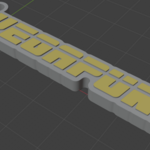
Identical to Bead in every way (same backing-rim/relief/border logic),
plus a welded attachment loop - a small washer-shaped ring with its own
hole for an actual keyring - anchored to whichever corner of the shape
you choose, snapped to the nearest point actually on its outline.
Keychain has no Stringing Hole option of its own - the welded loop is
the keyring attachment point instead.
Settings (redo panel):
- Border Thickness, Base Thickness, Relief Height, Corner Style, Text
Resolution, Shape Resolution, Size Mode, Graphic Width (X), Graphic
Height (Y) - identical to Bead, see section 3.
- Loop Hole Diameter - diameter of the hole through the welded loop
that an actual keyring passes through; 0 disables the loop entirely.
- Loop Wall Thickness - thickness of solid material around that loop
hole (not the piece's own Border Thickness - this is specific to
the loop itself).
- Loop Anchor - which corner/edge of the charm's own bounding box the
loop is welded onto, snapped to the nearest point actually on its
outline: Top Left, Top Center, Top Right, Bottom Left, Bottom
Center, or Bottom Right.
5. NAMEPLATE (FLAT AND STANDING)
-----------------------------------
Shift-A > Merch > Nameplates. Two-step, two shapes.
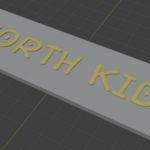
A nameplate is a FIXED-SIZE backing plate - its dimensions don't depend
on what text goes on it, unlike Bead/Keychain. Two shape variants share
the same Apply step:
- Nameplate Primitive - a flat rounded-rectangle plate.
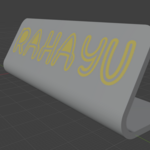
- Standing Nameplate Primitive - the same idea bent into a
desk-standing shape: a flat foot that rests on the desk, a rounded
bend, and an angled face panel that carries the text.
- Apply Font/SVG to Nameplate - works on either shape (whichever is
selected), raising or engraving a graphic onto it.
NAMEPLATE PRIMITIVE settings:
- Plate Width / Plate Height - fixed size of the plate, independent of
any text.
- Corner Radius - rounds the plate's own corners; 0 for sharp.
- Base Thickness - uniform thickness of the plate.
- Shape Resolution.
- Target Text/SVG (optional) - decorate immediately using the settings
below, instead of running Apply Font/SVG to Nameplate separately
later.
- Text Style - Raised (text sits proud of the surface) or Engraved
(text is recessed into it).
- Relief Height - how far the text stands proud or is recessed. For
Engraved, clamped to leave 0.4mm of solid floor beneath it.
- Text Resolution, Size Mode, Graphic Width (X), Graphic Height (Y) -
see section 2. Auto-size fills a fraction of Plate Width/Height.
STANDING NAMEPLATE PRIMITIVE settings:
- Plate Width - how far the whole shape extends sideways (the width
you see looking at the text face head-on).
- Strip Thickness - uniform material thickness of the bent strip.
- Foot Length - length of the flat segment that rests on the desk.
- Face Length - length of the angled segment that carries the text.
- Bend Radius - radius of the rounded bend between foot and face,
measured to the strip's own centerline.
- Bend Angle - how far the face segment tilts up from horizontal.
- Edge Radius - rounds the foot's own leading edge (the front-bottom
edge that would otherwise dig into a desk) and the face's own tip
edge (the far edge of the text panel, opposite the bend); 0 leaves
both sharp. This is the standing shape's OWN edge treatment, separate
from the flat plate (which has no equivalent control).
- Target Text/SVG, Text Style, Relief Height, Text Resolution, Size
Mode, Graphic Width (X), Graphic Height (Y) - same as the flat
primitive; auto-size fills a fraction of Plate Width/Face Length.
APPLY FONT/SVG TO NAMEPLATE: select exactly one nameplate primitive
(flat or standing) plus one or more Text/Curve objects, then run it.
Settings: Text Style, Relief Height, Text Resolution, Size Mode, Graphic
Width (X), Graphic Height (Y) - same meaning as above, auto-size reads
the primitive's own stored dimensions.
6. PENDANT
-----------
Shift-A > Merch > Pendant Primitive / Apply Font/SVG to Pendant.
Two-step, one shape.
A circular bezel: a raised outer rim standing above a recessed floor,
with your graphic filling that recess exactly flush with the rim's own
top. An optional hole can be bored side-to-side through the rim itself
(tangent to the circle, not straight through the flat faces) for a jump
ring or cord.
CREATE PENDANT PRIMITIVE settings:
- Outer Diameter - overall diameter; everything else is measured off
this, not the radius.
- Base Thickness - thickness of the solid floor beneath the recess.
- Text & Border Height - how far the rim stands above the recessed
floor (also the graphic's own extrusion height once applied, since
it always fills the recess flush with the rim's top). Overall
pendant height is Base Thickness + Text & Border Height.
- Border Thickness - radial thickness of the outer rim, clamped to
leave at least 0.4mm of recess floor radius.
- Hole Diameter - diameter of a hole bored side-to-side through the
pendant's own solid floor beneath the recess (tangent to the circle,
not through the flat front/back faces), for a jump ring or cord.
Clamped to leave 0.4mm of solid material above and below it within
Base Thickness - completely independent of Border Thickness. 0
disables it.
- Hole Edge Gap - clearance between the pendant's own outer edge and
the near edge of the hole - moves the hole toward or away from the
edge directly. Since the hole sits below the recess entirely, it can
move as far toward the center as you want without ever breaking into
the recess, regardless of Border Thickness.
- Edge Bevel (checkbox) - rounds THREE edges at once: the rim's outer
top, outer bottom, and the inner edge where the recess opening meets
the rim's own top. Applied before the hole is drilled, so it stays
smooth regardless of Hole Diameter. See section 2 for Length/
Segments.
- Shape Resolution.
- Target Text/SVG (optional), Text Resolution, Size Mode, Graphic
Width (X), Graphic Height (Y) - see section 2. Auto-size fills the
largest size that still clears the rim.
APPLY FONT/SVG TO PENDANT: select exactly one pendant primitive plus one
or more Text/Curve objects. Same Text Resolution/Size Mode/Graphic Width/
Graphic Height controls; an explicit size that would collide with the
rim is clamped back to the point of contact rather than erroring out.
7. COASTER (ROUND AND SQUARE)
--------------------------------
Shift-A > Merch > Coasters. Two-step, two shapes.
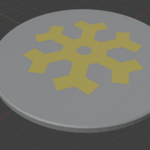
A wide, low-profile disc or rounded-square with a raised outer border and
the design filling a shallow recess, flush with the border's own top.
Relief height is fixed intentionally low (0.01, not user-adjustable) so
the flat top stays paintable/maskable even with a design on it. No hole
on either shape.
- Coaster Primitive - round.
- Square Coaster Primitive - rounded-rectangle.
- Apply Font/SVG to Coaster - works on either shape.
CREATE COASTER PRIMITIVE (round) settings:
- Coaster Diameter - overall diameter.
- Height - thickness of the solid floor beneath the recess (the
coaster's own overall height up to where the recess sits).
- Border Thickness - radial thickness of the raised outer border,
clamped to leave at least 0.4mm of recess floor radius.
- Edge Bevel (checkbox) - rounds the border's own outer TOP and BOTTOM
perimeter edges only; the inner recess-opening edge is left sharp.
See section 2 for Length/Segments.
- Shape Resolution.
- Target Text/SVG (optional), Text Resolution, Size Mode, Graphic
Width (X), Graphic Height (Y) - auto-size fills the largest size
that still clears the border.
CREATE SQUARE COASTER PRIMITIVE settings - same as round, plus:
- Side Length replaces Coaster Diameter - length of each side (not a
half-length).
- Corner Radius - rounds the coaster's own outer corners; 0 for sharp.
The recess's own corners are inset from these by Border Thickness so
the border reads as a uniform-width frame all the way around.
- Edge Bevel's Length is ALSO clamped to under 90% of Corner Radius
whenever Corner Radius is above 0 (on top of the usual "leave 0.4mm
of flat border" clamp) - a rounded corner's own bevel can fold back
on itself past that point, and Corner Radius is often the tighter of
the two limits in practice.
APPLY FONT/SVG TO COASTER: select exactly one coaster primitive (round
or square) plus one or more Text/Curve objects. Same controls as the
primitive's own Target Text/SVG section; an explicit size that would
collide with the border is clamped back to the point of contact.
8. COIN
--------
Shift-A > Merch > Coin Primitive / Apply Font/SVG to Coin.
Two-step, one shape, two independent sides.
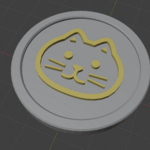
A two-sided circular bezel: a raised border on BOTH faces, each with its
own recess, sharing one Border Thickness and one Relief Height around a
solid, unrecessed core. Front and back are decorated completely
independently - set one now and the other later, or both at once. The
back design is automatically mirrored (a true 180-degree flip, like
physically turning the coin over top-to-bottom with your thumb) so it
reads correctly once the coin is actually flipped.
CREATE COIN PRIMITIVE settings:
- Outer Diameter - overall diameter.
- Core Thickness - thickness of the solid, unrecessed core between the
front and back recessed floors.
- Relief Height - how far the border stands above BOTH recessed
floors, shared by front and back so there's only one number to keep
in sync. Overall coin height is Core Thickness + 2 x Relief Height.
- Border Thickness - radial thickness of the outer border on BOTH
sides, clamped to leave at least 0.4mm of recess floor radius.
- Edge Bevel (checkbox) - rounds FOUR edges at once: the outer top and
bottom perimeter, plus the front and back recess openings' own
edges. Applied before either recess is cut. See section 2 for
Length/Segments.
- Shape Resolution, Text Resolution.
- Front Text/SVG and Back Text/SVG (each optional, independent) - set
either or both to decorate immediately; leave blank to apply later.
Each gets its own Size Mode, Graphic Width (X), Graphic Height (Y),
since front and back are unrelated designs with their own natural
proportions.
APPLY FONT/SVG TO COIN: select exactly one coin primitive, then set
Front Text/SVG and/or Back Text/SVG (same independent controls as
above). Can be run multiple times against the same primitive - useful
for doing the front now and the back once you have a design ready for
it, or trying different designs on either side.
9. TROUBLESHOOTING
--------------------
"Some letters may not be fully connected" (Bead/Keychain) - the backing
rim had to be automatically widened past what you typed to bridge every
letter into one piece. Try a larger Border Thickness yourself, a
different Corner Style, or a higher Shape Resolution.
"Border Thickness clamped to ..." - whatever value you typed would have
left less than 0.4mm of solid recess floor; it's been reduced to the
largest safe value automatically.
"Edge Bevel Length clamped to ..." - the bevel you asked for would have
eaten into the recess, exceeded the piece's own height, or (Square
Coaster only) folded a rounded corner back on itself; reduced to the
largest safe value automatically.
A design looks disproportionately thick against its own details on
Pendant/Coaster/Coin - see "BORDER THICKNESS: RATIO VS. ABSOLUTE" in
section 2. Scale the source curve up and apply the scale before running
the generator.
A rounded border or corner shows a tiny flat notch - raise Shape
Resolution in the redo panel (see section 2).
A complex/ornate font is slow to generate - lower Text Resolution in the
redo panel; it only affects the source font/curve's own smoothness, not
any border or hole roundness.
Have questions about this product?
Login to message
| Published | 3 months ago |
| Blender Version | 5.1 - 5.2 |
| Misc Data | Manifold-Mesh |
| License | GPL |