Boardtyper 3D
 Skarmuse


Boardtyper 3D Documentation
Overview
Boardtyper 3D is a Blender extension designed to automate the preparation, arrangement, and export of 3D game components directly into Tabletop Simulator (TTS). It generates the required .obj files, extracts textures, and compiles the final TTS .json save file. This pipeline offers seamless local testing, as well as direct GitHub and cloud asset hosting for multiplayer environments (Pro feature).
Key Features
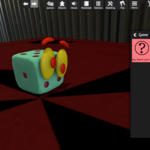
TTS Component Typing: Assign native TTS properties (Generic, Bag, Figurine, Coin, Board, Infinite, Dice, Chip) and materials directly within the Blender viewport.
Smart Bag System: Create bags and automatically populate them with other scene objects with exact quantities.
Visibility Control: Keep utility objects hidden from the physical table while remaining available inside containers.
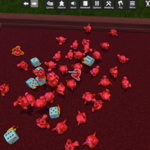
Auto-Layout Grid: Automatically arrange spawned objects in a clean, calculated grid to prevent physics collisions upon loading the game in TTS.
Lua Injection: Attach custom .lua scripts to any object directly from Blender's text editor or via external files.
Export Local: Export locally for rapid offline prototyping on your PC with Tabletop Simulator.
TTS Component Typing: Assign native TTS properties (Generic, Bag, Figurine, Coin, Board, Infinite, Dice, Chip) and materials directly within the Blender viewport.
Smart Bag System: Create bags and automatically populate them with other scene objects with exact quantities.
Visibility Control: Keep utility objects hidden from the physical table while remaining available inside containers.
Auto-Layout Grid: Automatically arrange spawned objects in a clean, calculated grid to prevent physics collisions upon loading the game in TTS.
Lua Injection: Attach custom .lua scripts to any object directly from Blender's text editor or via external files.
Export Local: Export locally for rapid offline prototyping on your PC with Tabletop Simulator.
Pro Features:
Custom Physics Colliders: Bypass inaccurate auto-colliders. Assign optimized low-poly meshes as convex or non-convex colliders to ensure your miniatures and tokens interact flawlessly with the table's physics engine.
Automated Snap Points: Create rapid, precise interactions for your players. Convert Blender Empties parented to your meshes into native TTS magnetic Snap Points instantly.
TTS States System: Create dynamic, multi-state objects (e.g., flipping coins, rotating dials, or damaged character tokens). Group multiple meshes in Blender, and Boardtyper will compile them into a single, interactive TTS object.
Pro Lua Snippets: Inject ready-to-use premium scripts with a single click. Instantly add floating Score Counters (+/- buttons) or Chat Announcers to your objects without writing any code.
Cloud Export Engine: * GitHub Integration: Automatically create repositories and upload .obj files, diffuse textures, and the final .json save file directly to GitHub via a Personal Access Token.
Custom Cloud Hosting: Route your assets to your own servers (AWS S3, Google Drive, Imgur). Boardtyper will automatically inject your base URL into the final JSON for ultimate hosting control.
Includes all Standard Features: Smart Bag Systems, Visibility Controls, Auto-Layout Grids, and native TTS Component Typing.
Installation Guide
Download the latest boardtyper_3d-x.x.x.zip file provided with your acquisition.
Open Blender (version 4.2 or newer).
Navigate to Edit > Preferences > Get Extensions.
Click the drop-down menu in the top right corner and select Install from Disk....
Select the downloaded .zip file.
When prompted, enable the extension and grant the necessary permissions (Network and Files) required for local exporting and cloud uploads.
Download the latest boardtyper_3d-x.x.x.zip file provided with your acquisition.
Open Blender (version 4.2 or newer).
Navigate to Edit > Preferences > Get Extensions.
Click the drop-down menu in the top right corner and select Install from Disk....
Select the downloaded .zip file.
When prompted, enable the extension and grant the necessary permissions (Network and Files) required for local exporting and cloud uploads.
Interface Reference
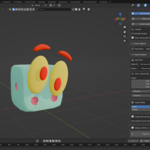
Once installed, select any Mesh object in your scene and open the Boardtyper 3D tab located in the 3D Viewport sidebar (N-panel). The interface is divided into three main sections:
1. Object Settings
This panel controls the individual properties of the currently selected mesh.
Identity - Name: Set the piece name. This renames the object in Blender and serves as the official item name in TTS.
Identity - Type & Material: Select the core behavior (e.g., Generic, Token, Bag) and the physical material (e.g., Plastic, Wood).
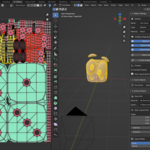
Note on Materials: Boardtyper evaluates Diffuse BSDF shader. If your object uses complex node setups or multiple UVs, you must bake the image texture and save it in your project folder prior to export.Snap Points [PRO]: Enable this to convert any Blender Empty that is parented to your mesh into a native TTS magnetic Snap Point. The interface will display the number of detected Empties.
States [PRO]: Enable "Use TTS States" to create dynamic objects. Click the + button to add slots, and use the eyedropper to select other meshes in your scene to act as State 2, State 3, etc.
Physics & Collision [PRO]: Enable "Use Custom Collider" to bypass the TTS auto-collider. Select a low-poly mesh using the eyedropper.
Check Non-Convex (Hollow) only if your collider has physical holes (like a bowl or ring), as this heavily impacts TTS performance.
Visibility - Spawn in World: Uncheck this if the piece should only exist inside a bag and not as a loose item on the table.
Visibility - Show in Bag Picker: Uncheck this to hide the piece from the bag contents dropdown menu (highly useful for utility or background models).
Visibility - Can be stored in a Bag: Uncheck this to automatically generate Lua code that prevents players from placing this specific object into any bag.
Lua Injection: Enable this option to attach custom logic.
[PRO] Snippets: Select pre-written code like "Score Counter" or "Announce" to inject functionality instantly.
You can also load an external .lua file or paste your code directly into the provided text box.
Is Set (Multiplier): Enable this and increase the count to export multiple identical copies of the object automatically.
Bag Contents: If the object Type is set to "Bag" or "Infinite", a list interface will appear. Click the + button to add other named objects from your scene into this bag, specifying the exact quantity for each.
Note on Geometry: You cannot export meshes with active, unapplied Modifiers. Ensure modifiers are applied if they affect the final physical shape required in TTS.
2. Scene Objects Overview
This panel acts as your primary dashboard, providing a quick summary of all objects currently configured for export.
Review Items: Easily check each object's assigned type, set multipliers, active Pro features (indicated by physics, snap, or state icons), and current visibility flags at a glance.
Remove Objects: Click the X button next to any item to instantly strip the Boardtyper properties from that object, safely reverting it to a standard Blender mesh without deleting the geometry.
3. Scene & Export
This final panel configures the global parameters for your game and executes the export process.
Save Info: Define the "Game Name" (which sets the name of the generated .json file) and specify your local "Export Folder" destination.
Auto-Layout Grid: Define the spacing, columns, and origin coordinates. Boardtyper uses this data to arrange all top-level objects into a grid, preventing physical collisions when spawning in the simulator.
Export Mode:
LOCAL: Uses file:/// paths. This is the recommended mode for rapid prototyping and offline testing on your own machine.
GITHUB [PRO]: Uploads the meshes, textures, and JSON directly to a specified repository. This requires entering your GitHub Username and a Personal Access Token with repo permissions, followed by clicking "Verify Token" and "Create / Verify Repository".
CUSTOM CLOUD [PRO]: Enter a Base URL (e.g., your AWS S3 bucket, Imgur directory, or private server). The addon will write these URLs into the JSON file, but will output the physical .obj and image files to your local folder so you can upload them to your server manually.
Executing the Export: Once all settings are configured, click the Export button. Boardtyper will process all meshes, apply materials, inject Lua scripts, and generate a fully ready-to-play .json file in your target directory.
Important Note: In Local Export mode, the JSON file hardcodes the exact file paths on your hard drive. If you move the exported .obj or image files to a different folder, they will fail to load in Tabletop Simulator.
License & Credits
Developed by Skarmuse. Released under the SPDX:GPL-3.0-or-later license.
-
$20
The full package! Includes core features plus Custom Colliders, magnetic Snap Points, TTS States generation, premium Lua snippets, and direct GitHub/Cloud export. Includes updates and support.
-
$2.50
The core pipeline! Local TTS export (OBJ/JSON), Smart Bags, visibility rules, Auto-layout grid, and basic Lua injection.
Have questions about this product?
Login to message
| Blender Extension Compatible | Yes |
| Published | 5 months ago |
| Blender Version | 4.2 - 5.1 |
| Extension Type | Add-on |
| Render Engine Used | Cycles, Eevee |
| License | GPL |
Discover more products like this
prototyper tabletop boardgames mass export Add-on Exporter asset export 3d asset export boardgaming Exporter tabletop simulator 3D Exporting 3D export