Botton_Remove
 Arq. Gustavo Garcia ARCHS


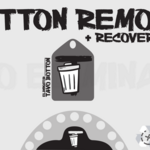
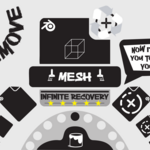
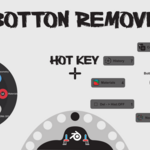
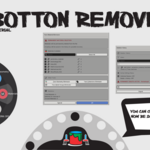
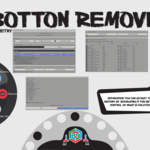
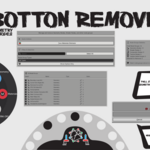
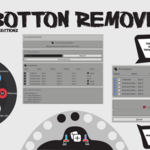
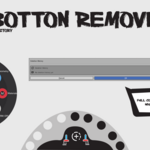
What happens when I press Shift+X?
Pressing Shift+X opens a customizable menu that gives you instant access to all main tools. By default you see a colourful circular menu with icons, but you can switch to a classic Blender pie menu in the addon preferences. The menu supports quick keys (M, G, N, C, H, A, D, P) so you never have to take your hands off the keyboard. You can also toggle safety modes, view the deletion history, and see live status badges – all from one place.
Can I recover accidentally deleted items?
Yes! All deletions (except those made with Permanent Delete active) are recorded in the Deletion History panel. Open it from any toolbar or the Shift+X menu, then browse entries by type, search by name, and restore individual items or entire batches. Restored items can be placed at the world origin or at their original positions – with materials, modifiers, and even Geometry Nodes settings intact. If you enable Unlimited Restore, you can bring back the same entry multiple times (duplicates get a _restoun suffix).
What’s the difference between Delete to History and "Permanent Delete"?
- Delete to History (when enabled) intercepts the standard X/Delete key and moves selected objects to a hidden “Trash Collection” instead of deleting them. They remain fully recoverable via the history.
- Permanent Delete bypasses history completely – items are removed forever without any backup. Use this only when you are absolutely sure you won’t need them again.
- Both modes can be toggled instantly from the Shift+X menu or from the addon preferences.
Is it safe to delete materials/objects with this addon?
Absolutely! Botton Remove includes a robust Deletion History system. Every deletion (except when Permanent Delete is enabled) is backed up and can be restored at any time. You can even restore items multiple times with the Unlimited Restore feature. Additionally, the Delete to History mode sends objects to a hidden trash collection instead of permanently deleting them – acting like a recycle bin for your Blender scene.
How do I restore a collection with its full hierarchy and objects?
When you delete a collection using the Tavo Collections Eliminator, Botton Remove creates a detailed backup that includes the collection’s hierarchy, child collections, objects, and their exact positions. When you restore that history entry, the entire structure is recreated, and objects are reassigned to their original collections. If a collection already exists, the restored version gets a _restoun suffix to avoid conflicts – so you never lose data.
Does the addon work with Geometry Nodes modifiers?
Yes! If you delete objects that have Geometry Nodes modifiers, the addon saves the modifier settings, node group references, and all input values. Upon restoration, the objects come back with their modifiers intact, and any missing node groups are automatically recreated (or linked back). This ensures your procedural setups are preserved exactly as they were.
Can I clean up orphan data and empty material slots?
Definitely. Botton Remove provides one‑click cleanup operators:
- Clean Orphan Data removes unused data blocks (meshes, materials, node groups, etc.) and objects that aren’t in any collection.
- Clean Empty Slots removes empty material slots from all objects.
- These are permanent deletions (no history) but help keep your file tidy.
- For speed, use the “Fast” versions – they work immediately without extra dialogs.
How do I customize the circular menu colors and behavior?
Go to Edit → Preferences → Add-ons, find “Botton Remove”, and open its preferences. Under Hotkey Settings you’ll find a “Super Customization” section where you can:
- Change colours for each menu item (Materials, Geometry, Nodes, Collections, History, etc.)
Adjust label fonts, icon sizes, and label distance.
- Choose animation curves and speeds.
- Set selection modes (angle‑based or distance‑based).
- Toggle status badges that show current safety modes (e.g. “X→HIST”, “PERM”).
- Everything is live‑previewed, so you can tweak until it feels perfect for your workflow.
What is the “Trash Collection” and where is it?
The Trash Collection is a hidden collection created by the addon to store objects moved via Delete to History. It is hidden in the viewport and render, and not visible in the Outliner by default. You can reveal it by enabling “Show Hidden” in the Outliner filters, but we don’t recommend modifying it manually. Objects stay there until you restore them or clear the history – they are completely safe.
Does the addon save deletion history with my .blend file?
By default the history is not saved with the file, which keeps your .blend size small. If you want to carry deletion records between sessions, enable “Save History with File” in the addon preferences under Safety Settings. You can also set automatic cleanup of old history entries (by minutes) to keep the list manageable.
-
$1
Get started now. All the basic functions, no registration required, and no hassle. (The only difference: it doesn't include the keyboard shortcut.) Activating to save with "x" won't work either; otherwise, it works normally. Enjoy.
-
$12.99
Master your time. Get the exclusive keyboard shortcut and forget the mouse. //- Faster: Do it all with a single keystroke. //- Smoother: Work seamlessly without interruption. // -Universal: Designed for everyone's comfort.
Have questions about this product?
Login to message
| Dev Fund Contributor | |
| Published | 7 months ago |
| Blender Version | 4.0 - 5.0 |
| Extension Type | N/A |
| Render Engine Used | Arnold, Blender-Internal, Blender-Game-Engine, Cycles, Eevee, Freestyle, Luxrender, Mental-Ray, Octane, Vray, Yafaray |
| License | Mit |
