Botton_Remove
 Arq. Gustavo Garcia ARCHS


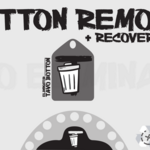
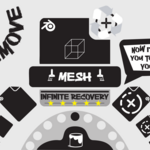
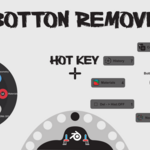
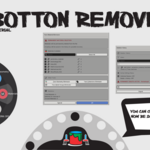
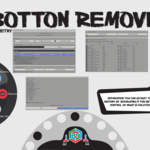
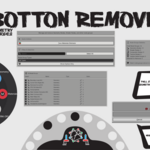
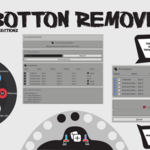
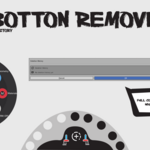
🗑️ Botton Remove – Ultimate Cleanup & Deletion Manager for Blender
Version 1.0.0 | Requires Blender 4.0.0+
Author: Arq. Gustavo Garcia
Category: Material / Utilities / restaurant history
Overview :3
Botton Remove is a complete cleanup and deletion management toolkit for Blender. It goes far beyond simple deletion – it gives you full control over materials, geometry, node groups, and collections with advanced selection dialogs, a powerful deletion history, and multiple restore options. Whether you need to remove unused data, clean up your scene, or safely experiment with destructive changes, Botton Remove provides the tools you need with the safety of a recoverable history.
Key philosophy:
- Delete with confidence – every deletion can be restored later.
- Work faster – quick access from headers, menus, and a hotkey-driven interface.
- Stay organised – clean up orphan data, empty slots, and duplicate materials instantly.
Key Features
Four dedicated eliminators
- Material Eliminator – Select and permanently remove materials, with a backup saved to history.
- Geometry Eliminator – Remove objects while preserving their data in history for perfect restoration.
-
Node Groups Eliminator – Delete Geometry Nodes, Shader Nodes, Compositor groups, etc.
- Collections Eliminator – Remove collections (with full hierarchy backup) and restore them later.
Deletion History
Every deletion you perform (except when Permanent Delete is active) is stored in a history panel. You can:
- View all past deletions with timestamps.
-
Restore any entry – either all items at once or choose individual items.
-
Clear the history manually or let it auto‑clear after a set time.
- Restore to original position (materials reassigned to the same object slots, geometry placed back at saved coordinates) or to world origin.
Unlimited Restore
Restore the same entry multiple times – copies get a "_restoun" suffix so you never lose data.
Safety Modes
Delete‑to‑History – Turn the X / Del key into a smart “recycle bin”. Objects are moved to a hidden trash collection instead of being permanently deleted.
-
Permanent Delete – For when you really mean it. Bypasses history completely and removes items forever.
- Unlimited Restore – As many restores as you like.
Quick Cleanup Tools
One‑click operations that are not added to history (fast and final):
-
Remove Unused Materials
-
Clean Orphan Data (meshes, curves, node groups, etc.)
-
Clean Empty Material Slots
- Clean Material Duplicates (created after restoration)
Hotkey Menu (Shift+X)
A beautiful circular menu (or classic Blender pie menu) appears right under your mouse.
- Keys – M (Materials), G (Geometry), N (Nodes), C (Collections), H (History), A (Clear All), D (Toggle Delete→History), P (Toggle Permanent Delete).
-
Fully customisable – colours, sizes, animation curves, exit behaviour, and more.
- Live status badges – see at a glance if Delete→History or Permanent Delete is active.
Extensive Preferences
Tweak every aspect of the addon to fit your workflow:
- Choose which UI locations show the buttons (Outliner, 3D View header, Node Editor, Properties panels, T‑panel).
-
Configure hotkey menu appearance and behaviour.
- Set history limits, auto‑clear times, and restore behaviour.
---------------------------------------------------------------------------------------------------------------------------------------------------------------
Installation
-
Download the "botton_remove.zip" file.
-
In Blender, go to Edit ‣ Preferences ‣ Add‑ons.
-
Click Install… and select the downloaded zip.
-
Enable the add‑on by ticking the checkbox next to “Material: Botton Remove”.
- The add‑on is now ready to use.
Interface & Locations
Botton Remove integrates seamlessly into Blender’s interface. You’ll find it in:
| Location |
Description |
| Outliner Header (left side) |
A small trash icon – click to open the Material Eliminator. |
| 3D View Header |
A trash icon menu with all tools and history count. |
| 3D View T‑Panel (press T) |
A compact “Botton Remove” button with a sub‑menu. |
| Properties Editor |
Panels in Scene, Tool, and Object tabs (configurable). |
| Node Editor Header |
A quick‑access button for Materials (or Node Groups, depending on context). |
| Hotkey |
Press `Shift+X` anywhere to open the circular / pie menu. |
You can enable/disable each location in the add‑on preferences.
---------------------------------------------------------------------------------------------------------------------------------------------------------------
How to Use
- Material Eliminator
-
Click the Outliner icon or choose “Tavo Material Eliminator” from any menu.
-
A dialog lists all materials with checkboxes, search filter, and usage count.
-
Select the materials you want to remove and click OK.
- A backup of the materials (including node settings) is saved to history – you can restore them later with full assignments.
- Geometry Eliminator
-
Open “Tavo Geometry Eliminator”.
-
Filter objects by name, type, and visibility (including orphan objects).
-
Check the objects to remove and click OK.
-
A detailed backup is created: object transforms, mesh data (if small), modifiers, and material slots.
-
The objects are unlinked from their collections (not deleted) so that restoration is instant and preserves all settings.
- To permanently delete objects (without history), use the hotkey with Permanent Delete active, or choose “Clean Orphan Data” later.
- Node Groups Eliminator
-
Open “Tavo Node Groups Eliminator”.
-
Filter by type (Geometry, Shader, Compositing, Texture) and see user counts.
-
Select node groups and confirm.
- Warning: Node groups are removed permanently – no backup is created because they are not stored in the .blend data by default. Use with caution.
- Collections Eliminator
- Open “Tavo Collections Eliminator”.
-
See each collection’s object count, child collections, and status (empty, linked, hidden).
-
Select collections and click OK.
-
A complete hierarchy backup is created, including all objects inside the collections.
- When you restore, the entire structure (parent/child relationships, objects) is recreated.
Deletion History & Restore
The Deletion History is your safety net. Every deletion (except those made with Permanent Delete or the Quick Cleanup tools) is logged.
- Viewing History
-
Click the history icon in any Botton Remove menu, or press "Shift+X" and choose H.
-
A dialog shows all entries with type, item names, count, and relative time.
-
Use the search and filter to narrow down the list.
- Check the box next to each entry to select it for batch operations.
- Restoring Entries
-
Select one or more entries and click “Restore at Origin” (places items at world origin) or “Restore at Original Position” (re‑creates objects with saved transforms and reassigns materials to original slots).
-
If an item already exists, it is reused (modifiers preserved) – only unlinked objects are re‑linked.
- With Unlimited Restore enabled, you can restore the same entry again; copies get a "_restoun" suffix.
- Individual Item Restoration
- For entries with multiple items, click the “Separation” button to choose exactly which items to restore.
- Clearing History
- Remove selected entries with the “Remove from History” button, or clear everything with “Clear All History”.
- You can also configure auto‑clear after a certain number of minutes in preferences.
Safety Modes Explained
- Delete‑to‑History (Smart Recycle Bin)
-
When enabled, pressing "X" or "Del" (without Shift) moves selected objects to a hidden Trash Collection.
-
They are not deleted – you can restore them later via the history panel.
-
Works like a recycle bin: objects are simply hidden and unlinked from their original collections.
- Perfect for non‑destructive experimentation.
- Permanent Delete
- When enabled, all deletions bypass history completely.
-
Objects are removed from the blend file immediately and cannot be restored.
- A red “PERM” badge appears in the hotkey menu as a constant reminder.
Unlimited Restore
-
Allows you to restore the same history entry multiple times.
-
Duplicate items get a "_restoun" suffix (e.g., "Cube_restoun_001").
- If disabled, each entry can be restored only once (the entry is removed after restore).
You can toggle Delete‑to‑History and Permanent Delete directly from the hotkey menu (keys "D" and "P").
Quick Cleanup Tools (One‑Click, No History)
Located in all major menus and panels, these tools are for final, irreversible cleanup:
| Tool |
Description |
| Remove Unused Materials. |
Deletes all materials with zero users. |
| Clean Orphan Data |
Removes orphan data blocks: meshes, curves, node groups, etc., that are not used by any object. |
| Clean Empty Slots |
Strips empty material slots from all objects. |
| Clean Material Duplicates |
Deletes unused material duplicates (e.g. `.001` copies) created after restoration. |
These operations are fast and do not create history entries.
Hotkey Menu (Shift+X)
The hotkey menu is your fastest way to access all Botton Remove tools. Press "Shift+X" anywhere in Blender to open it. Two Menu Styles
- Circular Menu (default)
-
A stylish, animated wheel appears at your mouse cursor.
-
Move the mouse toward an item to highlight it.
-
Release "X" to execute the selected action.
- You can also press the corresponding letter key while holding "X" to activate an item immediately.
- Pie Menu
- Classic Blender pie menu – faster, more minimal, uses Blender’s native UI.
You can switch between them in preferences.
---------------------------------------------------------------------------------------------------------------------------------------------------------------
| Item |
Key |
Description |
| Materials |
"M" |
Open Material Eliminator |
| Geometry |
"G" |
Open Geometry Eliminator |
| Nodes |
"N" |
Open Node Groups Eliminator |
| Collections |
"C" |
Open Collections Eliminator |
| History |
"H" |
Open Deletion History panel |
| Clean H |
"A" |
Clear all history entries |
| Del→Hist |
"D" |
Toggle Delete‑to‑History mode |
| PERM |
"P" |
Toggle Permanent Delete mode |
The menu also shows live status badges for the active safety modes.
Customising the Circular Menu
In preferences you can adjust:
-
Colours for each item.
-
Font sizes for labels and shortcut keys.
-
Menu radius, icon size, label distance.
-
Animation curves and speed.
-
Selection behaviour (angle‑based or distance‑based).
-
Background opacity, ring thickness, center dot style.
- Whether to show status badges and their font size.
If you experience performance issues with the circular menu, switch to the Pie Menu – it uses Blender’s built‑in UI and is very lightweight.
---------------------------------------------------------------------------------------------------------------------------------------------------------------
Preferences
Access the add‑on preferences via Edit ‣ Preferences ‣ Add‑ons ‣ Botton Remove.
- UI Locations
- Toggle visibility of the add‑on in the Outliner, 3D View header, Node Editor, Properties panels, and T‑panel.
- Hotkey Settings
- Enable/disable "Shift+X" hotkey.
-
Choose menu type (Circular / Pie).
- For circular menu: fine‑tune every visual and behavioural aspect.
- Safety & History
-
Confirm before removal.
-
Backup before removal (saves a ".blend" file).
- Enable/disable deletion history.
-
Set maximum history entries and auto‑clear time.
- Choose whether to save history with the `.blend` file.
- Restore Settings
-
Unlimited Restore (allow multiple restores).
-
Remove entry after restore (one‑time restore).
-
Delete‑to‑History (X/Del becomes recycle bin).
- Permanent Delete (bypass history).
- Compatibility
-
Blender versions: 4.0.0 and above.
-
Works with all render engines (EEVEE, Cycles, Workbench).
-
Multi‑user and linked data: Collections and objects from libraries are protected – you will see a warning and cannot delete them directly.
- Node Groups: All types (Geometry, Shader, Compositing, Texture) are supported.
---------------------------------------------------------------------------------------------------------------------------------------------------------------
Arq. Gustavo Garcia – Architect and Blender enthusiast.
This tool was born from the need to manage complex scenes without fear of losing work. Feedback and suggestions are always welcome.
- License
This add‑on is released under the MIT License.
You are free to use, modify, and distribute it, subject to the terms of the license. A copy is included in the download.
-
$1
Get started now. All the basic functions, no registration required, and no hassle. (The only difference: it doesn't include the keyboard shortcut.) Activating to save with "x" won't work either; otherwise, it works normally. Enjoy.
-
$12.99
Master your time. Get the exclusive keyboard shortcut and forget the mouse. //- Faster: Do it all with a single keystroke. //- Smoother: Work seamlessly without interruption. // -Universal: Designed for everyone's comfort.
Have questions about this product?
Login to message
| Dev Fund Contributor | |
| Published | 7 months ago |
| Blender Version | 4.0 - 5.0 |
| Extension Type | N/A |
| Render Engine Used | Arnold, Blender-Internal, Blender-Game-Engine, Cycles, Eevee, Freestyle, Luxrender, Mental-Ray, Octane, Vray, Yafaray |
| License | Mit |
