Cache Commander — See What Your Simulations Weigh, and Move Them
 Skava
Skava
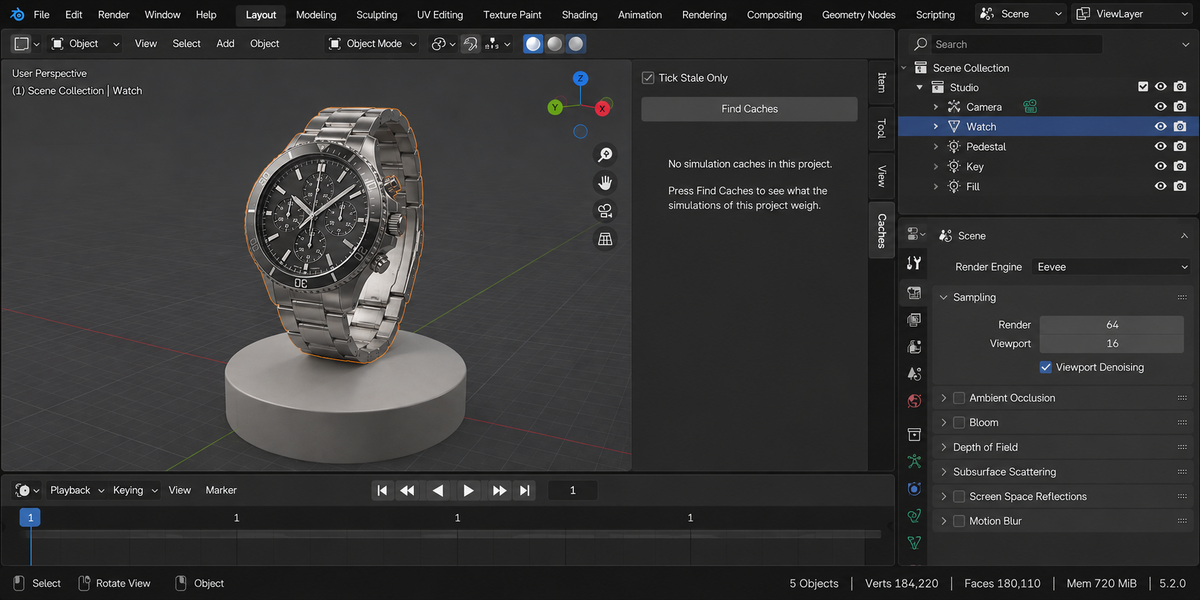

Cache Commander — Documentation (v1.2.3)
Lists the simulation caches of a project with their sizes and owners, and lets you delete or move them. Looking changes nothing.
1. Install
Download the zip and leave it zipped. In Blender open Edit, then Preferences, then Add-ons. Use the arrow button in the top right corner of that window and choose Install from Disk, then pick the zip. Tick the checkbox next to the add-on name. Press N in the 3D Viewport and the Caches tab appears in the sidebar.
2. Quick start
- Save your file. Caches live next to the project, so an unsaved file has none.
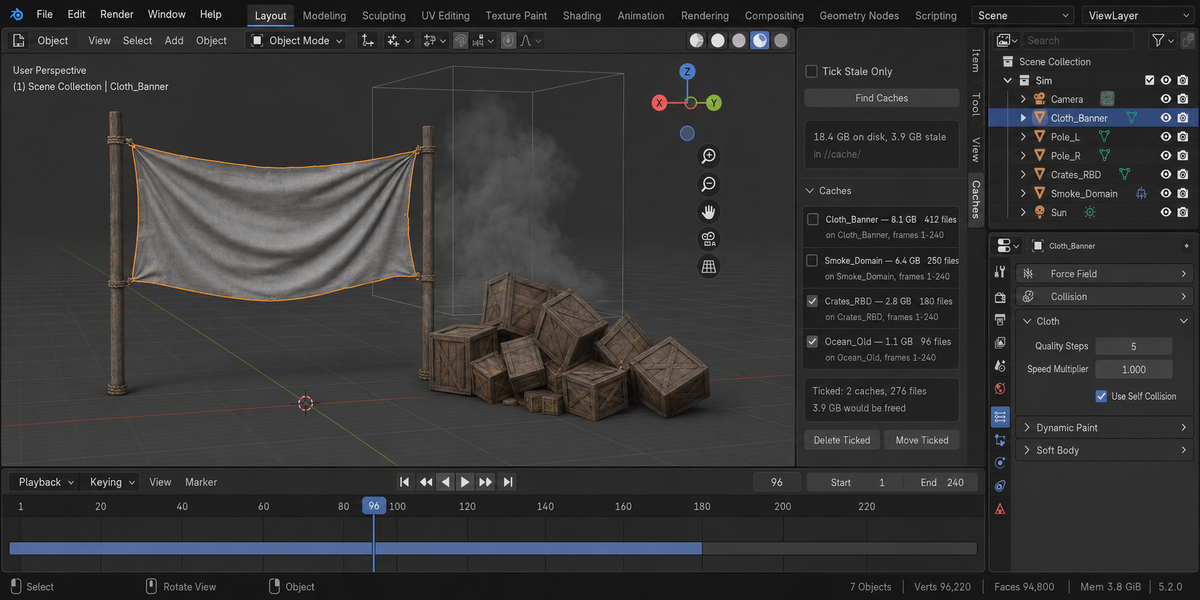
- Press Find Caches.
- Read the total, then the rows. Tick what you want gone.
- Press Delete Ticked, or Move Ticked to send it to another drive instead.
3. What the states mean
Live — baked and still matching its settings.
Stale — baked, then the simulation settings changed. Blender will recompute it anyway, so the space is dead. Ticked by default.
Auto — never baked, but files exist: Blender wrote them while you were playing back. Safe to delete, costs a recompute, never ticked for you.
Empty — nothing on disk.
Unclaimed — files in the cache folder that no cache in the scene owns. Usually left over from deleted objects. Ticked by default.
4. Deleting
The box above the button says how many files and how much space before you commit, and a confirmation appears. Only the files listed for the ticked rows are removed. A path outside the cache folders of this scan is refused and reported. Emptied folders are cleaned up.
If you reopened the file or changed scene since the scan, deletion refuses and asks you to press Find Caches again. The list you are looking at must be the list the paths came from.
5. Moving to another drive
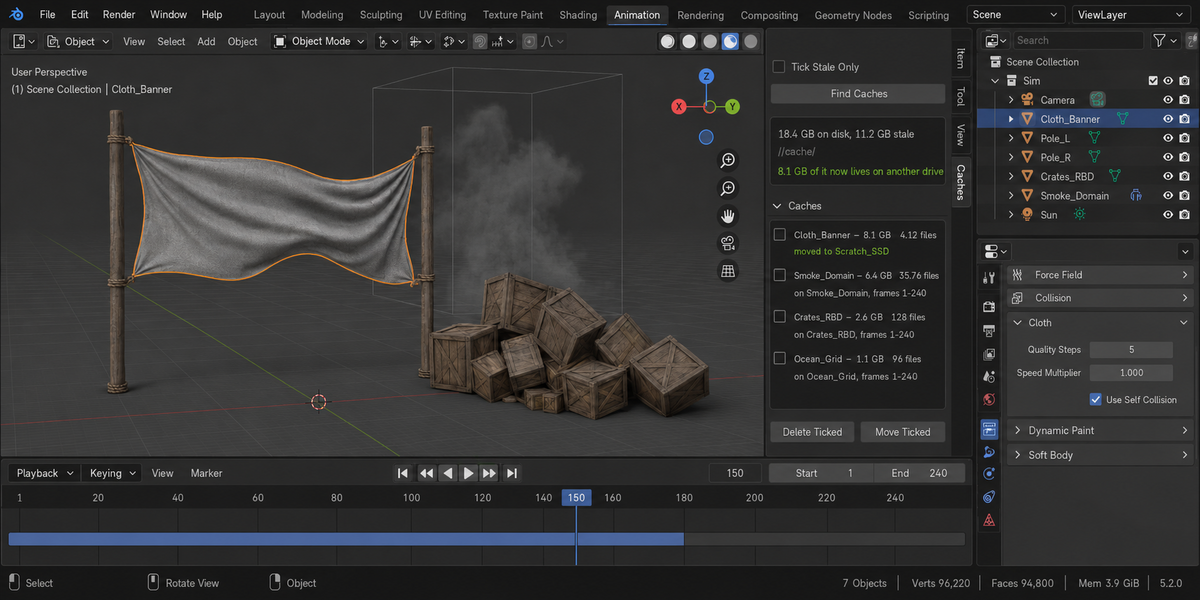
Press Move Ticked and choose a folder. Each file is copied, compared byte for byte with the original, and only then is the original removed. The cache is repointed at the new folder, so the simulation keeps playing from there. If a copy fails, or the target folder cannot be written to, or it is this project's own cache folder, nothing is moved and the reason is reported.
The destination folder is treated as someone else's, because it usually is. A name there is used only if the filesystem reports it free; if it is taken, the cache goes under the next free label and the panel says which one it got. Each file is copied to a temporary file in that folder, compared, and then put into place in one move, so a partly written file never appears under the final name. If anything fails, only the files this move created are removed, and a cache that could not be repointed — one from a linked library, for instance — is left with exactly the settings it had.
After a move, the rows show which folder each cache now lives in, and the total says how much of it is no longer on your work drive. Simulation node bakes are not moved — their folder is set on the modifier itself — and rows that were skipped say so.
6. Alembic
Alembic files referenced by the scene and sitting next to the project are listed with their size and the objects that read them. They are never ticked automatically. Moving one copies it, verifies it and fixes the path the scene reads it from. If a file of that name is already in the destination folder, yours is stored beside it under the next free name rather than over it.
7. Tick Stale Only
With this on, a scan ticks the stale and unclaimed rows for you — the ones that are safe to lose. Turn it off and nothing is ticked until you tick it.
8. Two caches on one object
Cloth and particles on the same object write files with the same label and different indices. Each row counts only its own files, so the total matches the folder exactly.
9. Compatibility
Blender 4.2 and later. Cloth, soft body, rigid body, particles, smoke, simulation node bakes, Alembic. Tested live on 5.1 and 5.2.
10. License
GPL-3.0.
Checking a whole folder
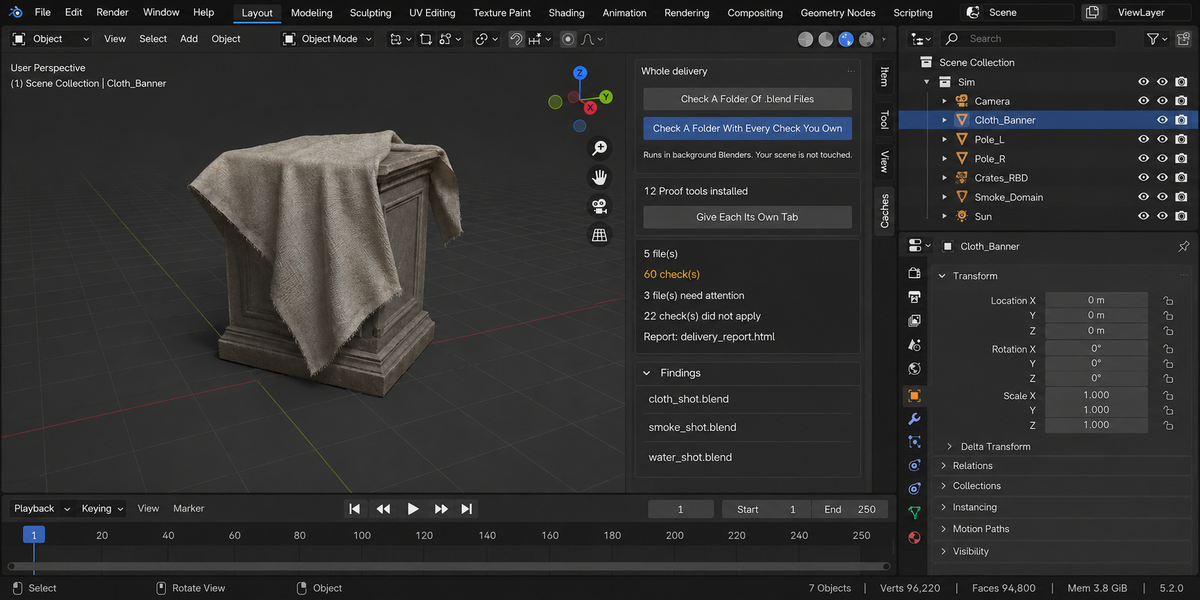
The sidebar has a Whole Delivery panel. It has two buttons.
Check A Folder Of .blend Files runs this product over every .blend in the folder you pick. Check A Folder With Every Check You Own runs every tool from this line that you have installed, over the same files, in one pass — one report, one verdict.
Each file is opened in its own background Blender. Your open scene is never touched: not opened over, not saved, not modified in any way. This is also why a file that will not open costs you only that file — the rest of the delivery is still checked. Press Escape to stop; nothing partial is written, because a report covering half a delivery is a report nobody should trust.
When it finishes, an HTML report named cache_commander_report.html is written into the folder you picked. If a file with that name is already there, it is left as it is and the new report takes the next free name (cache_commander_report_2.html, cache_commander_report_3.html and so on); the message at the bottom of Blender names the file it wrote. The same goes for the baseline file when Save As Baseline is ticked. It is one file with nothing loaded from the internet, so it can be attached to an email, put in the delivery folder, or opened years later on a machine that has never seen this add-on.
Running it from a pipeline
The same check runs headless, with no interface and no person, and finishes with a code your build system can read: one code for clean, another when something blocking was found, and a third when a file could not be checked at all. Those last two are deliberately different. A check that did not run has not passed, and a gate that treats silence as success will one day wave through the delivery it existed to stop. The command is blender --background --factory-startup --python-expr "import cache_commander; cache_commander.proofkit_cli()" -- --folder /shots --report report.html. Return codes: 0 clean, 1 something blocking, 2 a file could not be checked, 3 the command itself was called wrongly.
Comparing against last week
Any run can be saved as a baseline. A later run then reports what changed: which numbers moved and in which direction, which findings are new, and which ones you have fixed since. Direction matters and is not guessed — each measurement carries its own sense of which way is worse, so rising coverage reads as better and rising drift reads as worse.
Signing a file off
When a file is clean you can sign it off. The record lives inside the .blend itself, not in a folder next to it, so it travels with the file: open it next month and it tells you when it was checked, by which version, and how it came out. If the file is saved after that, the record says plainly that it is out of date — a sign-off that survives an edit it never saw would be worse than no sign-off at all.
One tab instead of twelve
Every tool in this line can put its panel under a single shared sidebar tab instead of its own. One button does it for all of them at once, and each panel arrives collapsed, so twelve tools cost you one tab and no scrolling. Your choice is remembered, and a tool that you later use on its own can be given its own tab back the same way.
What is deliberately not claimed
A check that could not run is reported as exactly that, never as a pass. If a tool from this line is not installed, or is an older version that predates the combined run, the report names it in a list of checks that did not take part, so the gap is visible rather than quietly absent.
Have questions about this product?
Login to message
| Published | about 2 months ago |
| Blender Version | 4.2 - 5.2 |
| Extension Type | N/A |
| Render Engine Used | Cycles, Eevee |
| License | GPL |