CAD Surface Studio
 AS Formworks
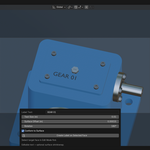
CAD Surface Studio
Prepare imported CAD meshes for product visualization: measured UV projection, procedural industrial materials, reusable mapping rules, surface diagnostics, controlled bevels and editable text labels.
Quick start · UV projection · Materials · Rules · Diagnostics · Labels · FAQ
Installation & requirements
- Blender 5.0 or newer. Tested on Windows with Blender 5.0.0 and 5.2.1 LTS. The addon is pure Python; other platforms have not been tested.
- Open Edit → Preferences → Get Extensions → menu at the top right → Install from Disk. Select
as_cad_surface_studio-1.0.0.zipand enable the addon. - In the 3D Viewport press
Nand open the CAD Surface tab. - Use Material Preview or Rendered viewport shading to see shader materials. Solid shading only shows viewport colors.
No external Python packages, network connection, CAD engine, or texture downloads are required. STEP files must first be imported as Blender meshes with an importer such as STEPDock. This addon does not read STEP itself.
Quick start: a machined housing
- Save your scene. Select the housing in Object Mode.
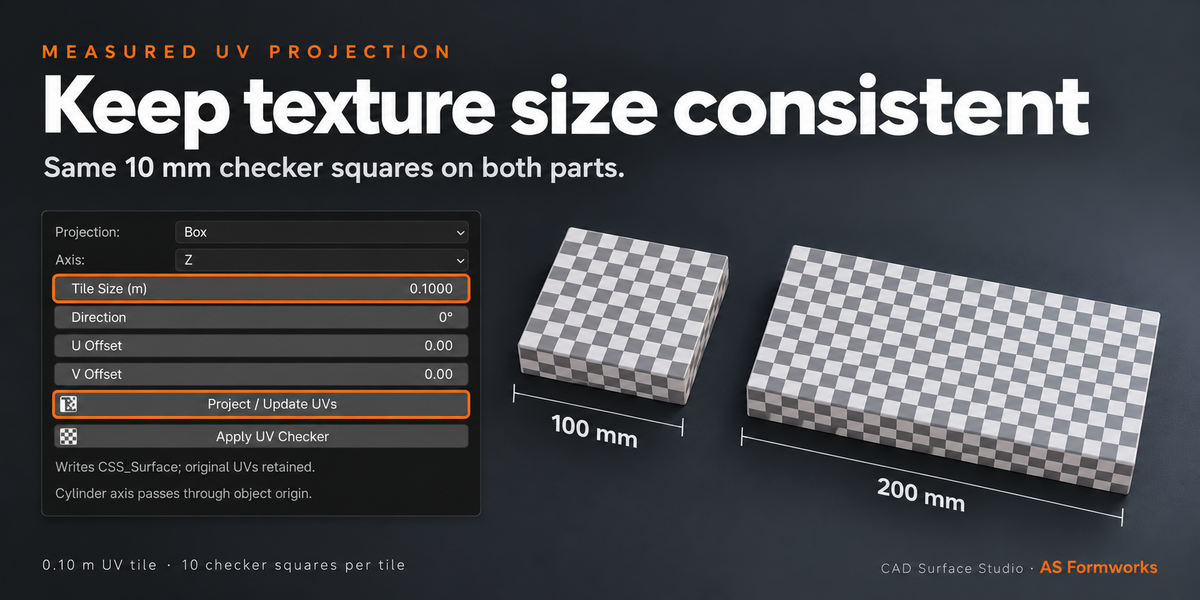
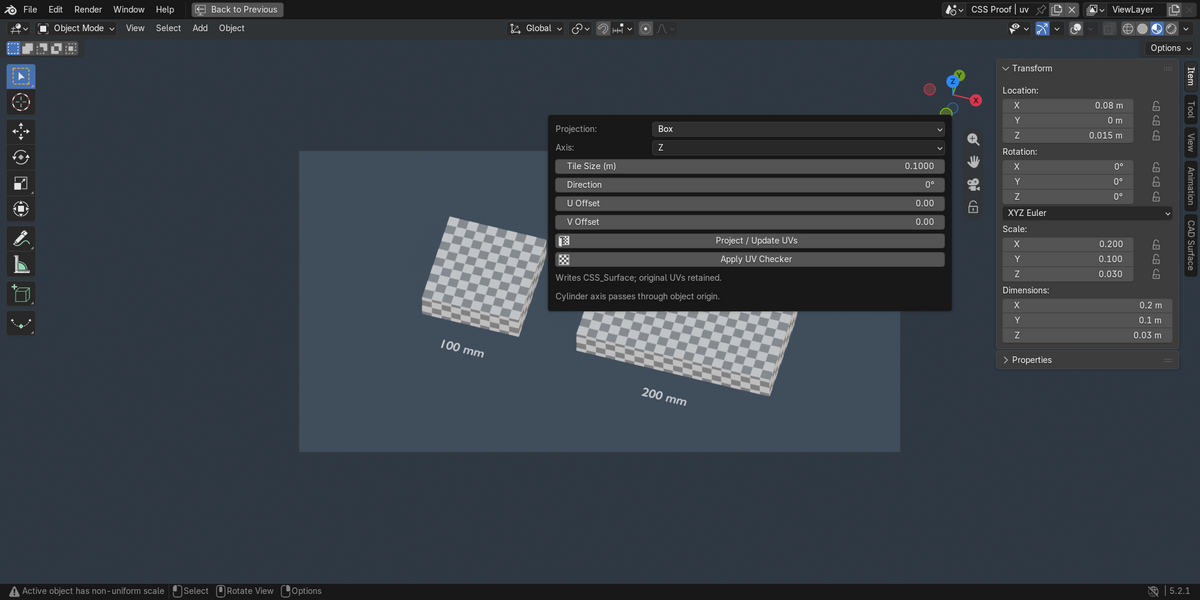
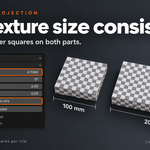
- Open 1. Measured UV Projection. Set Box, Tile Size
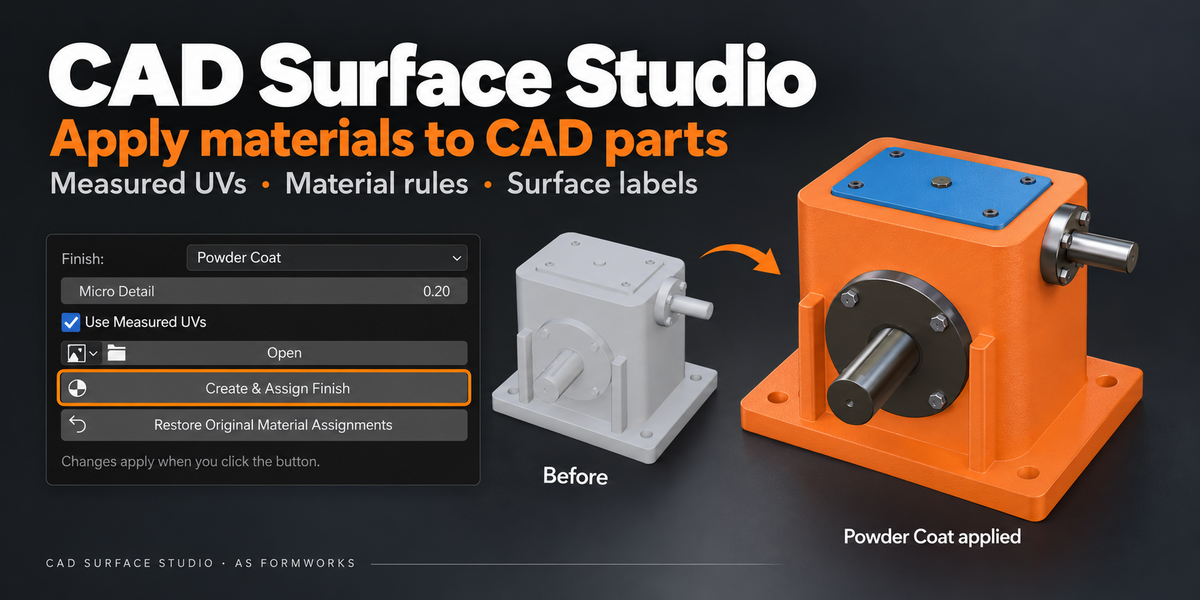
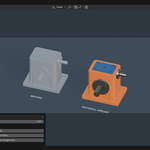
0.1m and click Project / Update UVs. A 100 mm span occupies one UV tile. - Open 2. Industrial Materials. Select Brushed Metal and leave Use Measured UVs enabled. Click Create & Assign Finish.
- Rotate grain with Direction under projection, then click Project / Update UVs again. Material node parameters remain editable in the Shader Editor.
- Run Analyze Meshes & Active UVs. Inspect the report before changing geometry.
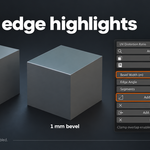
- For edge highlights, set Bevel Width to
0.0003m and add Controlled Bevel. Nonuniform object scale must be applied first. - To mark a part, enter Edit Mode, deselect all faces, select one face and create a label.
1. Measured UV projection
| Mode | Use | Limitations |
|---|---|---|
| Box | Housings, brackets and mixed hard surfaces. Each polygon uses its dominant normal axis. | Creates overlapping UV islands. Hard projection boundaries may show seams; this is not an atlas unwrap. |
| Planar | Panels, signs, flat selected regions. | Surfaces perpendicular to the projection plane collapse. Select the right axis or use Box. |
| Cylindrical | Shafts and pipes centered on the object origin. Axis follows the chosen local X/Y/Z axis. | Designed for near-circular cylinders. Caps use planar projection. Cones, ellipses and off-center geometry can distort. |
Tile Size is always entered in metres, regardless of scene display units. Scene Unit Scale and object scale are included in the UV distance calculation. Coordinates follow the object's local orientation; rotating or moving a part does not change its texture density. Parent-induced shear may produce distortion and should be checked.
Direction rotates UVs. U/V Offset moves them in texture tiles. Settings are applied only when clicking Project / Update UVs or Create & Assign Finish; there is no background rebuild.
The addon writes a dedicated CSS_Surface UV layer and makes it active for rendering. Original UV layers are retained. To use a previous layout, select it in Object Data Properties → UV Maps and update any material's UV Map node. Repeating projection updates CSS_Surface rather than creating duplicate layers. Blender's eight-layer limit is checked before writing.
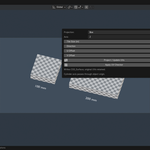
Apply UV Checker creates a temporary checker material with ten squares per full UV tile. Restore Original Material Assignments returns the saved original assignments. UV checker assignment is not an overlay.
2. Industrial materials
| Preset | Appearance |
|---|---|
| Brushed Metal | Metallic shader, anisotropy and directional micro detail. |
| Turned Metal | Machining bands with measured UVs; concentric rings around local Z in local-coordinate mode. |
| Cast Metal | Rough metallic surface with irregular micro detail. |
| Powder Coat | Orange nonmetallic coating with fine texture. |
| Molded Plastic | Blue-gray plastic with subtle roughness and bump. |
| Rubber | Dark, rough, nonmetallic surface. |
| Wood Grain | Procedural wood tones and directional grain. |
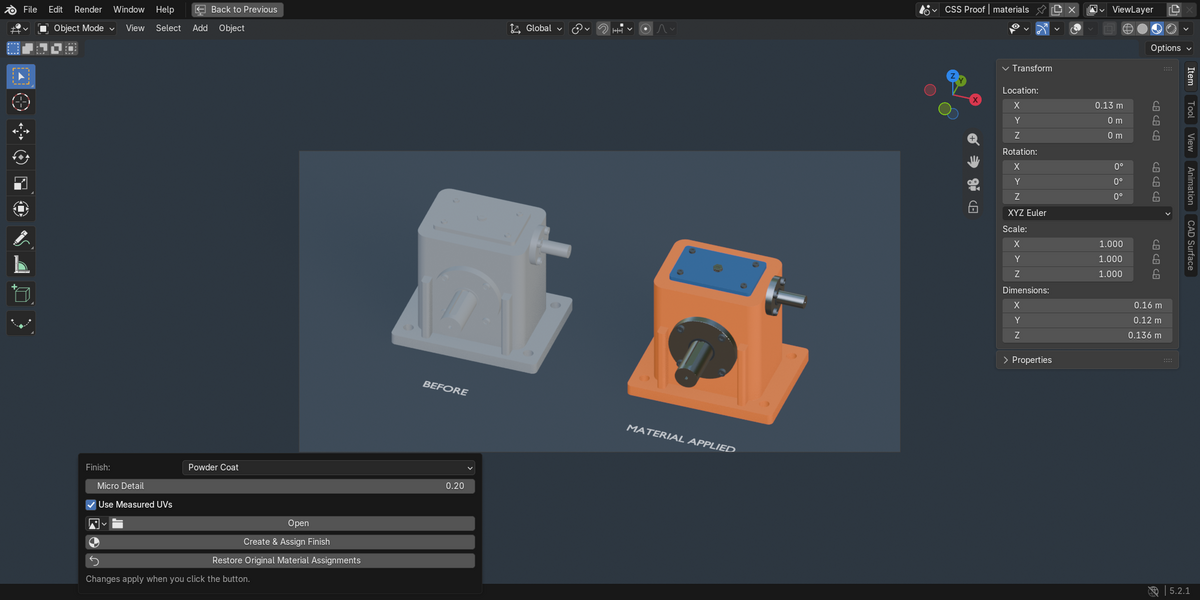
Use Measured UVs creates/updates CSS_Surface before assignment. Without it, procedural textures use local object coordinates; image textures use Blender box projection. Apply object scale before local-coordinate materials if physical texture size must be consistent. Local mode ignores the projection axis and UV offsets. Direction rotates around local Z in that mode.
Select an optional Base Color Image using the image picker. Blender manages color space; use sRGB for ordinary color maps. This input is only for base color, not an automatic PBR folder importer. Procedural micro detail remains active. Pack external images via File → External Data → Pack Resources when sharing a scene.
Each Create & Assign Finish click creates a new editable material. It does not rewrite existing shaders. Original materials remain in their slots. The first Studio material assignment stores the original polygon material indices on the object. Restore Original Material Assignments reuses that initial snapshot; it does not delete generated materials or reset UVs. Restore is blocked if topology or original material slots changed. Linked mesh data is copied before editing so unselected instances are protected. Library-linked data must be made local.
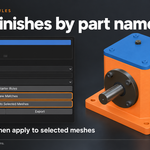
3. Material mapping rules
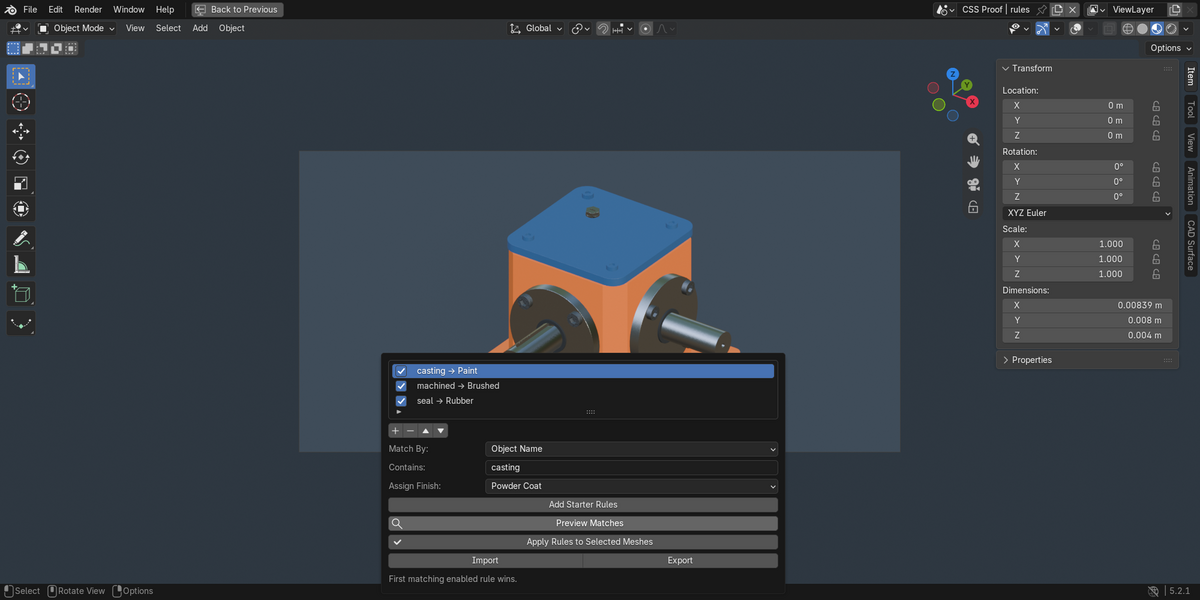
- In Object Mode select target meshes.
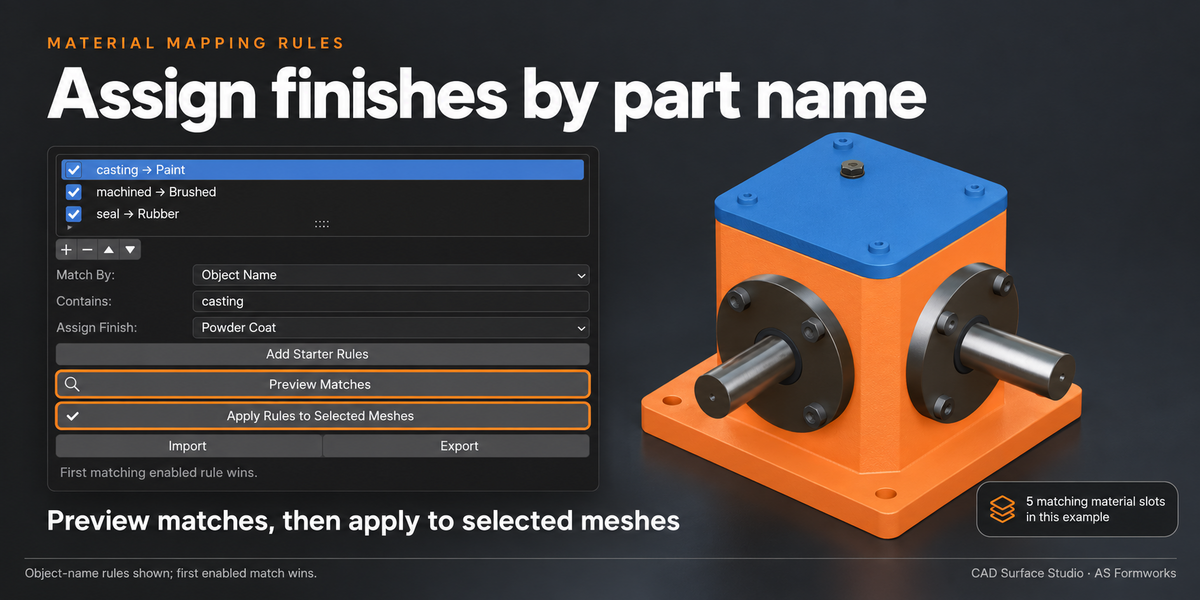
- Add a rule or load starter rules. Match by Object Name, Material Name, or Material Viewport Color.
- Name matching is a case-insensitive substring, not a regular expression. An empty name pattern does not match. Color comparison uses linear RGB viewport color, with maximum per-channel error controlled by tolerance; it does not inspect complex shader nodes.
- Choose the finish. Move rules up/down; the first enabled matching rule wins for each original material slot.
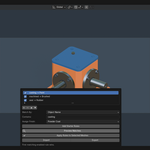
- Click Preview Matches. The status gives matched slot/object counts. Open Last Report shows each object, original slot, finish and affected face count without assigning anything.
- Click Apply Rules. With Use Measured UVs enabled, matching objects receive a measured projection on all faces. Materials are assigned only to the matched original slots.
Export saves reusable JSON rules. Import replaces the current rule list after fully validating the file; malformed files leave it unchanged. Maximum 500 rules and 2 MB. Imported rules contain settings only, not executable code or external materials.
4. Surface diagnostics & controlled finish
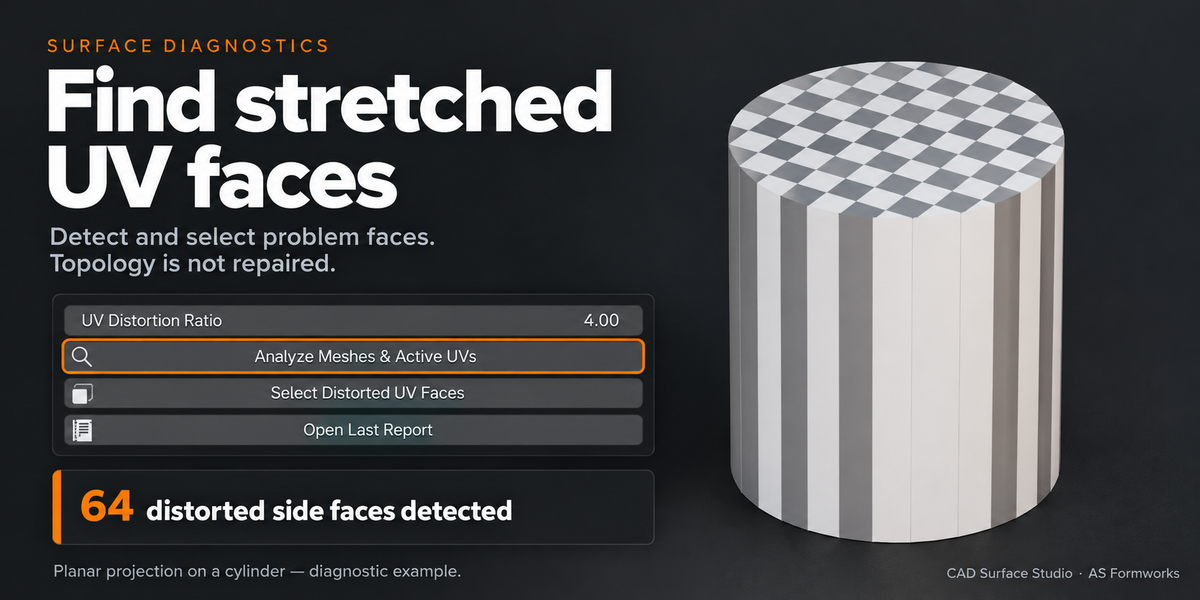
Diagnostics read the original mesh and active UV layer, before modifiers. They do not modify topology. The report includes boundary edges, nonmanifold edges, zero-area faces, inconsistent edge winding, marked sharp edges, negative/nonuniform scale and UV distortion. Boundary edges may be intentional on an open shell.
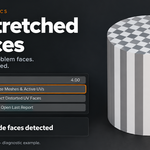
UV distortion is the ratio between the largest and smallest local texture stretch on each nondegenerate triangle. A ratio of 1 is isotropic; the default warning threshold is 4. Collapsed UV triangles are flagged. This metric does not detect mirrored UVs, island overlap, texture direction errors or inconsistent density between separate islands. Zero-area mesh faces are listed separately.
Select Distorted UV Faces replaces face selection on target meshes. Enter Edit Mode and Face Select to inspect it. If a modifier changes topology, the report may differ from the evaluated visible mesh.
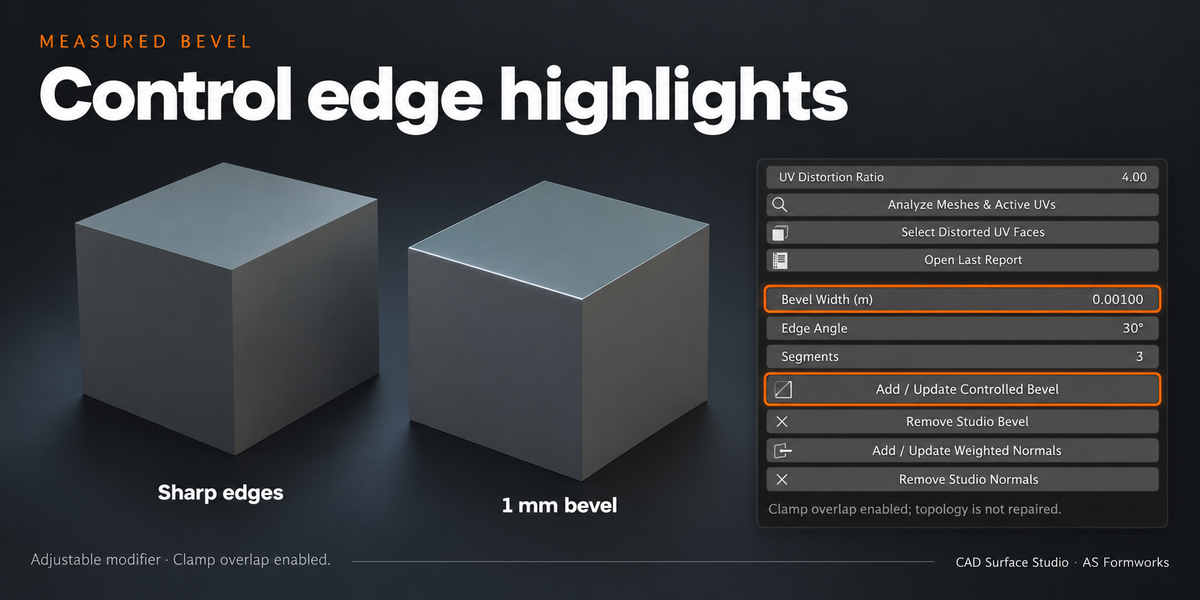
Controlled Bevel adds or updates one unapplied angle-limited Bevel modifier with overlap clamping, measured width and 1–8 segments. It does not fill holes or guarantee preservation of tiny openings. Inspect close-up and lower width when necessary. Uniform object scale is accounted for; nonuniform scale is rejected before the batch changes.
Weighted Normals is a separate optional modifier with Keep Sharp enabled. It is most useful on appropriately smooth-shaded meshes; it does not automatically change face smooth flags or repair incorrect winding. Existing custom normals may already be better. Studio modifiers can be removed individually; other modifiers remain untouched. Do not rename Studio modifiers if you want the update/remove buttons to find them.
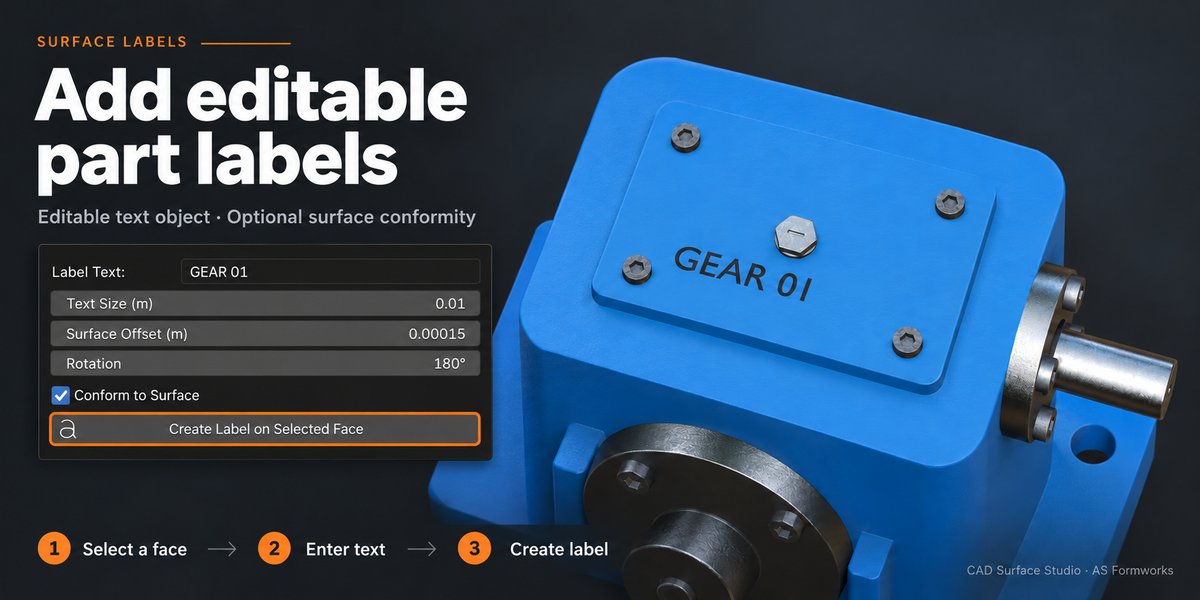
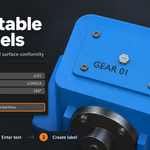
5. Editable surface labels
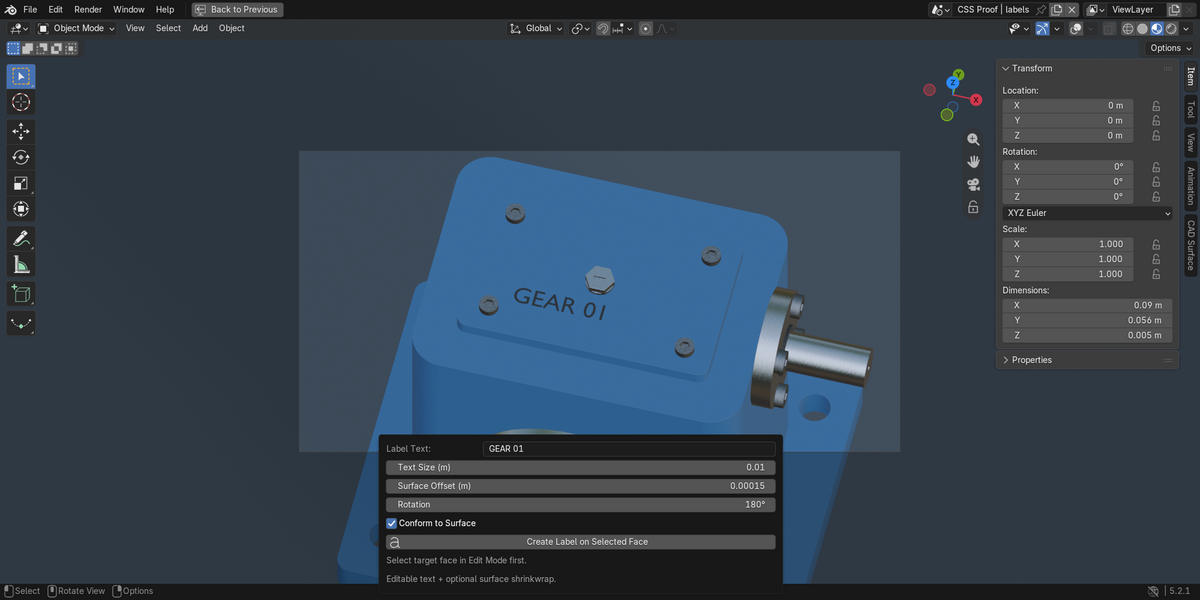
- Enter Edit Mode on the target mesh and select a face. If multiple faces are selected, the largest selected face is used, not the selection average.
- Enter text, physical size, offset and rotation, then Create Label on Selected Face.
- A separate editable Text object is aligned with the face normal and parented to the part. The original mesh is unchanged.
- Conform to Surface adds an optional nearest-surface Shrinkwrap modifier targeting the part.
- Return to Object Mode and select the text. Edit its content in Text Edit Mode, change font/material and adjust transform as needed.
For curved surfaces keep text small relative to curvature and inspect the result. Nearest-surface wrapping can distort text across a sharp edge or jump to nearby surfaces on thin geometry. Disable or adjust the modifier when necessary. This release creates editable text, not image decals, cut geometry or physically engraved text.
FAQ & troubleshooting
I cannot see the material.
Switch to Material Preview/Rendered shading. Check the assigned material and CSS_Surface UV Map node. Object-mode assignment covers the whole mesh; edit-mode assignment only covers selected faces.
The tile size looks incorrect.
Check Scene Unit Scale and actual model dimensions. For measured UVs update the projection after changing object scale. Local-coordinate shaders require applied object scale. Tile Size describes one full UV tile; procedural presets have their own finer internal grain frequencies.
Does this unwrap for baking?
No. These projections overlap by design and are intended for repeated textures and product visualization. Use a nonoverlapping atlas workflow for baking.
Can it repair CAD geometry or create all-quad meshes?
No. Diagnostics identify specific mesh conditions. Bevel and normal modifiers improve rendering where appropriate; they do not reconstruct CAD faces, reverse normals automatically or retopologize.
Where is the report?
Open Last Report switches the current area to a Text Editor. The report is also saved in scene settings. Return to the 3D Viewport with Shift+F5. The report remains available in Blender's Text Editor datablock list.
Can I undo?
Scene-changing operators support Blender Undo. Save before large batches. Original UV maps and material slots are retained; original material assignments have an explicit restore button, while applied projection changes to CSS_Surface rely on Undo or a saved scene. Existing object transforms are not applied automatically.
Version history
1.0.0 — Initial release: three measured UV projections; checker and triangle-based UV distortion analysis; seven procedural industrial presets; optional base-color images; first-match material mapping with JSON import/export; material-assignment restore with topology validation; mesh diagnostics; controlled bevel/weighted-normal modifiers; editable parented surface text.
© 2026 AS Formworks. GPL-3.0-or-later. See LICENSE.txt. No third-party texture assets are included.
Have questions about this product?
Login to message
| Blender Extension Compatible | Yes |
| Published | 10 days ago |
| Blender Version | 5.0 - 5.2 |
| Extension Type | Add-on |
| Render Engine Used | Cycles, Eevee |
| License | GPL |
Discover more products like this
Industrial Materials product-visualization UV-projection procedural materials bevel cad surface labels Material Mapping