 Khanh
Khanh


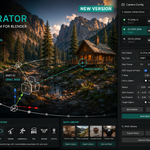
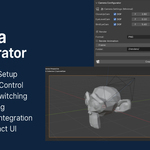
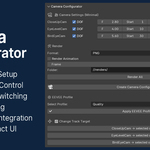
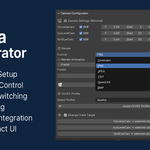
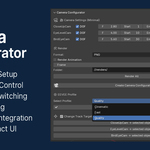
Camera Configurator for Blender
Professional Cinematic Camera Workflow System
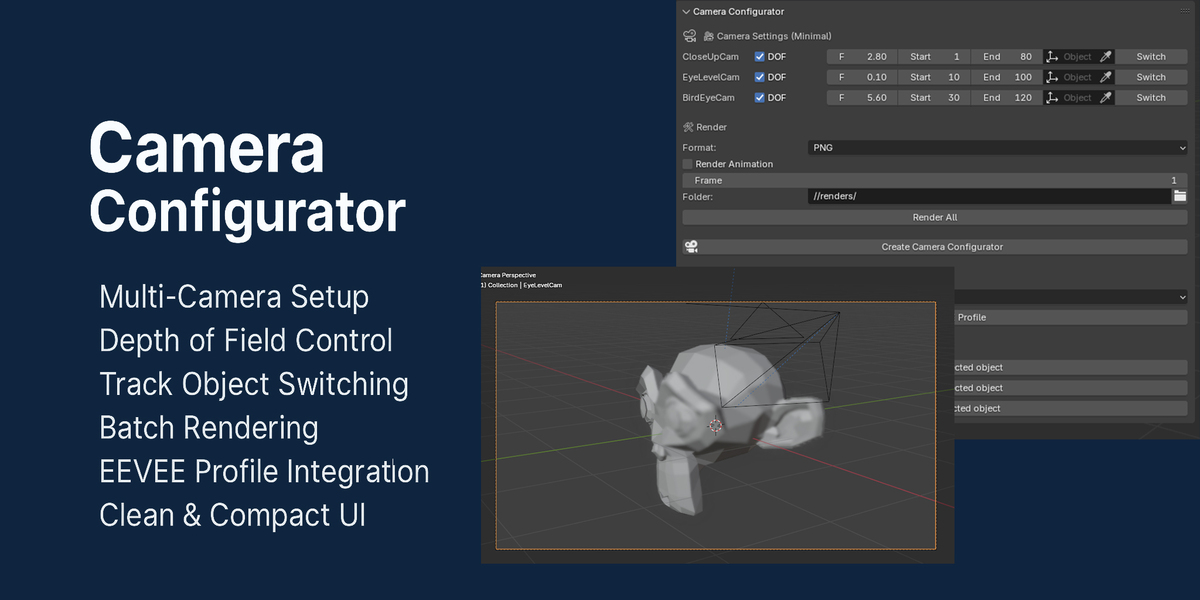
Camera Configurator is a production-ready cinematic camera workflow addon for Blender 5.x designed to simplify multi-shot scene management, camera rigging, animation setup, and rendering.
Instead of manually creating and organizing cameras one by one, Camera Configurator provides a modern shot-based workflow inspired by real production pipelines.
Create unlimited camera shots with independent rigs, animation ranges, DOF settings, render presets, shot notes, reusable templates, and batch rendering — directly from the Blender viewport.
Key Features
Unlimited Dynamic Camera Shots
Unlike traditional hardcoded camera systems, Camera Configurator uses a fully dynamic shot pipeline.
Each shot contains:
Independent camera
Dedicated rig system
Custom animation range
Individual DOF settings
Unique target tracking
Render configuration
Production notes and status
Create, duplicate, reorder, disable, rebuild, or remove shots instantly.
One-Click Auto Build System
When adding or duplicating a shot, the addon can automatically:
Create the Blender camera
Generate the selected rig
Build constraints
Create animation paths
Add keyframes
Organize generated objects
No manual setup required.
Auto-Build can also be disabled for data-only workflows.
Supported Camera Rigs
Dolly Rig
Classic cinematic tracking movement.
Linear path animation
Start/end position control
Optional target tracking
Smooth camera movement
Perfect for:
Product visualization
Interior walkthroughs
Architectural shots
Cinematic reveals
Orbit Rig
Automatically circles around a target object.
Features:
Radius control
Height adjustment
Full 360° rotation
Automatic target tracking
Perfect for:
Turntables
Vehicle showcases
Character presentation
Product rotation shots
Crane Rig
Creates smooth cinematic crane movements.
Features:
Arc height control
Bezier motion path
Cinematic vertical movement
Perfect for:
Establishing shots
Large-scale environments
Dramatic reveals
Handheld Rig
Simulates realistic handheld camera motion.
Features:
Procedural camera shake
Intensity control
Frequency control
Noise-based animation
Perfect for:
Action sequences
Documentary style shots
Realistic camera motion
FPS cinematics
FPS Rig
First-person cinematic camera system.
Features:
Eye-height controls
Look-ahead targeting
Dual-path animation system
Smooth walkthrough motion
Perfect for:
Game cinematics
Interior tours
VR previs
First-person sequences
Drone Rig
Advanced aerial cinematic movement.
Features:
Smooth NURBS flight paths
Altitude variation
Dynamic aerial motion
Cinematic flyovers
Perfect for:
Environment showcases
Large architectural scenes
Landscape flythroughs
Exterior cinematics
Static Camera
Simple fixed camera setup.
Perfect for:
Product renders
Static compositions
Controlled framing
Studio visualization
Shot Management Workflow
Dynamic Shot Cards
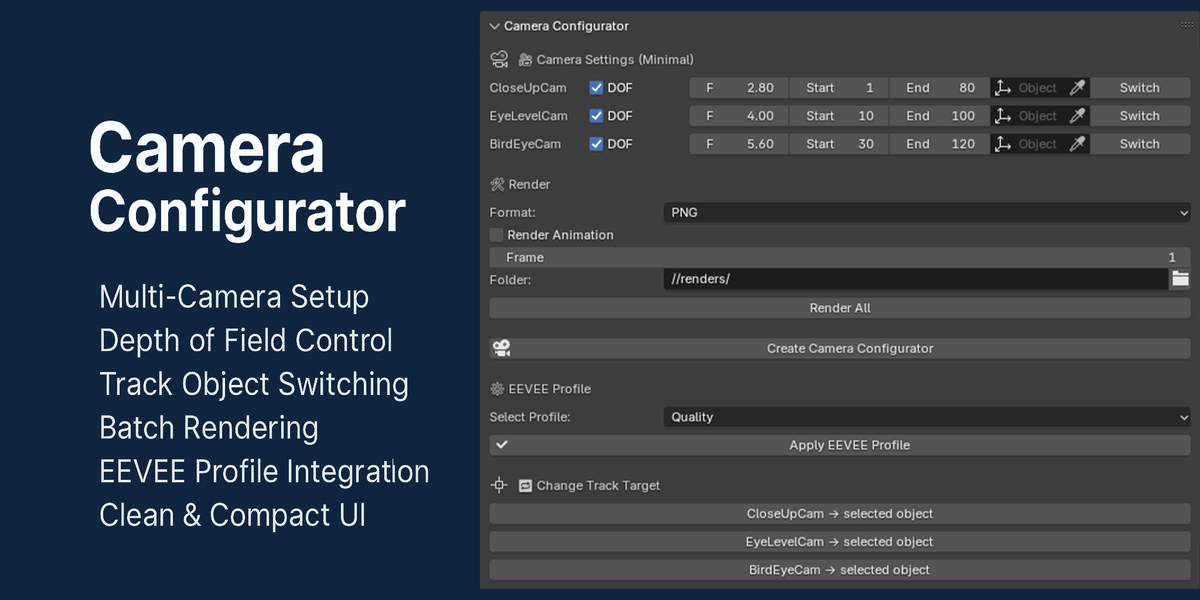
Every shot appears as a fully interactive card directly inside the 3D Viewport sidebar.
Each card includes:
Shot naming
Enable/disable toggle
Camera selection
Duplicate shot
Reorder controls
Quick camera switching
Single-shot rebuild button
DOF controls
F-Stop settings
Animation frame range
Start/end positions
Focus object selection
Target tracking
Rig-specific parameters
This allows artists to manage complex cinematic projects without leaving the viewport.
Production Timeline System
The built-in Shot Timeline panel provides:
Visual shot ranges
Timeline markers
Marker binding
Quick frame navigation
Animation baking tools
Automatically generate:
[SHOT]_START[SHOT]_END
markers for every shot.
Perfect for production planning and sequence organization.
Shot Notes & Production Status
Track production progress directly inside Blender.
Available statuses:
Pending
In Progress
Approved
Completed
Rejected
Each shot also supports free-text production notes.
Useful for:
Team collaboration
Review workflows
Client feedback
Production tracking
Integrated Render System
Render individual shots or full sequences directly from the addon.
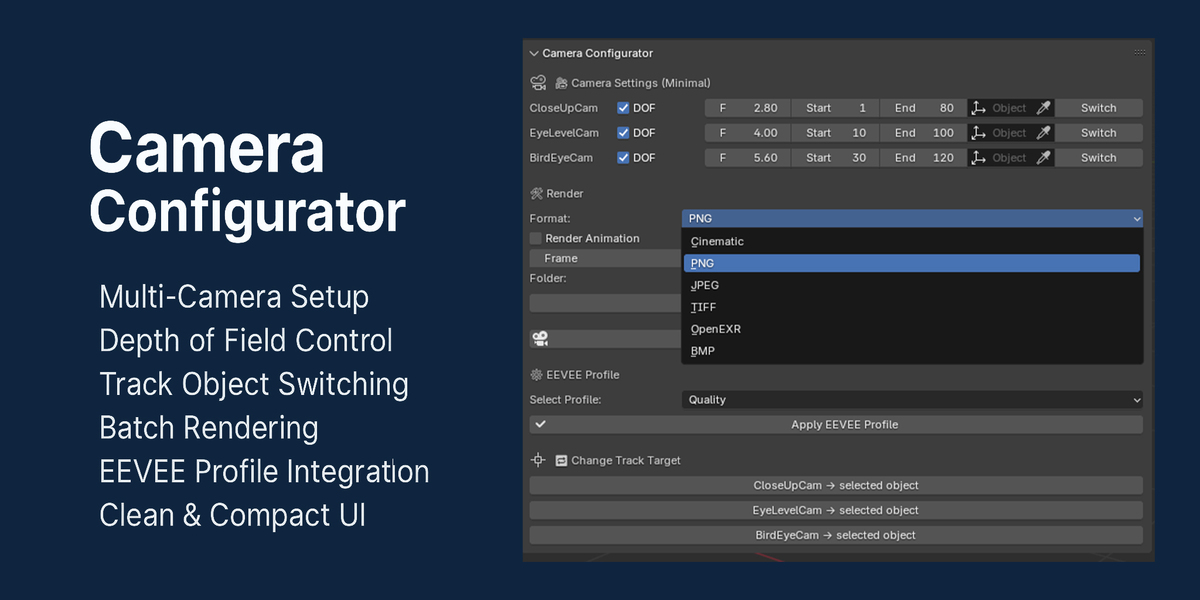
Supported Formats
PNG
JPEG
BMP
TIFF
OpenEXR
PNG
JPEG
BMP
TIFF
OpenEXR
Render Modes
Still Render Mode
Render a single frame per shot.
Animation Render Mode
Automatically renders the entire frame range of each shot.
Batch Rendering
Render all enabled shots sequentially.
Features:
Progress tracking
Isolated error handling
Per-shot rendering
Automatic camera switching
Ideal for large animation projects and architectural visualization pipelines.
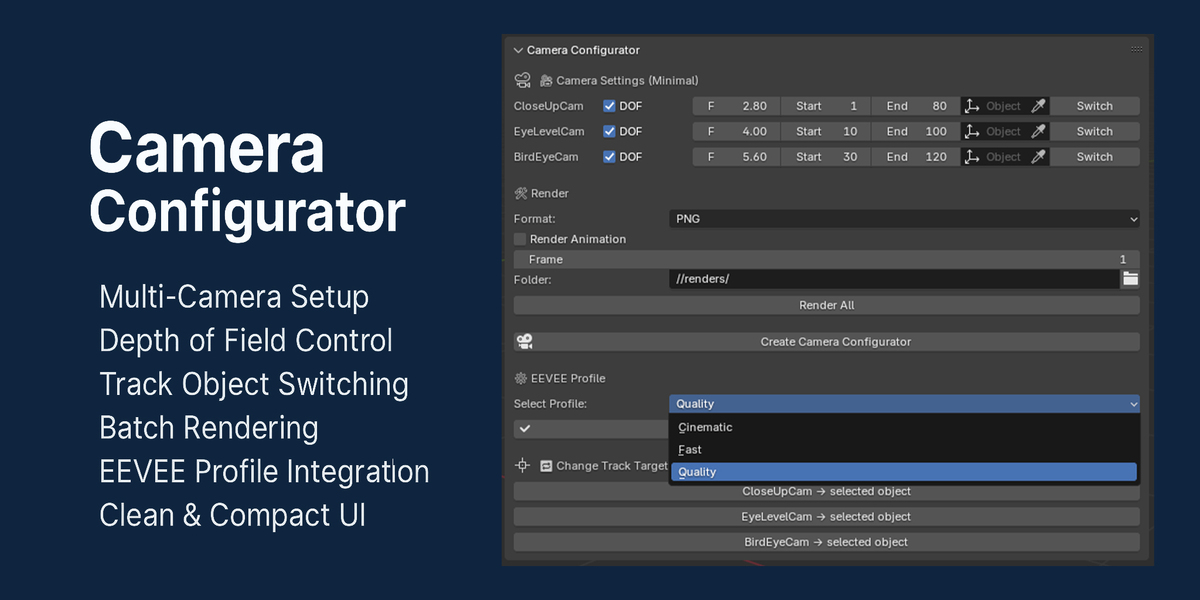
EEVEE Render Profiles
Apply optimized EEVEE presets with a single click.
FAST Profile
Designed for rapid previews.
Optimizations include:
Reduced samples
Disabled heavy effects
Faster viewport performance
QUALITY Profile
Balanced high-quality rendering.
Includes:
SSR
GTAO
Bloom
Raytracing
Higher sample counts
CINEMATIC Profile
Maximum visual quality for final output.
Includes:
Ultra-high samples
High resolution shadows
Volumetrics
Advanced raytracing
Cinematic lighting quality
Shot Library System
Save and reuse camera setups across projects.
Export & Import
Export:
Individual shots
Entire shot collections
JSON-based configurations
Import saved shots into any Blender project instantly.
Reusable Shot Templates
Save frequently used camera setups into the built-in library system.
Perfect for:
Studio pipelines
Repeating production styles
Product visualization templates
Architectural presets
Built-in Presets
Quick-start cinematic presets included:
| Preset | Rig Type | Use Case |
|---|---|---|
| CloseUp | Dolly | Product closeups |
| EyeLevel | Dolly | Standard cinematic framing |
| BirdEye | Dolly | Top-down shots |
| Orbit | Orbit | Showcase rotation |
| Handheld | Handheld | Dynamic motion |
Create and save unlimited custom presets.
Blender Integration
Camera Configurator integrates directly into Blender's workflow.
Sidebar Integration
Located inside:
3D Viewport → Sidebar → Camera Config
All tools are accessible without leaving the viewport.
Native Blend File Support
All shot data is stored directly inside the .blend file.
Saved automatically:
Camera setups
Animation settings
Rig configurations
Render settings
Timeline data
Production notes
No external database required.
Keyboard Shortcuts
| Shortcut | Action |
|---|---|
| Shift + Alt + C | Add Shot |
| Shift + Alt + B | Build All Shots |
| Ctrl + Shift + . | Next Shot |
| Ctrl + Shift + , | Previous Shot |
| Shift + Alt + F | Fix Orphan Shots |
Designed For
Camera Configurator is ideal for:
Architectural visualization
Product rendering
Cinematic animation
Game previs
Virtual production
Motion design
Environment flythroughs
Client presentation workflows
Blender Compatibility
Fully compatible with:
Blender 5.0+
Blender 5.1+
Supports modern EEVEE workflows and adapts automatically to API changes between Blender versions.
Why Camera Configurator?
Managing multiple cinematic cameras in Blender can quickly become disorganized.
Camera Configurator solves this by introducing:
Structured shot management
Automated rig generation
Fast cinematic workflows
Batch rendering tools
Reusable presets
Production-oriented organization
Whether you are creating a single cinematic sequence or managing a large visualization project, Camera Configurator provides a scalable professional workflow directly inside Blender.
Included Systems Overview
Dynamic multi-shot camera pipeline
Automatic camera & rig generation
Cinematic rig presets
Timeline marker system
Batch rendering tools
Production status tracking
JSON import/export
Reusable shot libraries
EEVEE quality profiles
Built-in cinematic presets
Animation baking tools
Native Blender integration
Dynamic multi-shot camera pipeline
Automatic camera & rig generation
Cinematic rig presets
Timeline marker system
Batch rendering tools
Production status tracking
JSON import/export
Reusable shot libraries
EEVEE quality profiles
Built-in cinematic presets
Animation baking tools
Native Blender integration
Installation
Download the addon ZIP file
Open Blender
Go to:
Download the addon ZIP file
Open Blender
Go to:
Edit → Preferences → Add-ons
Click:
Install from Disk
Select the ZIP file
Enable:
Camera Configurator
The addon panel will appear in:
3D Viewport → Sidebar → Camera Config
Quick Start
Open the Camera Config panel
Click Add Shot
Select a rig type
Configure DOF and animation frames
Position the camera path
Click Build or use Auto-Build
Render individual shots or batch render the sequence
Open the Camera Config panel
Click Add Shot
Select a rig type
Configure DOF and animation frames
Position the camera path
Click Build or use Auto-Build
Render individual shots or batch render the sequence
Technical Highlights
Data-driven shot architecture
Automatic lifecycle management
Constraint-based cinematic rigs
Procedural animation systems
Non-destructive workflows
Blend-file-native persistence
Optimized for production scalability
Data-driven shot architecture
Automatic lifecycle management
Constraint-based cinematic rigs
Procedural animation systems
Non-destructive workflows
Blend-file-native persistence
Optimized for production scalability
Perfect for Professional Blender Pipelines
Camera Configurator transforms Blender into a streamlined cinematic shot management system designed for modern production workflows.
From architectural visualization to cinematic animation, the addon dramatically reduces repetitive setup work while improving shot organization, consistency, and rendering efficiency.
Have questions about this product?
Login to message
| Blender Extension Compatible | Yes |
| Published | over 1 year ago |
| Blender Version | 4.3 - 5.1 |
| Extension Type | Add-on |
| Render Engine Used | Cycles, Eevee |
| License | GPL |
