 Achat
Achat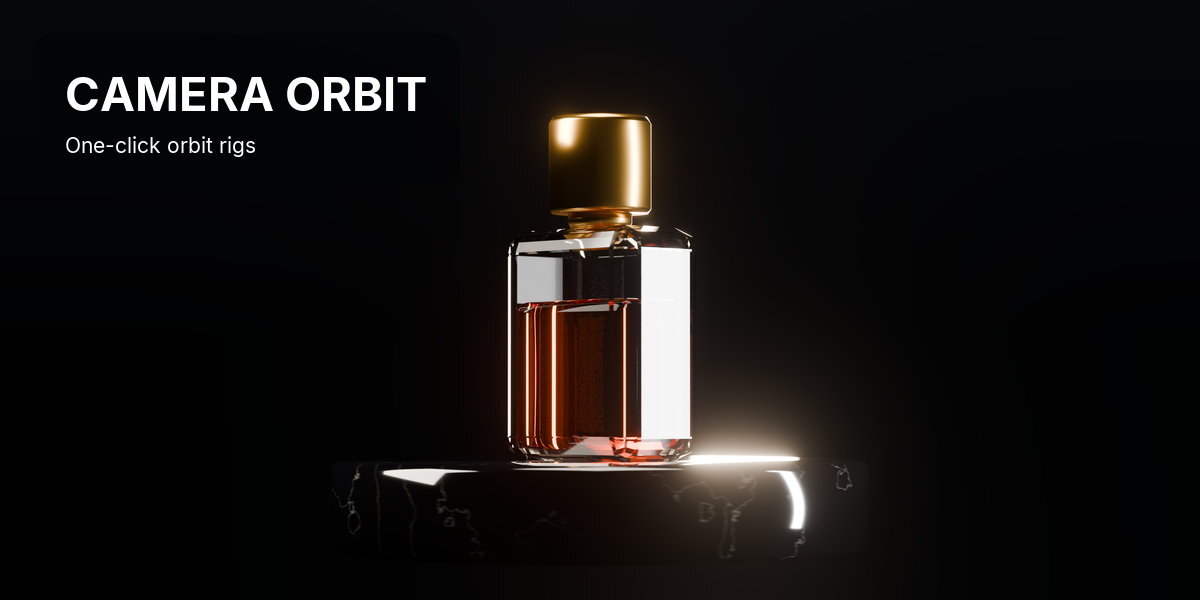

INSTALLATION
Blender 4.2 and newer: Edit > Preferences > Get Extensions > Install from Disk, and pick the downloaded .zip. Enable it. The panel is in the 3D Viewport sidebar (press N) on the Camera Orbit tab, and the same panel is in the Properties editor on the camera's Object Data tab (the green camera icon). Ctrl+Alt+O in the 3D Viewport runs Create Orbit Rig.
QUICK START
- Open the sidebar in the 3D Viewport (N) and click the Camera Orbit tab.
- Look through your camera (Numpad 0) and frame the shot.
- Press Create Orbit Rig, or Ctrl+Alt+O. A pivot lands on what the camera is looking at.
- Press Add Turntable, type a speed in degrees per second and press Space.
- Don't want the flashing backdrop? Untick Strobe Plane before you create the rig, or press the X next to Refit.
WHICH CAMERA IT ACTS ON
The panel and every button act on the selected camera, the camera of a selected pivot or strobe plane, or else the scene camera. Its name is shown at the top.
BEFORE THE RIG
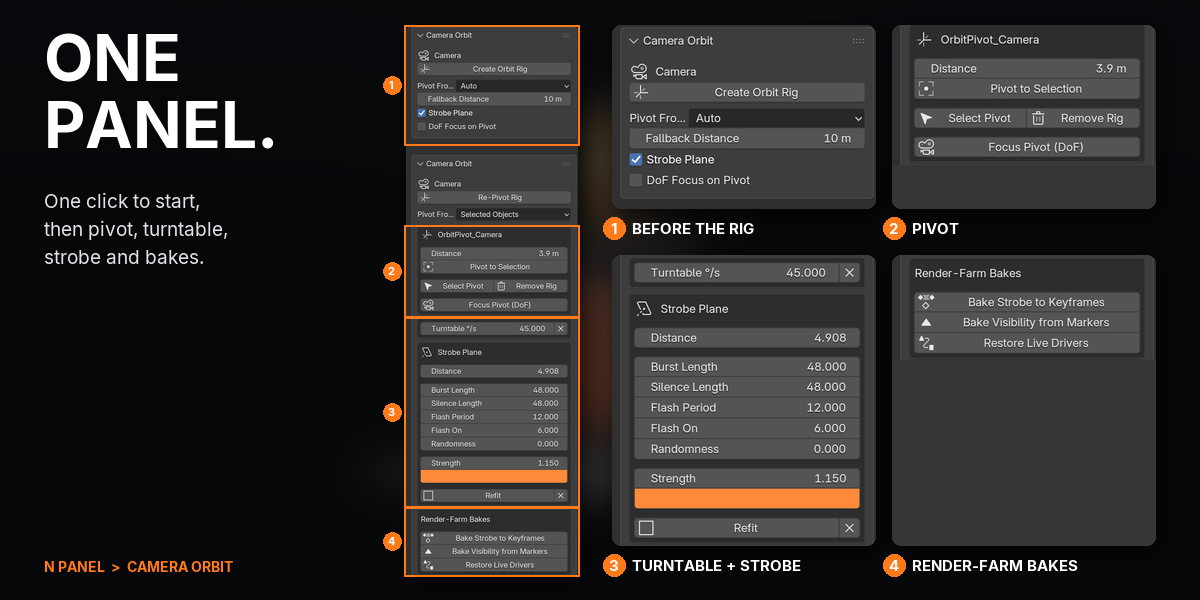
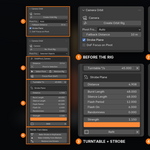
- Create Orbit Rig: puts a pivot empty where Pivot From says and parents the camera to it in place. On a rigged camera the button reads Re-Pivot Rig and moves the pivot instead of adding a second one.
- Pivot From: Auto (the surface in the middle of the view; if the middle looks past everything, the depth of what the frame does contain; then the depth of field focus; then the fallback distance), Selected Objects (the centre of the selection), Fixed Distance (straight ahead).
- Fallback Distance: used by Fixed Distance and when nothing is found (default 10 m).
- Strobe Plane: also create the strobe plane (on by default).
- DoF Focus on Pivot: also focus the camera on the pivot.
PIVOT
- Distance: slides the pivot toward or away from the camera along the line between them. The camera and the plane stay where they are.
- Pivot to Selection: moves the pivot to the centre of the selected objects without moving the camera.
- Select Pivot: selects the empty so you can rotate or keyframe it.
- Remove Rig: puts the camera back on its original parent where it stands and deletes the pivot, the plane and its material. A depth of field focus on the pivot is kept as a distance.
- Focus Pivot (DoF): depth of field on, focused on the pivot, F-Stop 1, 8 blades, ratio 2. Focus follows the pivot when it moves.
TURNTABLE
- Add Turntable: turns the pivot at a constant speed from the frame this camera becomes active (its camera marker), or from the scene start.
- Turntable °/s: speed in degrees per second, live; negative turns the other way. The X removes the turntable.
STROBE PLANE
- Distance: how far behind the camera the plane sits. Create and Refit set it so the plane clears the scene at every orbit angle.
- Burst Length and Silence Length: frames of flashing, then frames of rest.
- Flash Period and Flash On: frames per flash, and how many of them are lit.
- Randomness: varies burst length, gaps and flash hold. The same frame always gives the same flash, in the viewport, the render and a bake.
- Strength and colour: the emission of the flash.
- Refit: re-measures and re-fits the plane after changing sensor size, lens shift, render aspect or moving the pivot a long way. The X removes the plane.
- EEVEE Raytracing: the scene's own Raytracing setting, shown here for EEVEE scenes (what the flash lights: see Good to know).
RENDER-FARM BAKES
- Bake Strobe to Keyframes: replaces the strobe driver with constant keys over the scene frame range.
- Bake Visibility from Markers: replaces every plane's show/hide drivers with keys from the camera markers.
- Restore Live Drivers: removes the baked keys and brings the live drivers back.
FEATURES
1YOUR CAMERA, ORBITING

A product shot turns into a full orbit: the camera circles the bottle and the bottle stays put in the frame, while the strobe plane flashes in bursts behind it.
2ONE CLICK ON THE CAMERA YOU HAVE


Press Ctrl+Alt+O. A pivot lands on whatever the camera is looking at and the camera is parented to it without moving. Rotate the pivot to orbit, or add a turntable and type a speed in degrees per second.
3THE PIVOT LANDS ON WHAT YOU LOOK AT
Auto finds your subject even when it sits off-centre. Slide the pivot nearer or further without touching the camera, or put it on the selected objects in one click, so the subject holds still while the camera swings.

4YOUR CAMERA MOVE STAYS
Already keyed a push-in? It keeps playing exactly as you made it, and the orbit adds on top. Nothing is replaced and no new camera is made.

5A STROBE WALL BEHIND THE SCENE
A camera-filling plane behind everything flashes in bursts. Set burst, silence, flash rate, randomness, colour and strength; it stays full frame at every orbit angle and follows focal-length changes live.

6EVERY CAMERA ITS OWN ORBIT AND STROBE
Rig several cameras and bind them to markers. Each strobe plane shows only while its own camera is active, and each turntable starts on its own cut.
7ORBITS ON A MOVING MOUNT

Camera mounted on a moving car or a bone? The pivot slots in between and keeps the travel, so the camera circles the subject while it drives. Remove the rig and the camera goes back on its mount.
8RENDERS ANYWHERE, BAKES IF YOU NEED IT
Every driver is a sandboxed expression, so the file renders the same on a farm without the add-on or Python auto-run. For pipelines that refuse drivers, bake the strobe and the marker visibility to keyframes, and restore the live drivers any time.
GOOD TO KNOW
- The strobe plane sits behind every object in the scene, so a backdrop, cyclorama or large floor in view covers it. It is made for subjects against an open background.
- In EEVEE the flash works as a backdrop and lights the scene only faintly, even with Raytracing on. In Cycles it also casts light on the scene.
- At the default settings the plane flashes six times a second in full white. For work shown to the public, set Flash Period to 8 or more at 24 fps, which keeps it to three flashes a second or fewer.
- The turntable turns around the pivot's vertical axis at a constant speed. For eased or tilted moves, keyframe the pivot's rotation instead.
- The turntable's start frame is set when you add it. If you move the camera's marker later, remove the turntable and add it again.
- The plane follows focal length and orthographic zoom live. After changing sensor size, lens shift or the render aspect, or after moving the pivot a long way, press Refit.
- If the pivot has location keyframes, Re-Pivot Rig and Pivot to Selection hold only at the current frame.
- Removing the rig from a camera with transform keyframes restores its pose at the current frame; the keyframes then play without the orbit, as they did before.
SUPPORT
Email [email protected].
 Included
Includes 12 months of
- Support from Achat
- Product updates
Extend this product’s Support Period +12 months: 50% of product price
Have questions before purchasing?
Login to message
| Blender Extension Compatible | Yes |
| Published | 1 day ago |
| Blender Version | 4.2 - 5.2 |
| Extension Type | Add-on |
| Render Engine Used | Cycles, Eevee |
| License | GPL |
Discover more products like this
motion graphics orbit orbit camera pivot camera rig product-visualization camera camera animation animation turntable music video Strobe