 Catra
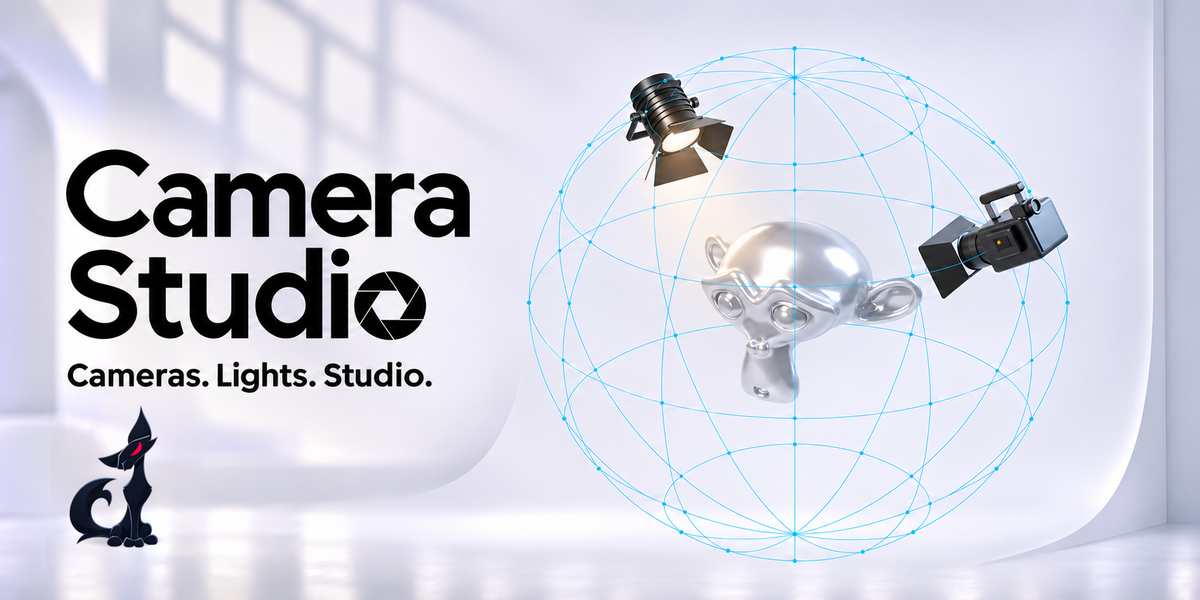
CAMERA STUDIO
Cameras. Lights. Studio.
Position cameras and lights on a grid.
Add a seamless curved backdrop.
Orbit Camera View Lighting Backdrop Grid Snap Distance Shortcuts
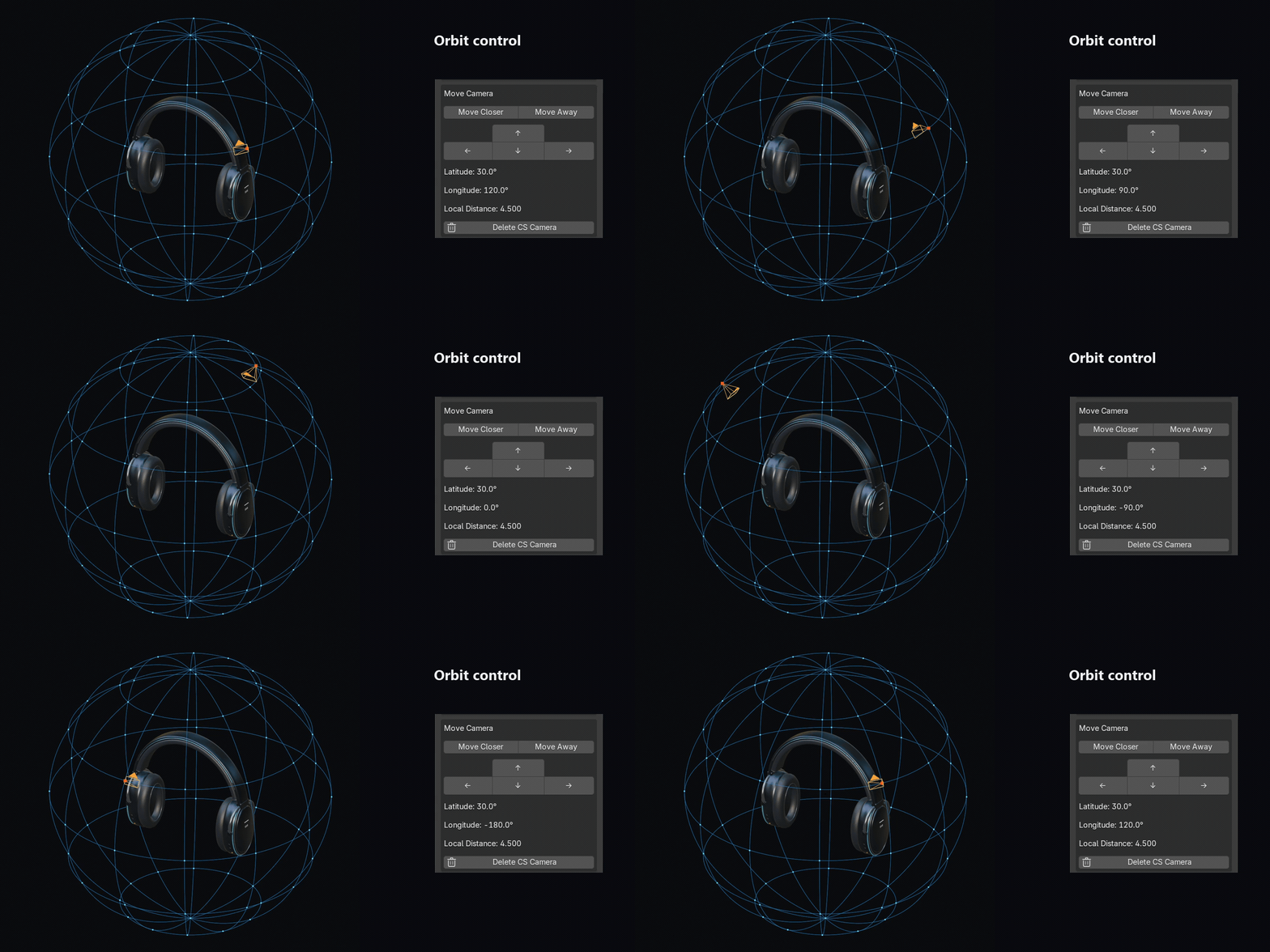
01 / ORBIT
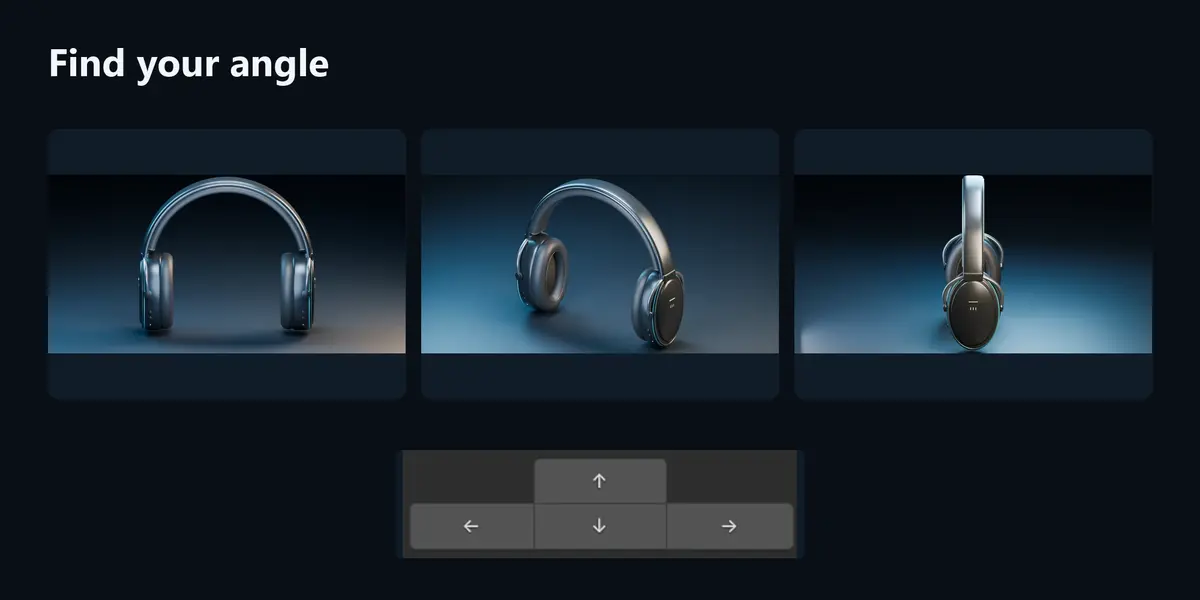
Find your angle.
Hold Ctrl + middle mouse button and drag.
Cameras and lights stay aimed at your subject.
02 / CAMERA VIEW
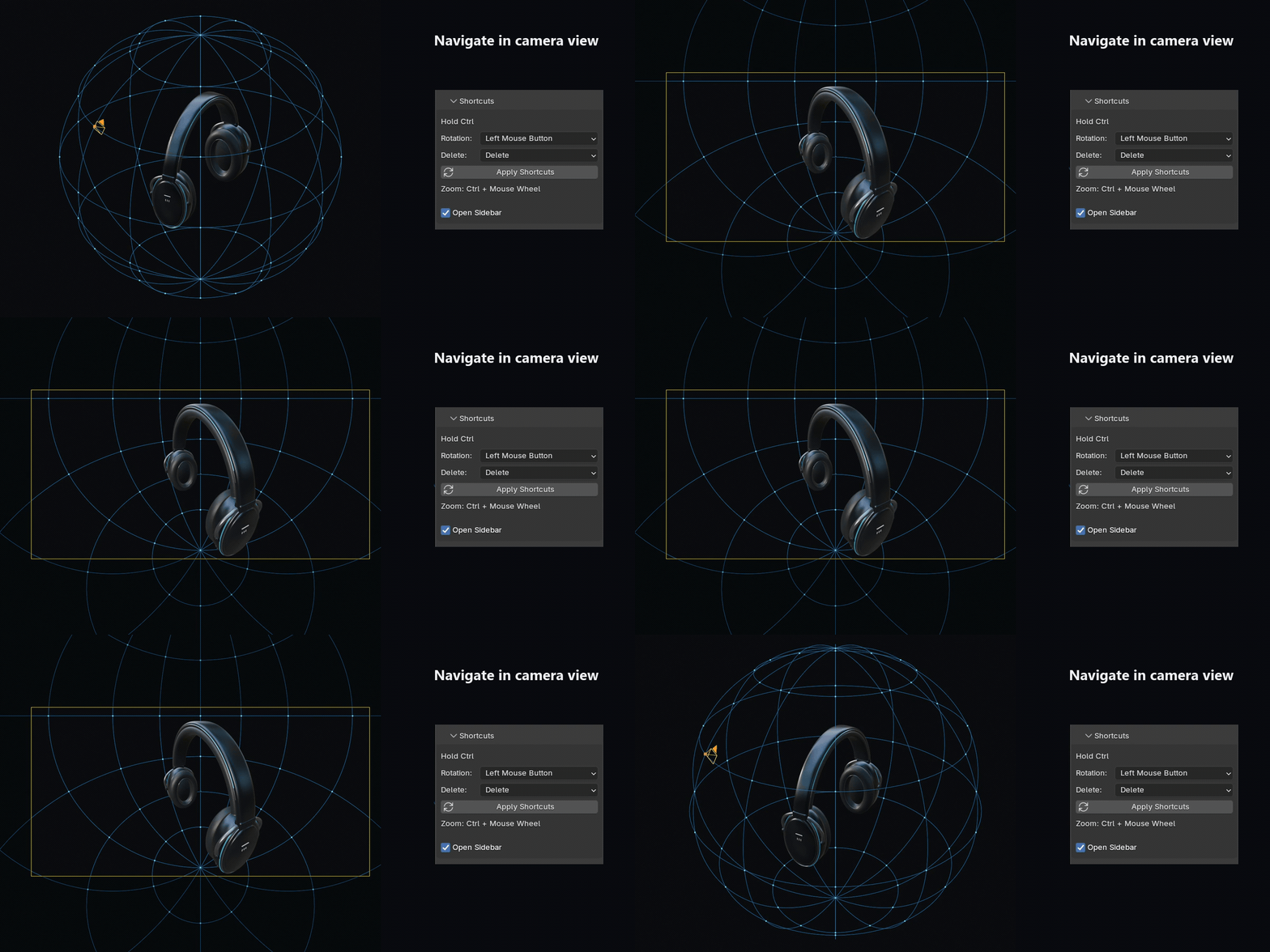
Work in camera view.
Select your CS camera and press Ctrl + Numpad 0.
Frame your shot using the same controls.
03 / LIGHTING
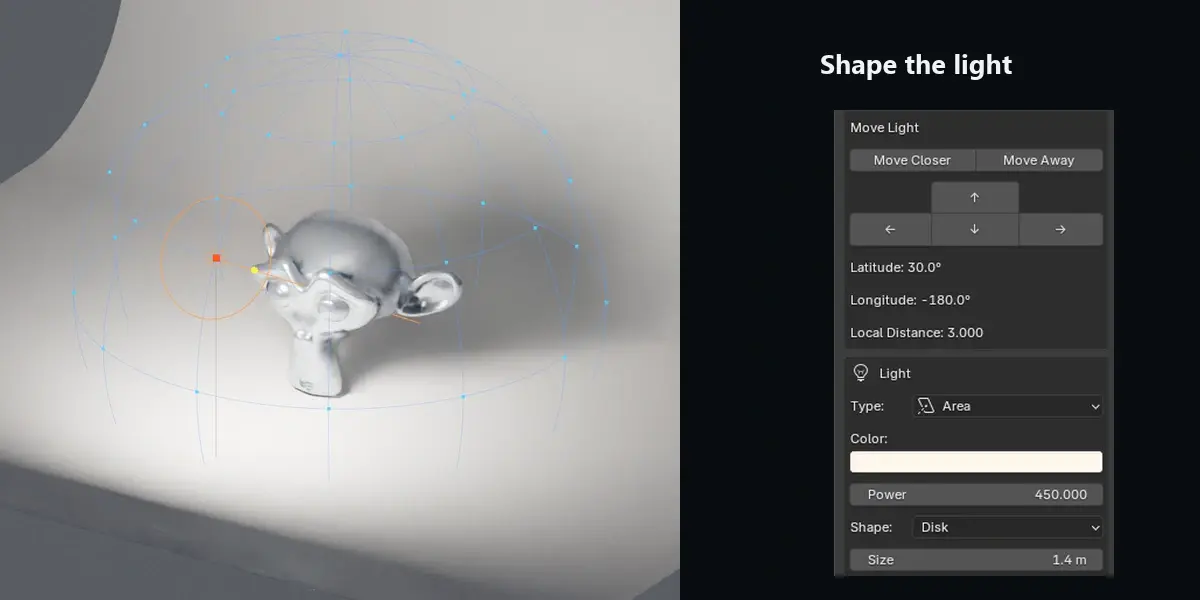
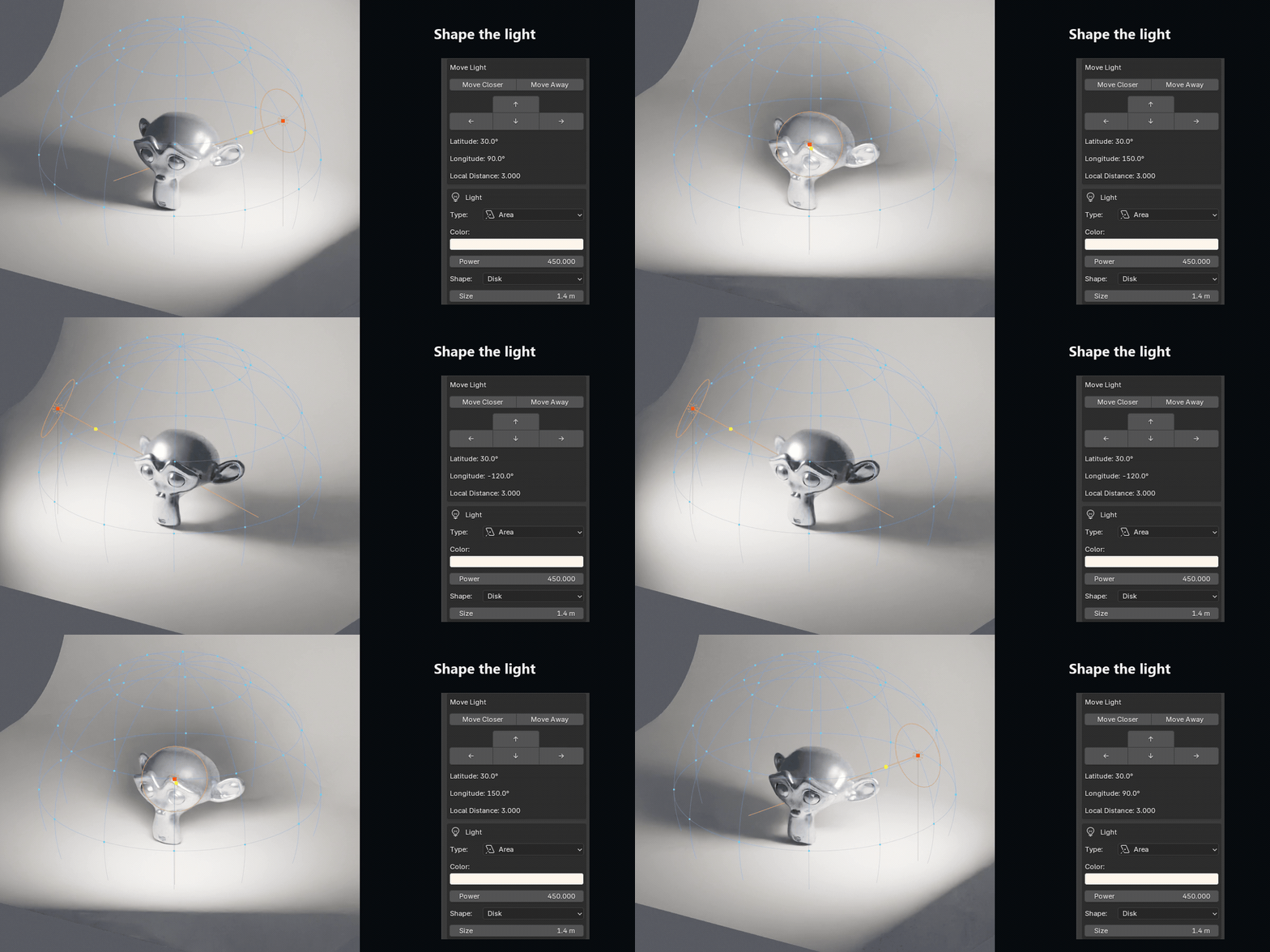
Shape the light.
Create Area, Spot, Point or Sun lights.
Position them on the grid and adjust color, intensity and softness.
04 / BACKDROP
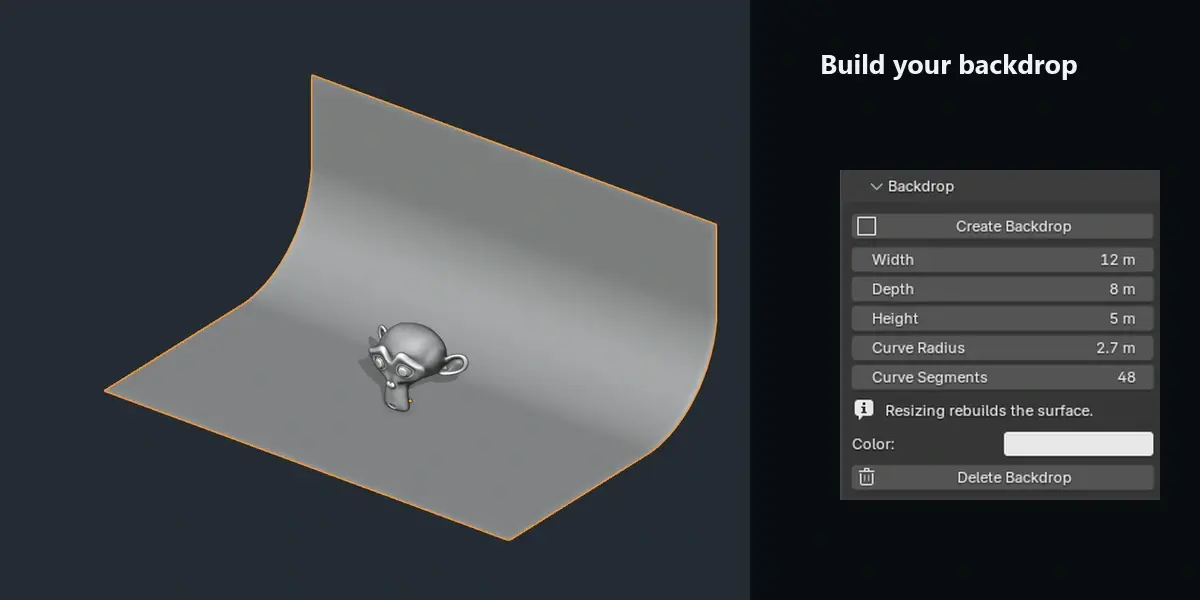
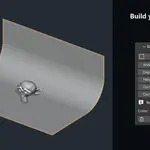
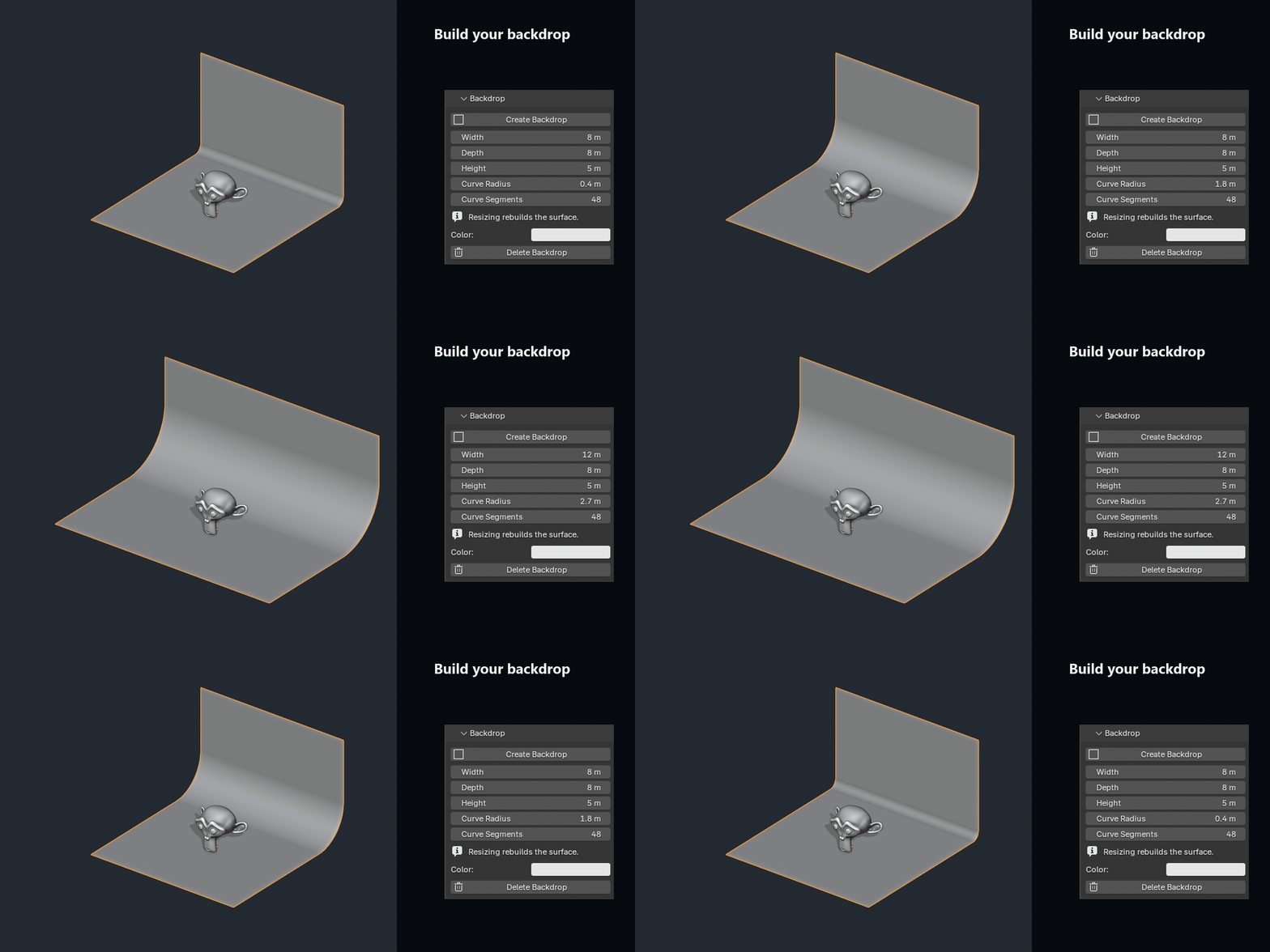
Build your backdrop.
Create a seamless floor-to-wall surface.
Adjust its width, depth, height and curve.
05 / GRID SNAP
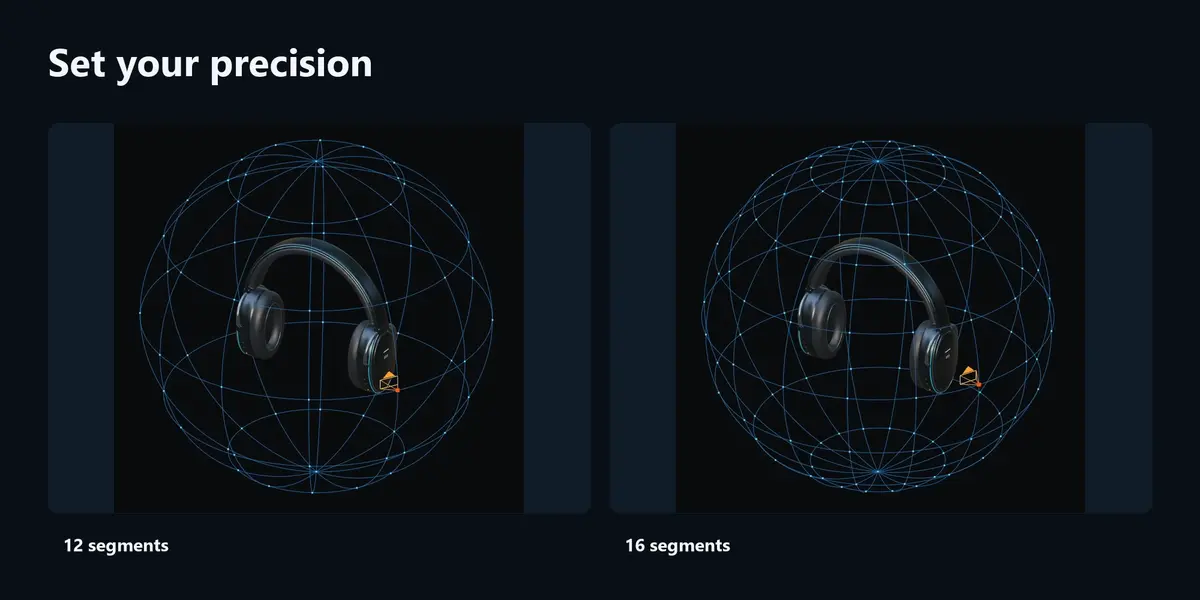
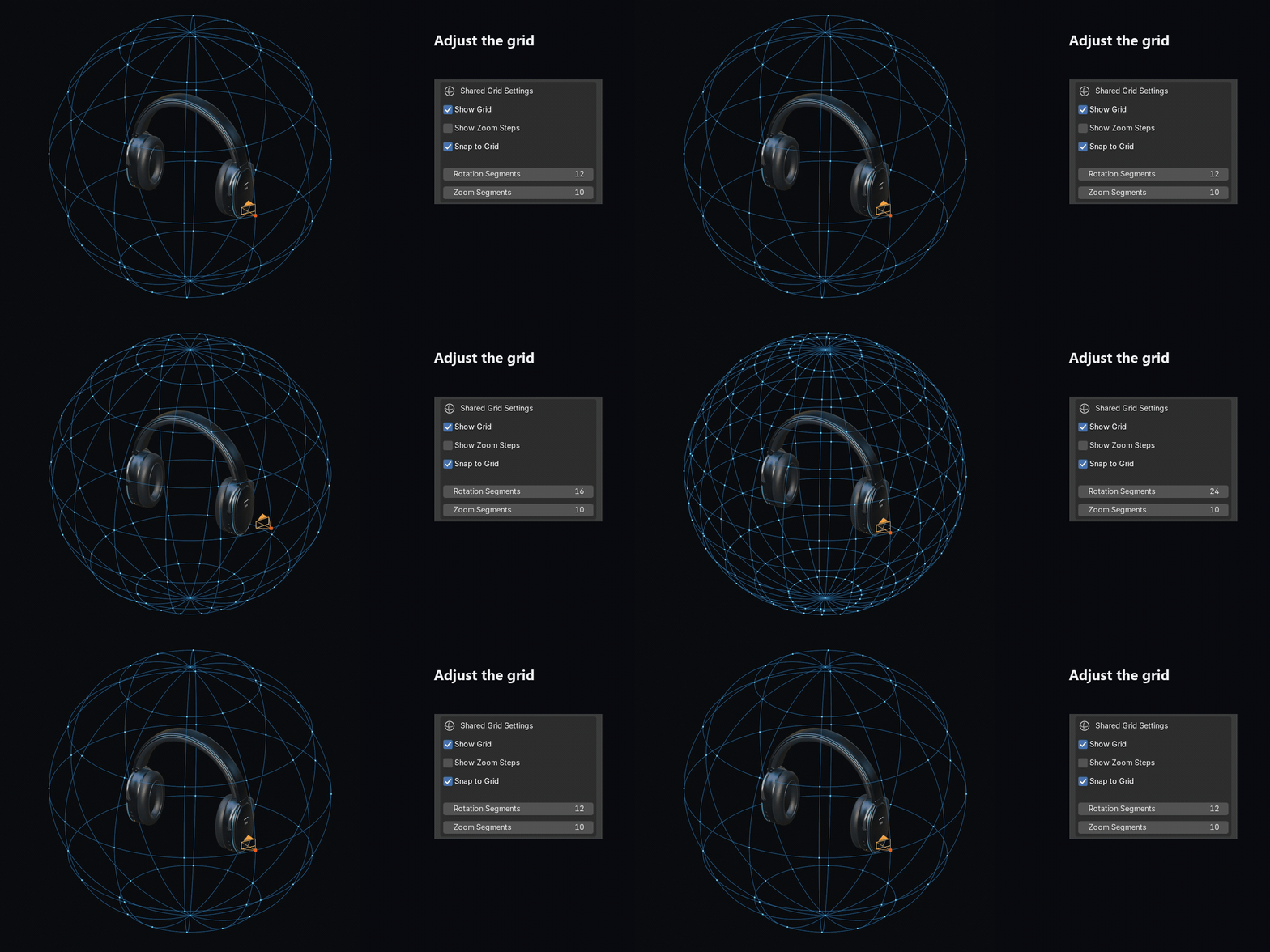
Choose your precision.
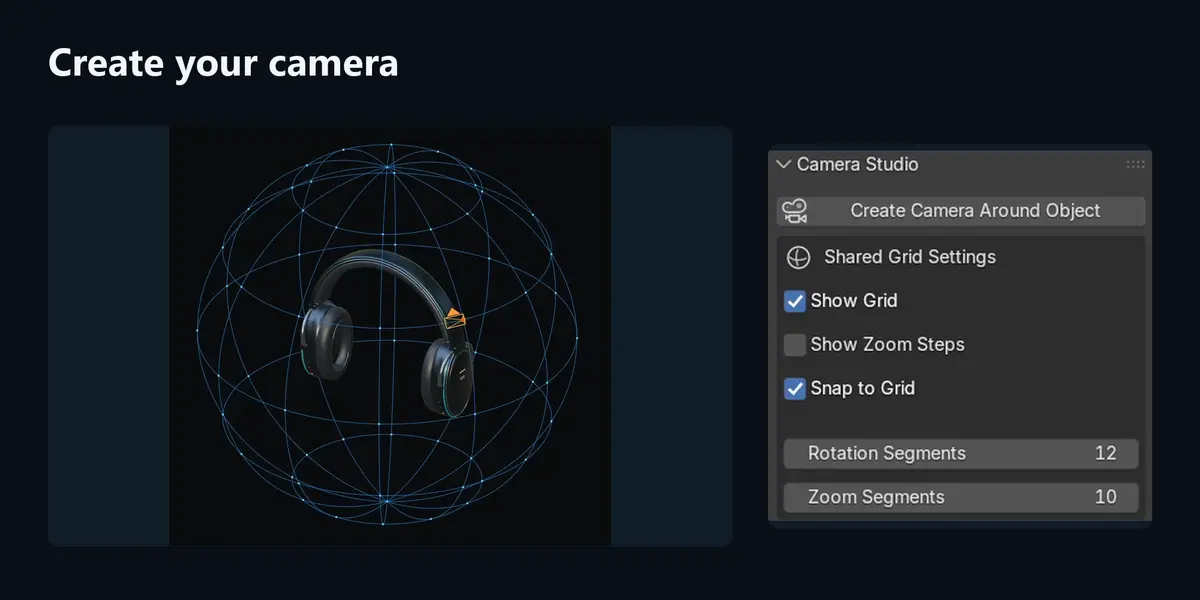
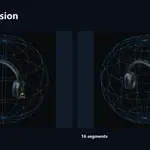
Adjust rotation and distance segments.
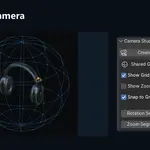
Snap to grid points, or turn snapping off. Show or hide the guides.
06 / DISTANCE
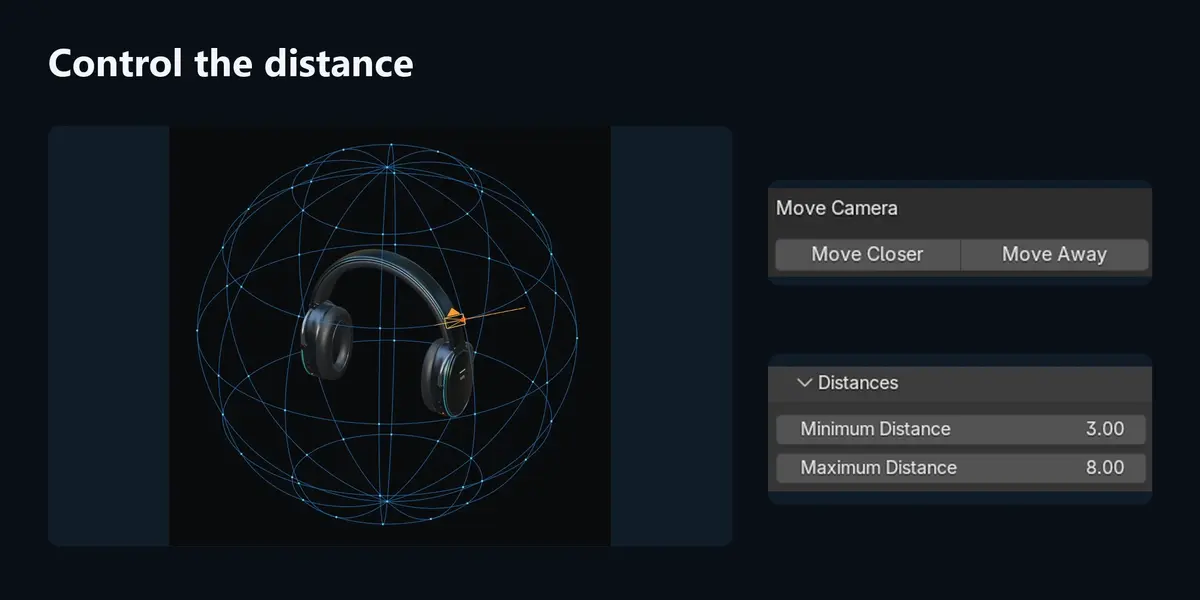
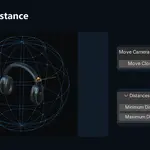
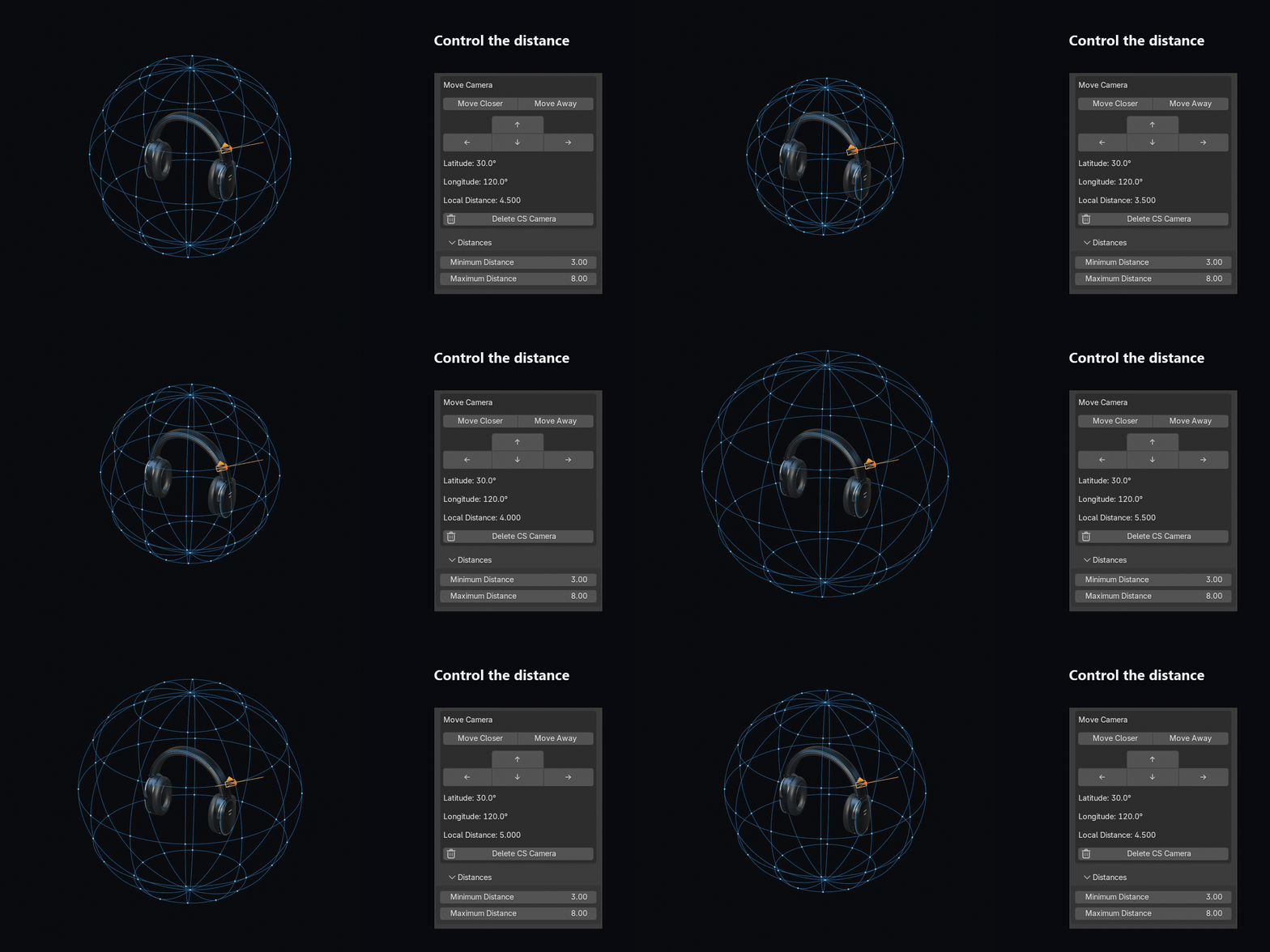
Control the distance.
Use Ctrl + mouse wheel to move closer or farther away.
Set minimum and maximum distances.
07 / SHORTCUTS
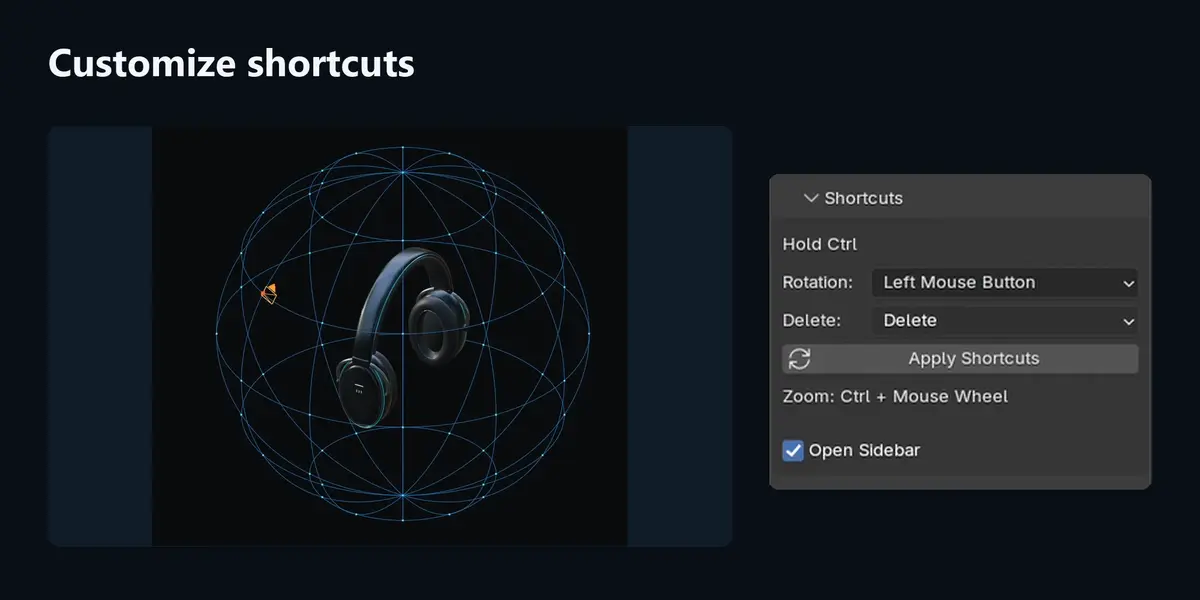
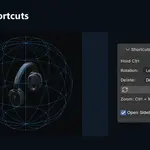
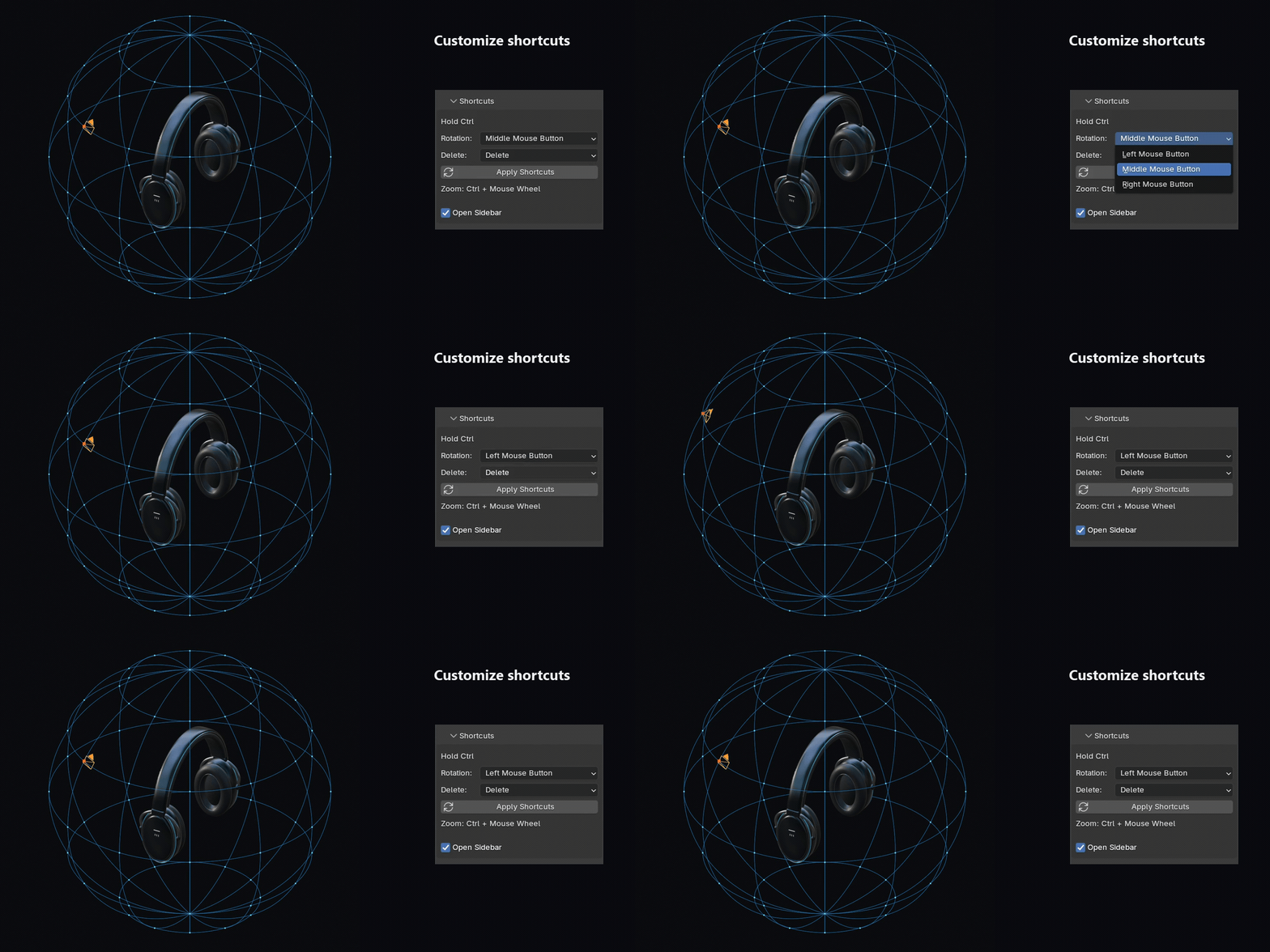
Customize your controls.
Choose your orbit mouse button and delete key in Shortcuts.
INCLUDED
Blender 3.6 & 4.5–5.2
Both installation ZIPs, English documentation and a ready-to-use studio demo scene.
Manual positioning. No animation is generated automatically.