CamSeq - Camera Choreography
 3DGrid Studio
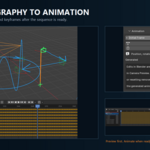
CamSeq Documentation
Requirements
CamSeq supports Blender 5.2.0 through 5.2.2 LTS. Blender 5.2.2 LTS for Windows is the primary development and validation environment.
Installation
- Download the CamSeq ZIP package.
- In Blender, open Edit > Preferences > Get Extensions.
- Open the extension menu and choose Install from Disk.
- Select the downloaded ZIP file.
- Enable CamSeq if Blender does not enable it automatically.
- Open the 3D Viewport sidebar with N and select the CamSeq tab.
Drag end Drop
- Open Blender and locate the CamSeq extension ZIP in your operating system's file browser
- Drag the ZIP onto Blender's 3D Viewport
- Confirm the installation in the dialog that appears
Do not extract or modify the installation ZIP before installing it
Creating Your First Sequence
- Create or select a Camera object in the current scene.
- In the CamSeq camera section, click + to register it.
- Select the camera in the Working Cameras list.
- Click Capture Current Pose to store its starting position, orientation and supported lens information.
- Add a movement from the movement selector.
- Configure its duration and movement-specific controls.
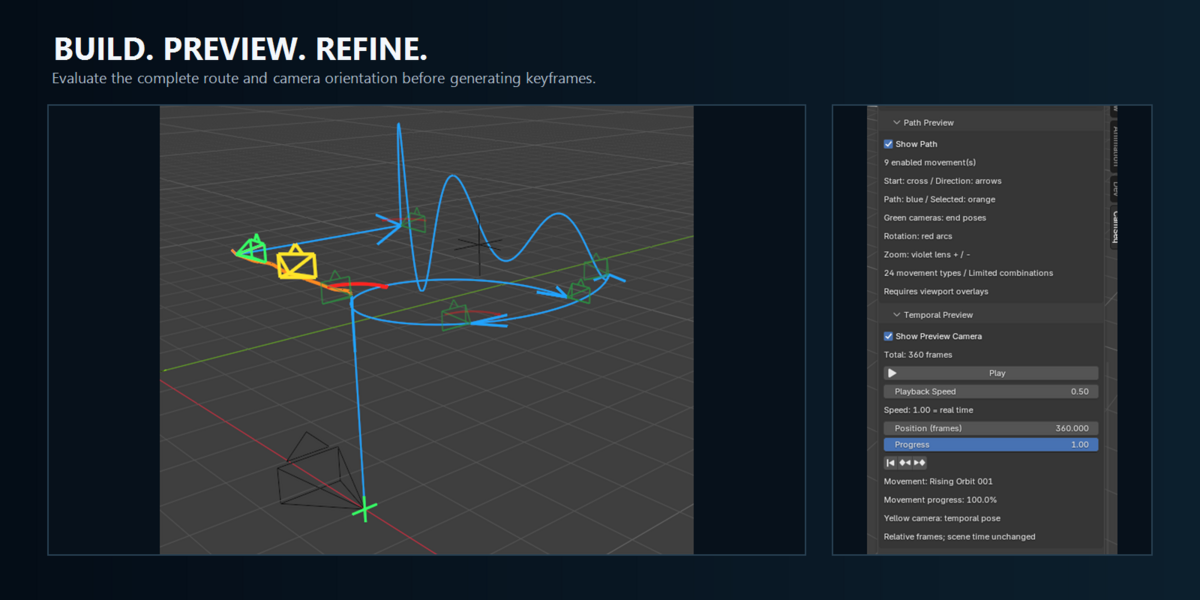
- Enable Show Path to inspect the route in the viewport.
- Enable Show Preview Camera to display the temporal preview camera.
- Use Play, Pause, Position or Progress to inspect the sequence.
- Set the desired Initial Frame and click Animate when the sequence is ready.
Movement Library
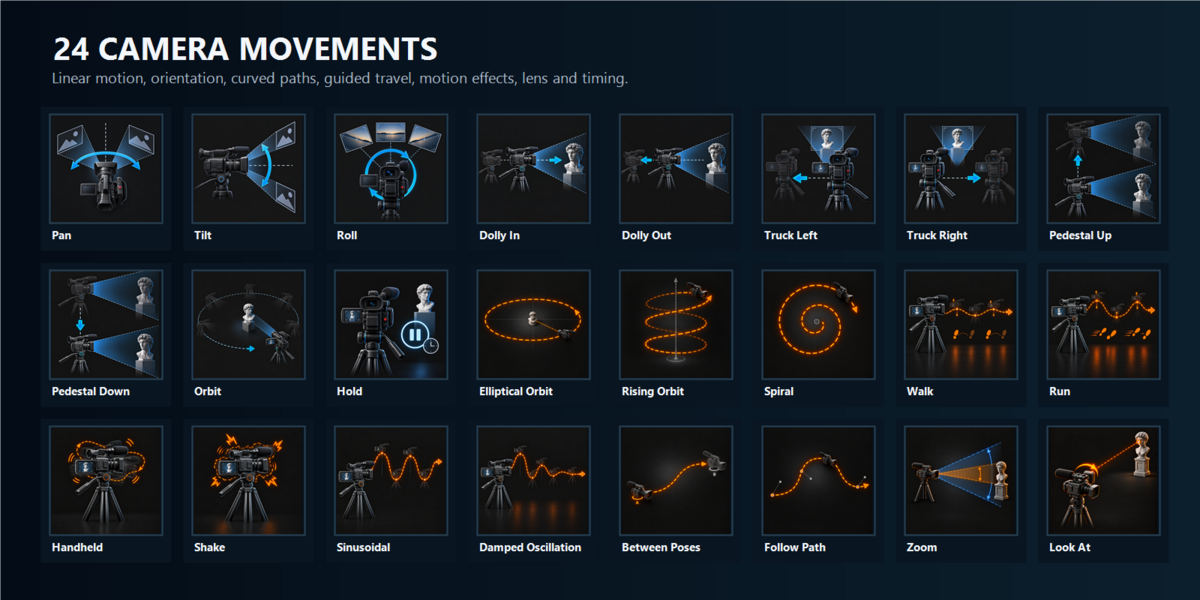
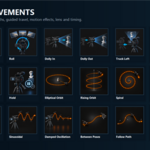
CamSeq provides 24 movement types:
- Linear: Dolly In, Dolly Out, Truck Left, Truck Right, Pedestal Up and Pedestal Down
- Orientation: Pan, Tilt, Roll and Look At
- Curved paths: Orbit, Elliptical Orbit, Rising Orbit and Spiral
- Guided movement: Between Poses and Follow Path
- Motion effects: Walk, Run, Handheld, Shake, Sinusoidal and Damped Oscillation
- Lens and timing: Zoom and Hold
The available controls depend on the selected movement and may include duration, distance, angle, direction, easing, reference space, cycles and scene-object references.
Building and Combining Movements
Movements normally run in sequence. Groups and timing controls can also place compatible contributions in the same time interval.
Concurrent movements must control compatible channels and resources. CamSeq reports conflicts instead of arbitrarily blending incompatible contributions.
Camera Track
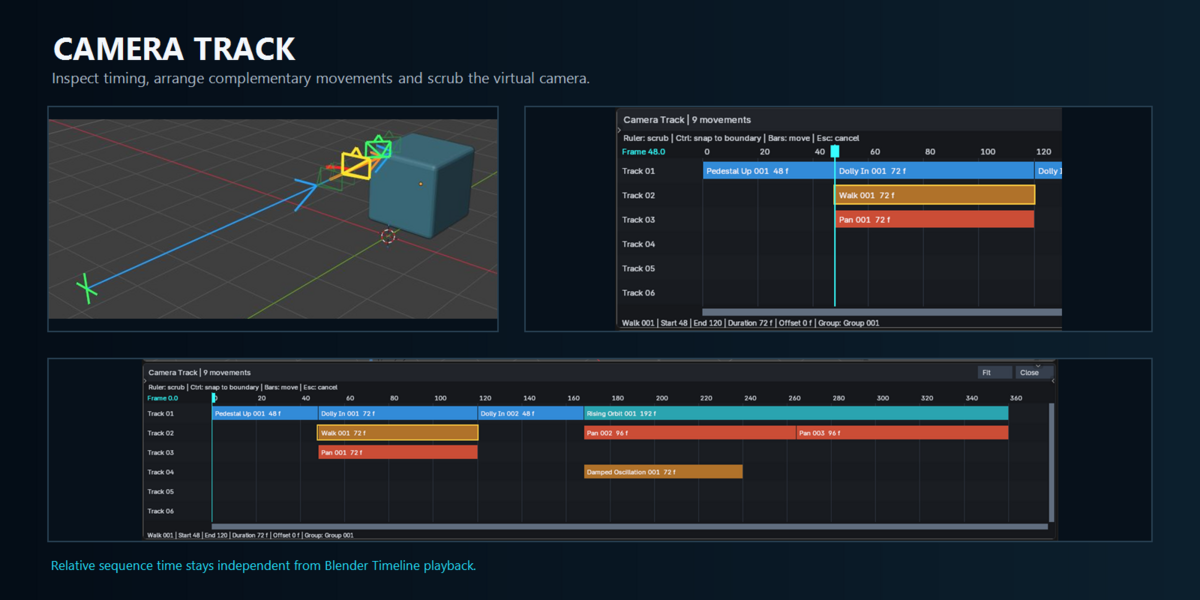
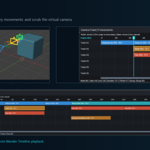
Open Camera Track to view the selected camera sequence in a dedicated timeline-style area below the 3D Viewport.
Each enabled movement appears as a timed bar:
- Track 01 contains the automatically chained main sequence.
- Tracks 02–06 organize complementary movements that run concurrently.
- Bar lengths represent movement duration.
- Selecting a bar displays its start, end, duration, offset and group information.
Complementary bars can be dragged horizontally to change their start offset within a group and vertically to organize them on another available lane. Main-sequence bars remain automatically chained and are reordered through the Movement List.
Click or drag on the frame ruler to scrub through the virtual camera preview. Hold Ctrl while scrubbing to snap the cyan cursor to the nearest movement boundary.
Camera Track, Temporal Preview and the yellow preview camera share the same relative time position. Playback and scrubbing do not move Blender’s real camera, change the Blender Timeline or create keyframes.
Track lanes organize the display, but they are not animation layers, priorities or blend modes. Moving an incompatible movement to another lane does not resolve a motion conflict.
Previewing a Sequence
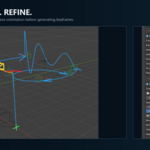
Path Preview draws the evaluated route without moving the real Camera object or creating keyframes.
Camera Preview uses a virtual camera to show position and orientation over time. Preview playback does not change Blender's Timeline.
Correct reported warnings before generating animation. An invalid movement or missing reference can prevent the remaining route from being evaluated.
Generating and Updating Animation
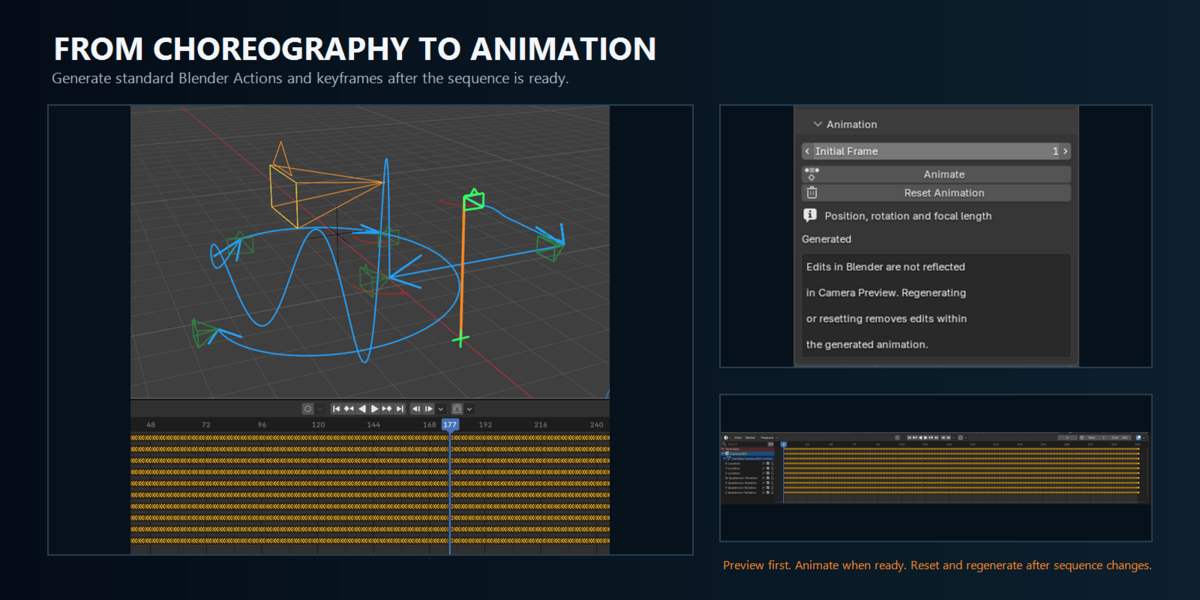
Click Animate to generate Blender Actions and keyframes for the selected Working Camera. Supported Perspective Zoom movements also generate focal-length animation.
Generated animation is a snapshot of the sequence and is not live-linked to later changes.
When you modify a generated sequence:
- Inspect the revised result with Preview.
- Use Reset Animation to remove the previous CamSeq-generated result.
- Click Animate again to generate the updated animation.
Manual edits made inside CamSeq-generated Actions can be replaced during regeneration or removed by Reset Animation.
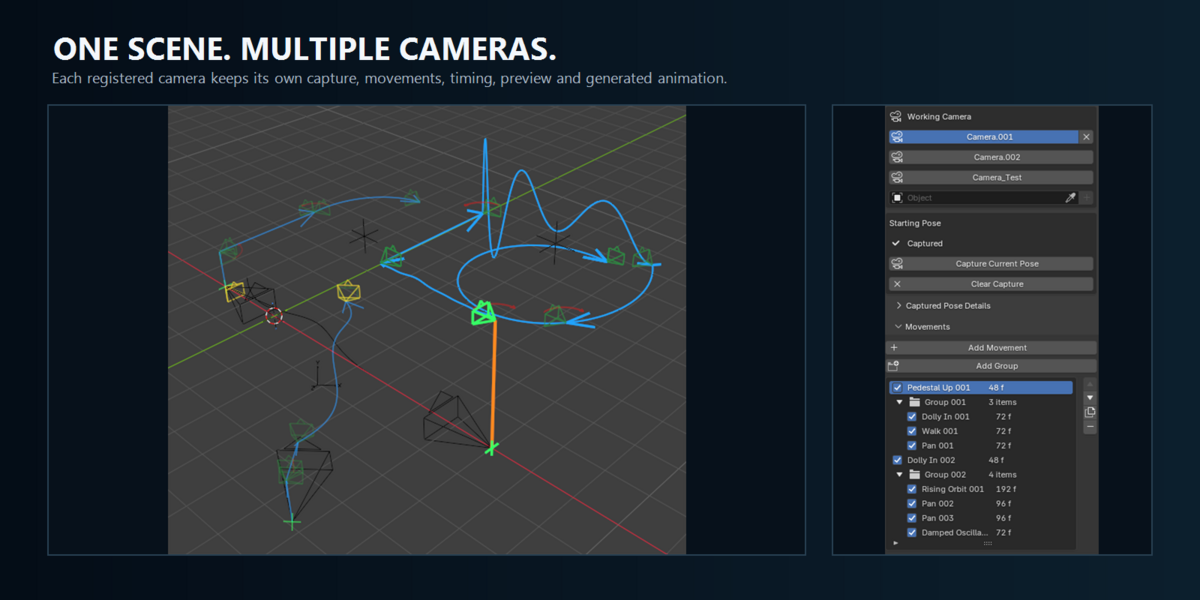
Multiple Cameras
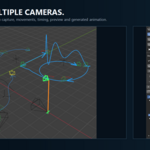
Each registered camera has its own sequence, captured pose, preview state, Initial Frame and generated animation.
Selecting a Working Camera in CamSeq does not change Blender's active render camera. CamSeq does not create camera cuts, Timeline markers or a final multi-camera edit.
Camera Type Support
Perspective cameras provide the complete supported workflow, including all movement types, preview framing, animation generation and focal-length Zoom.
Orthographic and Panoramic cameras have limited transform support. CamSeq does not animate Orthographic Scale or projection-specific panoramic properties, and its virtual camera does not reproduce those projections accurately.
Evaluate limited camera types through Blender's actual Camera View and render pipeline.
Important Limitations
Use a dedicated Camera object for CamSeq animation.
Parents, constraints, external Actions, drivers and NLA strips on the Working Camera are not combined with CamSeq-generated animation. Perspective Zoom requires independent Camera data.
Follow Path requires one valid, open and static Bezier or NURBS curve. Movement references such as targets and orbit centers must follow the requirements documented for their respective movement types.
CamSeq does not configure render settings, frame rate, resolution, motion blur or camera cuts.
Troubleshooting Checklist
If no route or preview appears:
- Confirm that the scene camera was added with +.
- Select the correct Working Camera.
- Use Capture Current Pose.
- Enable Show Path.
- Enable Show Preview Camera when using temporal preview.
- Confirm that at least one movement is enabled.
- Correct any missing target, curve, center or conflicting movement reported by CamSeq.
If you changed a sequence after generating animation, reset the previous animation and generate it again.
Complete Manual and Support
The complete movement reference, illustrated examples, troubleshooting information and compatibility notes are available at:
https://3dgridstudio.com/camseq/manual/
For product support, contact 3DGrid Studio through the Superhive messaging system and include your Blender version, CamSeq version, operating system and the shortest sequence that reproduces the issue.
 Included
Includes 12 months of
- Support from 3DGrid Studio
- Product updates
Extend this product’s Support Period +12 months: 50% of product price
Have questions before purchasing?
Login to message
| Blender Extension Compatible | Yes |
| Published | about 5 hours ago |
| Blender Version | 5.2 |
| Extension Type | Add-on |
| Render Engine Used | Cycles, Eevee |
| License | GPL |
Discover more products like this
camera path cinematic camera camera choreography multi-camera Camera animations camera movement