CamWeave Pro – Cinematic Camera Animation & Multi-Shot Workflow for Blender
 ASHISH KUMAR MAURYA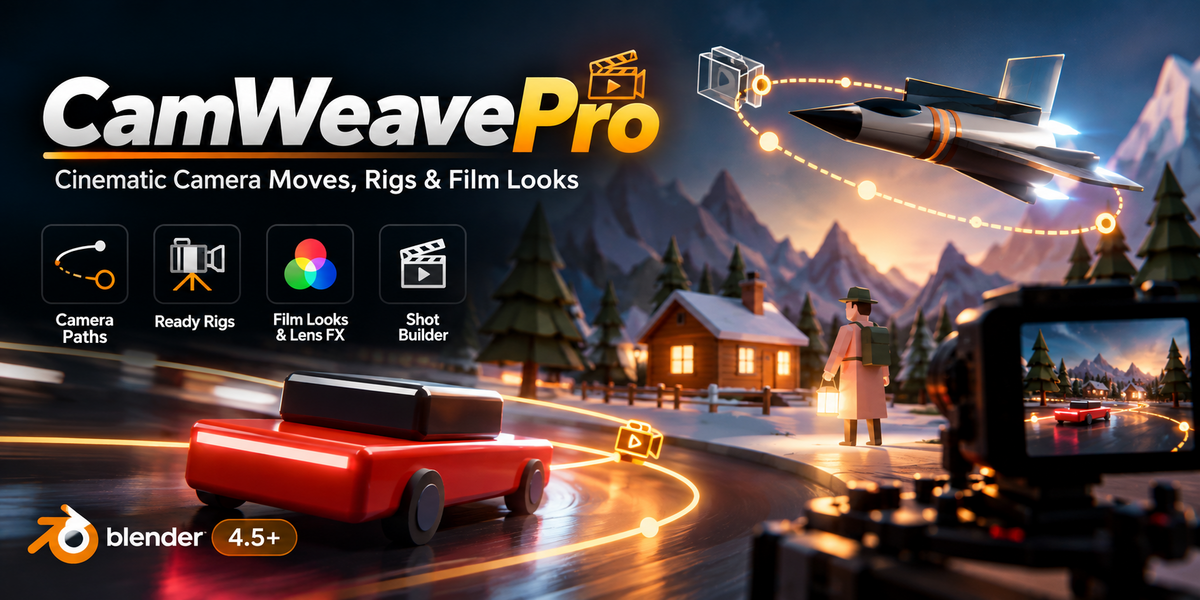
Getting started
- Install: Edit > Preferences > Get Extensions > (dropdown) > Install from Disk, and choose the zip.
- In the 3D Viewport press N and open the CamWeave tab.
- Click New Camera Rig, or select an object and apply one of the move presets.
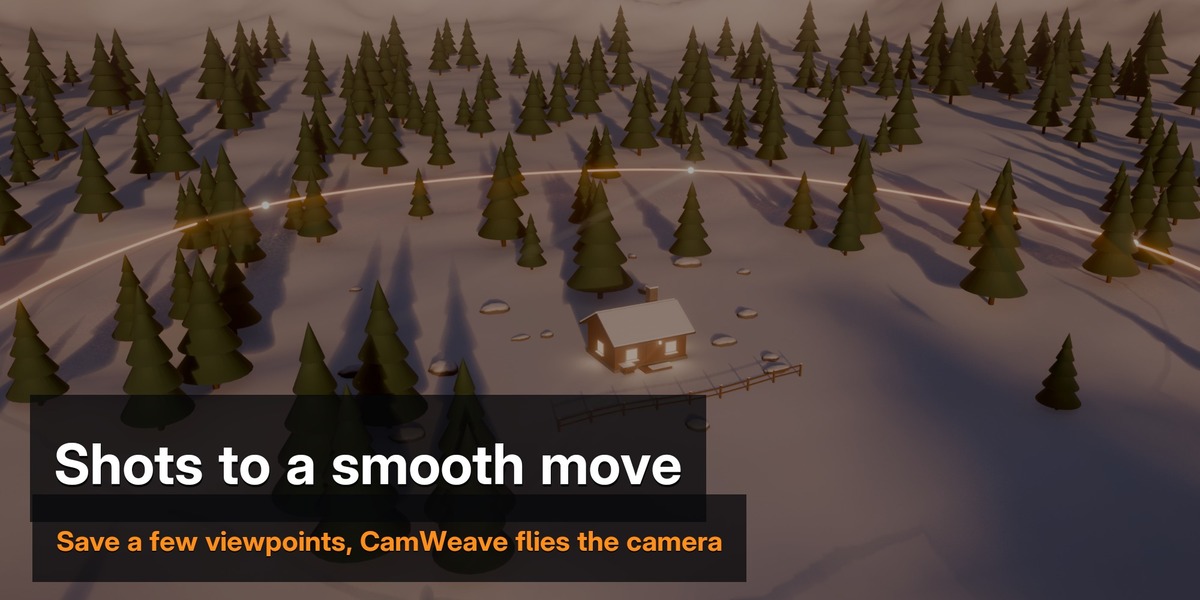
- Frame a view and click Add Shot from View. Add two or three shots and press Numpad 0 to look through the rig camera, then play the timeline.
The panel has four tabs: Shots, Motion, Look and Output.
Shots
- The list holds the shots in the order the camera visits them. Ctrl-click a name to rename it; the checkbox leaves a shot out without deleting it.
- Prev / View Shot / Next jump the viewport to a shot; Update Shot from View saves the current view into the active shot.
- Aim: Free keeps the captured rotation, Target keeps an object in frame (Keep or Center framing, plus Roll), Path looks along the direction of travel.
- Lens, Shift, Focus and F-Stop are per shot and blend smoothly between shots (turn on Depth of Field in the Output tab).
- The row at the bottom copies Aim, Lens, Focus or Timing to every shot.
Motion
Move presets
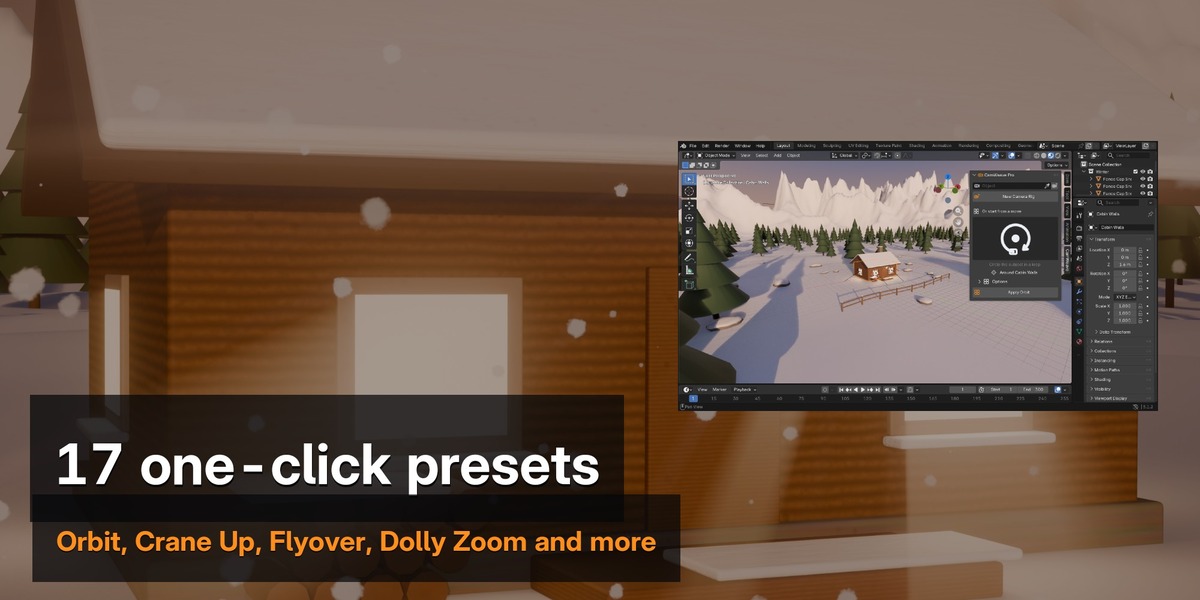
Select the subject, pick a move in the gallery and press Apply. Seventeen moves: Orbit, Arc, Spiral, Reveal, Push In, Pull Back, Crane Up, Pedestal, Truck, Top-Down, Flyover, FPV Dive, and signature moves Dolly Zoom, Whip Pan, Crash Zoom, Snap Zoom and Dutch Tilt. Options set distance, height, lens and direction. The result is an ordinary rig: edit any shot afterwards.
Path & Timing
- Continuous: one smooth move at constant speed through all shots. Per Shot: each shot has its own arrival frame, hold and easing.
- Path Type, Loop and Ease shape the move; Tension on a shot tightens or rounds the path there.
- Dolly Zoom Lock keeps the target the same size on screen while the camera moves.
Follow Subject
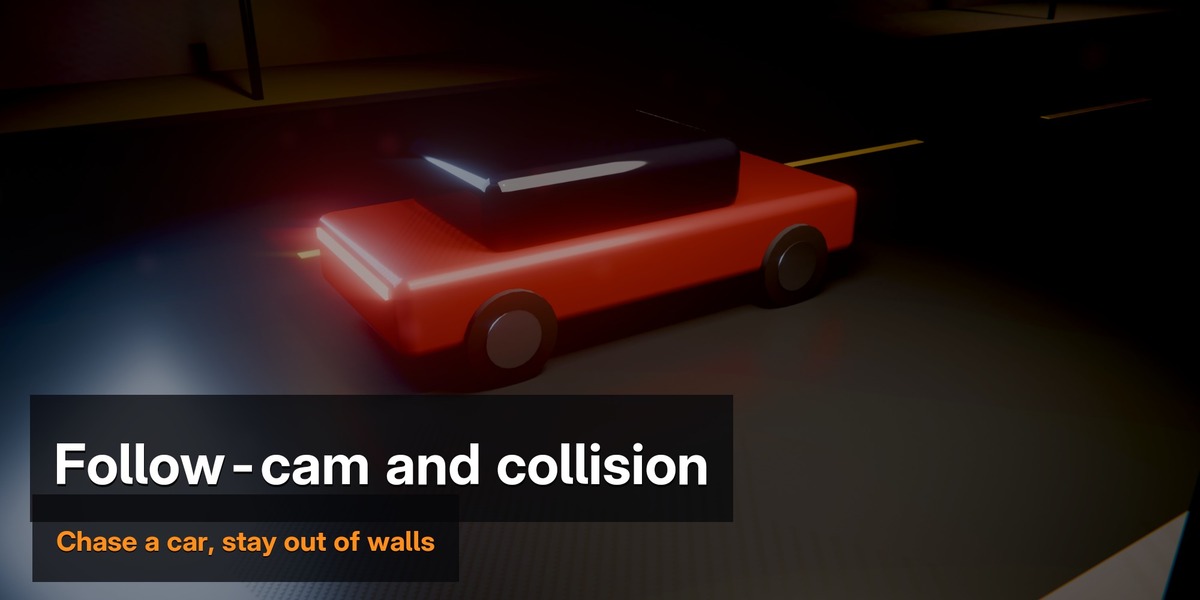
Pick a moving object (or a bone) and the whole move travels with it. Position moves along, Heading turns with it like a chase car, Full rotates fully as if mounted. Chase Lag, Look Ahead and Lean add life. Shots are pinned to the subject at one frame (shown in the panel); you can add shots on any frame.
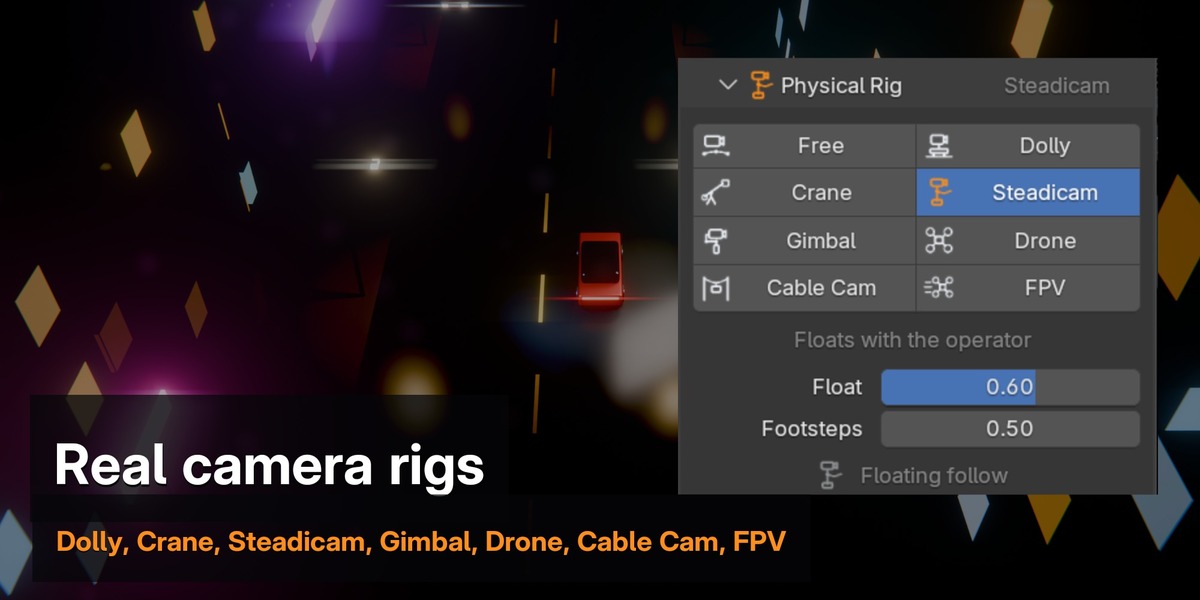
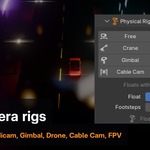
Physical rigs
- Dolly: a straight or curved track at one height (Pedestal lets it rise).
- Crane: swings on an arm around a fixed base fitted to your shots.
- Steadicam and Gimbal: walking float with a soft or stabilised head.
- Drone: real top speed and acceleration, banks into turns. FPV: fast and snappy, tilts hard.
- Cable Cam: straight runs on a sagging cable with a level horizon.
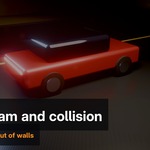
Collision
Tick Collision to keep the camera a Clearance away from walls, floors and objects. It goes around obstacles on the side it is looking towards. Put foliage, glass or props in an Ignore collection. A warning shows if the move jumps through a thin wall between two frames.
Camera shake
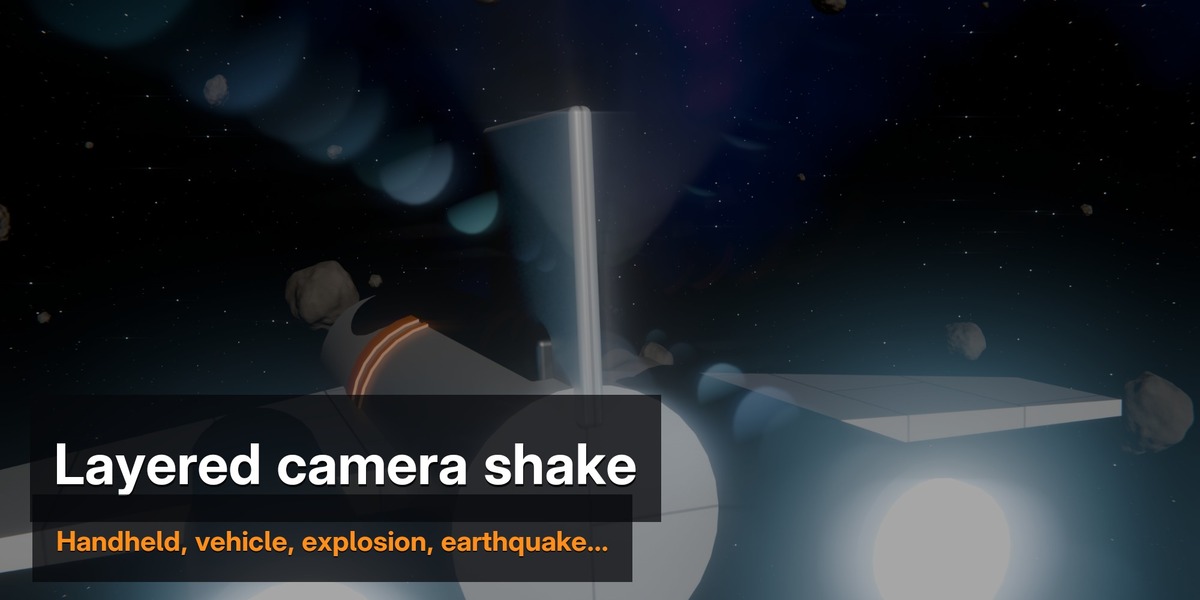
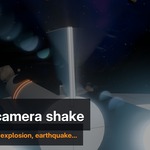
Add Camera Shake: Handheld, Walk, Run, Vehicle, Explosion, Earthquake or Float. Stack layers, set strength, speed and axes, and try a new Variation. Explosion hits at its Hit Frame and settles. Each shot has its own Shake intensity.
Look
Lens & Look
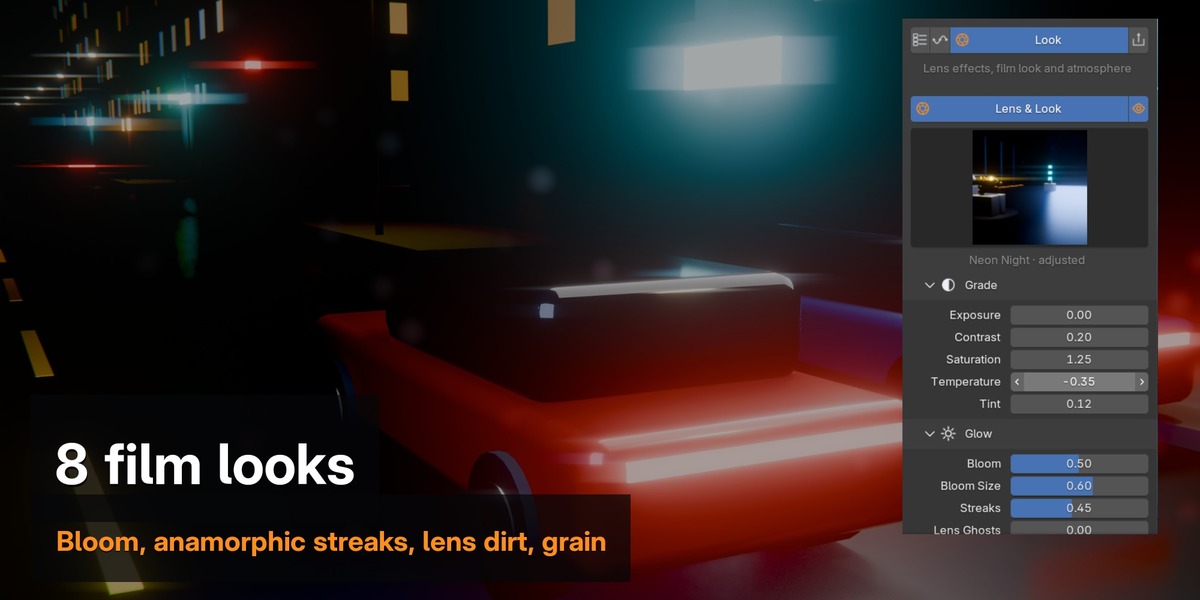
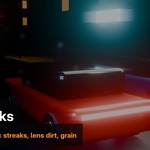
Turn on Lens & Look and pick a look: Clean, Cinematic, Anamorphic, Vintage Film, Dreamy, Neon Night, Golden Hour or Noir. Fine-tune Grade, Glow, Lens and Film. The eye button previews it in the viewport (camera view, Material Preview or Rendered). The look is a standard compositor group; Remove from Compositor takes it out again.
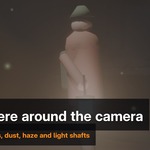
Atmosphere
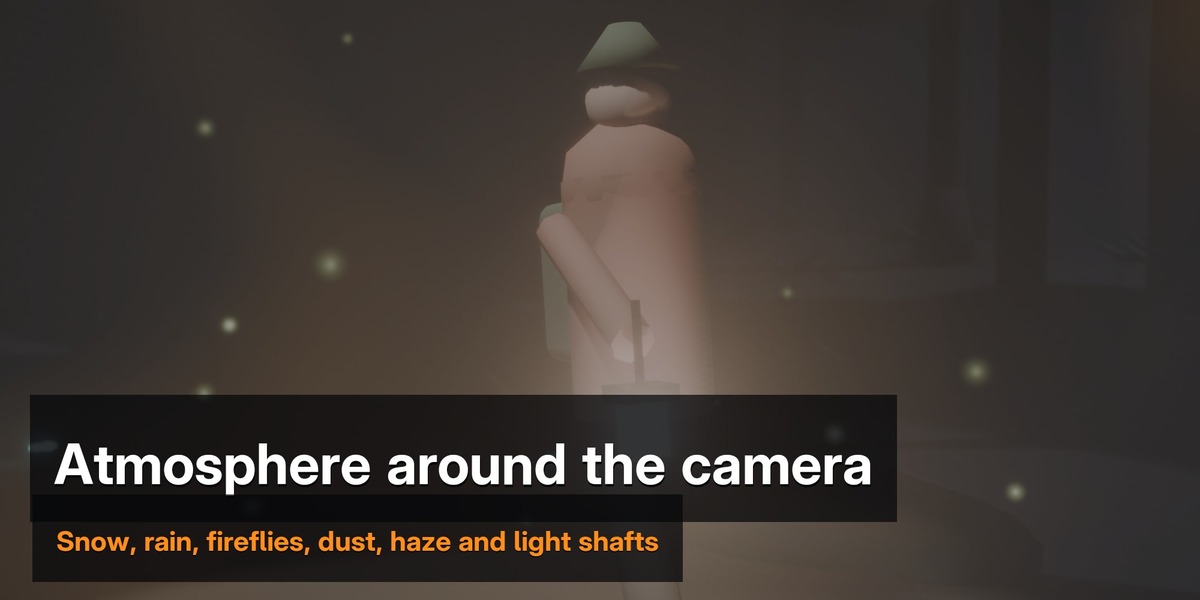
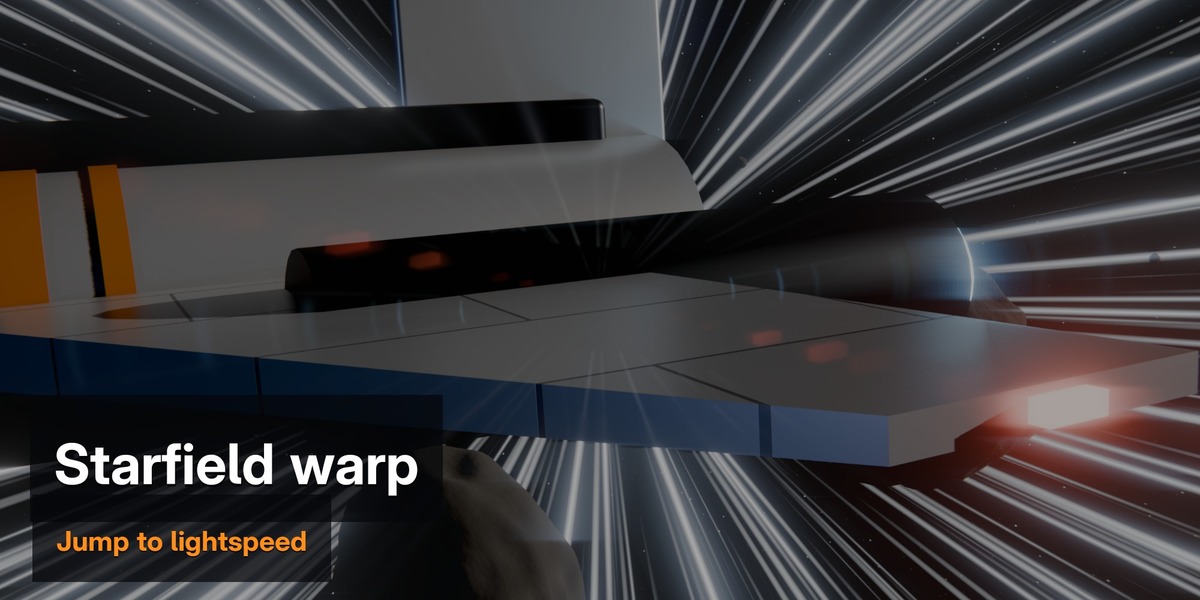
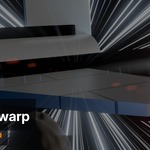
Add Atmosphere: Dust, Sparkles, Fireflies, Snow, Rain, Ash & Embers, Underwater or Starfield. Particles always surround the active camera while each one stays still in the world. Set density, reach, drift, focus and lens blur; keyframe Starfield Warp to jump to lightspeed. Haze & Light Beams adds haze and a one-click light shaft. Tip: turn on Motion Blur for rain and snow.
Output
- Depth of Field, Auto Update and Key Step (bake every Nth frame).
- Viewport: path, shot frustums, frame dots and labels.
- Director's Monitor: thirds grid, shot and lens info, timecode (never rendered).
- Detach Rig (Keep Animation) leaves a normal animated camera.
Troubleshooting
- "CamWeave (free) is also enabled": disable the free CamWeave in Preferences > Add-ons.
- "Animation out of date": press Rebuild (Auto Update is off).
- Follow does nothing: the subject is not animated yet.
- The look is not visible in the viewport: look through the camera, use Material Preview or Rendered, and press the eye button.
- Stars are not visible: raise the camera's Clip End or lower the Starfield Distance.
Video tutorial
Every feature, step by step: CamWeave Pro Full Tutorial
Have questions about this product?
Login to message
| Blender Extension Compatible | Yes |
| Published | 3 days ago |
| Blender Version | 4.5 - 5.1 |
| Extension Type | Add-on |
| Render Engine Used | Cycles, Eevee |
| License | GPL |

Discover more products like this
crane cinematic atmosphere camera animation drone camera shake camera rig camera dolly-zoom follow camera compositor film look