Chain Generator
 PeakDreams Studio






Chain Generator — Documentation
Version 1.0.0
PeakDreams Studio
Updated: August 2026
DOCUMENTATION
1. About Chain Generator
Chain Generator is a Blender tool designed to quickly generate detailed chains along selected edges or hand-drawn paths.
Instead of manually modeling, duplicating and adjusting individual chain links, Chain Generator allows you to create complex chain arrangements in just a few clicks.
You can:
- Generate chains from selected mesh edges.
- Draw chains freely in 3D space.
- Draw chains directly on another object's surface.
- Automatically repeat and fit chain geometry along a generated curve.
- Adjust Scale and Tilt after drawing.
- Create closed chain loops.
- Add procedural Sagging.
- Quickly switch between different chain assets.
- Use a non-destructive Blender modifier workflow.
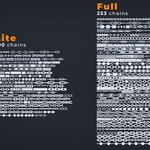
The Full Edition contains 253 ready-to-use assets, including regular chains, jewelry chains, decorative chains, fantasy designs, mechanical elements and utility-oriented assets.
2. Available Versions
| Edition | Included Assets | Recommended For |
|---|---|---|
| Starter | 12 | Testing the workflow and smaller projects |
| Lite | 100 | Regular production work and a larger variety of assets |
| Full | 253 | Complete Chain Generator library and maximum variety |
All editions include the core Chain Generator functionality.
The main difference between versions is the size of the included asset library.
3. Compatibility
Blender Version
Chain Generator is designed for:
Blender 4.3 or newer
Operating Systems
The addon can be used on:
- Windows
- macOS
- Linux
A supported Blender installation is required.
INSTALLATION
4. How to Install Chain Generator
- Open Blender.
- Go to:
Edit → Preferences → Add-ons
- Choose Install from Disk.
- Select the downloaded Chain Generator
.zipfile. - Install the addon.
- Chain Generator will appear in the 3D View side panel.
You can now select a chain from the library and start generating chains.
HOW TO USE
5. Generate Chain from Selected Edges
This workflow is useful when you already have geometry or a specific edge path that you want the chain to follow.
Step 1 — Select Your Edge
Select a mesh object and enter Edit Mode.
Select at least one connected edge or an entire edge path.
Step 2 — Select a Chain
Open the Chain Generator panel and choose the chain asset you want to use.
Assets are organized into categories and include visual previews to make browsing faster.
Step 3 — Generate
Click:
Generate Chain
Chain Generator creates the required path and automatically distributes the selected chain along it.
Step 4 — Adjust
After generation, use the Adjust Last Operation panel to modify the result.
Available options include:
- Offset
- Z Offset
- Scale
- Extra Scale
- Tilt
- Switch Direction
- Handle Type
- Twist Type
- Smooth Factor
- Resolution
- Decimate Factor
- Sagging
DRAW CHAIN
6. Draw Chains Directly in the 3D View
Chain Generator also allows you to draw a completely new chain path instead of using existing mesh edges.
First, select the chain asset that you want to use.
Then choose one of the available drawing modes.
View Plane
View Plane allows you to draw chains freely in 3D space.
The chain is drawn on a plane positioned at the current 3D Cursor depth.
Click:
Draw Chain
Then draw your path using the Left Mouse Button.
Release the mouse button to finish drawing.
Press Esc to cancel.
Surface
Surface mode allows you to draw chains directly on another object.
- Select the object that you want to draw on.
- Choose Surface as the Draw Mode.
- Click Draw Chain.
- Draw directly over the selected object's surface.
After drawing, the same adjustment options are available as with View Plane drawing.
CHAIN ADJUSTMENTS
7. Adjusting a Drawn Chain
After finishing Draw Chain, the Chain Adjustments popup appears.
The generated chain can be edited live without redrawing the path.
Scale
Changes the size of the chain links.
Chain Generator automatically recalculates the number of repeated elements so the chain continues to fill the curve.
Tilt
Rotates the chain around the direction of the generated curve.
This is especially useful when correcting chain orientation.
Close Curve
Connects the end of your drawn path to its beginning.
Chain Generator automatically recalculates the chain so that it fills the newly created closed loop.
This is useful for:
- Necklaces
- Bracelets
- Decorative loops
- Borders
- Closed mechanical chains
GENERAL CONTROLS
8. Available Parameters
Offset
Moves the generated chain away from or toward the original surface or edge.
Z Offset
Moves the chain vertically when additional placement correction is required.
Scale
Controls the overall size of the chain links.
The array count is automatically recalculated when Scale changes.
Extra Scale
Provides additional scale adjustment when the standard Scale range is not sufficient.
Tilt
Rotates chain links around the direction of the generated curve.
Switch Direction
Reverses the orientation of the chain.
Useful when a chain asset is facing the wrong direction.
Decimate Factor
Reduces the geometry density of the generated chain while keeping it connected and following the curve.
This can be useful when working with heavier chain assets.
Handle Type
Controls how the generated curve behaves.
Automatic handles are generally useful for smooth paths.
Vector handles can provide more predictable results on sharp paths and corners.
Twist Type
Changes the way Blender calculates curve orientation.
Try an alternative Twist Type if your chain unexpectedly rotates along the path.
Smooth Factor
Smooths the generated curve.
It generally works best together with Automatic Handles.
Resolution
Controls the evaluation detail of the curve used for deformation and fitting.
Refresh
Reloads available chain assets and previews without restarting Blender.
AUTOMATIC PATH SIMPLIFICATION
9. Optimized Drawn Curves
When drawing chains, Chain Generator densely samples mouse movement to keep drawing responsive and accurate.
Once the stroke is completed, unnecessary points are automatically removed.
This means that:
- Straight sections use fewer points.
- Smooth sections remain clean.
- Important bends are preserved.
- Generated curves remain easier to work with.
SAGGING
10. Procedural Sagging System
Chain Generator includes a procedural Sagging system that creates gravity-like hanging sections along the generated chain.
Sagging can be used both when:
- Generating chains from selected edges.
- Using Draw Chain.
The sag profile is rebuilt from the original path whenever you change its parameters, so adjustments do not continuously accumulate deformation.
Sag
Enables or disables sagging.
Sag Amount
Default: 0.25
Controls how far the chain hangs downward along the world Z axis.
Higher values create deeper hanging sections.
Sag Count
Default: 5
Minimum: 2
Controls the exact number of hanging sections distributed along the path.
For example:
Sag Count = 5
creates five sagging sections along the generated path.
Sag Resolution
Default: 4
Range: 1–25
Controls the number of curve points used to create each sagging section.
Higher values produce smoother curves but also create more curve points.
Bottom Width
Default: 0.0
Range: 0–1
Controls the width of the lower U-shaped part of the sag.
Increasing Bottom Width allows you to create broader hanging sections while keeping the upper support areas relatively tight.
Sharp Top
Creates sharper attachment/support points and straighter upper parts of the sag.
This can be especially useful for:
- Fantasy chains
- Stylized chains
- Chains attached to walls
- Decorative hanging elements
Sharp Length
Default: 0.38
Controls how far the straight section created by Sharp Top extends down each side of the sag.
SAGGING TIPS
11. Getting Better Sagging Results
A good starting point is:
Sag Count: 5
First adjust the number of hanging sections and then fine-tune Sag Amount.
Increase Sag Resolution if the sag appears too angular or faceted.
Use Bottom Width if you want a wider U-shaped hanging section.
Enable Sharp Top when you want more defined attachment points or stylized hanging chains.
Sagging also works on very simple straight paths. Chain Generator automatically adds enough internal curve resolution to create the hanging sections.
BEST PRACTICES
12. Tips for Best Results
If your chain does not align correctly, try adjusting:
- Tilt
- Handle Type
- Twist Type
- Switch Direction
For very sharp paths, Vector Handles can provide more predictable results than Automatic Handles.
When using Surface Draw, remember to select the target mesh before starting Draw Chain.
Start with a moderate Sag Resolution and increase it only if additional smoothness is required.
For complex chains, Decimate Factor can help reduce geometry density.
Save your Blender project before permanently applying modifiers or converting generated geometry.
USE CASES
13. What Can Chain Generator Be Used For?
Chain Generator can be used for much more than traditional chains.
Jewelry & Accessories
Create:
- Necklaces
- Bracelets
- Decorative chains
- Jewelry details
- Straps
- Accessories
Characters & Props
Useful for:
- Armor
- Weapons
- Clothing
- Bags
- Fantasy equipment
- Character accessories
Architecture & Environments
Create:
- Hanging chains
- Barriers
- Suspended decorations
- Architectural details
- Environment props
Mechanical & Industrial Assets
Useful for:
- Mechanisms
- Anchors
- Hoists
- Machinery
- Industrial scenes
- Mechanical details
Stylized & Fantasy Designs
Create exaggerated and decorative hanging elements for fantasy and stylized projects.
LICENSE
14. Addon License
The Chain Generator addon code is licensed under the GNU General Public License — GPL.
The addon code may be modified and redistributed according to the applicable GPL terms.
15. Chain Asset License
The included chain assets use a separate Royalty Free license.
You may use the included chain assets in:
- Personal projects
- Commercial projects
- Client work
- Games
- Animations
- Renders
- 3D artwork
Attribution is not required.
You may NOT:
Redistribute or resell the included chain assets themselves.
For example, you may not distribute the original chain assets:
- As standalone files.
- Inside another asset pack.
- As another chain library.
- As downloadable source assets.
Discover more products like this
chain decorations addon chain-animation 3d-fashion-accessory Architectural Details accessory chains jewelry decoration chain generator Metalic 3d chains