Chill Pack
 one99addons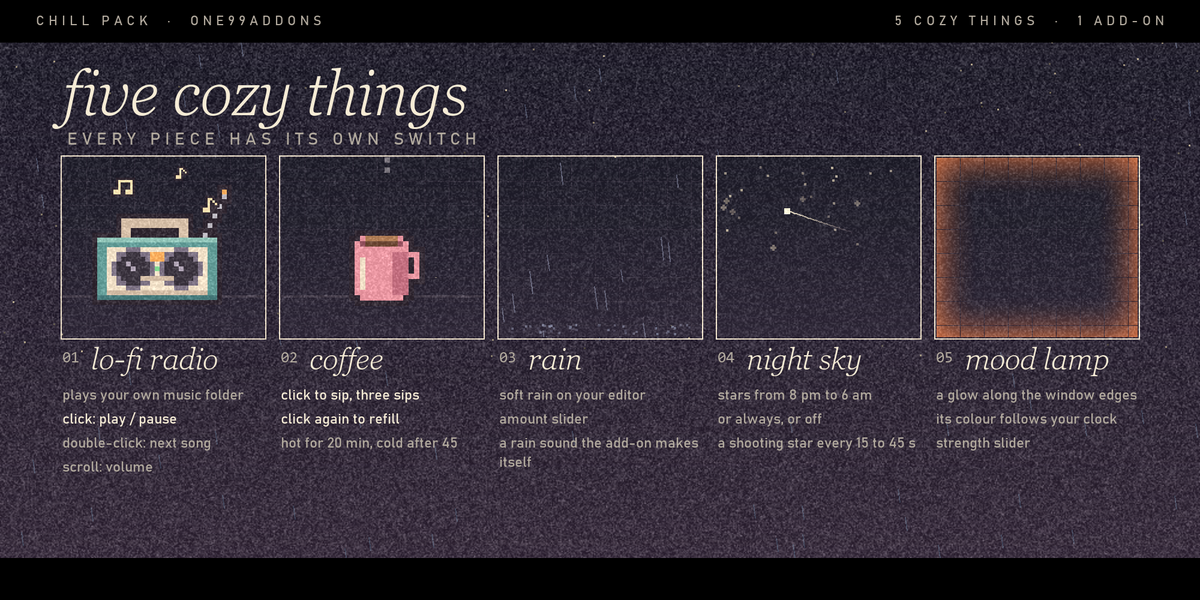
Chill Pack - Documentation
1. Install
- Download chill_pack_v1.0.0.zip. Do not unzip it.
- In Blender: Edit > Preferences > Add-ons, click the drop-down arrow at the top right and choose Install from Disk...
- Pick chill_pack_v1.0.0.zip and tick "Chill Pack" in the list.
- If Auto-Save Preferences is off, click Save Preferences (bottom left).
2. Where to find it
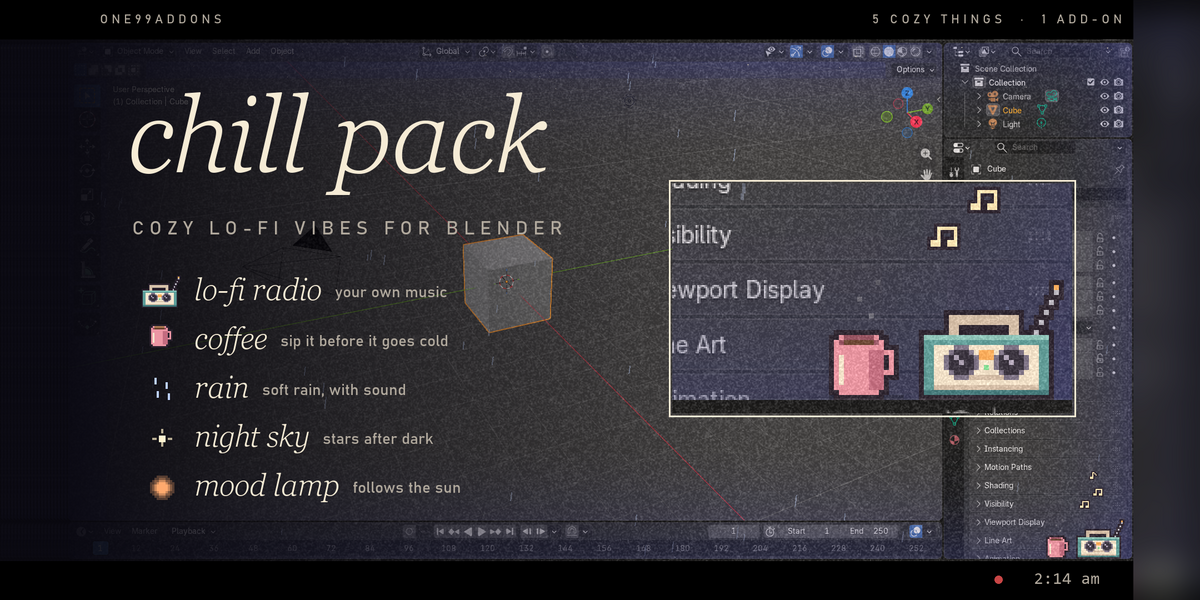
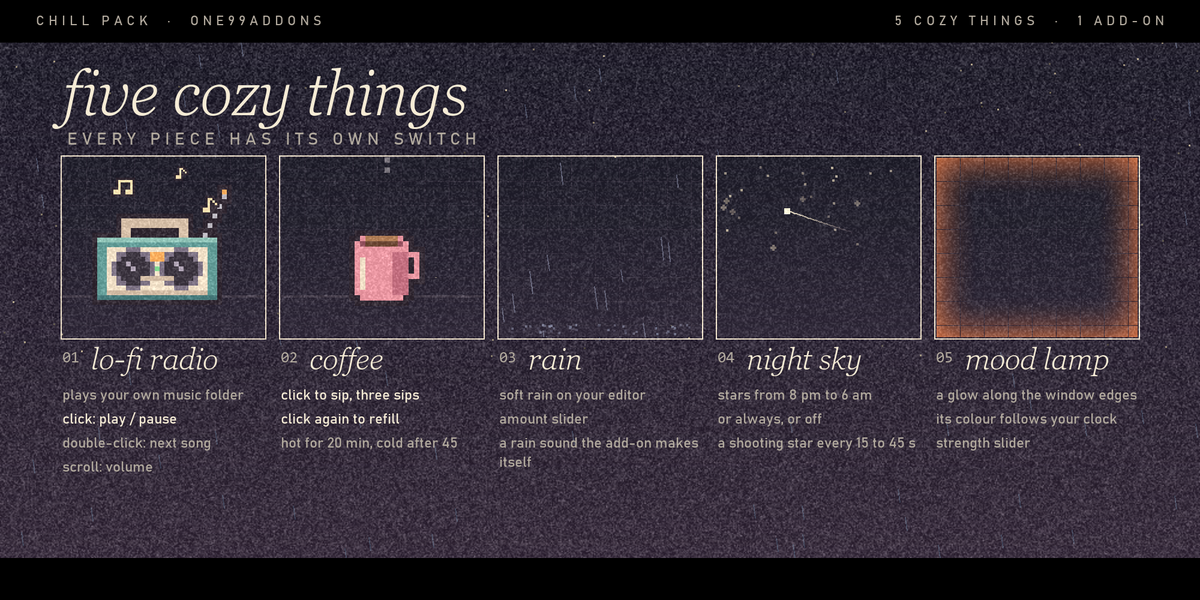
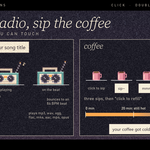
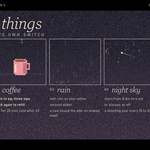
- The radio and the coffee mug sit in the bottom right corner of your main Blender window as soon as the add-on is ticked. Rain, the mood lamp and (after dark) the stars cover the window.
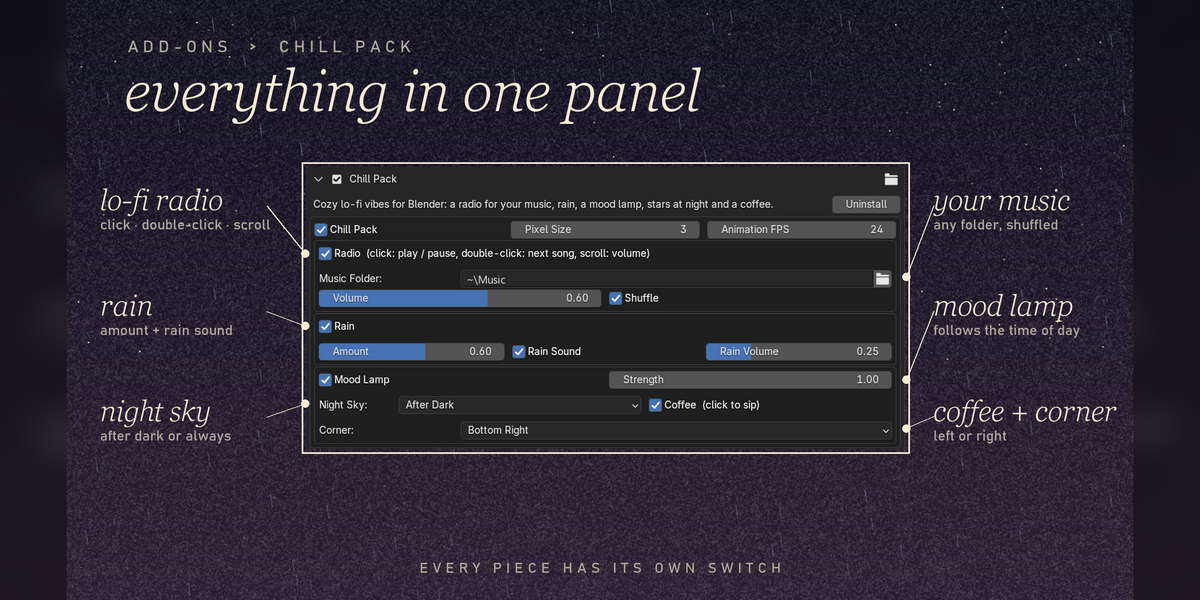
- Settings: Edit > Preferences > Add-ons > Chill Pack (expand it).
- Quick on/off: Window menu > Chill Pack.
3. How to use it
- Open the add-on preferences and set Music Folder to a folder with your songs (default is your user Music folder).
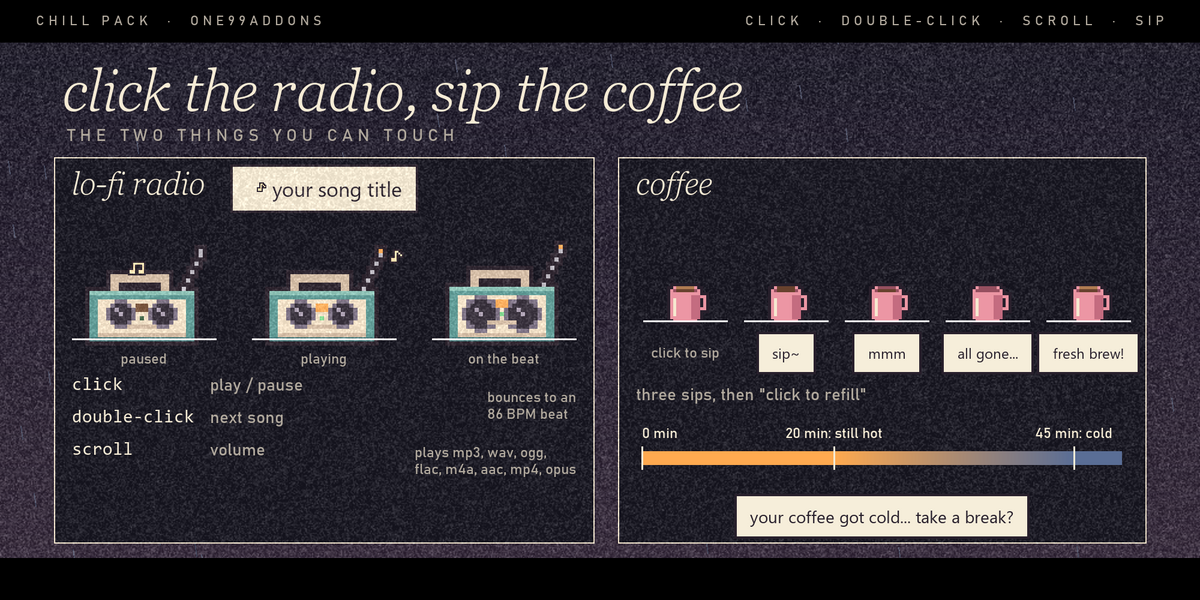
- Click the radio to play. Click again to pause.
- Double-click the radio for the next song. Scroll the mouse wheel over it to change the volume.
- Hover the radio to see the song name.
- Click the mug to sip your coffee. When it is empty, click it again for a fresh brew.
- Turn Rain, Rain Sound, Mood Lamp, Night Sky and Coffee on or off in the preferences.
4. Settings
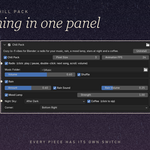
- Chill Pack: everything on or off (also in the Window menu).
- Pixel Size: 1 to 6 (default 3).
- Animation FPS: 8 to 30 (default 24). Lower it if a heavy scene feels sluggish while it rains.
- Radio: on or off. Music Folder, Volume (default 60%), Shuffle (on by default).
- Rain: on or off. Amount, Rain Sound, Rain Volume (default 25%).
- Mood Lamp: on or off, Strength 0.1 to 2.
- Night Sky: After Dark (8 pm to 6 am, default), Always or Off.
- Coffee: on or off. Corner: Bottom Right or Bottom Left for the radio and mug.
5. Troubleshooting
- The radio says "no music found": set Music Folder in the preferences. Songs must be directly in that folder, not in subfolders.
- The radio says "can't play ...": that file could not be opened. Try an .mp3, .wav, .ogg or .flac file.
- No sound at all: sounds use Blender's own audio system. If Blender has no audio device (Edit > Preferences > System > Sound), it stays silent.
- Nothing shows up: check Window > Chill Pack is ticked. It only lives in the first (main) Blender window.
- No stars: Night Sky is After Dark by default, from 8 pm to 6 am on your computer's clock. Set it to Always to see them now.
- Rain and stars stopped moving: they pause while Blender renders or plays an animation, and carry on after.
- Install error? Make sure you picked the .zip itself, not an unzipped folder, and that you are on Blender 5.2 or newer.
6. Updating
- Download the new zip from your Superhive library, uninstall the old version in Edit > Preferences > Add-ons, restart Blender, then install the new zip.
7. Uninstall
- Edit > Preferences > Add-ons, expand Chill Pack and choose Uninstall. It never writes anything into your .blend files.
Support
- Have a question, a bug or an idea for a new feature? Mail me at [email protected]. Please include your Blender version and operating system.
Have questions about this product?
Login to message
| Published | 1 day ago |
| Blender Version | 5.2 |
| Extension Type | N/A |
| License | GPL |