Chroma Snap — Blender Theme Generator
 gonextaz
QUICK START
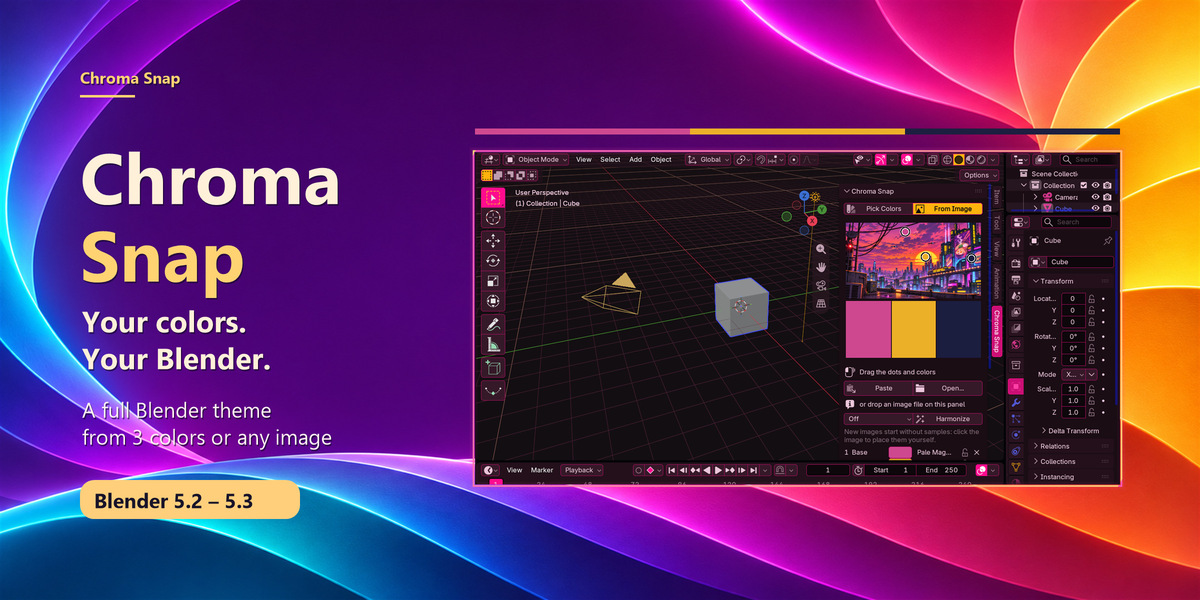
- Install chroma_snap-1.0.2.zip with Blender's Install from Disk option (Edit → Preferences → Get Extensions → drop-down menu at the top right) and enable Chroma Snap. Requires Blender 5.2 or newer.
- In the 3D Viewport, press N and select the Chroma Snap tab.
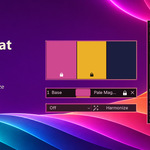
- Pick Colors: choose Base, Accent and Highlight colors. Add or remove colors to work with 1–7. Random suggests combinations; Shuffle changes their roles.
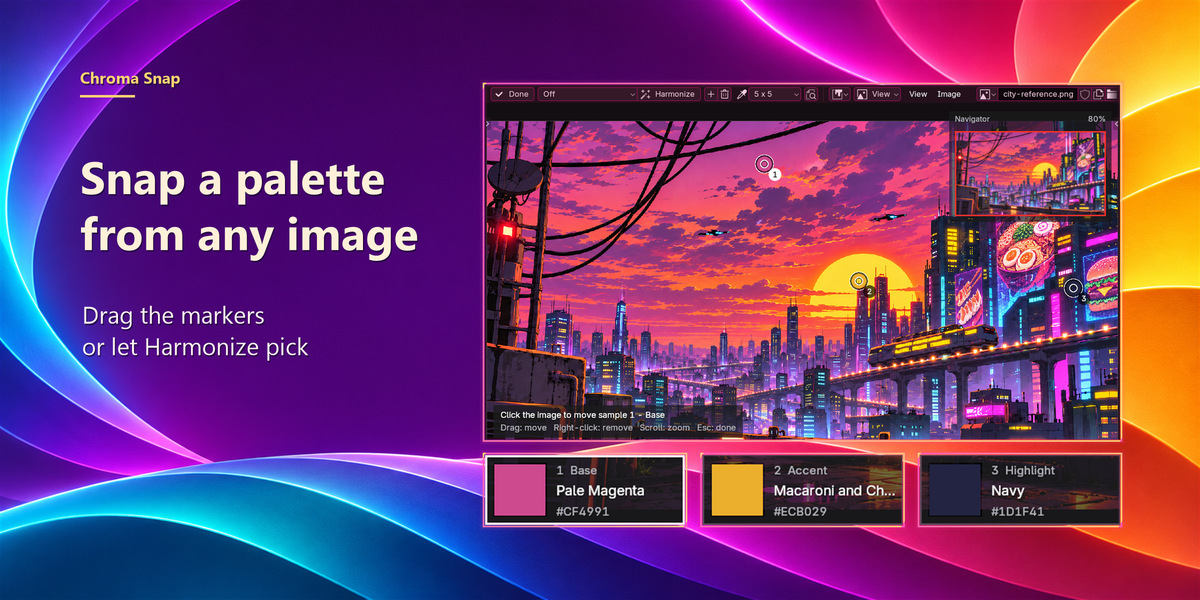
- From Image: use Open..., Paste, or drag an image file onto the panel. Harmonize picks image colors; drag the markers to refine them. Edit Samples opens the larger navigator.
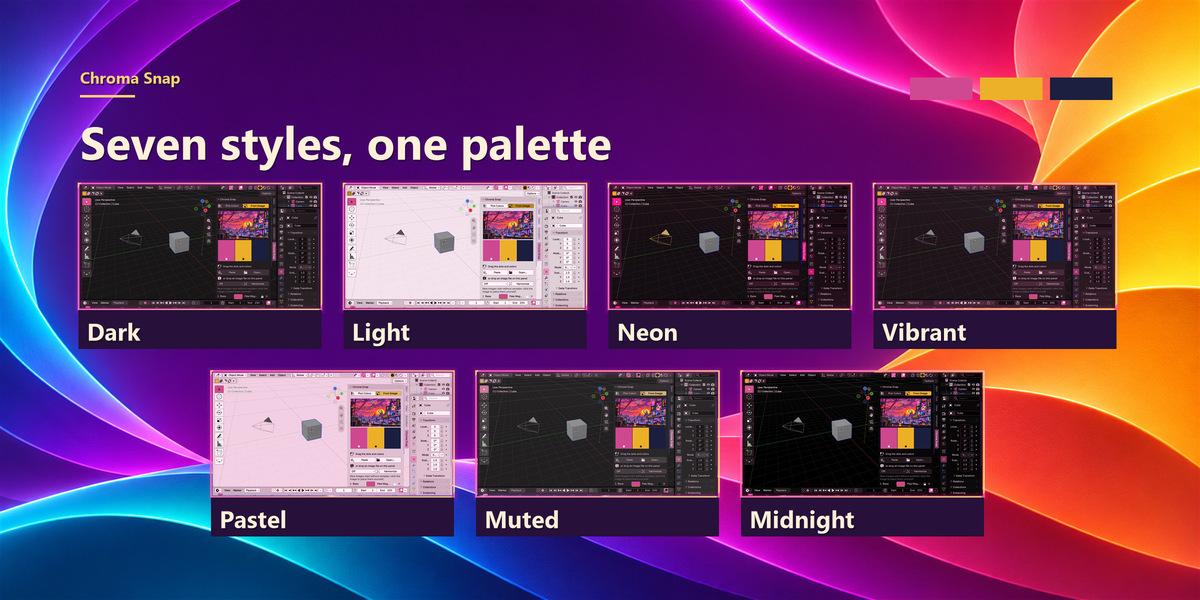
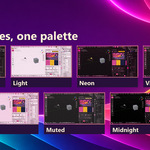
- Choose a Style: Dark, Light, Neon, Vibrant, Pastel, Muted or Midnight. Adjust Tint to tune how strongly the base color shows in the backgrounds.
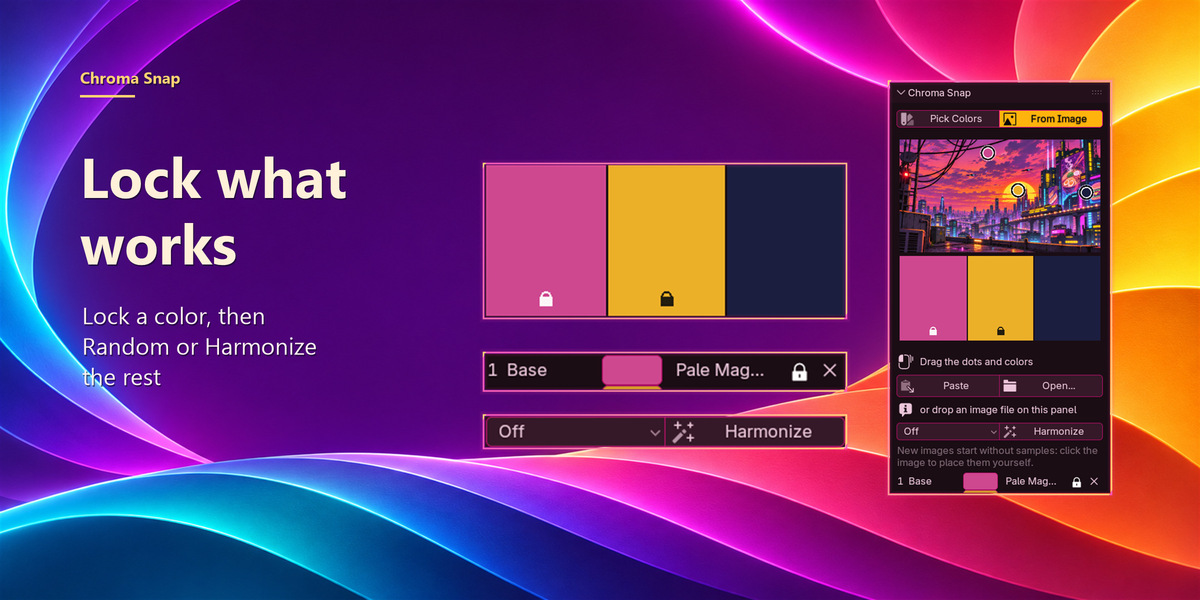
- Lock colors you want to keep before using Random or Harmonize. Locks move with their colors when you shuffle.
- Leave Live Preview on for instant updates, or turn it off and press Apply after making changes.
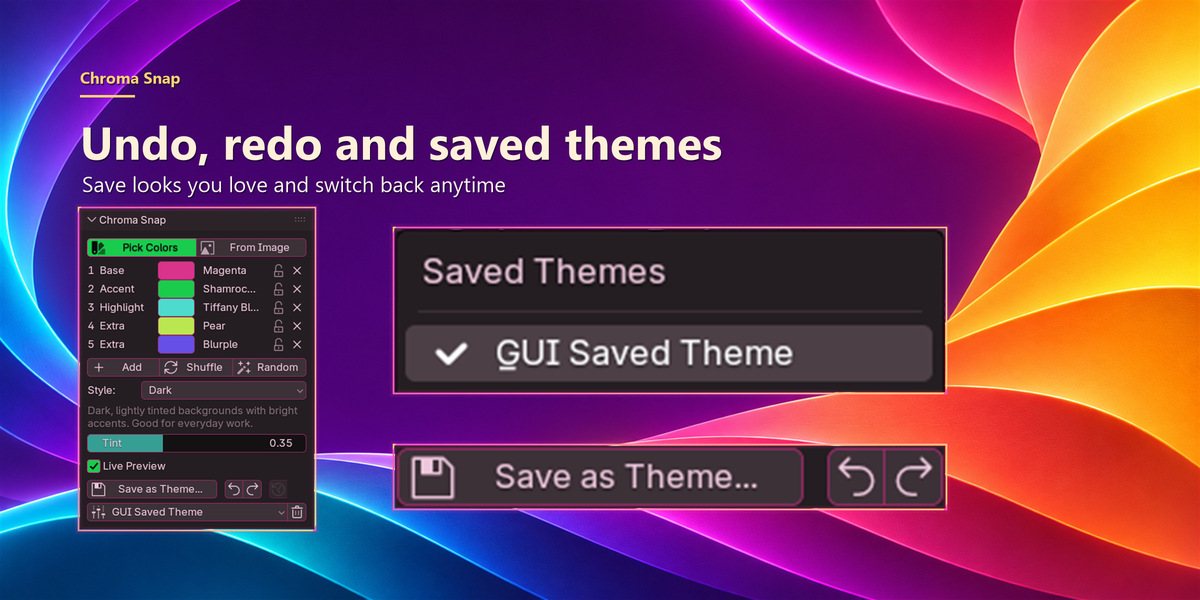
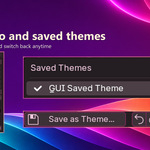
- Save as Theme... creates an XML theme preset. Saved presets also appear in Preferences → Themes.
- Use the curved Undo and Redo arrows beside Save as Theme to step through Chroma Snap edits. History lasts until Blender closes and is separate from Blender's Ctrl+Z.
- Choose a theme from the Saved Themes list to switch to it. Chroma Snap themes also restore their palette and settings. If an opened reference image is missing, the palette returns under Pick Colors; pasted images are kept with saved themes.
- Use Revert (clock icon) to restore the backed-up theme, even after a restart. Saving a theme makes it the starting point for later changes. The Blender icon switches to Blender's default theme, and that change can be reverted too.
- To delete a saved theme, select it in the list, press the trash button and confirm. This deletes the preset file.
IMAGE NAVIGATOR
Scroll to zoom, middle-drag to pan, and use Fit View to see the whole image. Click a swatch card to select a sample, then click or drag in the image to move it. Right-click a marker or card to remove its color. Sample Size goes from a single pixel up to a 31 × 31 average. Done or Esc closes the navigator.
SIDEBAR CARD
Drag the dots to change sampled colors. Drag the swatches to reorder their roles. Right-click a dot or swatch to remove it. After Add, click the image to place the new sample. Esc cancels a marker drag in progress.
HARMONY OPTIONS
Auto chooses a suitable scheme. Complementary uses opposite hues, Analogous uses neighbors, Triadic spreads hues around the color wheel, Split Complementary softens an opposite-color scheme, and Dominant favors the image's main colors. Off leaves placement to you.
Have questions about this product?
Login to message
| Blender Extension Compatible | Yes |
| Published | about 3 hours ago |
| Blender Version | 5.2 |
| Extension Type | Add-on |
| Render Engine Used | Cycles |
| License | GPL |
Discover more products like this
theme color Dark Mode customization blender-theme image-sampling color-palette ui color-harmony light-mode theme-generator interface