Chroma Snap — Blender Theme Generator
 gonextaz
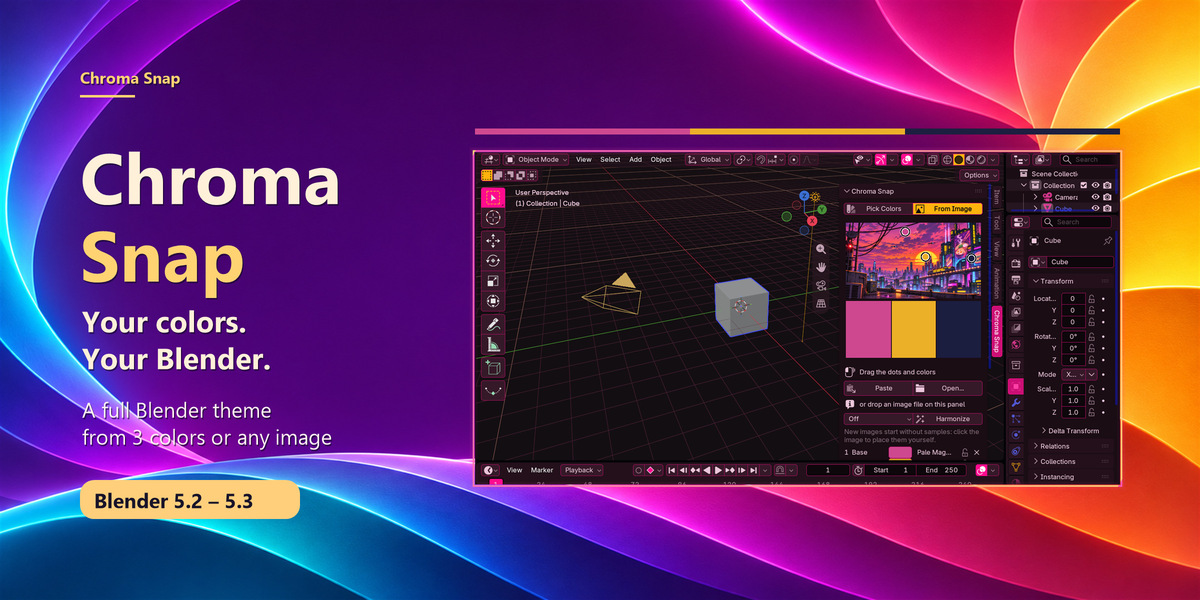
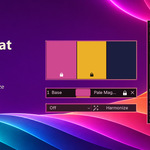
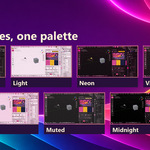
No. Chroma Snap changes Blender's interface theme. It is not a material recoloring or render color-grading tool.
No. Use 1–7 colors. With fewer than three, the missing roles are derived from the first color.
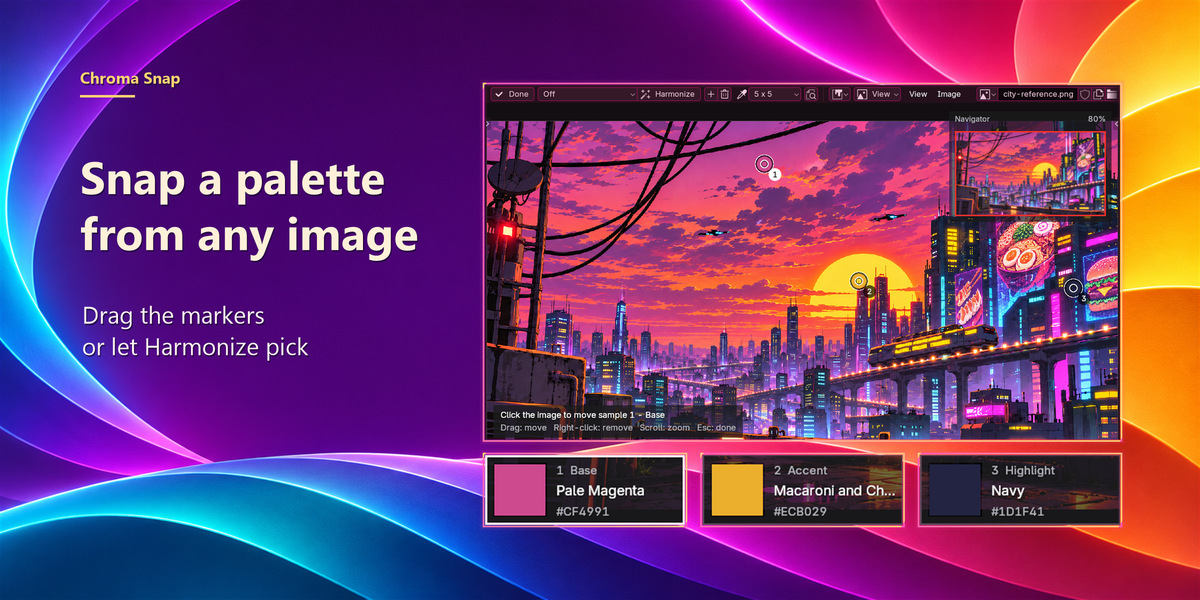
Yes. Open an image file, paste an image from the clipboard, or drop an image file onto the panel or the navigator.
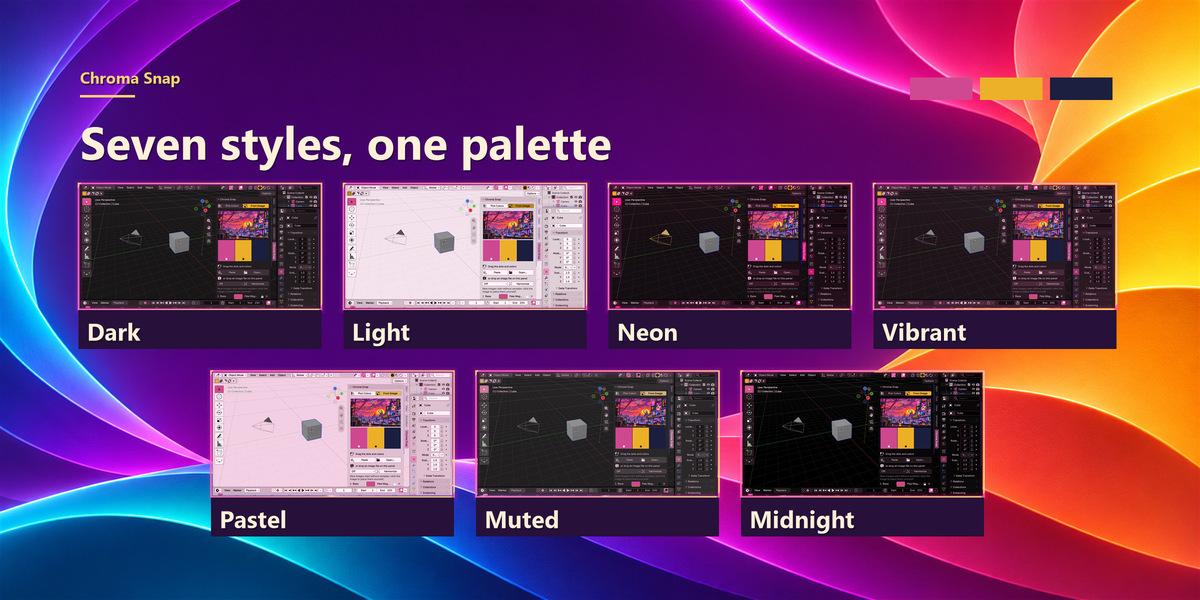
No. Style changes how the colors are used; your chosen colors stay the same.
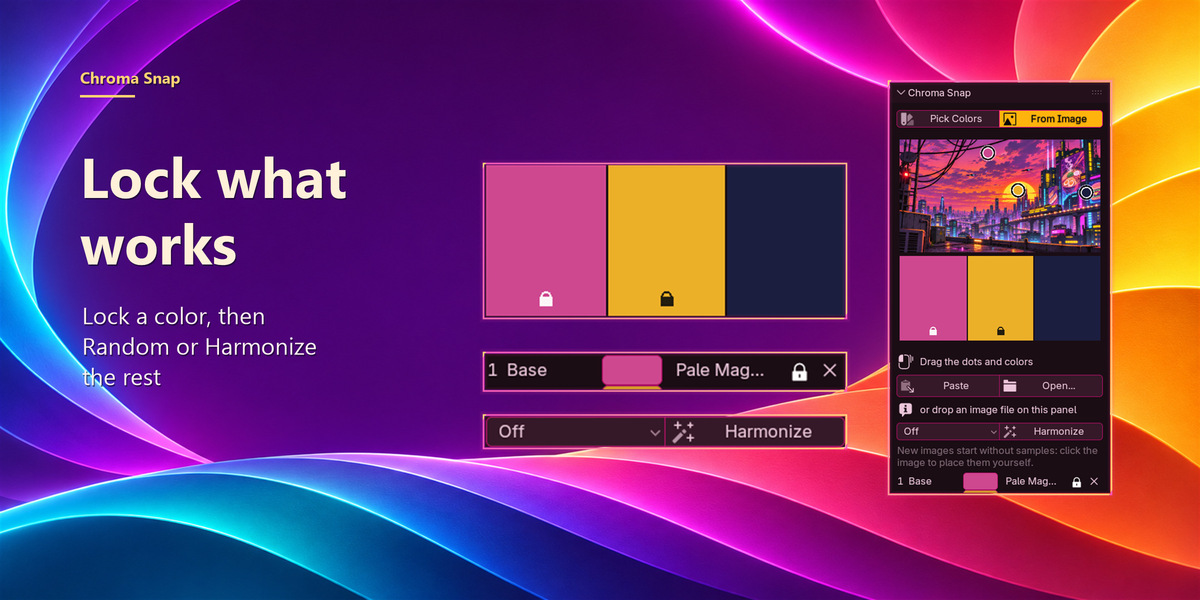
Yes. Lock it before using Random or Harmonize. Locks stay with their colors when you reorder them.
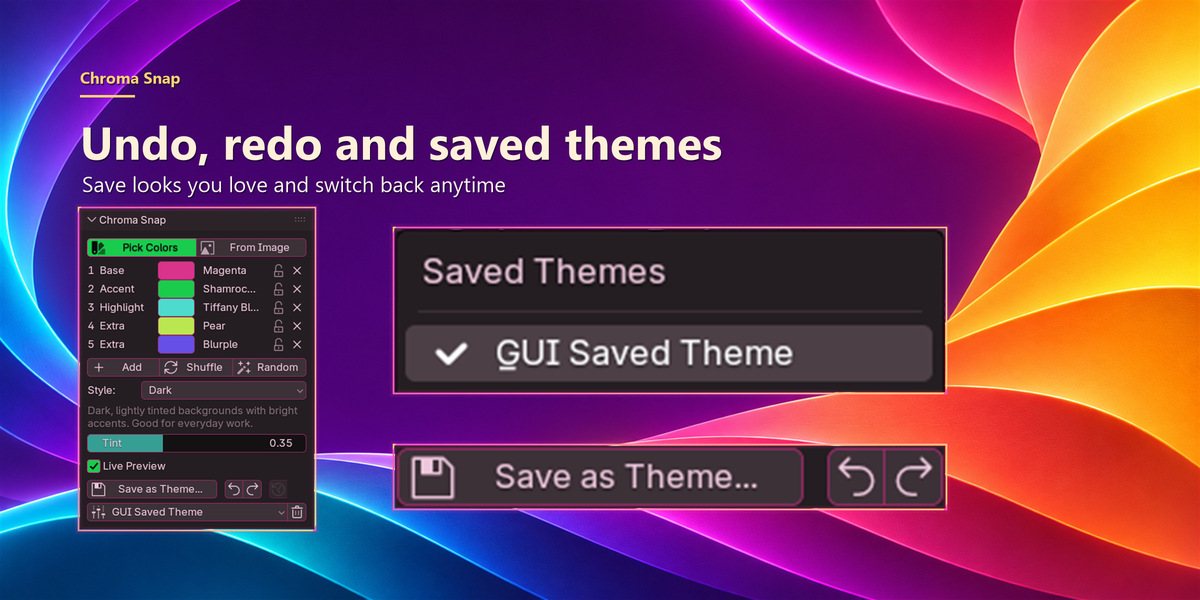
Yes. The first change backs up your current theme, and the Revert button (clock icon) restores it, even after restarting Blender. Saving a theme makes it the new starting point for later changes.
Undo and Redo step through individual Chroma Snap edits in the current session. Revert restores the backed-up theme. Undo history ends when Blender closes; the Revert backup survives a restart. Use Chroma Snap's own arrows rather than Blender's Ctrl+Z for its settings.
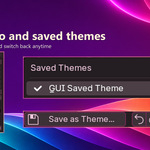
Yes. Choose it from Saved Themes. Themes made with Chroma Snap restore their colors and settings. Other saved theme presets switch the interface theme without restoring a Chroma Snap palette.
If an opened image file has moved or been deleted, the palette comes back under Pick Colors instead. Pasted images are kept with the saved theme.
Yes. Select it in the Saved Themes list and press the trash button. After you confirm, its preset file is deleted.
Yes. Save as Theme creates a standard Blender XML theme preset that you can select in Preferences > Themes and share with others.
No. Images loaded by the Chroma Snap navigator are removed when it closes and don't end up in your .blend file.
No. Chroma Snap is a standalone add-on.
Have questions about this product?
Login to message
| Blender Extension Compatible | Yes |
| Published | about 3 hours ago |
| Blender Version | 5.2 |
| Extension Type | Add-on |
| Render Engine Used | Cycles |
| License | GPL |
Discover more products like this
blender-theme interface light-mode customization color-harmony color-palette Dark Mode ui theme-generator color image-sampling theme