CineCast Projector
 Shilo Labs



CineCast Projector - Official Documentation
Welcome to the CineCast Projector addon! This guide explains the core mechanics of the addon, how the different components interact, and how to use all the settings.
⚠️ ENGINE REQUIREMENT: This addon is built specifically for Cycles and will not work with EEVEE.
Installing the addon: In Blender, go to Edit > Preferences > Add-ons. Click "Install" in the top right corner and select the downloaded cinecast_projector .zip file. Once installed, make sure to check the box next to the addon's name to enable it.
The Three Core Components
When you add a CineCast Projector into your scene, you aren't just adding a single object; you are instantiating a smart, interconnected system composed of three main parts:
1. The Projector Data (The Light & Shader)
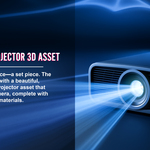
This is the heart of the system. It behaves like a real-world projector lens, handling the actual light emission, image processing, and complex shader math that creates the final projection.
2. The Pin System (Homography Mapping)
In a traditional 3D workflow, projecting onto a skewed surface requires tedious, manual adjustments to the projector's rotation and lens shift. CineCast completely reverses this process using Homography Mapping.
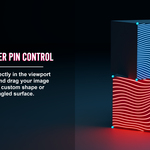
Tell the Image Where to Go: Instead of aiming the projector, you use four physical control pins to define the exact boundary of your projection.
Physical Anchors: The projector uses these pins as anchors to automatically calculate where the image should appear.
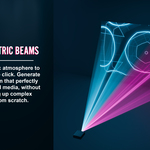
3. The Volumetric Beam
This component generates that cinematic, dusty-room look.
Dynamic Mesh Deformation: To drastically optimize render times, CineCast uses Geometry Nodes to generate a specialized beam mesh. The XYZ coordinates of the four control pins are fed directly into the node tree. This physically deforms the vertices of the beam so its base perfectly connects to the pins, no matter how strangely you distort them!
Render Optimization: Typical workflows use a giant global bounding box for volume, forcing the engine to calculate ray bounces through empty air. By restricting the volumetric shader strictly to the tight, morphing shape of our beam, the render engine only spends power exactly where the light travels.
Note: You can disable the Volumetric Beam to use the projector like a standard light with your own global volumetrics.
CineCast Projector Settings
💡 PRO TIP: Most slider maximum values can be overridden by simply clicking and entering a higher numerical value manually.
Scene Management
Add Projector: Adds a new projector at the 3D cursor's position.
⚠️ IMPORTANT: Always use this button to add multiple projectors. Do not duplicate an existing projector in the viewport, as this will break its link to the addon and it will not work correctly.
Scene Projectors: A list where you can see, select, and manage all projectors in your scene. Use the icons to hide the projector's body mesh (monitor icon), hide the entire setup (eye icon), or delete the projector completely (trash bin icon).
Media Source
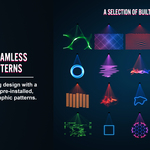
Media Loading: Choose from the 50 built-in patterns or use the "Load Custom Media" button to load your own files. (Supported file types: .mp4, .mov, .avi, .mkv, .webm, .png, .jpg, .jpeg, .exr, .hdr, .tiff, .tif, .tga).
Test Grid: Activated by default. It displays a helpful alignment grid for setting up your scale, position, and rotation. Simply click the button to disable it and reveal your chosen media.
Optics & Light
Brightness: Controls the overall light emission.
Lens Softness: Blurs the projection, replicating an out-of-focus projector lens.
Pixel Density: Controls the "resolution" of the projector (increase/decrease the slider to change the density).
Projection Alignment
Show Control Pins: Toggles the visibility of the blue projection control pins in the viewport (on by default, positioned in front of the lens). These control the aspect ratio and shape. Note: Pins are never visible in the final render.
Pin Display Size: Adjusts viewport pin size. Make them larger for easy grabbing, or smaller for precision snapping to vertices.
Quick Aim: Click to activate "aim mode." Move your mouse to track the projection to any surface, and left-click to lock it in. (Works best in Render Preview mode).
Auto-Reset on Move: Activated by default. Automatically resets pins and transforms when you move the projector body, reminding you to re-snap them.
⚠️ Warning: Deactivating this allows you to move the projector without resetting, but un-snapped pins can cause unpredictable control behavior.
Snap Pins to Surface: Automatically snaps the four pins to the corners of your projected image.
⚠️ CRITICAL WORKFLOW STEP: Always hide any objects (actors, furniture, props) standing between the projector and your target surface before clicking "Snap Pins." Otherwise, the pins will snap to the obstacle, causing extreme distortion. Unhide objects safely after snapping.
Troubleshooting: If snapping fails, use the Scale slider in Render Preview to ensure the image physically fits on the surface first.
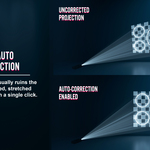
Auto Correct Shape: Fixes skewed and stretched aspect ratios with a single click.
💡 PRO TIP: This also acts as a "Snap Pins" button! Click this to both snap to the surface AND perfectly correct the distortion in one click.
Reset (Clear Correction): Resets pin positions to their default state, clearing all transforms. Use this if the controls start behaving strangely and you need a fresh start.
Transform Controls:
Scale / Rotation: Scales or rotates the projected image.
Shift X / Y: Shifts the projected image horizontally (X) or vertically (Y).
Image Adjustments
Saturation: Controls color vibrancy.
White / Black Level: Adjusts the brightness of the highlights (White Level) and the darkness of the shadows (Black Level). To increase contrast, simply increase the white level while decreasing the black level.
Base Color: Changes the background color of the built-in patterns without affecting the pattern itself. For custom images, it acts as a shadow color shifter.
Solid Color Overlay: Tints the entire projection with a chosen color.
Gradient Color Overlay:
Color A / B: Defines the two colors of the gradient.
Linear Mode: Standard straight gradient with Rotation, Offset, and Softness controls.
Spherical Mode: Circular gradient with Size, Offset, and Softness controls.
Effects & Modifiers
Vignette Overlay: Adds darkened edges with controls for Strength, Radius, and Hardness.
Glow: Activates light bloom. Includes Primary and Secondary layers, each with their own Strength, Threshold, and Spread controls.
Chromatic Aberration: Replicates lens color-fringing. Adjust via the Intensity slider.
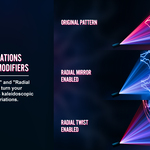
Pattern Modifiers:
Radial Mirror / Twist: Mirrors or twists your media.
Controls: Adjust Segments (repetitions), Rotation, Scale, and Shift to discover endless new geometric variations.
Note: Extreme scale or shift values may cause the image to disappear depending on the source media. Reset the sliders if this happens.
Volumetric Beam
Enable Volumetrics: Generates the custom beam mesh connecting the lens to the control pins. When combined with "Snap Pins to Surface," the volume automatically perfectly covers your projected image. Disabling this treats the projector as a standard light for global scene volumetrics.
Beam Extension: Extends the volumetric beam infinitely past the control pins. Excellent for creating a quick beam without snapping to a surface.
Beam Overscan: Widens the end of the beam past the boundaries of the control pins.
Intensity: Controls the visual density/strength of the beam.
Discover more products like this
gobos cinematic motion graphics volumetrics projection Lighting projector photorealism