 ParametrStudio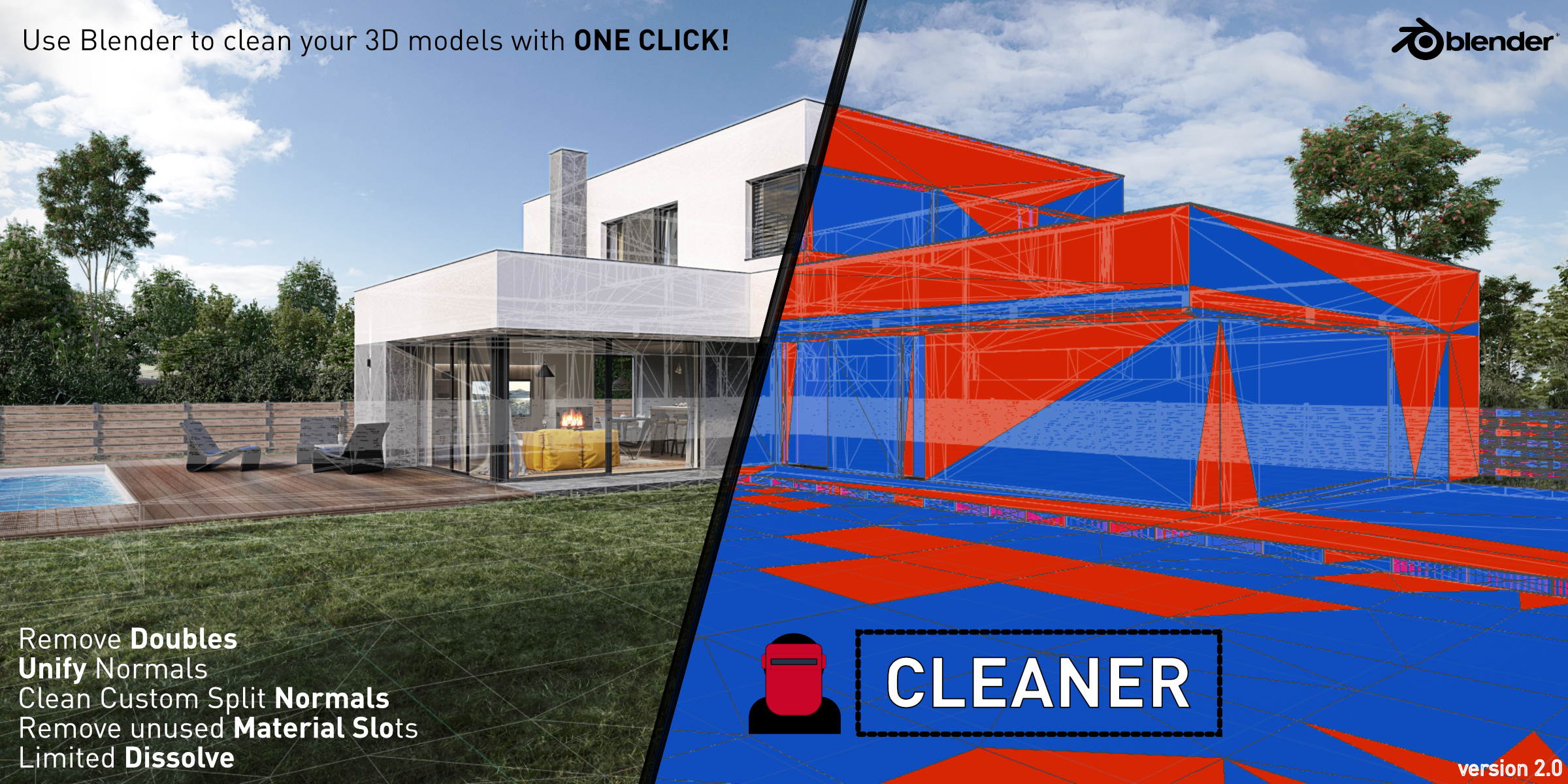
// UPDATE 2.6.1 IS OUT
Faster batch processing, adjustable settings and smarter cleanup.
Updating from 2.5? Just install over it. Coming from an older legacy version? Please uninstall it first.
You can download it now.
You can download it now.
// CAD & BIM IMPORT CLEANUP
Cleaner
"...SketchUp, Revit & CAD Import Optimizer..."
"...Cross-Platform Geometry Fixer for All 3D Workflows..."
"...Universal Mesh Cleaner for 3ds Max, Maya, Rhino & Beyond..."
"...Cross-Platform Geometry Fixer for All 3D Workflows..."
"...Universal Mesh Cleaner for 3ds Max, Maya, Rhino & Beyond..."
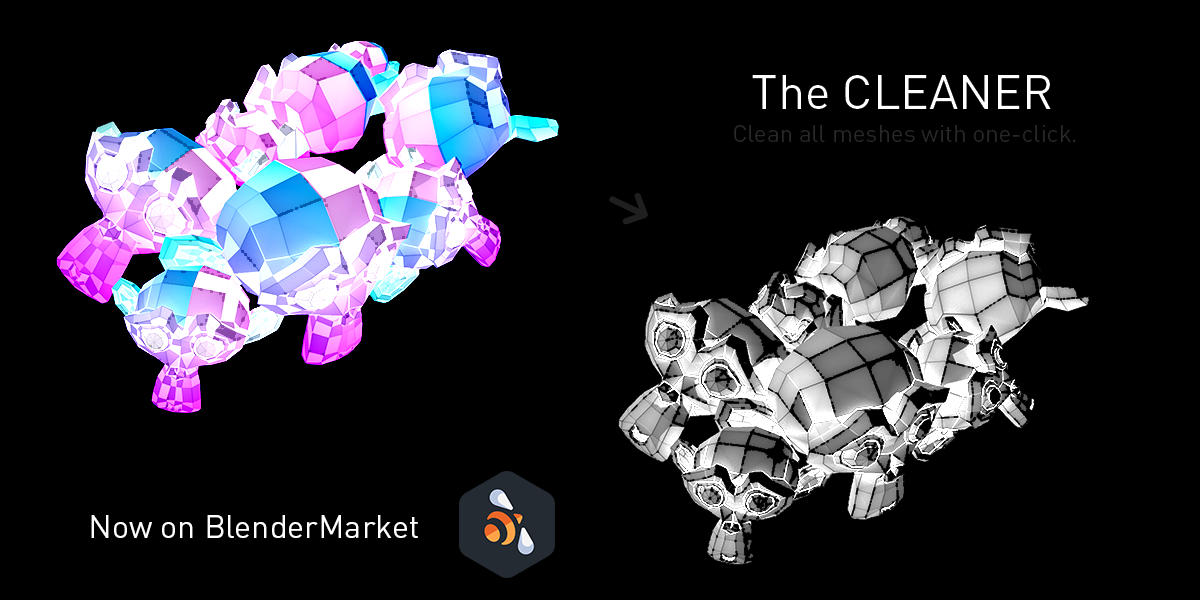
Add-on for cleaning multiple meshes at once. Useful for cleaning imports from other software. Especially handy in architecture and design fields.
Batch clean multiple meshes. Essential for CAD imports.
Blender 4.2+ All selected objects at once 5 commands + 3 batch presets
// WHO IS IT FOR
The idea is to offer an accessible universal cleaning application for any 3D software user. All the 3ds Max, Maya, SketchUp, Rhino, Revit, Cinema, Archicad, or any CAD users can use this tool to clean their models with Blender. Even only the engine users like Unreal, Unity, Godot, Twinmotion or Lumion can use it for fixing their imports. It is a very fast way to clean meshes when importing files from other software that exports corrupted geometry. Also good for users of these, to clean their exports before sending them out (SketchUp, Rhino, Revit..).
// CONCEPT
The main objective of the add-on is automatization and optimization of your workflow. Cleaner automates repetitive tasks, which can be annoying when importing multiple models.
// FUNCTIONS
Every command runs on all selected objects. Panel location: Properties > Object > Cleaner.
Remove Doubles - merges duplicate vertices
Clear Custom Split Normals - removes imported custom normals
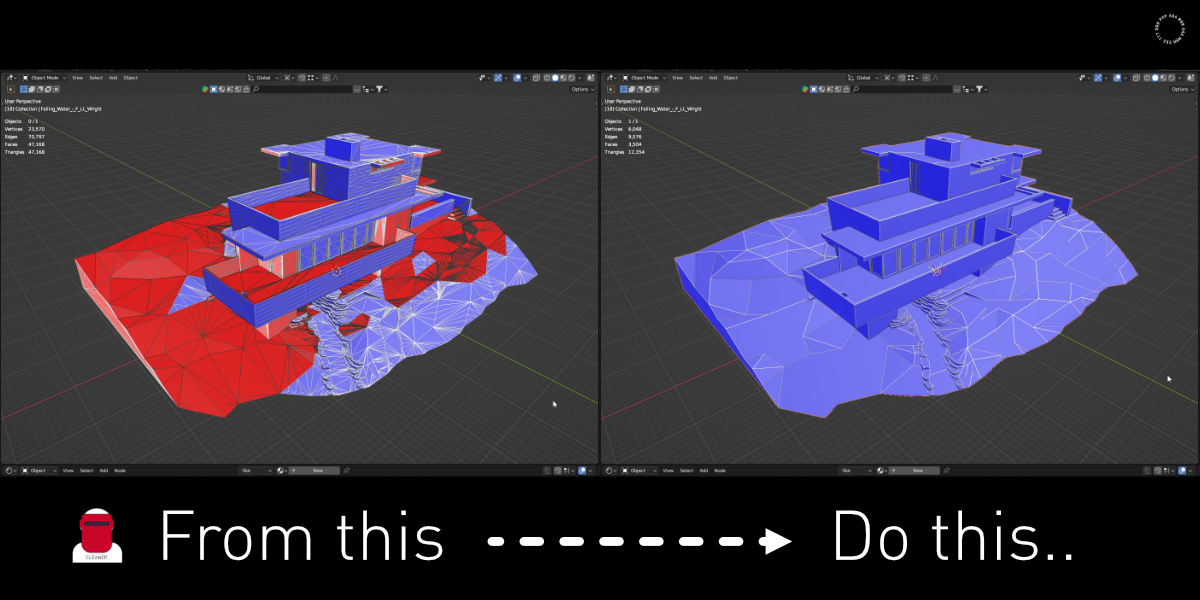
Unify Normals - recalculates face normals outwards
Clean Unused Materials - removes material slots not used by any face
Limited Dissolve - simplifies planar topology
Clear Custom Split Normals - removes imported custom normals
Unify Normals - recalculates face normals outwards
Clean Unused Materials - removes material slots not used by any face
Limited Dissolve - simplifies planar topology
BATCH PRESETS
Geometry - Clear Custom Split Normals + Remove Doubles + Unify Normals
Geometry + Materials - the above + Clean Unused Materials
Geometry + Materials + Dissolve - the above + Limited Dissolve
Geometry + Materials - the above + Clean Unused Materials
Geometry + Materials + Dissolve - the above + Limited Dissolve
// BUNDLE
Using Blender for Architecture? Upgrade to the Architect Core Toolkit. Includes: Cleaner + MAD Materials + CID Post-processing tools.
// CASE STUDY
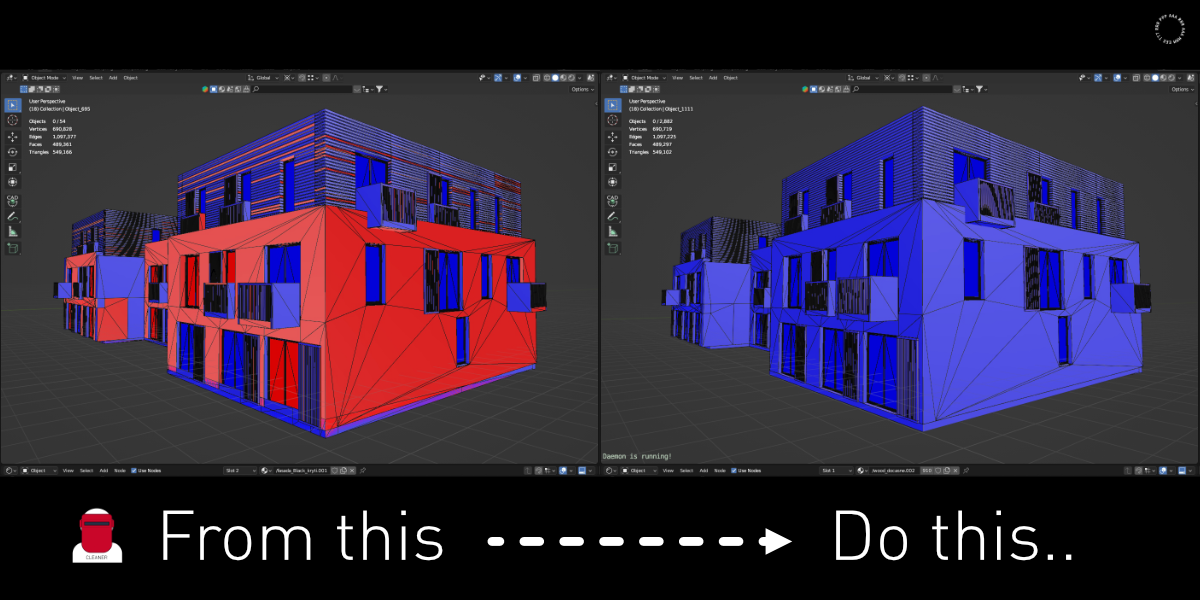
This is a real-life building project designed by the architect Michal Čapek. The whole project was 3D modeled in Rhinoceros 5 and then exported to Blender.
A / SINGLE COMMANDS FOR ALL SELECTED OBJECTS
#1Remove Doubles
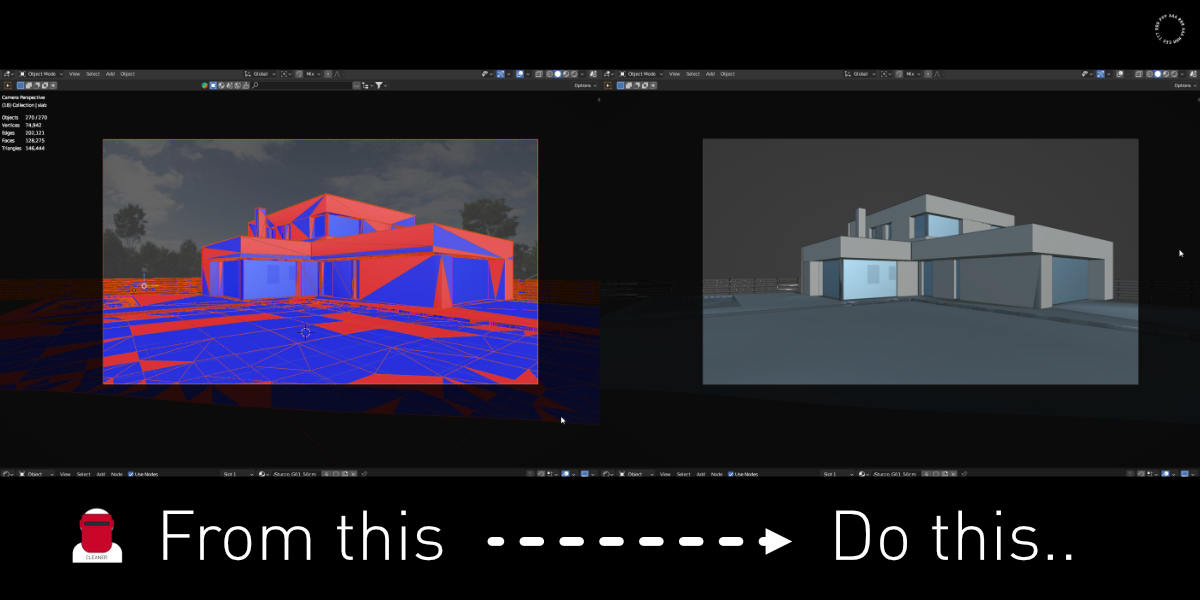
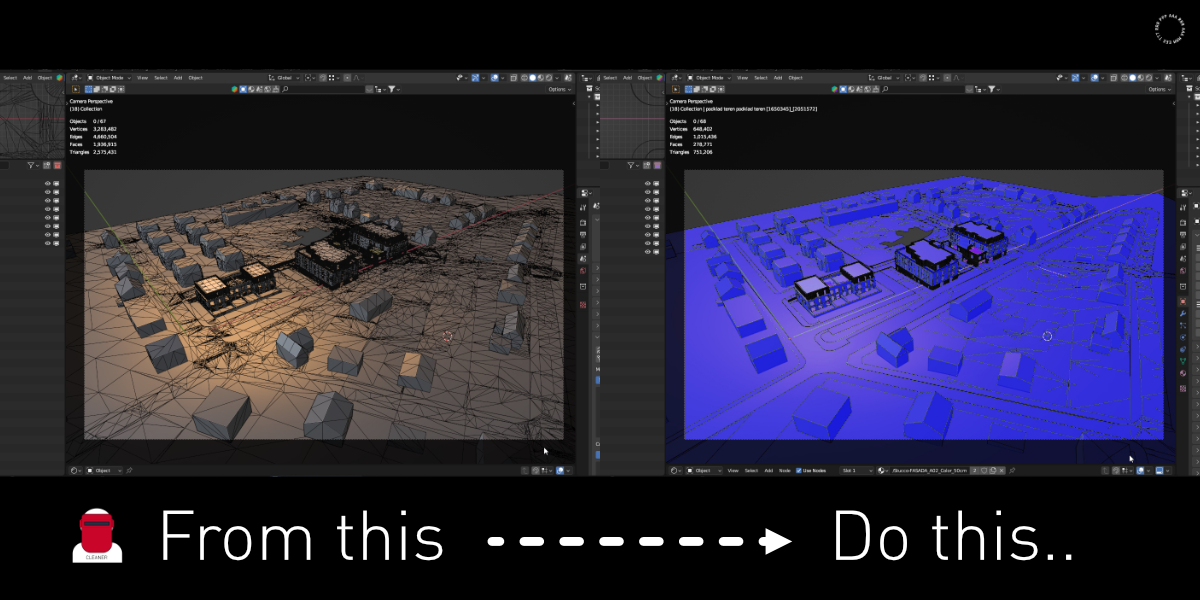
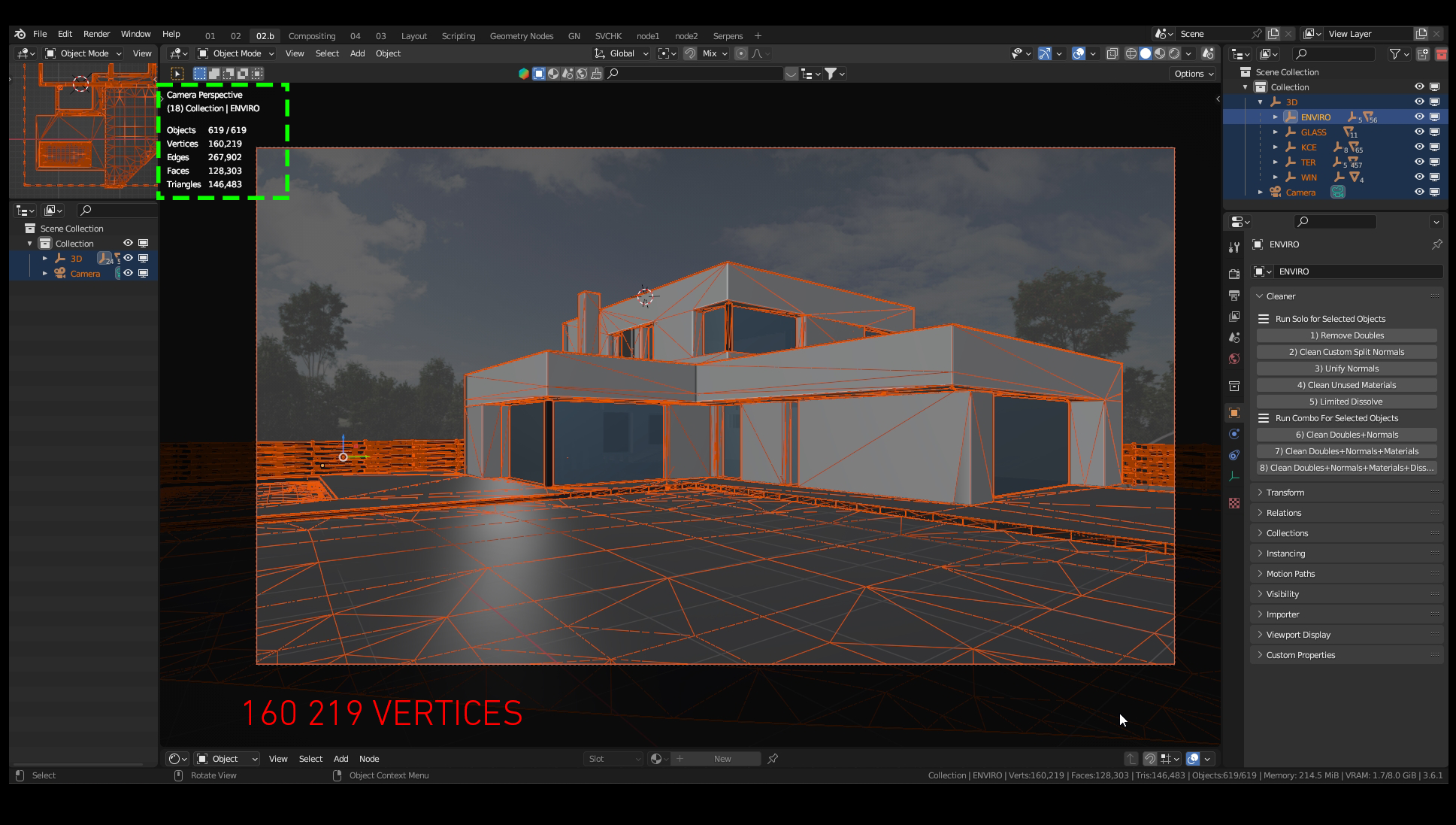
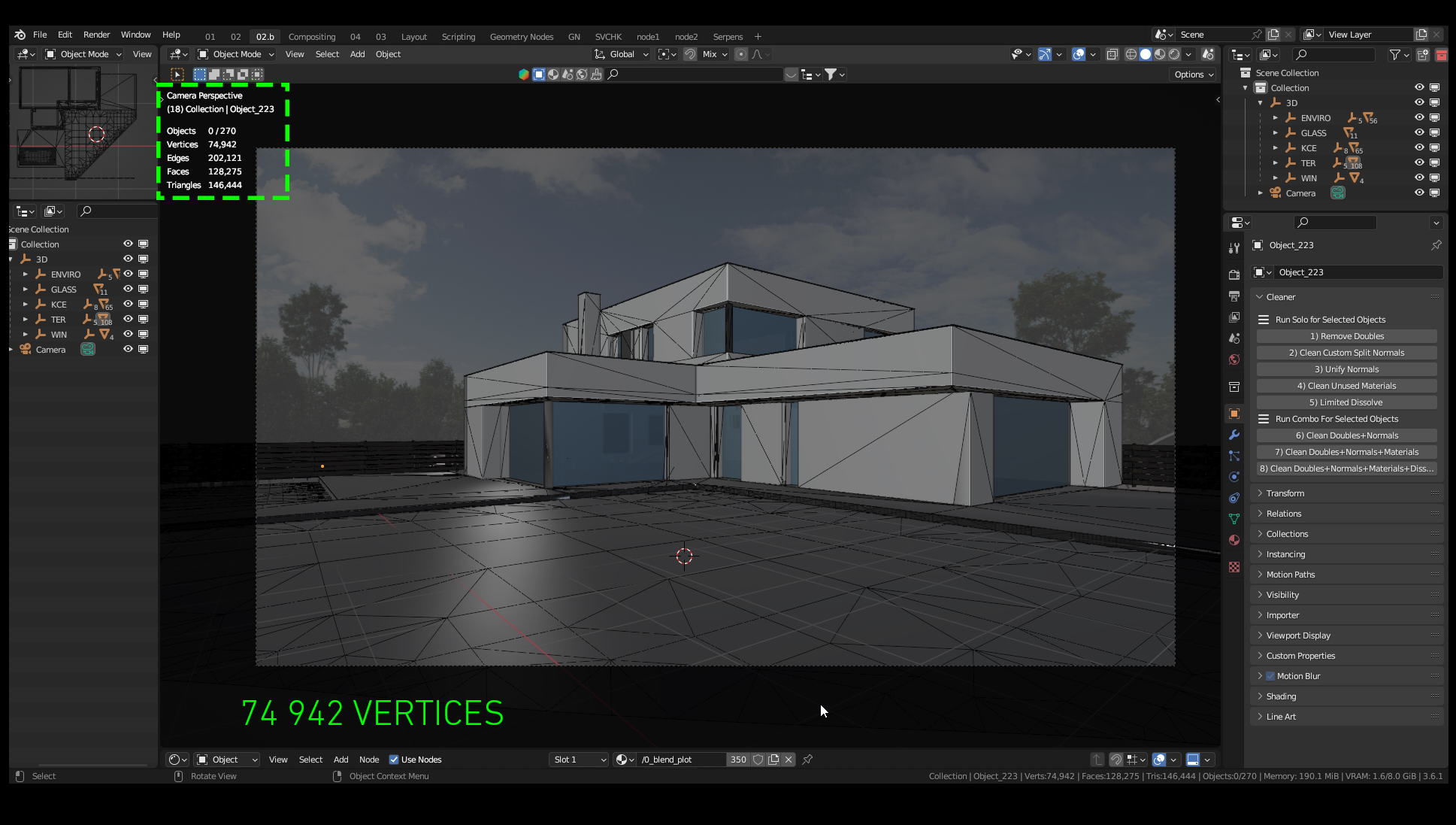
Firstly let's check how heavy the scene is in the green rectangle (turn on Statistics in Viewport Overlays in the header). Select what objects you want to clean. I am selecting all objects. In the Properties panel on the right, find Object Properties (orange square icon). After successful installation, you will see the Cleaner panel there. Click Remove Doubles. This action removes duplicate vertices. When the operation is finished, you can compare the number of vertices - it is almost one-half of the original.
VERTICES
160 219 → 74 942 (-53 %)
Merge Distance can be adjusted right after the operation via Adjust Last Operation (F9). Default 0.001 m.
#2Clear Custom Split Normals
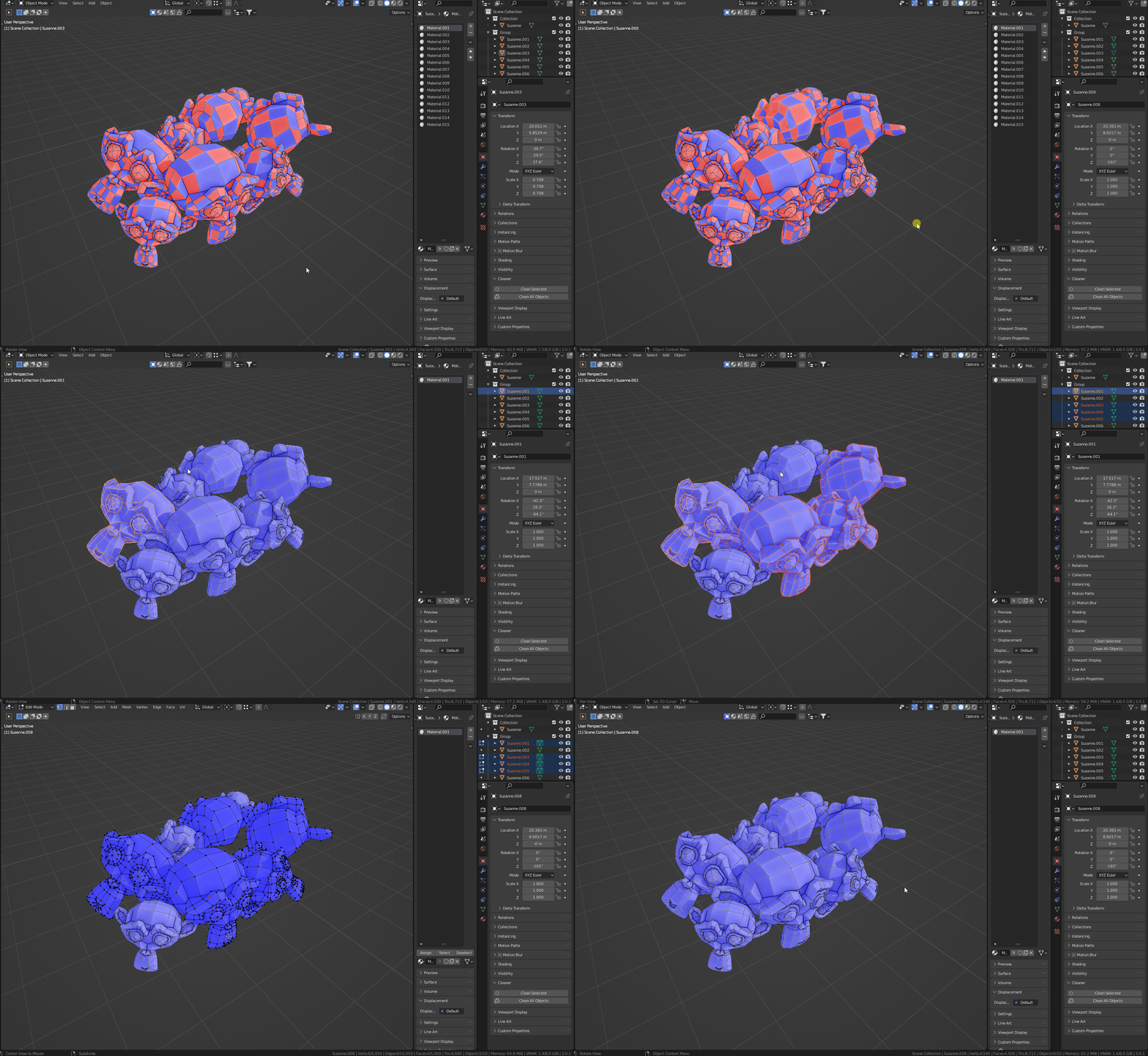
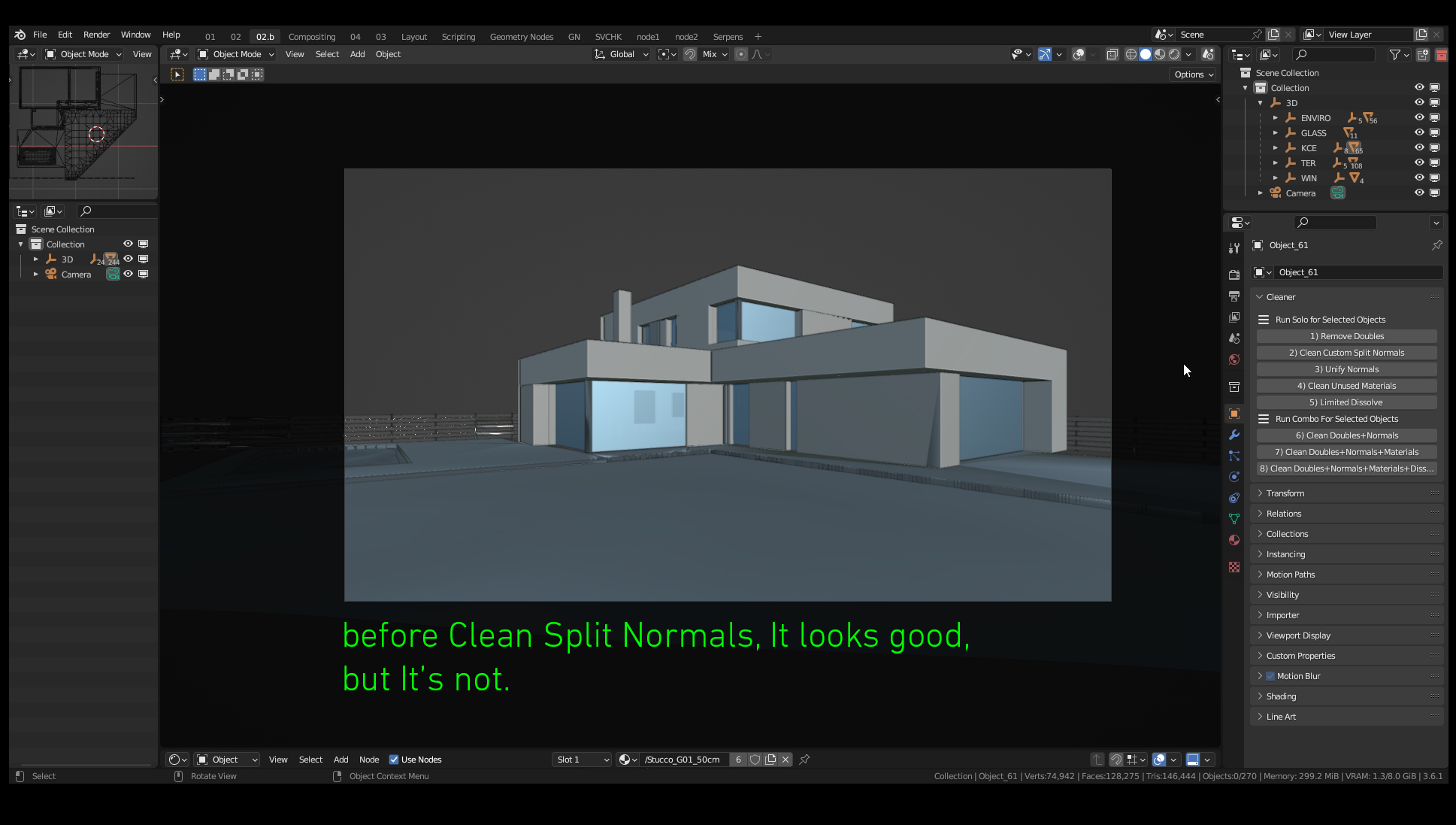
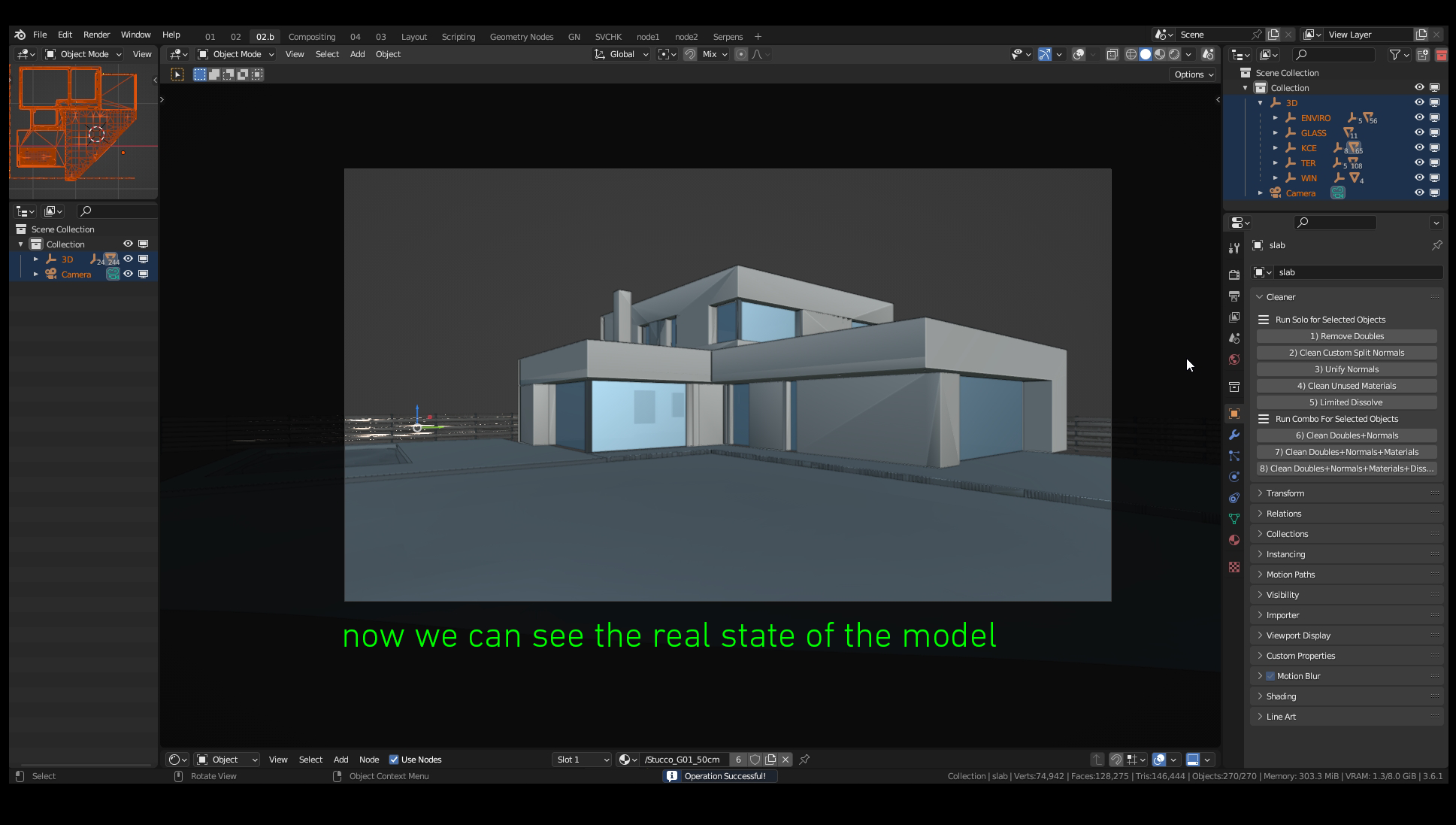
Every model imported from Rhino (and many other software) has Custom Split Normals on every object. This attribute causes problems with correct shading. Now it looks almost right, but it is not. So let's select the desired objects and click Clear Custom Split Normals. The result shows us the real state of the model. Now we can see that there is a problem with flipped normals.
NOTE Default Blender clears custom split normals only on the active object. Cleaner does it for all selected objects at once.
#3Unify Normals
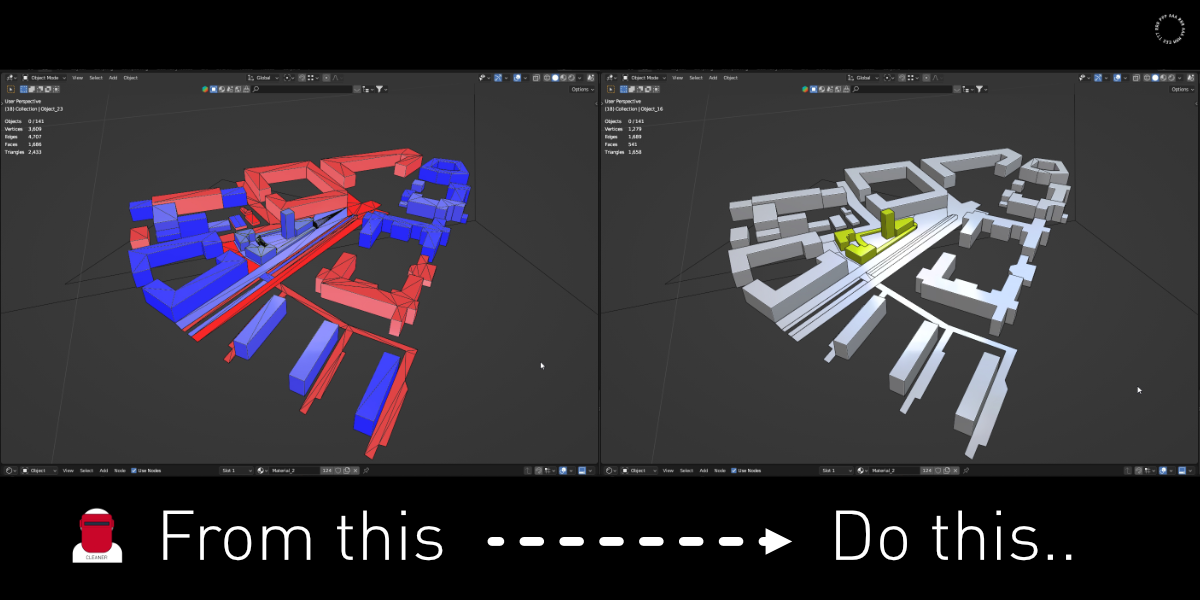
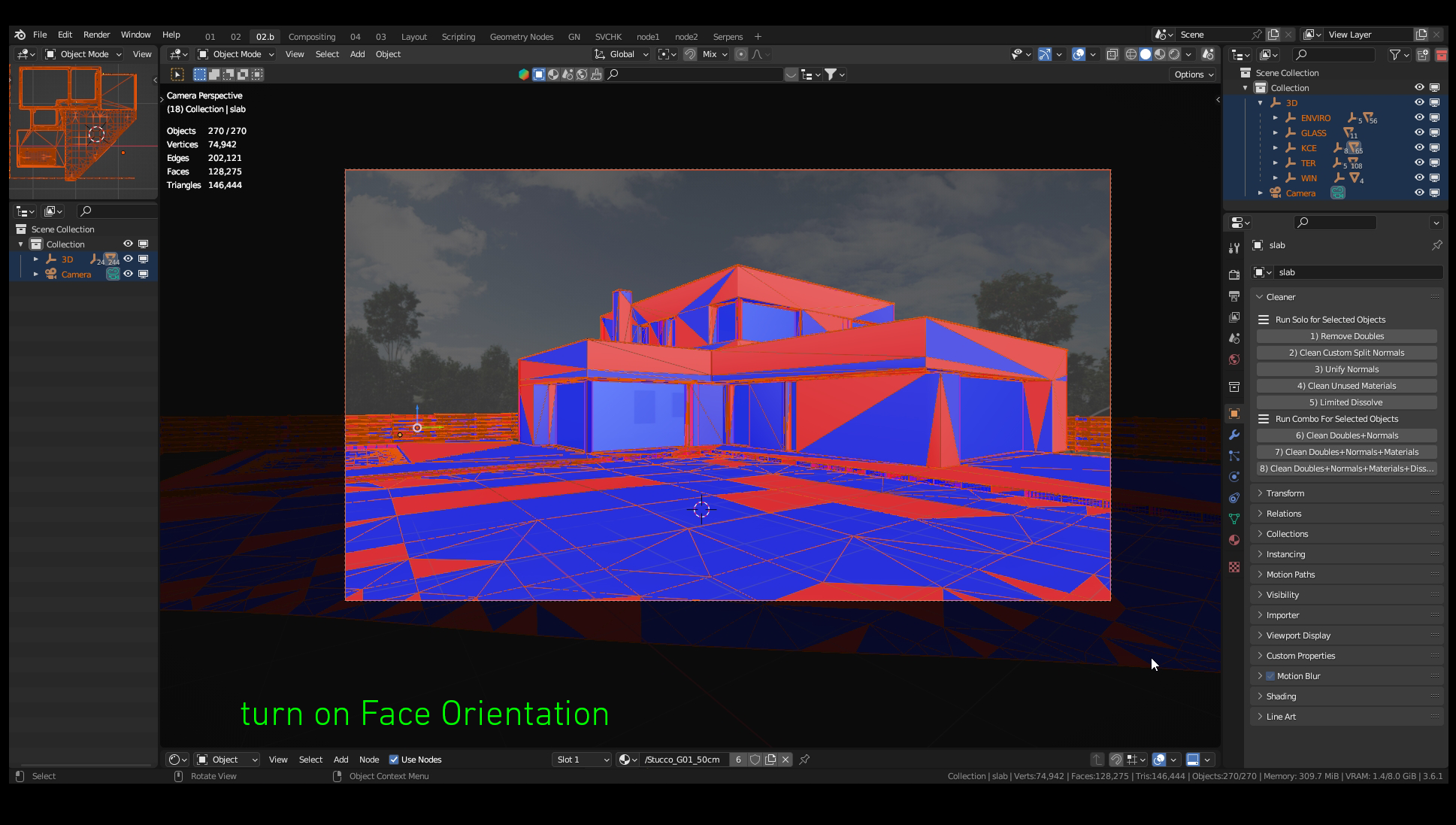
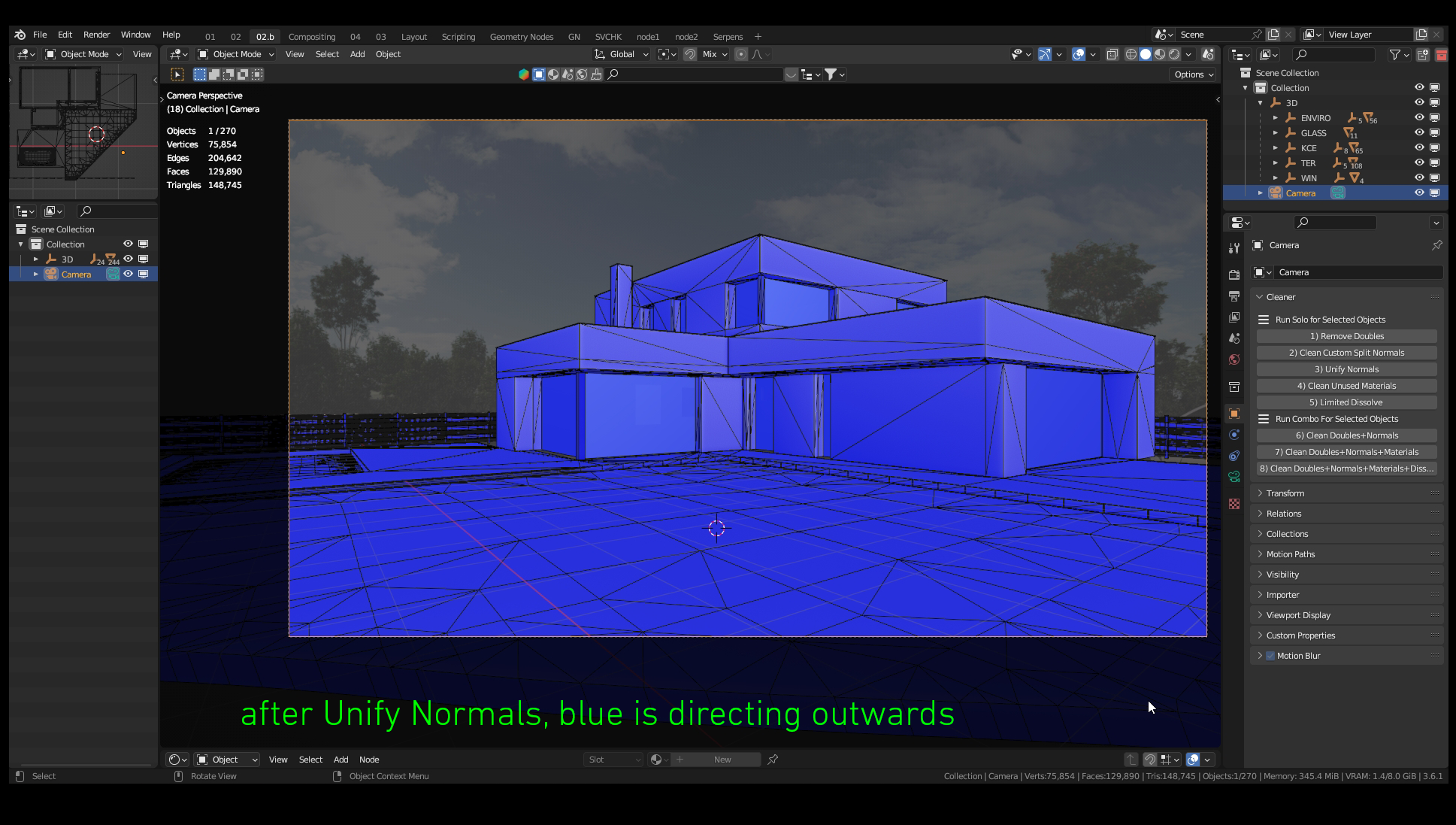
Turn on Face Orientation in Viewport Overlays (header). You can see how messed up the normals are. Blue is correctly oriented outwards, red is oriented inwards. We are not inside the geometry itself, so everything should be blue. Select all objects and press Unify Normals. This step applies "Recalculate Outside" for every selected object at once.
NOTE Surfaces without thickness can be flipped anytime, because it is impossible to determine the required normal direction.
#4Clean Unused Materials
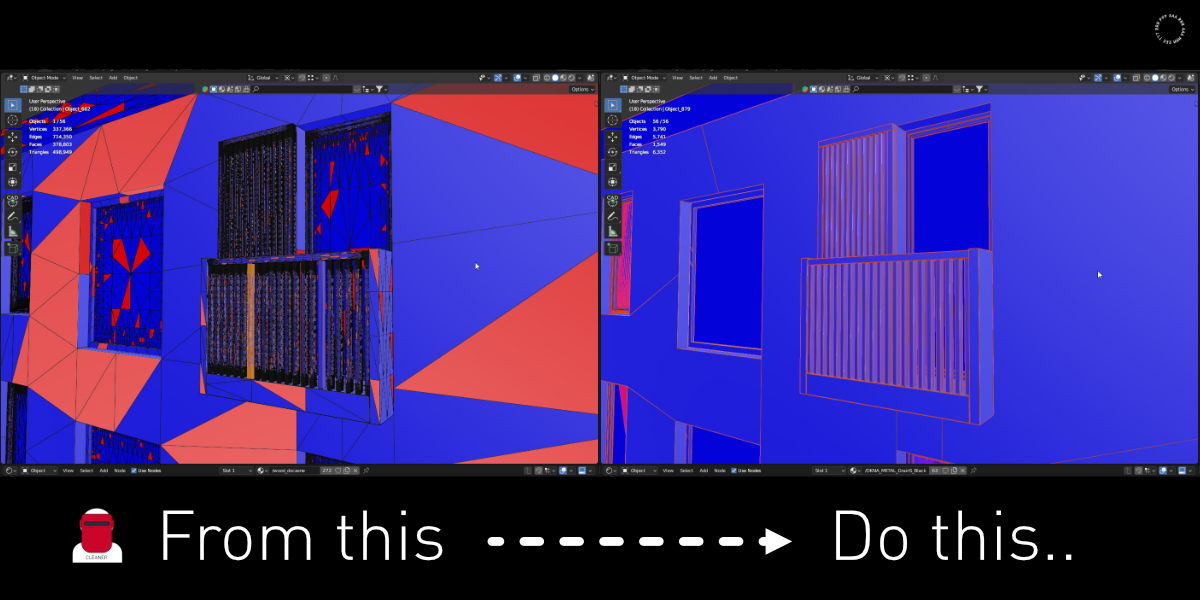
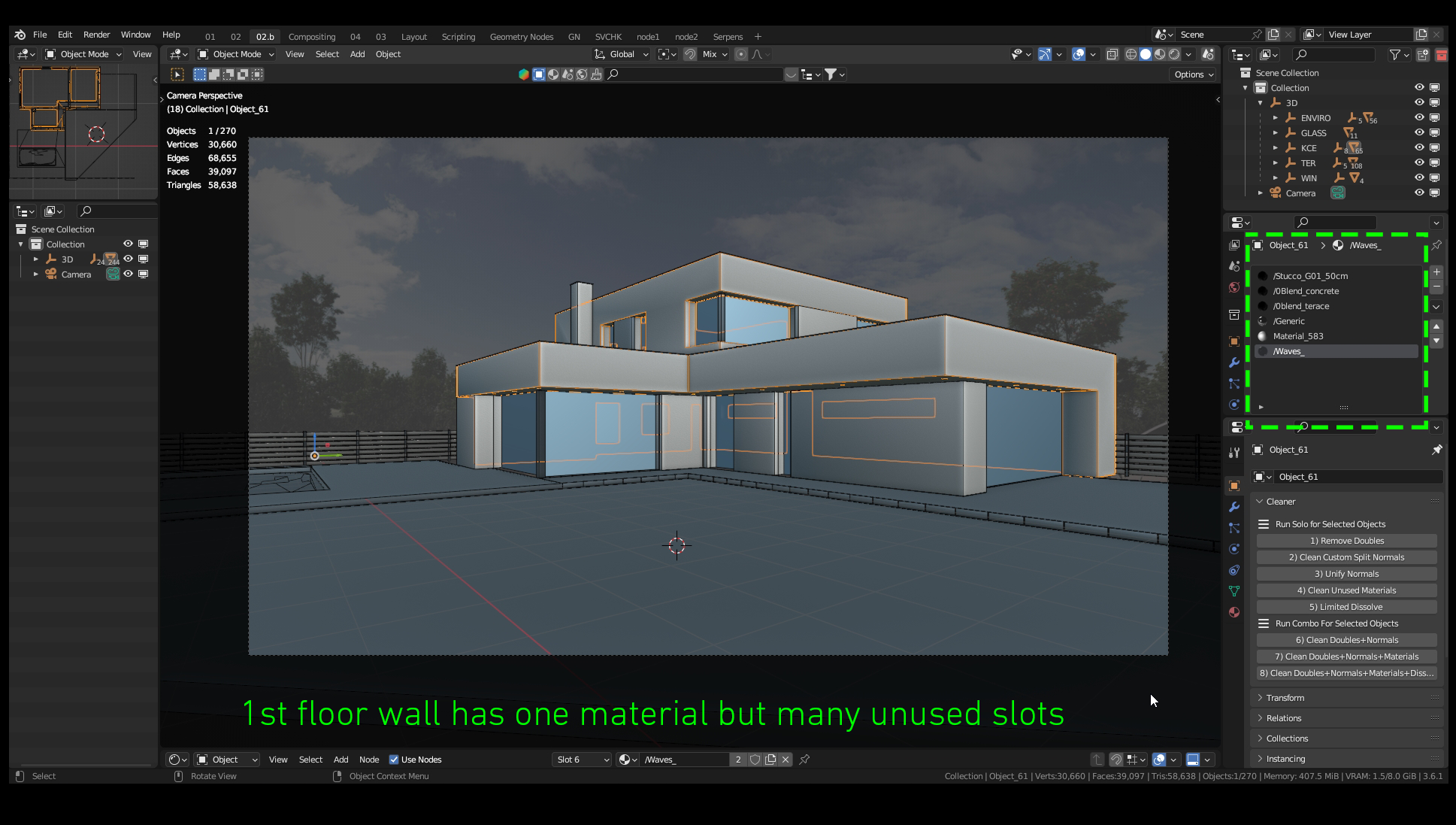
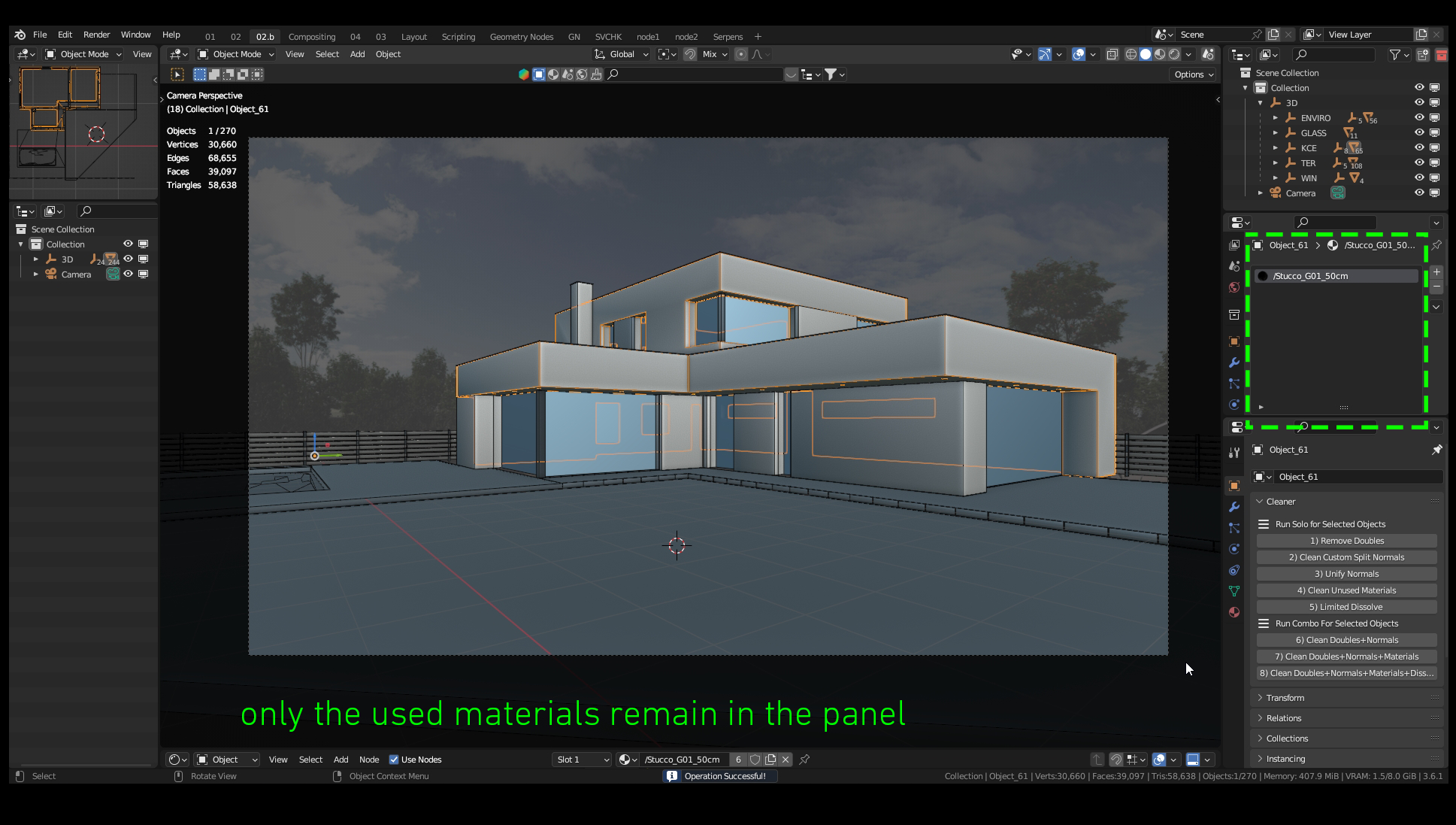
Very often, objects contain a lot of material slots that they are not using anymore. When a model is divided into smaller parts and layers, every material used in the past remains in the panel on all objects. In the end, you can have a confusing environment with many materials on an object that uses only one. Select any number of objects and press Clean Unused Materials.
#5Limited Dissolve
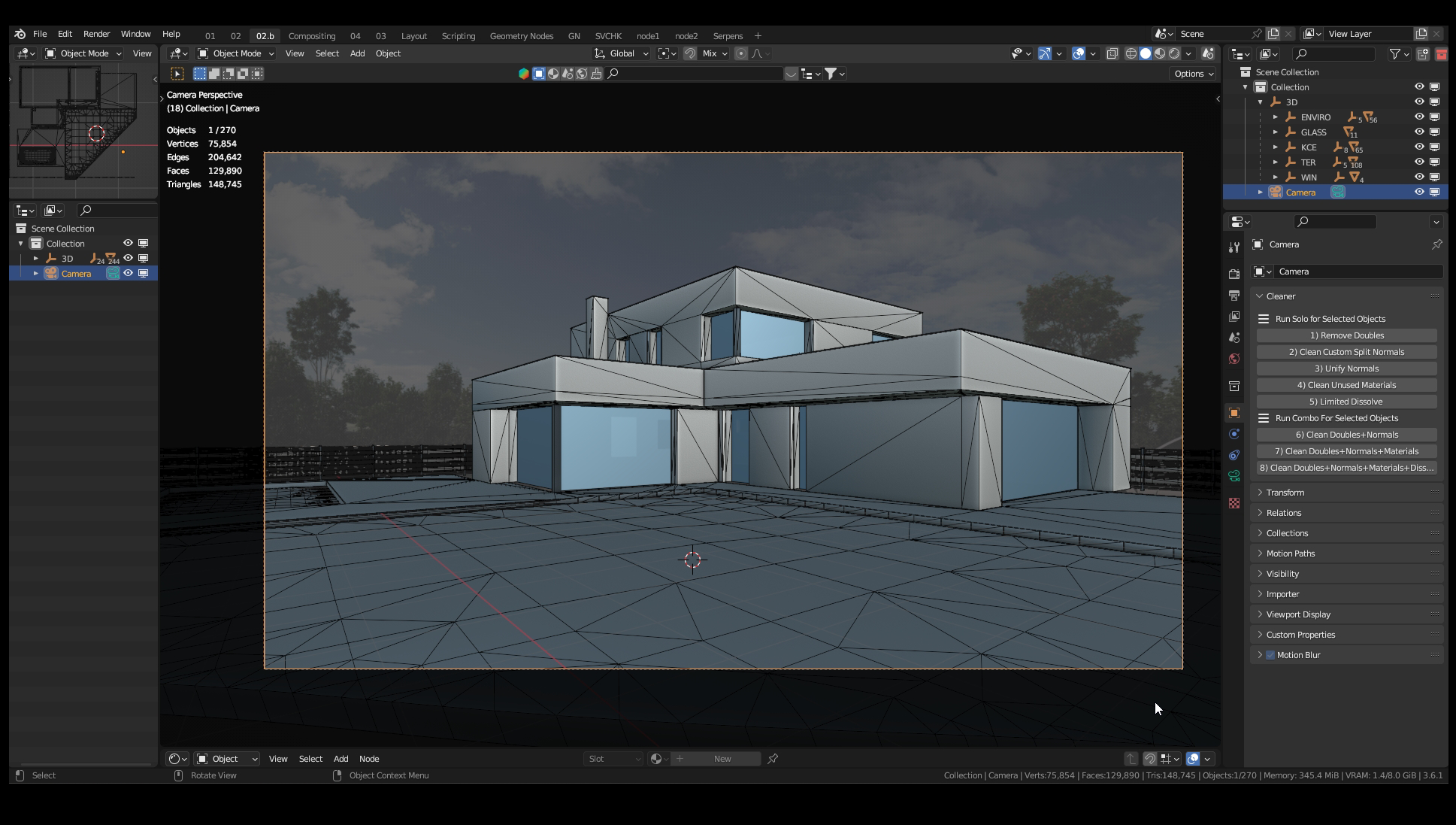
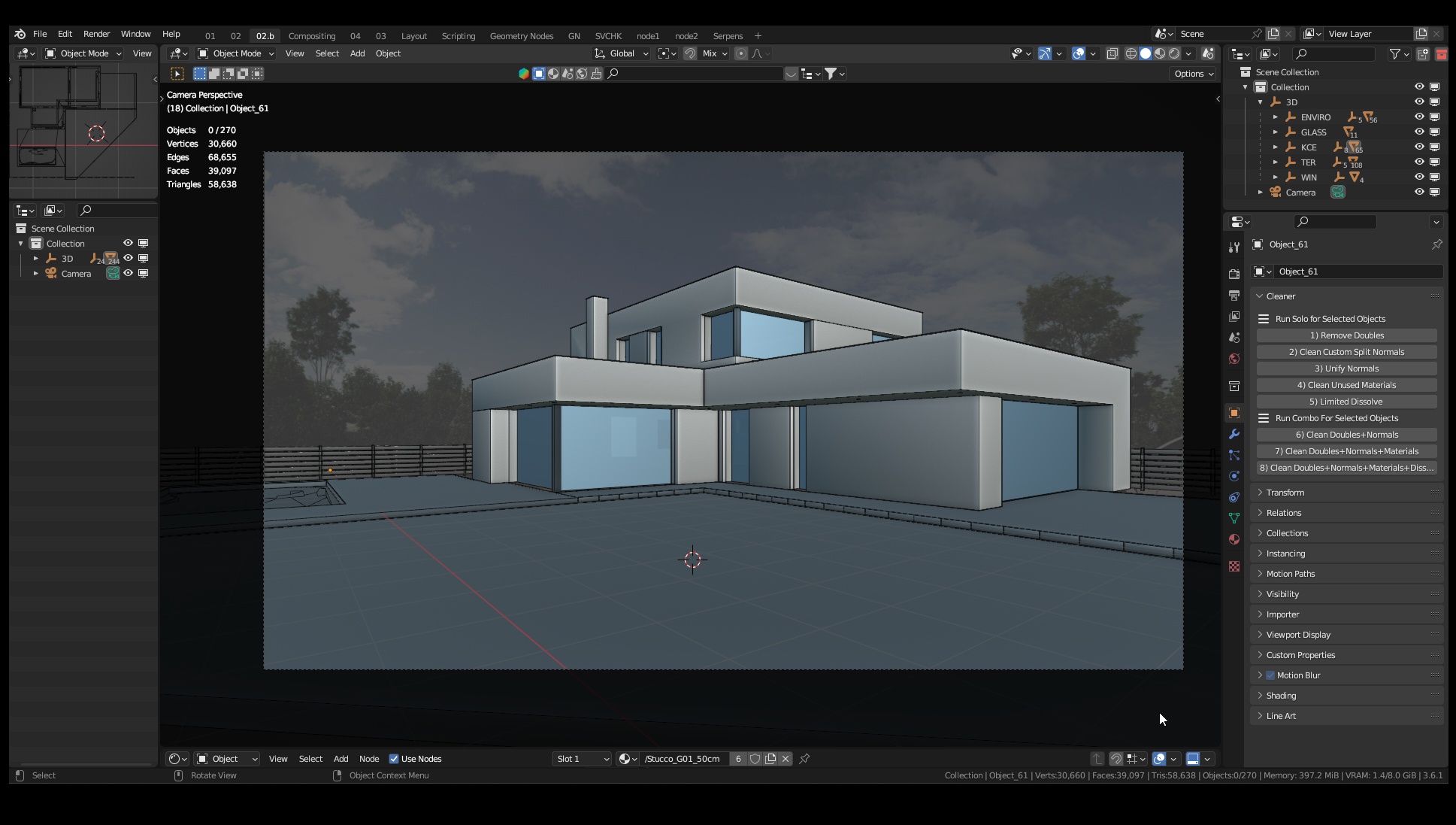
Some similar cleaning applications present the output after this command. It looks perfect. The problem is that faces are still triangulated, you just dissolve many vertices with edge lines. Topology has changed. When you hit Ctrl + T for Triangulate, you see less vertices connected differently. Planar surfaces work almost every time, but in some cases this command causes geometry problems because of the lack of vertices describing the shape. I usually find out after a longer time, when I render. What I am doing then is looking for the original mesh and repeating the process. That's why I recommend being careful with this one, and I use it almost every time separately with enough attention. But it looks great :)
VERTICES
75 854 → 30 660 (-60 %)
FACES
129 890 → 39 097 (-70 %)
Faces with different materials are never merged. Max Angle can be adjusted via Adjust Last Operation (F9). Default 5°.
Congratulations! Now your 3D model is much lighter. Workflow could be faster. The size of the model is also smaller.
But even better news is that the real Cleaner starts from here :)
B / BATCH PRESETS FOR ALL SELECTED OBJECTS
#6Geometry
Clear Custom Split Normals + Remove Doubles + Unify Normals
As you guess, these buttons run more commands at once. The first one is a basic pack for fundamental cleaning.
#7Geometry + Materials
Clear Custom Split Normals + Remove Doubles + Unify Normals + Clean Unused Materials
The medium way of cleaning. This setup doesn't change any topology, models look the same but much lighter and cleaner. We prefer this setup for most cases.
#8Geometry + Materials + Dissolve
Clear Custom Split Normals + Remove Doubles + Unify Normals + Limited Dissolve + Clean Unused Materials
Lastly, we have the most powerful cleaning combination. With this setup, you will get the lightest output. For the reasons I wrote before, I am using this one only for special occasions.
// TYPICAL SCENARIOS
AImport data from other software
The add-on works as a simple tool for quickly cleaning models as the first step after importing data.
BBigger offices
After working for a company with more than 40 employees, I can say that software eclecticism is a normal situation. More departments means more specializations and more software to use. On the other hand, time requirements are often very strict and short. In that situation every minute is valuable. And of course, when you can work with clean data instead of a triangulation disaster, it is nice to have every day.
CArchitecture
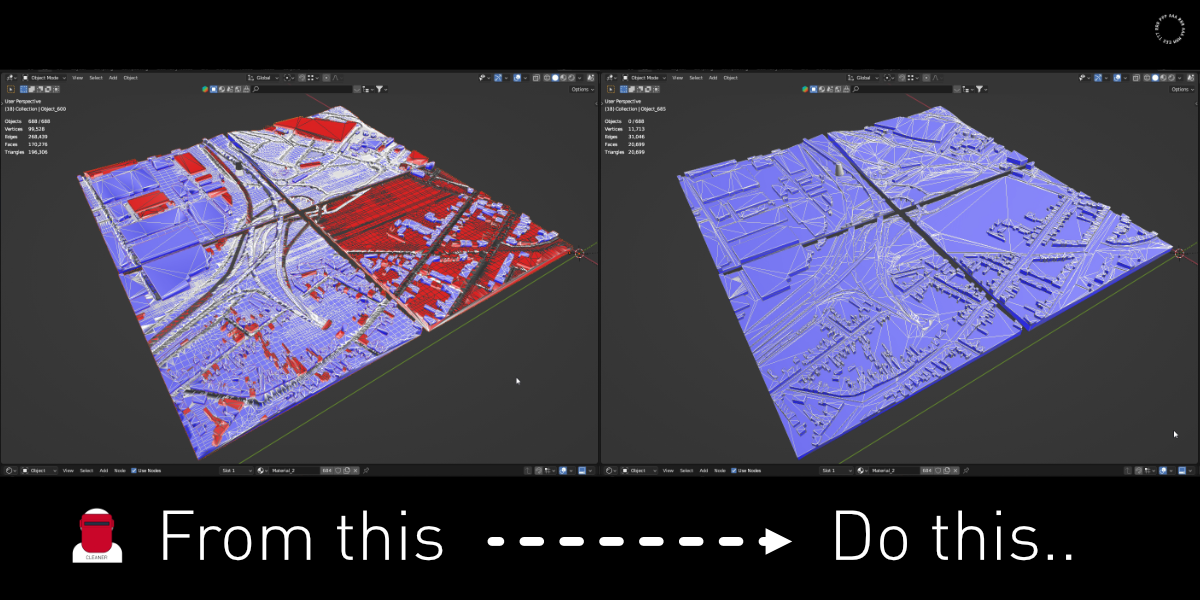
Architecture is a perfect example of a field where the add-on is useful daily. The advantage is editing many data at once. Every work with urban models involves a large number of building objects, and very often the building geometry is broken. It would be a very painful type of work to repair the buildings manually one by one. Cleaner makes a chain of operations for all objects with one button. When focusing on detail, the add-on can be useful when inspecting any systems with multiple objects such as facade cladding, floor planks, or fence fillings. Data from the construction department often come from BIM software like Revit, Allplan and Archicad, while architects use fast and dirty visions in SketchUp. A situation that looks 3D-like after an explosion is absolutely common.
D3D printing
When converting a model to printable, the essential requirement is the removal of duplicates and the correct direction of normals. That's why the add-on can be suitable for the basic preparation for 3D printing.
// KEEP IN TOUCH
Are there other automated buttons that would save you work? Let us know what else you would appreciate.
// CHANGELOG
2.6.1
Workflow: Batch operators renamed to Geometry, Geometry + Materials and Geometry + Materials + Dissolve. Each name now shows exactly what it runs.
Workflow: Clear Custom Split Normals added to all batch operations.
Settings: Merge Distance and Max Angle can be adjusted after running an operator (Adjust Last Operation, F9). Defaults unchanged (0.001 m, 5°).
Logic: Limited Dissolve no longer merges faces with different materials.
Logic: Geometry + Materials + Dissolve now dissolves before cleaning materials, so no unused slots are left behind.
Logic: Operators return to Edit Mode when started from it. Active object stays unchanged.
Logic: Hidden geometry is now included. Shared mesh data is processed only once. Linked library meshes are skipped.
UI: Buttons are disabled when no editable mesh is selected, with a tooltip explaining why.
UI: The status report now shows actual results (merged vertices, dissolved faces, cleared normals, removed material slots).
Core: Geometry processing rewritten with BMesh. One pass per mesh, no mode switching. Much faster with many objects selected.
Workflow: Clear Custom Split Normals added to all batch operations.
Settings: Merge Distance and Max Angle can be adjusted after running an operator (Adjust Last Operation, F9). Defaults unchanged (0.001 m, 5°).
Logic: Limited Dissolve no longer merges faces with different materials.
Logic: Geometry + Materials + Dissolve now dissolves before cleaning materials, so no unused slots are left behind.
Logic: Operators return to Edit Mode when started from it. Active object stays unchanged.
Logic: Hidden geometry is now included. Shared mesh data is processed only once. Linked library meshes are skipped.
UI: Buttons are disabled when no editable mesh is selected, with a tooltip explaining why.
UI: The status report now shows actual results (merged vertices, dissolved faces, cleared normals, removed material slots).
Core: Geometry processing rewritten with BMesh. One pass per mesh, no mode switching. Much faster with many objects selected.
2.5.0
Workflow: Operators renamed to Repair Geometry, Prepare Asset, and Sanitize Mesh.
Logic: Added safety checks for objects without materials (prevents batch operation errors).
UI: Implemented boxed layout with native icons and standardized tooltips.
Core: Complete code refactor for improved stability and performance.
Logic: Added safety checks for objects without materials (prevents batch operation errors).
UI: Implemented boxed layout with native icons and standardized tooltips.
Core: Complete code refactor for improved stability and performance.
IMPORTANT Migrated to the Blender Extensions system (4.2+). Internal IDs updated. Uninstalling the legacy version is required to prevent conflicts.
2.0.0 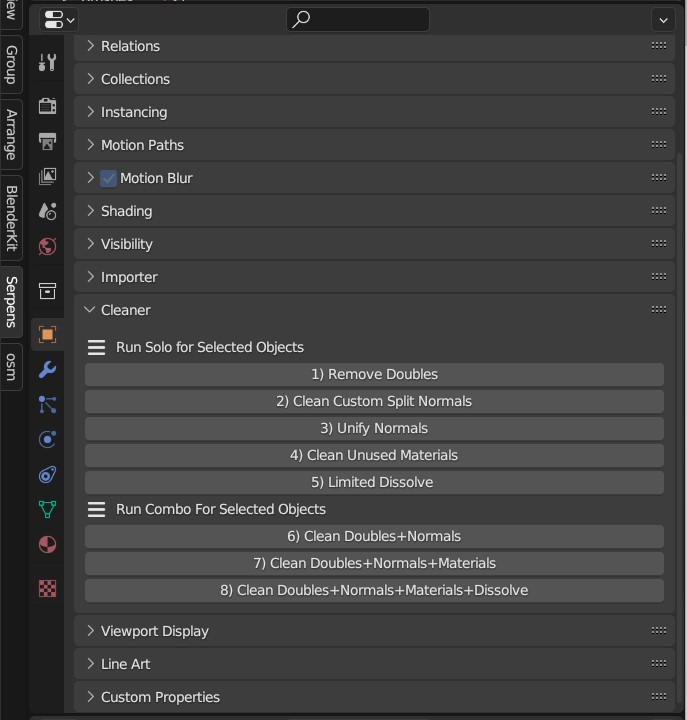
Completely new UI and all functions. More options. Reports after operations. Now you can choose between a variety of options. It's working for all selected objects.
1.2.2
Bug fixed - Edit Mode while Clean Unused Mats now works.
1.2.1 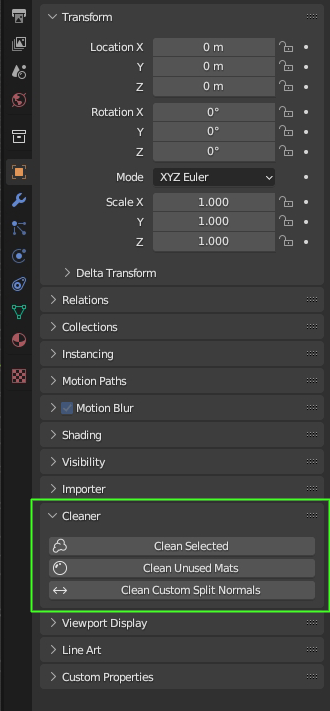
Crucial update. The Cleaner has a much cleaner code now! New functions and complete simplification. Commands always apply to selected objects. Now the functions are divided into 3 basic items.
Clean Selected - Remove Doubles, Clean Unused Materials, Unify Normals and Clean Custom Split Normals for all selected objects.
Clean Unused Mats - delete unused materials for all selected objects.
Clean Custom Split Normals - delete custom split normals for all selected objects.
Clean Selected - Remove Doubles, Clean Unused Materials, Unify Normals and Clean Custom Split Normals for all selected objects.
Clean Unused Mats - delete unused materials for all selected objects.
Clean Custom Split Normals - delete custom split normals for all selected objects.
1.0.2
Custom split normals added for more objects.
1.0.1
"Remove Unused Materials From Selected Objects" is now also a separate function (this is used very often for data from Revit or SketchUp).
// CREDITS
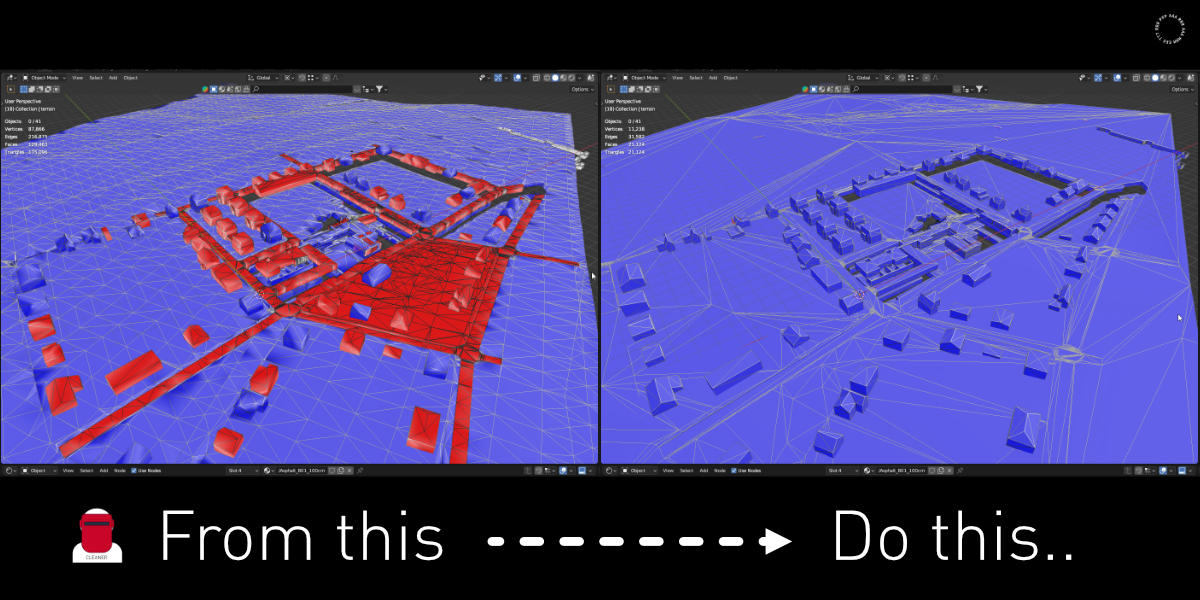
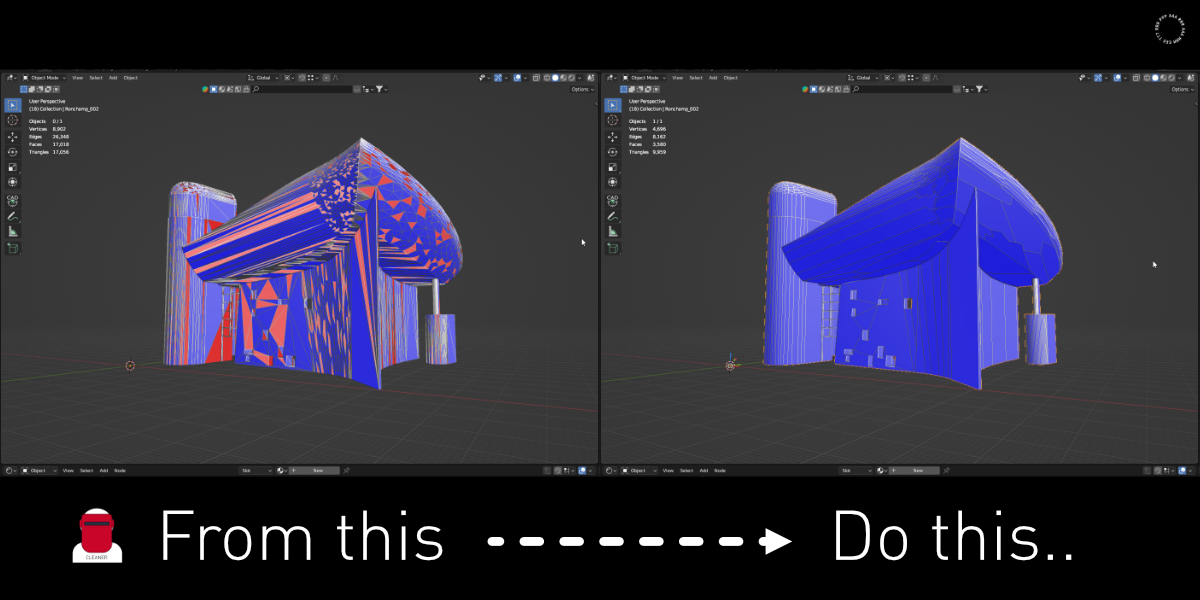
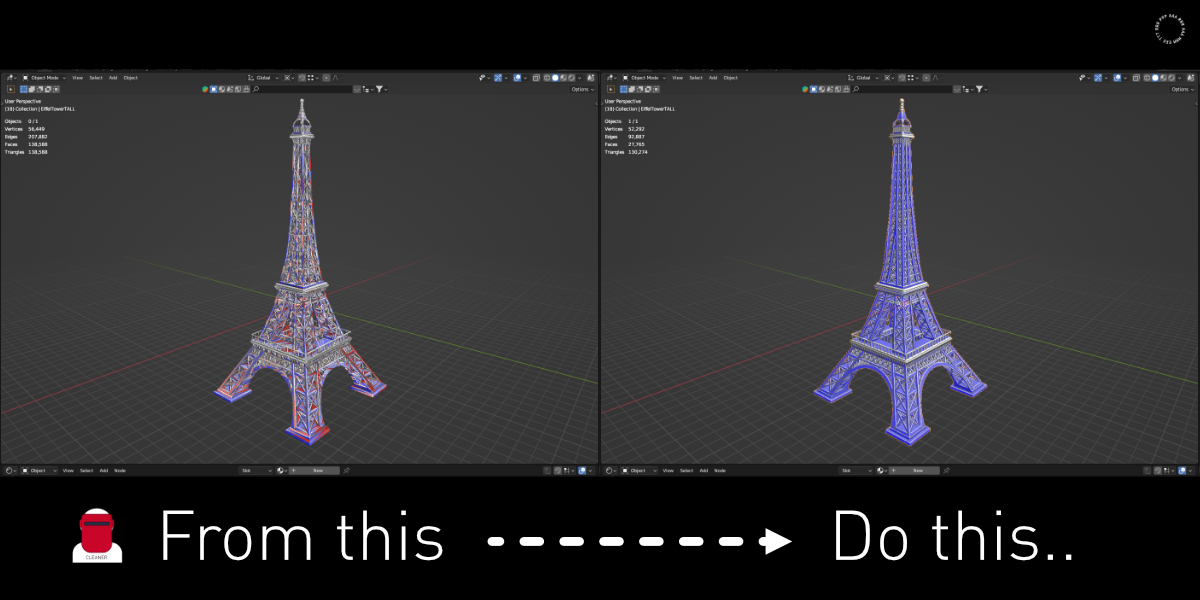
Almost all models in the presentation are made by Parametr Studio and come from real projects. Case study villa house by Michal Čapek. For the demonstration of the add-on functionality, these models were also used:
City of the scape by adamrw91 - thingiverse.com/thing:33301
Ronchamp by Le Corbusier by JAMh - thingiverse.com/thing:94419
Eiffel tower by sfransky - thingiverse.com/thing:3570811
Falling Water - Frank Lloyd Wright by JAMh - thingiverse.com/thing:101141
Ronchamp by Le Corbusier by JAMh - thingiverse.com/thing:94419
Eiffel tower by sfransky - thingiverse.com/thing:3570811
Falling Water - Frank Lloyd Wright by JAMh - thingiverse.com/thing:101141
// BONUS QUESTION
Who's your favorite Cleaner :)?