ClipFix: Fix Clothes Clipping at Rest and Check It in 10 Poses
 Meshwright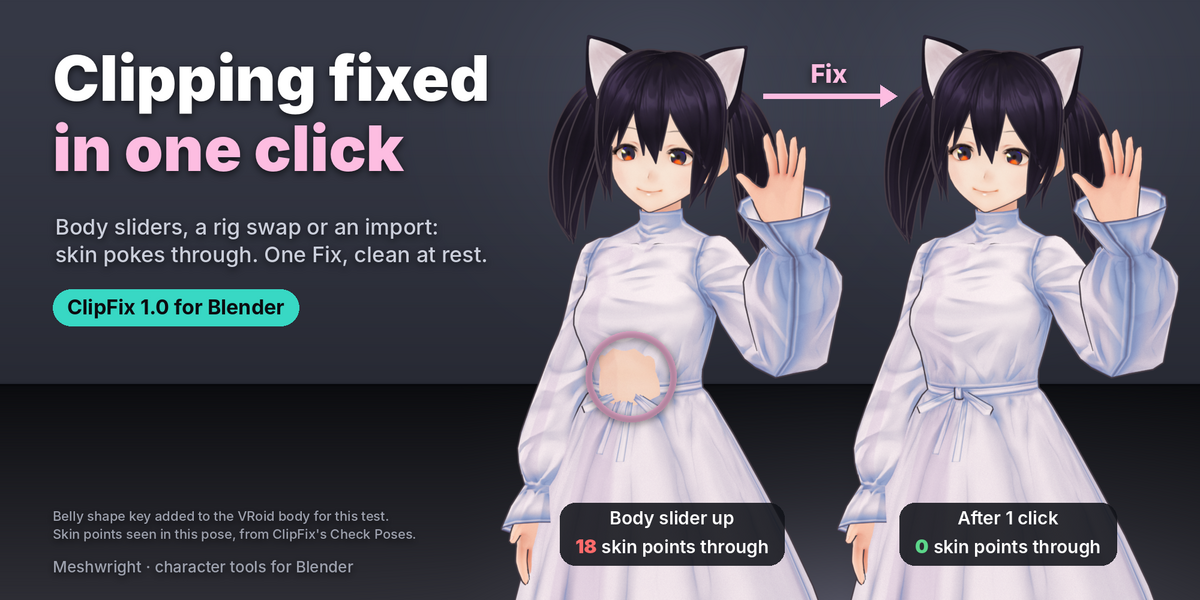

ClipFix 1.0.0 documentation
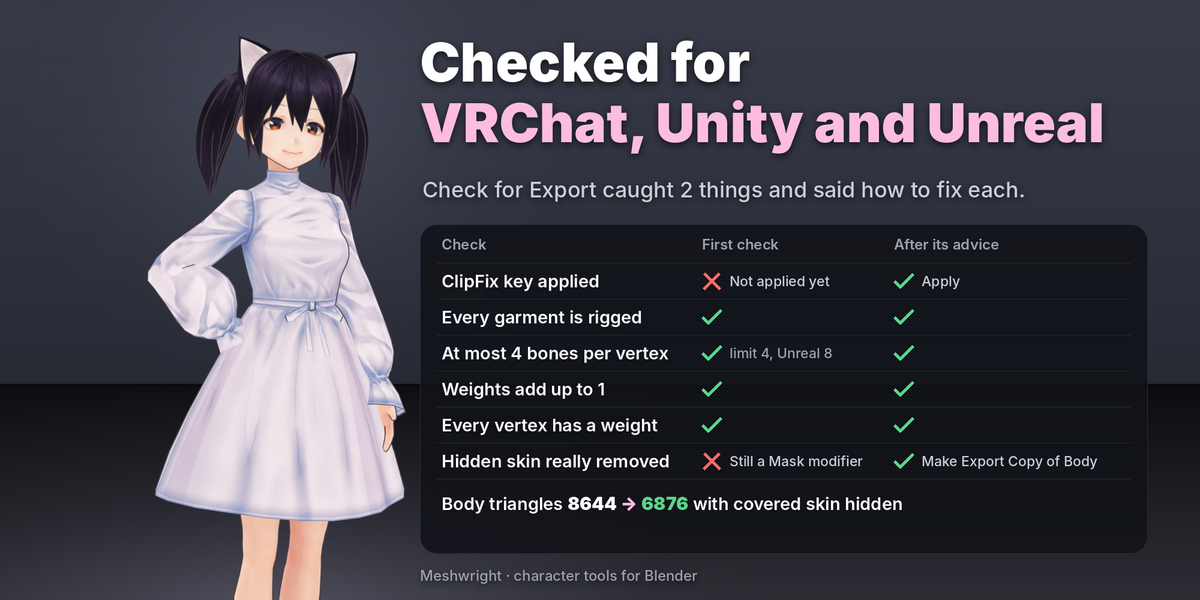
ClipFix fixes clothes that poke through the body. It works on outfits that are already fitted and rigged, by any tool, on the body they are on. It does not move outfits to another body. Outfit Refit does that.
Blender 4.2 to 5.2 (tested on 4.2.23 LTS and 5.2.2). Pure Python, no extra packages. Licence GPL-3.0-or-later. Maintainer: Meshwright.
Quick start
- Select the garments, then the body last, so the body is the active object.
- Press Fix.
- Press Check Poses, then Hide Covered Skin if skin still shows through in poses.
Install
- Edit > Preferences > Get Extensions.
- Open the menu at the top right and choose Install from Disk.
- Pick
clipfix-1.0.0.zip.
The panel is in the 3D Viewport sidebar (N key), tab ClipFix. ClipFix and Outfit Refit can be installed and used together in one file.
Set up
Select the garments, then the body last, so it is the active object. Every button that works on the outfit (Fix, Show Clearance, Check Poses, Hide Covered Skin, Find Clashes) uses that selection and remembers it as the garment list. Use Selection only stores it. When the selection differs from the list, the panel says so and the Fix button reads Fix Selection. With nothing selected, the buttons use the list. Use the plus and minus buttons to change the list by hand.
The body's rig comes from its Armature modifier or its parent. The panel shows the rig it found.
ClipFix checks the setup first:
- Meshes named as hair (hair, eyebrows, lashes) and the body's separate head or face are not garments. Hair goes to Hair and Accessories instead. A head part you do want to fix can be added with the plus button.
- If a garment is much taller than the active mesh, or the active mesh does not reach from the knees to the shoulders, the active mesh is not the body. ClipFix stops and says so. Select the body last and try again.
- If the body's faces point inward (some imports do this), inside and outside would be swapped. ClipFix stops. Select the body, Edit Mode, select all, Mesh > Normals > Recalculate Outside.
Minimum Gap (mm) is the smallest distance kept between cloth and skin. The default is 1 mm for a 1.7 m tall body. ClipFix scales it with the body's height, so a body modelled in centimetres gets the same result as one in metres.
Fix at rest
Press Fix. ClipFix reads the body as it is now: shape key sliders at their values, the rig in its rest pose (also while a test pose is shown). Then, for each garment, from the innermost one out:
- cloth inside the body is pushed out to the Minimum Gap;
- skin poking out between cloth vertices is covered;
- inner garments stay under outer ones, and no new crossing between garments is made;
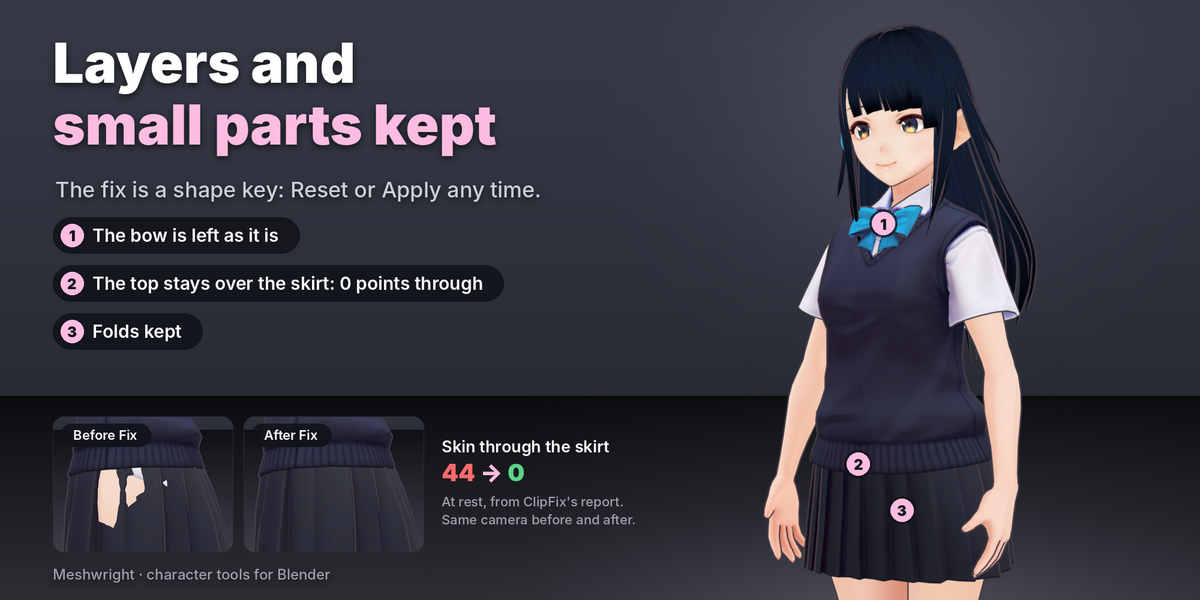
- small separate parts (buttons, buckles) keep their shape;
- folds stay: cloth that already stands off the skin keeps its distance.
The result is a shape key named ClipFix on each garment that needed it, at value 1. Turn the value down to compare. Garments that were already clean get no key and a "clean" line in the report.
- Reset deletes the ClipFix keys. The garments are exactly as before.
- Apply bakes the full fix into the garment's basis shape, whatever the ClipFix slider shows. Other shape keys keep their offsets and drivers. Press Apply before you export to FBX or VRM: game engines do not read the ClipFix key as part of the shape.
- One Ctrl+Z undoes a Fix.
The line under the Fix button and the Last Fix panel show the result. A warning mark means something needs a look: cloth left inside, clipping with a garment's modifiers on, a garment that moved more than 30 mm or stretched more than 25% ("moved or stretched a lot"), new places where the cloth crosses itself, or layers that still cross. Open Report has the details and a suggestion for each.
Special garments
- Small pieces (a bow, a brooch, smaller than 16 cm on a 1.7 m body) keep their shape. They only move as a whole, and only out of the body. A bow tied round a collar crosses that collar by design, so it is left there.
- Layers joined into one object (a shirt and a jacket in one mesh) are found by their loose parts and fixed as separate layers, innermost first.
- Closed, thick cloth (Solidify applied, an inner and an outer sheet) is fixed as one surface. When both sheets were inside the body and that would pinch more than a tenth of the outer sheet onto the inner one or push it under it, the inner sheet is fixed first and the outer sheet moves with it. Either way a few places can end pinched: on the demo jacket after a big body change, 123 of its 2164 outer vertices. The report gives the count.
Garments made for another body shape
If a garment was deeper than 25 mm inside the body, or more than 25% of it was inside and the fix stretched it by more than 10%, ClipFix still fixes it. The report then shows how much the fix stretched it, and says that Outfit Refit refits an outfit to a new body shape without stretching.
Protect group
Paint a vertex group named ClipFix Protect (or Protect, any letter case) on the garment over straps, logos or buttons sewn into the cloth. Weight 1 never moves. Lower weights move partly. Give the patch a soft edge (weights falling to 0 over a few centimetres): a hard edge leaves a step. Protected points that are still inside the body, and skin poking through protected cloth, are counted in the Last Fix panel. Select Them shows them in Edit Mode.
Garments ClipFix leaves out
Each is named in the report with what to do:
- a Mirror, Array or Screw modifier: only part of the cloth is real mesh. Apply the modifier;
- mesh data shared with another object (a linked duplicate): one fix would change both. Object > Relations > Make Single User > Object & Data;
- Disable in Viewports (the monitor icon) or an excluded collection: Blender does not apply its shape keys and rig. Hiding with the eye icon is fine;
- rigged to another armature whose rest pose differs from the body's rig: ClipFix fixes at rest, so it would fix a shape you do not see. Rig the garment to the body's armature.
Modifiers
Solidify, Subdivision Surface, Shrinkwrap and other modifiers stay on. ClipFix fixes the garment's own mesh (the cage) under them and reports any clipping left on that mesh. A modifier that reshapes the cloth after the fix can still put some of it back inside the body. So ClipFix then measures each garment with its modifiers on, names the modifier that clips, and says what clears it:
| Modifier | What happens | What clears it |
|---|---|---|
| Subdivision Surface, Multiresolution | smooths the cloth in towards the body | Reset, apply the modifier, then Fix |
| Solidify growing inward | the extra thickness goes into the body | set its Offset so it grows outward (+1, or -1 when the normals point in); if a few points stay inside, Reset, apply it, then Fix |
| Shrinkwrap | pulls the cloth back onto its target | turn it off: ClipFix already keeps the cloth at the Minimum Gap |
| Displace, Corrective Smooth and others | reshape the cloth after the fix | Reset, apply the modifier, then Fix, or turn it off |
Blender can only apply a modifier to a mesh without shape keys, so press Reset first (it removes the ClipFix key). A garment with other shape keys of its own cannot have the modifier applied; the report then still shows how much clips with the modifiers on.
We measured this on two test outfits, each with every modifier in the table. Following the advice cleared every case to 0 cloth points inside the body and 0 skin points poking through, except Subdivision Surface on one outfit, where an independent check still found 2 skin points (ClipFix's own check found none).
Clearance colours
Press Show Clearance. Every garment is coloured by its distance from the skin in the current pose:
| Colour | Distance (1.7 m body) |
|---|---|
| Red | inside the body |
| Orange | 0 to the Minimum Gap |
| Yellow | Minimum Gap to 3 mm |
| Green | 3 to 30 mm |
| Light blue | over 30 mm |
| Purple | crossing hair or an accessory |
Each colour has its own brightness, so the bands also read in greyscale. The panel shows how many vertices are in each band. Pose the rig and press Update to see any pose. Hide Clearance puts the viewport shading and each mesh's colour attributes back and deletes the temporary attribute. After a Ctrl+Z, Restore Shading puts the shading back.
Stress poses
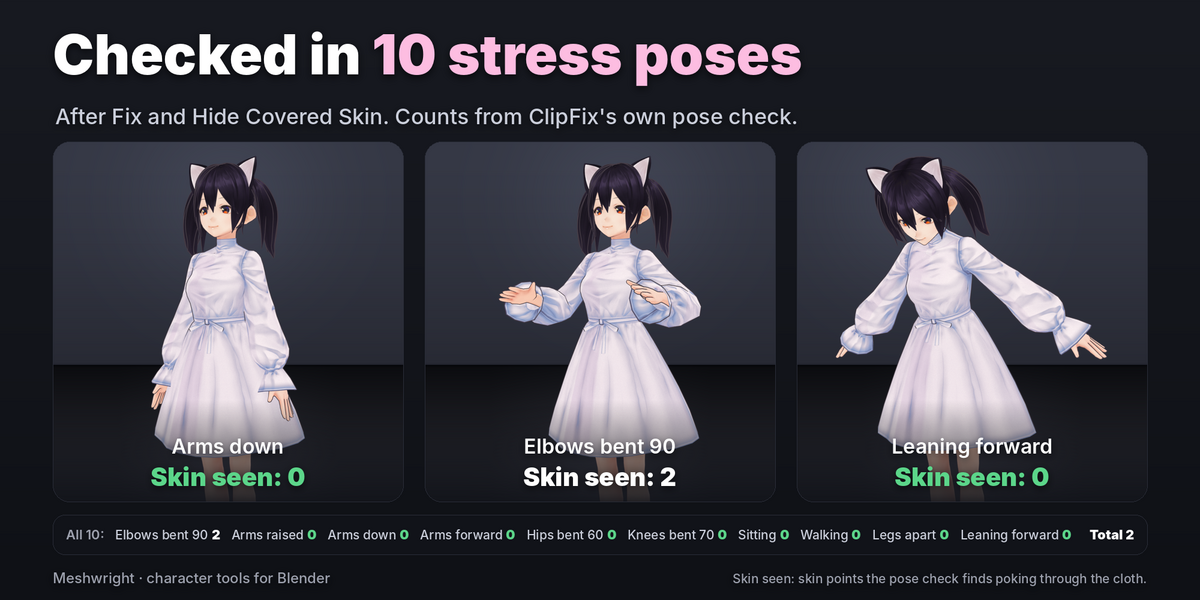
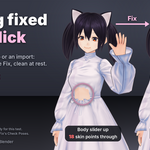
Choose Test Poses (10 poses built from the rig: elbows, arms up, down and forward, hips, knees, sitting, walking, legs apart, leaning) or Animation (up to 24 frames of the rig's animation). Press Check Poses. Nothing is changed.
Rigs: bone names from Mixamo, Unreal, Rigify, VRM and VRoid, MPFB, Cats, Daz and Character Creator are recognised. Other humanoid rigs are found by where the bones are.
The table shows, per pose:
- Cloth in: cloth inside skin you can see (folds such as the armpit and hidden skin are left out);
- Skin out: skin points poking out through the cloth;
- Seen: skin out that is not hidden.
Skin points are body vertices, so these numbers compare the poses of one body, not different bodies. Show puts the rig in that pose with clearance colours. Show Worst jumps to the pose with the most skin seen. Back to Rest puts the rig back exactly as it was, even after a save and reopen.
Cloth that hangs from bones the body does not use (skirt, hair and other physics bones) is listed as "moves with its own bones". It is not counted as clipping, because PhysBones or springs move it at runtime.
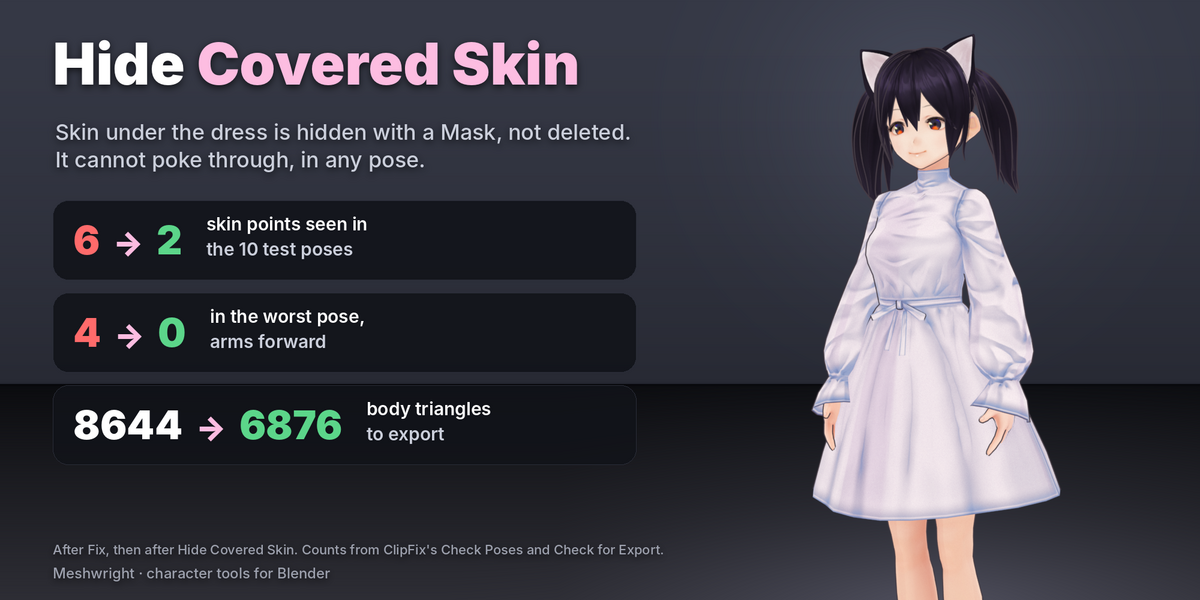
Clipping in poses comes from the weights. Moving cloth at rest cannot remove it. Hide Covered Skin is what helps most.
Try a Pose Round
An optional, careful round. Where skin still shows through in a pose, the cloth gets a little extra room at rest (at most 10 mm), and every pose is checked again. The round is kept only if visible skin goes down, no pose gets worse by more than 2 points, cloth dips into visible skin no more often, the rest pose stays clean and stretch rises 5 points or less. Otherwise nothing changes. Expect small gains.
Hide Covered Skin
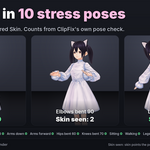
Press Hide Covered Skin. ClipFix adds a vertex group ClipFix hidden and a Mask modifier ClipFix hide skin to the body. The skin under tight cloth, at least 30 mm from bare skin, is hidden, so far less of it can show through in poses. The body mesh itself is not changed. Cloth that hangs from its own bones hides no skin. On a body with Subdivision Surface or Mirror, the Mask goes above that modifier. The panel shows the triangles before and after.
Show All Skin removes the group and the Mask.
Hair and accessories
Every Fix also tests the garments against the character's other meshes: hair, necklaces, other clothes on the same rig. Crossings are reported, shown in purple in the clearance colours, and listed in Hair and Accessories with a suggested side. Find Clashes runs the test on its own.
Nothing changes until you pick a side for a mesh and press Fix:
- Under: the cloth goes under the mesh, such as a collar under long hair. Below the head, the cloth moves in to just under the hair. On the head, a hood stays over the hair.
- Over: the cloth goes over the mesh, such as a shirt over a necklace.
- Ignore: nothing is done. New meshes start as Ignore.
Meshes that look like clothing not in the garment list (another outfit, or a piece of this one you left out) are listed too. Add them to the list if they belong to this outfit, or hide them.
The meshes in this list never move. The tuck under hair can flatten a collar, so look at it after the Fix. Undo, Reset or Ignore go back. Select Clashing Cloth selects the crossing cloth on every garment in Edit Mode.
Export check
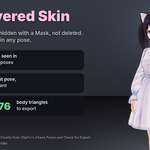
Pick the bone limit: VRChat and Unity (4) or Unreal (8). Press Check for Export. It checks that:
- the ClipFix key is applied;
- every garment is rigged (a mesh parented to one bone, such as a hat on the head bone, counts);
- no vertex has more bones than the limit;
- weights add up to 1;
- every vertex has a weight;
- the hidden skin is really removed for export.
It also shows the triangles the hidden skin saves and the shape key count of each mesh.
Some exporters keep the whole body when a Mask modifier is on. Make Export Copy of Body makes a copy with the hidden faces removed, in a new collection ClipFix Export. Shape keys, weights and the rig are kept. Export that copy, and hide one of the two bodies to look at the other.
The report
Open Report opens the full report in a Text Editor window (text "ClipFix Report"). It has one section per job, with plain suggestions.
What ClipFix writes into your file
- On a garment: the shape key "ClipFix", and a Basis key when the garment had none (custom property "clipfix_made_basis").
- On the body: the vertex group "ClipFix hidden" and the Mask modifier "ClipFix hide skin".
- On the rig, while a test pose is shown: the custom properties "clipfix_saved_pose" and "clipfix_shown_pose" (the pose to go back to).
- While clearance colours are shown: the colour attribute "ClipFix Clearance" on the garments, the custom properties "clipfix_prev_active_color" and "clipfix_prev_default_color" on their meshes, and "clipfix_saved_shading" on the screen.
- The scene settings (scene property "clipfix") and the text "ClipFix Report".
- With Make Export Copy of Body: a new object "<body> (export)" with the custom property "clipfix_export_of", in the collection "ClipFix Export".
Meshes listed in Hair and Accessories are never changed. A mesh in the garment list is a garment, so a Fix can move it.
Limits
- ClipFix aims for zero clipping at rest only, on the garment's own mesh, and reports anything left. Cloth lying right on the skin (a Shrinkwrap applied before the fix, for example) can keep a few skin points poking through at 1 mm; the report then suggests a larger Minimum Gap, and 2 mm cleared it in our test. In poses, ClipFix measures and hides skin.
- Modifiers that reshape a garment after the fix (Subdivision Surface, Solidify growing inward, Displace, Shrinkwrap, Corrective Smooth) can leave clipping while they are on. ClipFix measures it and says what clears it (see Modifiers).
- Closed thick cloth can end pinched in a few places (up to a tenth of its outer sheet).
- Fix can add places where cloth crosses itself on garments that move a lot. The report counts them.
- No cloth simulation.
- Big body changes stretch cloth. ClipFix warns and points to Outfit Refit, which refits without stretching.
- The tuck under long hair can flatten a collar.
- A garment over the face (a mask over nose and eyes) can move a lot. ClipFix flags it.
- ClipFix does not move outfits to another body, base or rig, does not transfer weights, does not copy outfit bones and makes no shape keys that follow body sliders. Outfit Refit does those.
- A body with a negative scale (mirrored) is refused. Apply the scale first.
- English only.
Have questions about this product?
Login to message
| Blender Extension Compatible | Yes |
| Published | about 13 hours ago |
| Blender Version | 4.2 - 5.2 |
| Extension Type | Add-on |
| Render Engine Used | Cycles, Eevee |
| License | GPL |
