Collection Organizer
 Doctor Legion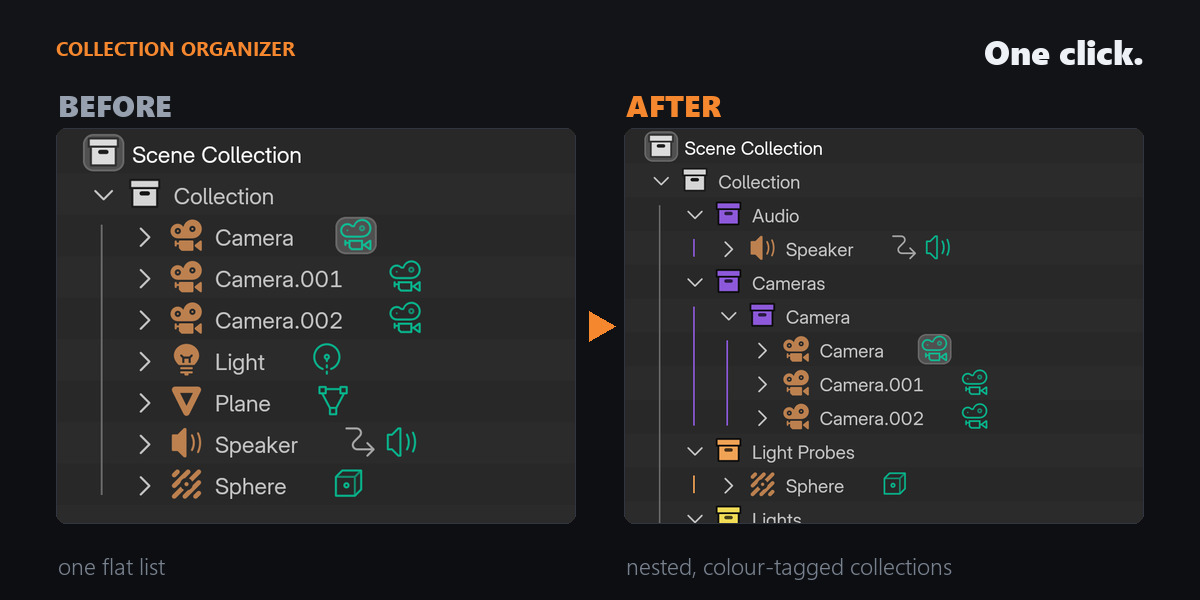




Collection Organizer — Documentation
Version 1.1.0 · Blender 4.2 or newer · Windows, macOS, Linux
Collection Organizer sorts the objects in your scene into a nested hierarchy of colour-tagged collections. It runs in one click, works on the whole scene or any single collection, and every run can be undone.
There are two engines and both are included:
- Algorithm — instant, fully offline, deterministic. No account, no network, no setup.
- AI — a GPT model reads your object names and builds the hierarchy. Signs in with your own ChatGPT account; a free plan works, and no API key is required.
1. Requirements
| Blender | 4.2 or newer (built and tested on 5.2 LTS) |
| OS | Windows, macOS, Linux |
| Dependencies | None. Pure Python, nothing to pip install |
| Internet | Only for the AI method. The Algorithm method never touches the network |
| Account | Only for the AI method. A free ChatGPT account is enough |
2. Installation
Collection Organizer ships as a Blender extension (a zip with a blender_manifest.toml inside). Install it from disk:
- Download
collection_organizer.zipafter purchase. Do not unzip it. - In Blender, open Edit → Preferences → Get Extensions.
- Click the dropdown arrow (˅) in the top-right of that panel, then choose Install from Disk…
- Select the zip. The extension installs and enables itself.
- In the 3D Viewport press N to open the sidebar, then pick the Organize tab.
That's it — you can already click Organize and use the offline Algorithm method.
Upgrading from an earlier version? Install the new zip the same way. Blender replaces the old copy in place, and your preferences (method, model, ChatGPT sign-in) are preserved. Restart Blender if the panel does not refresh.
If your Blender is older than 4.2, the extension format is not supported and the add-on will not install. 4.2 is the minimum.
3. Quick start
- Press N in the 3D Viewport → Organize tab.
- Set Method to Algorithm (instant, no account needed).
- Click Organize Scene.
Your Outliner is now a nested, colour-tagged hierarchy. Press F9 to adjust the result, or click Revert to put everything back.
4. Where you can run it
There is no separate window — it lives where you already work.
| Entry point | What it organizes |
|---|---|
| N → Organize tab → Organize Scene | The whole scene |
| Right-click a collection in the Outliner → Organize "…" | Only that collection's contents |
| Right-click an object (viewport or Outliner) → Organize "…" Children | Everything parented under that object |
| F9 after a run | Re-tunes the run you just did |
There is no default keyboard shortcut, deliberately — Blender's keymap is crowded. To add your own: right-click the Organize button → Assign Shortcut.
5. The Algorithm method (offline)
Choose Algorithm in the panel. Click Organize. Done — there is nothing to configure and nothing leaves your machine.
It classifies names using a built-in database of 3,500+ known object names across 20+ domains (architecture, anatomy, vehicles, weapons, nature, sci-fi, props, and more), plus structural rules:
-
Typos —
Chiar→ Furniture / Seating -
Compounds —
Streetlamp_01→ Urban / Street Furniture -
Abbreviations —
Bldg_A→ Architecture / Buildings -
Production prefixes —
SM_,GEO_are conventions, not names -
Collision & game markers —
UCX_,UBX_,USP_,UCP_→ Game Setup -
Rig helpers —
CTRL_,WGT_, IK/FK targets → Rig Helpers -
LOD chains and side pairs —
_LOD0,.L/.R,.001 -
Object type wins over the name — a light called
Sunis a lamp, andPlaneis a flat mesh, not an aircraft
It is deterministic: run it twice on the same scene and you get exactly the same layout. Typical scenes finish in milliseconds.
6. The AI method
Signing in
- Set Method to AI in the panel (or in Preferences).
- Click Sign in with ChatGPT. Your browser opens.
- Approve the sign-in. The page tells you to return to Blender, and the panel picks the session up automatically.
A free ChatGPT account works. There is no API key, no subscription, and the add-on never charges per use — it uses whatever allowance your own ChatGPT plan already includes.
While it waits you can Open Page Again (if you closed the tab by mistake — the pending sign-in is kept) or Cancel. An abandoned sign-in also times out on its own after 5 minutes and tells you why, and a sign-in interrupted by quitting Blender is cleared on the next start. You cannot get stuck on a spinner.
Behind a firewall or on a locked-down machine? Open Edit → Preferences → Add-ons → Collection Organizer and use Sign in (Device Code) instead. It shows a short code to type on ChatGPT's device page, and needs no local port.
Running it
- Click Organize.
- A small popup appears with one optional field — a note for the AI. Leave it empty and click OK to just organize.
- Watch the Outliner fill in.
Names go out in small batches (64 names per request, 4 requests in parallel) and every batch is applied the moment it lands, so the scene organizes progressively instead of freezing. A counter runs in the status bar. Press Esc to stop — whatever already landed is kept.
If the AI cannot run, nothing in your scene is changed and the add-on tells you why. It never silently falls back to the other method.
The note for the AI
The note outranks every default rule for that run. Examples that work:
group muscles by regioncollection names in Spanishflat hierarchy, no subcategorieskeep all LODs togetheruse French names and put vehicles first
The note is remembered for the next run and cached with the result, so repeating a run or tweaking it with F9 costs nothing extra.
Choosing a model
The AI Model dropdown lists models best to worst, newest first — the GPT-5.6 family (Sol, Terra, and Luna, the fast default), GPT-5.5, GPT-5.4 (+ Mini), GPT-5.3 Codex, GPT-5.2 (+ Codex), and the GPT-5.1 Codex family.
Free plans are served a smaller model set than paid ones. If your plan does not serve the model you picked, the add-on automatically uses the next available one and the result message tells you which model answered. You never get a dead end because of a model choice.
7. Tuning the result (F9)
Right after a run, press F9 (or open the redo panel bottom-left) to adjust and re-run instantly:
| Option | Default | What it does |
|---|---|---|
| Smart Categories | on | Use the built-in name database for semantic categories |
| Group by Type | on | Give non-mesh types their own top level (Lights, Cameras, Armatures…) |
| Keep L/R Together | on | Treat .L/.R and Left/Right pairs as one group |
| Max Depth | 0 (auto) | Cap how deep collections nest (0–8) |
| Min Group Size | 2 | Objects needed before a collection is worth creating (2–20) |
These knobs drive the Algorithm method. In AI mode the redo panel instead lets you change the note and re-run — the AI decides the structure, so local knobs would not reflect what actually happened.
8. Undoing a run
- Revert (in the panel) restores the previous layout exactly, touching only the objects that actually moved. It works several runs deep — up to 20 snapshots are kept per session.
- Ctrl+Z works normally as well.
- Nothing is ever deleted. Organizing only moves objects between collections and creates new ones; your objects, meshes, materials and existing collections are never removed.
- Snapshots are per-session and are cleared when you open a different file.
9. Privacy and network use
- The Algorithm method makes no network requests at all, ever.
- The AI method sends only distinct object names — never geometry, meshes, materials, textures, file paths, or your
.blend. - Duplicates collapse before sending: 500 copies of
Chairare sent as the single nameChair. Large scenes therefore cost about the same as small ones. - Requests go to ChatGPT using your own signed-in account. Your usage is governed by OpenAI's terms and your plan's limits.
- Your tokens are stored in Blender's add-on preferences and are never sent anywhere except OpenAI's own sign-in endpoints. Sign Out clears them.
The extension declares its network permission in its manifest, so Blender shows you exactly what it is for before you enable it.
10. Troubleshooting
"Could not open localhost:1455 for the sign-in callback" Another app is using that port (Codex CLI and OpenCode use the same one), or a firewall is blocking it. Close the other app, or use Sign in (Device Code) in Preferences instead.
"ChatGPT sign-in timed out — the browser page was never completed" The sign-in was abandoned for 5 minutes. Just click Sign in with ChatGPT again.
"ChatGPT session expired. Sign in again in Preferences." Your refresh token is no longer valid. Sign out, then sign in again.
"This model is not available on your ChatGPT plan." Normally handled automatically — the add-on falls back to the next model. If every model fails, your account may not have Codex access; use the Algorithm method.
"ChatGPT usage limit reached" Free accounts have the smallest allowance. Wait a few hours, or switch to the Algorithm method, which has no limits.
"AI didn't run — not signed in to ChatGPT. Nothing was changed." Sign in first, or switch Method to Algorithm.
The panel is missing Press N in the 3D Viewport and look for the Organize tab on the right edge. If it is absent, confirm the extension is enabled in Edit → Preferences → Get Extensions.
Nothing happened when I clicked Organize The target had no objects to sort, or everything was already organized. Check the status bar for the result message.
11. Good to know
- Collections are named cleanly — you will not get
.001suffixes, duplicate husks, orAnatomy 2. - Known categories keep fixed colours (Nature green, Weapons red…); everything else gets a colour hashed from its name, so it is stable across runs and re-running never reshuffles your scheme.
- Objects the AI does not classify are left exactly where they are rather than being dumped somewhere arbitrary.
- Organizing an already-organized scene is safe and idempotent.
12. Support
Questions, bugs, or a scene it handles badly — message me through the store. If you report a problem, the result message in the status bar and your Blender version are the two most useful things to include.
Have questions about this product?
Login to message
| Blender Extension Compatible | Yes |
| Dev Fund Contributor | |
| Published | 3 months ago |
| Blender Version | 4.2 - 5.2 |
| Extension Type | Add-on |
| Render Engine Used | Cycles, Eevee |
| License | Mit |
Discover more products like this
outliner scene organization collections productivity asset management collection colors cleanup ai chatgpt automation organize Workflow