 H3 STUDIO

Installation
- Download collection_polycount_v2.7.0.zip. Do not unzip it.
- In Blender open Edit > Preferences > Add-ons.
- Click the drop-down arrow at the top right and choose Install from Disk…, then select the zip.
- Make sure Collection Polycount is ticked in the add-on list.
To update, install the new zip the same way. To uninstall, open the add-on in the list and choose Uninstall.
Quick start
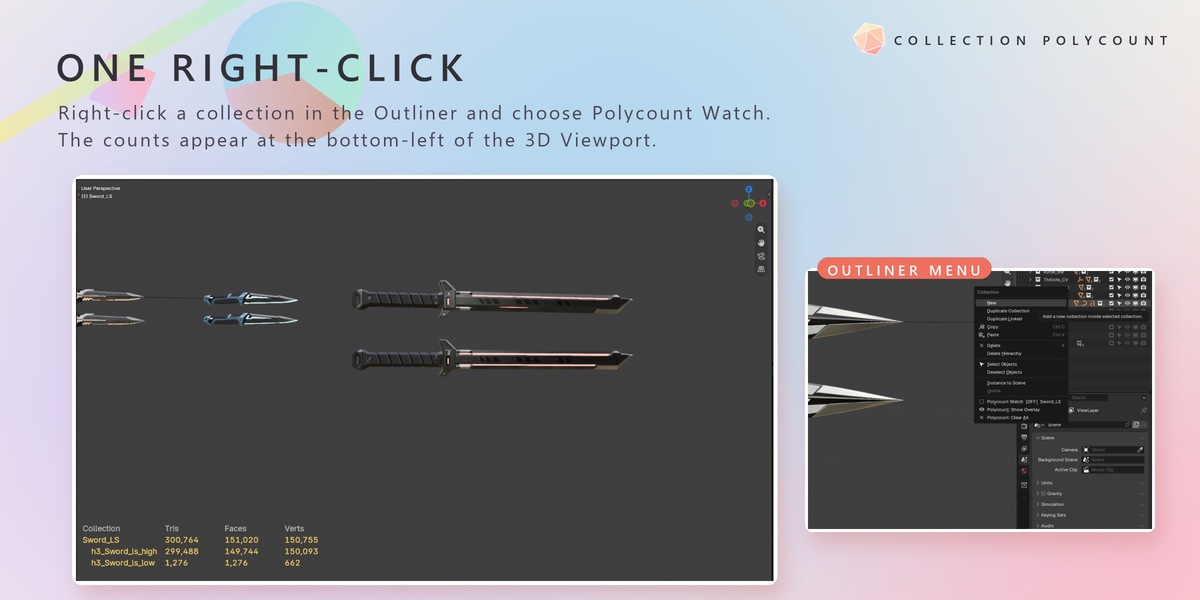
- In the Outliner, right-click a collection.
- Click Polycount Watch. The menu shows [ON] or [OFF] and the collection name.
- The counts appear at the bottom-left of every 3D Viewport.
There is no sidebar tab and no panel. Everything starts from the Outliner right-click menu.
Outliner menu
- Polycount Watch – turns watching on or off for the collection. With several collections selected the item shows how many are on, e.g. (1/3 on). If all of them are on, it turns them all off; otherwise it turns them all on.
- Polycount: Show Overlay – hides or shows the overlay. Your watched collections are kept.
- Polycount: Clear All – stops watching every collection in the file.
Watching is stored on the collection, so it is saved with your .blend file. Turning it on or off can be undone with Ctrl+Z.
Reading the overlay
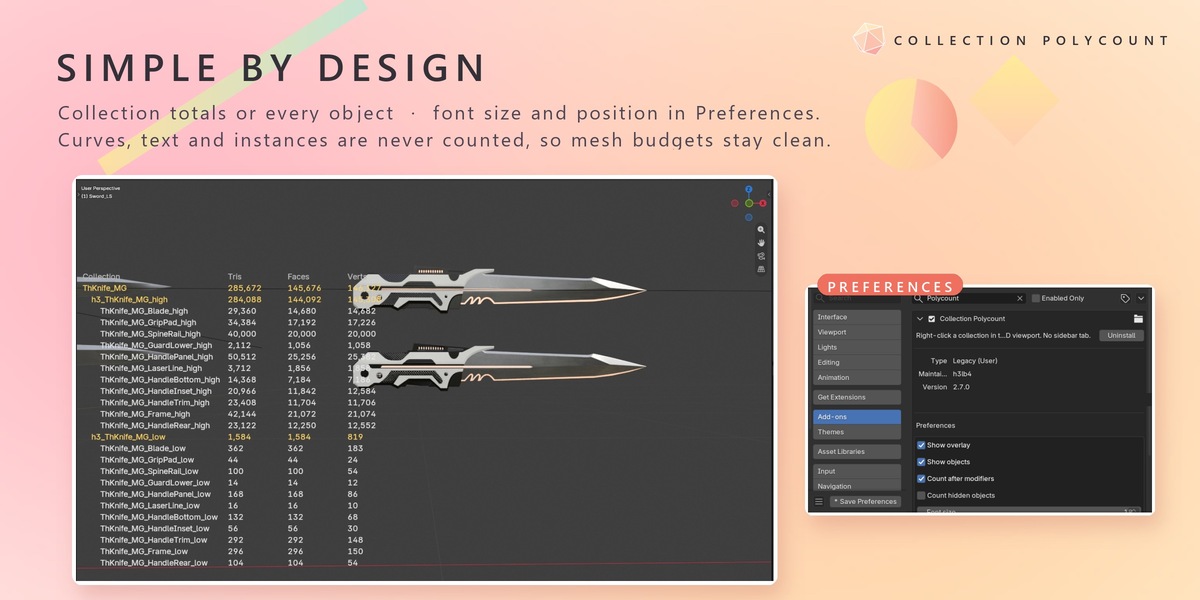
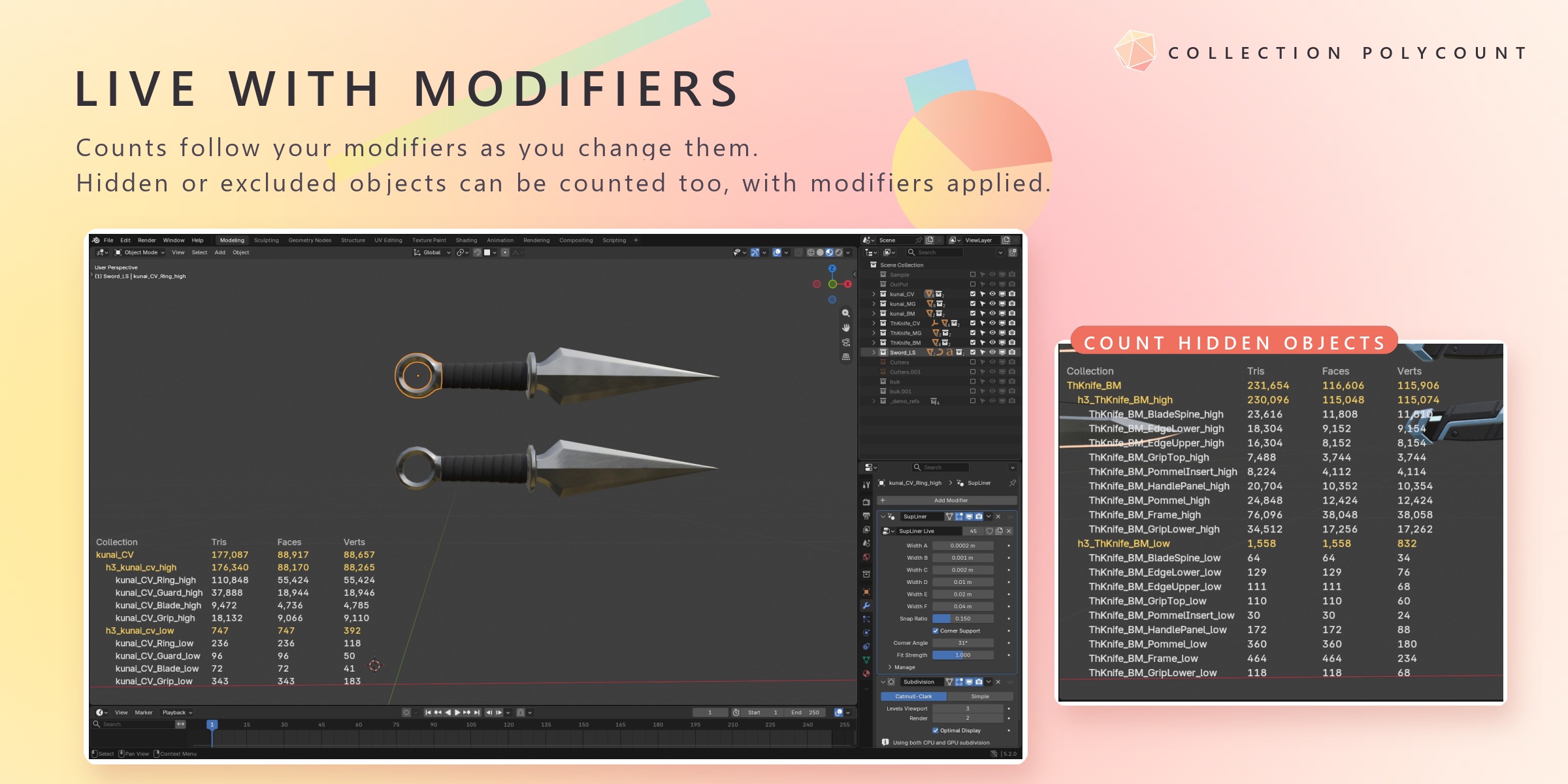
- The columns are Tris, Faces and Verts.
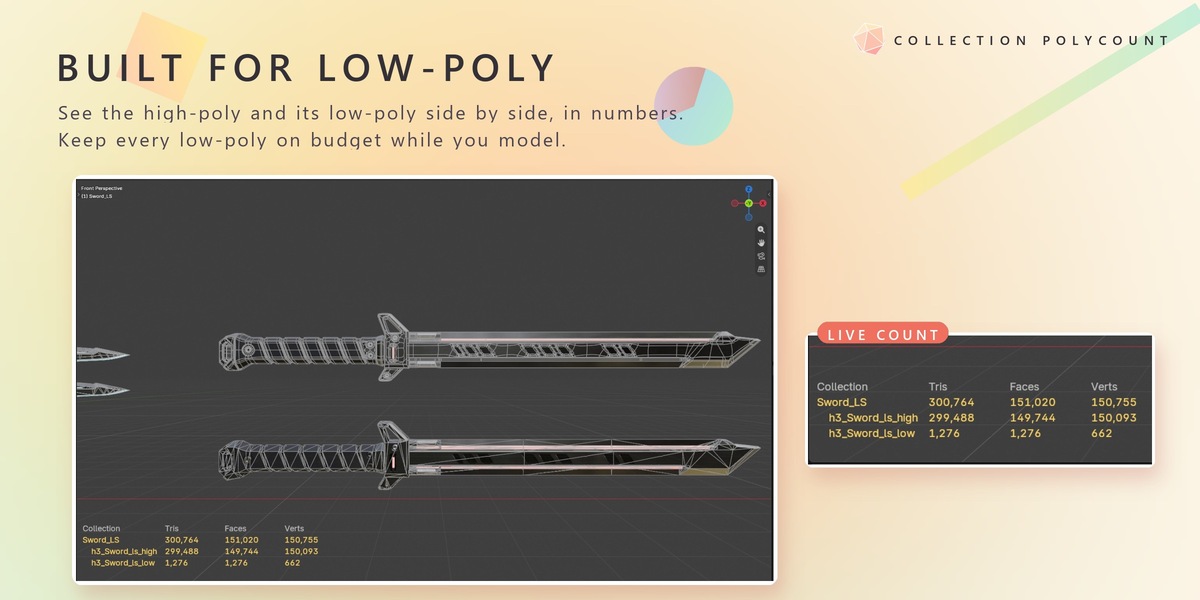
- Yellow rows are collections. A collection's total includes its sub-collections, and an object linked into several sub-collections is counted only once.
- White rows are the objects in a collection (when Show objects is on).
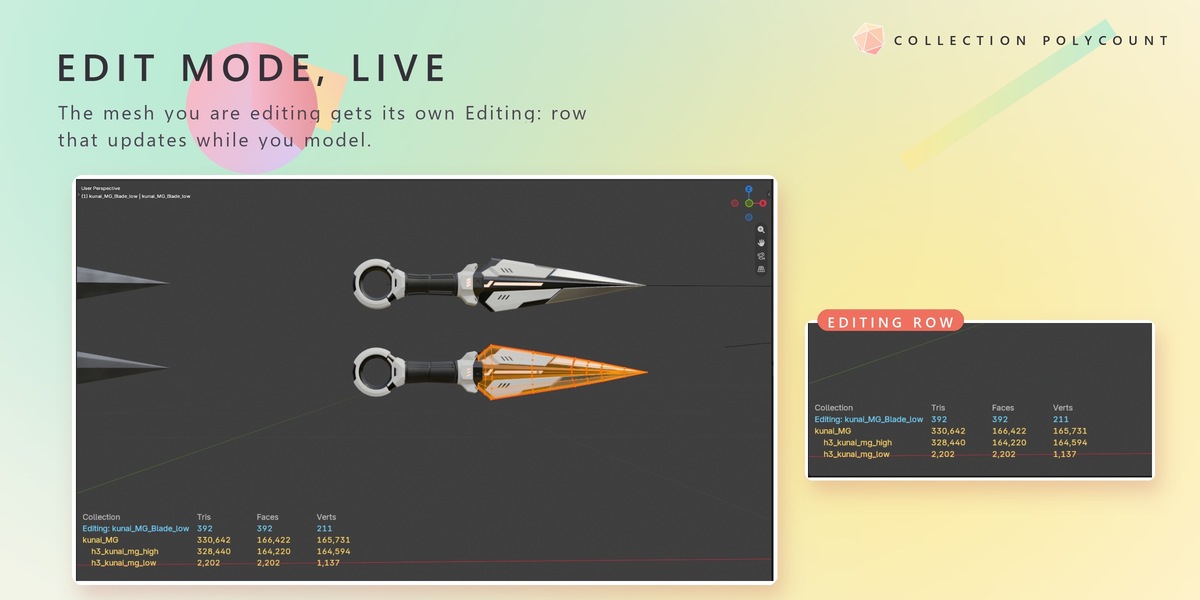
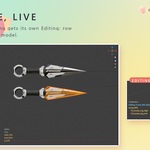
- Blue rows marked Editing: are the meshes you are editing in Edit Mode. They appear at the top whether or not their collection is watched, and update while you model.
- Watching a collection also lists its sub-collections, indented below it. You do not need to watch them one by one.
- Tris is the number of triangles after triangulation: a quad counts as 2, an n-gon as n − 2.
What is counted
- Mesh objects only. Curves, text, metaballs, Grease Pencil, empties, collection instances and Geometry Nodes instances are not counted. Convert them to mesh if you want them in your budget.
- Modifiers: with Count after modifiers on (default), counts include the result of the modifier stack (Subdivision, Mirror, Array, Geometry Nodes and so on). Turn it off to count the base mesh.
- Visibility: by default only objects visible in that 3D Viewport are counted. Objects hidden with the eye icon, disabled in viewports, in excluded collections or outside Local View are left out.
- Count hidden objects: turn it on to include those objects too, with their modifiers applied.
Preferences
Edit > Preferences > Add-ons > Collection Polycount
- Show overlay – on / off (same as Polycount: Show Overlay).
- Show objects – list each object, or collection totals only.
- Count after modifiers – count the modifier result, or the base mesh.
- Count hidden objects – include hidden objects (see above).
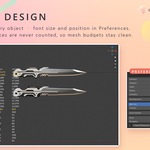
- Font size – 8 to 60 (default 24).
- Left offset / Bottom offset – move the overlay in pixels (defaults 0 / 30). The overlay always stays to the right of the toolbar.
Compatibility
Tested with Blender 5.2.
$3
Have questions about this product?
Login to message
| Published | 1 day ago |
| Blender Version | 4.2 - 5.2 |
| Extension Type | N/A |
| License | GPL |
Discover more products like this
triangle count low poly collections outliner game development game assets polygon budget poly count polycount optimization statistics high poly