 Sonneblom Digitaal

What it does
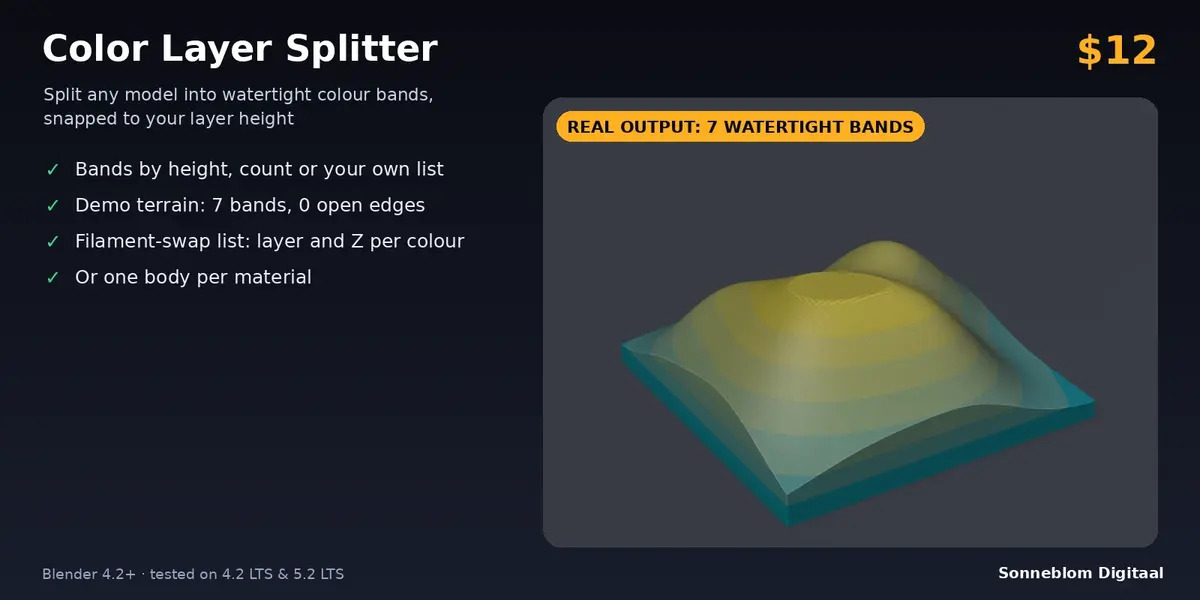
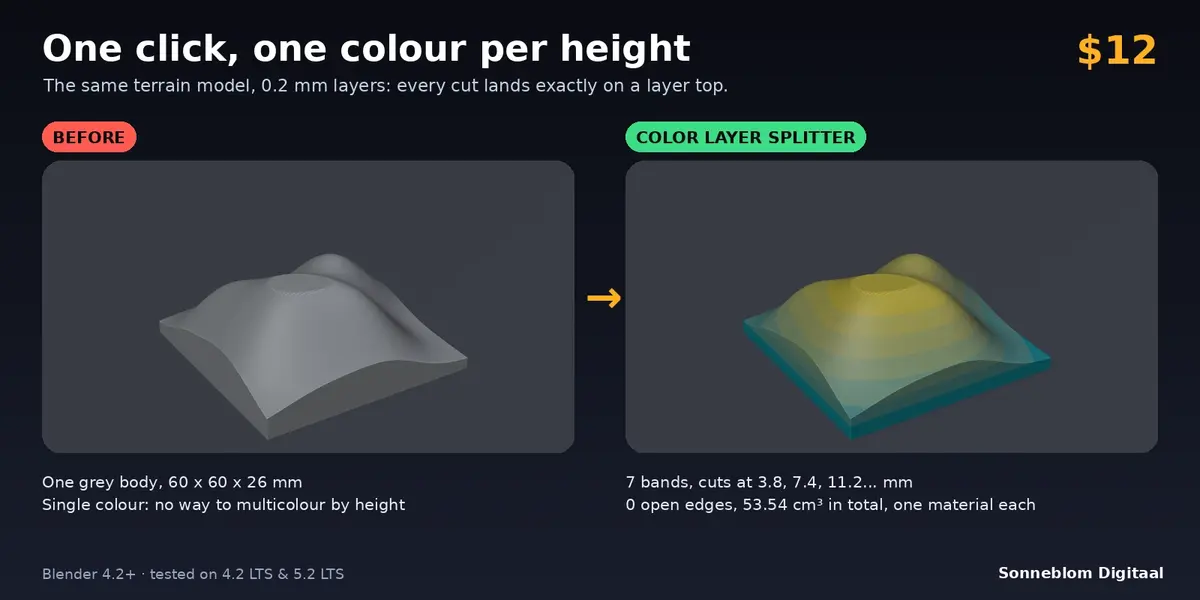
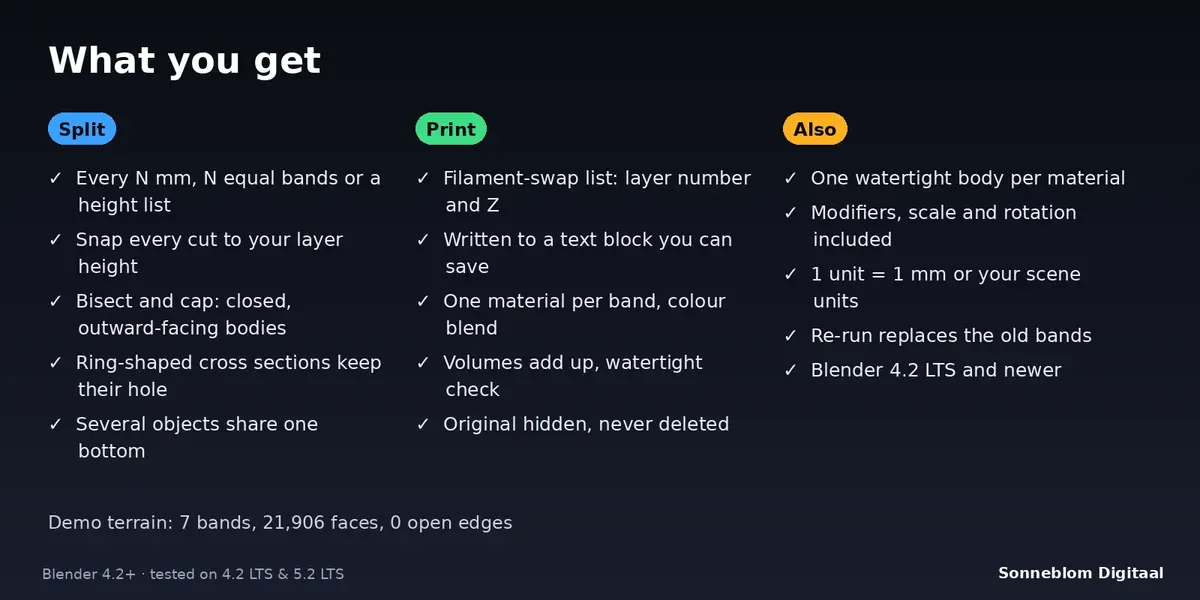
Color Layer Splitter cuts a model into watertight colour bands for multicolour 3D printing by height: topographic maps, layered logos, signs, vases with colour gradients. Every band is its own closed solid with its own material, every cut can be snapped to your layer height so the colour changes exactly between two printed layers, and the add-on writes the filament-swap list (layer number and Z height for every colour change) so you do not have to work it out by hand. It can also split a model into one body per material.
Who it's for
Makers who print multicolour models on a single-nozzle printer with filament changes, or on a multi-material machine, and who until now cut models by hand with Boolean modifiers or paid someone to do it. No modelling skills needed: select the model, choose how to cut it, click one button.
Key features
- Three ways to choose the cuts: a band every N mm, a number of equal bands, or your own list of heights in mm.
- Snap to layer height: every cut moves to the nearest layer top for your layer height and first layer height.
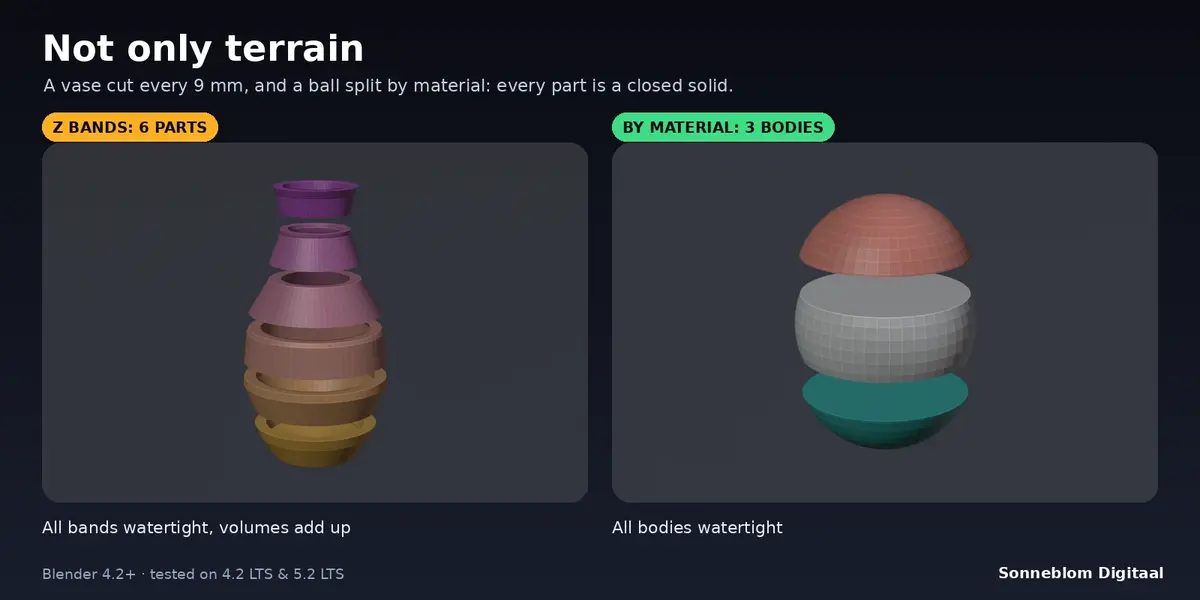
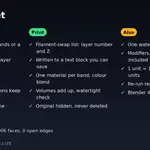
- Watertight bands: each cut is capped with a flat face; ring-shaped cross sections (tubes, rings, vases) keep their hole. Each band is checked: open edges and the sum of the volumes are reported.
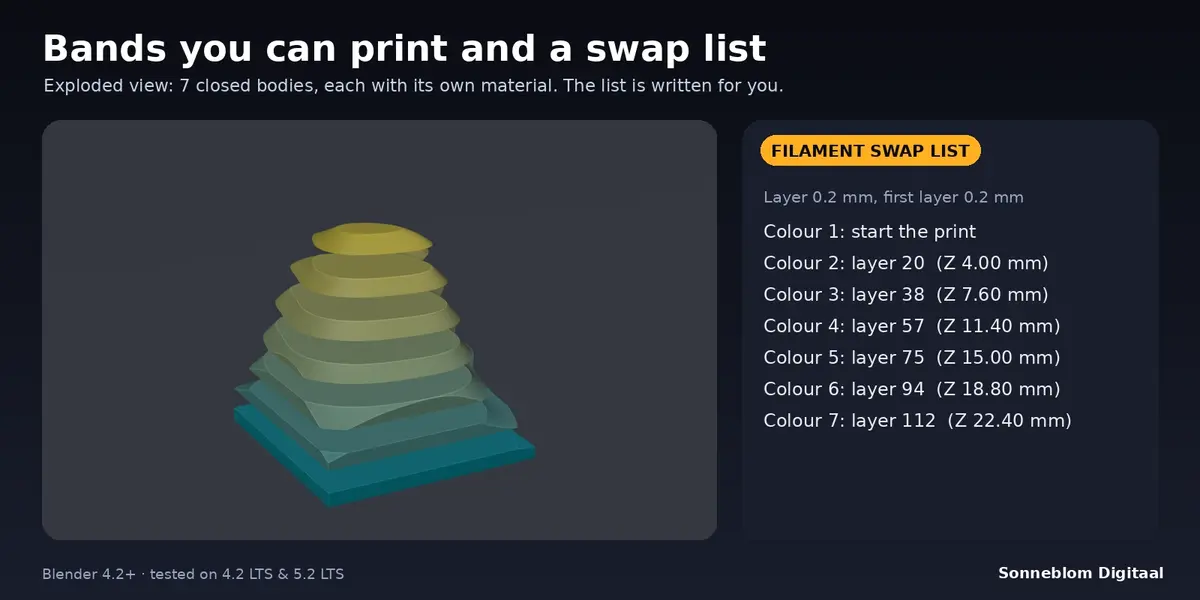
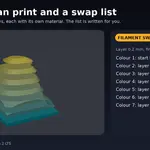
- Filament-swap list: for every colour change, the first layer of the new colour and its Z height, written to a text block called "Filament swaps" and shown in the panel.
- One material per band: the colours blend from a bottom colour to a top colour, so you see the result straight away.
- Split by material: one watertight body per material of a model; the boundaries between materials are capped flat.
- Works on what you see: modifiers, scale, rotation and mirrored objects are included. Several selected objects share one bottom, so their colour changes line up on the print bed.
- Units: 1 unit = 1 mm (default), or follow your scene units.
- Safe: the original is hidden, never deleted; running it again replaces the earlier bands; undo works.
How to use
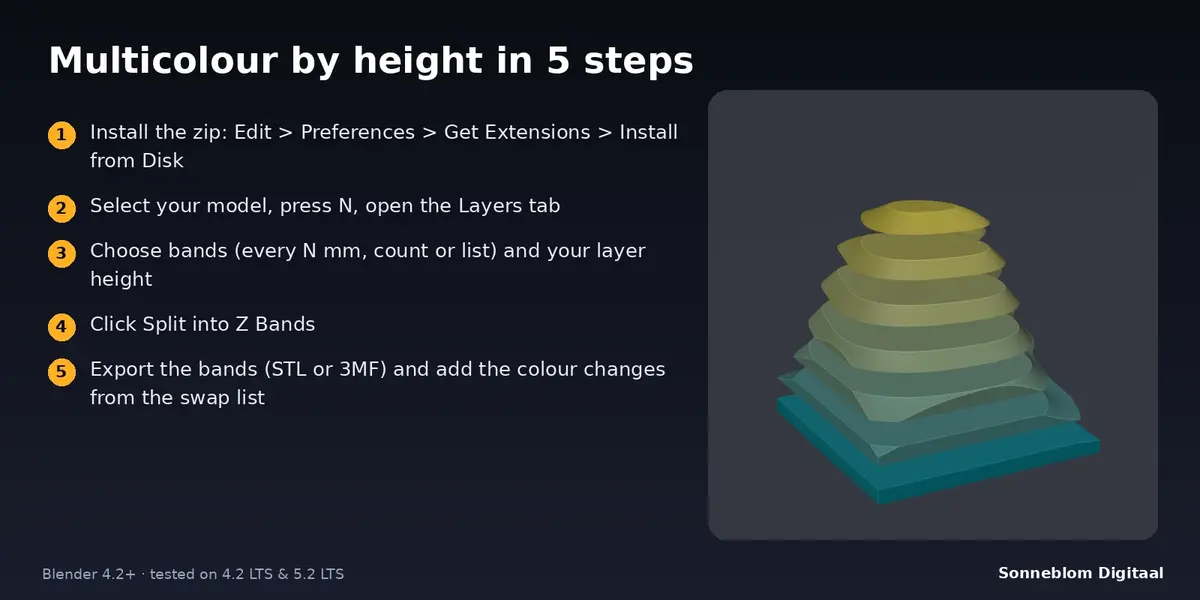
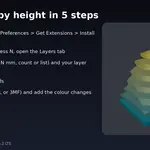
- Select your model in the 3D Viewport and press N, then open the Layers tab.
- Choose how to cut: every N mm, a number of bands or a height list, and enter your layer height.
- Click Split into Z Bands (or Split by Material for a model with several materials).
- Read the swap list in the panel or in the Text Editor block "Filament swaps".
- Export the bands (STL or 3MF) to your slicer and add the colour changes at the layers shown.
Compatibility
Blender 4.2 LTS or newer, tested on 4.2 LTS and 5.2 LTS. Both the extension zip and the classic add-on zip are included.
Good to know
- Your model should be watertight (closed). If it has holes the add-on still works and tells you that the bands may have open edges.
- Cuts are horizontal planes (along Z). Tilted or curved colour boundaries are not supported by the height mode.
- When a cut would land exactly on a flat face of your model, the plane is nudged up by about 0.0006 mm so no face is doubled. Slicers do not see this.
- Split by Material needs closed colour regions; the boundary is capped with a flat face, which works best for flat or planar colour boundaries.
- The add-on does not talk to your slicer: you add the colour changes there, using the list.
- Limit: 200 bands per model.
Support
Questions or a bug? Use the Superhive product page messages and we reply within a day.