Color Ramp to Map Range Converter
 Redmoon Studio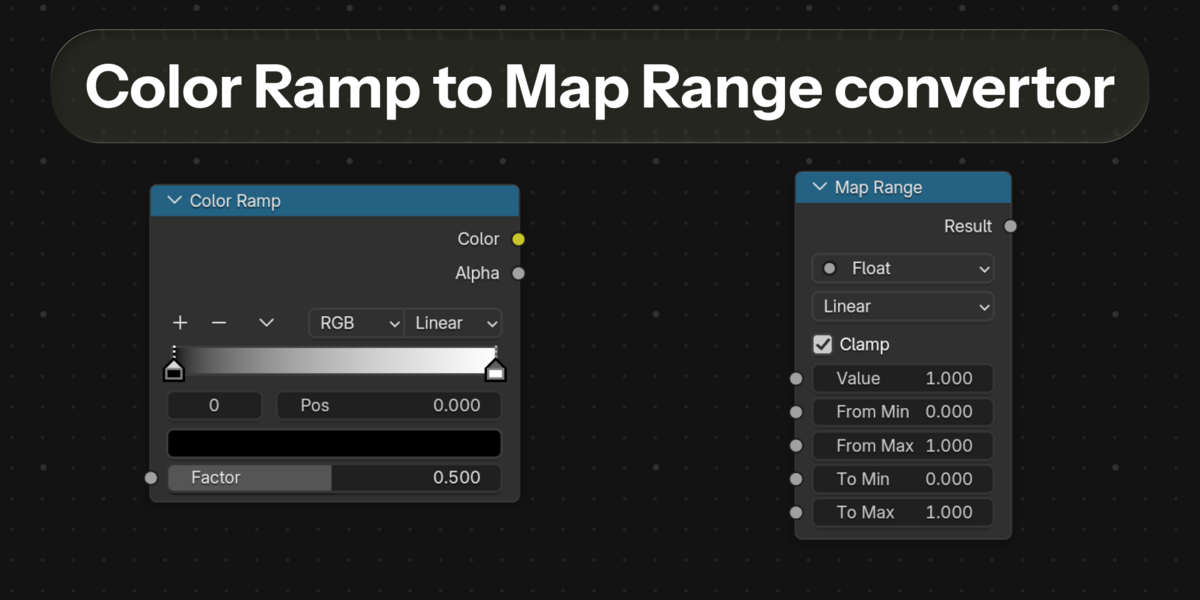

RampConvertor — Documentation
1. Installation
-
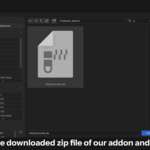
Download the RampConvertor add-on
.zipfile. - Open Blender.
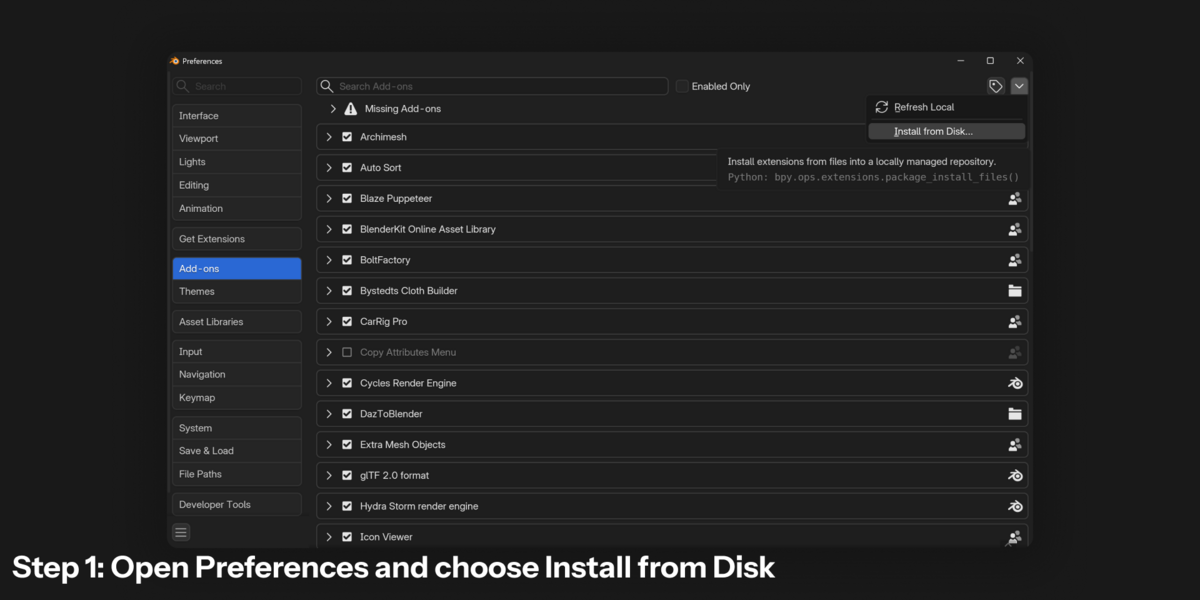
- Go to Edit → Preferences → Add-ons.
- Click the Install... button.
-
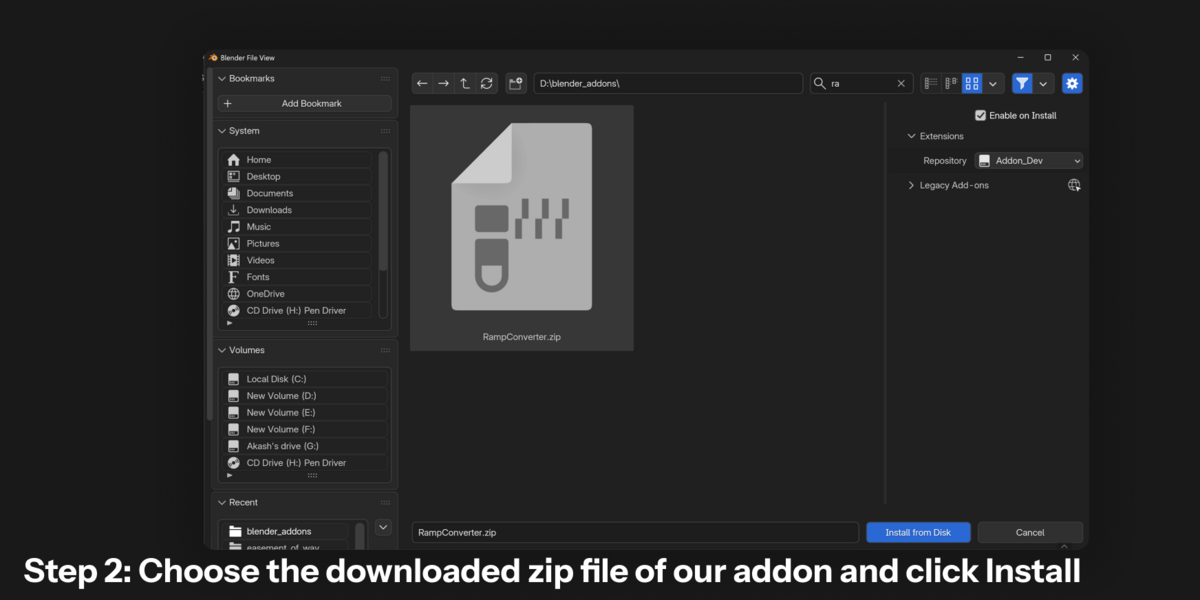
Select the RampConvertor
.zipfile. - Click Install Add-on.
- Enable RampConvertor using the checkbox next to the add-on.
Once enabled, the add-on is ready to use.
2. Convert Color Ramp to Map Range
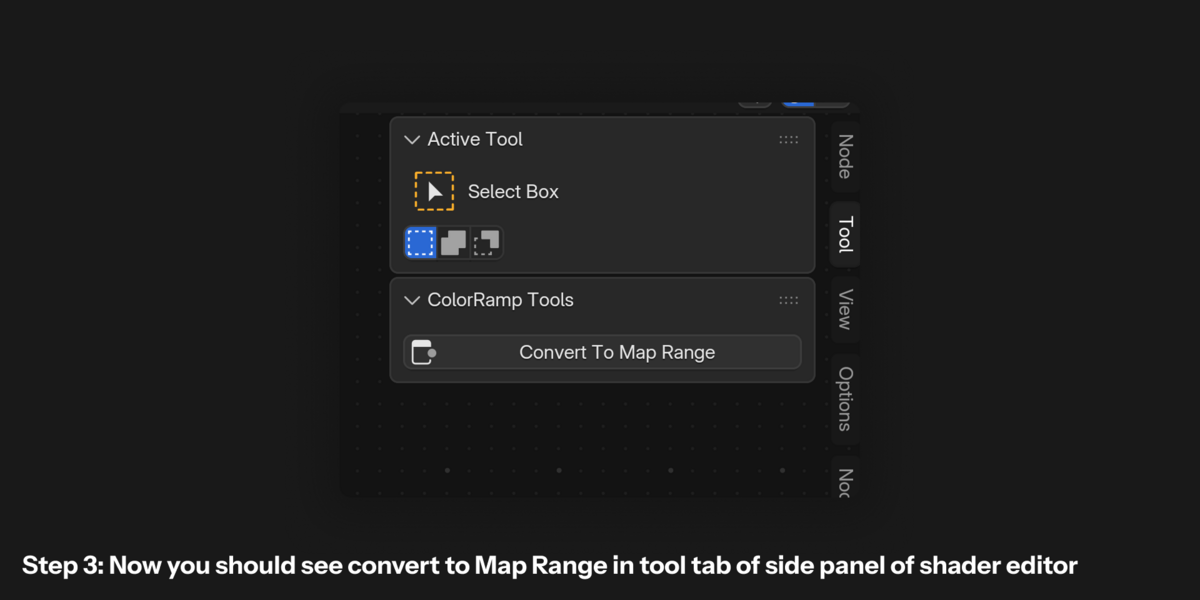
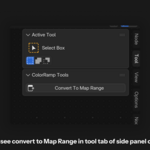
RampConvertor adds a Convert to Map Range button to the N-panel (Side Panel) of Blender's Shader Editor.
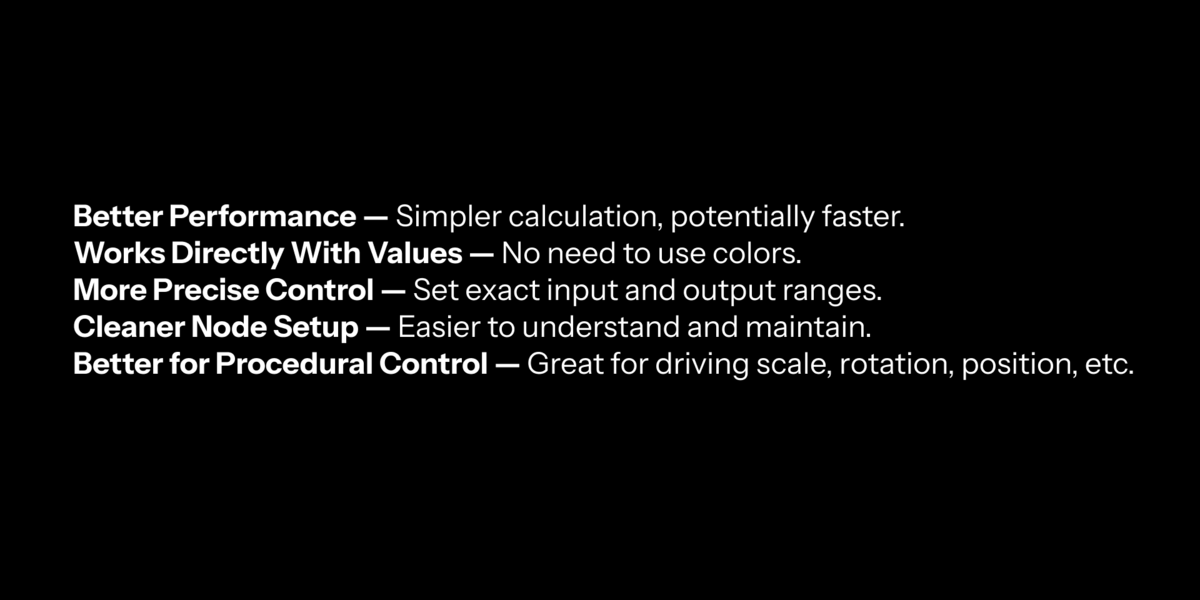
Blender's Color Ramp is normally used to map an input value through a gradient, while Map Range is designed to remap a value from one numerical range to another.
How to use it
- Open the Shader Editor.
- Press N to open the sidebar.
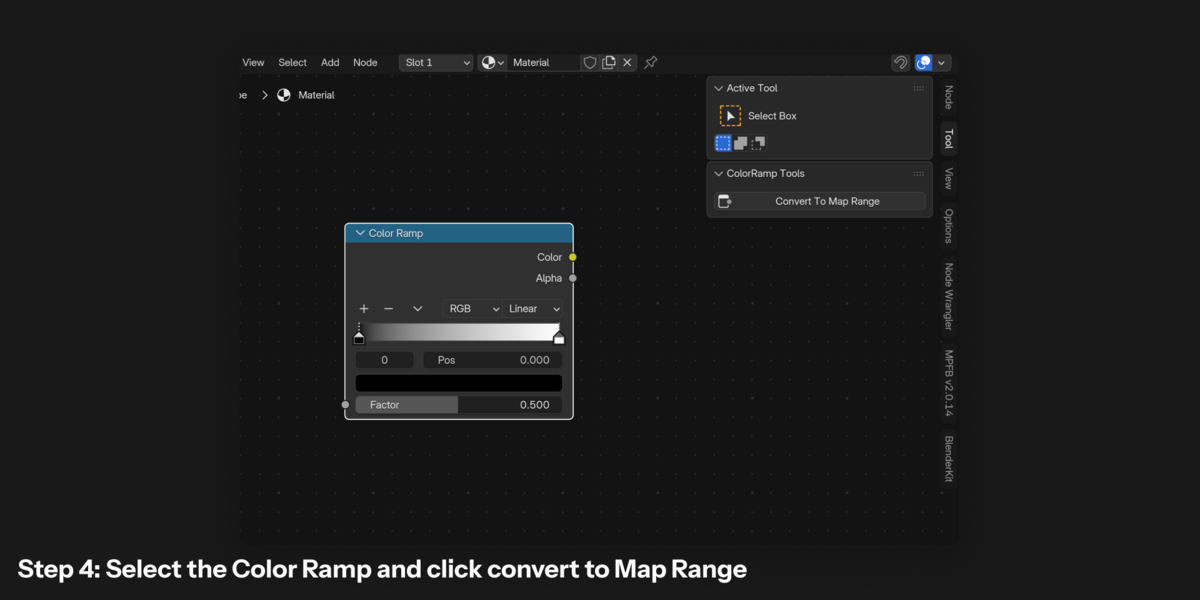
- Select a Color Ramp node.
- Open the RampConvertor panel.
- Click Convert to Map Range.
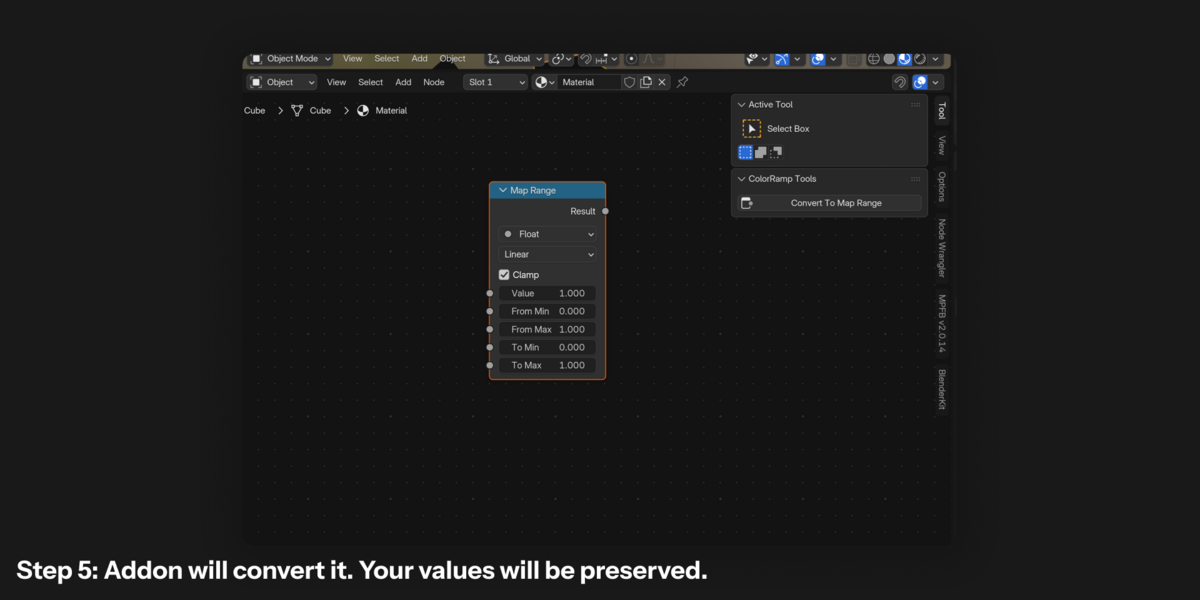
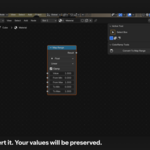
RampConvertor will automatically convert the selected Color Ramp into a Map Range node while preserving the relevant values from the Color Ramp.
This makes it quick to replace a Color Ramp when you are using it for numerical value remapping rather than color generation.
3. Example
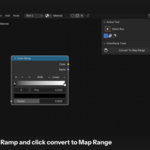
Before:
Value → Color Ramp
After:
Value → Map Range
Instead of manually recreating the range settings, RampConvertor performs the conversion for you while preserving the existing setup.
 Included
Includes 12 months of
- Support from Redmoon Studio
- Product updates
Extend this product’s Support Period +12 months: 50% of product price
Have questions before purchasing?
Login to message
| Blender Extension Compatible | Yes |
| Published | about 2 months ago |
| Blender Version | 5.0 - 5.2 |
| Extension Type | Add-on |
| License | GPL |