Conduit
 Alberto Cordero
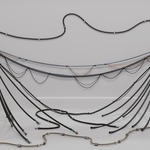
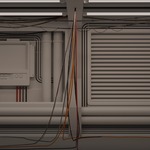
Install
- In Blender, go to Edit > Preferences > Add-ons > Install from Disk and pick
conduit_1.1.5.zip. - Enable Conduit.
- Open the 3D viewport sidebar (N) and click the Conduit tab.
Needs Blender 4.5 LTS or newer. Every release is tested on 4.5 and on the newest Blender.
Getting started
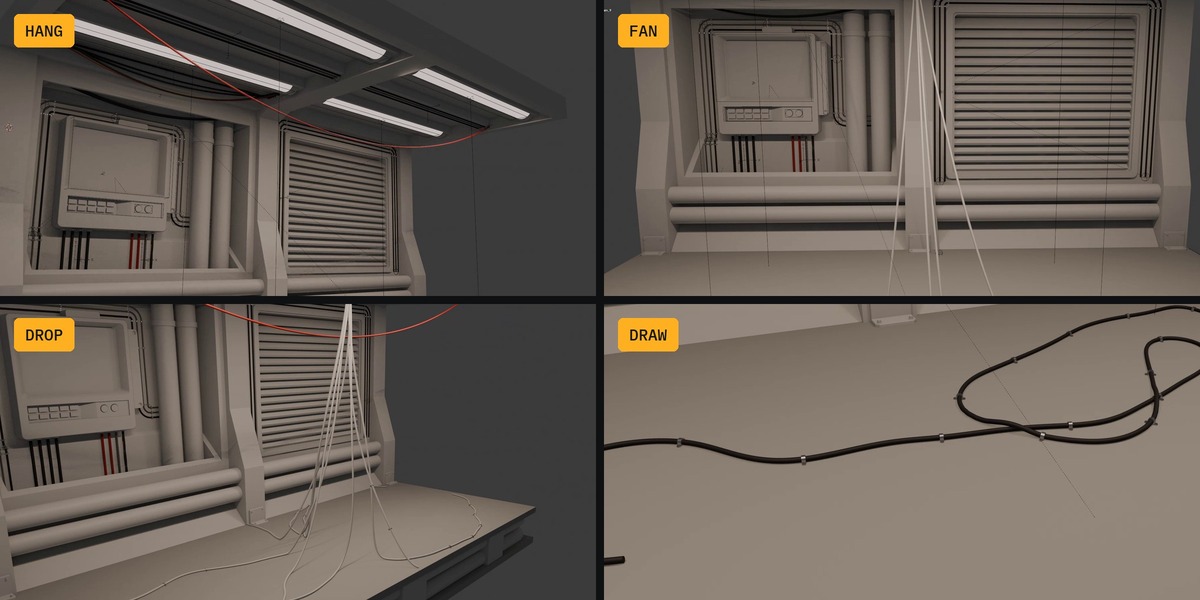
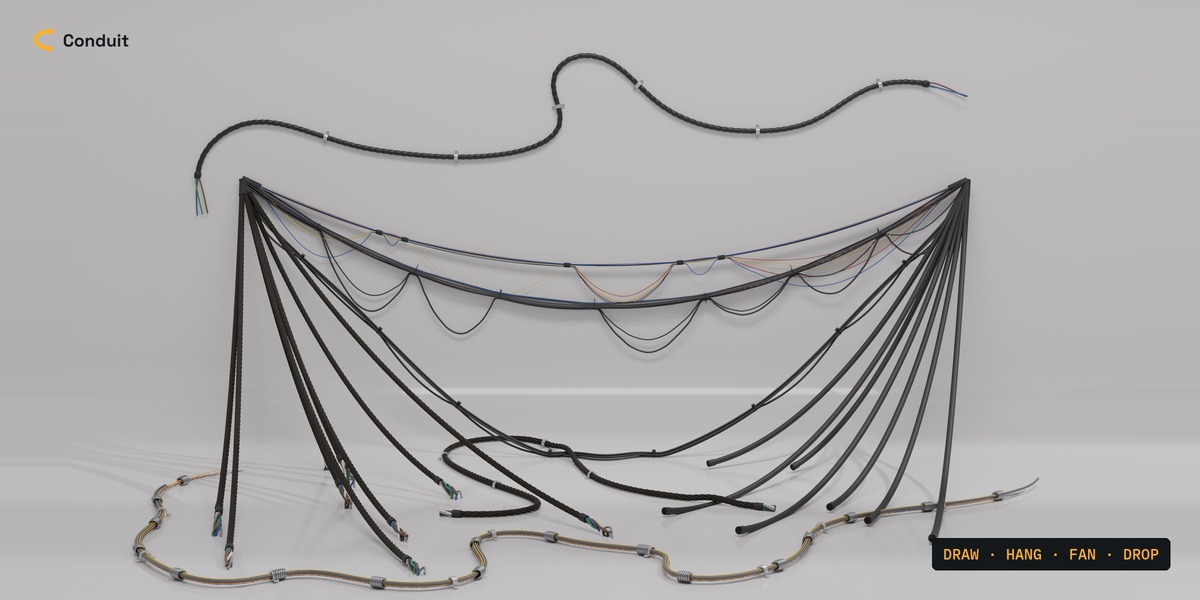
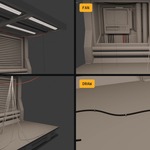
The panel opens on Add cables as…: Quick Setup across the top, then Hang, Fan, Draw and Drop. One click enters a mode and makes its first layer. A layer is one cable setup with its own look, anchors and output; each mode has its own list of layers. Clicking any Conduit cable, anchor or fitting in the viewport makes its layer active and turns the panel to its mode.
Setups: ready-made rigs
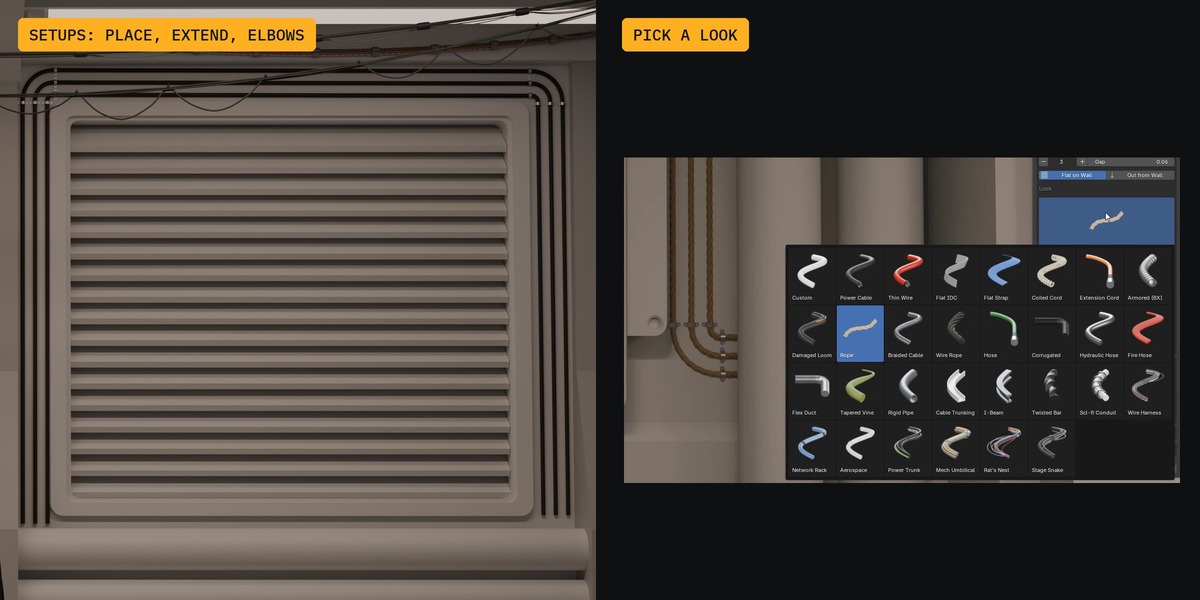
Pick a setup from Run (Single, Trio, Pipe) or Hang (Power, Bundle, Harness), hover a surface to preview, and click to place. Scroll sets the length, Ctrl+Scroll turns it 15 degrees a notch, Esc cancels. The rig lands square to the wall you click.
- A setup is a Root empty with its anchors parented to it: move, turn or scale the Root to move the whole run.
- Edit Cables, Gap, Flat on Wall / Out from Wall, Slack (Hang) or Bow (Run), Profile and Thickness for every cable at once.
- Extend adds legs left, right, up or down from either end, or Click to Extend point by point, even round a corner onto the next wall. Every joint gets an elbow, and a bundle stays parallel through it.
- Convert to Hang Layer turns a setup into an ordinary Hang layer with every control; the cable doesn't move.
Hang: cables between anchors
- Place Anchors makes a pair either side of the 3D cursor, or Pick places anchors on a vertex, edge or face (they stick to it and follow it).
- Move the anchors and click Generate Cable. From then on everything rebuilds live.
- Add Point inserts an anchor between two selected ones; Remove Point takes it out again.
- Chain runs one cable through every anchor; A to B makes one cable per pair.
- New Cable adds more cables along the same anchors: Together, Spread side by side, or Manual Offset.
- Slack, per-span Sag Variance and Seed shape the hang. Drop lets an end fall to the floor, or a loop from the middle.
Fan: one hub to many targets
- Add Main places a hub at the 3D cursor, or Set Selected uses an empty you select (a hang anchor too).
- Add Targets and click a face: targets scatter across it (scroll for how many). Click Targets adds them one click at a time.
- Cables build at once and rebuild live. Change a group's Count and cables are added or removed; the ones already placed stay put. Slack is randomised between Min and Max.
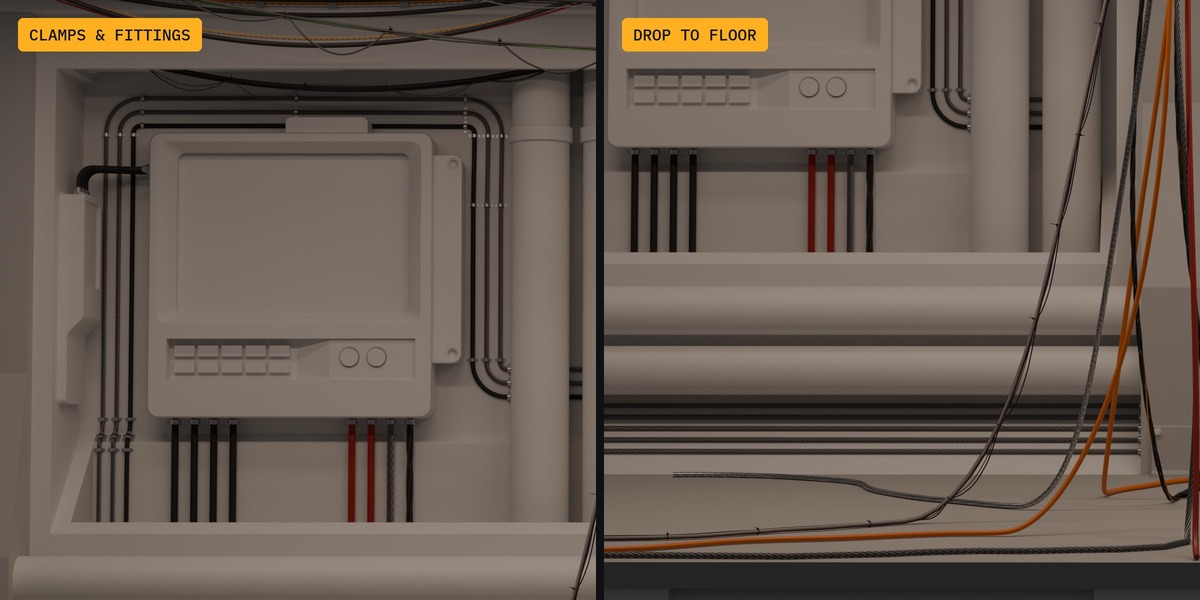
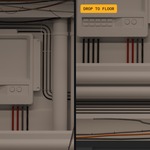
Drop to Floor brings fan cables down from the end or the middle, with Chance for how many, and Avoid Crossings.
Draw: trace a cable across a surface
Draw Cable on Surface, then drag across any mesh. The cable follows the surface; Surface Offset lifts it off. Extend, Erase and Redraw Stroke edit the stroke. Cross Over Cables lifts the cable over any Conduit cable it meets and settles it back down. Freeze protects hand edits.
Drop: a bundle falling from a ceiling
- Snap the 3D cursor to a ceiling face (Shift+S), then Ceiling from Cursor.
- Pick the Floor mesh.
- Set Cables and Spread, then Place Landings. Drag any landing to steer its cable; Reseed rerolls them.
Shape it with Fall Bow, Floor Bend, Sprawl and Waviness. Landing Chance leaves some cables hanging short. Avoid Obstacles keeps falls and floor runs out of walls and props; Override Selected Cable gives one cable its own look.
Profiles
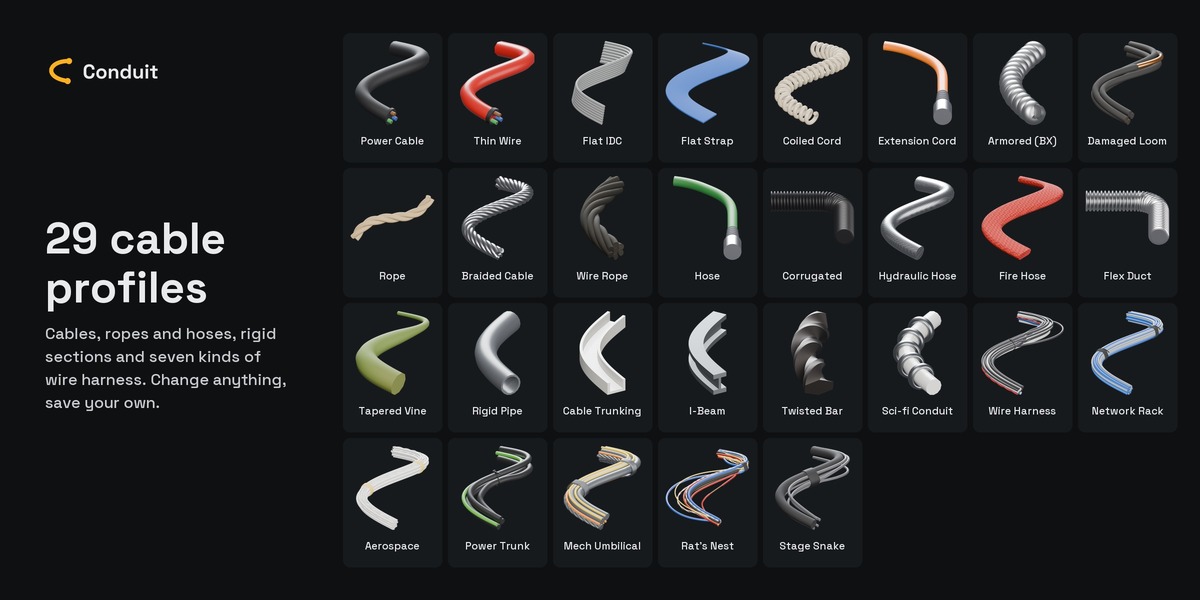
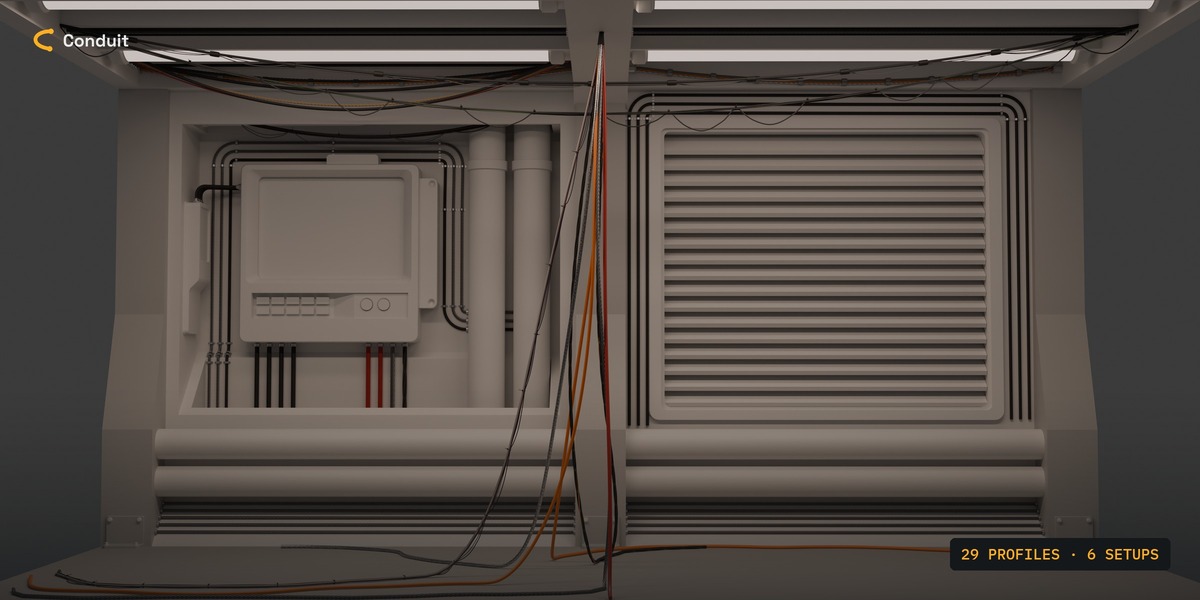
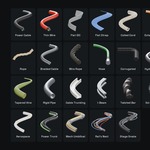
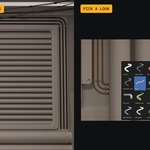
29 presets in four groups: Cables, Ropes & Hoses, Rigid and Harness. Each comes with its own material, which only goes on a cable with no material of yours. A preset is a starting point:
- Shape: Round, Square, Rectangle, Hexagon, N-Gon, Pipe, Teardrop, L-Angle, U-Channel, I-Beam, or any curve you pick.
- Strands for rope and braid, Coil for a phone cord, Taper, ribs, thickness noise and Damage.
- Harness: many cables in one run held by zip ties, tape, velcro, ID bands or collars, built from rows you define, with loose cables and controls against repetition.
- Thickness is always the cable's outside diameter; clamps, fittings and gaps follow it.
- Save a profile to your library and Load it in any file.
Ends, fittings and clips
- Exit: let the cable sag from the anchor, leave the surface square (Square to Surface), follow the anchor's Z (Aim), or go into the wall (Into Surface).
- Style: Plain, Stripped, Frayed, Heat-Shrink or Taped. Uneven Cut and Break Out for harness ends, wire by wire to terminals.
- Fitting at either end: Gland, Plug, Lug, Ferrule, Grommet, or your own object. The cable runs straight into it before it bends.
- Clip: a built-in Saddle Clamp or your own object, at the anchors or spaced along the cable.
Finalize: bake to mesh
Bakes a layer to a mesh for export, at its own resolution. World Length UVs give every cable the same texel density; seams can be offset per cable. One mesh per layer or one per cable, with the triangle count shown. The curves are hidden, never deleted, so you can change anything and bake again. Detach Mesh hands the mesh over for good.
Copy, paste and Append
Copy cables to another file (Ctrl+C / Ctrl+V), Append them, or drag them from the Asset Browser: they arrive as live layers, ready to edit. In any layer list, pick a row and its cable flashes in the viewport; the eye hides it, Ctrl+click shows only that one.
Viewport detail
Every layer has a Full / Medium / Low switch with its face count. Use Medium or Low for heavy scenes and Full for the final render; the bake uses its own settings.
Preferences
Edit > Preferences > Add-ons > Conduit: Profile Library folder, Live Delay for heavy scenes, Panel Tab, and Adopt pasted cables automatically.
Coming from EScatter?
Remove EScatter first, then install Conduit. Your cable layers open as they were and saved profiles are copied over.
Support
Bugs and requests: github.com/AlbertoCGArt/Conduit/issues. Please include your Blender version, the Conduit version and a small .blend if you can.
Conduit is free software under the GNU GPL, version 3 or later.
Have questions about this product?
Login to message
| Published | about 5 hours ago |
| Blender Version | 4.5 - 5.2 |
| Extension Type | N/A |
| Render Engine Used | Cycles, Eevee |
| License | GPL |
Discover more products like this
pipes wires wire harness procedural Cable generator hoses kitbash sci fi game assets hard surface environment art cables