 Tony
Tony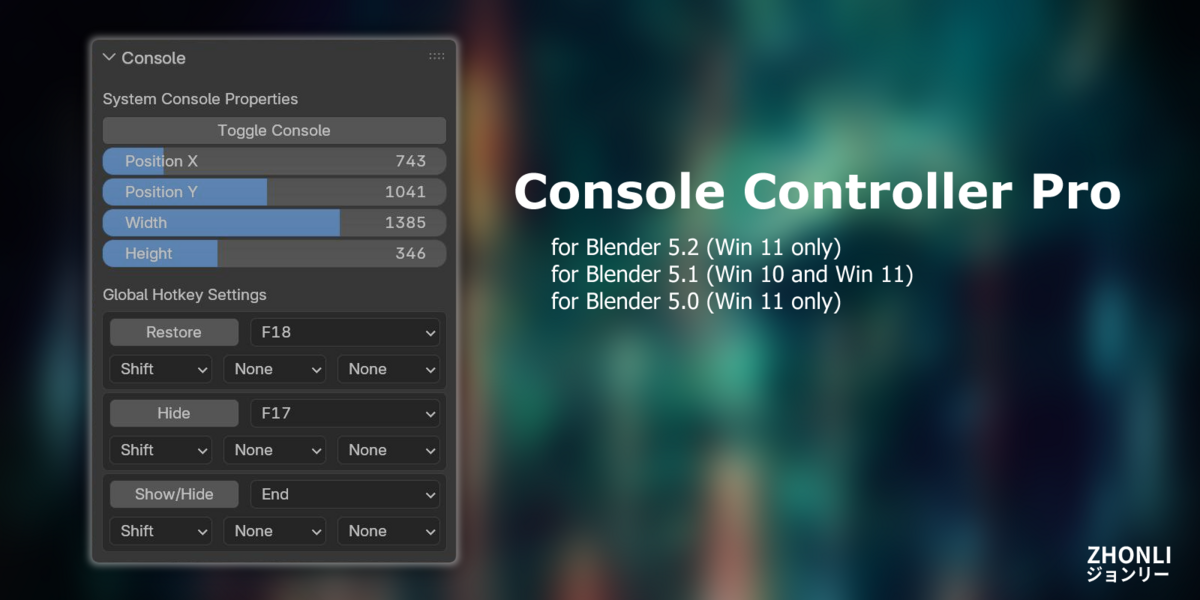



[2026.07.17] Update Add-ons for 5.2. Blender 5.2 uses the Win 11 Terminal. maz_console_controller-5.2.0 only works in Win 11.
[2026.03.18] Update Add-ons for 5.0 and 5.1
[2026.03.18] Blender 5.0 uses the UI features of Win 11. The Add-on for Blender 5.0 is only compatible with Windows 11.
[2026.03.18] Blender 5.1 uses the old Console. The Add-on for Blender 5.1 works with Windows 10 and Windows 11.
Add-on for Blender System Console.
Keep the system console on the top of Blender to help your development.
Features:
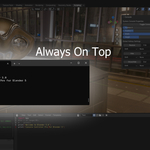
(1) Always On top feature
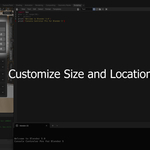
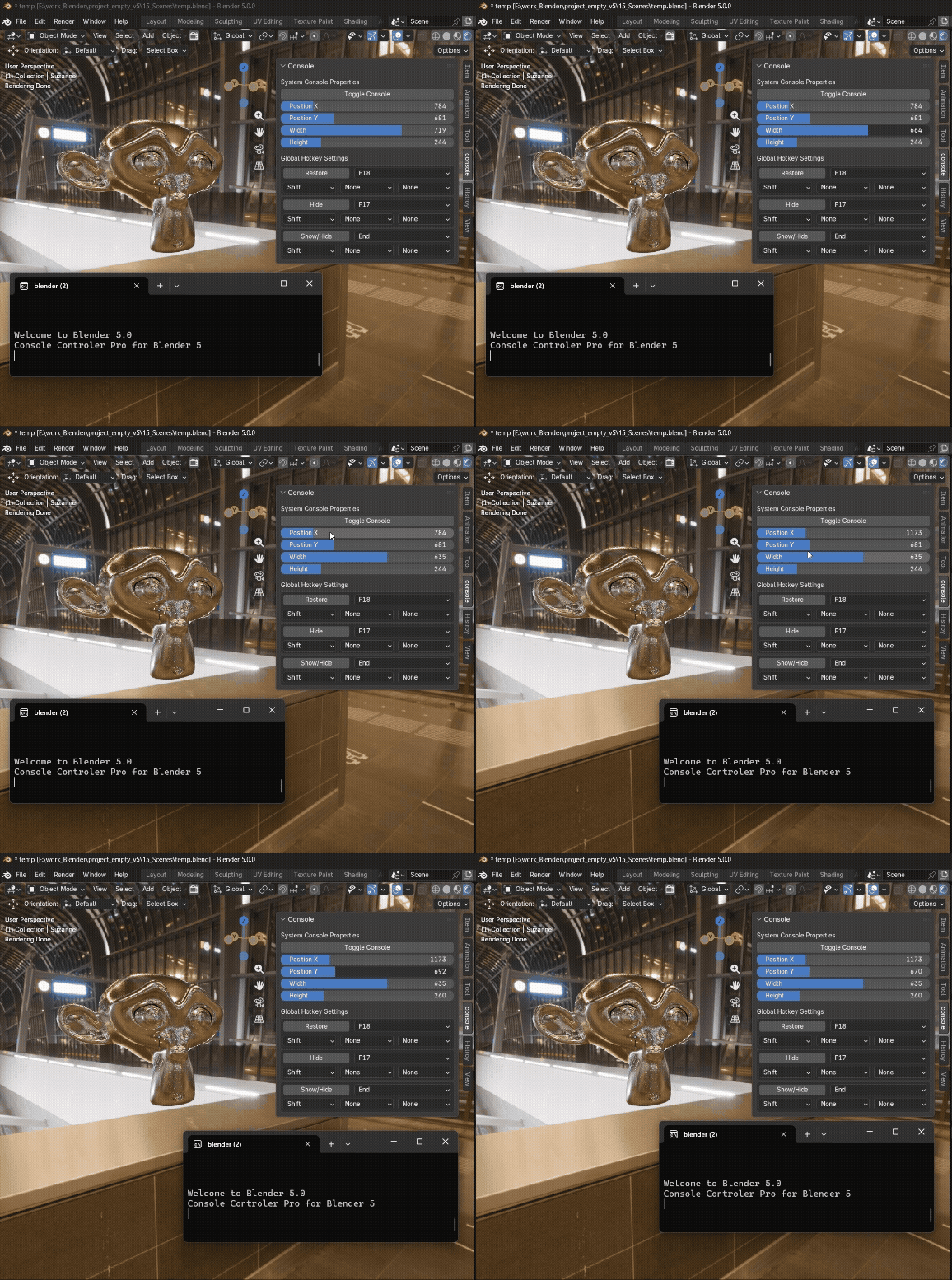
(2) Define the position and size of the system console
(3) Auto save user's settings
(4) Windows Global Hotkey setting feature
Restore, Hide, and Toggle(show/hide) are available
NOTE: Windows Platform Only. Python Script.
If you think the add-on would be useful, please order a copy to support the Blender, Blender Market, and my development.
Or you need the add-on to help your development, but no budget. Please visit:
Mayalizer:: Blender Console Controler (gumroad.com)
How to use:
How to use:
[1] Press the hotkey,
[Blender] N,
[Blender 4.x] N,
[Industry Compatible] Ctrl + ],
to show the side bar
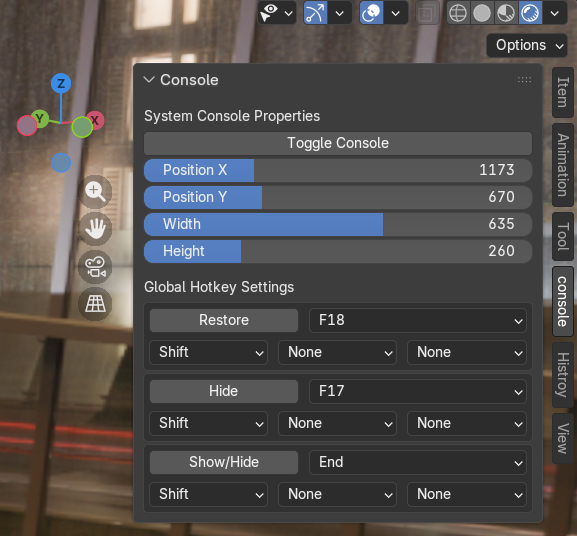
[2] Click the tab "console".
[3] You will see the interface.
How to append a hotkey:
[1] Click Edit > Preferences
[2] Click keyMap
[3] Click "Add New" under the Wndow item.
[4] Copy the command:
panel_op.maz_console_panel_op
[5] Paste into the field.
[6] Now, you can define a hotky for it. Set the action with "toggle console". In this case, I use the hotkey, Ctrl + End.
Interface Functions:
(a) Toggle Console >> Show/Hide System Console
(b) Position X >> Define the X position of the console
(c) Position Y >> Define the Y position of the console
(d) Width >> Define the width of the console
(e) Height>> Define the height of the console
How to set a global hotkey:

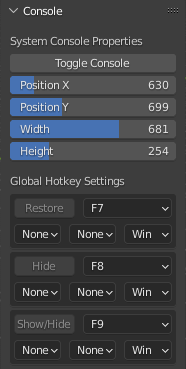
NOTE:: There are 3 global hotkeys. By default >> Win + F7 >> Restore the console Win + F8 >> Hide the console Win + F9 >> Toggle the console
For example, the tutorial shows how to set a global hotkey of Restore.
1. Click “F7” and set it to “F6”.

2. “Restore” button becomes active.
3. Press the “Restore” button. If the hotkey is available, the comfirm dialog will pop up.

NOTE:: If the hotkey is not available, the warning dialog will pop up. In this situation, you must change the hotkey because Windows has used it.

