 NemVe3D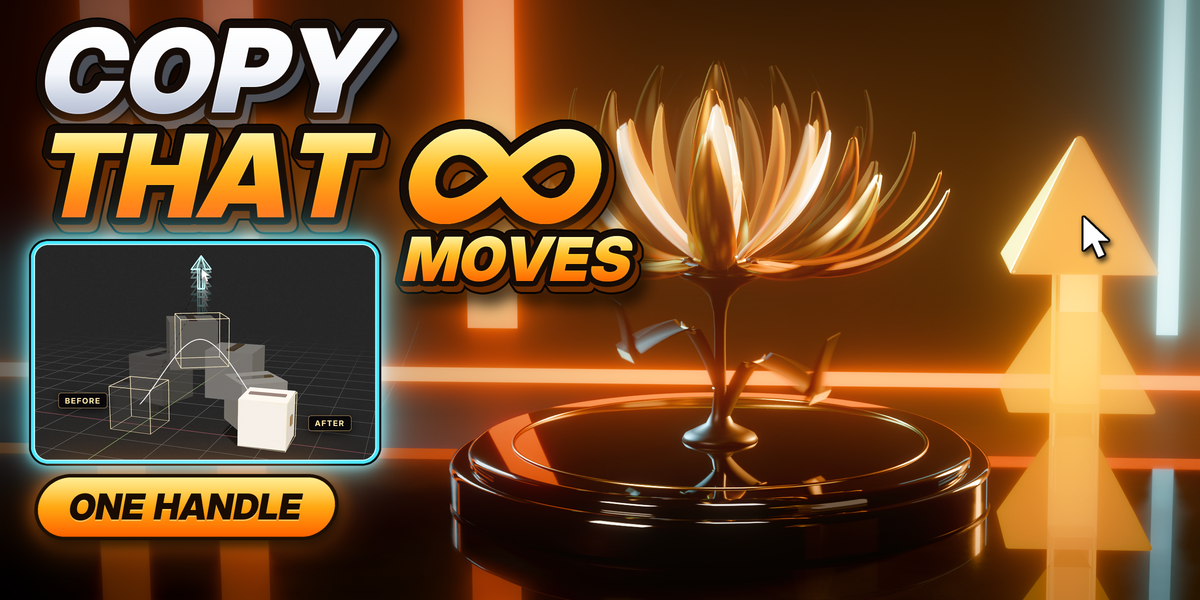


CopyThat guide
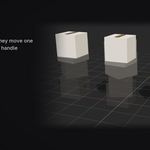
Record a move, play it with one handle. Pose your parts where they start and where they end, press Build, and CopyThat makes the rig: the bones, the bindings and one handle that plays the whole move, with every part on its own timing.
This page is the short guide. The full guide, with every button and dialog in detail, comes in the download as README.md inside the add-on zip.
Requirements
- Blender 4.5 LTS to 5.2, on Windows, macOS or Linux. Tested on 4.5, 5.0 and 5.2.
- Mesh objects, or the bones of an armature you already have. Curves and text need converting to mesh first.
- Nothing else: no internet and no other add-ons. Auto Run Python Scripts can stay off.
Install
- Open Edit › Preferences and click Get Extensions on the left.
- Click the small drop-down arrow at the far right of the top row, and choose Install from Disk.
- Pick CopyThat-0.20.2.zip and confirm. Or drag the zip onto the Blender window.
- In the 3D Viewport press N and click the CopyThat tab.
Updating: install the new zip the same way, then close Blender and open it again.
Uninstalling: in Get Extensions, click the arrow at the end of CopyThat’s row and choose Uninstall. Your scenes keep their animation.
Quick start: one cube
- In Object Mode, click the cube.
- In the CopyThat tab press New Move. A rig called CopyThat Rig appears, with a box called Move 1. The tick on Before shows that where the cube stands is the start.
- Move it to where it should end, with the mouse over the viewport: G X 3 Enter, then R Z 90 Enter.
- On the After row press Record.
- Press Build Sliders. A handle appears over the cube, and a Play slider in the panel.
- Click the CopyThat Rig, press Ctrl+Tab for Pose Mode, click the handle, press G and slide it: the move plays. The Play slider does the same.
- To animate it: set Frames in the Animate section, put the timeline on the frame to start from, and press Animate. Press Space to play.
The words the panel uses
- A move is a group of parts that play together under one control. Its box in the panel is the move.
- A part is one thing in a move: an object, such as a petal or a lid, or a bone.
- A leader is a part you recorded. A rider copies a leader’s move from where the rider stands.
- A follower hangs from another part, like the second joint of a finger.
The panel, top to bottom
- The rig line: the rig the panel works on, with its count of parts and controls.
- The move box: the Play slider, from 0 to 100%, and the key button beside it. Below it the Before and After rows: Record a pose, and the eye shows it.
- Parts & Pivot: the parts in the move, and the pivot each one turns about: its Origin, the Cursor or its Base.
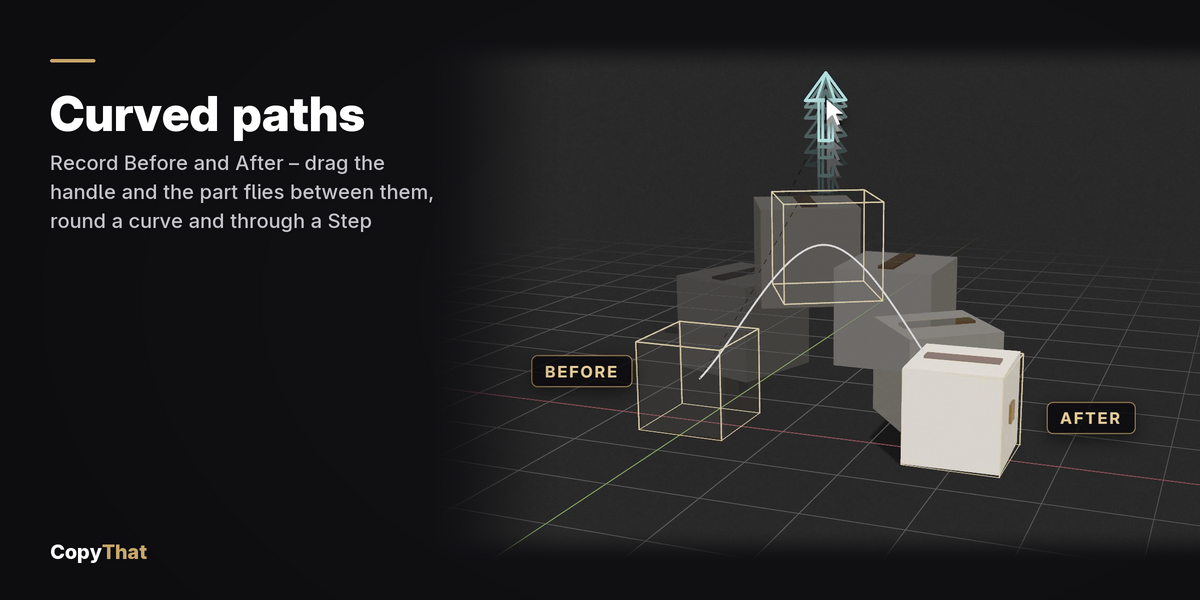
- Path: Even speed, Smooth, Slow start or Slow stop; Curve the Path; Step in between.
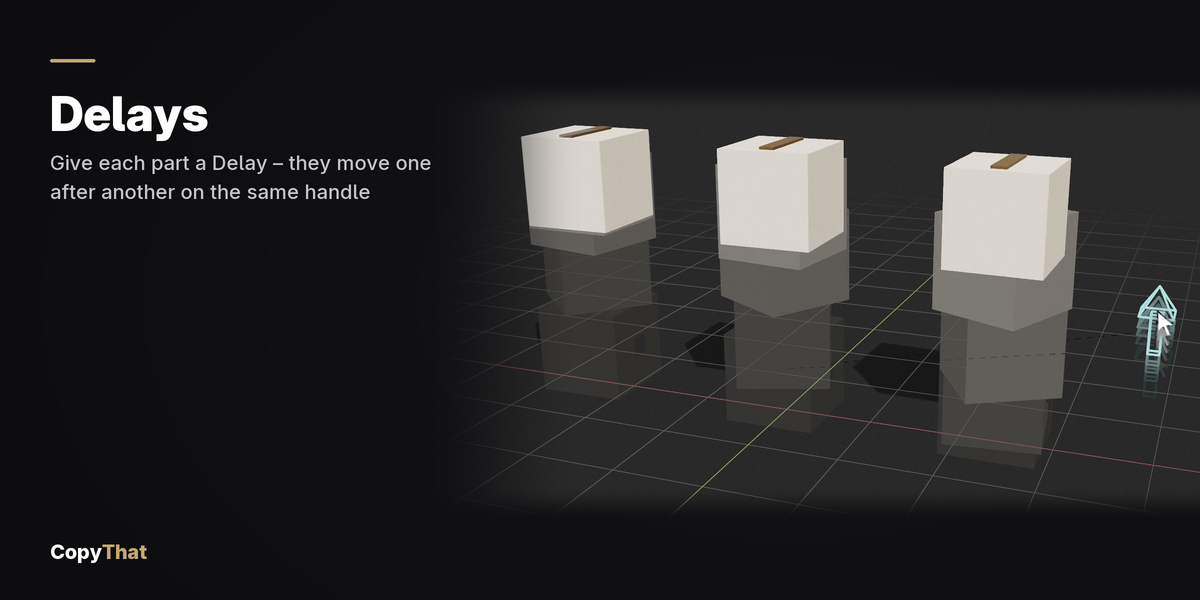
- Timing: a Delay for every part, the time it waits before it starts, and Spread to fill them all at once.
- Copies: Ring and Spread for copies, and the parts Riding along, each with its Lead and Mirror.
- Chains: Make Chain, Curl, and what each part follows.
- Animate: Frames and Animate.
- At the bottom: Build Sliders, Pause, To Before and New Move.
- Report: the grey box says what the last button did and what to do next. It turns red for a warning.
The tools
- Timing. A Delay says how long a part waits before it starts, so parts leave in order and overlap like a real machine.
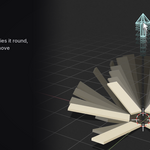
- Spread. One dialog fills every Delay, or every copy’s Lead: round a ring, down a chain, along an axis, by distance or at random.
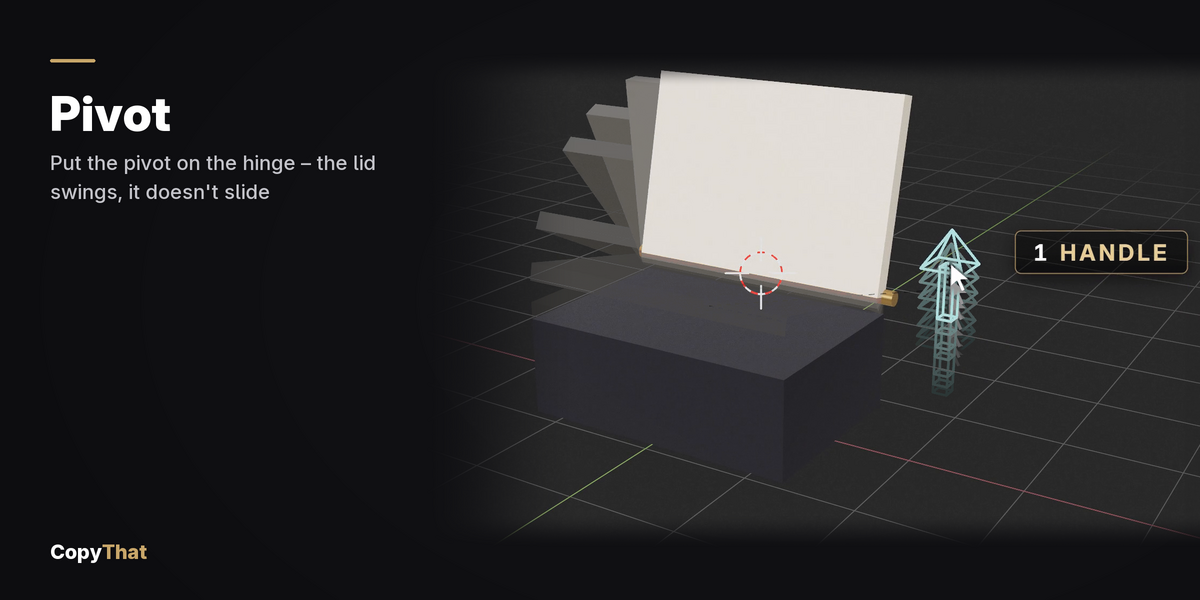
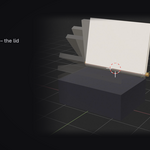
- Pivot. Each part turns about its origin, the 3D cursor or its base. The poses stay as recorded; the way between them swings about the pivot.
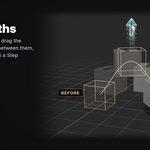
- Steps. Pose the middle of the move as well, with Step in between. Each stretch between two poses gets its own speed.
- Curves. Curve the Path makes a curve the part follows; bend it in Edit Mode. Its two ends stay on Before and After.
- Speed. Even speed, Smooth, Slow start or Slow stop, for each move.
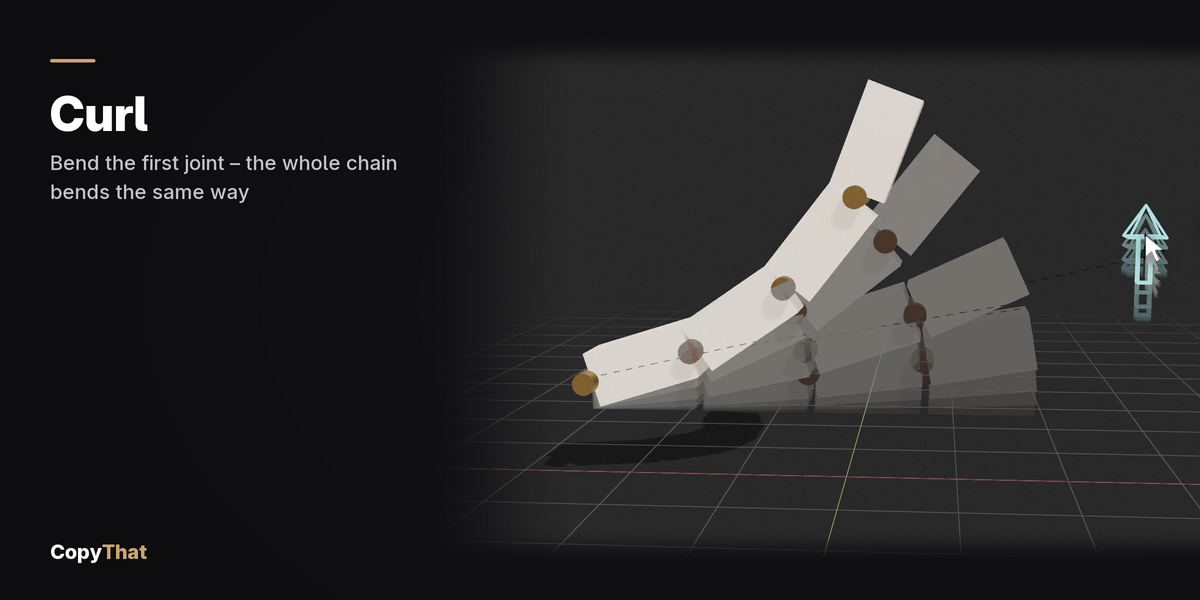
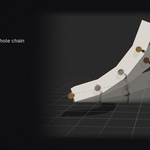
- Chain. Make Chain hangs each segment from the one before it in one click: a finger, a leaf, a crane arm. Click the first part last, so it is the active one.
- Curl. Turn the first joint, press Curl, and the bend repeats down the chain.
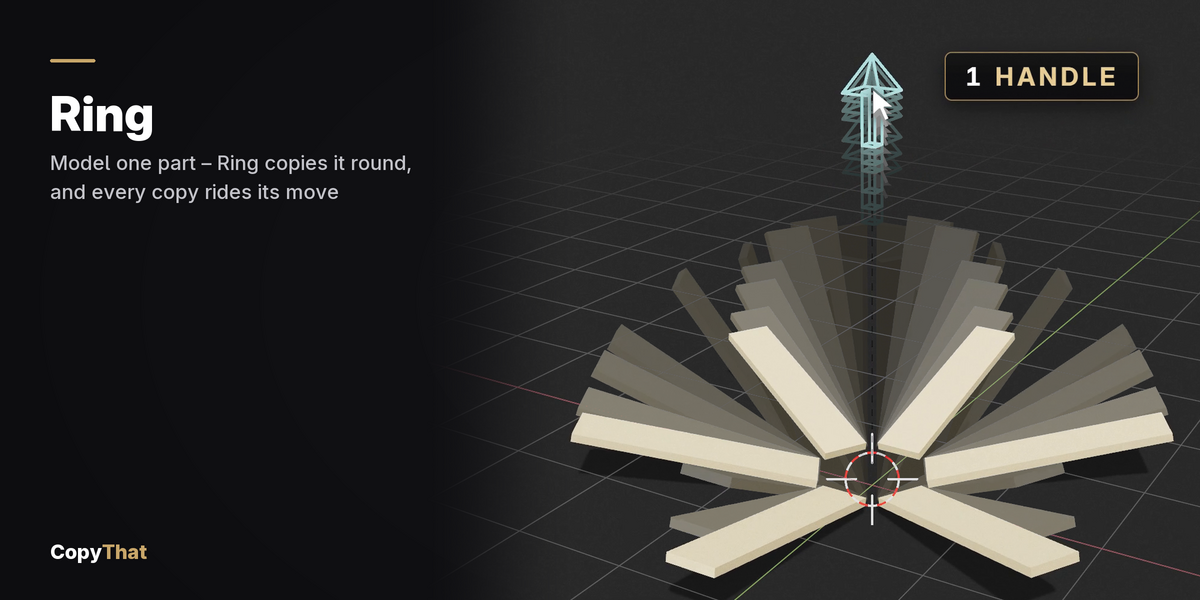
- Ring. One part becomes many: Count, Round, About and Lead step, then OK. Each copy moves from its own place. Fill the gaps keeps the copies you already modelled.
- Ride Along. Copies you modelled yourself can copy a recorded part: click them, click the recorded part last, and press Ride Along With its name.
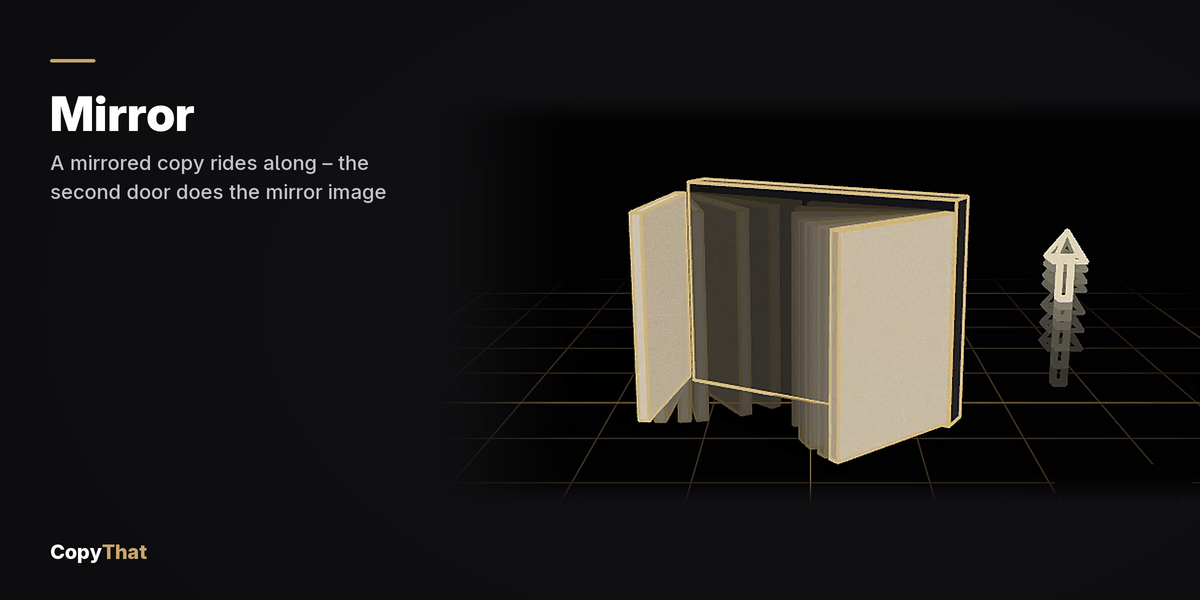
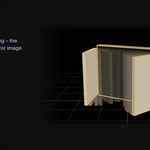
- Mirror. A copy can mirror its leader’s move across its own X, Y or Z, so a pair of doors opens outwards.
- Combine. Make two moves, press Combine, and one control plays them both. A Delay on each says when it starts.
- Animate. Set the frames and press Animate: the control is keyed from the current frame. Or key the handle with I.
Which buttons need a Build
- At once, no Build: Delay, Lead, Speed, Ease, Spread, Play, Animate.
- Wait for Build Sliders: a change to what a part follows (the panel says so in red), a change to a combined control’s delays, and anything you Record.
- Build for you: the Pivot buttons, Curve the Path, Mirror, Ride Along and Ring on a built move. If you have moved a part and not recorded it, they stop and tell you, because Build puts parts back.
Tips
- Before should be the rest pose. A move recorded from a half-posed start will be wrong at the ends.
- Test with one part first, then copy it with Ring or Ride Along.
- Keep Auto Keying off while you set a move up.
- Turn hinges about the hinge. Put the origin on the hinge, or set the Transform Pivot Point to 3D Cursor with the cursor on the hinge.
- Name your moves: double-click the name in the box.
- Keep the rig. The CopyThat Rig and its bones are what move your objects. To carry a rigged model, parent the rig, not the parts.
- Save before big steps. Every button is a normal undo step, but a saved file is the safest undo.
Troubleshooting
The CopyThat tab is missing. Press N with the mouse over a 3D Viewport, and check that CopyThat is ticked in Edit › Preferences › Add-ons.
The panel asks for the objects that move. Click the mesh objects that move together, in Object Mode, or choose the rig it offers.
A part plays from the wrong end, or travels twice as far. Auto Keying probably left a key on the part. Switch Auto Keying off, press Lift Those Keyframes if the panel offers it, and press Build Sliders.
The handle springs back. Auto Keying keyed it during a drag. Switch Auto Keying off.
A button says a part was moved and not recorded. Press Record on the right row first, or press Ctrl+Z to undo the move.
Make Chain chained the parts in the wrong order. The chain starts at the active object: click the first part last, and press Make Chain again.
The ring is lopsided or tipped. Press Ctrl+Z, use World Origin for Round, and set About to World Z.
A copy opens the wrong way round, like a door opening inward. Press the Mirror button on its row until the motion is right.
An old file asks for a Build. Press Build Sliders once. It brings older rigs up to date.
Anything else: read the report box at the bottom of the panel first. It says what happened and what to do next.
Support
Ask through this product’s page on Superhive, or visit creators.sa/nemve. Please include your Blender and CopyThat versions, the text of the report box, and what you pressed, in order.
Licence
CopyThat is free software under the GNU General Public License, GPL-3.0-or-later; the licence text is in the download. The scenes and animations you make with it are yours. Made by NemVe3D.
Have questions about this product?
Login to message
| Blender Extension Compatible | Yes |
| Published | about 9 hours ago |
| Blender Version | 4.5 - 5.2 |
| Extension Type | Add-on |
| Render Engine Used | Cycles, Eevee |
| License | GPL |
Discover more products like this
rigging product animation mech hard surface drivers animation auto-rig Procedural Animation motion graphics mechanical Robot kinetic