DAE Importer for Blender 5.0+
 Smart King



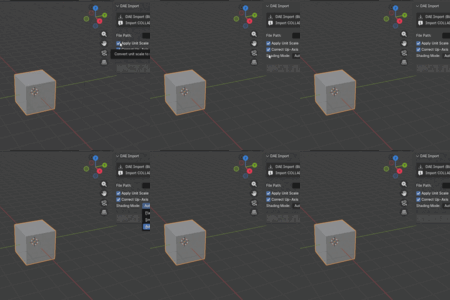
DAE Importer for Blender Blender 5.0+
The DAE Importer addon restores a reliable Collada (.dae) import workflow to Blender 5.x and newer, where official Collada tools are limited or removed. It is designed for artists and technical users who still depend on .dae for assets from tools like SketchUp, 3ds Max, BeamNG, CAD viewers, and custom engines.
1. Overview
Instead of relying on deprecated Collada support or separate utilities,
the DAE Importer adds a clear “Import DAE” option directly
into Blender’s File → Import menu and/or a compact panel,
letting you bring .dae assets, scenes, and animations into your current 5.x
pipeline.
The importer focuses on robust geometry, materials, and hierarchy, so your existing DAE libraries can be modernized into native Blender projects with minimal friction.
2. Requirements
- Blender 5.0 or later (primary target; older versions that still ship the legacy Collada importer are no longer the focus).
- Windows, macOS, or Linux using official Blender builds.
- Basic familiarity with Blender’s add‑on installation, object selection, and navigation in the File Browser.
If you can install any other Blender addon from a ZIP file, you meet the requirements for using the DAE Importer.
3. Installation
-
Download from Superhive: After purchasing, go to your
Superhive Library and download the addon
.zipfile. Superhive requires products to be uploaded as compressed archives. -
Install in Blender: Open
Edit → Preferences → Add‑ons. Click “Install…”, select the downloaded.zip, and confirm. Blender will install the addon; do not unzip it manually. - Enable the addon: In the Add‑ons list, search for “DAE Importer” (or your addon’s name) and tick the checkbox to enable it. Blender remembers this across sessions.
-
Updating: When a new version is released, download the
new
.zipfrom Superhive and repeat the Install step. Blender will overwrite the previous version and, in most cases, keep your preferences.
4. Accessing the importer in Blender
After installation and enabling the addon, the importer appears in Blender’s standard import workflow:
- Open Blender 5.x with any scene (new or existing).
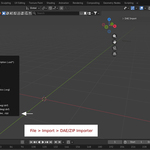
- Go to
File → Import. - Choose “Collada (.dae)” or “DAE Importer” from the list, depending on how the addon registers itself.
Optionally, the addon may also expose controls in the
N‑panel (3D Viewport → press N), under a
dedicated “DAE Importer” tab, for quick access to recent import settings or
utilities.
5. Import controls and options
Depending on your implementation, the import dialog or N‑panel typically includes fields like:
- DAE Importer (Blender 5.0+): Indicates that this importer is intended for Blender 5.x and later, where legacy Collada tools may no longer be available by default.
- Universal COLLADA asset compatibility: Highlights that imports are tuned for common Collada workflows (SketchUp, 3ds Max, BeamNG, general viewers) rather than a single proprietary tool.
- Target collection or scene: Lets you choose whether imported objects are placed into the active collection, a new collection, or directly into the scene root, helping keep imports organized.
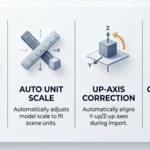
- Apply transforms on import: When enabled, imported meshes can be normalized to Blender’s coordinate system to avoid 90‑degree rotations or odd scaling compared to the original DAE source.
- Auto‑triangulate geometry: If enabled, the importer converts N‑gons and quads to triangles on import, useful for DAE files coming from tools that only support triangles internally.
- Material and texture handling: Options may control whether materials are kept as basic Collada materials, converted towards Principled BSDF, or left minimal so you can rebuild shading manually, while still preserving UV maps and texture links where possible.
6. Quick start workflow
-
Prepare your source: In your original tool (SketchUp,
CAD, BeamNG, etc.), export the asset or scene to a
.daefile and make sure textures are saved alongside it in an accessible folder. - Open Blender: Launch Blender 5.x and create or open the scene where you want to import the DAE asset.
-
Run the importer: Go to
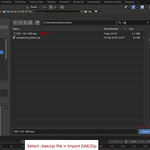
File → Import → DAE (.dae)or “DAE Importer”, then navigate to your.daefile in the File Browser. - Review options: In the import options panel (usually on the right of the File Browser), confirm settings such as transforms, triangulation, and material handling.
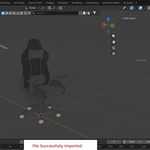
- Import: Click “Import DAE” and wait for Blender to process the file; then inspect the imported geometry, scale, and materials in the viewport.
For best results, you can then clean up materials, adjust hierarchy, and
save the .blend file as the new master source for that asset.
7. Import behavior and internals
Internally, the addon follows principles similar to the legacy Collada importer, but adapted for Blender 5.x and modern pipelines.
-
Selection vs full file: The importer reads the entire
.daefile but can be configured to focus on specific parts (for example, only top‑level nodes or a dedicated collection), depending on how the file is structured. - Transforms: Coordinate transforms are applied in a safe way so that meshes do not appear rotated 90 degrees or wildly scaled when they arrive in Blender, which is important for assets exported from tools with different up‑axis conventions.
- Triangulation: Where necessary, N‑gons and quads are triangulated during import to avoid issues with tools that expect only triangles in Collada, while still giving you editable mesh data inside Blender.
- Materials and UVs: Materials, UV maps, and texture slots are imported when present, but Collada stores references to textures rather than embedding them, so you may need to relink or refine materials inside Blender for production use.
8. Textures and ZIP archives
Collada (.dae) references external image files rather than
embedding textures. Depending on your pipeline, there are two common
workflows:
-
Direct folder import: Keep your
.daefile and textures in the same folder (or consistent subfolders), then use the importer directly on the.daefile. Blender and the addon can often resolve paths automatically or with minimal relinking. -
ZIP‑based packages: If your upstream tools (or your own
distribution) provide
.zipbundles containing DAE files and textures, first extract the ZIP to a working folder, then point the importer at the.daeinside that folder so texture paths remain valid.
Future versions of the addon may optionally support importing directly from
ZIP bundles by scanning the archive, extracting the .dae and
textures to a temporary location, and keeping them organized relative to
the imported asset.
9. Compatibility notes
Blender’s official Collada support is now legacy, and Blender 5.0 onward focuses on more modern formats, which has pushed many users toward external tools or custom importers.
-
Intended use cases: Workflows that still rely on Collada
assets, such as SketchUp models, BeamNG vehicle or map data, certain CAD
viewers, and older engines or libraries that only export
.dae. - Format limitations: Advanced node‑based shaders, procedural materials, some modifiers, and complex simulation setups do not map cleanly into Collada; imported assets may arrive with simplified materials and require manual refinement.
-
Modern alternatives: If your upstream tools support
glTF/GLB or FBX, those formats are generally recommended as more modern
and robust. The DAE Importer is primarily for cases where
.daeis the existing asset format and cannot be avoided.
10. Licensing
Blender is released under the GNU GPL, and Blender Python add‑ons that integrate with its API must be GPL‑compatible.
- You can use this addon freely in personal and commercial projects.
- The addon’s Python code is provided under the GPL; the 3D content you create, import, and edit with it remains your property.
- The Superhive download includes the necessary license information to comply with GPL requirements.
11. Support and bug reports
If you run into issues:
-
First check: Verify your Blender version (5.x
recommended) and operating system, and test with a simple
.daefile (for example, a single cube exported from your source tool) to see if the issue is file‑specific. -
Contacting support: When contacting support via your
Superhive product page, include: Blender version and OS, addon version, a
short description of the problem, any error messages from the Console,
and a minimal
.daeplus the original tool name (SketchUp, BeamNG, CAD viewer, etc.).
Clear, reproducible reports help improve future updates to the importer, including better material handling, hierarchy mapping, and optional ZIP‑based workflows.
Have questions about this product?
Login to message
| Blender Extension Compatible | Yes |
| Sales | 20+ |
| Published | 3 months ago |
| Blender Version | 5.0 - 5.2 |
| Extension Type | Add-on |
| License | GPL |
Discover more products like this
SketchUp Dae collada importer Workflow pipeline blender 5 dae import beamng collada importer