 wolf_73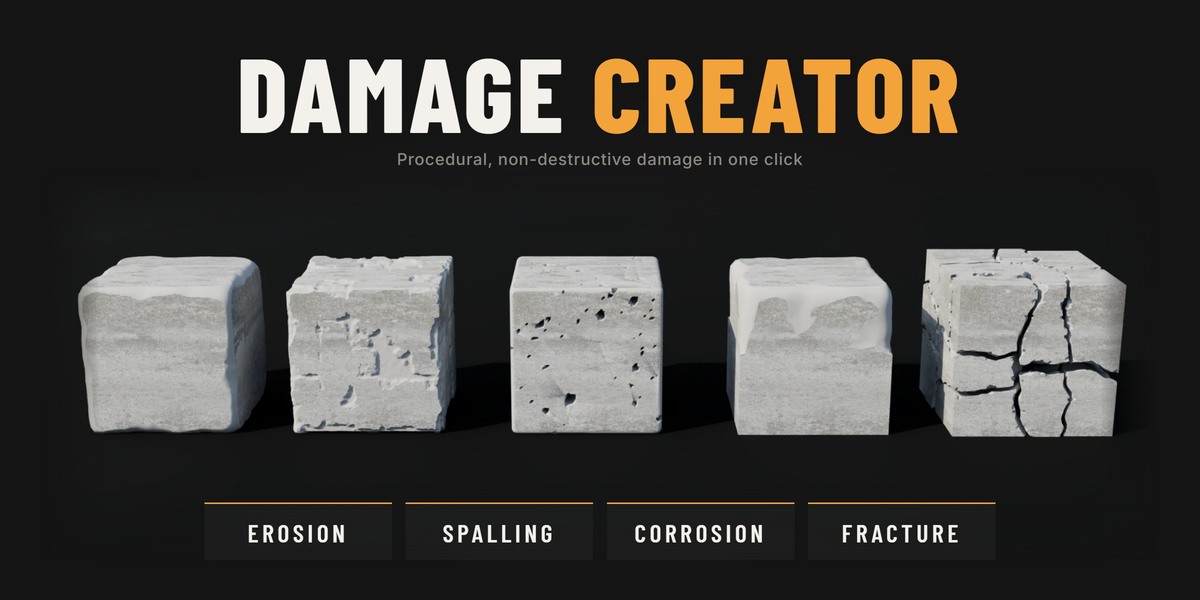
Damage Creator
Everything you need to install the add-on, damage your first object and understand every setting.
1. Requirements & Installation
Requires Blender 4.5 or newer. No external libraries or downloads are needed.
- Download damage_creator-1.0.0.zip. Do not unzip it.
- In Blender, go to Edit > Preferences > Get Extensions.
- Click the arrow menu in the top right corner and choose Install from Disk.
- Pick the .zip file. That's it.
You can also simply drag the .zip into the Blender window. To update, install the new .zip the same way. Your saved presets are kept.
2. Quick Start
- Select a mesh object (a closed mesh works best).
- Open the sidebar in the 3D Viewport with N and go to the Damage tab.
- Click Erosion, Spalling, Corrosion or Fracture. The damage appears right away.
- Adjust the sliders, or pick a look from Apply Preset.
- Click New Variation until you like the pattern.
3. The Panel
Everything Damage Creator adds is a regular Geometry Nodes modifier: Surface Damage or Fracture. It updates live, can be reordered and stacks with your other modifiers.
The sidebar shows the most used settings. All settings (materials, quality, rebar, effect area and more) are in Properties > Modifiers.
An object can have several damage modifiers, for example Spalling and then Fracture. The eye icon next to each one turns it on and off in the viewport.
4. Surface Damage
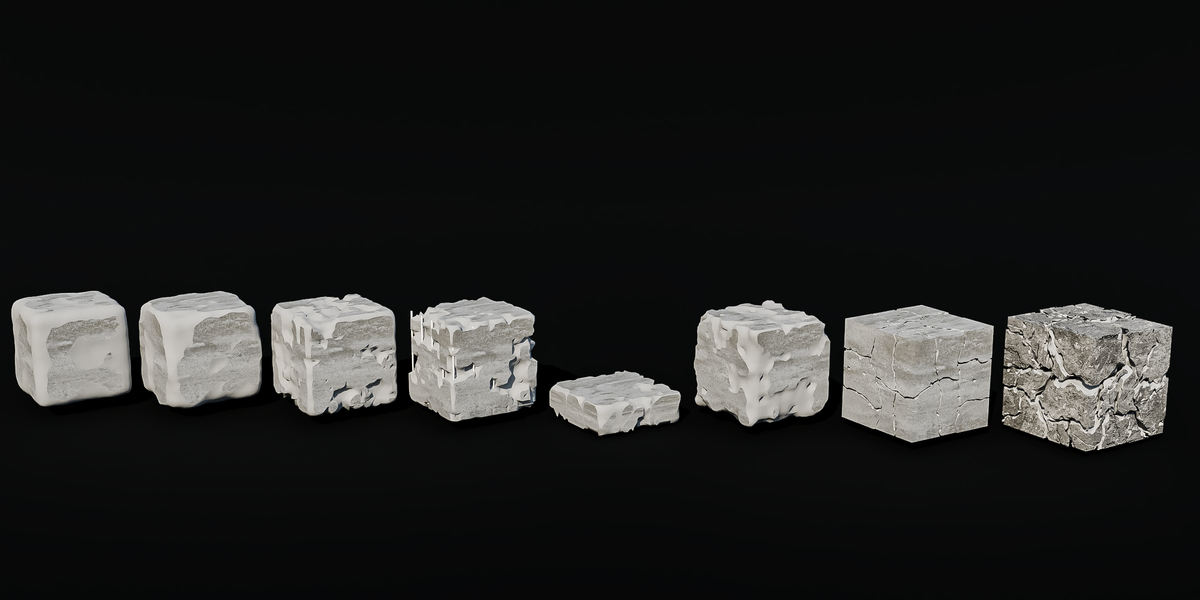
Erosion, Spalling and Corrosion are three Types of the same modifier, so you can switch between them at any time. The damage is cut into the mesh: faces it doesn't reach keep their original topology.
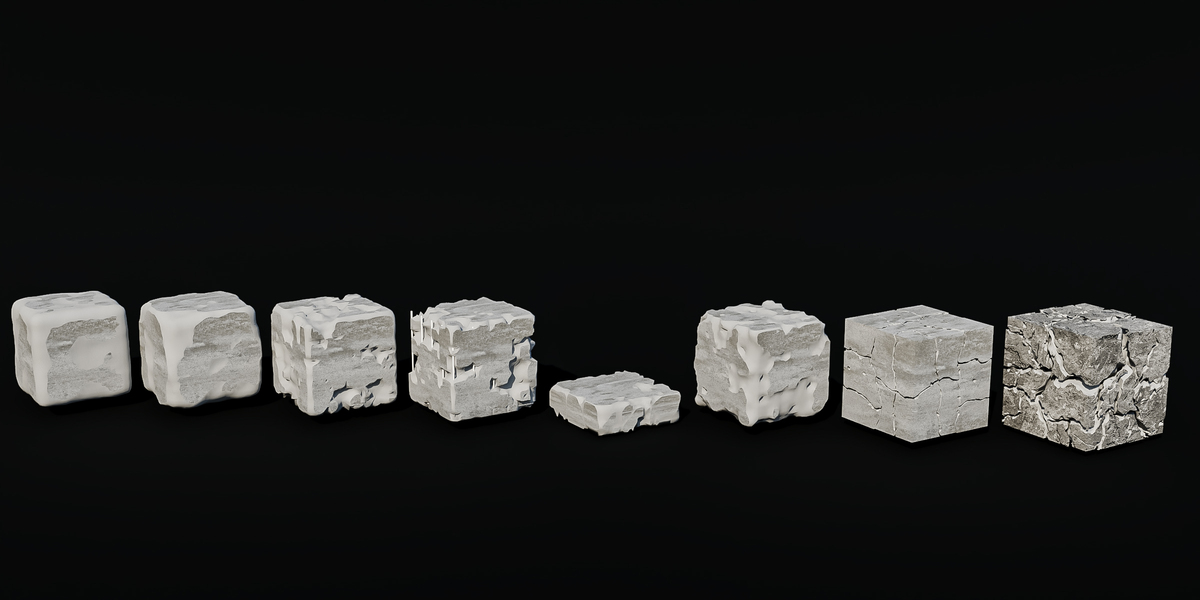
Erosion wears stone down into soft, rounded shapes. Spalling breaks concrete away in shallow layers with jagged rims. Corrosion eats pits of two sizes into the surface, in patches.
| MAIN SETTINGS (ALL TYPES) | |
| Type | Erosion, Spalling or Corrosion. |
| Amount | How much of the surface is damaged. |
| Depth | How deep the damage goes, in % of the object size. |
| Noise Size | Size of the damage pattern, in % of the object size. |
| Detail | Fine detail of the pattern. |
| Edge Focus | Spalling and Corrosion. 0 = spread evenly, 1 = mostly on edges and corners. |
| Clustering | Corrosion. Groups the pits into patches. |
| Seed | Random variation. New Variation changes it for you. |
| CONCRETE (SPALLING) | |
| Layering | 0 = one level, 1 = shallow flakes plus deeper spalls. |
| Exposed Aggregate | Stones showing at the bottom of the spalls. Shown as "Aggregate" in the sidebar. |
| Shrinkage Cracks | Network of fine cracks across the surface. Shown as "Cracks" in the sidebar. |
| Follow Rebar | Makes the spalls follow the steel bars, like real rebar corrosion. |
| REBAR (SPALLING) | |
| Show Rebar | Adds steel bars inside the concrete, visible where the spalls are deep enough. |
| Rebar Spacing | Distance between bars, in % of the object size. |
| Rebar Diameter | Bar thickness, in % of the object size. |
| Rebar Material | Material for the bars. |
| MATERIALS | |
| Use Damage Material | Gives the damaged areas their own material. |
| Damage Material | The material used for the damaged areas. |
| QUALITY | |
| Viewport Resolution | Detail while you edit (voxels along the largest side). Keep it low for speed. |
| Render Resolution | Detail used for final renders. |
| Smoothing | Rounds the edges of the damage. |
5. Fracture
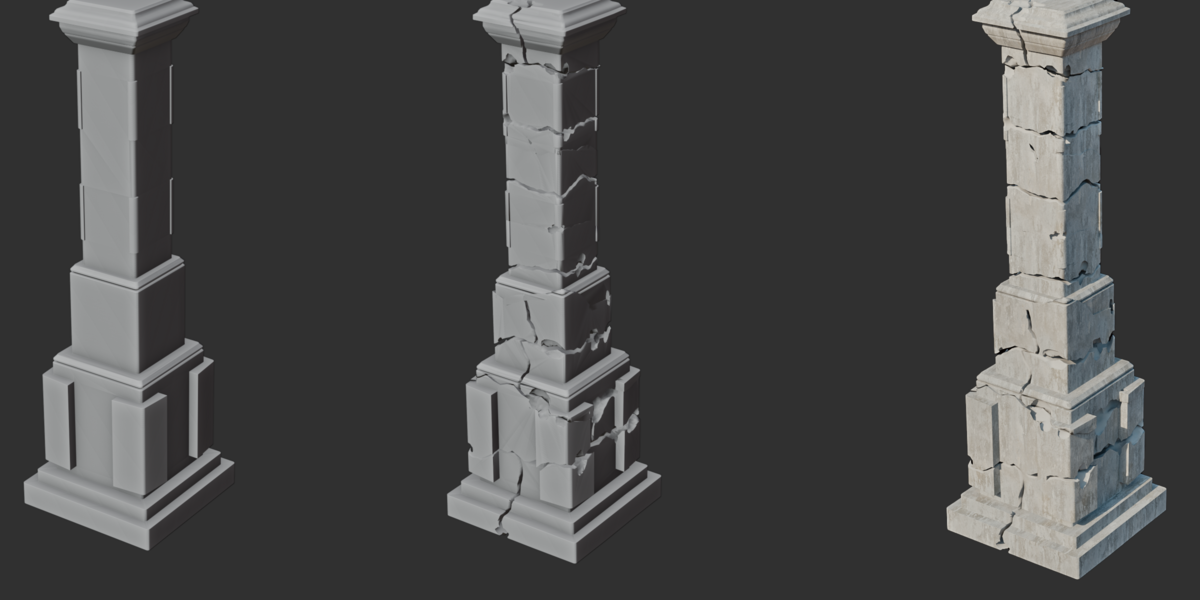
Splits the object into real pieces. Each iteration cuts every piece in two, so 4 iterations = 16 pieces (the sidebar shows the current count). The two sides of each cut come from the same surface, so the pieces fit together perfectly.
When you add a Fracture, a Weighted Normal modifier is added after it for clean shading. You can turn this off in the operator options.
| FRACTURE | |
| Iterations | How many times every piece is split in two (0 to 8). |
| Random Offset | Moves the cuts away from the centre of each piece. |
| Random Angle | 0 = cuts perpendicular to the longest side of each piece. |
| Noise Strength | How much the crack lines wander. |
| Gap | How wide the cracks open, in % of the object size. |
| Interior Material | Material for the faces inside the cracks. |
| Smooth Interior | Smooth shading on the fracture faces. |
| Cut Resolution | Detail of the cut surfaces for rendering. Viewport Cut Resolution is used while editing. |
| Seed | Random variation of the cuts. |
| INTERIOR DETAIL | |
| Detail Strength | Relief on the fracture faces, in % of the object size. |
| Detail Scale | Number of bumps across the object. |
| EDGE CHIPS | |
| Chip Depth | Size of the chips along the crack rims, in % of the object size. |
| Chip Amount | How many chips. |
| Protect Min/Max X, Y, Z | No chips on that side, so modular pieces still fit together. |
| Chip Seed | Random variation of the chips. |
| PIECES | |
| Min Piece Size | Removes crumbs smaller than this, in % of the object size. |
| Explode | Pushes the pieces apart for an exploded view. |
| Hide Above | Hides the pieces above this fraction of the height, to look inside. 1 = show all. |
6. Effect Area
Limits Surface Damage to part of the object. Click Effect Area and a box (an Empty) is added over the top of the object and selected, ready to move, rotate and scale. Damage only happens inside the box.
- The box is parented to the object, so it follows when you move the object.
- Area Falloff (in Properties > Modifiers) sets how soft the border is.
- Select the box to see which object it controls, and click the name to jump back to that object.
- Turn Use Area off to damage the whole object again.
7. Presets
Apply Preset works on all selected meshes. If the object doesn't have the right modifier yet, it is added. The object keeps its own variation (seed).
| SURFACE DAMAGE | Old Stone · Ruin · Spalled Concrete · Concrete with Exposed Rebar · Cracked Slab · Corroded Metal |
| FRACTURE | Cracked Stone Blocks · Shattered |
Click + to save the settings of the active damage as your own preset. They appear under My Presets. Click - to delete one. Your presets are stored outside the add-on, so they survive updates.
8. Working with Many Objects
- Every button works on all selected meshes. Select several objects and click Spalling to damage them all at once.
- New Variation gives each selected object a new random pattern.
- Copy to Selected gives the other selected meshes the same damage as the active object. In the operator options: Replace Existing (on by default) removes their old damage first, and Same Variation (off by default) makes identical copies instead of a new variation per object.
- Objects that share the same Effect Area box after copying are all limited by it.
9. Apply & Remove
Apply Damage makes the damage permanent, for export or further editing. It asks for confirmation first.
Remove Damage deletes the damage modifiers from the selected meshes and leaves the rest of the model untouched.
10. Tips & Troubleshooting
| Nothing happens, or parts are missing | The mesh needs to be closed (watertight). Open surfaces, like a single plane, are ignored by the boolean. Close the holes or add a Solidify modifier before the damage. |
| The viewport is slow | Lower Viewport Resolution (Surface Damage) or Viewport Cut Resolution and Iterations (Fracture). Renders still use the higher render values. |
| The damage looks blocky in the viewport | This is the low viewport resolution. Raise it a little, or check a render, which uses Render Resolution. |
| Hard, faceted edges after Fracture | Put a Bevel modifier before the Fracture and keep the Weighted Normal after it for soft, game-ready edges. |
| Modular pieces don't line up anymore | Turn on the Protect options for the sides that touch other pieces. |
| The buttons are greyed out | Select at least one mesh object. Effect Area needs a Surface Damage on the active object. |
Questions or a bug to report? Send a message through this product page.
 Included
Includes 12 months of
- Support from wolf_73
- Product updates
Extend this product’s Support Period +12 months: 50% of product price
Have questions before purchasing?
Login to message
| Blender Extension Compatible | Yes |
| Published | about 11 hours ago |
| Blender Version | 4.5 - 5.1 |
| Extension Type | Add-on |
| Render Engine Used | Arnold, Blender-Internal, Blender-Game-Engine, Cycles, Eevee, Freestyle, Luxrender, Mental-Ray, Octane, Vray |
| License | GPL |

Discover more products like this
cracks erosion Game asset Concrete destruction geometry nodes procedural fracture corrosion ruins rebar Damage