Dice
 johnocgart
in Simulations & Effects
johnocgart
in Simulations & Effects



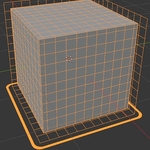
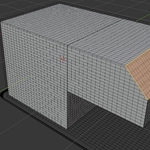
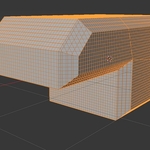
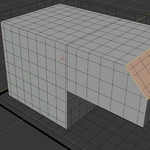
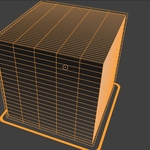
Documentation
Installation
- Download the ZIP file from your SuperHive library.
- Open Blender.
- Go to Edit → Preferences → Add-ons.
- Click the ▼ arrow in the top-right corner and choose Install from Disk...
- Select the downloaded ZIP file.
- Enable the Dice add-on.
- Save your preferences (optional).
The Dice Tool is now ready to use.
Getting Started
- Select any mesh object.
- Open the Sidebar (N) in the 3D Viewport.
- Navigate to the Dice tab.
- Press Dice Mesh.
- Adjust the grid resolution using the X, Y and Z sliders.
- Enable Preview to visualize the cuts.
- Apply the modifier whenever you're satisfied.
The entire workflow remains non-destructive until you decide to apply the modifier.
Features
- One-click setup
- Non-destructive Geometry Nodes workflow
- Uniform slicing
- Independent X, Y and Z resolution
- Linked resolution mode
- Live viewport preview
- Output as Mesh
- Output as Curves
- Fast performance
- Works on virtually any mesh
$15
 Included
Includes 12 months of
- Support from johnocgart
- Product updates
Extend this product’s Support Period +12 months: 100% of product price
Have questions before purchasing?
Login to message
| Published | 2 months ago |
| Blender Version | 4.5 - 5.2 |
| Render Engine Used | Arnold, Blender-Internal, Blender-Game-Engine, Cycles, Eevee, Freestyle, Luxrender, Mental-Ray, Octane, Vray, Yafaray |
| License | Royalty Free |
Discover more products like this
curves hard surface panel lines mesh wireframe grid geometry nodes subdivide procedural greeble