Dimensioneer - Display Measurements in Viewport
 NetMetropolis


Dimensioneer Documentation
By NetMetropolis
Overview
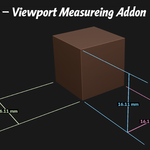
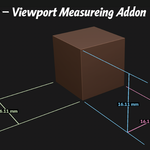
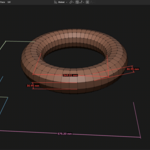
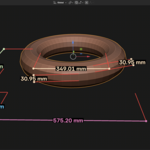
Dimensioneer is a Blender add-on for placing clear, customizable measurements directly onto 3D objects in the 3D Viewport. It is designed for creators who need fast, readable dimensions without bouncing between Blender and another app just to finish technical views, layout drawings, or presentation screenshots.
Dimensioneer supports full bounding box dimensions, edit mode measurements, live viewport overlays, customizable styling, and scene-aware unit handling. Dimensions stay attached to the object in 3D space and update as the object changes, making it useful for design review, fabrication prep, technical communication, booth layouts, product sizing, and general modeling workflows.
This tool was built to reduce the pain of workflows where a user must:
screenshot Blender views
scale them externally
add dimensions in Illustrator or another design app
redo everything whenever the model changes
Dimensioneer keeps that workflow inside Blender where it belongs.
Core Features
Live 3D Viewport Dimensions
Place dimensions directly in Blender’s 3D Viewport. Dimensions remain attached to the object and update as geometry or object scale changes.
Bounding Box Measurements
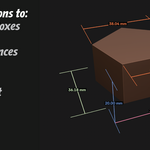
Quickly add width, depth, and height dimensions to an object’s bounding box.
Edit Mode Measurements
Measure between selected vertices and edges directly in Edit Mode.
Rotation-Aware Dimensions
Bounding box dimensions can follow the object’s rotation, allowing measurements to align more naturally with angled objects instead of only world-space axes.
Scene Unit Support
Dimensioneer reads Blender scene unit settings and displays the correct units automatically when using Scene Units mode.
Unit Formatting
Supports:
Scene Units
Metric
Decimal Inches
Fractional Inches
Feet and Inches
Custom Styling
Control the look of dimensions for better readability:
line color
text color
extension line color
line width
font size
background color behind text
arrow, tick, dot, or no terminator style
Axis-Based Colors
Dimensions can automatically use different colors for X, Y, and Z axes for improved readability in crowded scenes.
Default axis colors:
X: #F37DC5
Y: #C6E7B2
Z: #4DCAF9
Per-Item Color Overrides
Any individual dimension can override the default axis or global style colors.
Flip Dimension Side
Each dimension can be flipped to the opposite side of the object when a different annotation side is clearer.
Object-Based Color Shading
When multiple objects have dimensions in the same scene, Dimensioneer slightly shifts the shade of each object’s axis colors so dimensions are easier to distinguish visually.
Supported Blender Versions
Dimensioneer was developed and tested for Blender 5.0.
Compatibility with earlier or later versions may vary depending on Blender API changes.
Installation
Download the Dimensioneer ZIP file.
Open Blender.
Go to Edit → Preferences → Add-ons.
Click Install from Disk.
Select the Dimensioneer ZIP file.
Enable the add-on by checking the box next to Dimensioneer.
Open the 3D Viewport sidebar with N.
Look for the Dimensioneer tab.
If you are updating from an older version:
Disable the previous version.
Remove or uninstall it.
Restart Blender.
Install the new version.
A restart is strongly recommended after updates that change draw handlers or properties.
Quick Start
Add Bounding Box Dimensions
Select an object in Object Mode.
Open the Dimensioneer panel.
Click Add Bounding Box Dimensions.
Three dimensions will be added for the object’s X, Y, and Z size.
Add an Aligned Dimension in Edit Mode
Select a mesh object.
Enter Edit Mode.
Select two vertices.
Click Add Aligned Dimension.
Add Edge Dimensions in Edit Mode
Select one or more edges in Edit Mode.
Click Add Edge Dimension.
Adjust the Look
Use the Style settings to change:
font size
line width
text background
axis colors
arrow style
color overrides
Panel Overview
Main Tools
The main Dimensioneer panel provides access to:
Add Bounding Box Dimensions
Add Aligned Dimension
Add Edge Dimension
Dimension List
Each created dimension appears in the dimension list, where you can:
rename or identify the dimension
toggle visibility
flip the dimension side
enable a custom color override
edit that color directly
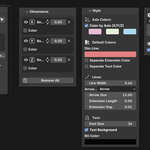
Style Settings
Global style controls affect how dimensions appear by default:
default line color
default text color
text background color
font size
line width
arrow style
separate extension line color
axis color mode
X/Y/Z axis colors
Display Settings
Viewport display options include:
visibility toggles
draw behavior
screen readability options
Units and Scale
Dimensioneer can display measurements using Blender’s own scene unit system or using explicitly selected unit formats.
Scene Units
When set to Scene Units, Dimensioneer reads:
Blender unit system
scene scale length
selected length unit
This allows dimensions to match Blender’s Transform panel more accurately.
Available Display Formats
Metric
Decimal Inches
Fractional Inches
Feet and Inches
Scene Units
Scale Factor
A scale factor is available as an additional multiplier when needed. In most normal workflows, the default value of 1.0should be correct.
Styling and Readability
Dimensioneer was built with readability in mind, especially for dense scenes and presentation screenshots.
Default Styling
Current default visual choices include:
text background: solid black with full opacity
axis-based colors enabled
X axis: pink
Y axis: soft green
Z axis: sky blue
Separate Color Controls
You can choose separate colors for:
main dimension line
extension lines
text
Per-Dimension Color Overrides
Inside the dimension list, individual dimensions can use their own color instead of the global or axis-based style.
Object Shade Variation
When multiple objects are dimensioned, Dimensioneer automatically shifts the shade of the axis colors slightly from object to object. This keeps dimensions grouped visually without abandoning the axis-color logic.
Line Width Notes
Dimensioneer includes a cross-platform solution for thicker viewport lines.
Some systems, especially macOS, limit native GPU line width rendering to 1 pixel. To avoid that issue, Dimensioneer draws thicker lines as geometry rather than relying on system line-width support. This allows the line width control to work more consistently across platforms.
Bounding Box Behavior
Bounding box dimensions can work in a more technical-drawing-friendly way than simple world-space measurements.
Rotation-Aware Bounds
For rotated objects, Dimensioneer can use the object’s local bounding box and rotation so dimensions follow the object more naturally.
Flip Side
Each dimension can be flipped to the opposite annotation side when needed. This is useful because an axis can often be dimensioned clearly from more than one side of the object.
Current Limitations
Dimensioneer is already highly usable, but there are some current limitations to be aware of.
Draw In Front
The current viewport drawing approach prioritizes reliable text and annotation rendering. Because of this, dimensions may still appear in front of objects even when a “draw in front” style option is disabled.
A future version may use a hybrid drawing approach for true depth-aware viewport occlusion.
Technical Drawing Output
Dimensioneer currently focuses on live 3D viewport dimensions. Full page-layout style output such as title blocks, sheet composition, and PDF export is planned but not yet complete.
Advanced Annotation Types
Some advanced drafting tools are planned but not yet implemented, including:
angle dimensions
leader lines
dimension chains
full multi-view sheet export
Planned Features
The add-on roadmap includes larger drafting and documentation tools.
Angle Dimensions
Measure and display angles directly in the viewport.
Leader Lines
Add note callouts with arrows pointing to features or locations.
Dimension Chains
Display a sequence of connected dimensions for segmented layouts or repeated spacing.
Multi-View Technical Sheets
Generate standard orthographic views such as:
Front
Back
Left
Right
Top
PDF / SVG Export
Export dimensioned views to print-friendly formats for presentations, technical reviews, and documentation.
Best Use Cases
Dimensioneer is especially useful for:
booth and exhibit layout drawings
product sizing mockups
fabrication prep
model documentation
viewport screenshots for client review
quick technical communication
concept presentation boards
internal design reference images
What’s Included
Your purchase includes:
the Dimensioneer Blender add-on ZIP file
product documentation
updates according to the marketplace listing terms
License
Please refer to the product listing for the selected license type.
For Blender add-ons distributed commercially, GPL is generally the most compatible choice with Blender’s ecosystem.
Support
Support should be handled through the marketplace contact method listed on the product page.
When contacting support, include:
Blender version
operating system
a short description of the issue
screenshots if relevant
whether the issue occurs in a fresh Blender file
Short Marketplace Description
Dimensioneer is a Blender add-on that lets you place customizable measurements directly on 3D objects in the viewport. Add bounding box, vertex, and edge dimensions, use scene-aware units, customize colors and styles, and keep dimensions attached to objects as your model changes.
One-Line Tagline Options
Here are a few storefront-ready taglines:
Viewport dimensions without the Illustrator detour.
Measure it in Blender. Keep it in Blender.
Technical dimensions for real-world Blender workflows.
Fast, readable 3D measurements directly in the viewport.
Have questions about this product?
Login to message
| Published | 7 months ago |
| Blender Version | 5.0 |
| Extension Type | N/A |
| Render Engine Used | Cycles, Eevee |
| License | GPL |
Discover more products like this
GeoMeasure easy measurement measure measurement tool 3D Measurement Tools measurement overlay