 nice mesh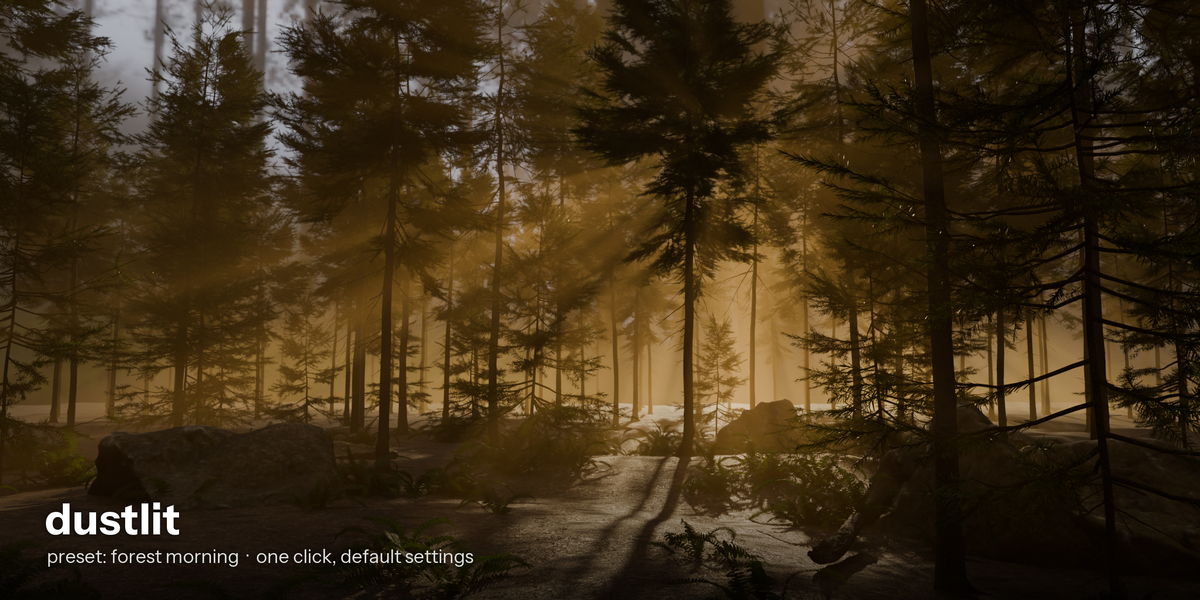
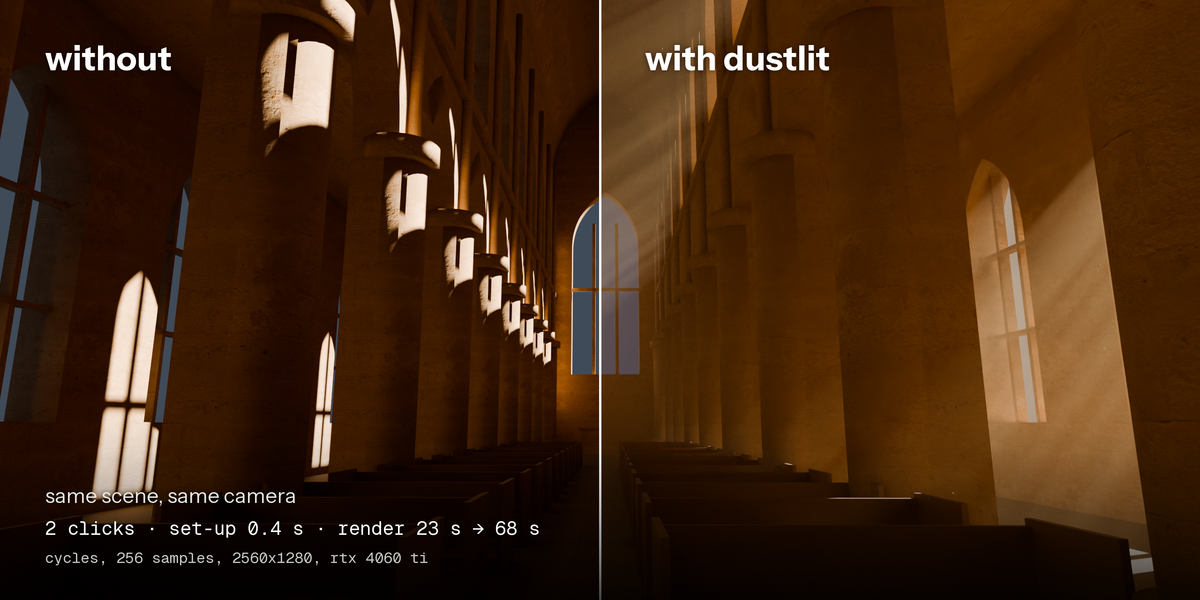
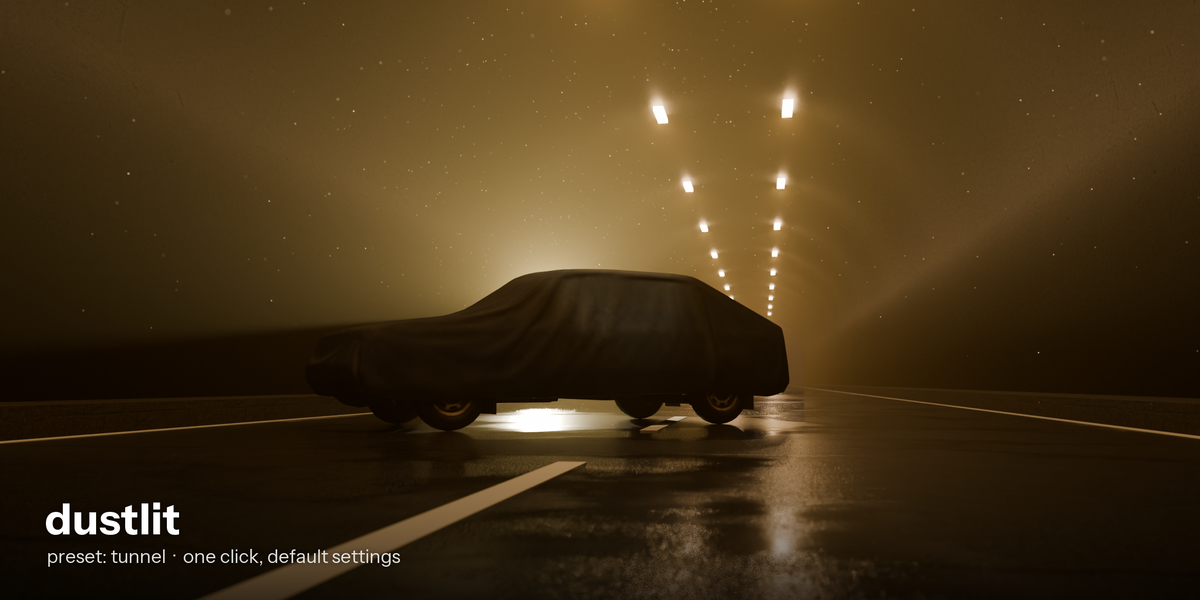
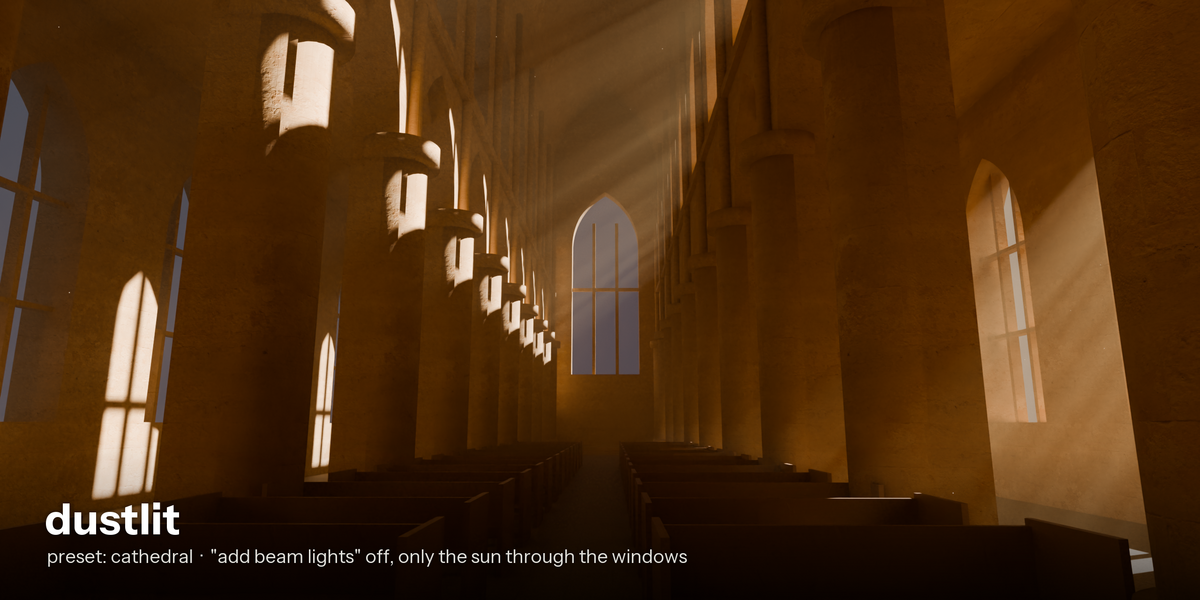
Install
- Download Dustlit_v1.1.0.zip from your Superhive library.
- In Blender: Edit > Preferences > Add-ons, open the arrow menu (top right) and choose Install from Disk. Pick the zip.
- Tick Dustlit to enable it.
- In the 3D Viewport press N and open the Dustlit tab.
Use it
- Set your camera first. The haze is fitted to the scene and to the active camera.
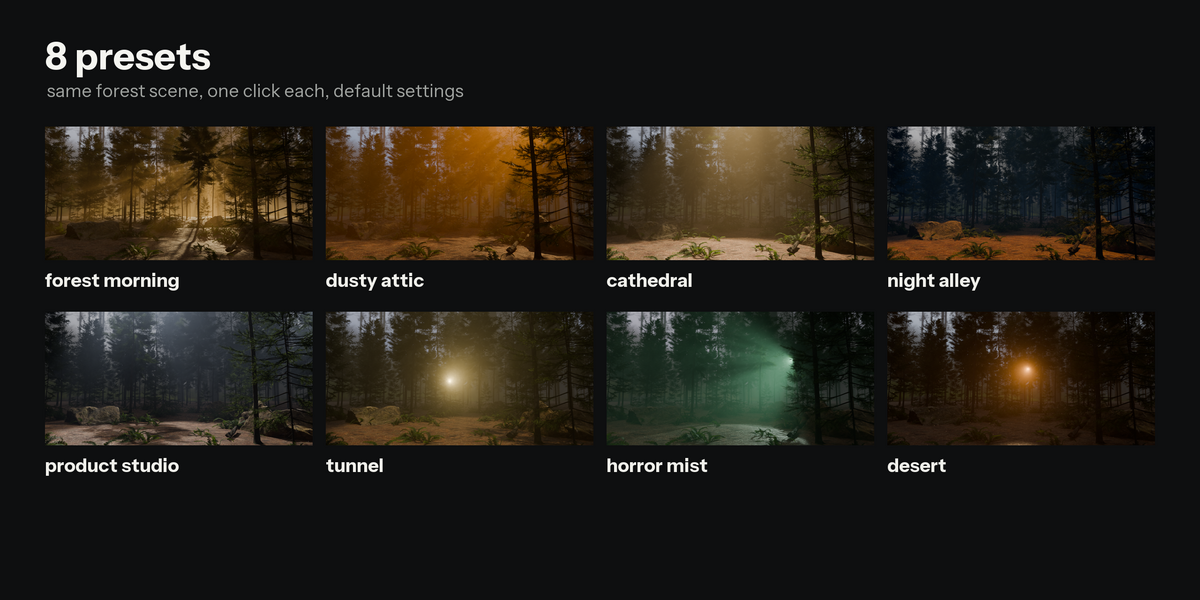
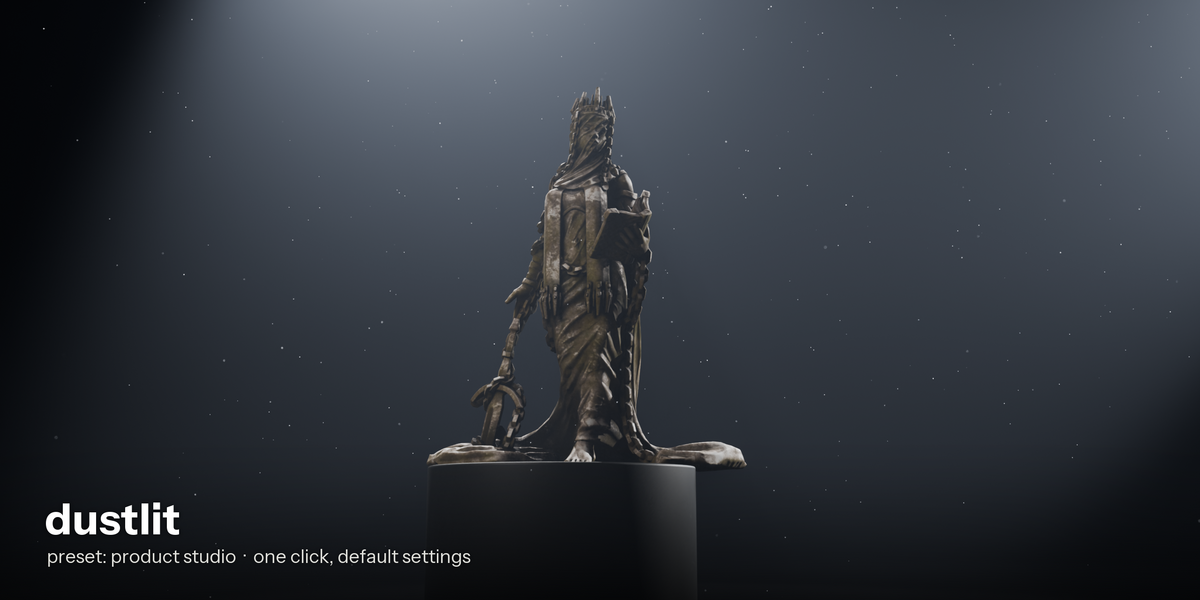
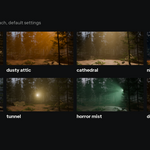
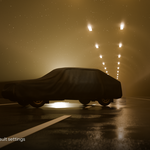
- Pick a preset (forest morning, dusty attic, cathedral, night alley, product studio, tunnel, horror mist, desert).
- Press Add haze.
- Adjust Density, Intensity and Color. Raise Settle if you want the haze to sink low and cling to objects (adds render time).
- Moved objects or lights? Press Auto-fit. Moved the camera? Press Refresh in Options (dust is placed for the camera at the time you press Add or Refresh).
- Press Remove haze to delete everything Dustlit added and restore your render settings.
Tips
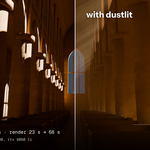
- The sharpest rays come from backlighting: a light behind the subject pointing toward the camera. The presets use this angle.
- Dark rooms show beams best. In a bright scene, lower the density rather than raising intensity.
- Rays need samples: use a denoiser in Cycles. EEVEE is fast but gets slower as resolution grows.
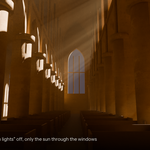
- To use only your own lights: Options > turn off "add beam lights" > Refresh.
- Everything lives in the collection "Dustlit". The volume box and the beams are normal objects: move, rotate or scale them like any other.
Requirements
Tested on Blender 5.2.2 (Windows, NVIDIA RTX). Cycles and EEVEE. Not tested: Blender 5.0 and 5.1, Cycles on CPU, AMD or Intel GPUs, macOS, Linux. If something does not work, send your Blender version, your OS and the error text (Window > Toggle System Console on Windows).
Have questions about this product?
Login to message
| Published | about 10 hours ago |
| Blender Version | 5.2 |
| Extension Type | N/A |
| Render Engine Used | Cycles, Eevee |
| License | GPL |
Discover more products like this
mist god rays volumetric haze atmosphere fog Light Rays dust one-click beams cinematic Lighting