Easy Camera Tracker
 Sander Wit
in VSE
Sander Wit
in VSE


Quickstart
Install
Download the zip file and drag it to your 3D viewport.
On Mac, please visit the addon preferences after installation for instructions on how to complete the setup.
How to track a shot
-
Select video
Select the video you want to track. -
Trim video
Trim the video by entering new start and end times. -
Camera move
- Free move - If the camera moved through space.
- Only rotate - If the camera only rotated and did not change position.
-
Shakiness
- Smooth - For smooth (drone) shots.
- Shaky - For handheld shots.
-
Zoom shot
Check if the camera zoomed in/out during the shot. -
Auto masking
Choose objects like cars and people to automatically mask for better tracking. -
Tracker
- Main - An advanced photogrammetry tracker will track the shot.
- Alternative - Blender's internal motion tracker will track the shot. Faster but simpler.
-
Settings
- Fast - Get the fastest result.
- Quality - If you're in no rush. Takes longer but tracks more accurately.
-
Start Tracking!
Starts the automatic tracking process.
Scene setup
-
Set camera orientation
Select 3 points in your point cloud that are on the floor, press F to make a face and click this button to orient your scene. -
Setup compositor
Press this to add your video to the background in the compositor.
(You can also add the video to the world background with the 'Setup world' button.)
Update 1.2.6 adds an automatic object masking feature (to improve tracking, not for compositing), you can now also track an image sequence (instead of only videos) and you can convert a video to an image sequence and the other way around.
Update 1.2.3 now also supports Mac, shows a progress bar and has many performance and stability updates.
Update 1.1.9 is available and is Blender 5.0 compatible and up to 27% faster!
Update 1.1.4 allows you to track stationary shots and makes it a lot easier to orient your scene after tracking.
Suitable videos

Please note that some videos can't be tracked because a lot of features need to be detected and matched between frames to solve the camera motion.
Your video must have:
- a moving camera (tracking stationary/tripod shots possible in beta)
- at least some parallax (see below)
- trackable detail (not just a clear sky or bare scene)
and no (or as little as possible):
- moving objects (like people, water, cars or windy nature)
- motion blur
- depth of field
- reflective of transparent objects
The addon will usually track videos just fine that have some moving or glossy objects, motion blur or depth of field. Just keep these tips in mind when shooting video you'd like to track, for the best results.
Parallax
Parallax is how nearby objects seem to move faster than faraway ones when the camera moves. It's important for 3D tracking because it helps the software see depth and track the camera correctly.
Documentation
Please note that I've been prioritizing updating the addon and am falling behind on updating the documentation. You can find tooltips for all buttons in the addon by hovering over them in the addon.
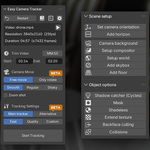
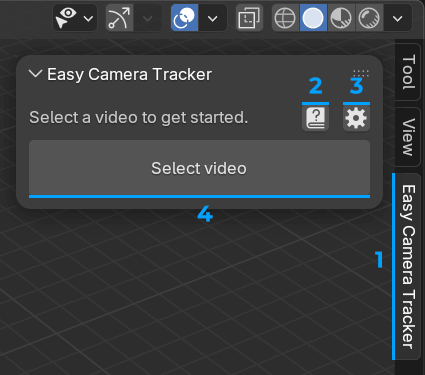
Start screen
-
Addon in sidebar
Press N on the keyboard to find the addon in the sidebar. -
Help
To visit this website if you need help using this addon. -
Preferences
To open the addon preferences. -
Select video
To select the video you want to track.
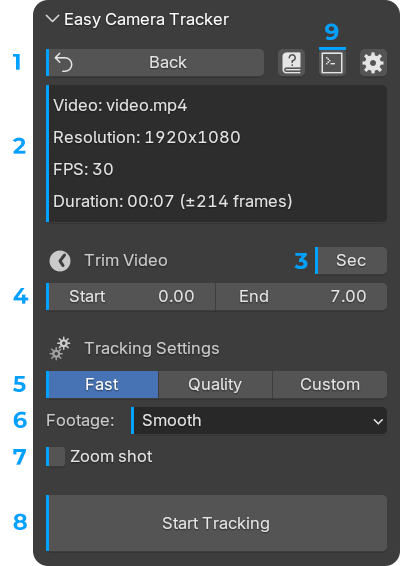
Video selected
This is the screen you see after selecting a video file.
-
Back
To go back to the start screen to to select a different video. -
Video info
The name, resolution, frames per second and duration of your video are shown here. -
Seconds / MM:SS
To switch between being able to trim your video in seconds or MM:SS. (MM:SS is selected automatically if your video is longer than a minute.) -
Trim start / trim end
If you want to trim your video, you can enter a new start and end time here. Leave this unchanged to track your entire video. (Videos needs to be at least 2 seconds) -
Tracking modes
To switch between Fast, Quality or Custom tracking modes. (More info below) -
Footage type
To set your footage type: Smooth, Regular or Shaky. This dropdown is only available in the Fast tracking mode. (More info below.) -
Zoom shot
Check this if the focal length changes during the shot (zooming in/out). -
Start tracking
To start the tracking process. You can still use Blender while tracking, just note that your PC will be working hard to track your video and will be less responsive. -
Console
To show/hide the console where the tracking progress is shown.
Tip - If you want to see what's going on under the hood, first enable 'logging' in the preferences and open the Blender console with the console button to see the tracking progress in detail, in the console.
Tracking modes
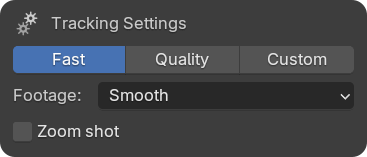
Fast
For having your video tracked the fastest.
Your video will be tracked at a lower resolution, FPS and with less feature matches per frame. The image sequences that will be created for tracking and rendering will be saved as JPG images to save on disk space and for slightly faster tracking.
-
Smooth - for smooth shots like drone, slow motion or stabilized shots. - Fastest track.
This will track your video fastest but will result in a less dense 3D point cloud and is not suitable for shaky footage. It will track your video at a lower FPS to further speed up the tracking process. It will also look for less features per frame and look at less frames to match them. - Regular - for footage that is not super smooth nor very shaky. Tracks with balanced tracking settings.
-
Shaky - for shaky, unstabilized, handheld footage. - Slowest track.
This will track your video slowest and will track the video at its original FPS and look for more features and at more frames to match them.
- Zoom shot - enable if you zoomed in or out in the shot. This will not just find the focal length of the lens that was used for the entire shot, but instead recalculate it each frame.
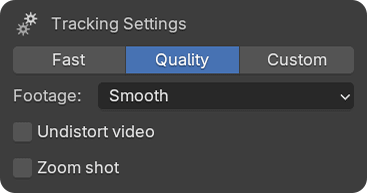
Quality
For the best possible results, if you're not in a rush.
Your video will be tracked at its full original resolution and FPS with more feature matches per frame than the Fast tracking mode. Tracking will usually take 2-10 times as long as the Fast tracking mode, depending on the resolution and FPS of your video. Usually, using the Fast tracking mode gives good results so it may be good to first give that a go. The image sequence that is created for tracking and rendering are saved as PNG images so it will take up more disk space.
-
Footage type
Set this according to the footage type you want to track to further optimize the tracking parameters under the hood.- Smooth - will find less features per frame and will look at less frames to match them. - Fastest track.
- Regular - balanced settings.
- Shaky - will find the most features per frame and look at more frames to match them. - Slowest track.
-
Undistort video
Check this to have the addon remove all lens distortion from your video and create a PNG image sequence you can use for professional compositing. - Slightly increases tracking time.
- Zoom shot - enable if you zoomed in or out in the shot. This will not just find the focal length of the lens that was used for the entire shot, but instead recalculate it each frame.
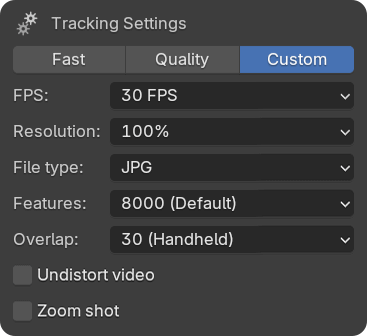
Custom
To be able to choose all tracking settings manually.
-
FPS - set the frames per second at which the video will be tracked.
High frame will result in a more accurate track at the cost of tracking time. Use lower frame rates for smooth camera motion and high frame rates for shaky shots. -
Resolution - set the resolution at which the video will be tracked.
Tracking at a high resolution will result in a denser 3D point cloud and sometimes a more accurate track at the cost of a longer tracking time. Use a high resolution if your shot has not a lot of visual detail. -
File type - set the file type for the image sequence that will be created for tracking and rendering.
Choose JPG to save on disk space and for slightly faster tracking, choose PNG for better images for compositing. -
Max features - set the maximum number of features (tracking points) to search for per frame.
Higher values give more stable tracks and a denser point clouds but take longer to solve. Use a lower value if you track at a lower resolution to save on unnecessary tracking time.- 1000 - Very quick solve, may be unstable for handheld or blurry shots - Fastest track
- 2000 - Good for smooth, low-res footage (e.g. drone pans)
- 4000 - Faster than default, works for many shots
- 8000 - Stable and accurate for most footage - Default
- 12000 - More redundancy and denser cloud, slower
- 16000 - Maximum redundancy, little benefit beyond stability. - Slowest track
-
Matching overlap - The maximum frame difference to look for matching features. Higher values handle faster camera motion but increase processing time.
- 5 - Use for very smooth, slow camera movements like drone shots. - Fastest track
- 15 - Good for general, well-controlled camera movement (e.g., slider or gimbal).
- 30 - Handles moderate-speed motion, like a smooth handheld walk-through. - Default
- 50 - Necessary for faster or less smooth camera movement where features quickly leave the frame.
- 75 - For very challenging footage, like quick turns or rapid dolly shots. - Slowest track
-
Undistort video
Check this to have the addon remove all lens distortion from your video and create a PNG image sequence you can use for professional compositing. You will need to track at original FPS and resolution if you need all frames at full resolution for compositing, which can increase tracking time.
- Zoom shot - enable if you zoomed in or out in the shot. This will not just find the focal length of the lens that was used for the entire shot, but instead recalculate it each frame.
Preferences
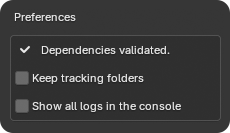
Click the gear icon to open the addon preferences.
-
Keep folders
Check this box if you want to preserve the temporary tracking image sequence and Colmap tracking folder, after the tracking is completed. (Note that if the tracking process failed, these folders are not deleted.) -
Show logs
Check this box if you want to see all the detailed process logs in the Blender console, during the tracking process. Check this to make sure your pc is actually hard at work during the tracking process or if you track a video again after it failed to track at first, to see what went wrong.
The tracking process
Files location
All tracking data gets stored in a folder called 'shot-name' (where 'name' is the file name of the video that is tracked) at the same location as your video. If you track a video more than once, a new folder called 'shot-name-1' is created.
Video conversion
Your video will automatically be converted to an image sequence (frames) because this tracker needs frames to work.
-
File type
These frames will be saved as JPG images in Fast mode and PNG images in Quality mode. -
Trimming
If you have changed the initial start and/or end times in the 'Trim video' section, only the frames between those trim times will be saved, saving on tracking time. -
Rendering
Apart from a folder with frames for tracking (which may be at a lower resolution and at a lower FPS depending on the tracking settings), a second image sequence is created automatically with all frames at full resolution, which gets set as the background of the new tracked camera and can be used for compositing. - If you've checked 'undistort', only the undistorted frames are saved.
Tracking
Now that the image sequences are created, the tracking process is started. This is done in the background so that you can keep using Blender as normal, just keep in mind that it's working hard in the background so your PC will be less responsive.-
Tracking steps
Tracking is done in a few different steps after the video is converted to frames:-
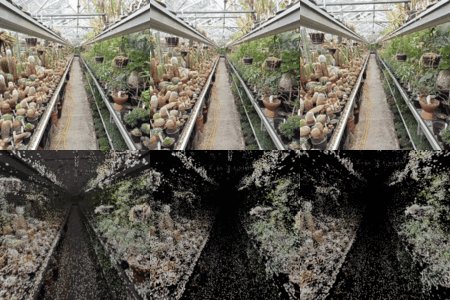
Feature extraction
First it will find features (trackable patterns) in each frame. This is done on the GPU if an Nvidia GPU is detected, otherwise it will use the CPU. -
Feature matching
Next it will try to match the detected features across frames. -
Reconstruction
Next it will try to calculate the positions of the features in space to reconstruct the scene and camera at each frame. - This step takes longest.
-
Finalizing
Next it will perform final calculations to create the animated camera and undistort the frame if this option was enabled.
-
Feature extraction
-
Progress
To view the progress of the tracking process, open the Blender console with the console button to see what's going on under the hood. -
Logging
If you want to see the progress in more detail, you can enable 'logging' from the preferences so that you can keep track of everything that's going on. - Tip: enable logging before starting tracking because if you enable it during a tracking process, it will only show the logs of the next step of the process.
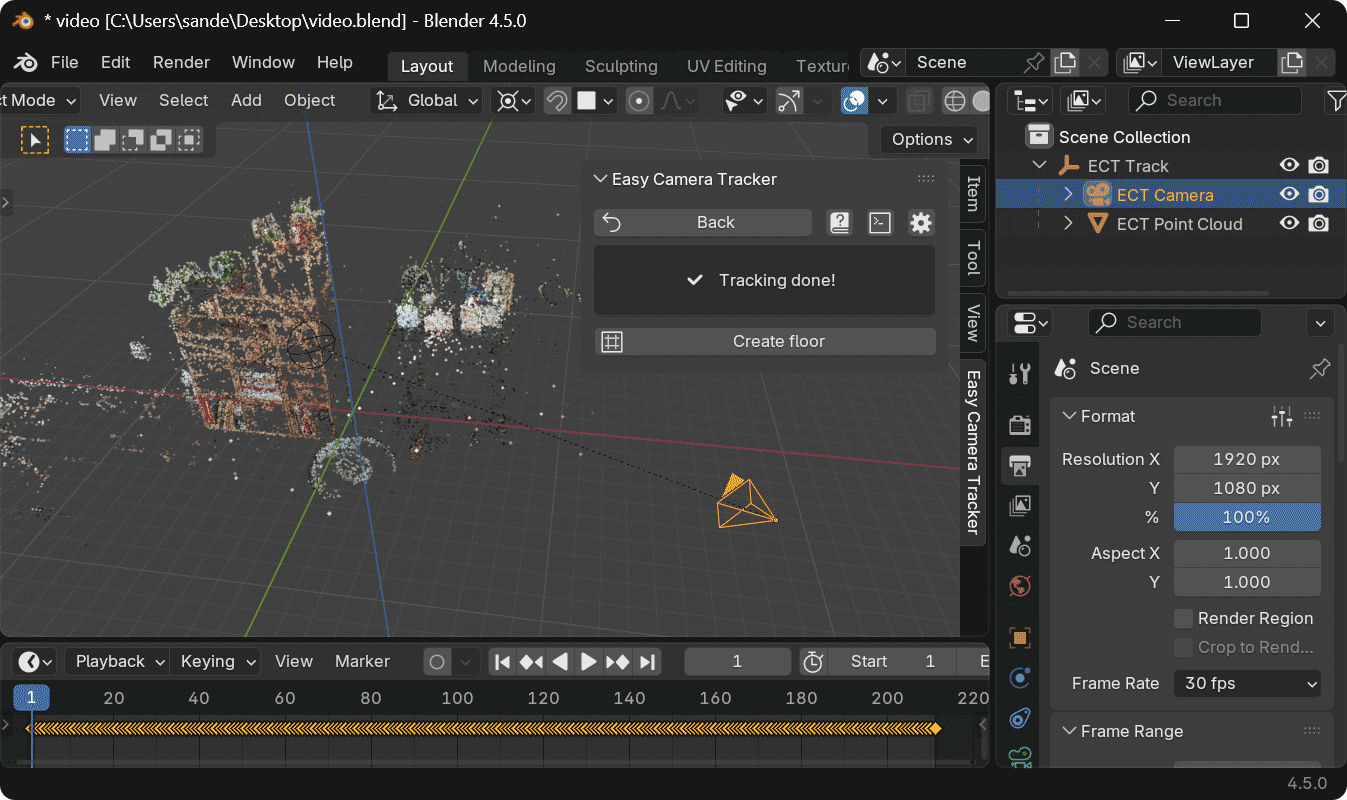
Scene setup
If the tracking was completed successfully, the tracking scene is setup automatically.
-
Camera
An animated camera is added to your scene that moves exactly with your video.- It has location and rotation keyframes for each tracked frame.
- The focal length is set (note that it gets converted to a 35mm sensor equivalent).
- If you chose 'Zoom shot', your focal length is keyframed and updates each frame.
- The rendering image sequence is set as the camera background.
-
Point cloud
A point cloud mesh object is created with a vertex for each tracked feature. It can be used as a guide to reconstruct your scene in 3D.- A geometry nodes modifier is created to convert each vertex to a point and store the feature color as a color attribute.
- A material is created (and set in the geo nodes modifier) to display the point color.
-
Empty
An empty sphere object is created and set as the parent of the camera and point cloud. Move, rotate and scale this empty to have your camera and point cloud match your 3D scene. -
Render settings
- The render width and height are set to match your video.
- The render FPS is set to match your video.
- The start and end of your timeline are set to match your (trimmed) video.
- The color view transform is set to 'Standard' (this is 'AgX' by default) to match the colors of your video.
Cleanup
After setting up the scene and if you haven't checked the 'Keep tracking folders', the temporary tracking folders (with the tracking image sequence and raw Colmap tracking data) are deleted.
Tracking done
-
Tracking status
Reads 'Tracking done!' if the tracking process was successful. See Troubleshooting if it reads 'Tracking failed'. -
Create floor
Use this to add a plane to the scene that's setup automatically with your video projected from the camera. This is useful to quickly reconstruct your 3D scene. -
Shadeless
Check this to make the material an emissive material, useful for setting up the scene. Leave it unchecked to have it be a diffuse material. -
Extend texture
Check this to extend the material outside of the camera view. This is useful to make reflections and indirect lighting better (and to avoid the last pixels from appearing black in some cases). -
Project backwards
Check this to have the background texture also projected backwards onto geometry behind the camera. Useful to make reflections slightly better. -
Backface culling
Check this to make the backsides of the geometry transparant which is useful when reconstructing the scene.
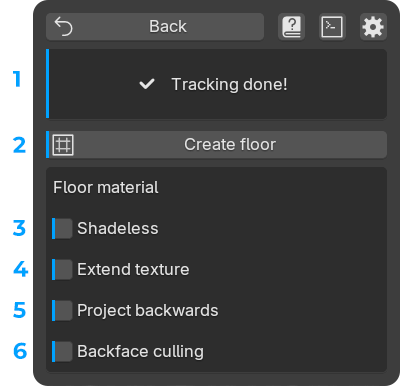
Note that if you rename the material, the checkboxes will no longer work.
Track info
After everything is done, a track-info.txt file is created in the same location as your video file, with useful information about the tracking process, like the tracking settings and how long it took to track.
Troubleshooting
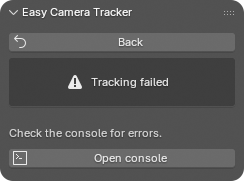
Just like when tracking a video with Blender's built-in Motion Tracker, not all videos can be tracked.
- If an error is shown in the sidebar, it is likely caused by your video not having enough stationary features to track, or there not being enough visible parallax. In those cases you can try again with different tracking settings.
- If the 3D point cloud does not 'stick to your footage', it is likely that your video has not enough parallax (because the camera didn't move enough or only rotted), too much motion blur or depth of field.
- If the detected focal length is too high, you have likely tracked using the 'smooth' footage type even though your footage isn't very smooth. Try again with 'regular' or 'shaky' footage type.
Contact
Feel free to reach out to me if you are tracking a video which meets the suitable video requirements but does not solve properly. Enable logging and copy-paste the entire log to a .txt file and attach it to your message and I may be able to help.
Have a nice day!
Have questions about this product?
Login to message
| Blender Extension Compatible | Yes |
| Sales | 400+ |
| Rating | 13 ratings |
| Dev Fund Contributor | |
| Published | about 1 year ago |
| Blender Version | 4.5 - 5.2 |
| Extension Type | Add-on |
| Render Engine Used | Arnold, Blender-Internal, Blender-Game-Engine, Cycles, Eevee, Freestyle, Luxrender, Mental-Ray, Octane, Vray, Yafaray |
| License | GPL |
Discover more products like this
Motion Tracking colmap Camera Tracking VFX voodoo matchmoving glomap tracking matchmove 3d tracking visual effects camera-tracker