 Armin
Armin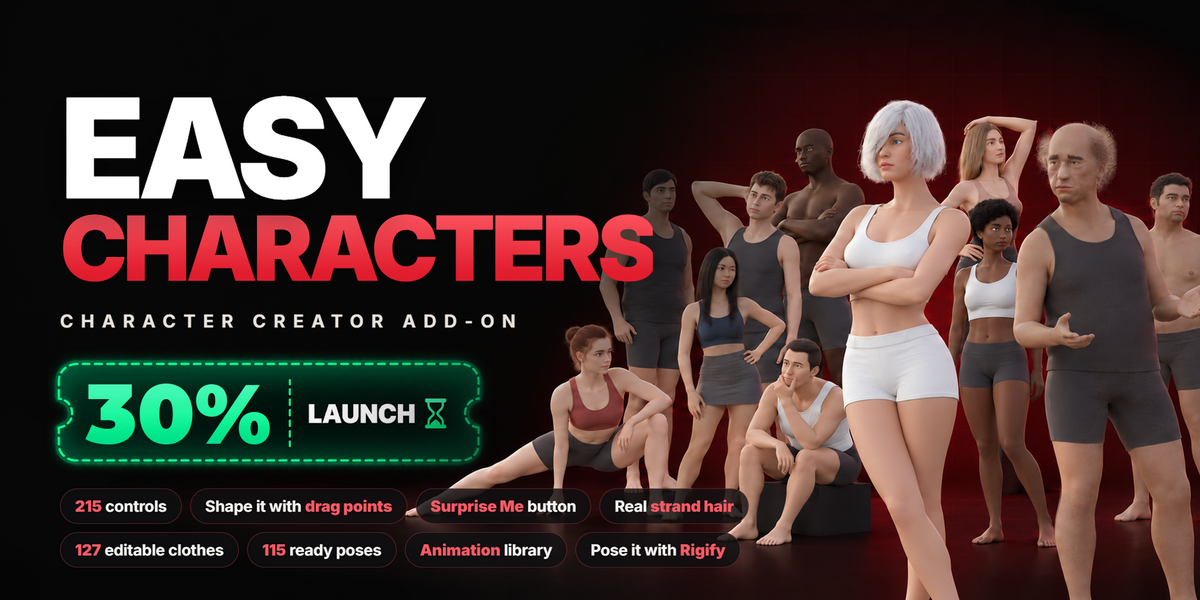
Install
- Download the .zip. Do not unpack it.
- Drag the .zip into the 3D viewport, or use Edit > Preferences > Get Extensions > Install from Disk.
- In the 3D viewport press N to open the sidebar and click the Characters tab.
Needs version 5.2 or newer (built on 5.2 LTS, also tested on the 5.3 beta). Nothing else has to be installed: Rigify, which two of the buttons use, comes with Blender and is switched on for you.
Your first character, in two minutes
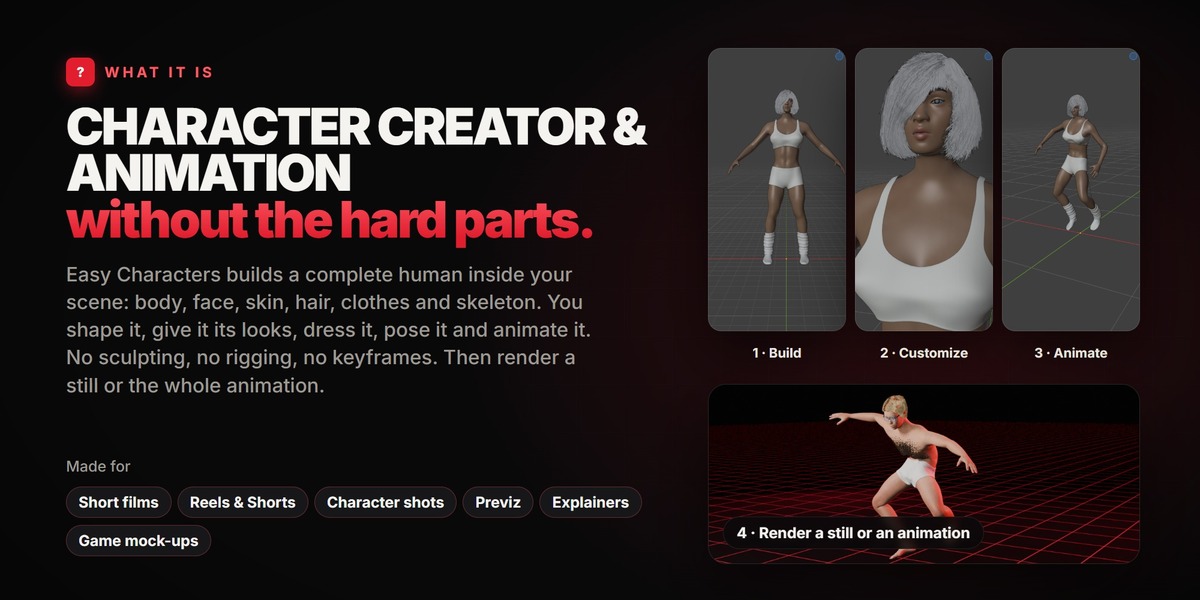
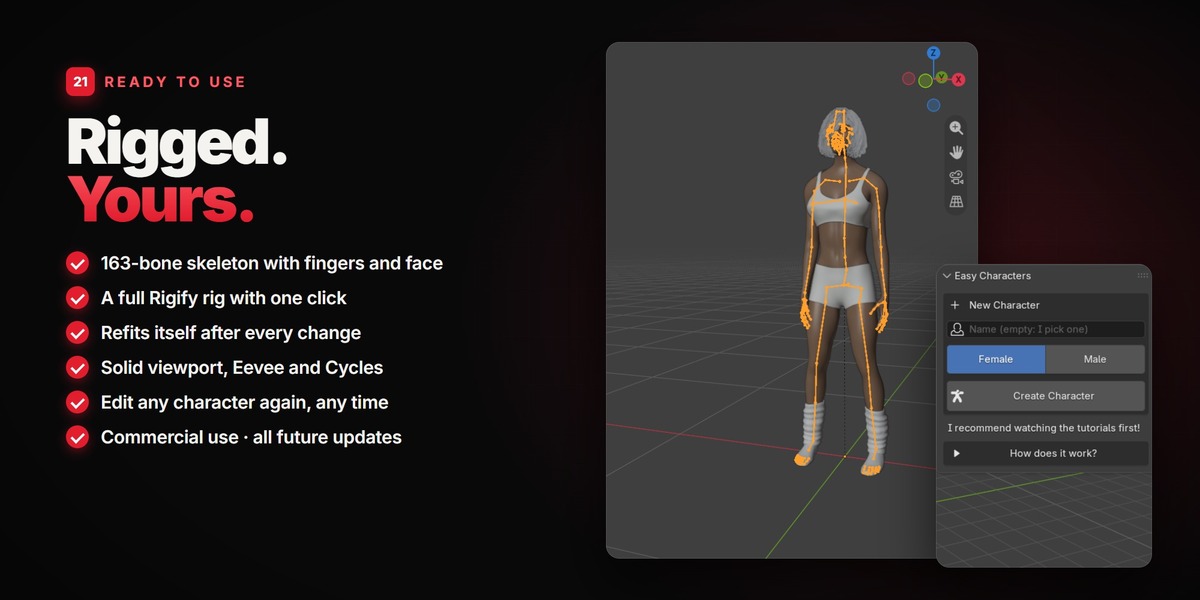
- Type a name (or leave it empty and one is picked for you), choose Female or Male, press Create Character.
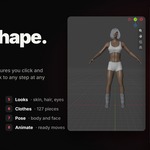
- Build: click a body type, then set Height, Weight, Muscle, Proportions and Age.
- Looks: open Skin and click a skin; open Hair and click a style; open Eyebrows and click one.
- Clothes: open a box and click a piece.
- Pose: click a pose.
- Press Done. The character stays in the scene. Select it and press Edit This Character whenever you want to change it.
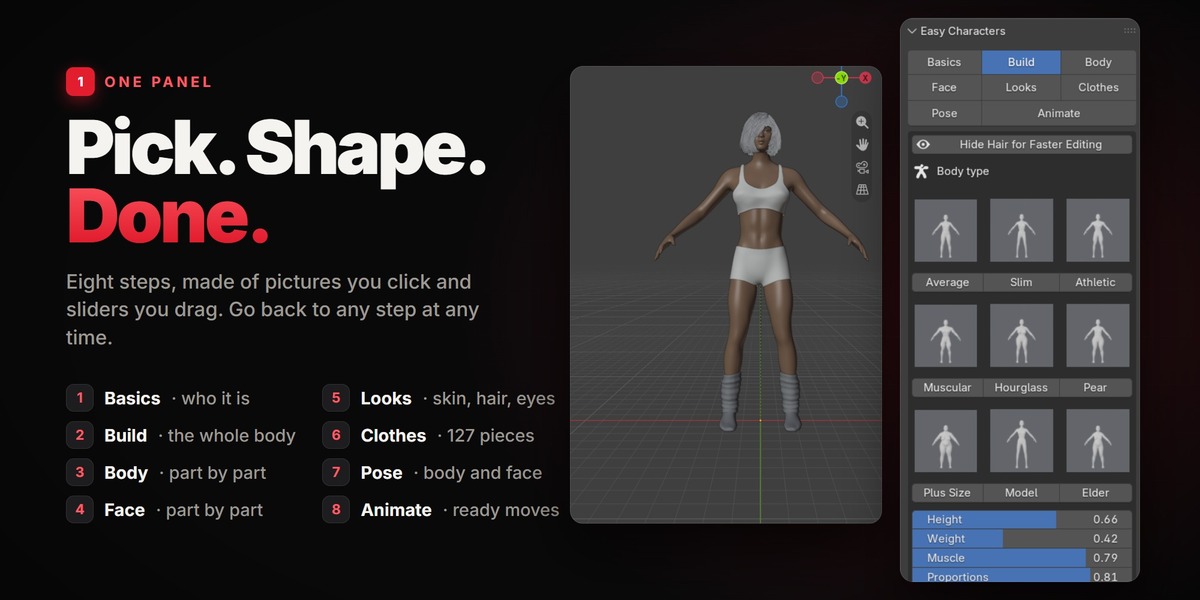
The eight steps
The steps are the buttons at the top of the panel. Nothing forces their order, and you can go back to any of them at any time.
Basics
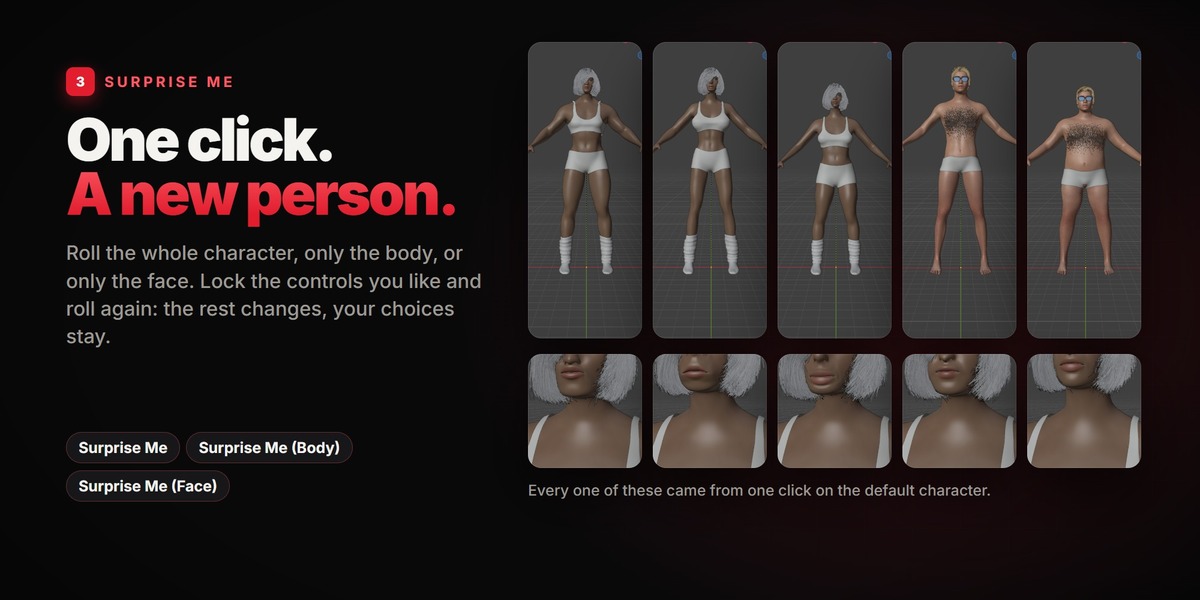
Female or male (you can switch later, everything you set is kept), and Surprise Me, which rolls a whole new character.
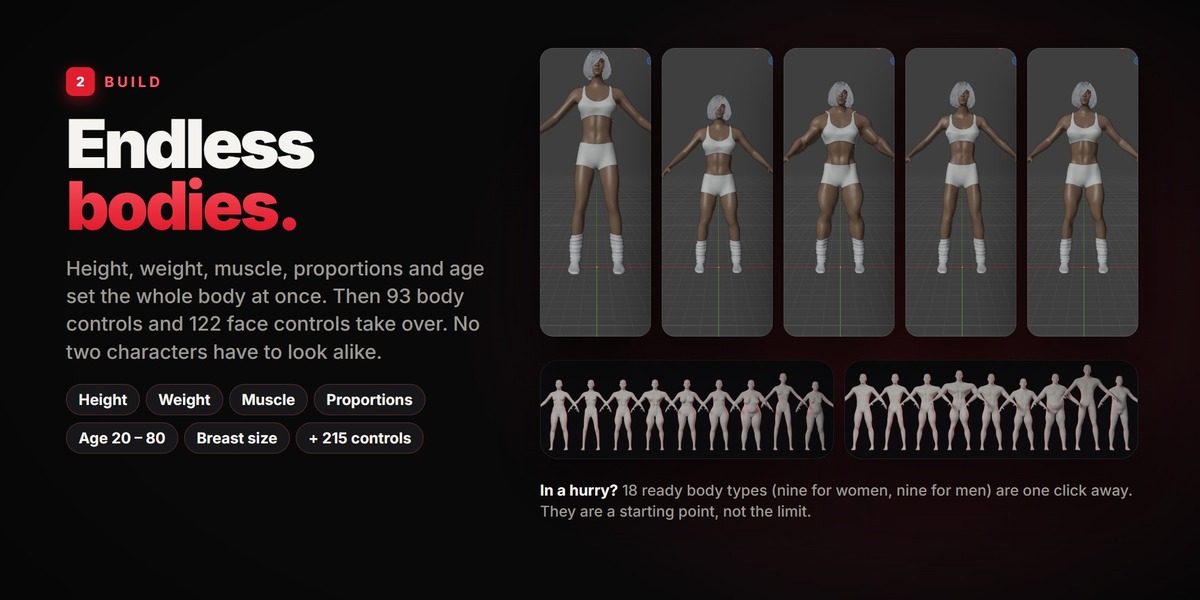
Build
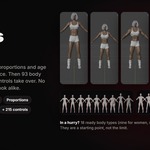
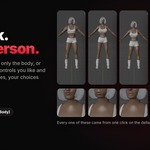
Nine body types for each sex and the sliders for the whole body. Reset Build puts the sliders back. Surprise Me (Body) rolls a new body and keeps the face.
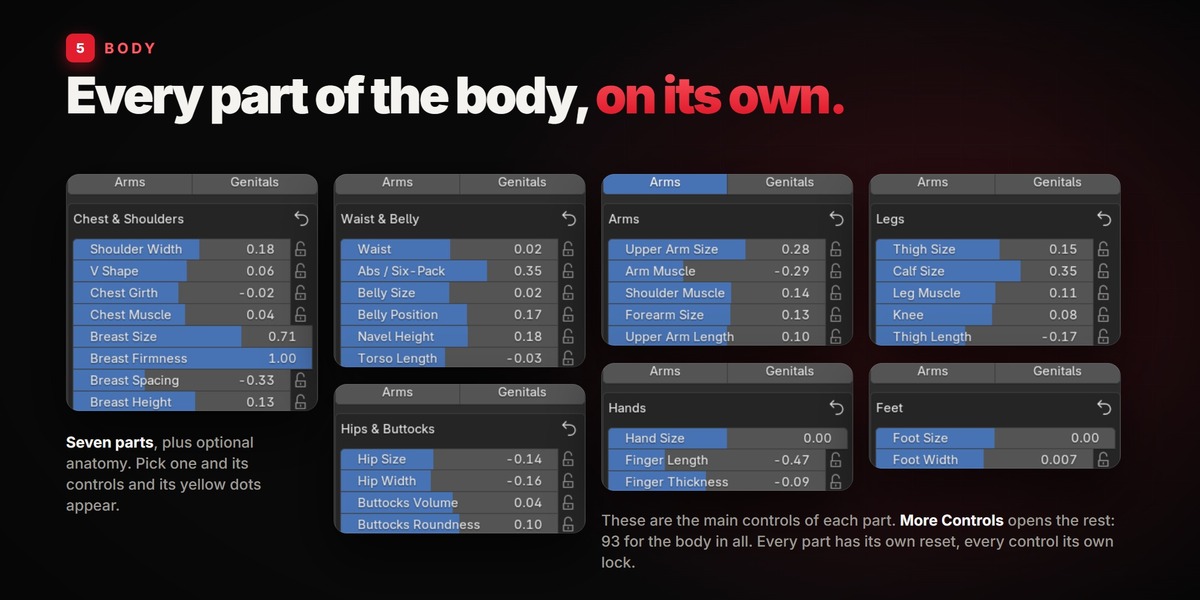
Body
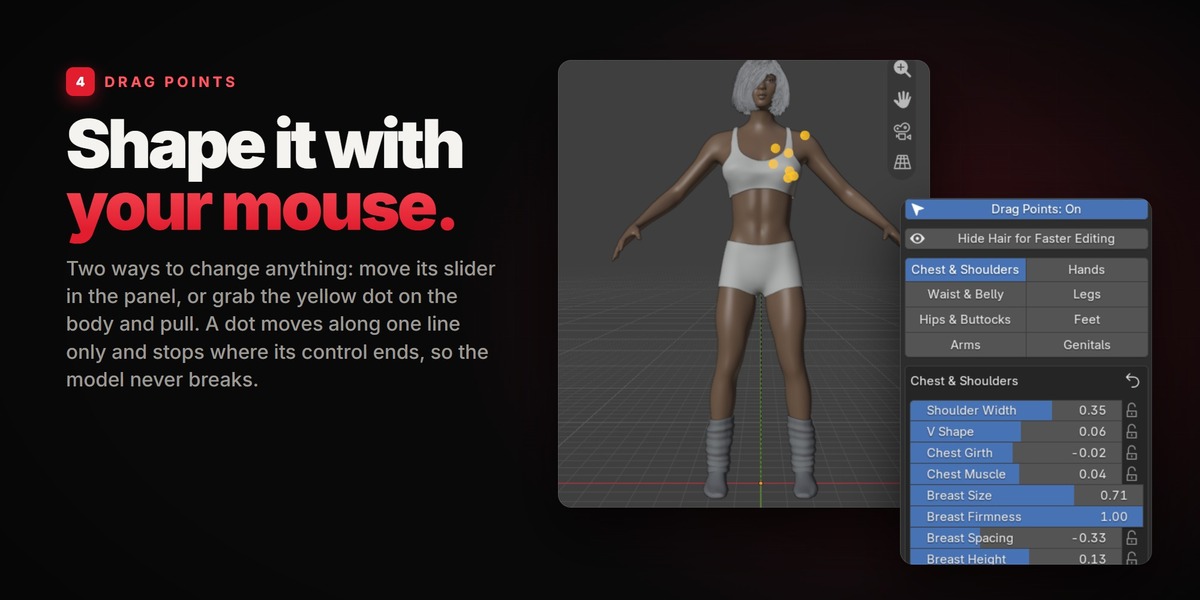
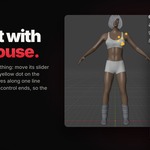
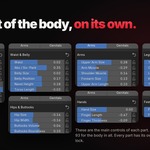
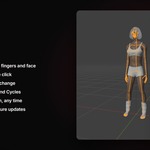
Choose a part (Chest & Shoulders, Waist & Belly, Hips & Buttocks, Arms, Hands, Legs, Feet, Genitals). Its controls appear as sliders, and as yellow Drag Points on the character: pull a dot to change its control. (The dots are gizmos: if the gizmos of the 3D view are switched off in its header, the panel offers a button that shows them again.) The little arrows next to a dot show which way it can go. The lock next to a slider keeps its value when you press Surprise Me. The arrow at the top of a part resets that part.
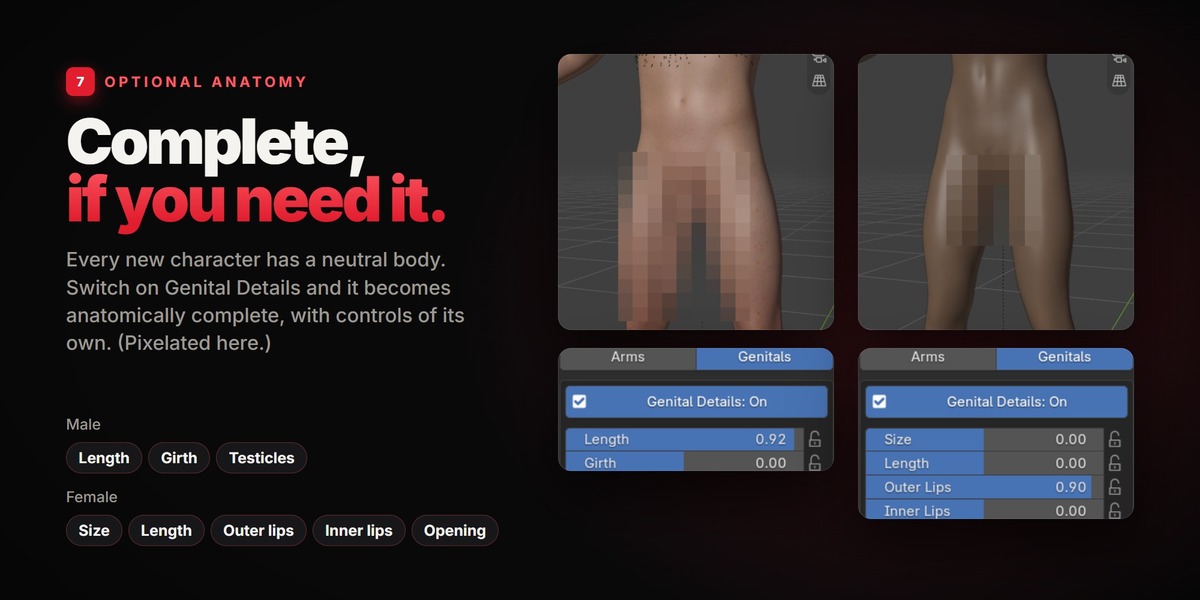
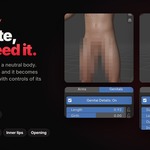
Genitals is switched off for every new character: the body has a neutral surface there. Switch Genital Details on if your project needs it.
Face
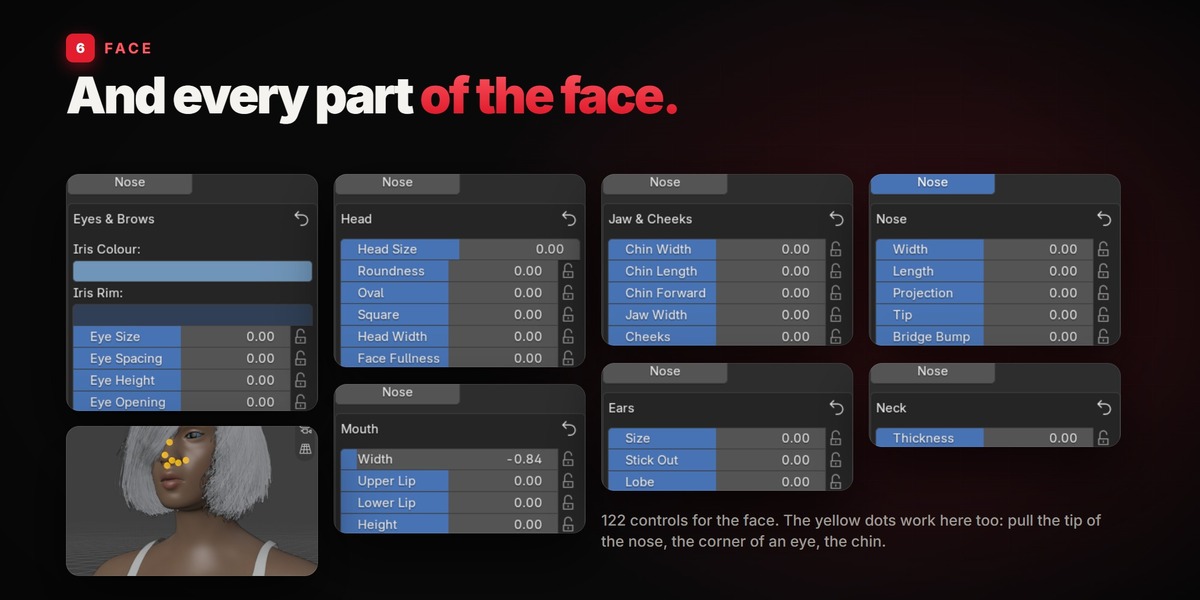
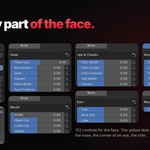
The same for the face: Head, Jaw & Cheeks, Eyes & Brows, Nose, Mouth, Ears, Neck. Surprise Me (Face) rolls a new face. The copy button next to it copies the values of the face so you can keep them.
Looks
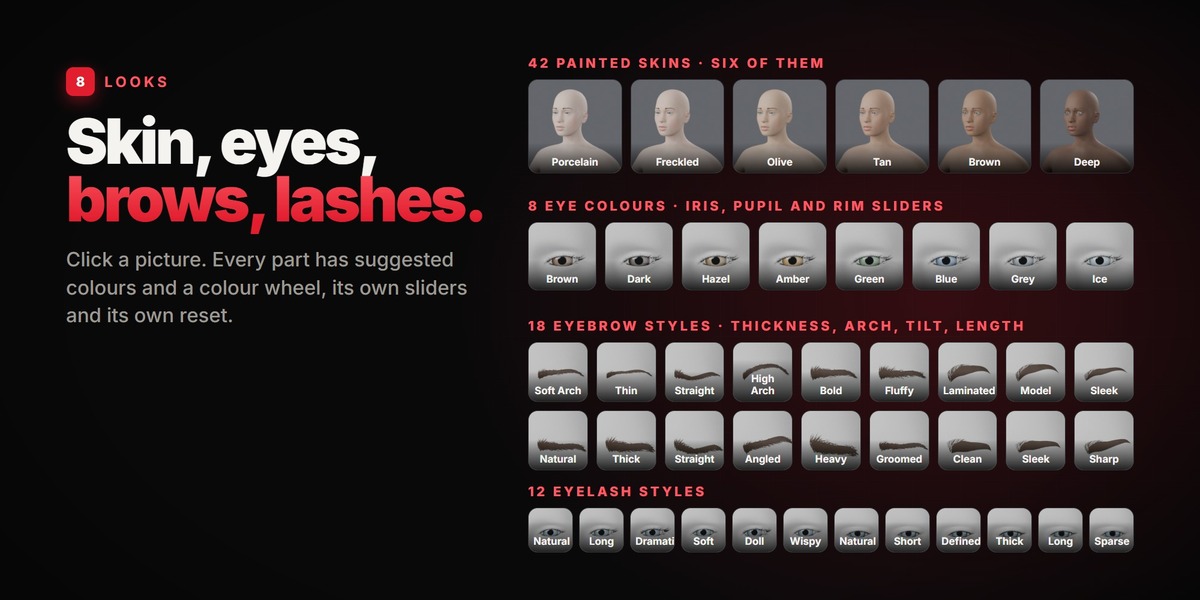
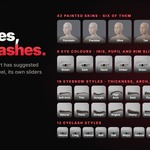
Five boxes that open and close: Skin (painted skins, a plain colour, or none), Hair, Eyes, Eyebrows, Eyelashes. Every box has suggested colours and, at the end of the row, a colour field for any other colour. Every box with sliders has a reset button.
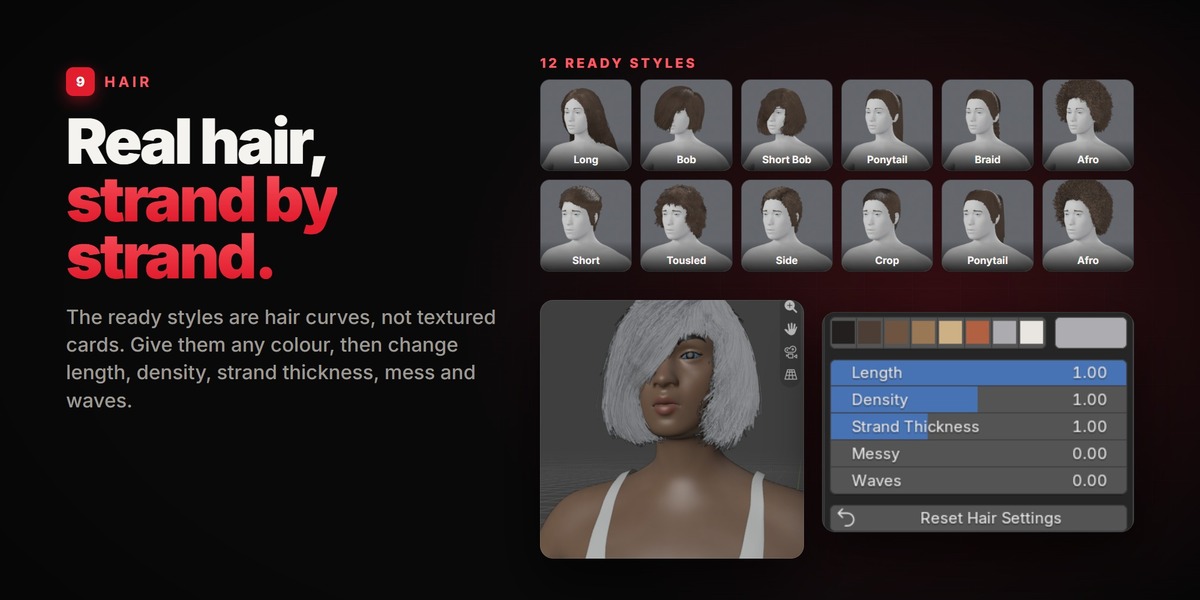
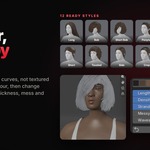
Hair > Ready styles: click a style, then change Length, Density, Strand Thickness, Messy and Waves.
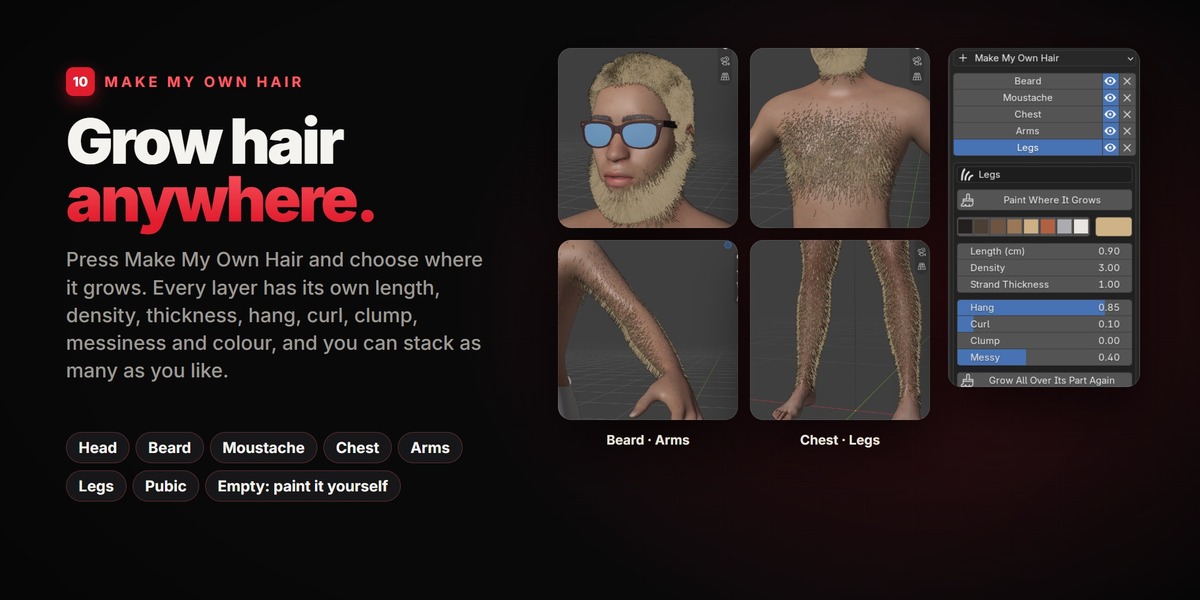
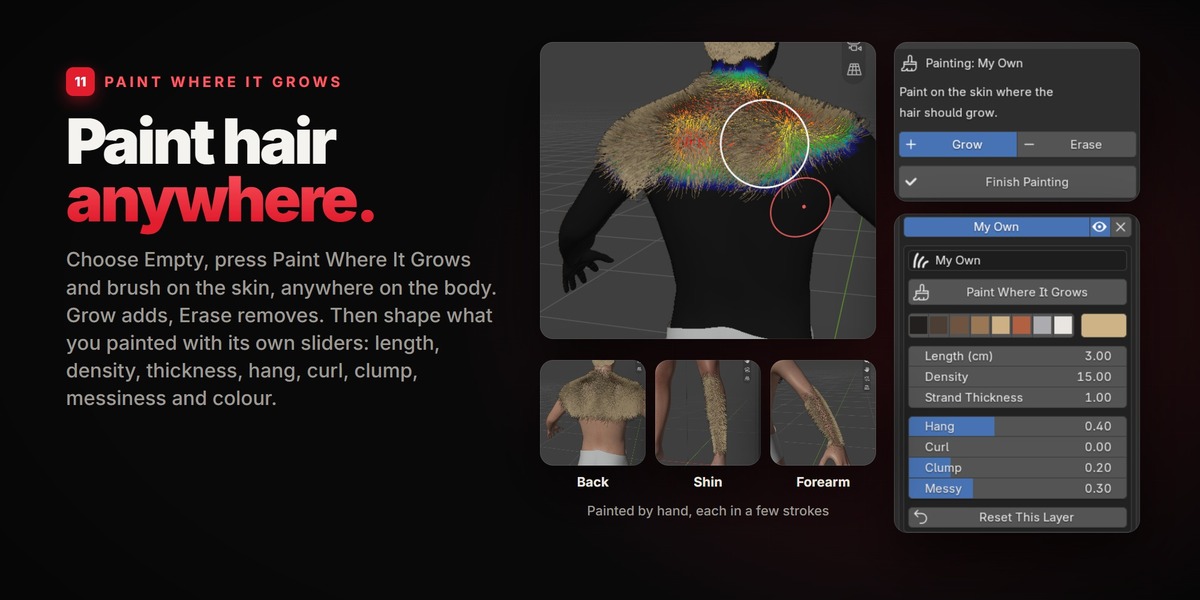
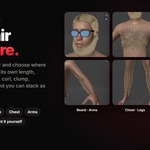
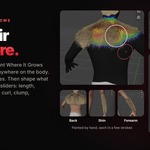
Hair > Make My Own Hair: choose where the hair should grow (Head, Beard, Moustache, Chest, Arms, Legs, Pubic or Empty). A layer appears in the list. Click a layer to change its settings; the eye hides it; the X removes it. Paint Where It Grows switches to painting: use Grow and Erase, paint on the skin, then press Finish Painting. Grow All Over Its Part Again brings a ready layer back to where it started.
Clothes
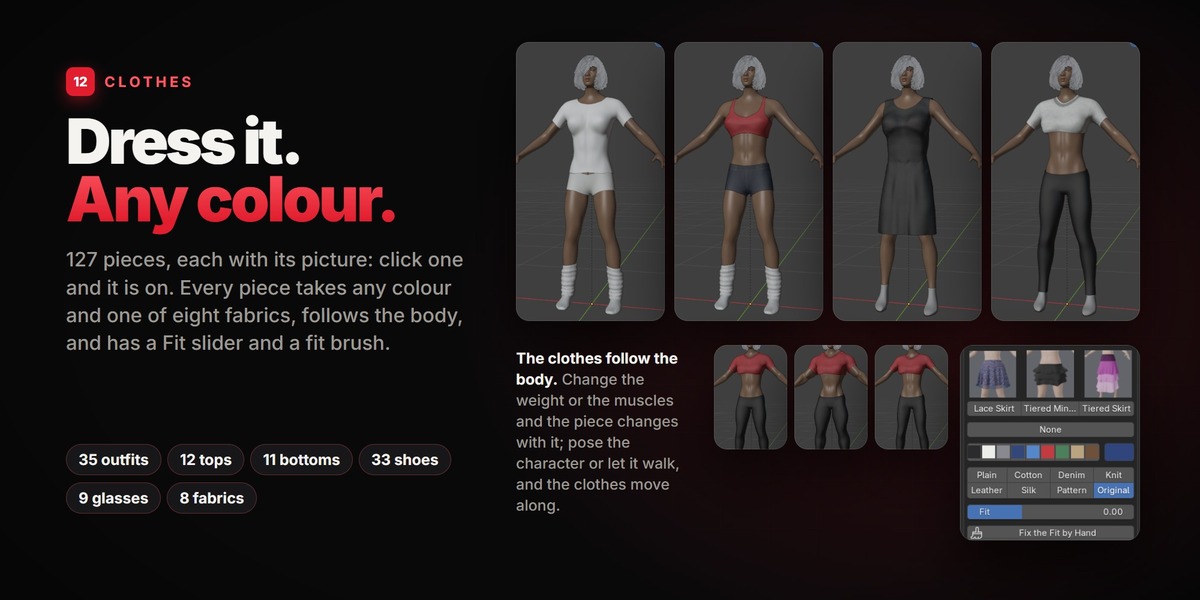
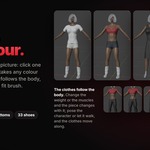
Seven boxes: Outfits & Dresses, Tops, Trousers & Skirts, Underwear & Stockings, Shoes & Socks, Gloves & Sleeves, Glasses. Open a box and click a picture: the piece is on. None takes it off. An outfit is a whole set and replaces the top and the bottom; the other boxes are worn on top of each other.
Under the pictures of a piece that is on: a row of colours (and a colour field for any other colour), eight fabrics (Plain, Cotton, Denim, Knit, Leather, Silk, Pattern, and Original for the print the piece came with), and the Fit slider, which makes the piece looser or tighter all over. Fix the Fit by Hand switches to a brush: paint on the cloth where it should stand off the body more, or less. Reset This Piece puts its colour, fabric and fit back.
The clothes follow the body, the poses and the moves by themselves.
Pose
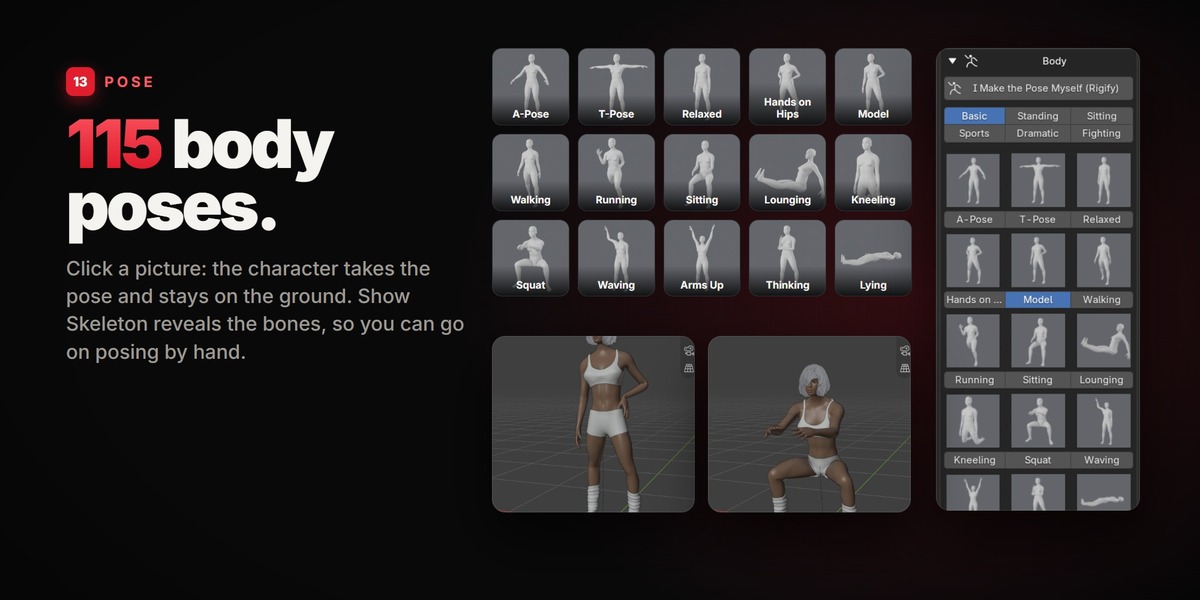
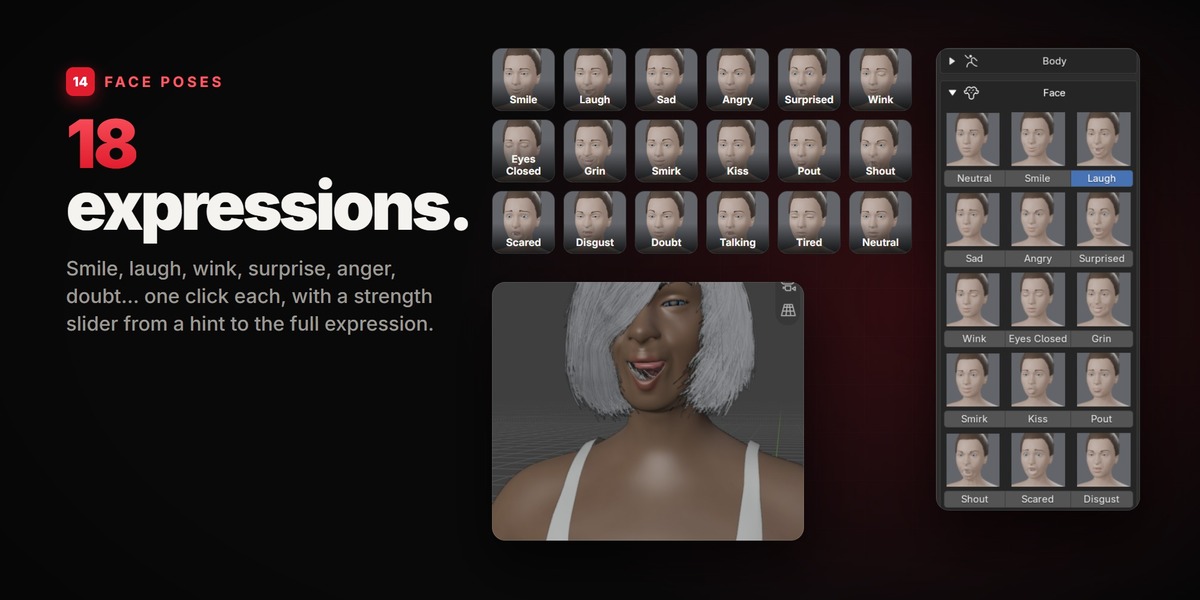
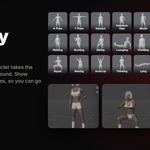
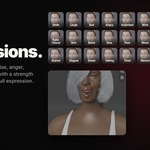
Body: 115 poses in six groups (Basic, Standing, Sitting, Sports, Dramatic, Fighting). Click a picture. Show Skeleton shows the bones. Face: eighteen expressions and a strength slider.
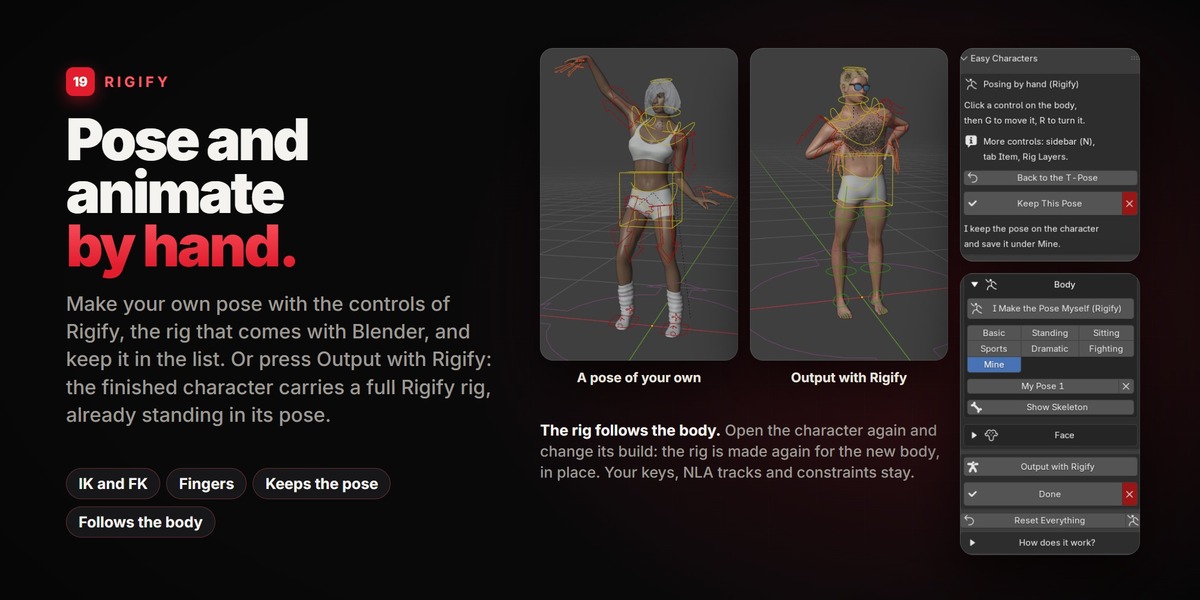
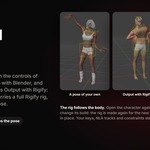
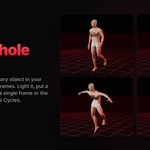
I Make the Pose Myself (Rigify): the character goes into the T-pose and gets the controls of a Rigify rig. Click a control on the body, then press G to move it or R to turn it. Back to the T-Pose starts again. Keep This Pose puts the pose on the character and saves it in the group Mine, where every character of the file can use it (the X next to a pose of yours removes it). The red X leaves without keeping anything. The controls are taken away again in both cases.
Animate
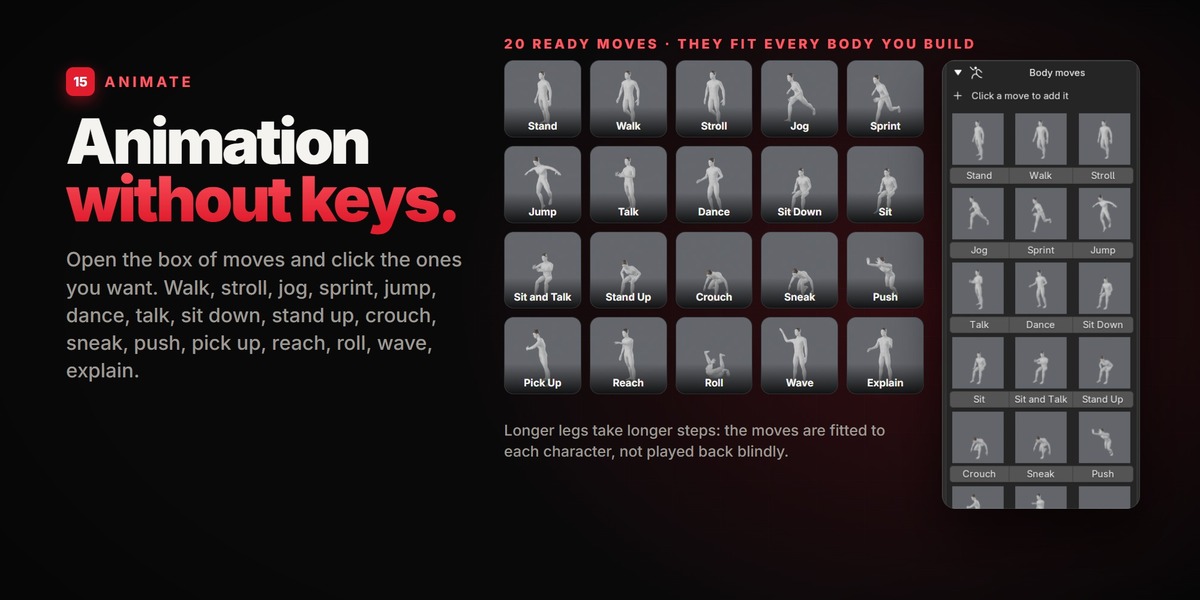
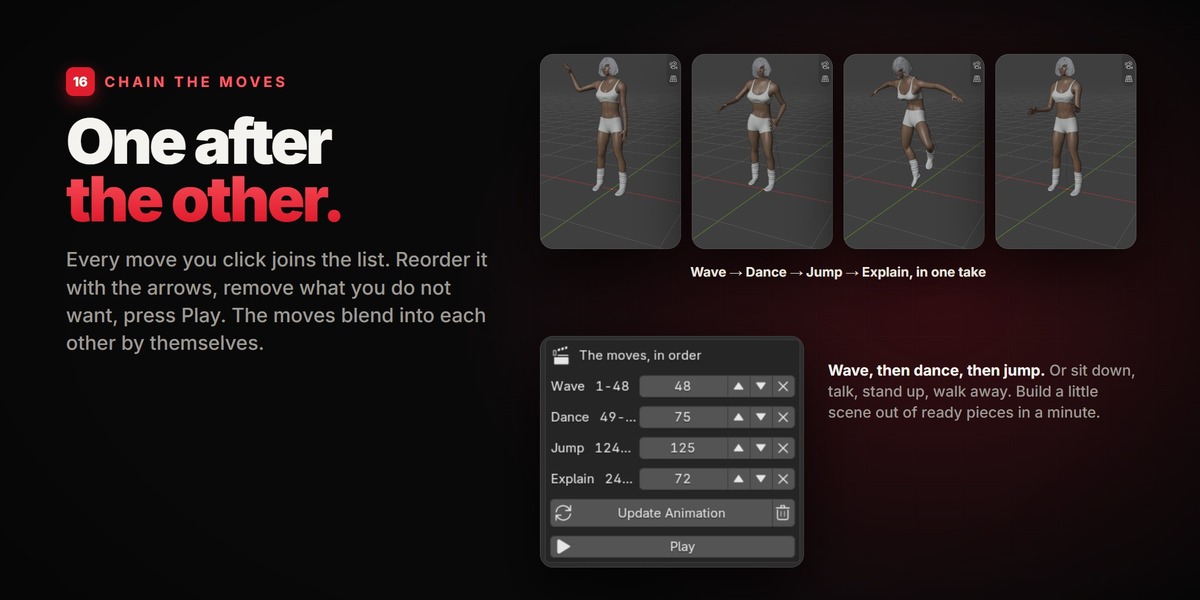
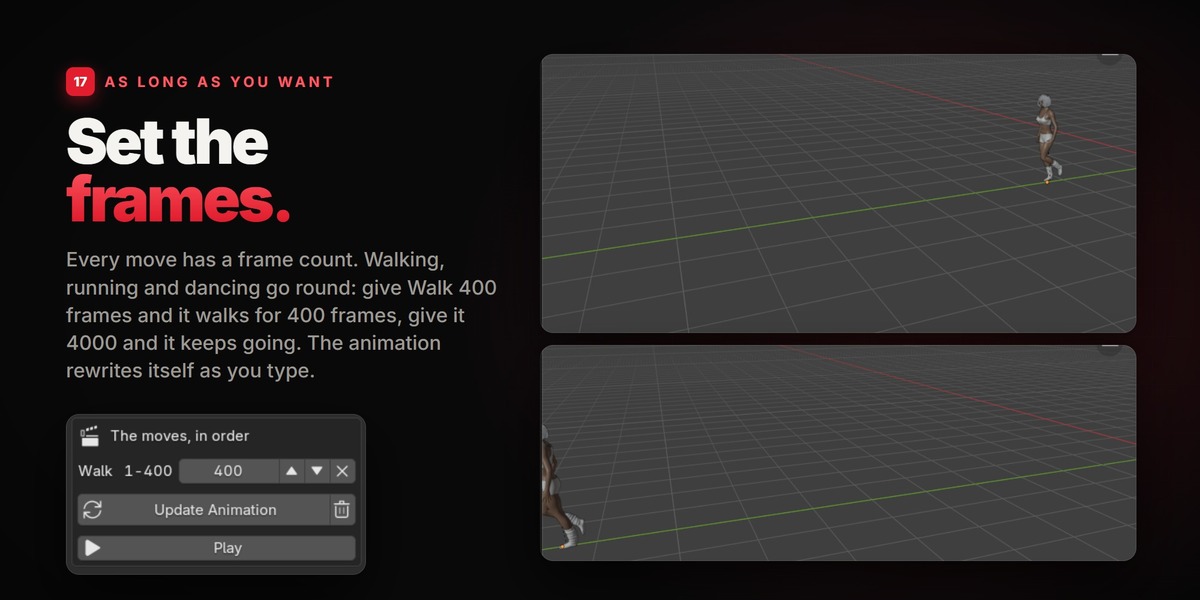
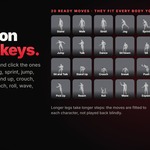
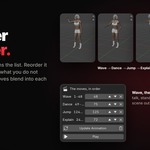
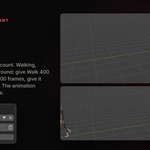
Body moves: click a move to add it to the list. In the list, set how many frames each move lasts, move it up or down, or remove it. Moves that go round (walking, running, dancing) simply go on for as long as you give them. The animation is written again by itself whenever you change the list.
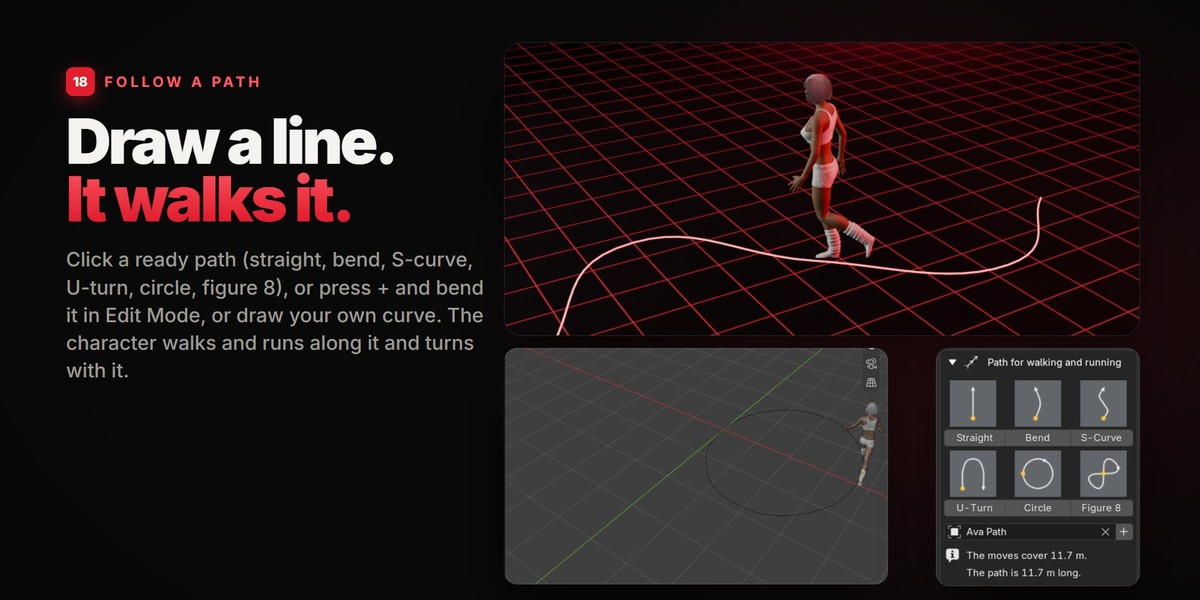
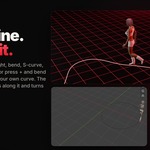
Path for walking and running: click a ready path (Straight, Bend, S-Curve, U-Turn, Circle, Figure 8): it appears under the character, as long as the moves carry it. Or press +, or pick a curve of your own. Reshape the path in Edit Mode. On a closed path (Circle, Figure 8) the character goes round and round. The panel shows how far the moves carry the character and how long the path is; at the end of the path the character stops.
Finishing: Done, or Output with Rigify
Done closes the character. It stays in your scene as it is, with its skeleton, its pose and its animation, and can be opened again at any time.
Output with Rigify, right above Done, closes the character too and gives it a full Rigify rig that already stands in the pose of the character: IK and FK arms and legs, fingers, torso, head. Select the rig, go to Pose Mode and pose or animate it as any Rigify rig. If you open the character again and change its body, the rig is made again for the new body, in the same place; your keys, NLA tracks and constraints are kept. Remove the Rigify Rig turns it back into a plain character.
Exporting (FBX, glTF): press Done first, then tick "Visible Objects" (or "Selected Objects") in the exporter. A character that wears clothes keeps one hidden helper object, "Name_Skin", that the clothes rest on; it never renders, and with "Visible Objects" it is not exported.
Tips
- Editing feels slow with hair on? Press Hide Hair for Faster Editing in Build, Body or Face. Renders are not affected, and the hair comes back when you press Done.
- More than one character: every character is listed by name on the first screen. Click a name to open that character. A copy made with Shift+D is a character of its own.
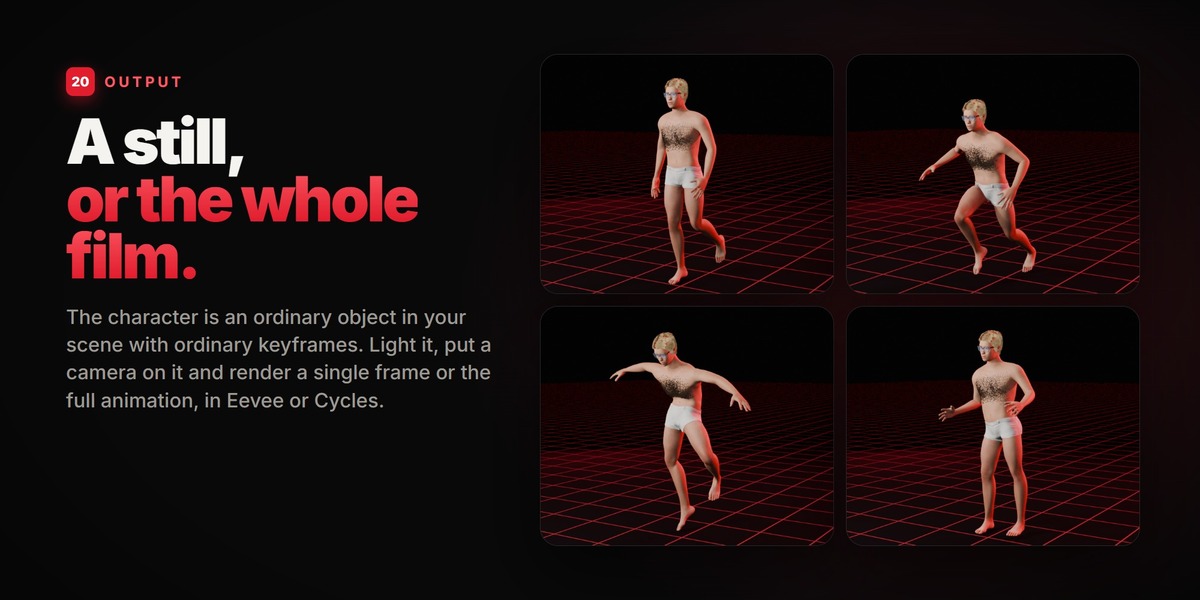
- Rendering: the hair uses the hair shader in Cycles. In Eevee and in the solid viewport it is shown in its plain colour.
- Reset: every group of settings has its own reset button.
Troubleshooting
- I do not see the Characters tab. Press N in the 3D viewport. If the tab is missing, check Edit > Preferences > Add-ons that Easy Characters is enabled.
- The hair does not show. A new character has no hair: choose a style in Looks > Hair. If hair is hidden, press the eye button "Hair Hidden" in Build, Body or Face.
- The character has no colour. A new character has no skin colour: choose a skin or a colour in Looks > Skin.
- The painted skin does not show in the solid viewport. Set the viewport colour to Texture (it is set for you when you click a painted skin).
- A piece of clothing shows skin through it on a very large body. Raise its Fit slider, or use Fix the Fit by Hand on that spot.
- Output with Rigify says the character is scaled unevenly. Give the character the same scale on X, Y and Z, then press it again.
- Still stuck? Send me a message through the product page and tell me your version and what you clicked.
Have questions about this product?
Login to message
| Blender Extension Compatible | Yes |
| Published | about 6 hours ago |
| Blender Version | 5.2 |
| Extension Type | Add-on |
| Render Engine Used | Cycles, Eevee |
| License | GPL |