Easy Filter
 Onion365studio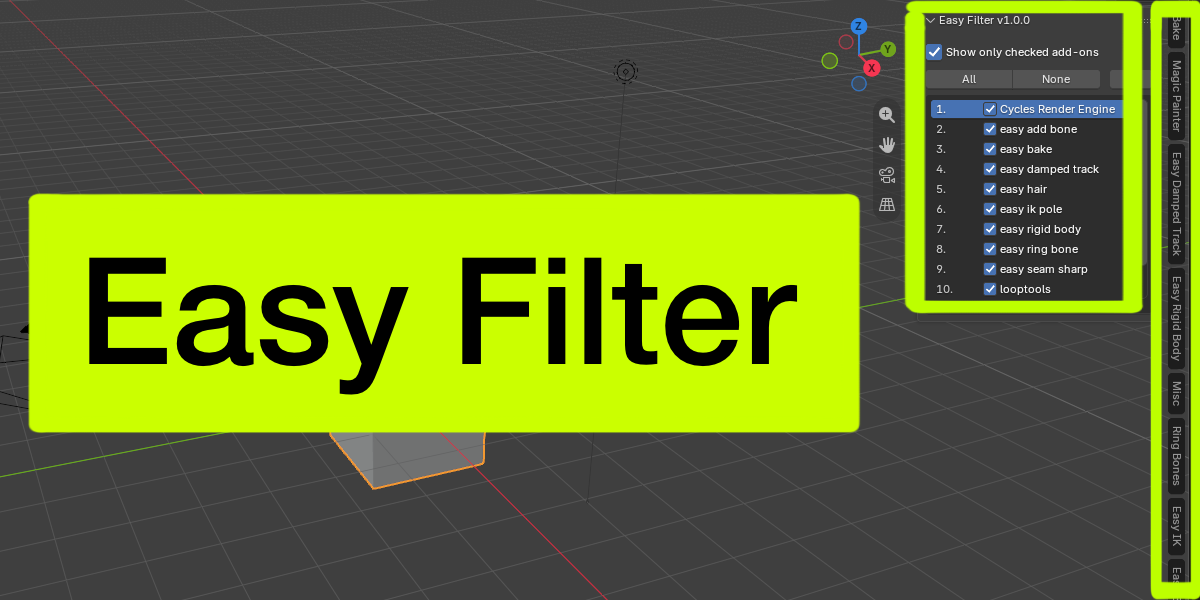

Documentation
Installation
- Download the zip file. Do not unzip it.
- In Blender, open Edit > Preferences > Get Extensions.
- Click the small arrow in the top-right corner and choose Install from Disk.
- Select the zip file and make sure Easy Filter is enabled.
Where to find it
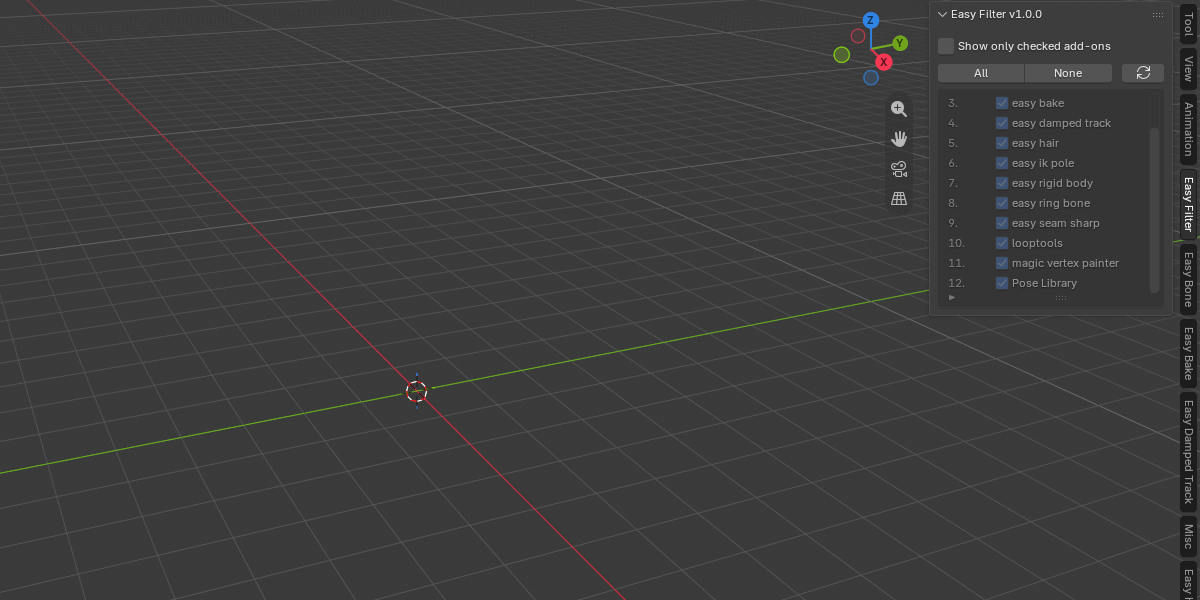
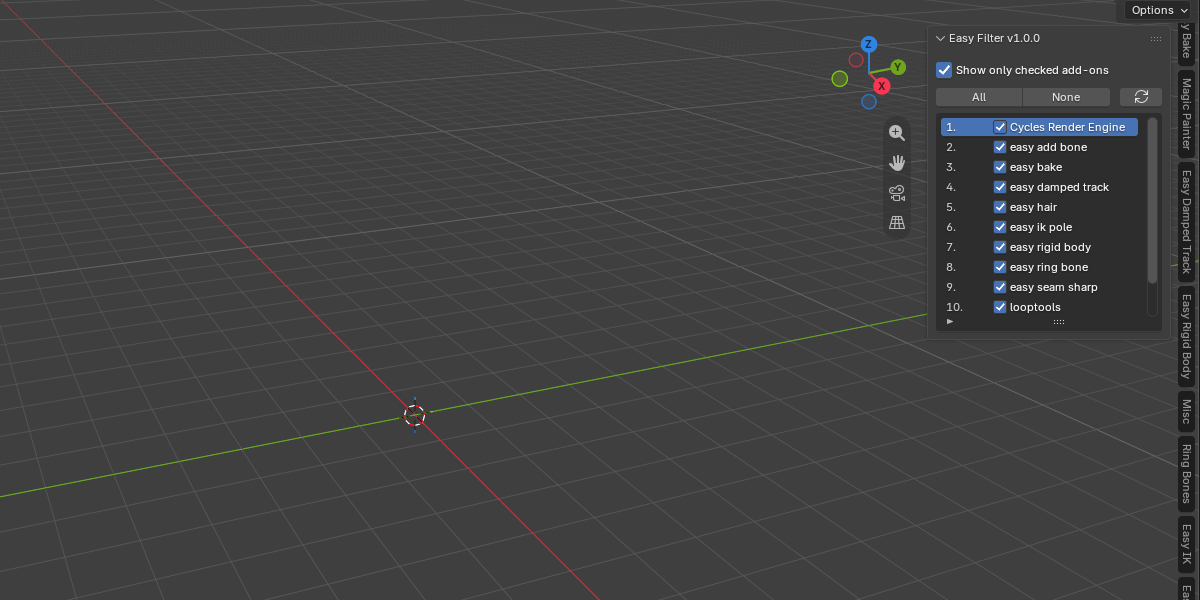
In the 3D Viewport, press N to open the sidebar and click the Easy Filter tab.
The interface
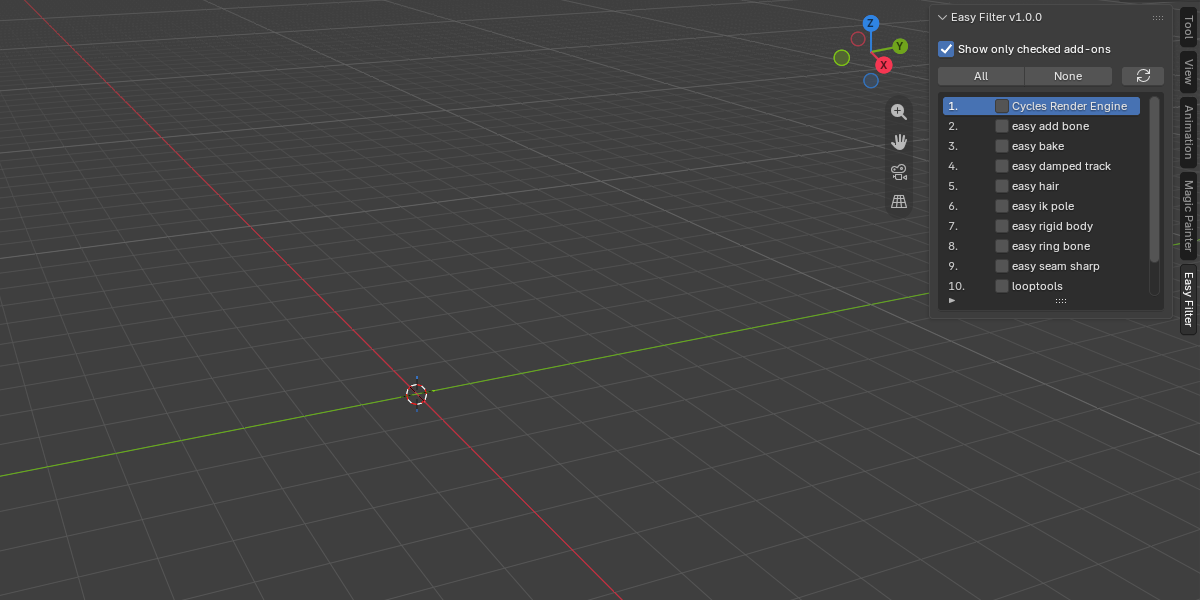
- Show only checked add-ons: the master switch. When it is on, only the checked add-ons stay visible in the sidebar. When it is off, every add-on is visible again, no matter what is checked.
- All: checks every add-on in the list.
- None: unchecks every add-on in the list.
- Refresh button (the circular arrow): rescans for add-ons that have sidebar panels.
- The list: every add-on that has a sidebar panel is listed in alphabetical order, with a number on the left. Check the box to show the add-on, uncheck it to hide it.
The list
- The list shows 4 rows by default and grows up to 10 rows as more add-ons appear. After that, scroll with the mouse wheel.
- Drag the small handle at the bottom of the list to make it taller or shorter.
- Click the small triangle at the bottom of the list to open the search box and the sorting options.
How hiding works
- Easy Filter only hides the sidebar panels of an add-on. The add-on itself stays enabled and keeps working.
- If you uncheck an add-on while the master switch is off, nothing changes yet. The choice is applied the moment you turn the master switch on.
- Your selection is saved automatically and restored the next time you start Blender.
- Newly enabled add-ons are detected automatically after a couple of seconds. You can also press Refresh.
- Blender’s own panels and the Easy Filter tab itself are never hidden.
- An add-on that is hidden is hidden in every editor that has a sidebar, not only in the 3D Viewport.
Troubleshooting
- An add-on is missing from the list: only add-ons that add panels to the sidebar are listed. Make sure the add-on is enabled, then press Refresh.
- An add-on is still visible after unchecking it: make sure Show only checked add-ons is turned on.
- The order of tabs changed after hiding something: this is normal. See the FAQ below.
- To reset everything: turn off Show only checked add-ons, or press All. You can also disable Easy Filter, which brings every panel back. Your saved selection is stored in a small file named easy_filter.json in Blender’s config folder. Delete that file to reset it.
Support
For questions or bug reports, send me a message through the Superhive inbox on this product page.
FAQ
Does Easy Filter disable or uninstall my other add-ons?
No. It only hides their sidebar panels. They stay enabled and keep working.
Why is an add-on not in the list?
The list only shows add-ons that add panels to the sidebar. If an add-on is enabled but missing, press Refresh.
Does it hide Blender’s built-in tabs like Item, Tool and View?
No. Only panels added by add-ons are affected.
Are my choices kept after I restart Blender?
Yes. The checkboxes and the master switch are saved automatically.
Why did the order of the panels change?
To hide a panel, Easy Filter re-registers it the first time you hide that add-on. This can move it to the end of its tab. Turning Easy Filter off restores the panels to normal.
Does it work with add-ons from other sources, such as Extensions or Superhive?
It works with add-ons that register their sidebar panels in the standard way. If a specific add-on does not hide, send me its name and I will look into it.
Does it work in editors other than the 3D Viewport?
Yes for hiding: an unchecked add-on is hidden in every editor with a sidebar. The Easy Filter tab itself lives in the 3D Viewport sidebar.
Does it slow Blender down?
Easy Filter checks for newly enabled add-ons every 2 seconds in the background. This is a small scan of the registered panels.
Which Blender versions are supported?
Blender 5.2.2 or newer.
Have questions about this product?
Login to message
| Blender Extension Compatible | Yes |
| Dev Fund Contributor | |
| Published | about 8 hours ago |
| Blender Version | 5.2 |
| Extension Type | Add-on |
| Render Engine Used | Cycles, Eevee |
| License | GPL |
Discover more products like this
Hide-Panels user interface organizer add-ons-manager Declutter n-panel productivity PanelFilter tabs addons-manager Sidebar hidden-addons