Easy Leg IK Pole
 Onion365studio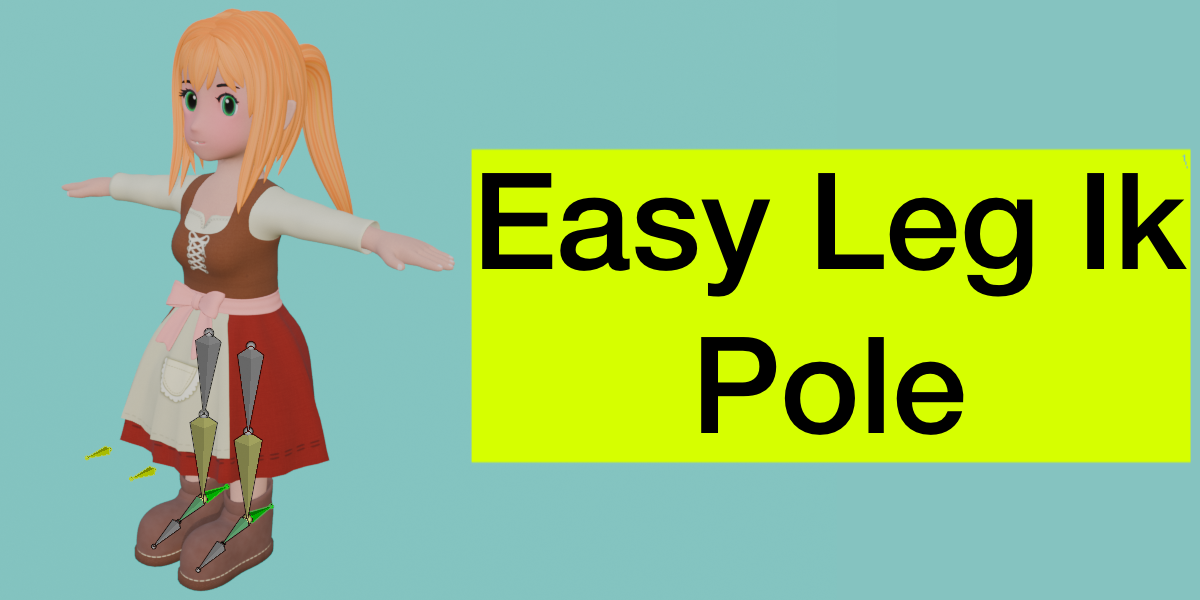

Documentation
Installation
- Download the
.zipfile from your Superhive library. - In Blender, go to Edit > Preferences > Add-ons, click the ▾ drop-down in the top right, and choose Install from Disk....
- Select the
.zipfile, then enable Easy Leg IK Pole.
Requires Blender 5.2.2 or newer.
Quick Start
- Select your armature and enter Pose Mode (Edit Mode also works).
- Select the leg bones (thigh, shin, foot), or Select All to process every leg in the rig.
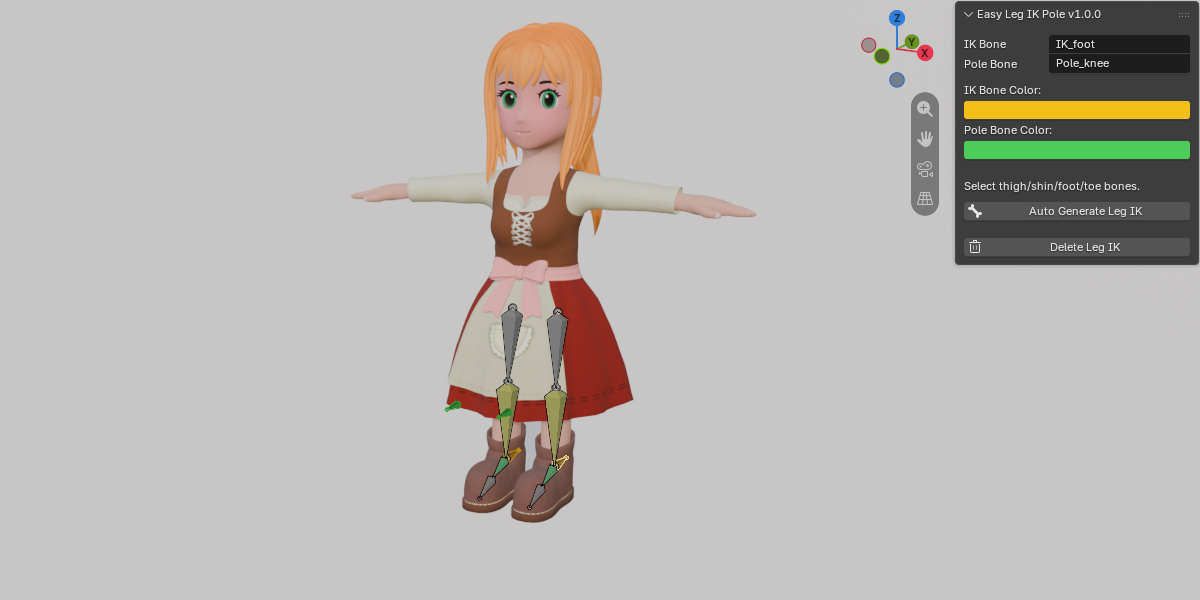
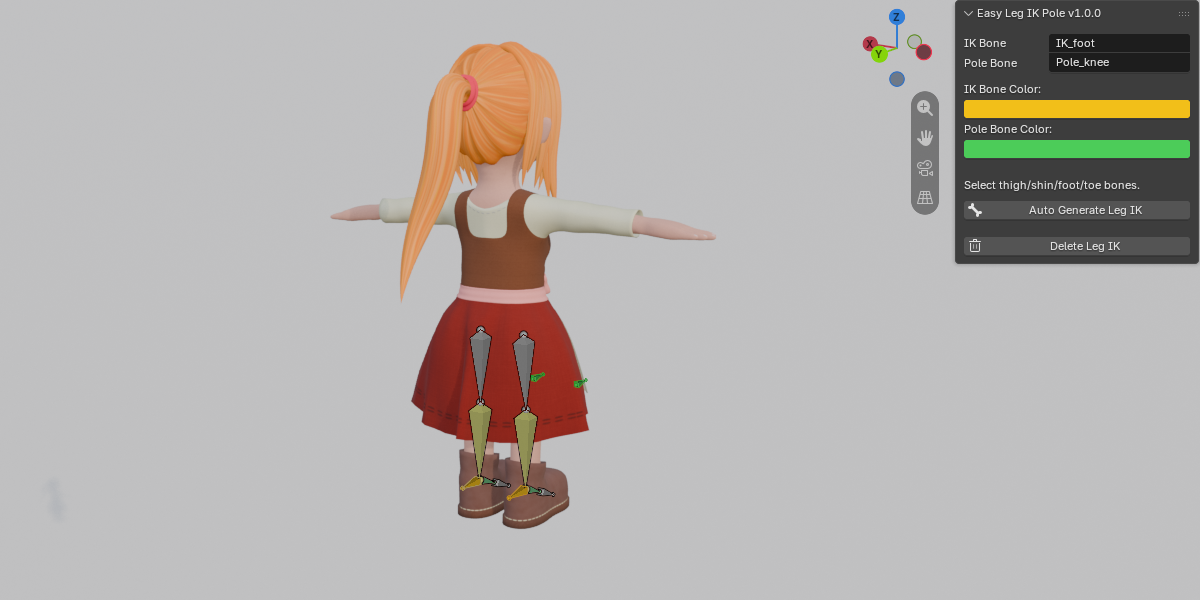
- Open N panel > Easy IK. Set the IK bone name, Pole bone name and colors.
- Click Auto Generate Leg IK (you can also search for it with F3).
- Adjust the result in the Adjust Last Operation panel at the bottom left of the viewport.
Panel Reference (N panel > Easy IK)
| Control | Description |
|---|---|
| IK Bone | Base name of the IK control bone. Default: IK_foot
|
| Pole Bone | Base name of the Pole bone. Default: Pole_knee
|
| IK Bone Color | Color of the IK bones. Changes also sync to IK bones you already generated |
| Pole Bone Color | Color of the Pole bones. Changes also sync to Pole bones you already generated |
| Auto Generate Leg IK | Generates IK + Pole bones and the IK constraint for the selected legs |
| Delete Leg IK | Removes the IK / Pole / MCH bones and constraints created by this add-on |
What Gets Generated (per leg)
-
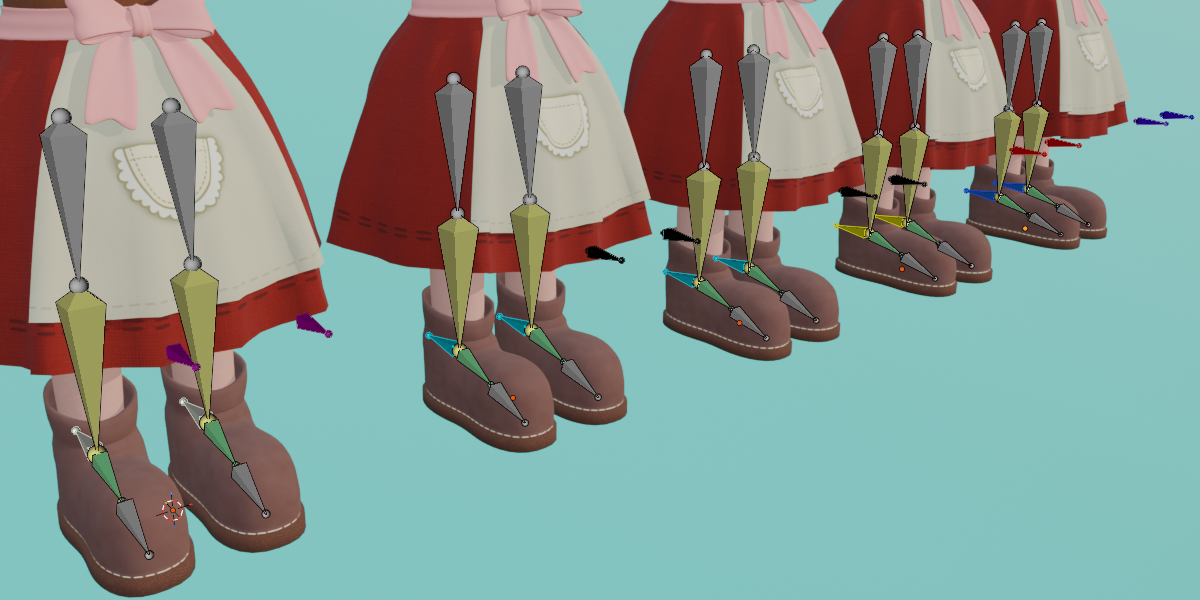
IK bone: placed at the ankle, named
IK_foot.L/IK_foot.Rby default. -
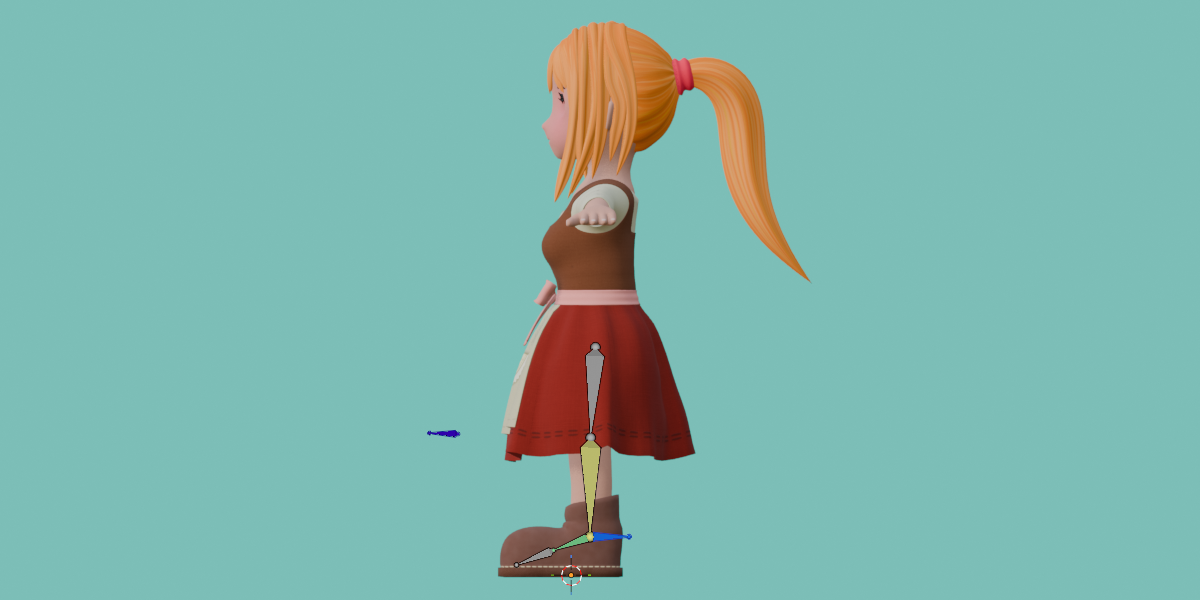
Pole bone: placed in front of the knee, named
Pole_knee.L/Pole_knee.Rby default. - MCH bone: a hidden helper bone, child of the IK bone. Only created when the direction is Backward.
- IK constraint on the shin (chain length 2, target = IK bone, pole target = Pole bone). The pole angle is solved automatically.
- Copy Rotation (World) on the foot, if Foot Follows IK Rotation is on.
How Detection Works
- By bone name: bones named foot / ankle are leg ends, and hand / wrist are arm ends. Toe, finger and thumb bones are ignored. English, Chinese and Japanese names are supported.
- By chain vote: if the end bone's name is not conclusive, the names of the whole chain (thigh, shin, foot) vote.
-
By position: if no name is useful (e.g.
Bone.001), a chain whose root or end is close to the ground is treated as a leg, otherwise as an arm.
If your bone names are meaningless, select only the three bones thigh / shin / foot.
Side Suffix Rules
- If the bone name already has a suffix, its style is kept (
foot_lgivesIK_foot_l,foot.RgivesIK_foot.R). - If the name contains Left / Right / L / R (or the Chinese / Japanese left / right characters),
.L/.Ris used. - Otherwise the position decides (+X is left).
Removing the IK Setup
Select the leg bones (or the IK / Pole bones, Select All also works) and click Delete Leg IK. This deletes the IK / Pole / MCH bones and their constraints. It does not restore the bone roll that was aligned before generation. Use Ctrl+Z for that.
FAQ
Which Blender versions are supported?
Blender 5.2.2 and newer.
Does it work with my rig and bone names?
Most likely. Detection checks bone names first (English, Chinese and Japanese), then the names of the whole chain, then the position relative to the ground. If your bones are named something like Bone.001, select only the thigh, shin and foot bones and it will work from position alone.
Can I use it on a rig that already has animation?
Yes, but turn off Align Leg Axes First in Adjust Last Operation. That option changes bone roll, which can affect existing animation.
Does it move my bones?
No. Head and tail positions are never changed. The only change to existing bones is the roll of the leg bones, and only if Align Leg Axes First is on.
Will it affect my weight painting?
No. With Use IK Bone Collection on (the default), the new IK / Pole bones are put in a collection named "IK" with deform turned off, so they do not deform the mesh.
Does it work for arms?
The add-on is built for legs. Turn on Include Arms in Adjust Last Operation if you want IK + Pole generated for detected arms too.
Can I generate IK for both legs at once?
Yes. Select all leg bones, or use Select All, and it generates IK + Pole for every detected leg and adds the correct .L / .R suffix to each.
How do I change the pole distance or IK direction after generating?
Right after clicking Auto Generate Leg IK, open Adjust Last Operation (bottom left of the viewport) and change the options. The result updates live. Once you run another operation, undo with Ctrl+Z and generate again.
Can I rename the IK and Pole bones?
Yes. Set the names in the N panel before generating. The side suffix is added automatically.
Can I change the bone colors afterwards?
Yes. Changing the IK or Pole color in the panel also updates the bones you have already generated.
Does Delete Leg IK remove IK I set up by hand?
No. It only removes IK / Pole / MCH bones and constraints that were generated by this add-on.
Delete Leg IK did not restore my bone axes. Why?
The axis alignment is not reverted on delete. Press Ctrl+Z right after generating if you want the original roll back.
Have questions about this product?
Login to message
| Blender Extension Compatible | Yes |
| Dev Fund Contributor | |
| Published | 10 days ago |
| Blender Version | 5.2 |
| Extension Type | Add-on |
| Render Engine Used | Cycles, Eevee |
| License | GPL |
Discover more products like this
quick ik leg bone-addons armature pole Auto-generated IK auto-gane bone IK auto-pole-ik easy-ik-pole