Easy Merge Bone
 Onion365studio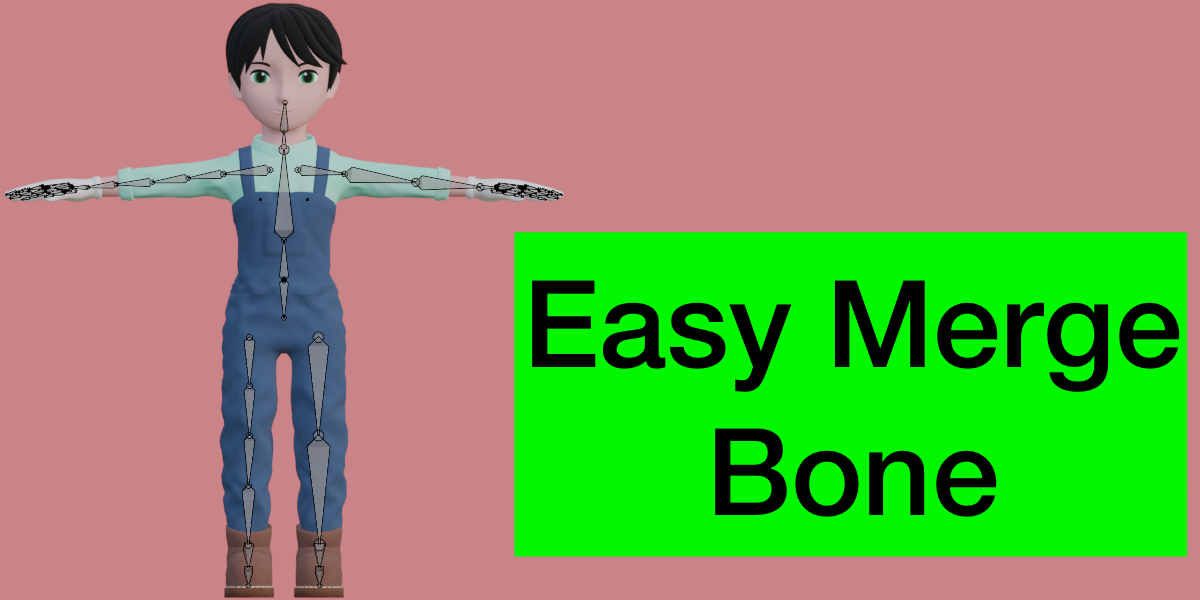
Documentation
Installation
- Download the .zip file of the extension.
- In Blender, open Edit > Preferences > Get Extensions, click the dropdown arrow in the top-right corner, choose Install from Disk, and select the .zip file.
- Make sure the extension is enabled.
Where to find it
- Open the 3D Viewport, press N to show the sidebar, and click the Easy M Bone tab.
Quick start
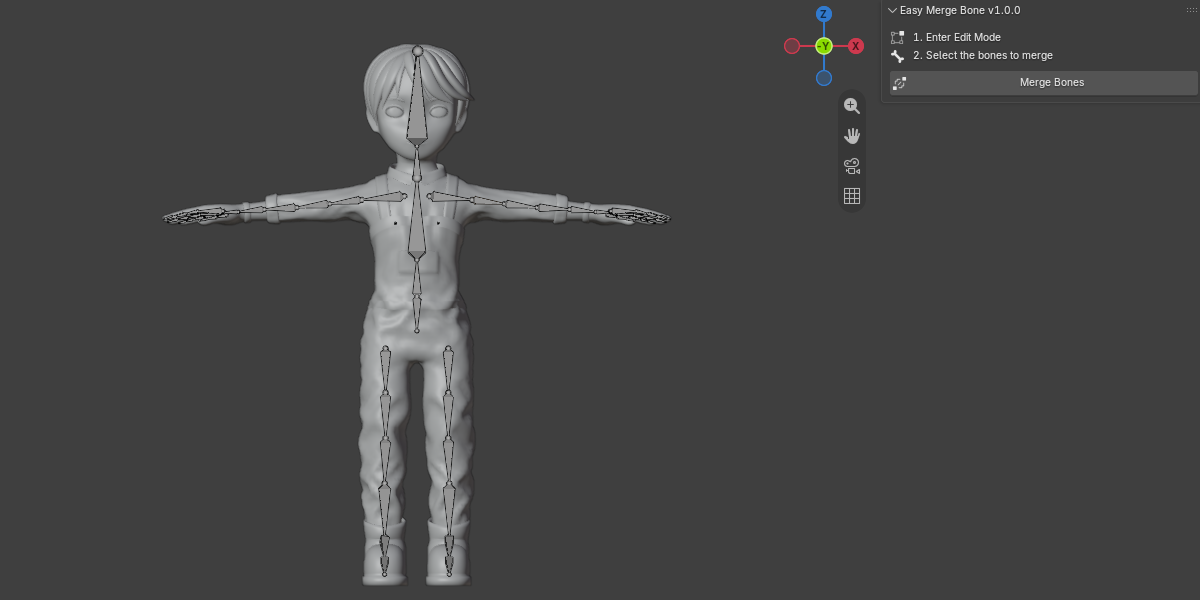
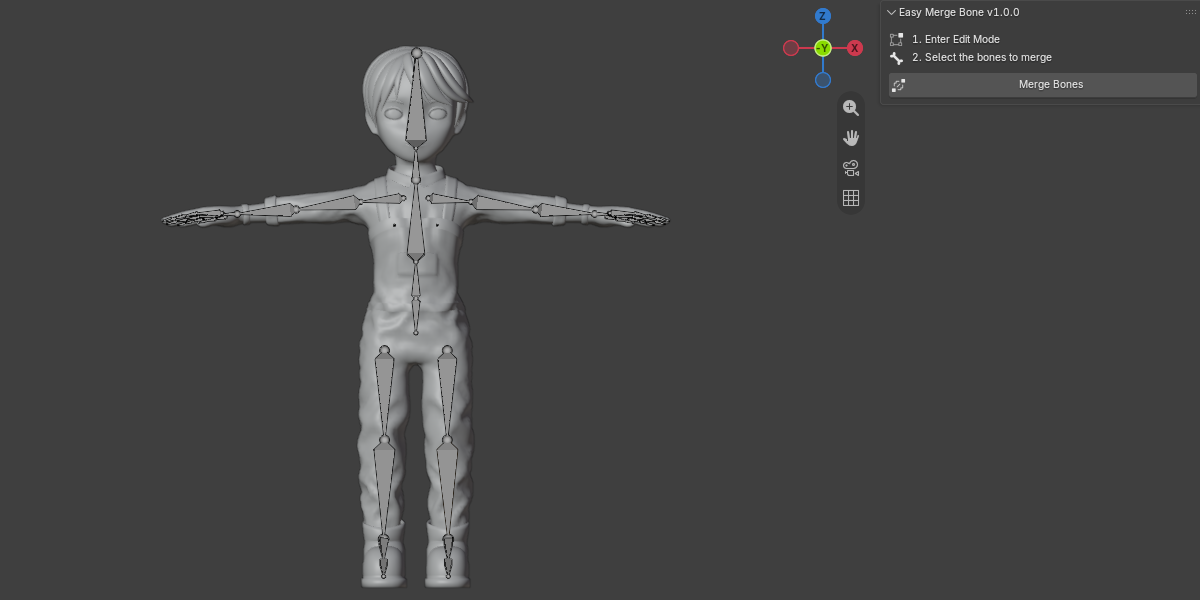
- Step 1: Select your armature and enter Edit Mode.
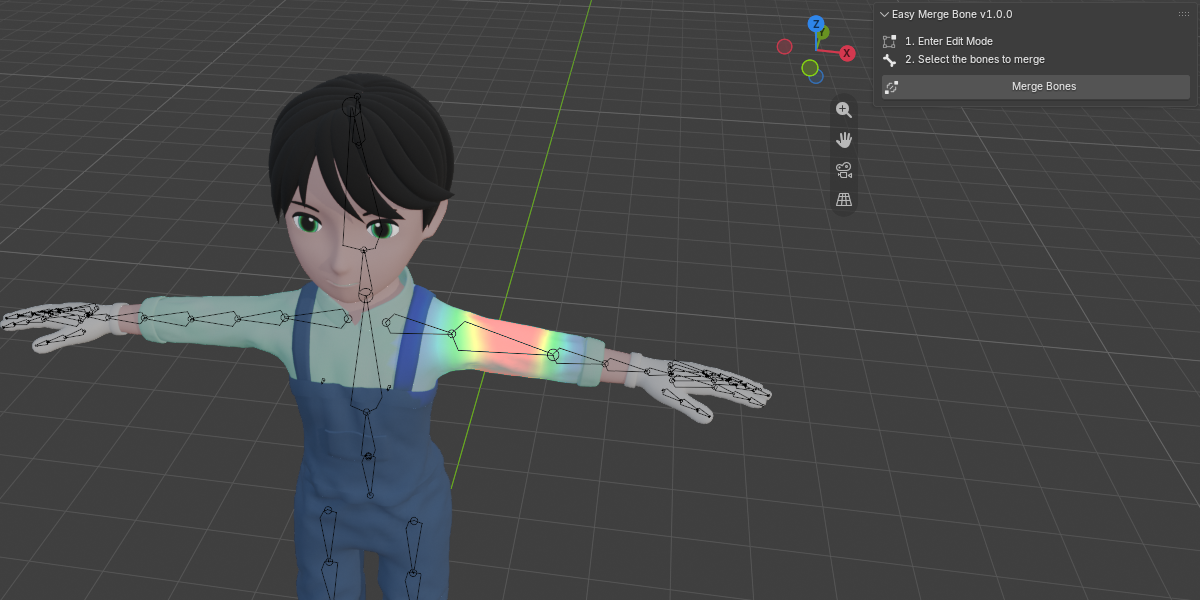
- Step 2: Select the bones you want to merge. Select at least 2 bones from the same parent–child chain.
- Step 3: Click Merge Bones in the Easy M Bone panel.
What the merge does
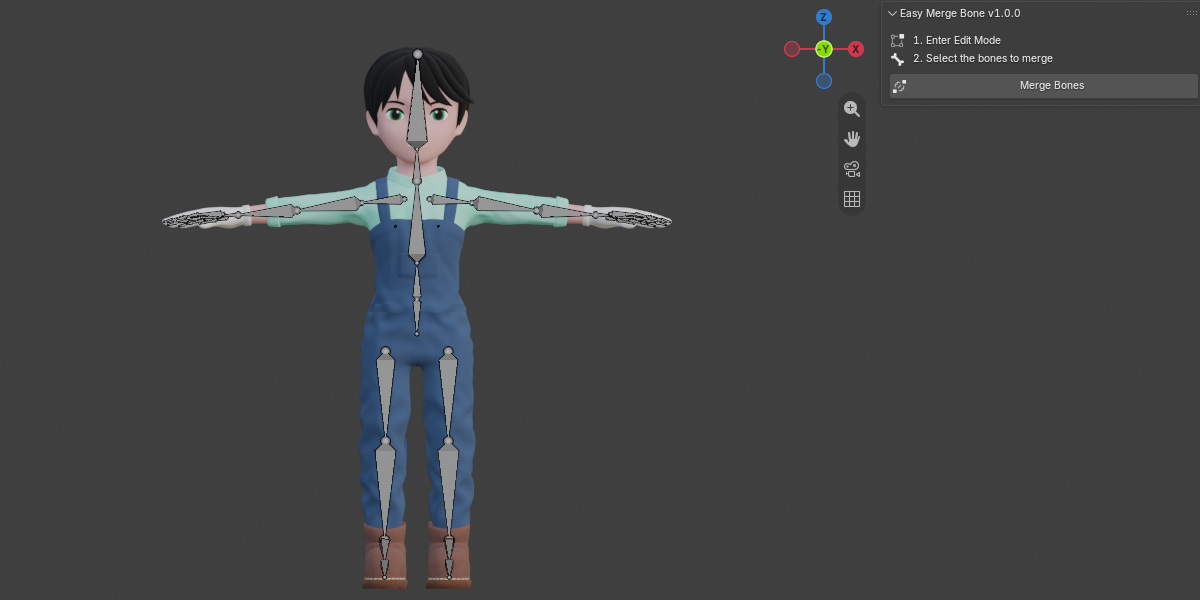
- The selected chain collapses into its top bone, which keeps its original name.
- The top bone is extended to the end of the chain, so the merged bone covers the same length.
- Vertex group weights of all merged bones are added together (clamped at 1.0) into the top bone’s vertex group. The leftover groups are removed.
- Child bones that were not selected are re-parented to the merged bone. Connections are kept where the bones still line up.
- Every mesh parented to the armature, or using an Armature modifier with it, is updated.
- You can select several separate chains and merge them all with one click. Each chain merges into its own top bone.
Tips
- Turn off X-Axis Mirror in the armature options before selecting. With mirror on, Blender also selects the matching bones on the opposite side, and those get merged too.
- Merging changes your rig. Save a copy of your file first, especially if the character is already animated.
- Make sure the meshes are not in Edit Mode, and make linked meshes local, otherwise they are skipped and only a warning is shown.
- If something goes wrong, press Ctrl+Z once to undo the whole merge.
Requirements
- Blender 5.2.0 or newer
FAQ
Which Blender versions are supported?
Blender 5.2.0 and newer.
Which bones can I merge?
Select at least 2 bones from the same parent–child chain. If the selected bones are not related as parent and child, nothing is merged and a message is shown.
Which bone name is kept?
The top bone of each chain keeps its name. The other bones are removed.
What happens to the vertex group weights?
The weights of all merged bones are added together (clamped at 1.0) into the top bone’s vertex group, and the leftover groups are removed. If the top bone has no vertex group yet, one is created.
What happens to child bones that are not selected?
They are re-parented to the merged bone automatically.
Which meshes are updated?
All meshes parented to the armature or using an Armature modifier that points to it. A mesh that shares its data with another object is only processed once.
Why did the bones on the other side merge too?
When X-Axis Mirror is on, Blender automatically selects the matching bones on the opposite side, so they are part of your selection and get merged as well. Turn X-Axis Mirror off before selecting the bones.
Can I merge several chains at once?
Yes. Select all the chains you want and click Merge Bones once. Each chain is merged into its own top bone.
Will my existing animation still work?
Keyframes on the bones that are removed no longer have a target after the merge. Merge before animating, or work on a copy of your file.
Why was one of my meshes skipped?
Meshes that are in Edit Mode or linked from a library are skipped, and a warning lists their names. Leave Edit Mode on the mesh, or make linked meshes local, then try again.
Can I undo a merge?
Yes. One undo step reverts the whole merge
Have questions about this product?
Login to message
| Blender Extension Compatible | Yes |
| Dev Fund Contributor | |
| Published | 1 day ago |
| Blender Version | 5.2 |
| Extension Type | Add-on |
| Render Engine Used | Cycles, Eevee |
| License | GPL |
Discover more products like this
rigging easy merge bone Character rigging weight merge auto merge bone armature bone animation quick merge bone weight painting rig merge bones