Easy Mode
 one99addons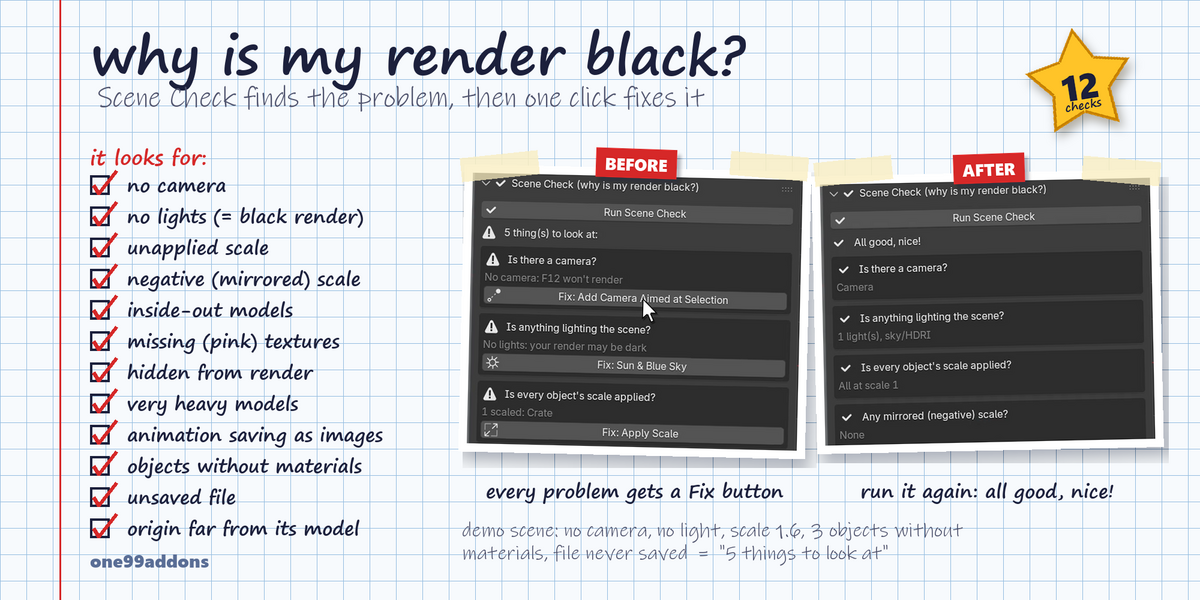
Easy Mode - Documentation
1. Install
- Download easy_mode_v1.0.0.zip. Do not unzip it.
- In Blender: Edit > Preferences > Add-ons, click the drop-down arrow at the top right and choose Install from Disk...
- Pick easy_mode_v1.0.0.zip and tick "Easy Mode" in the list.
- If Auto-Save Preferences is off, click Save Preferences (bottom left).
2. Where to find it
- 3D Viewport > Sidebar (press N) > Easy tab.
- Options: Edit > Preferences > Add-ons > Easy Mode (expand it).
3. How to use it
- Press N with the mouse over the 3D Viewport and click the Easy tab.
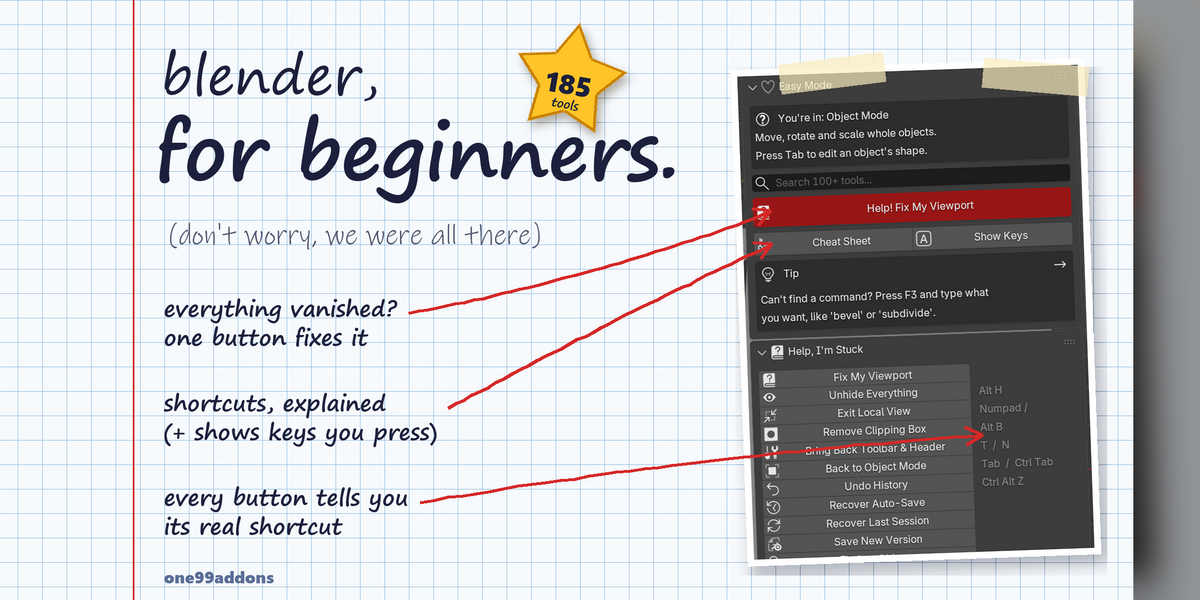
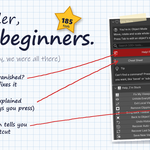
- The box at the top tells you which mode you're in and what it is for.
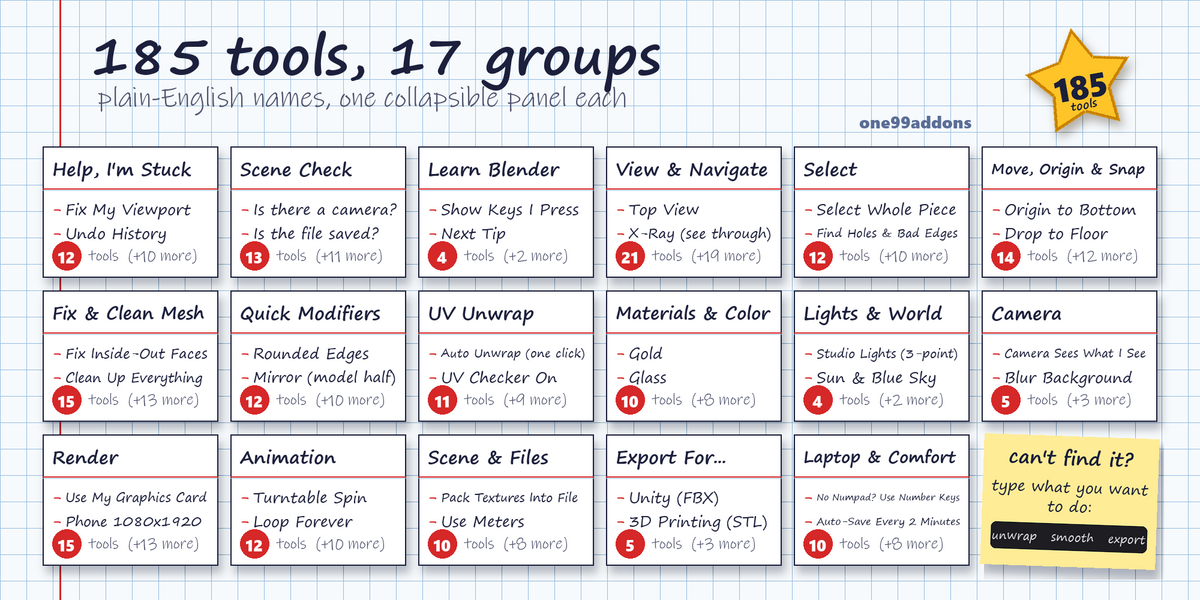
- Type what you want to do in the search box (for example 'unwrap', 'smooth' or 'export'), or open a section.
- Click a button. A message at the bottom of the window says what happened. Ctrl Z undoes most tools (not Preferences changes).
- Tools with a value (Make It X Meters Tall, Rename Selected) show it in the panel that pops up bottom-left: change it there.
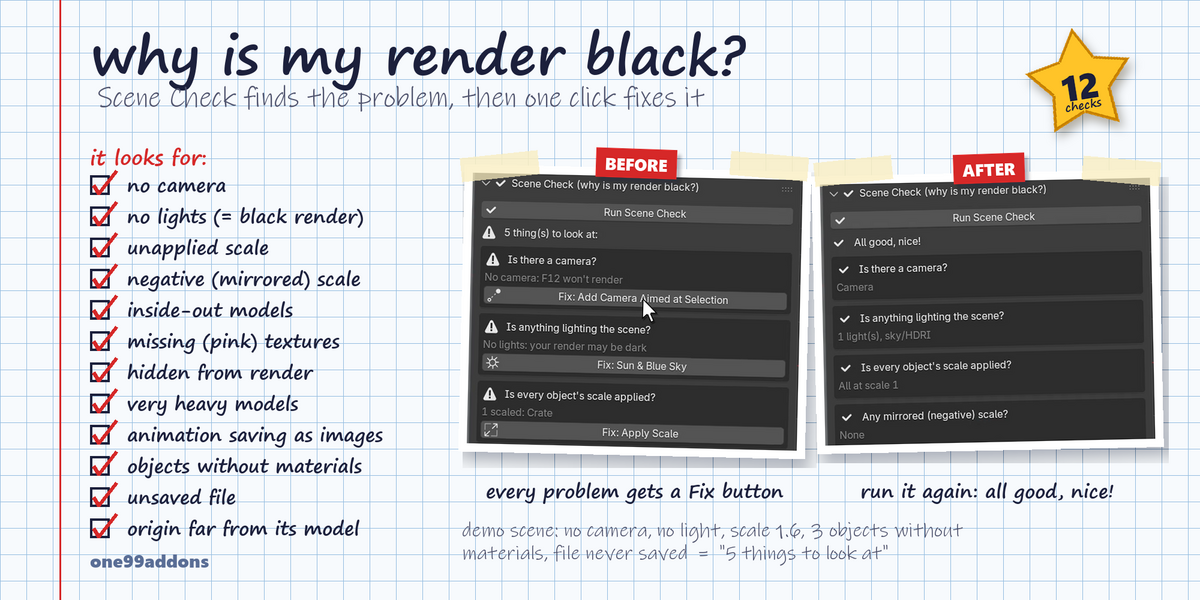
- Scene Check: open the section, press Run Scene Check, then click the Fix button under each problem.
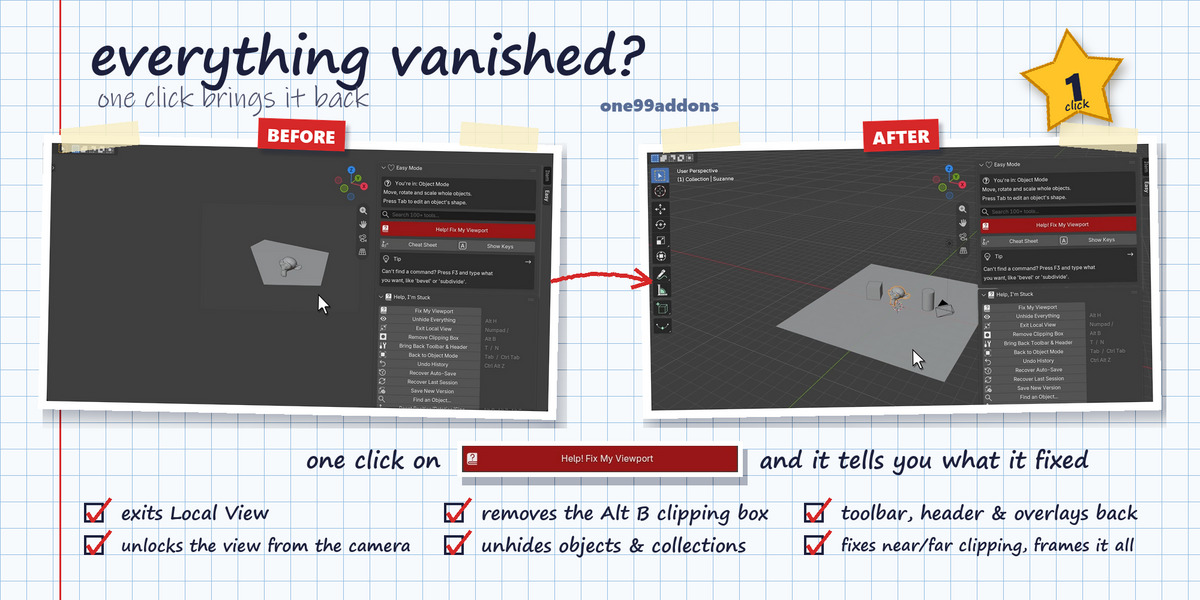
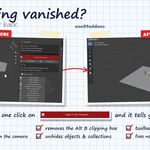
- Cheat Sheet and Show Keys are right under the big red Help! Fix My Viewport button.
4. Settings
- Show the shortcut next to every button: on = one column with shortcuts, off = compact 2 columns (default on).
- Show beginner tips: the tip box at the top of the tab (default on). The arrow in the tip box shows the next tip.
- Laptop & Comfort Settings in the Easy tab change Blender's own Preferences. Click Save Preferences to keep them.
5. Troubleshooting
- No Easy tab? Press N with the mouse over the 3D Viewport; the tab names are on the right edge of the sidebar. Check that Easy Mode is ticked in the add-on list.
- Button greyed out? It needs something first: a selected object, a mesh, Edit Mode or a 3D Viewport on screen. Hover it to read what it does.
- Warning "Select a mesh object first"? Click the object in the viewport, then press the button again.
- Laptop settings gone after a restart? Click Save Preferences (in the Laptop & Comfort Settings section).
- Show Keys: click it again to turn it off. Keys only show in 3D Viewports. While it is on, Blender's auto-save is paused.
- Export: Blender's file browser opens with the right settings filled in. With nothing selected, everything is exported.
- Manual for This Mode does nothing? It opens a web page, so it needs internet and a default browser.
- Install error? Make sure you picked the .zip itself, not an unzipped folder, and that you are on Blender 5.2 or newer.
6. Updating
- Download the new zip from your Superhive library, uninstall the old version in Edit > Preferences > Add-ons, restart Blender, then install the new zip.
7. Uninstall
- Edit > Preferences > Add-ons, expand Easy Mode and choose Uninstall. Materials, modifiers and other things it made are normal Blender data and stay in your files. Preferences you saved stay too: switch them back in the Laptop & Comfort Settings section first if you want.
Support
- Have a question, a bug or an idea for a new feature? Mail me at [email protected]. Please include your Blender version and operating system.
Have questions about this product?
Login to message
| Published | 3 days ago |
| Blender Version | 5.2 |
| Extension Type | N/A |
| Render Engine Used | Cycles, Eevee |
| License | GPL |
Discover more products like this
Workflow Laptop screencast keys shortcuts export presets scene check learn blender UV Unwrap beginner cheat sheet