Easy River
 Onion365studio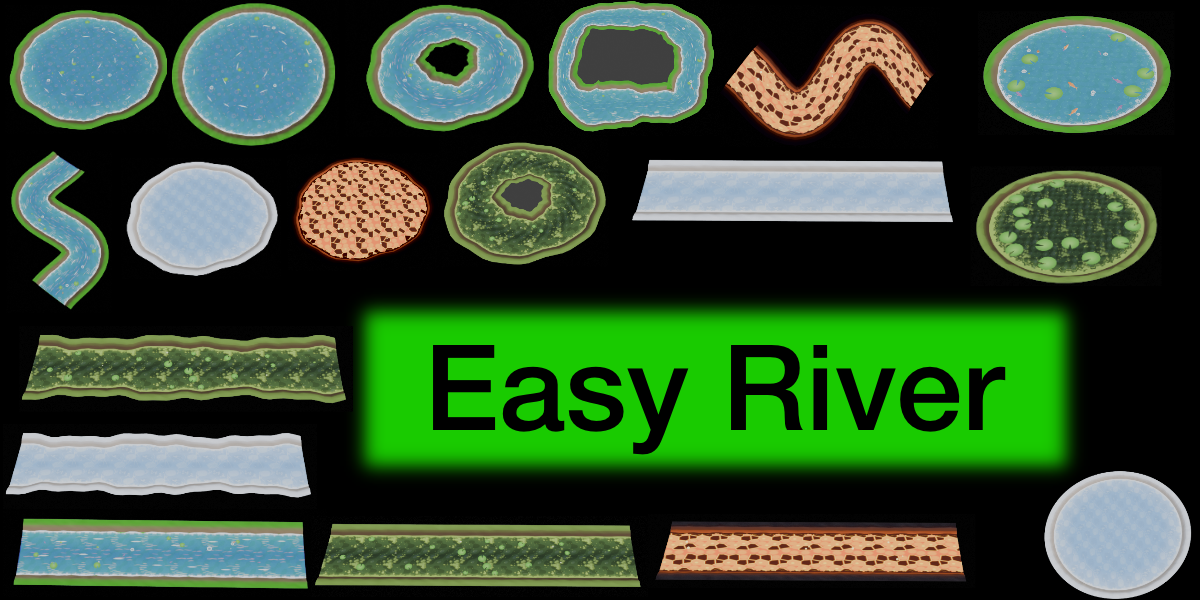
DOCUMENTATION
Easy River: User Guide
1. Installation
- Download the .zip file from your purchases (don’t unzip it).
- In Blender, go to Edit → Preferences → Get Extensions, click the dropdown arrow at the top right, and choose Install from Disk…. Select the .zip. You can also drag the .zip into the Blender window.
- In the 3D Viewport, press N and open the Easy River tab.
Requires Blender 5.2.2 or newer.
2. Quick start
- Click Add River Path (a Bezier curve at the 3D cursor) or Add Circle Path (a closed ring; you can change the radius in the operator panel).
- Press Tab and move the curve points to shape your river. The curve’s Z height is the ground level. In Edit Mode, Alt+S scales a point’s Radius, which makes the river wider or narrower there.
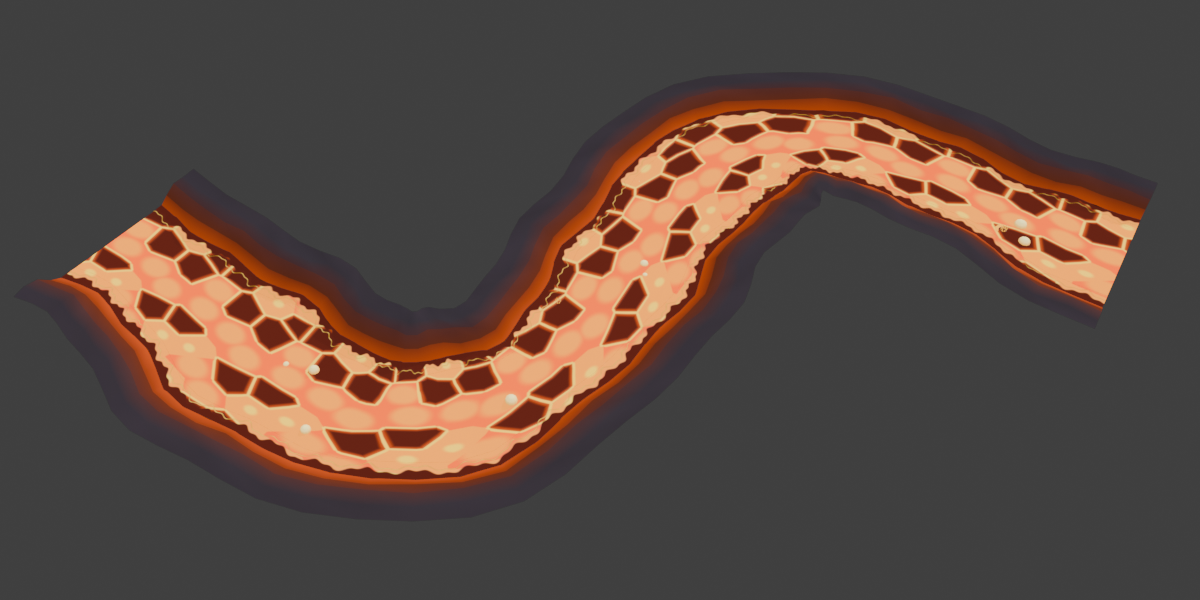
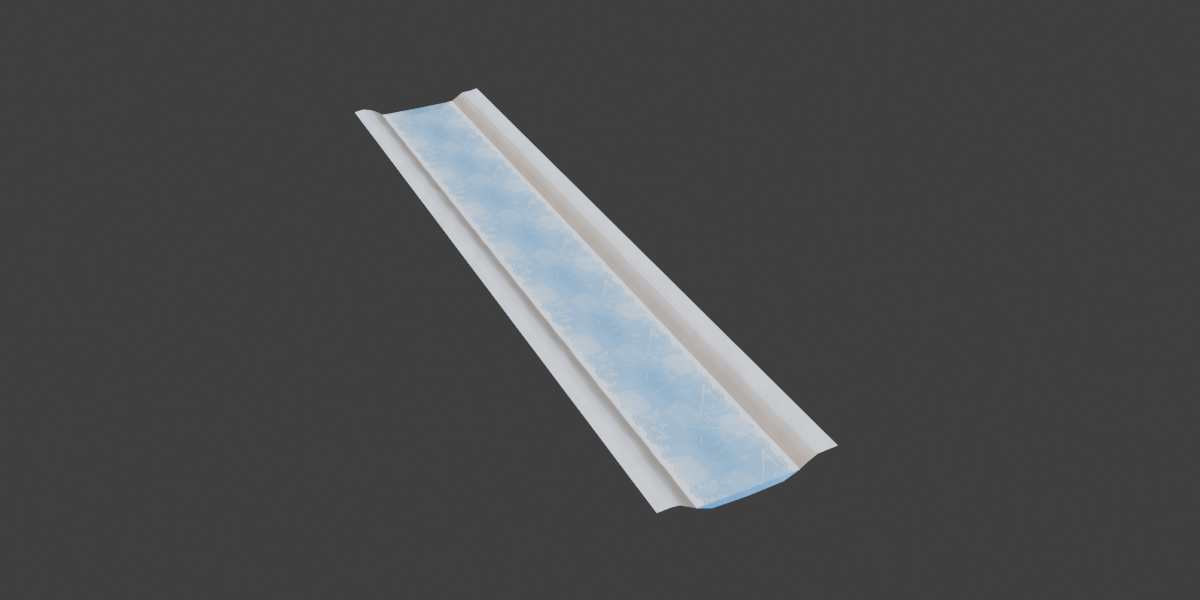
- Click Generate River, Frozen River, Lava River or Swamp Lake.
- Adjust the settings. The river updates live, and editing the path also updates it.
- Click Export glb.
You can switch between the four types at any time. Click another button to rebuild the same path in a new style.
3. Panel reference
Path & Build
- Path: the curve used as the river’s centre line
- Add River Path / Add Circle Path: create a ready-made curve
- Generate River / Frozen River / Lava River / Swamp Lake: build the selected type
- Rebuild Flow Action: re-create the looping animation
- Delete River: remove the generated river
Shape
- Width and Variation: average river width and how much it changes along the path
- Depth and Bank Width
- Segment: length of each mesh segment (smaller = smoother but heavier)
- Seed: random seed for the layout of leaves, fish and other details
- Fill Center: only for closed curves. It fills the middle to make a pond or lake.
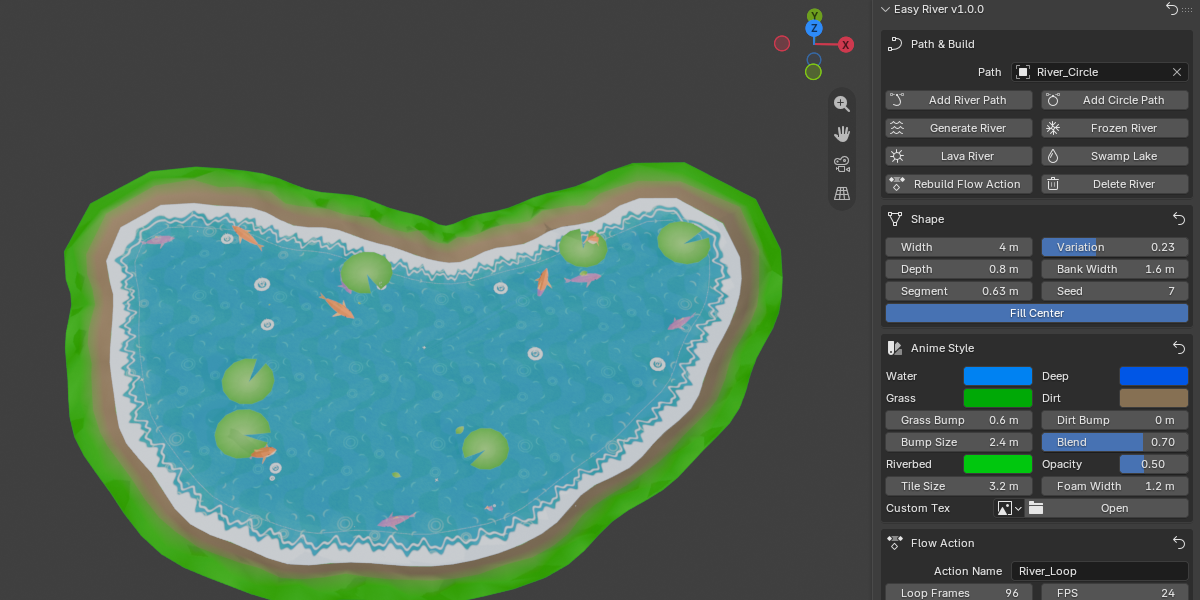
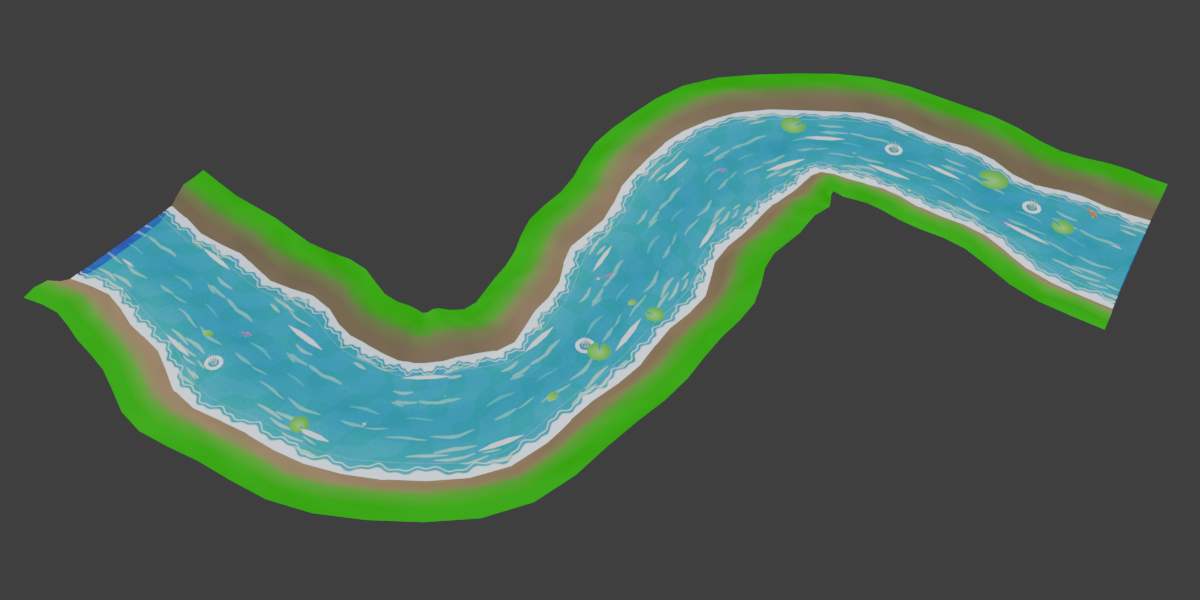
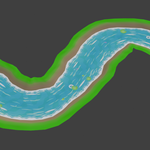
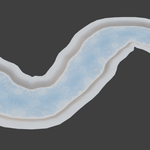
Water river: Anime Style (colours, bump, riverbed, opacity, foam width, custom texture), Flow Action, Flow Marks, Floating Leaves, Lily Pads, Water Splashes, Sunlight Sparkles, Fish.
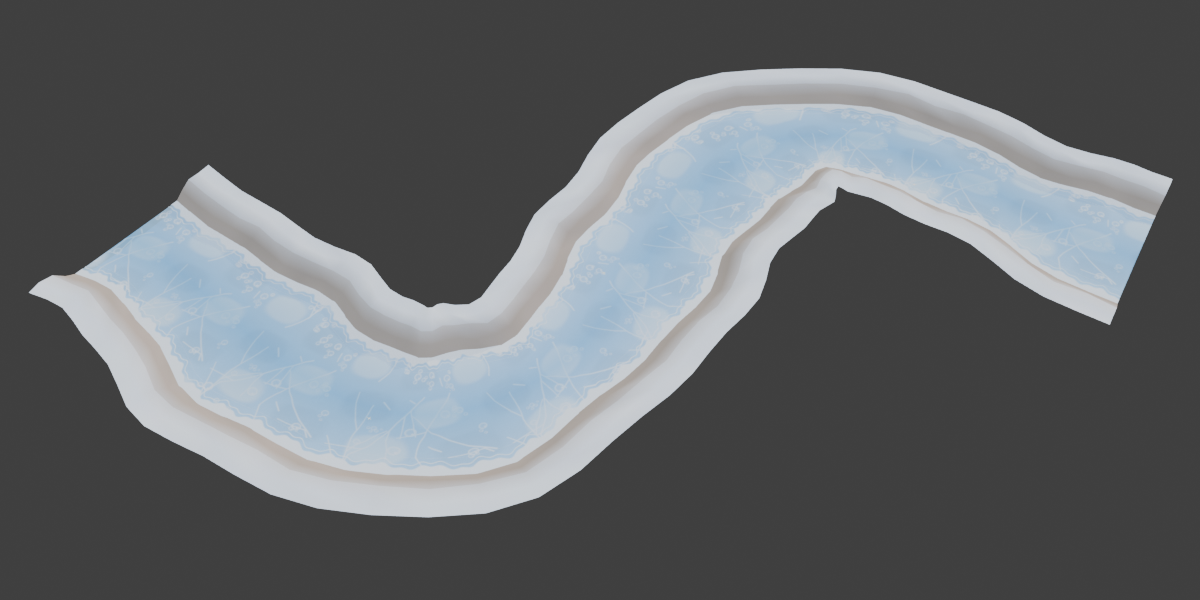
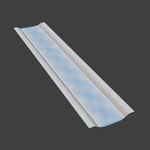
Frozen river: Winter Ice (colours, opacity, bubbles, cracks, frost rim, custom texture), Flow Action, Ice Sparkles.
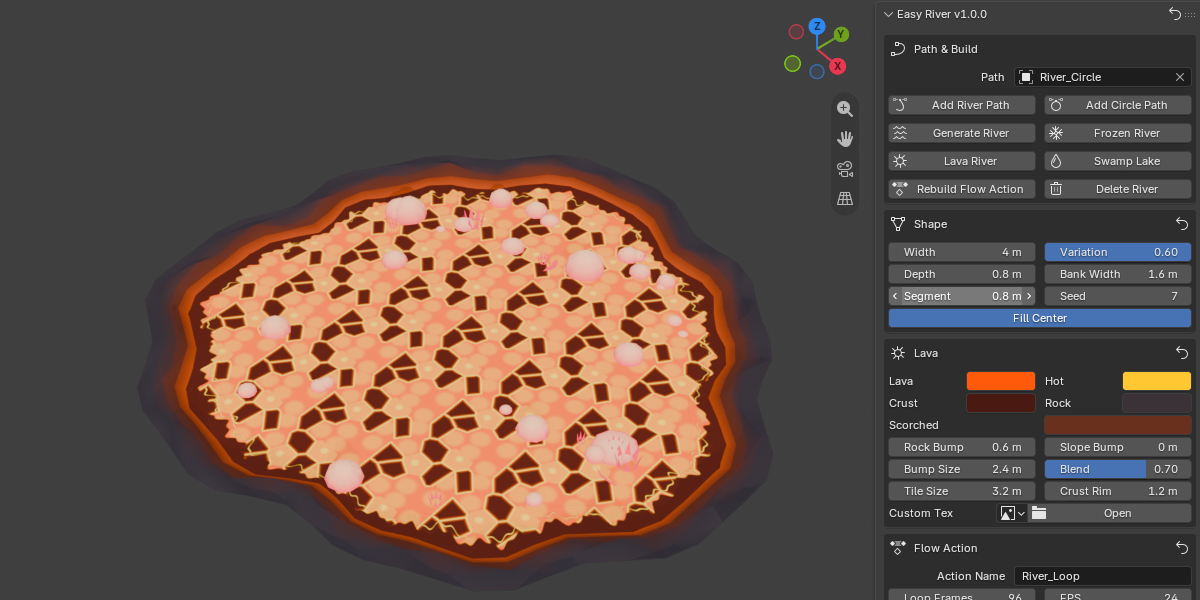
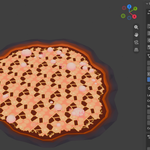
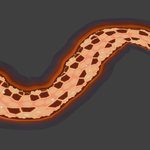
Lava river: Lava (colours, bump, crust rim, custom texture), Flow Action, Lava Bubbles.
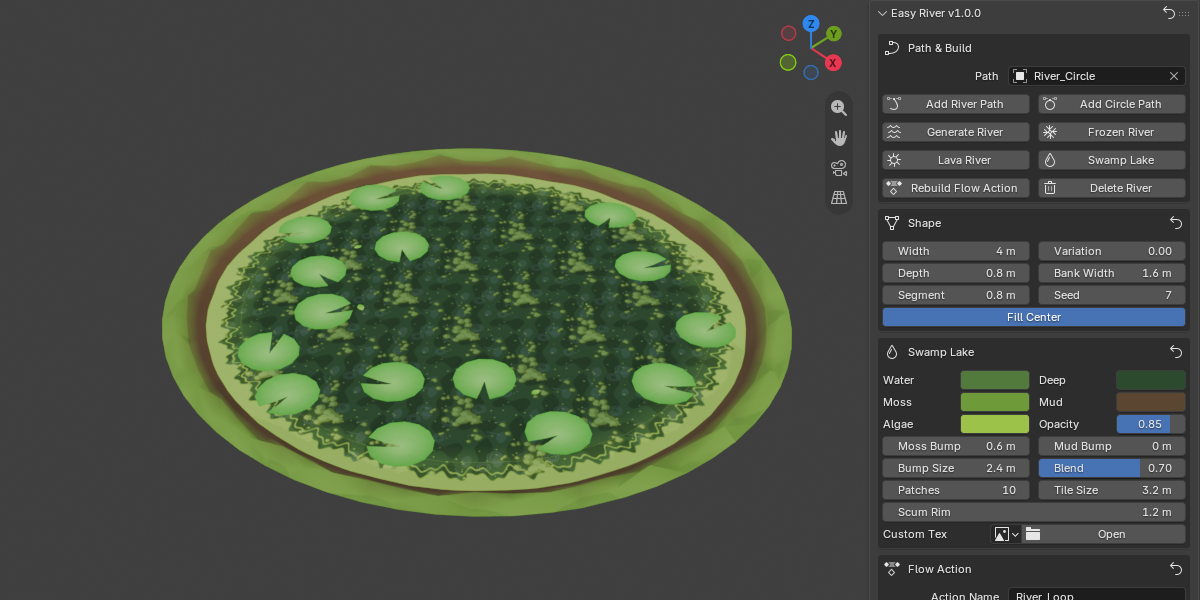
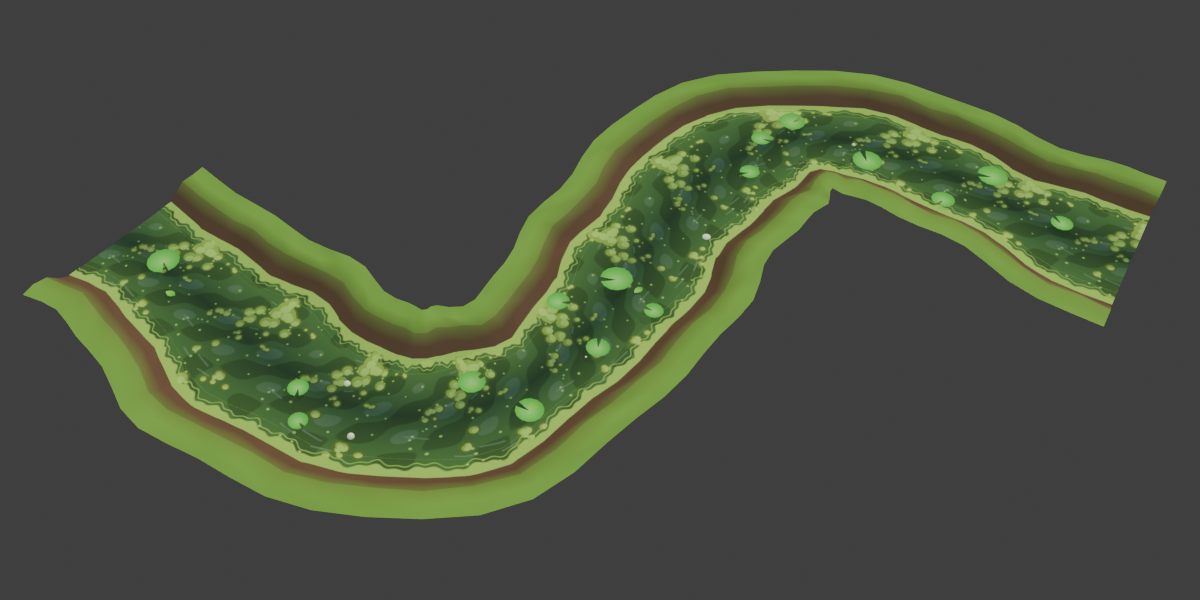
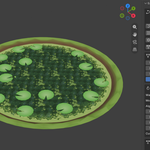
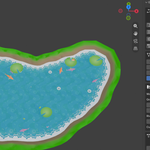
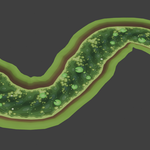
Swamp lake: Swamp Lake (colours, opacity, algae patches, scum rim, custom texture), Flow Action, Swamp Bubbles, Lily Pads, Floating Leaves.
Flow Action
-
Action Name: default
River_Loop. Keep a-loopor_loopending so game engines import it as a looping animation. - Loop Frames (default 96) and FPS (default 24)
- Flow Speed, Wave Height, Wave Length
Reset buttons: the icon in the panel header resets everything. Each section also has its own reset icon.
4. Custom models and textures
- Leaf, Lily Pad, Sparkle and Fish models: each has up to 3 slots. The objects are shared out evenly between the filled slots in random order. If all slots are empty, the built-in shapes are used. The Flow Marks setting has one Mark Model slot.
- Use your own mesh objects. Objects generated by Easy River cannot be used as custom models.
- Orientation: leaves and fish point their +Y side downstream. A fish’s nose must point to +Y. Lily pads and sparkles get a random turn, so any direction works.
- Size: models are copied, centred and scaled to fit. Lily Size, Sparkle Size and Fish Size set the final size.
- Materials: your models keep their own materials and vertex colours. They also follow later changes to the model.
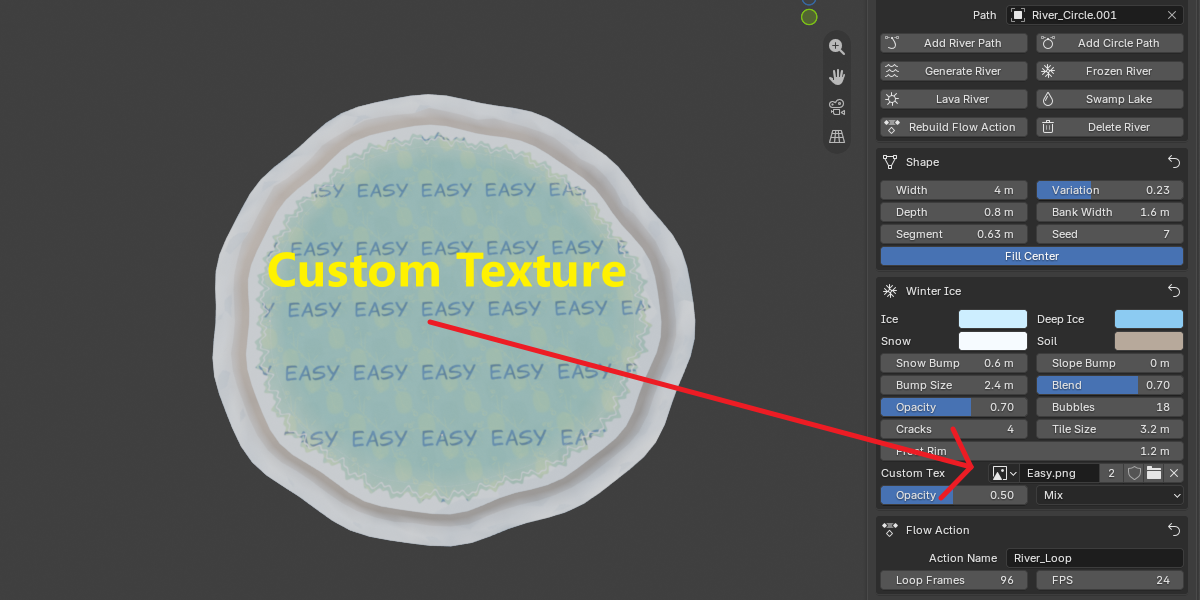
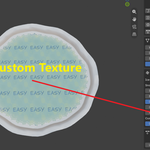
- Custom Tex: add your own water, ice, lava or swamp texture. Use a seamless picture, because it repeats along the flow. Opacity sets how strongly it covers the built-in texture, and Blend can be Mix, Multiply or Add.
5. Exporting
-
Export Path defaults to
//river.glb, which is next to your .blend file. Save the .blend first, or type an absolute path. - The .glb contains the river objects, materials, vertex colours and the flow animation. Cameras and lights are not exported.
-
Water river: also writes
_water_tex.pngand_water.gdshadernext to the .glb. -
Lava river: writes
_lava_tex.pngand_lava.gdshader. -
Swamp lake: writes
_swamp_tex.pngand_swamp.gdshader. - Frozen river: everything is inside the .glb, so no shader is needed.
- Fish jump sound (water river only): choose a sound file, then pick Play On (Dive In, Take Off or Both), Volume and Script type. Export copies the sound next to the .glb and writes a .gd script that plays it at every jump, in time with the animation.
6. Using the export in Godot 4
- Copy the .glb, texture .png, .gdshader (and the sound file and .gd script, if used) into your project.
- If the animation name ends in
-loopor_loop, it imports as a looping animation. - Assign the generated .gdshader to the water mesh as a ShaderMaterial and load the texture, as described in the comment at the top of the shader file. The glTF animation moves the waves, flow marks, leaves, splashes and fish, and the shader scrolls the water texture.
- Fish sound, Import script type: set the .gd file as the .glb’s Import Script in the import settings.
- Fish sound, Node script type: attach the .gd file to the river node.
FAQ
Which Blender version do I need?
Blender 5.2.0 or newer.
Do I need modeling experience?
No. Draw a curve, click Generate, and adjust the sliders.
Which game engines does it work with?
Easy River exports a standard .glb with animation, so any engine that imports glTF can use the river and its animation. The generated shader and sound script are made for Godot 4.
Can I make a circular river or a lake?
Yes. Add Circle Path makes a ring river that flows round and round. Any closed curve works the same way. Fill Center turns a closed curve into a pond, and Swamp Lake makes a murky lake.
Is the animation a seamless loop?
Yes. You can change the length with Loop Frames and the speed with FPS and Flow Speed.
Why are there no fish in the frozen, lava or swamp types?
Fish, flow marks, splashes and sunlight sparkles are part of the water river. The other types have their own details: ice sparkles for frozen, bubbles for lava, and bubbles, lily pads and leaves for swamp.
Can I use my own fish, leaf or lily pad models?
Yes, up to 3 models per type. See “Custom models and textures” in the Documentation.
Can I change the colours?
Yes. Almost every colour has a picker, and each section has its own reset button.
Does the river update when I edit the curve?
Yes. The river updates live when you move the path points or change a setting.
The Generate buttons are greyed out.
You need a path first. Pick a curve in the Path field, or click Add River Path or Add Circle Path.
Export says “Save the .blend first”.
The default export path is relative to your .blend file. Save the .blend, or type an absolute path.
Export says the glTF exporter is not available.
Enable the Import-Export: glTF 2.0 add-on in Blender’s Preferences, then export again.
The water doesn’t scroll in Godot.
The glTF animation moves the waves, leaves, flow marks, splashes and fish. The water texture scrolling comes from the generated .gdshader, so assign it to the water mesh as described in the shader file’s header comment.
Can I use the results in commercial projects?
Yes. You can use the rivers you generate and export in your own projects, including commercial ones.
Have questions about this product?
Login to message
| Blender Extension Compatible | Yes |
| Dev Fund Contributor | |
| Published | about 4 hours ago |
| Blender Version | 5.2 |
| Extension Type | Add-on |
| Render Engine Used | Cycles, Eevee |
| License | GPL |
Discover more products like this
animated anime Water stylized ice low poly river low poly river anime-river lava river lava fish