 RGStudios
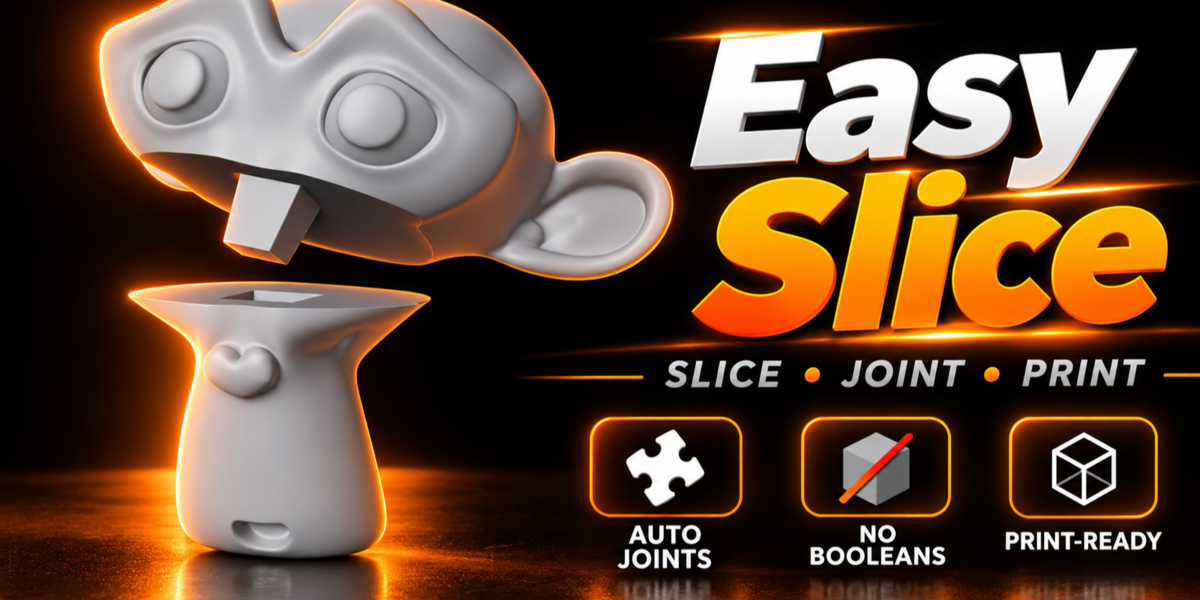
Easy Slice
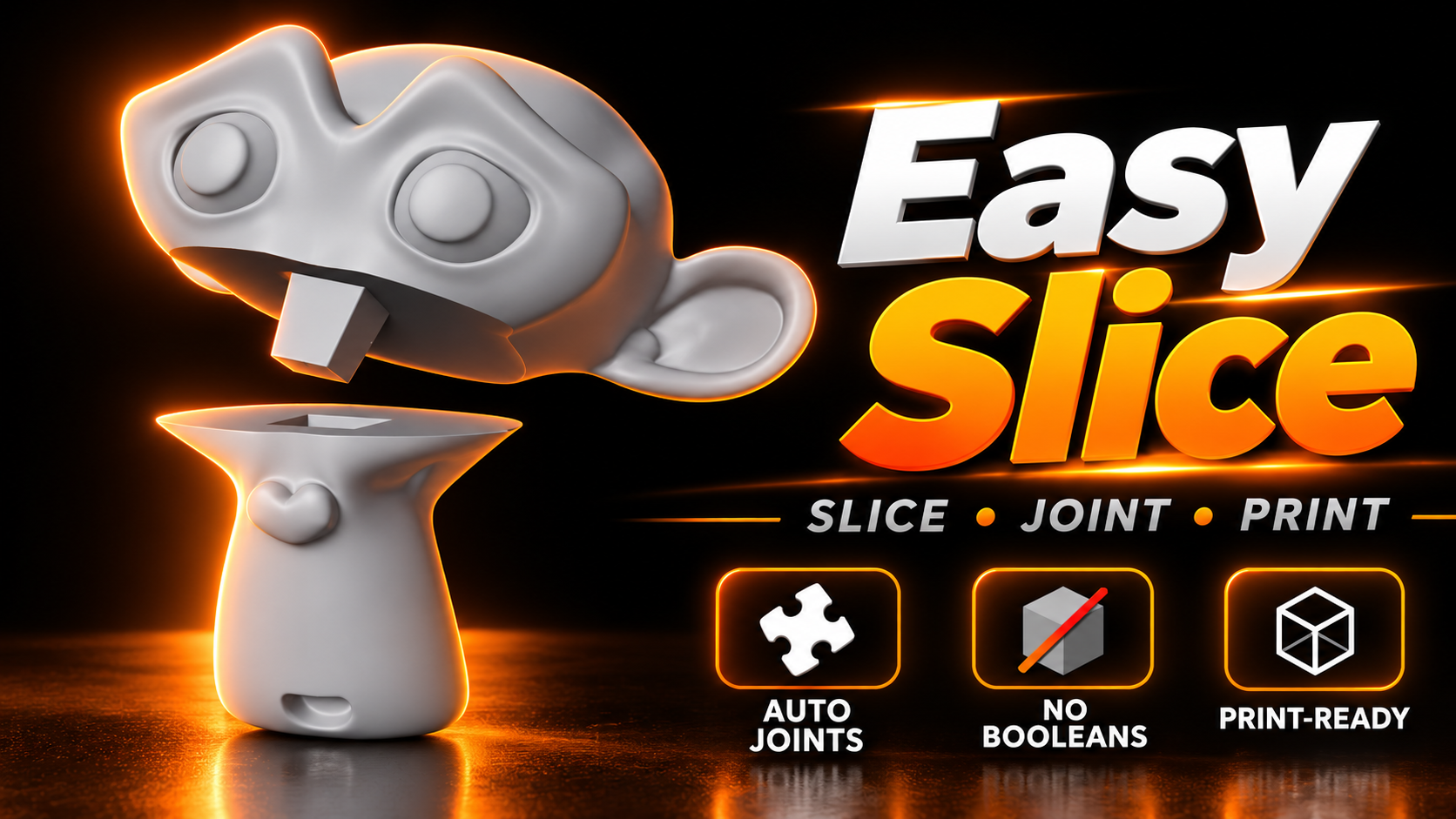
Draw a line across your model and it splits into printable parts with joint keys built in. No booleans, no manual modeling.
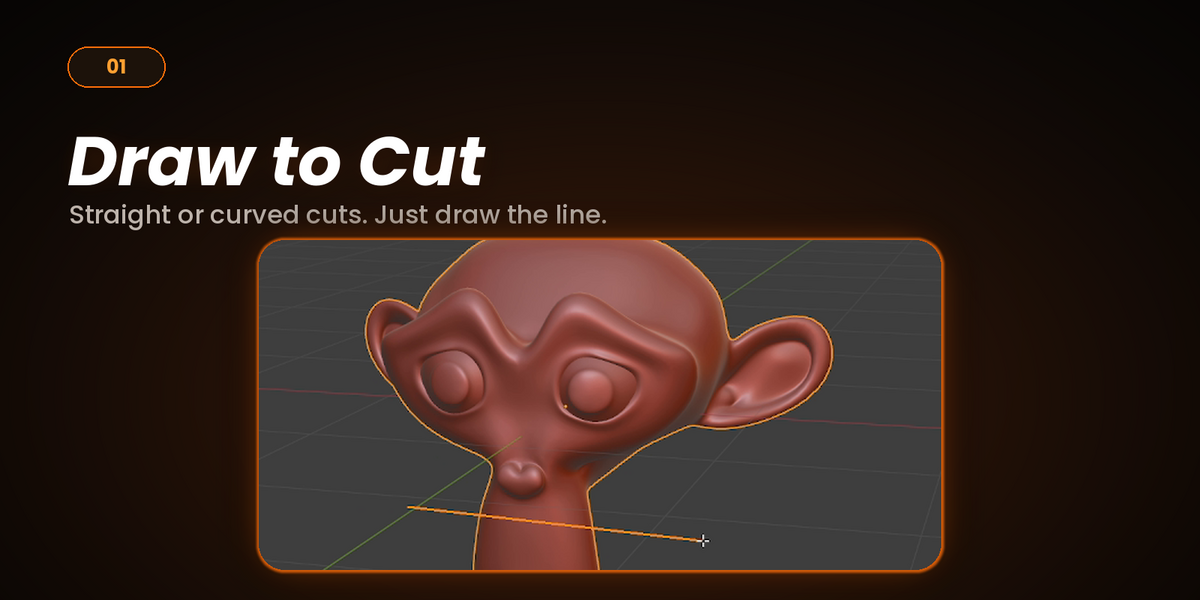
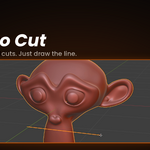
Straight Cut
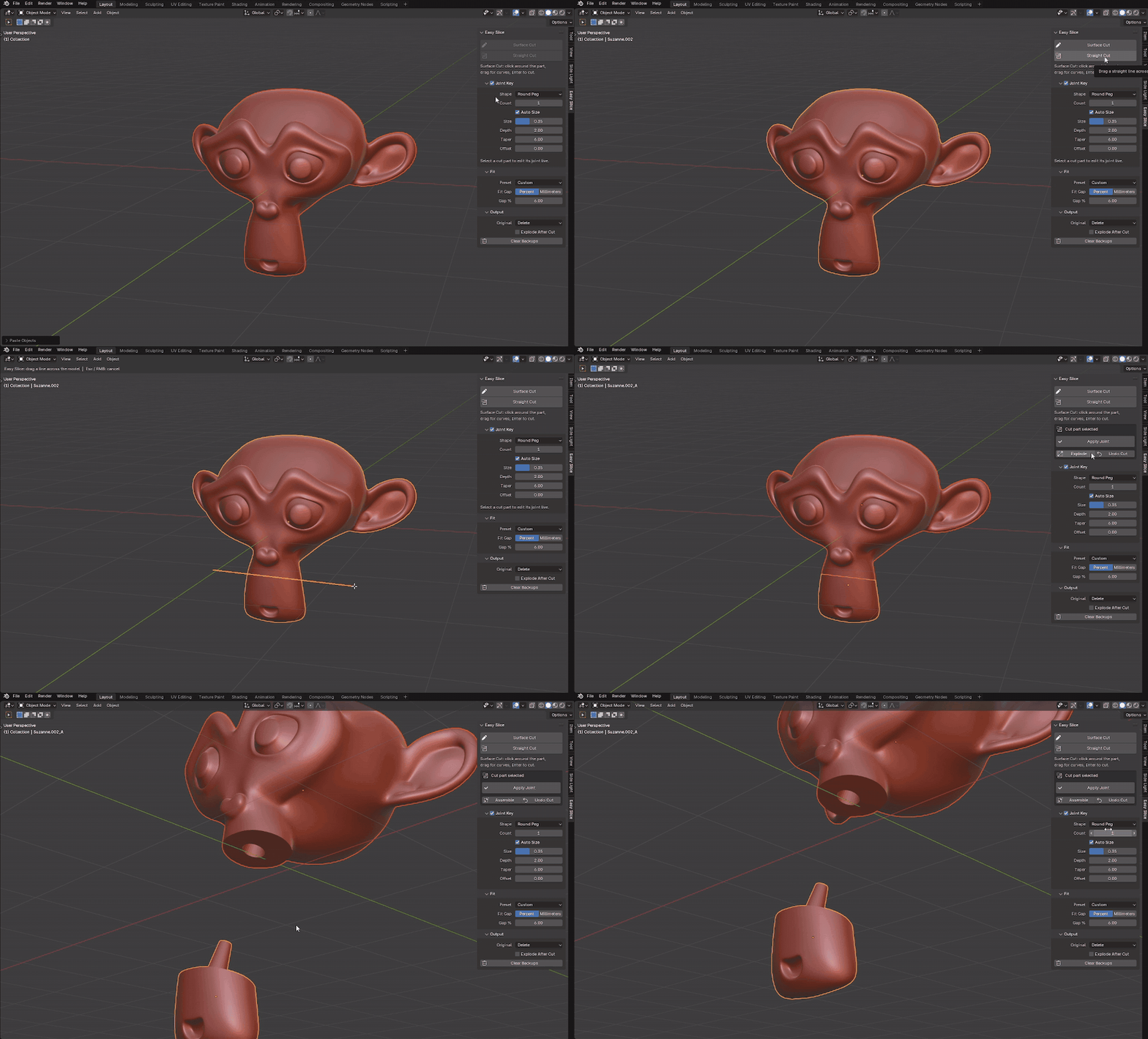
Click Straight Cut and draw a line across your model. It splits into two closed, printable parts.
Surface Cut
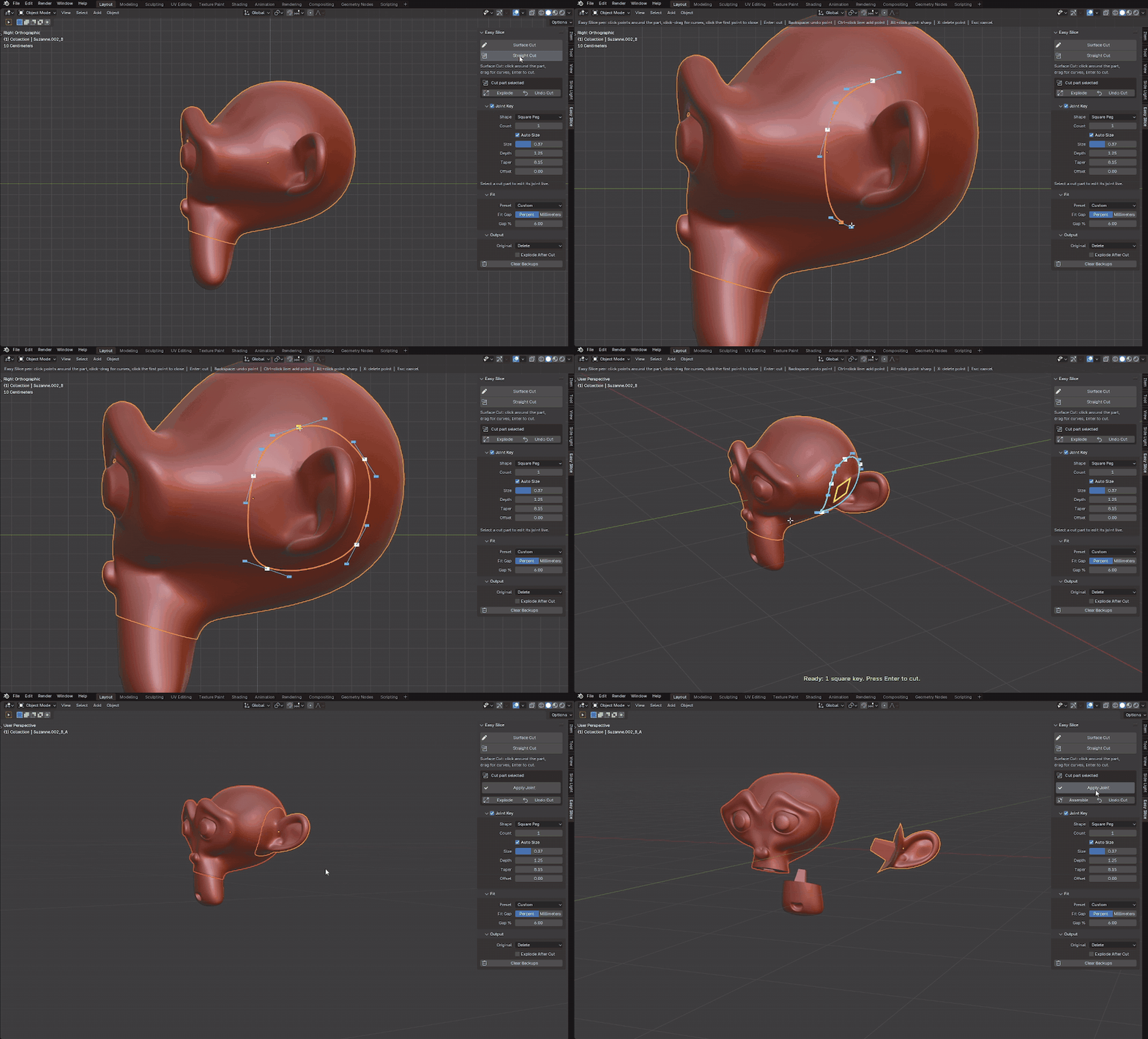
Need a curved cut? Click around the part, drag for curves and press Enter. Follow a body line, a panel edge or any curve.
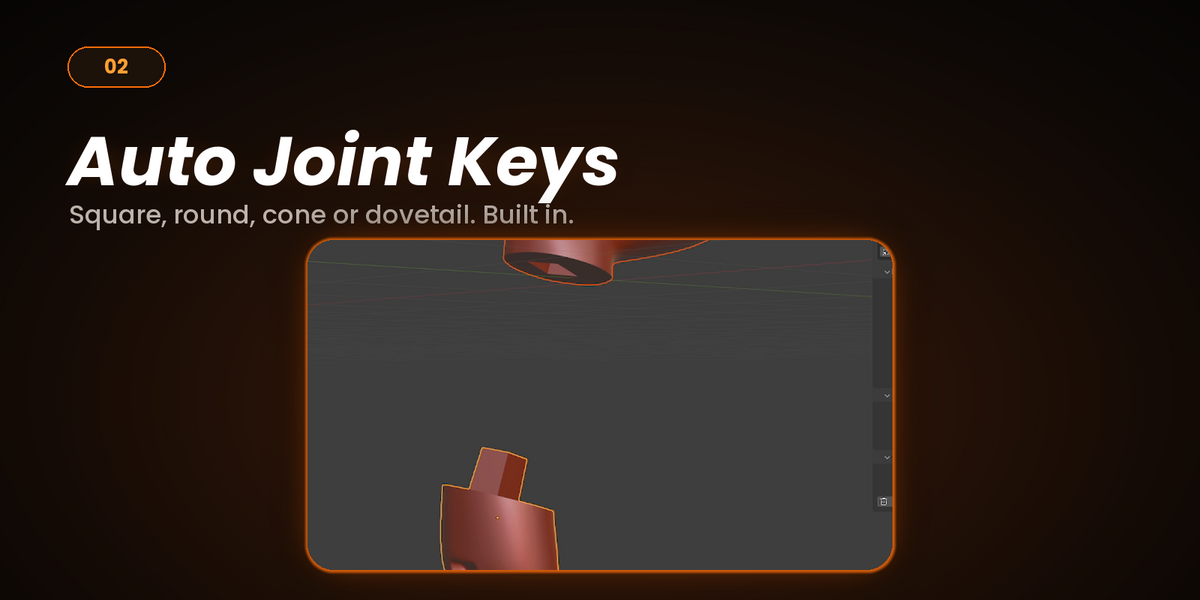
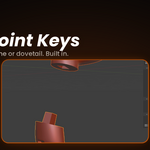
Joint Keys
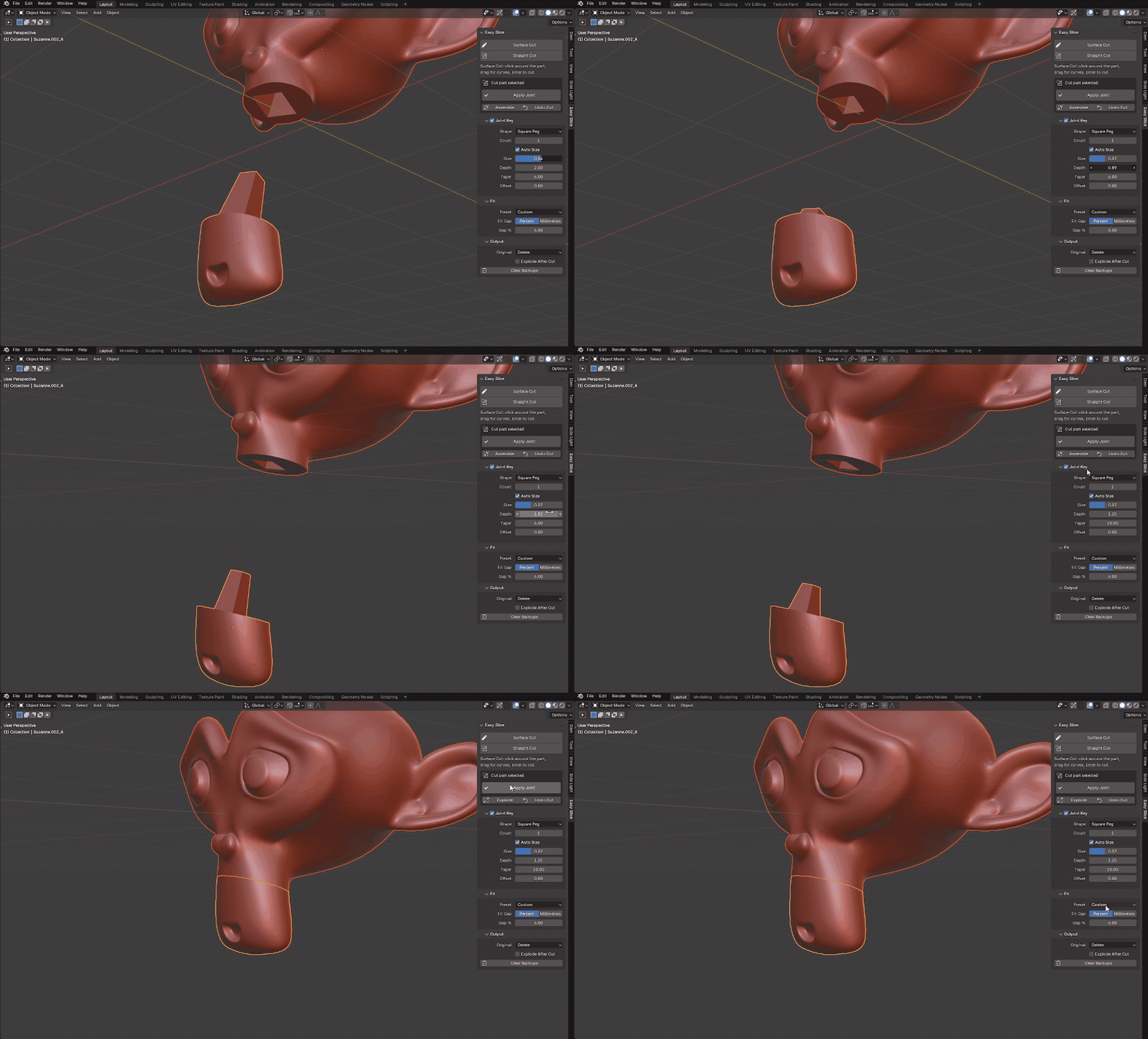
Easy Slice builds the joint for you. Choose Square, Round, Cone or Dovetail, then set count, size, depth, taper and offset, or leave Auto Size on.
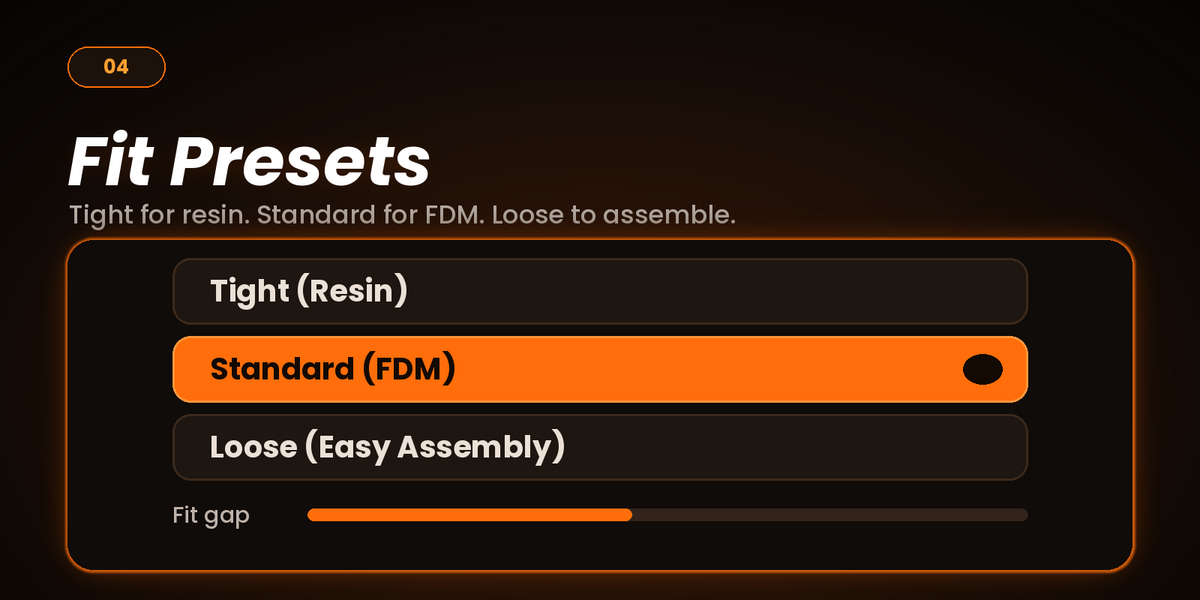
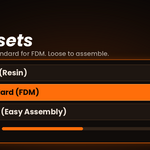
Fit Control
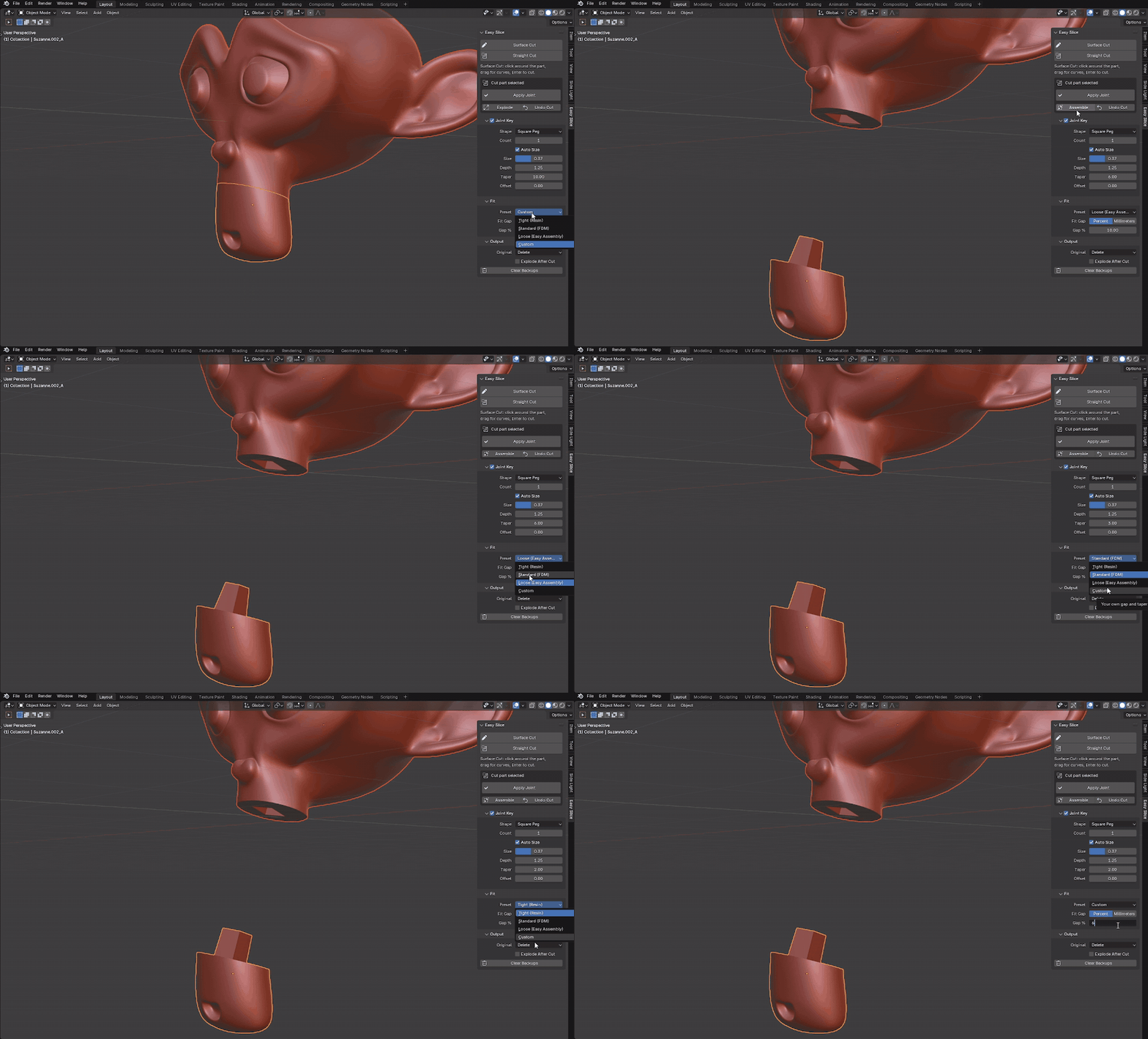
Pick a preset for your printer: Tight (Resin), Standard (FDM) or Loose (Easy Assembly). You can also set the gap yourself in percent or millimeters.
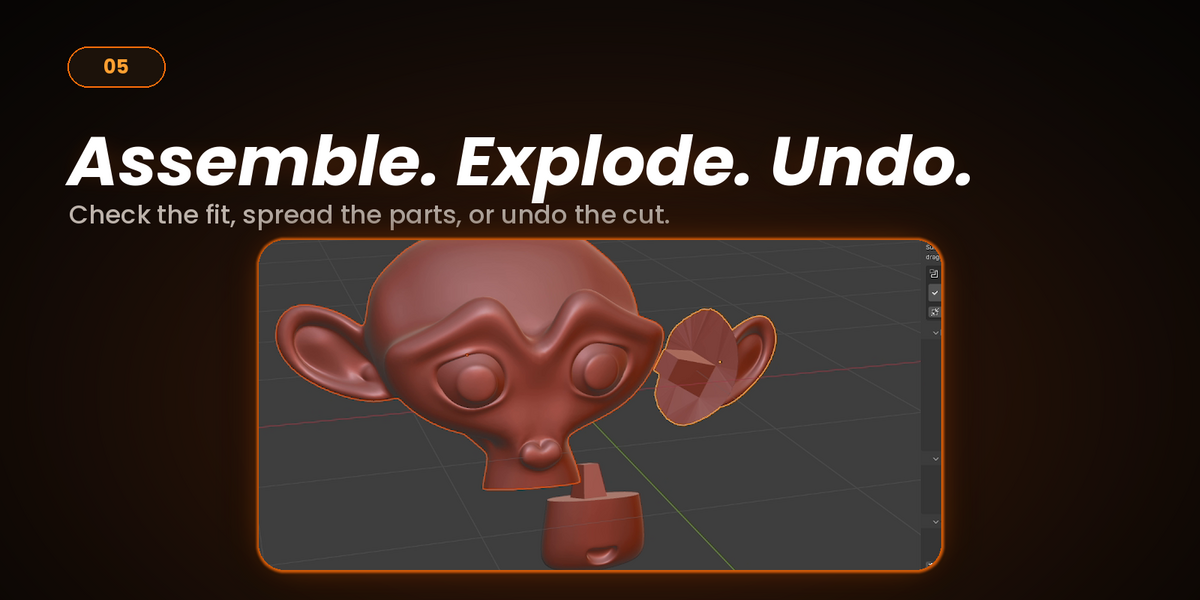
Assemble, Explode, Undo
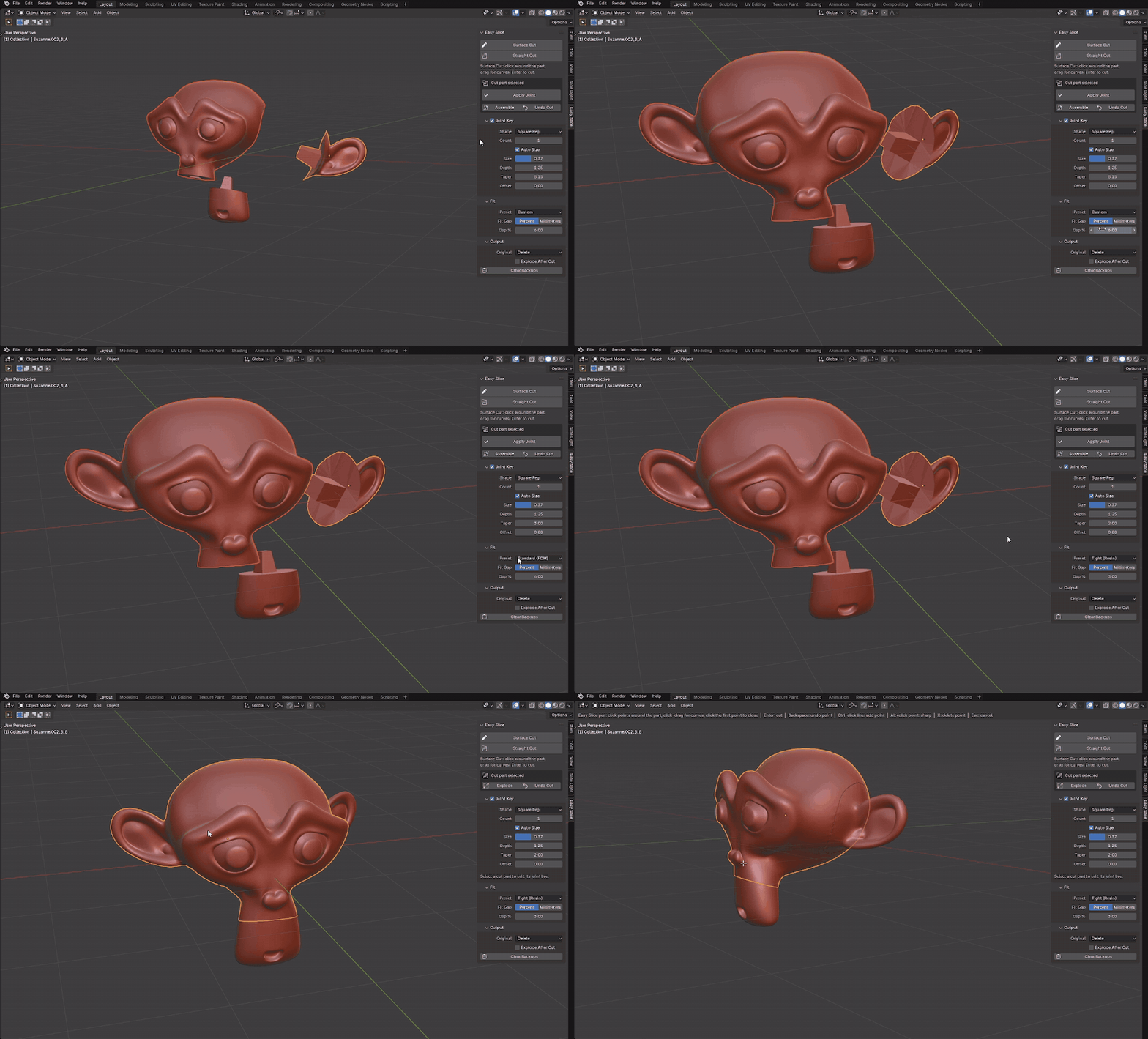
Check the fit, spread the parts out, or undo the cut. Choose whether the original is deleted or kept, and explode the parts automatically after a cut.
The easy way
| The usual way | Easy Slice |
|---|---|
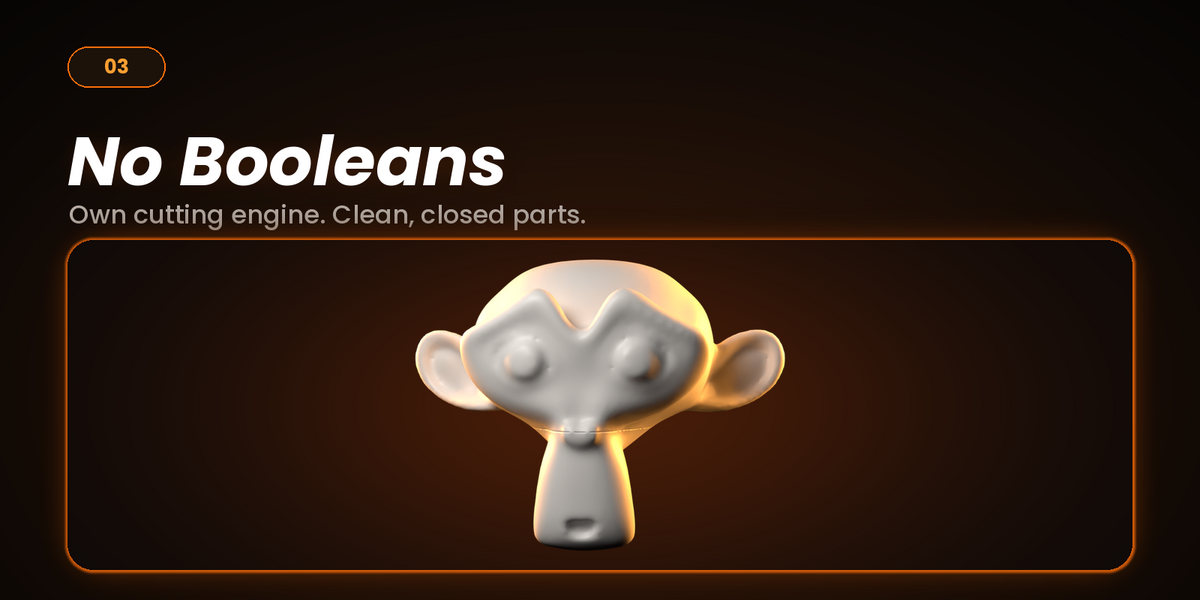
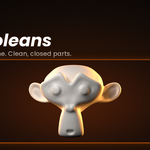
| Boolean cuts that can leave broken geometry | Own cutting engine, no Booleans |
| Model a joint by hand for every cut | Joint keys built in |
| Guess the clearance and reprint | Fit presets for resin and FDM |
| Hope the cut is clean | Refuses a bad cut and tells you why |
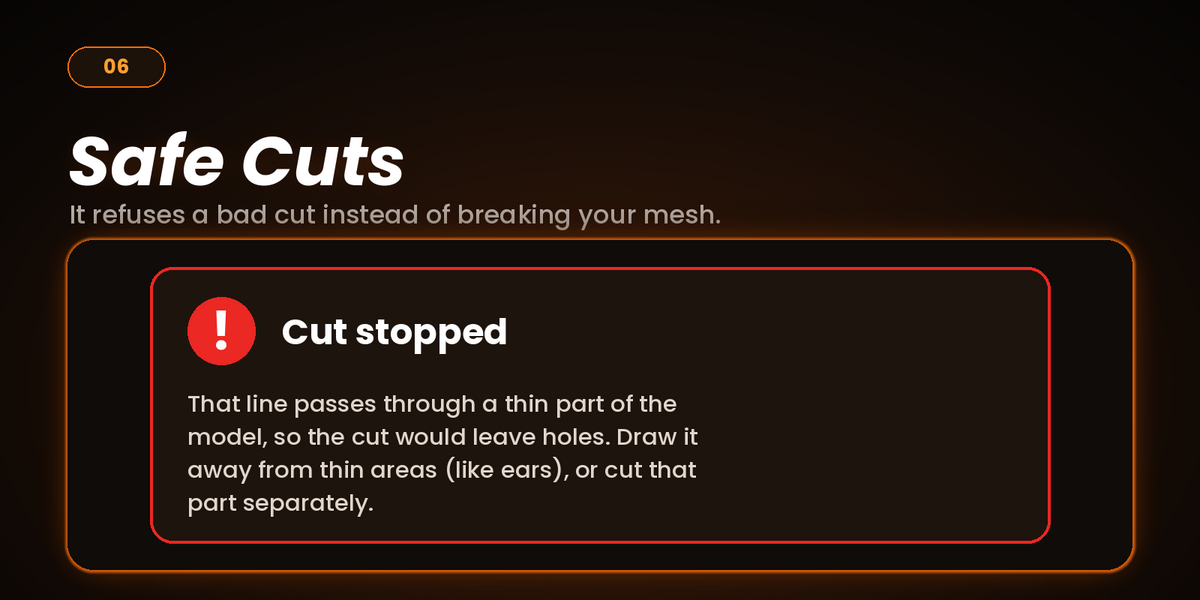
No silent failures
If a Surface Cut would leave holes, for example through a thin part like an ear, Easy Slice stops and tells you how to fix the line instead of giving you a broken mesh.
Big models, small printers
Cutting in seconds
- Open the Easy Slice tab in the 3D viewport sidebar (N).
- Select your model.
- Click Straight Cut or Surface Cut, then draw.
- Adjust the joint and fit if needed.
- Export and print.
Blender 4.2 or newer (Extension, install from disk)
Works on solid, closed meshes
License: GPL
Made by RG Studios