 Armin
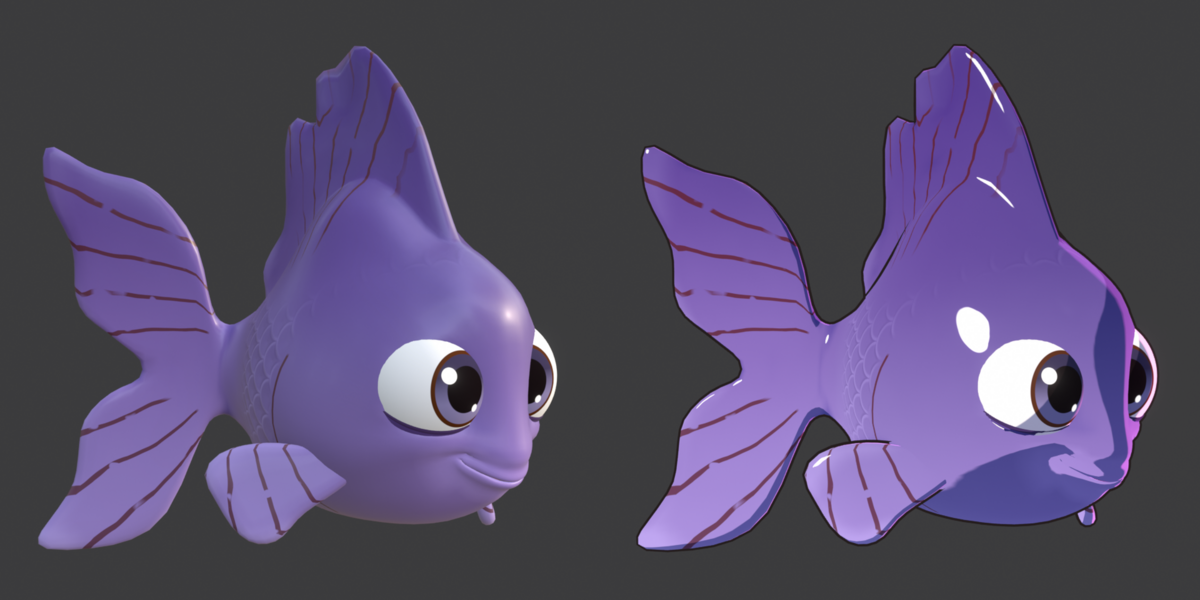
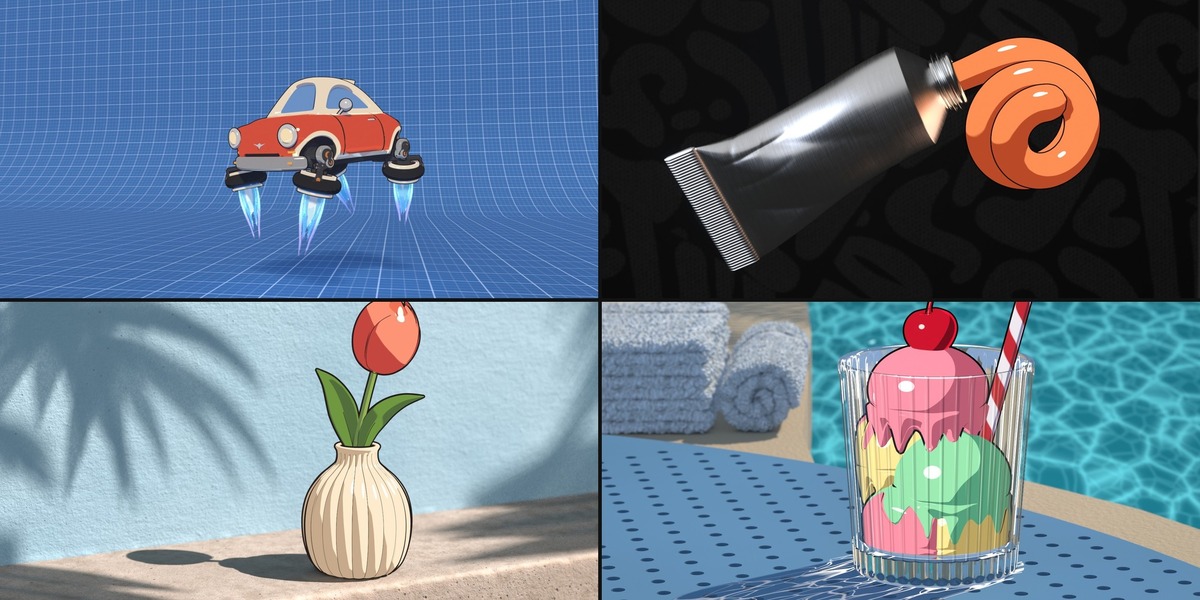
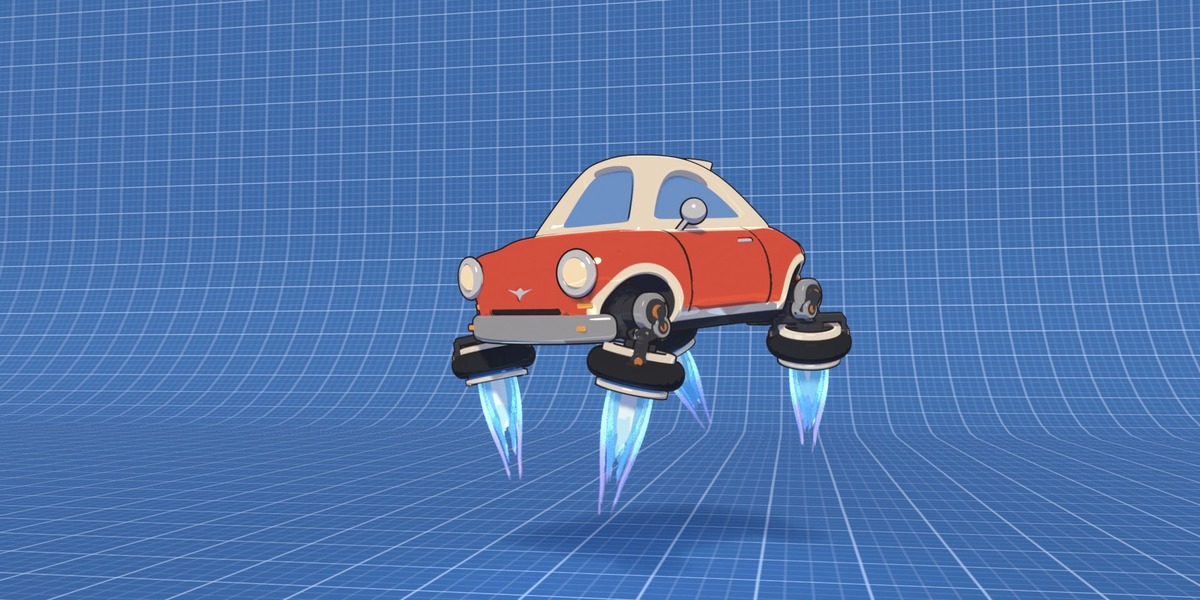
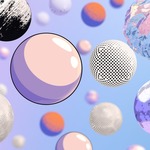
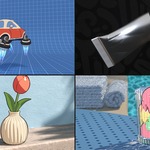
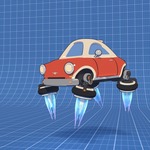
I made Easy Toon for my own toon animations. I wanted one button that makes a model or a whole scene toon, and gives my materials back if I change my mind.
Pick a look, press Make Toon, then tune it.
Make Toon and Restore
Most looks keep each part's own colour or texture. The Graphic looks and Sketch repaint it in two inks. Restore puts your original materials back.
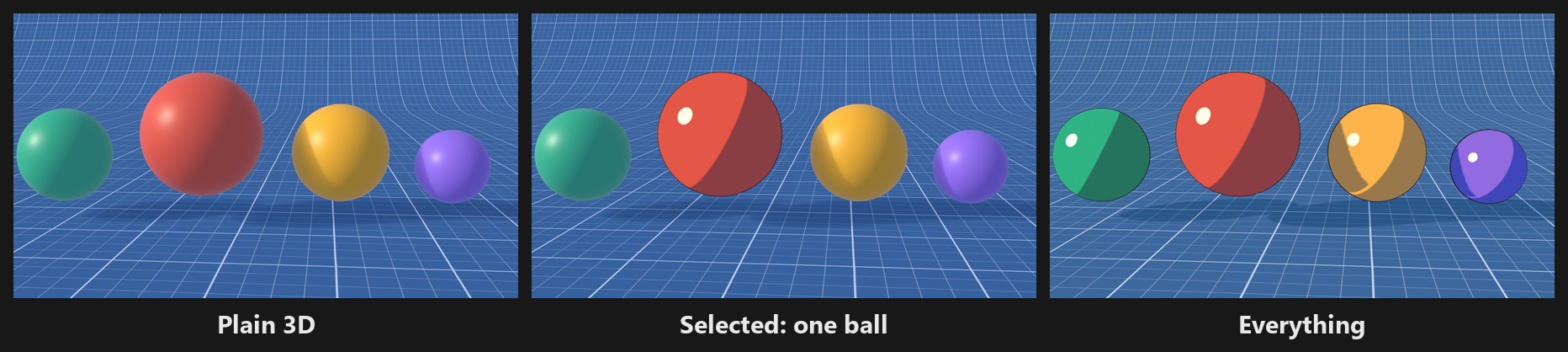
Selected or Everything
Selected changes only the models you pick, so each one can have its own look. Everything puts one look on the whole scene.
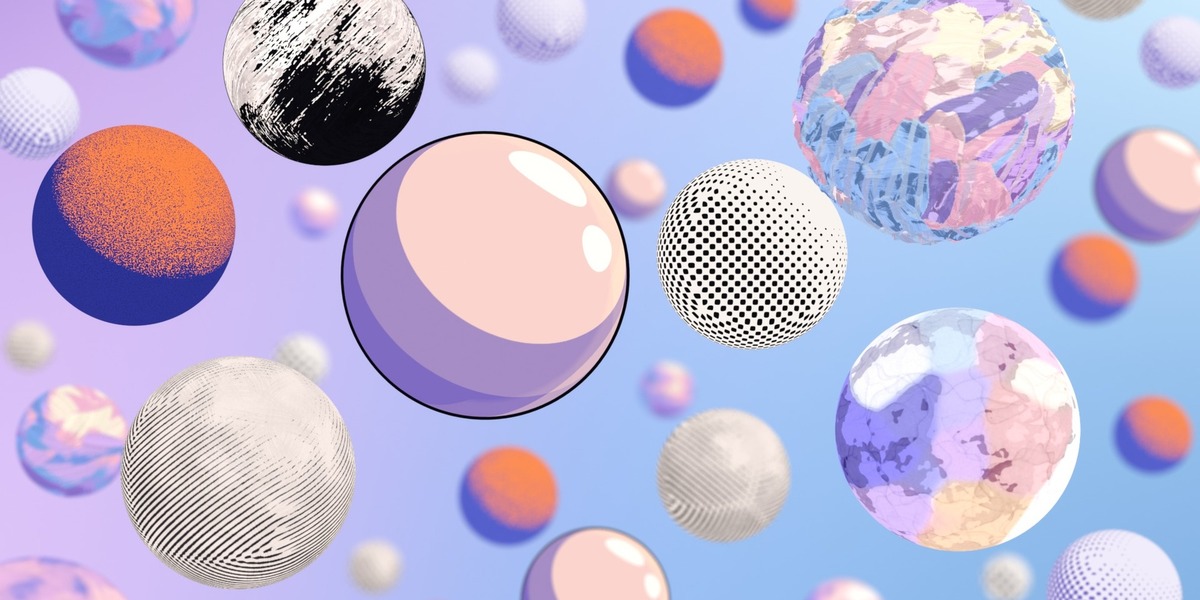
Toon, graphic, painted and drawn looks
27 looks in four tabs:
- Toon: Flat, Cel 2-Tone, Cel 3-Tone, Anime, Soft Toon, Pastel, Cool Gradient, Comic Halftone, Ink Hatching, Painted Toon
- Graphic: Noir, Manga, Duotone
- Painted: Oil, Fine Oil, Gouache, Palette Knife, Impressionist, Dry Brush, Watercolour, Impasto Swirl, Pointillism, Mosaic
- Drawing: Sketch, Crayon, Charcoal, Marker
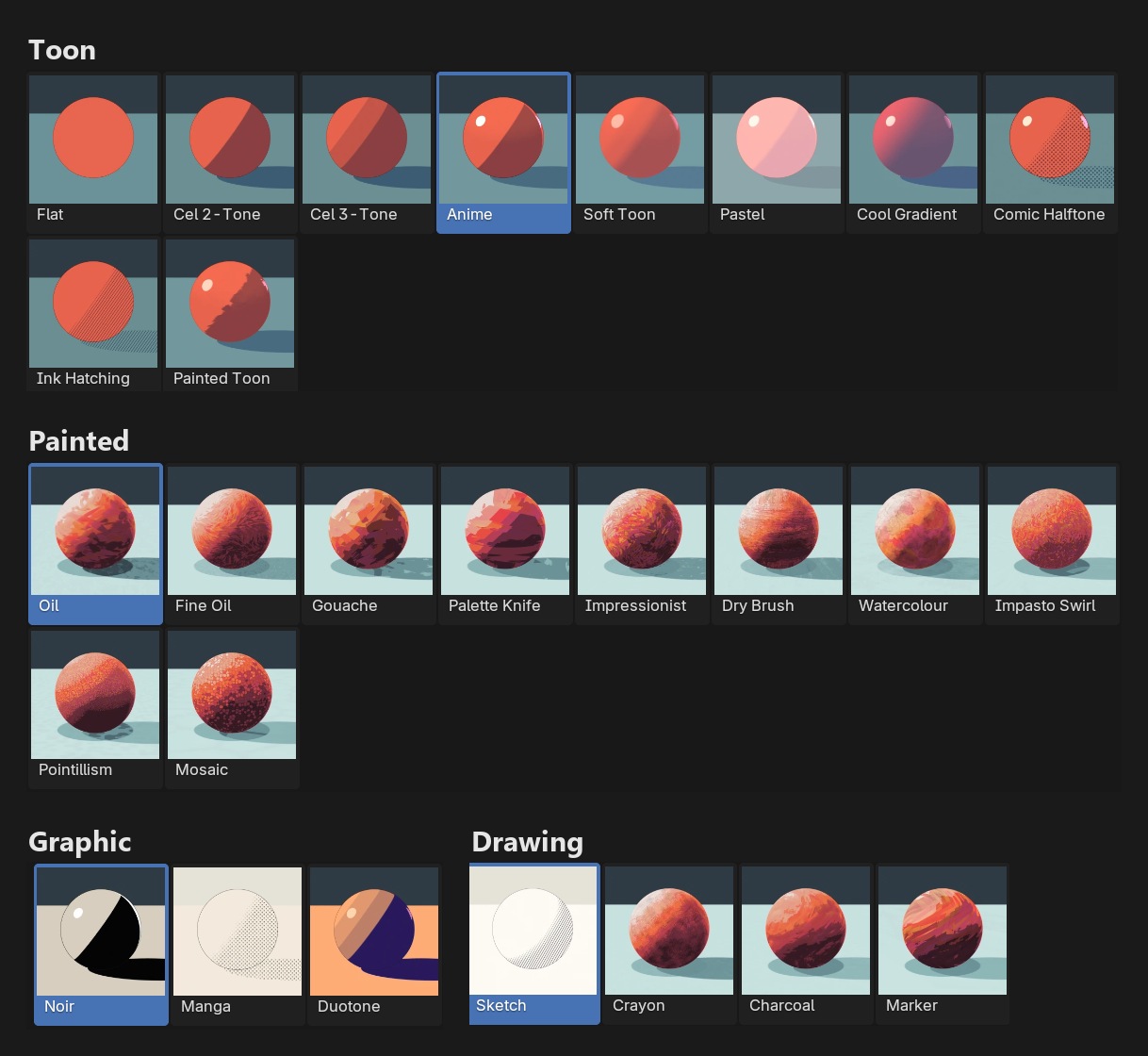
Each tab remembers the look you last used there and how you set it.
Lamps or no lamps
With Scene Lamps, each lamp lights the model in its own colour, with sharp cast shadows. Add Toon Lights adds a warm key, a cool top light and a pink rim. Toon looks also work without lamps, lit by the Easy Toon Light.
Shadow, shine and rim
Pick 2, 3 or 4 tones and set the shadow's size, darkness and colour. Fill it with comic dots or hatching, and add a shine and a rim.
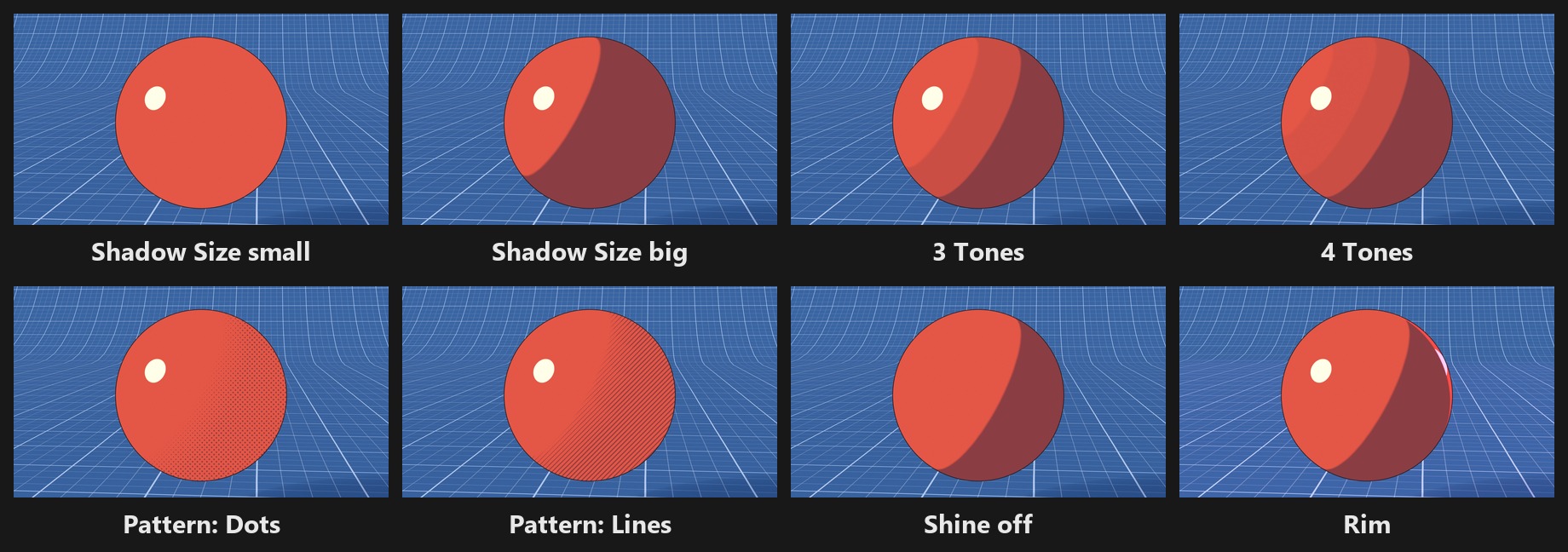
Ink lines
The outline is a modifier, so your mesh stays as it is. Its width is set from each model's size, so a small prop never gets a blob and a big character never gets a hairline. Inner Lines adds ink on sharp creases and where two parts meet.
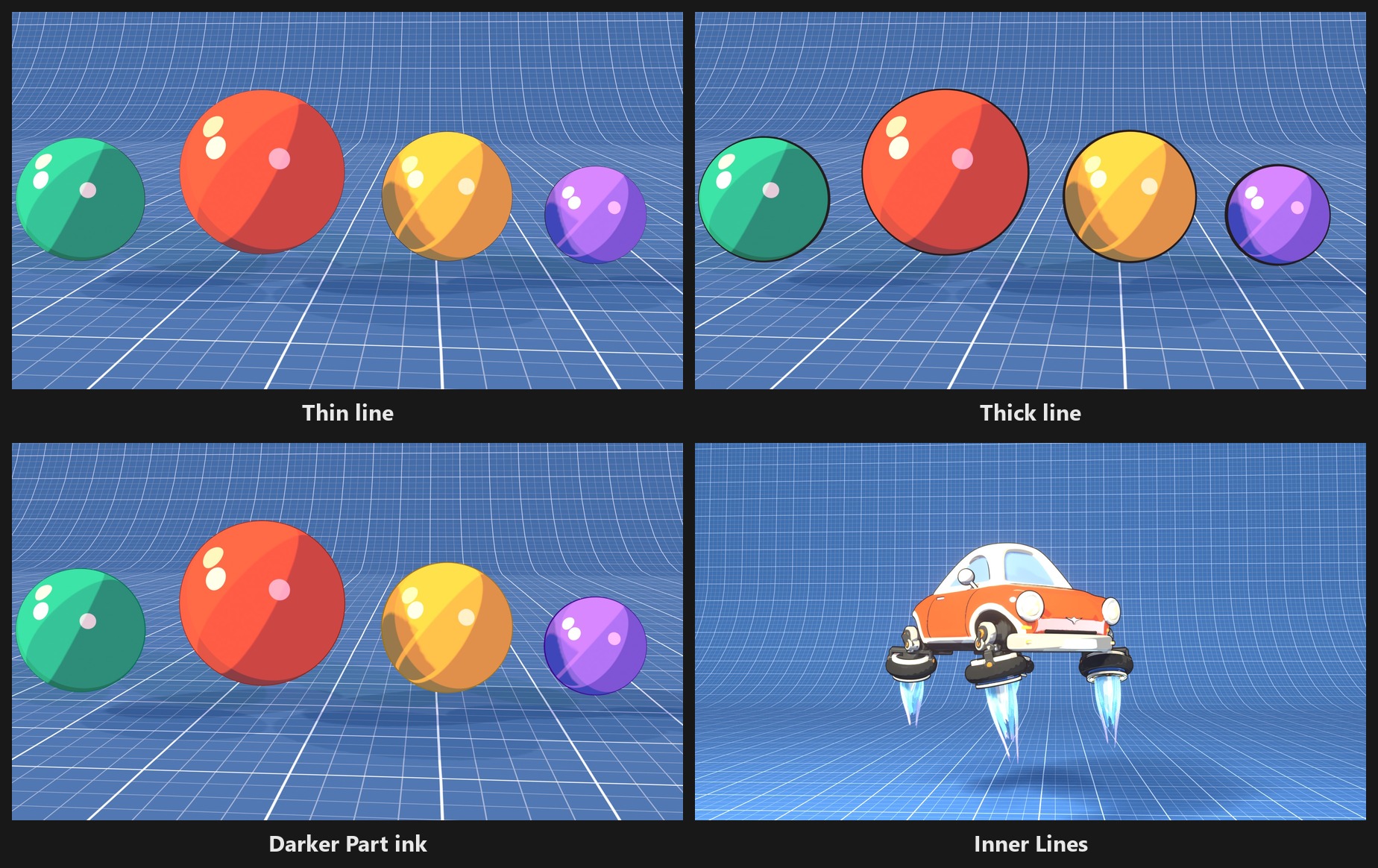
Brushes for painted looks
Painted looks cover the model in brush strokes, with 19 brushes to pick from. They need light: Painter's Light adds a side key and a cool fill, sized to the model.
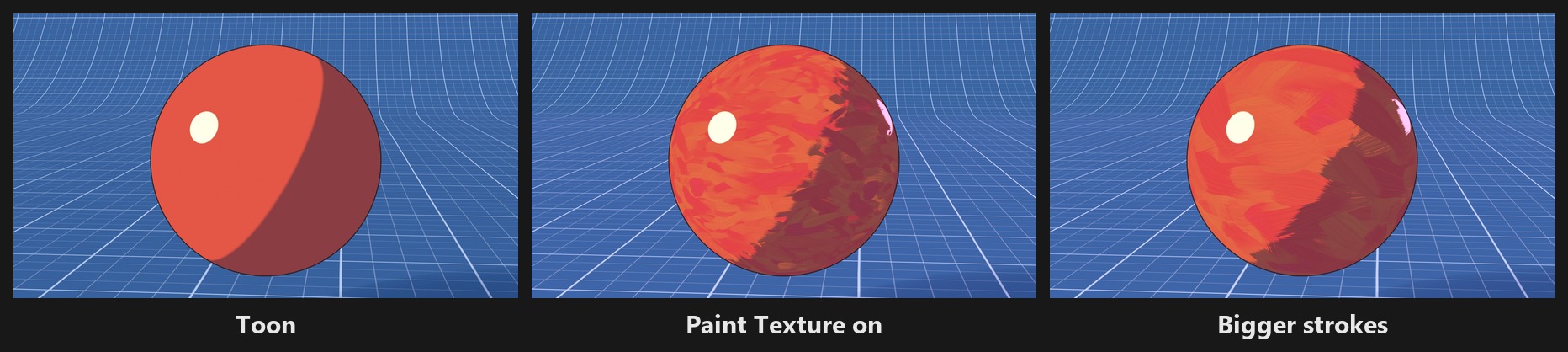
Paint Texture on toon looks
Turn on Paint Texture and brush strokes break up the edges between the tones. Pick from 20 textures.
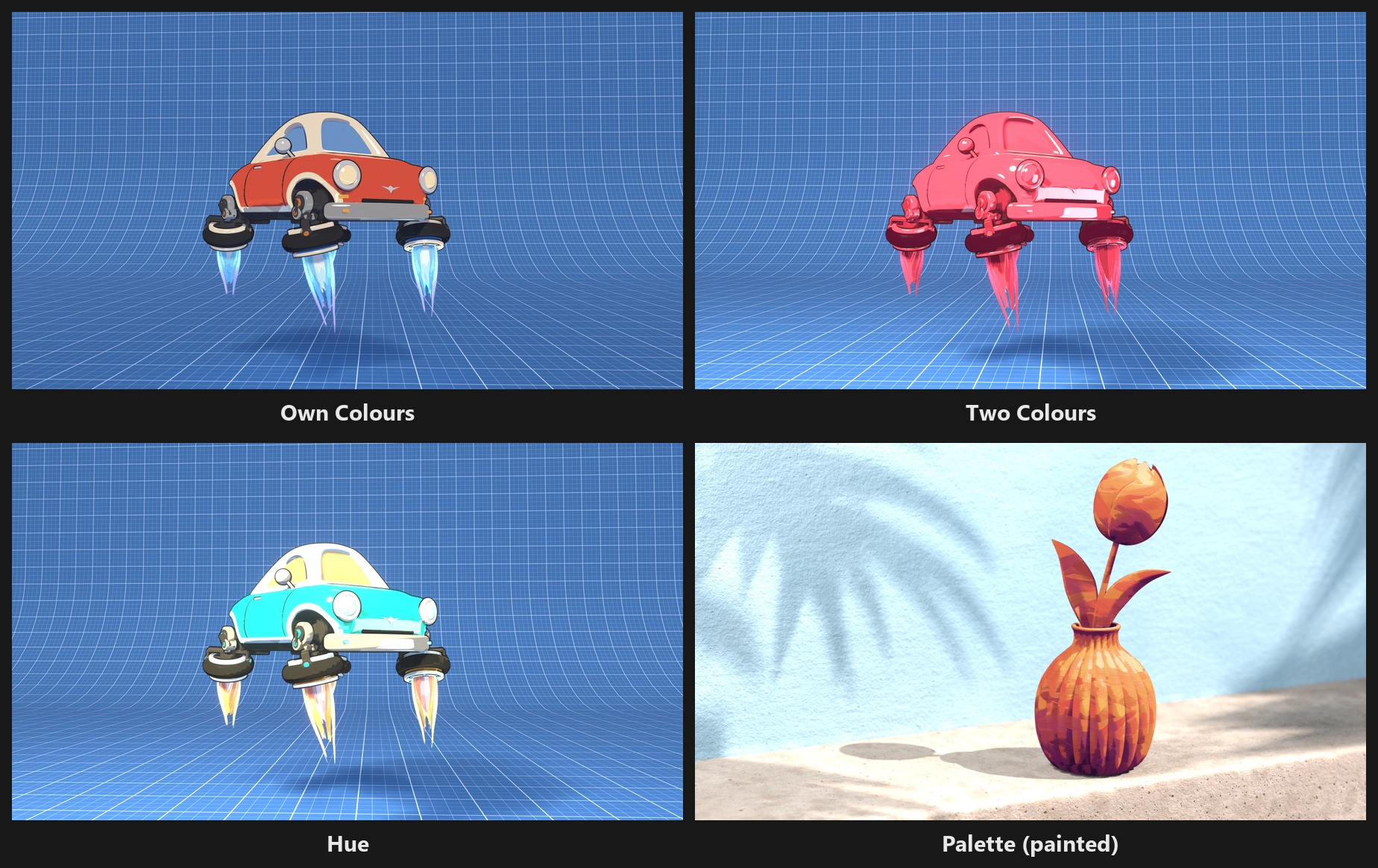
Colours
Keep your own colours and nudge them with Tint and Hue, or repaint a model with two colours (six on painted looks). It comes with ten palettes.
Two licences
Both get the full add-on and all future updates.
- Individual License ($29): for one artist, in your own personal and commercial projects, on your own computers
- Studio Unlimited ($99): for a whole studio or team, every artist and every machine of one company
Requirements
- Blender 5.3 or newer
- EEVEE (Cycles shows a simpler version)
Installation
- Keep the downloaded ZIP zipped
- In Blender, open Edit > Preferences > Get Extensions
- Open the menu in the upper-right corner, choose Install from Disk and pick the ZIP
- In the 3D Viewport press N and open the Toon tab
Quick start
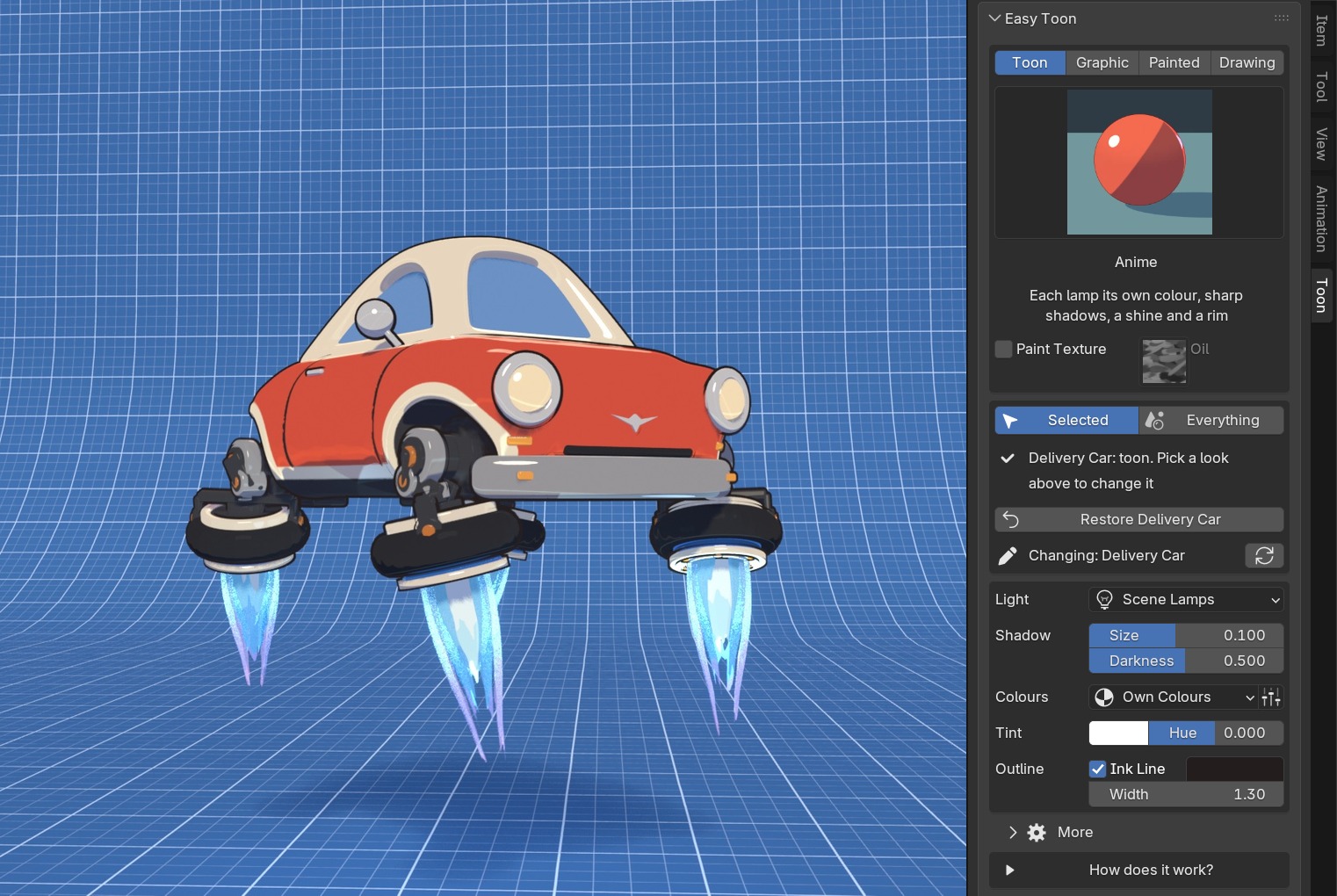
- Select a model, or set the switch to Everything
- Click the big tile and choose a look
- Press Make Toon
- Tune Light, Shadow, Colours and Outline, and open More for the rest
- Press Restore to get your own materials back
Good to know
- Grease Pencil, glass, fog, linked data and parts that get their material from a Geometry Nodes Set Material node are left as they are
- Animated material colours stay still in the toon look
- Make Toon switches the render engine to EEVEE and Solid views to Material Preview
- On Everything it also sets View: Standard, and adds Toon Lights and a dark world when the scene has none. Restore Everything undoes it all
Made by Armin5D. Licensed under GPL-3.0-or-later.