 Armin
Installation
- Keep the downloaded ZIP zipped
- In Blender, open Edit > Preferences > Get Extensions
- Open the menu in the upper-right corner, choose Install from Disk and pick the ZIP
- In the 3D Viewport press N and open the Toon tab. The panel is called Easy Toon
If the scene is not on EEVEE, a box at the top of the panel says so, with a Switch to EEVEE button.
Look
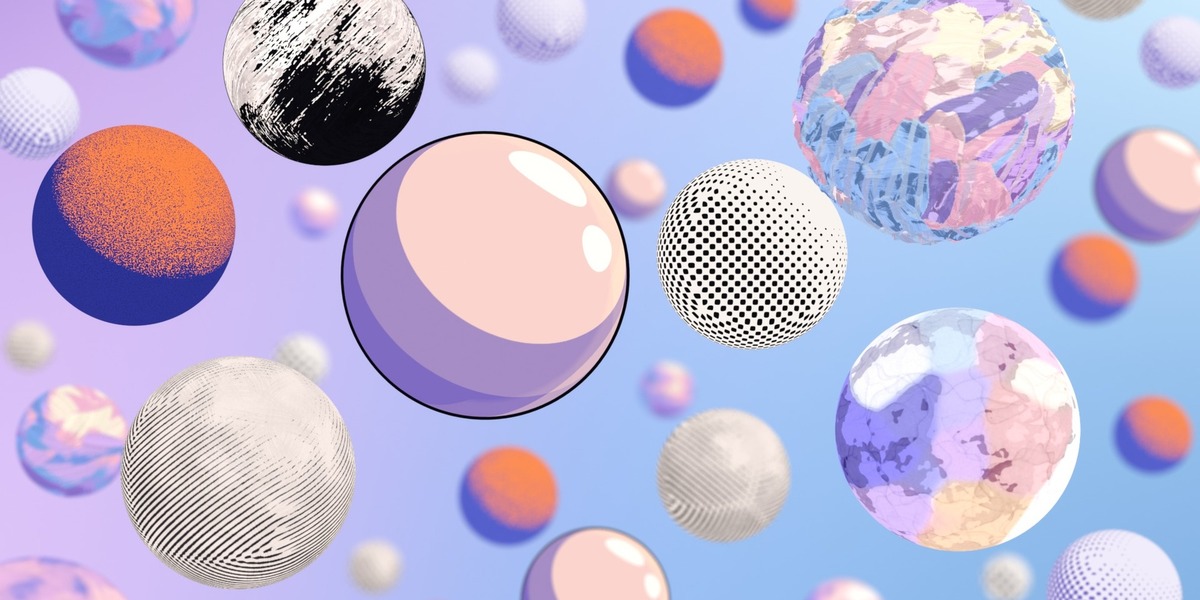
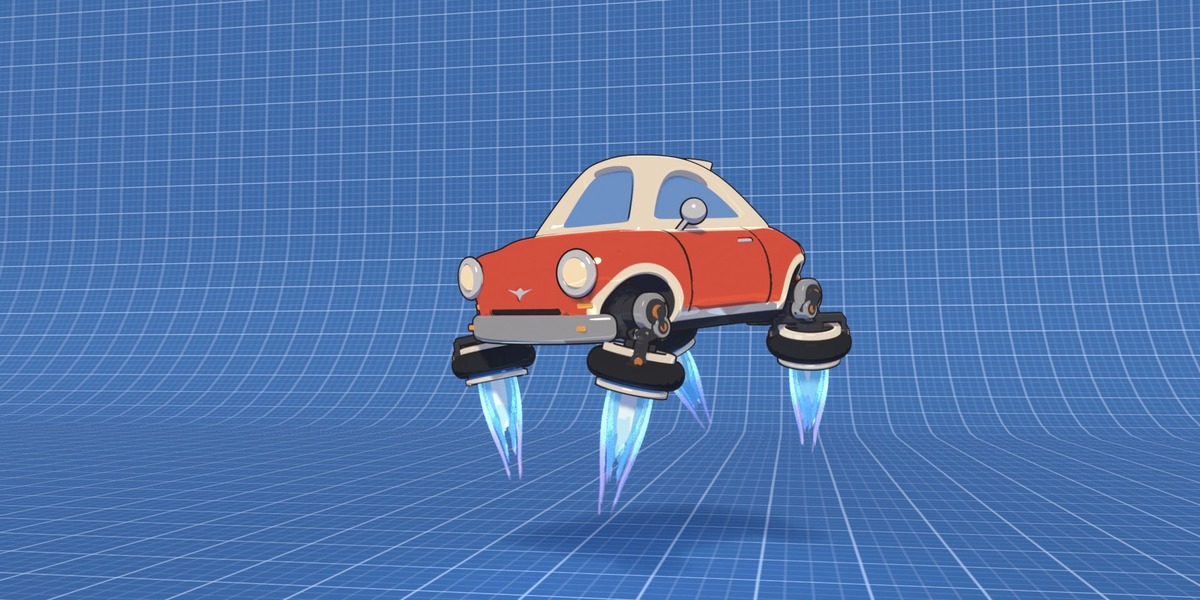
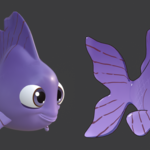
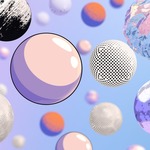
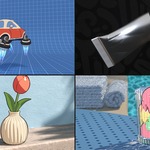
At the top are four tabs: Toon, Graphic, Painted and Drawing. A click on a tab picks that tab's last used look (or its first) and brings back the settings you had on it. Click the big tile to choose another look from the tab.
A pick changes what the switch below points to right away, and Ctrl+Z takes it back. Before anything there is toon, it only sets the look Make Toon will use, and the name under the tile reads, for example, "Next Toon: Anime".
Once a model has a toon look, the Paint Texture row sits under the tile: tick it, pick a texture and set Strength. Flat looks don't have it.
Selected, Everything and Make Toon
The switch decides what every button and slider changes. Selected uses the models you picked: click any part and its whole model counts. Everything uses every object in the scene that renders and has a surface.
The big button names what it will change, such as "Make Toon: whole scene (12 objects)" or "Make Toon: Robot (4 parts)". When Make Toon adds lamps or a world, or leaves linked objects alone, a short line under the button says so. The line "Changing: ..." shows what the sliders change, and the small refresh icon at its end (Reset to Look) puts the look's own values back.
Main controls
- Light: Scene Lamps, Easy Toon Light or No Light (Flat). Painted looks have Painter's Light here instead
- Shadow: Size and Darkness (painted looks: Darkness)
- Colours: Own Colours, or Two Colours on toon looks and Palette on painted looks, with the palettes menu next to it
- Tint and Hue: recolour the model while it keeps its own colours
- Outline: Ink Line on or off, its colour and Width
- Brush (painted looks): the brush, Size and Strength
More
More folds open into sections:
- Toon looks: Light & Lamps, Shadow & Tones, Shine & Rim, Colours, Outline, Paint Texture (when it is on) and Scene
- Painted looks: Light, Colours, Outline, Brush and Scene
With Scene Lamps, Light & Lamps lists your lamps (up to 8) with colour, power, Rim and shadow toggles, and has Add Toon Lights and Add Rim Lamp. With Easy Toon Light it sets where the light comes from (Follow View or From Empty) and its colour and strength.
Outline has Line Colour, Opacity and Inner Lines. On painted looks, Light has Fit to Scene Light and Brush has Fit Strokes to Camera. Scene has the switch that lets Everything set up the scene (EEVEE, view and lamps), and the View: Standard button.
How does it work? at the bottom folds out a short reminder of the steps.
Restore
In Selected mode, Restore (it shows the model's name) puts the selected models' own materials back and removes their ink line. When nothing in the scene is toon any more, it also removes the lamps and the empty Easy Toon added and puts the scene settings back.
Restore Everything does this for the whole scene: your materials, the render engine, View Transform and Look, the world it added, EEVEE shadows and each viewport's shading. It removes the Toon Lights, the Painter's Light and the light empty, and cleans up Easy Toon materials that nothing uses.
Every button can be undone with Ctrl+Z.
Have questions about this product?
Login to message
| Blender Extension Compatible | Yes |
| Published | about 23 hours ago |
| Blender Version | 5.3 |
| Extension Type | Add-on |
| Render Engine Used | Eevee |
| License | GPL |