Elemental FX Pro
 Blender Procedural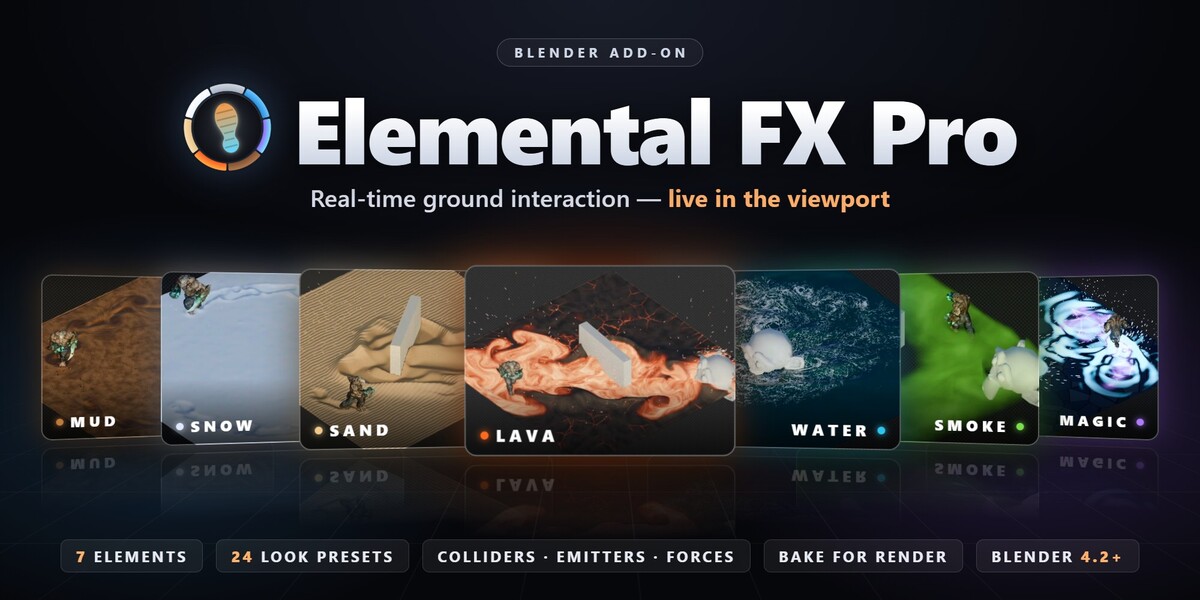
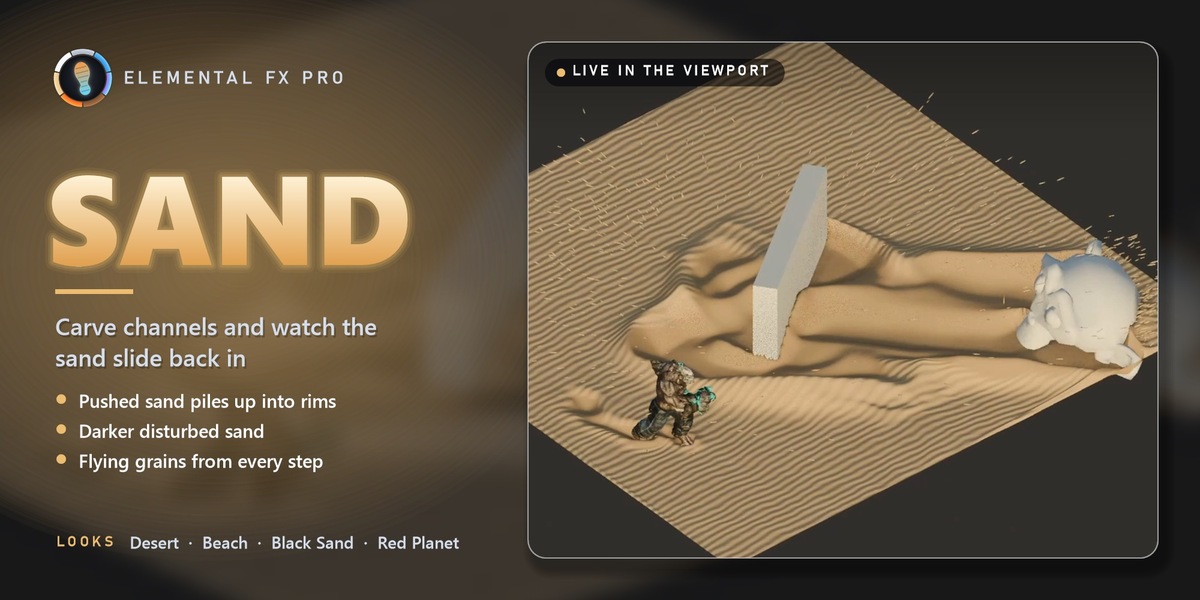
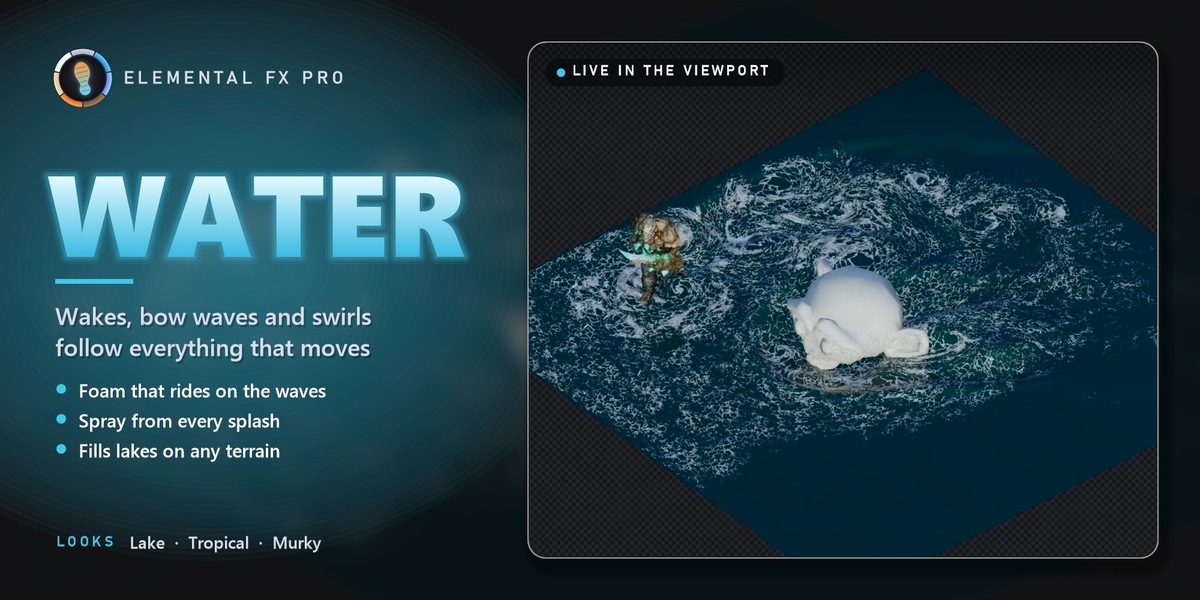
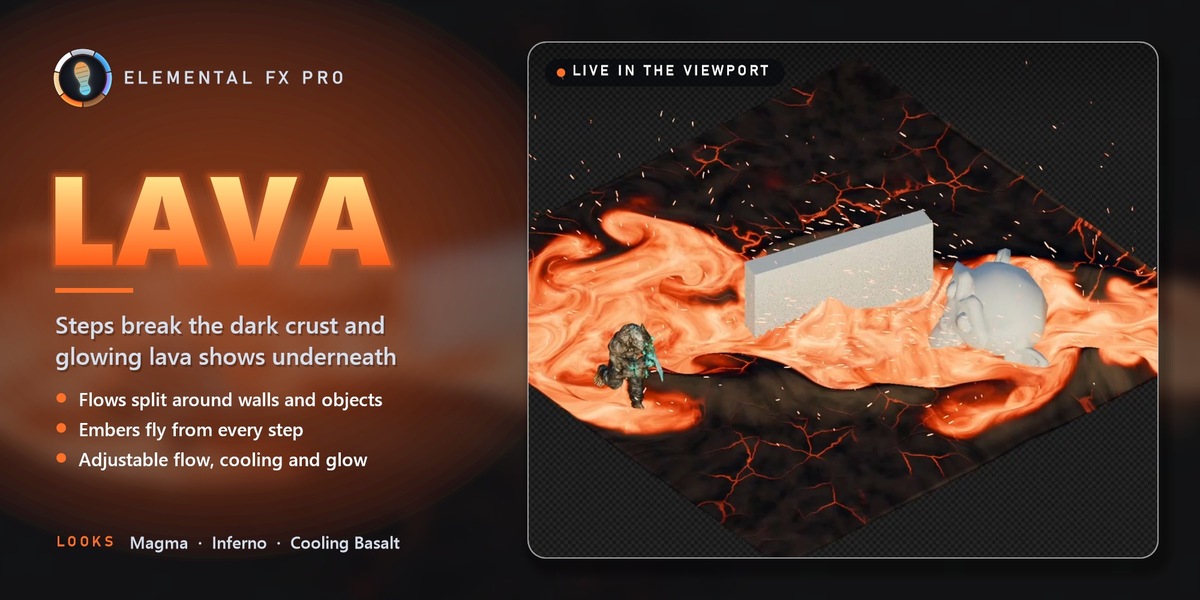
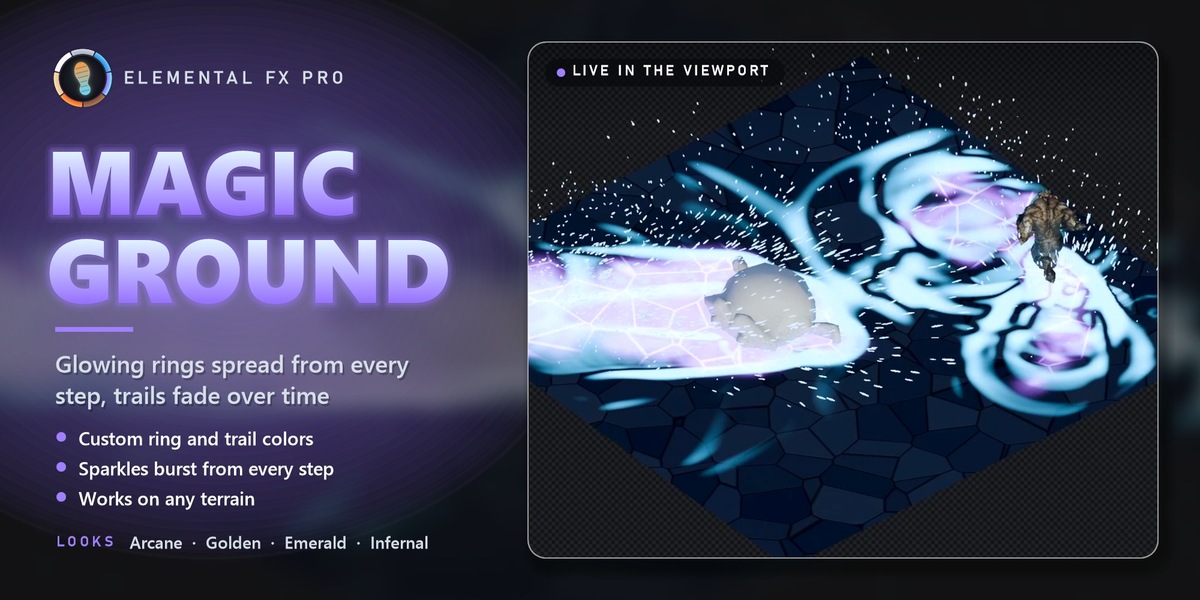




DOCUMENTATION · VERSION 1.0.1
Elemental FX Pro Guide
Everything you need, from install to the final render.
01 · INSTALLATION
Install in under a minute
| 1 | Download elemental_fx_pro-1.0.1.zip. Do not unzip it. |
| 2 | Drag and drop the zip into the window and confirm Install. Alternative: Edit ▸ Preferences ▸ Get Extensions ▸ ▾ (top right) ▸ Install from Disk… and pick the zip.
|
| 3 | Open the 3D Viewport sidebar (N) and click the Elemental FX tab. |
Updating? Install the new zip the same way. Your scenes keep their settings.
02 · QUICK START
Footprints in 60 seconds
1
PICK
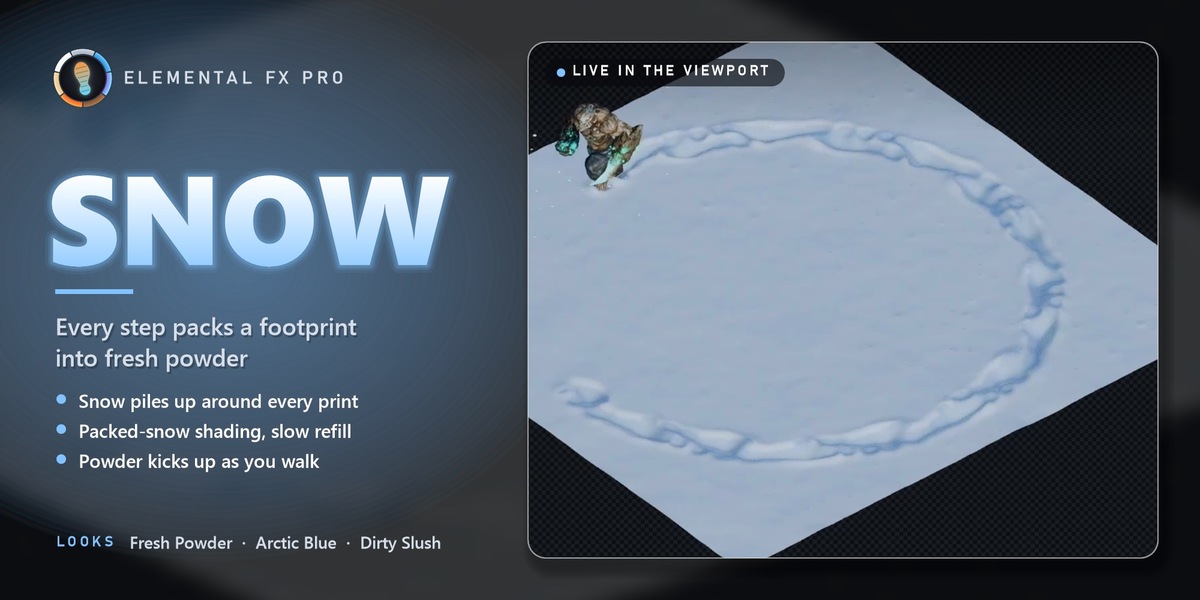
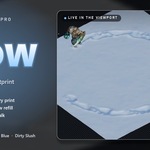
In the Elemental FX tab, click the big preview and choose a medium, e.g. Snow.
2
DEMO
Click Runner Demo. A surface, a sky, a light, a camera and a running mannequin are created.
3
PLAY
Press Space. Footprints appear as the runner crosses the surface.
4
RENDER
Open the Bake panel, click Bake, then render the animation as usual.
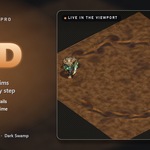
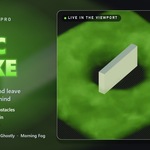
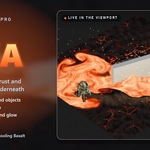
Want a finished scene? Open Demo Scenes: build Sand + Water Mountain, Snowy Hills, Lava Volcano or Fog Over Town, or a showcase scene for any medium.
03 · YOUR OWN SCENE
Three ways to use it
FASTEST · MOST DETAIL
A flat surface
1 Pick a medium and click Add … Surface. It appears at the 3D cursor.
2 Select your animated objects (characters, wheels, boats…) and click Colliders ▸ Add Selected as Colliders.
3 Play the timeline, or click Interactive Mode and move objects with G.
2 Select your animated objects (characters, wheels, boats…) and click Colliders ▸ Add Selected as Colliders.
3 Play the timeline, or click Interactive Mode and move objects with G.
TERRAIN · STREETS · SETS
On your own meshes
1 Select the ground meshes (any number), pick a medium and click On Selected.
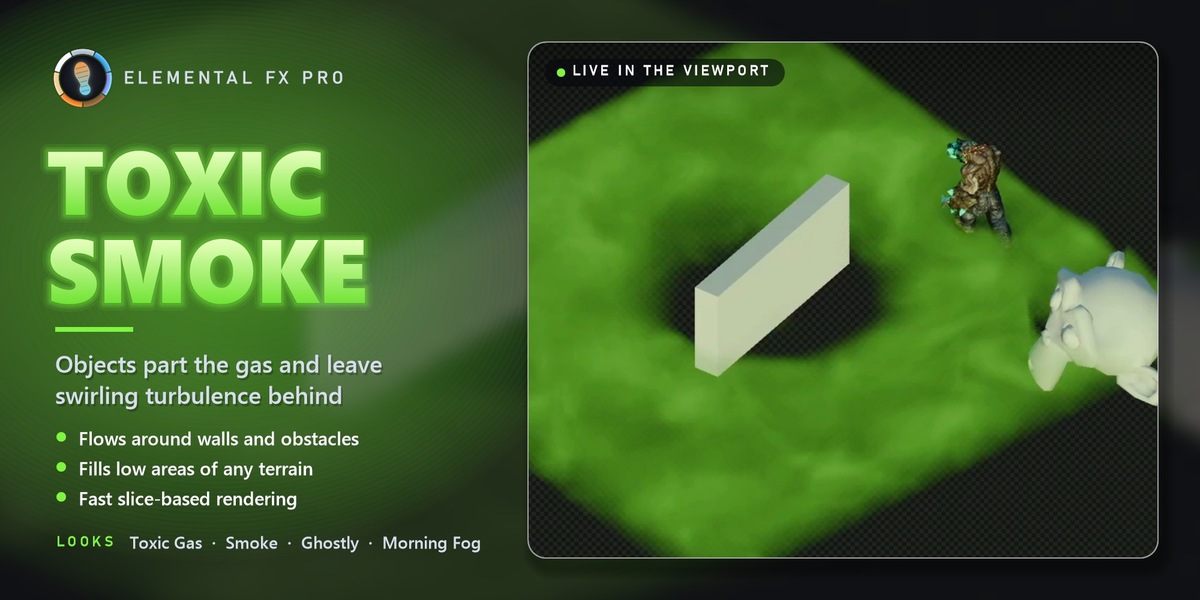
2 A layer is created on top of everything you selected. Snow and sand cover the ground; water and fog fill the low areas (Fill Level).
3 Add colliders, emitters and forces. Moved or edited the ground? Click Rebuild Layer.
2 A layer is created on top of everything you selected. Snow and sand cover the ground; water and fog fill the low areas (Fill Level).
3 Add colliders, emitters and forces. Moved or edited the ground? Click Rebuild Layer.
RIGGED · DEFORMING
Characters
Mark the character mesh — or just its feet / shoes — as a collider with Shape: Mesh. Deforming meshes are sampled every frame.
Best footprints: surface resolution of at least 256, and let the feet go 5–10 cm below the surface.
Best footprints: surface resolution of at least 256, and let the feet go 5–10 cm below the surface.
Pour & push
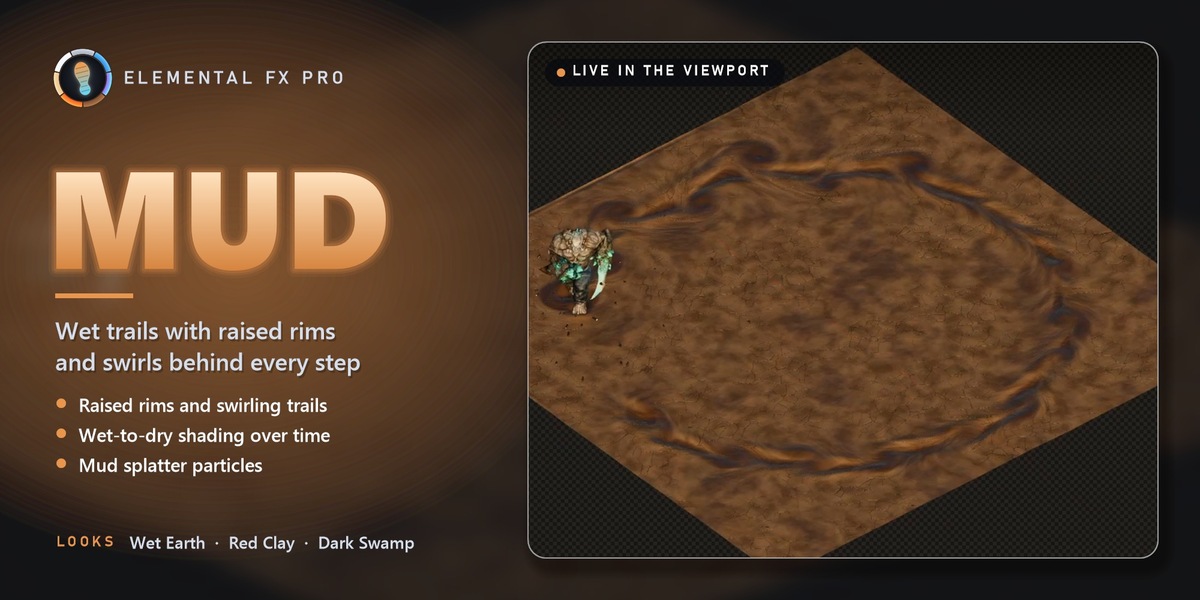
The Emitter, Force and Runner buttons in the main panel add an emitter (pick what it pours), a force field or a running test mannequin. Pour sand onto a mountain top, drop lava into a valley, blow fog through a street.
04 · THE PANELS
Every setting, explained
All panels live in the Elemental FX tab of the 3D Viewport sidebar. Panels for flat surfaces and scene layers appear when the matching object is active.
05 · TIPS
Get the best out of it
Speed vs detail
Resolution is the main cost: 192–256 for previews, 320–512 for close-ups.
Fast objects
Raise Max Substeps so fast colliders leave continuous trails.
Rendering
Always bake before final renders — render farms and command-line renders read the bake from disk.
Fog
Renders with stacked slices, very fast in EEVEE. More Fog Slices = smoother.
Large terrains
A scene layer covers everything you select. Keep resolution moderate (256) and use several layers for very large worlds.
Performance
Only active areas are processed, so a quiet surface costs almost nothing. Desktop CPU: flat surfaces 5–25 ms per frame (256–384), scene layers 25–50 ms (256).
06 · TROUBLESHOOTING
If something looks off
▸ Nothing happens when I press Play
Check that Simulate on Playback is on and that your moving objects are listed in Colliders.
▸ Footprints are too faint
Let the feet go 5–10 cm below the surface, raise Max Depth, and use a resolution of at least 256.
▸ Fast objects leave dotted trails
Raise Max Substeps in Surface & Solver (or Layer Physics).
▸ I changed Size or Resolution and nothing changed
Click Apply Size / Resolution (flat surfaces) or Apply Resolution (scene layers).
▸ I moved the ground and the layer no longer fits
Click ↻ Rebuild Layer in the Layers panel.
▸ The bake went to a temp folder
Save the .blend file first — the cache folder is relative to it.
SUPPORT
Stuck? We're here to help.
Use the Support button on this page. Please include your Blender version, your operating system and, if possible, a small .blend file that shows the problem.
Have questions about this product?
Login to message
| Blender Extension Compatible | Yes |
| Dev Fund Contributor | |
| Published | about 5 hours ago |
| Blender Version | 5.0 - 5.2 |
| Extension Type | Add-on |
| Render Engine Used | Cycles, Eevee |
| License | GPL |
Discover more products like this
terrain trails mud fog real-time simulation ground interaction snow lava particles Water sand footprints