Emboss & Deboss Text Tool
 Sonneblom Digitaal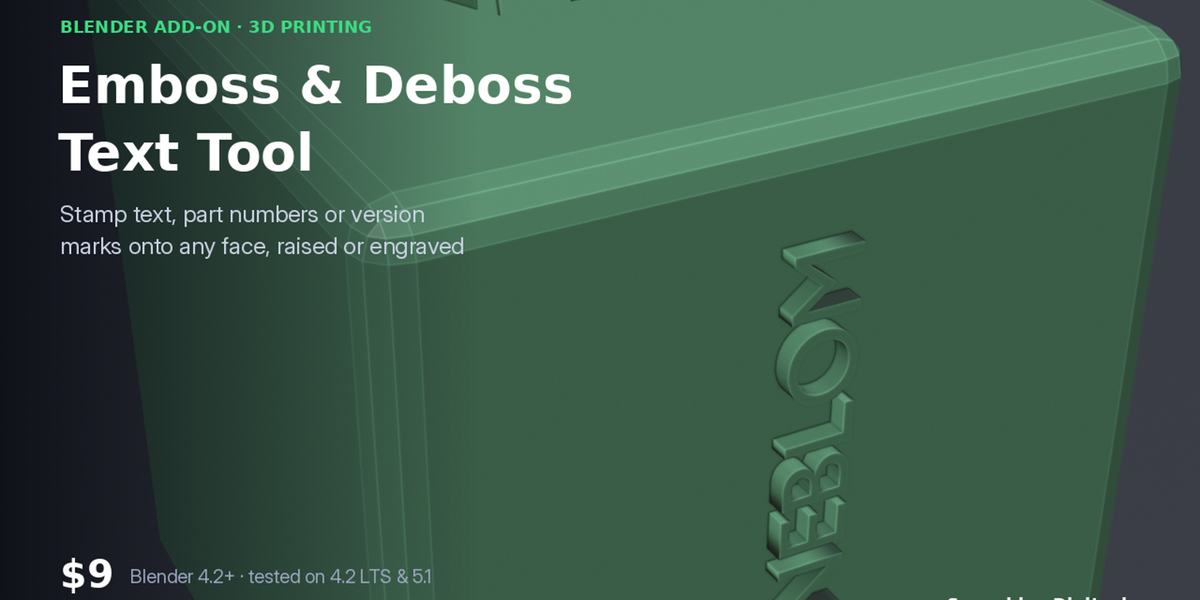

Version 1.0.0 · Blender 4.2 or newer · tested on 4.2 LTS and 5.1
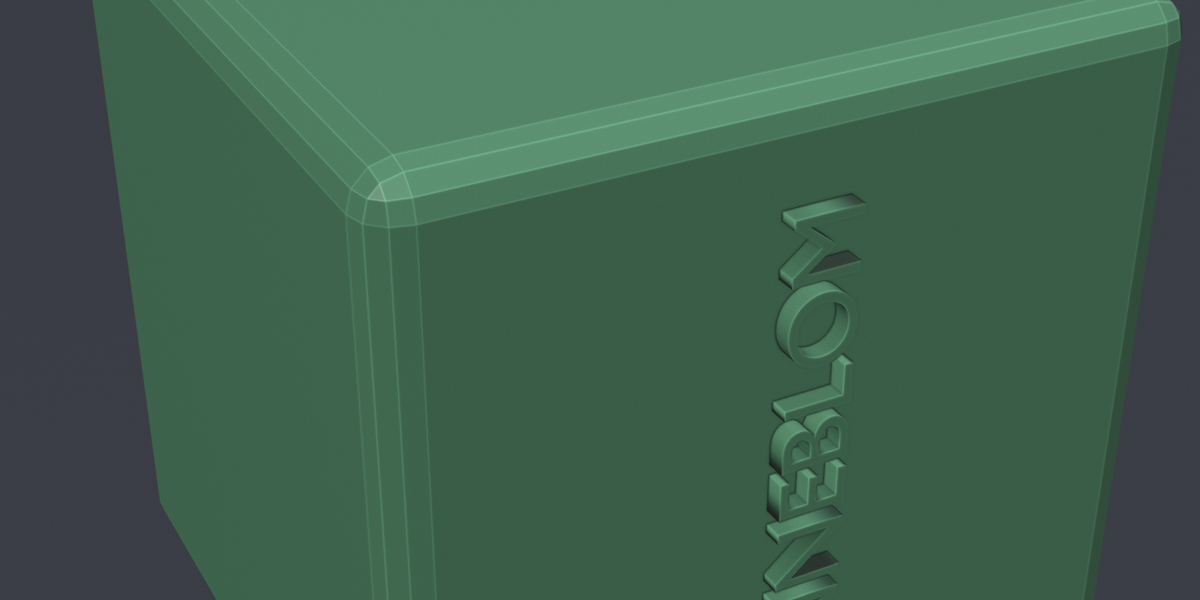
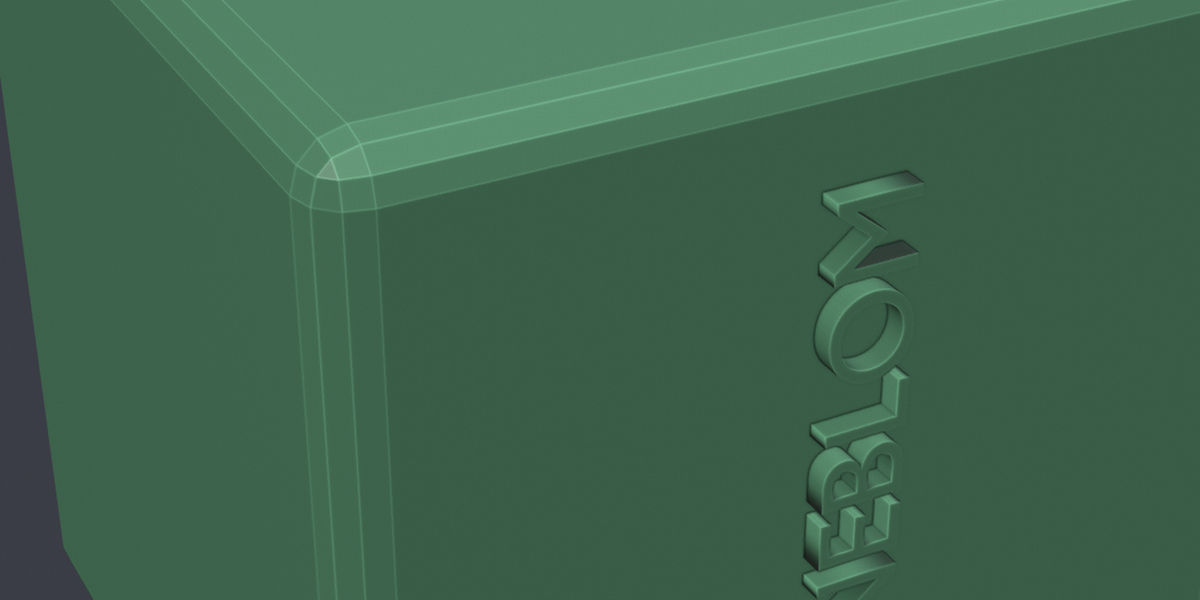
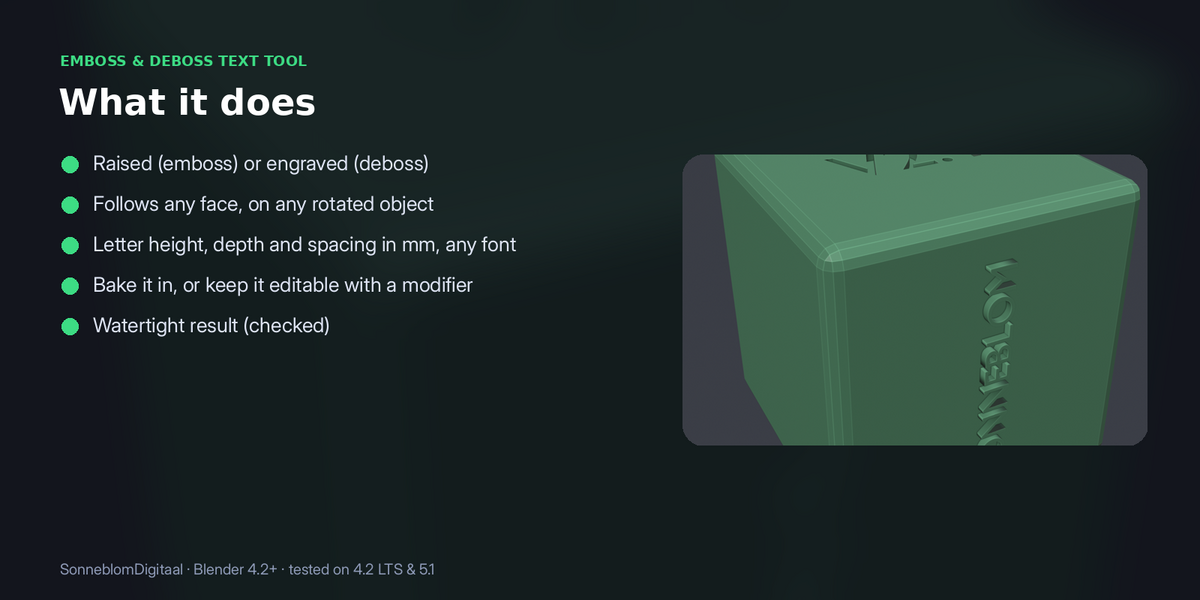
Pick a face (or let it use the top), type the text and choose raised or engraved. The text is aligned to the face, sized in mm and merged into your model as a watertight result, or kept as an editable object if you want to move it.
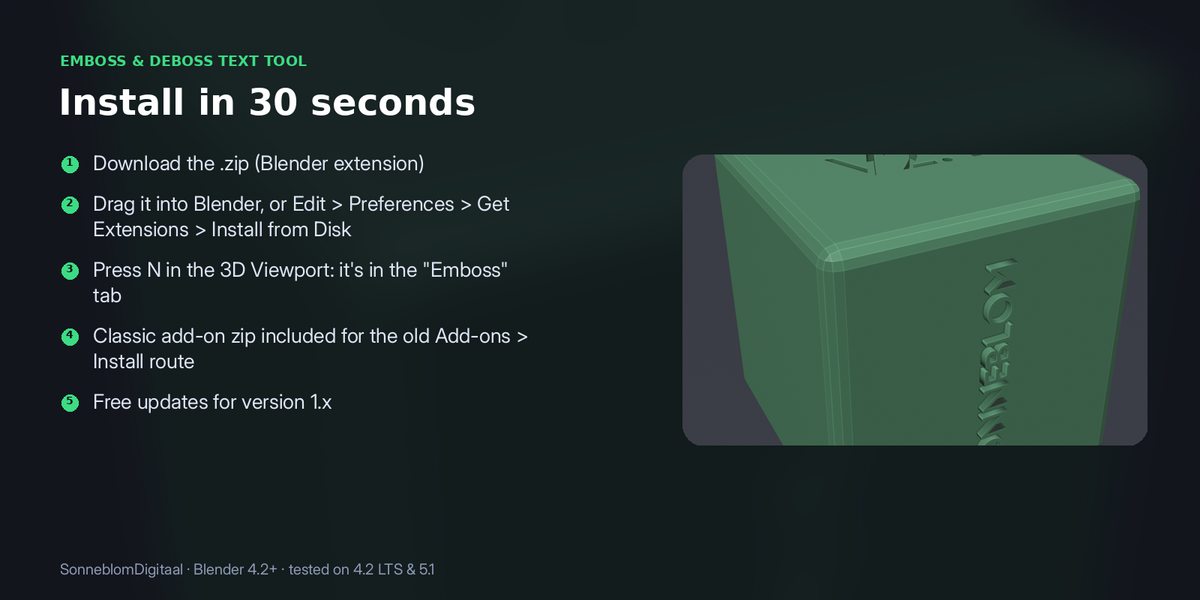
1. Install
The download contains two files. Use the one that matches how you install add-ons:
- emboss_text-1.0.0.zip (Blender extension, recommended): in Blender go to Edit > Preferences > Get Extensions, open the drop-down arrow at the top right, choose Install from Disk… and pick the zip. Do not unzip it.
- emboss_text-1.0.0-legacy.zip (classic add-on folder): Edit > Preferences > Add-ons, drop-down arrow, Install from Disk…. Use this one if you manage add-ons as folders.
Make sure it is enabled, then in the 3D Viewport press N and open the Emboss tab. It has no extra dependencies.
2. How to use it
- Select the mesh. To choose where the text goes, select a face in Edit Mode; otherwise the face pointing most upward is used.
- Type the Text and pick Raised (emboss) or Engraved (deboss).
- Set the letter height and depth in mm. Optionally pick a font, adjust the letter spacing or rotate 90°.
- Click Stamp text on face. The text is aligned to the face and joined to the model with an exact boolean, then cleaned up so the mesh stays watertight.
- Turn on Keep editable (modifier) if you want to move the text afterwards: it stays a separate object driving a Boolean modifier.
3. Settings
| Setting | Default | What it does |
|---|---|---|
| Text | V1 | |
| Mode | Engraved (deboss) | |
| Model units | Scene | |
| Letter height mm | 6 | |
| Depth/height mm | 0.8 | |
| Letter spacing | 1.0 | |
| Rotate 90° | Off | |
| Keep editable (modifier) | Off |
Model units: STL files have no units and are almost always in millimetres, while Blender's default scene counts 1 unit as 1 metre. Set Model units to 1 unit = 1 mm for imported STLs, or leave it on Scene to follow Scene > Units.
4. Limits
Works best on flat or gently curved faces; on strongly curved surfaces keep text short.
5. Support and licence
Message us through Superhive with what happened (and the model, if you can) and we will help.
Emboss & Deboss Text Tool is released under the GNU General Public License v3 or later (GPL-3.0-or-later), like other Blender add-ons. You may use it commercially.
Have questions about this product?
Login to message
| Blender Extension Compatible | Yes |
| Published | about 4 hours ago |
| Blender Version | 4.2 - 5.1 |
| Extension Type | Add-on |
| Render Engine Used | Cycles |
| License | GPL |